Format Your File for Success
Ensure that your CSV files are formatted for a successful import the first time, every time
We want to help you ensure that your CSV files are formatted for a successful import the first time, every time.
While Postsale gives you the ability to import orders in a CSV file from just about any sales channel, custom order source, or from files provided to you from a third party, the CSV file does need to meet a few requirements to import successfully. Let’s look at those requirements together to make sure they are met.
Before We Begin
This article assumes that you are familiar with working in a spreadsheet application such as Excel or Google Sheets and with saving your spreadsheet as a Comma-Separated Values (CSV) file.
It may also be helpful to have a CSV file containing orders that you intend to import into Postsale. While this is not required, it may help to have a hands-on example to work with.
Create Your CSV Import File
Sample CSV Files
To make creating your import file as easy as possible, we have provided sample CSV files you can use as templates for your own imports. The files contain:
- Column headings matching the corresponding data fields in Postsale. This makes it easy to map the correct fields in your file to the fields in Postsale.
- Sample order and shipment data, showing how your data should be formatted for a successful import.
There are two sample files available. The sample file you should use depends on how line items associated with your orders are listed in your data.
All Items on the Same Row
Download and use the Postsale Sample CSV File_Single Row.csv file if all items on your orders are listed in the same row as your order data. This file:
- Has columns available for including up to four line items. However, you can add additional columns for as many line items as you need.
- Column headings for line items are named Item1_xxx, Item2_xxx, Item3_xxx, Item4_xxx to differentiate the available fields for each line item.
Items are Listed on Separate Rows
Download and use the Postsale Sample CSV File_Multiple Rows.csv file if each item associated with your orders is listed on a separate row.
- When line items span multiple rows, each row in the source file must include the Order Source and Order Number, in addition to the item information, so that Postsale knows to which order the items belong when imported.
CSV File Requirements
Let's look at the requirements that need to be met:
Column Headings
Your file needs a column heading for each column. The column headings define the information contained in the column and are used to map your information to the correct fields in Postsale.
The column headings can be anything you wish them to be as long as they clearly identify the information contained in the column.
One advantage of using our sample file (see above) is that it contains column headings for all mappable fields.

Format Specific Content
Some of the information in your CSV file must be formatted a certain way for Postsale to import it successfully. If the values are entered incorrectly, Postsale will notify you which values need to be corrected, and you will not be able to import your file until they are corrected.
In this section, we look at what information is format-specific and how it must be entered into your CSV file.
Shipping Carrier, Service, and Package Type
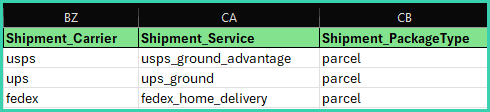
All shipping carrier names, shipping services, and package types must be entered all lowercase. The following tables list the available options and how to enter them into your CSV file.
| CARRIER | SERVICE | PACKAGE TYPE |
|---|---|---|
| usps | usps_ground_advantage | parcel |
| usps_priority_mail | soft_pack | |
| usps_priority_mail_express | padded_flat_rate_envelope | |
| usps_first_class_international | legal_flat_rate_envelope | |
| usps_priority_mail_international | flat_rate_envelope | |
| usps_priority_mail_express_international | small_flat_rate_box | |
| medium_flat_rate_box | ||
| large_flat_rate_box |
| CARRIER | SERVICE | PACKAGE TYPE |
|---|---|---|
| ups | ups_next_day_air | parcel |
| ups_2nd_day_air | letter | |
| ups_2nd_day_air_am | tube | |
| ups_ground | pak | |
| ups_3_day_select | express_box | |
| ups_next_day_air_saver | ups_25kg_box | |
| ups_next_day_air_early | ups_10kg_box | |
| ups_worldwide_express | pallet | |
| ups_worldwide_expedited | small_express_box | |
| ups_standard | medium_express_box | |
| ups_worldwide_express_plus | large_express_box | |
| ups_saver |
| CARRIER | SERVICE | PACKAGE TYPE |
|---|---|---|
| fedex | fedex_ground | parcel |
| fedex_home_delivery | fedex_envelope | |
| fedex_first_overnight | fedex_box | |
| fedex_priority_overnight | fedex_small_box | |
| fedex_standard_overnight | fedex_medium_box | |
| fedex_2day_am | fedex_large_box | |
| fedex_2day | fedex_extra_large_box | |
| fedex_express_saver | fedex_10kg_box | |
| fedex_economy | fedex_25kg_box | |
| fedex_ground_economy | fedex_tube | |
| fedex_ground_economy_bound_printed_matter | fedex_pak | |
| fedex_ground_economy_media_mail | ||
| fedex_ground_economy_returns | ||
| fedex_ground_economy_under1lb | ||
| fedex_international_ground | ||
| fedex_international_priority_express | ||
| fedex_international_first | ||
| fedex_international_priority | ||
| fedex_international_economy | ||
| fedex_international_priority_directdistribution | ||
| fedex_international_economy_directdistribution_service | ||
| fedex_international_connect_plus |
Here is an example of what your CSV file should look like:
Weights & Dimensions
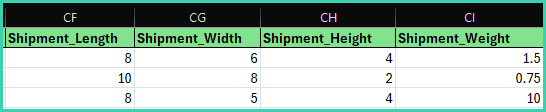
Enter all weights and dimensions in whole numbers and decimals.
For example:
- 1.5
- .75
- 10
Currency
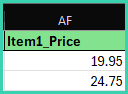
Enter all currency in whole numbers and decimals.
For example:
- 19.95
- 24.75
Save Your File as a CSV
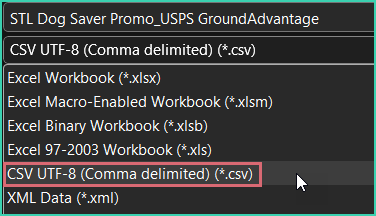
Once you have ensured that the data in your file is entered and formatted correctly, save it as a Comma-Separated Values (.CSV) file.
Your spreadsheet application should allow you to select CSV as the file type when saving the changes to your file.
Your CSV file is now ready to import into Postsale!
Still have a question? Ask a person.
Write to support@postsale.com or send us a message. We reply the same business day, Monday to Friday, 8 AM to 5 PM Central.