Import a File: Edit an Existing Map
How to make changes to an existing file map.
This short article will guide you through updating the field mapping for a previously imported file. Follow this process when:
- You need to update the file to map fields that were not previously mapped
- You need to unmap fields so that they are no longer imported
- The original source file has been updated to include new columns that need to be mapped
- The names of some of the columns in the source file have changed and need to be remapped
Before We Begin
When updating the mapping to include new columns or when column names have been changed, you will need a copy of the updated source file available.
Step By Step
Mapping is updated in store settings. Here's how:
Go to Settings.

Select Store Settings.
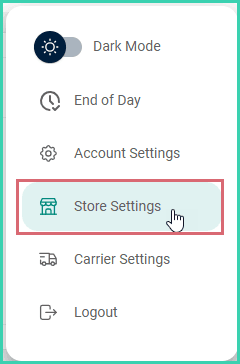
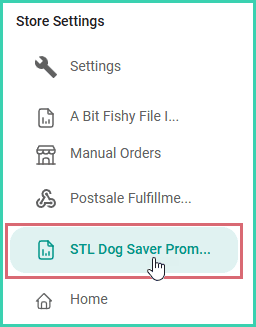
Select the store associated with the map you are updating from the list of available stores.
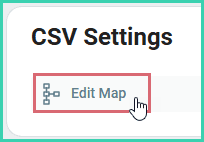
Click Edit Map in the CSV Settings section.
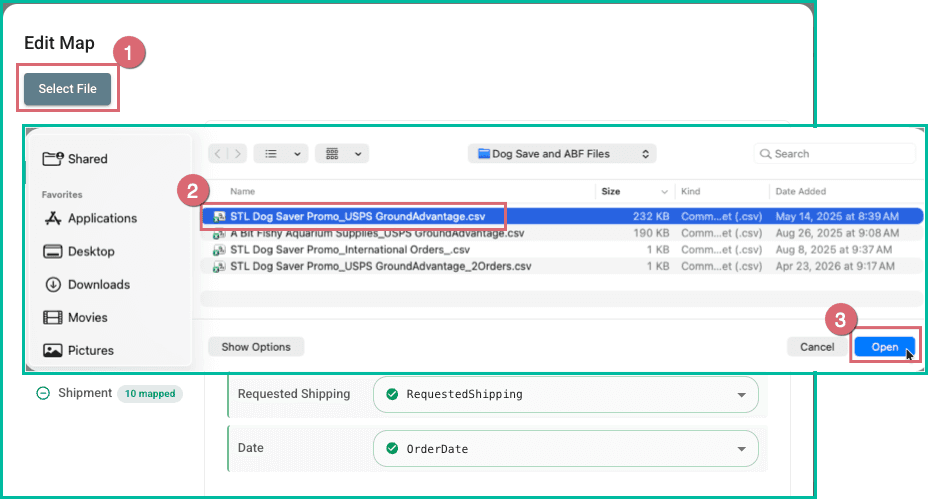
(Optional) Click the Select File button. Then, navigate to and select the source file you are mapping.
This step is required only when the source file has been updated and no longer matches the original source file such as when new columns have been added or column names have changed.
Skip to step 6 if no changes have been made to the original source file.
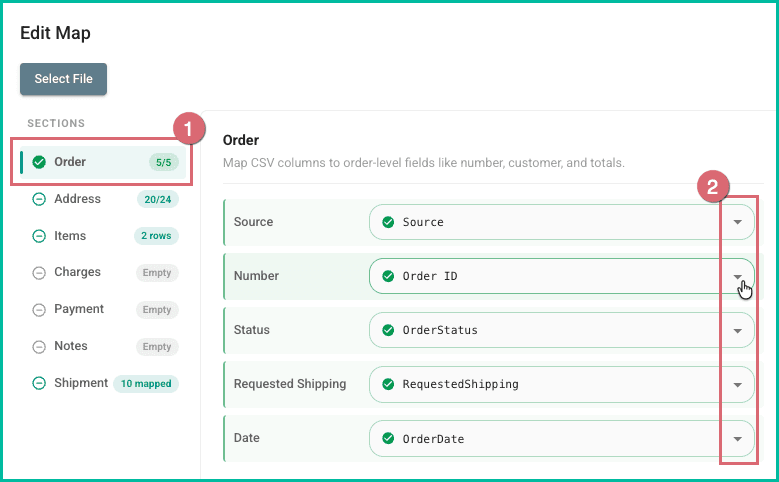
Select the sections and update the appropriate fields as needed.
Click Save to save your updates.
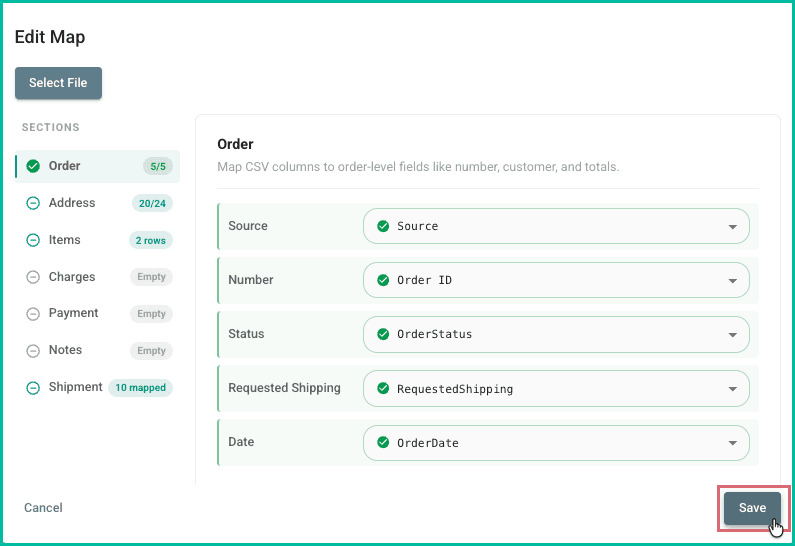
Your map has been updated.
Still have a question? Ask a person.
Write to support@postsale.com or send us a message. We reply the same business day, Monday to Friday, 8 AM to 5 PM Central.