Conditional Logic: Understanding Conditions & Groups
Take a deep dive into how Postsale's conditional logic works
Conditions and Groups give you control over when something should happen in Postsale — whether you're creating a Shipping Rule, building an Automation, or performing an Advanced Search.
Across all three features, the logic works the same way.
You’re telling Postsale:
“When these Conditions are met, do this.” or “When these Conditions are met, show me these orders.”
Think of this logic as the decision-making engine behind Postsale. It allows you to define exactly when shipment settings should apply, when an automation should run, or which orders should appear in your search results.
This article explains how Conditions, Groups, and Sub-Groups work, in plain language, so you can confidently build powerful rules, workflows, and searches tailored to your business.
Why Understanding Logic Matters
When you understand how Conditions, Groups, and Sub-Groups work together, you are not just building rules; you are building precision into your workflow.
Whether you are configuring Shipping Rules, creating Automations, or performing Advanced Searches, understanding how the logic works gives you the skillset to build powerful, reliable configurations that work exactly the way your business does.
This saves time, increases consistency, reduces manual effort, and gives you confidence that your shipment settings, automated workflows, and search results are behaving exactly as expected.
How Conditions Work in Postsale
In Postsale, Shipping Rules and Automations both have two main parts:
- Conditions - Which tell Postsale when something should happen.
- Actions - Which tell Postsale what should happen when the Conditions are met.
Advanced Searches use the same Conditions logic, but instead of triggering an action, they return a list of orders that match the Conditions you define. This article focuses on the Conditions side, specifically how you define when something should happen or which orders should appear in your results.
We will cover the three core building blocks:
- Conditions
- Groups
- AND and OR logic
Conditions
A Condition is a test against an order. Think of a Condition as the basic building block used throughout Postsale. Whether you are creating a Shipping Rule, building an Automation, or performing an Advanced Search, Conditions define what must be true before something happens or before an order appears in your results.
You can add one Condition or multiple Conditions, depending on how specific you need to be.
Each Condition has three parts:
- Field - what you are checking
- Operator - how you are checking it
- Value - what you are comparing it to
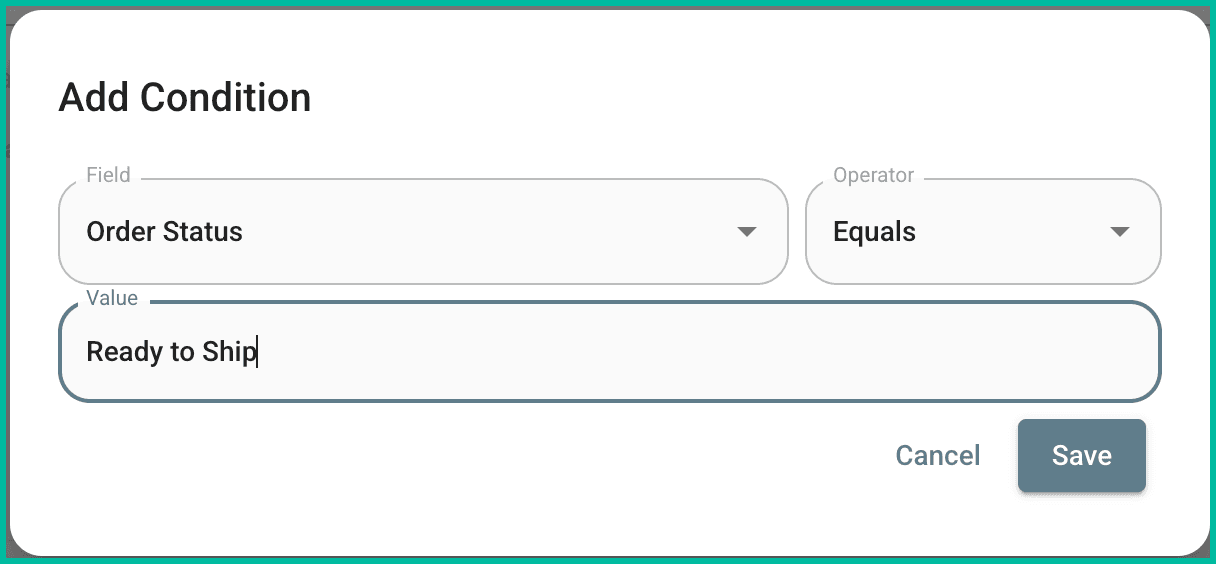
For example, you could create Conditions such as:
- Order Status equals Ready to Ship
- Order Total is greater than $50
- Ship To State equals California
Each Condition results in one of two outcomes:
✅ It matches
❌ It does not match
If a Condition matches, Postsale continues evaluating the rest of your logic. If it does not match the rule or automation, the search may not apply, depending on how your Groups are structured.
Groups
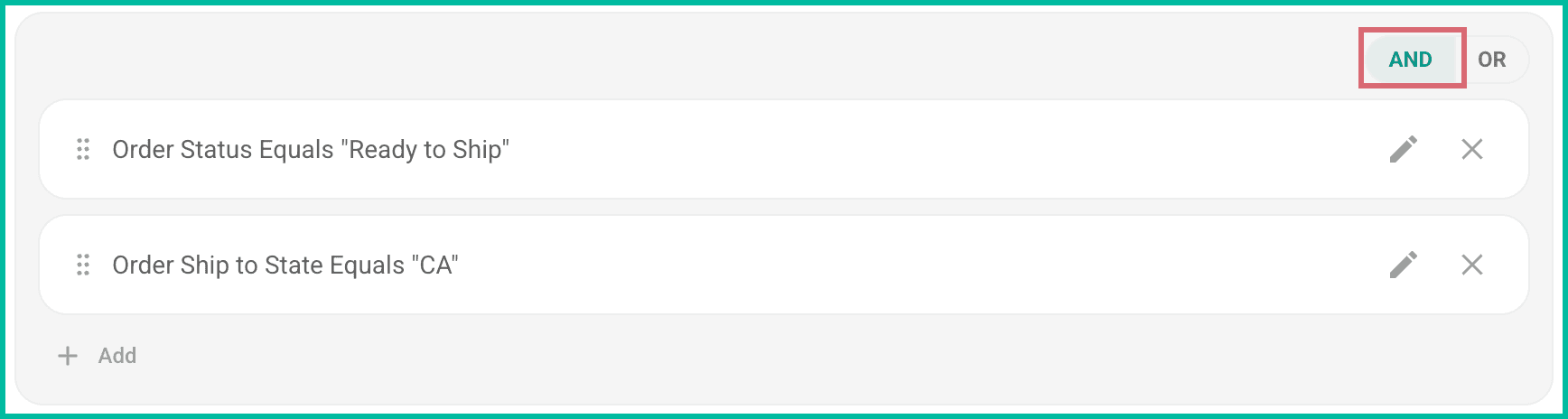
A Group is a container that holds one or more Conditions. Groups let you control how multiple Conditions interact. Inside each Group, you choose whether the Conditions use AND or OR logic.
If a Group Uses AND
When AND is used, all Conditions inside that Group must match.
Example:
Order Status equals Ready to Ship AND Ship To State equals CA
Both Conditions must be true.
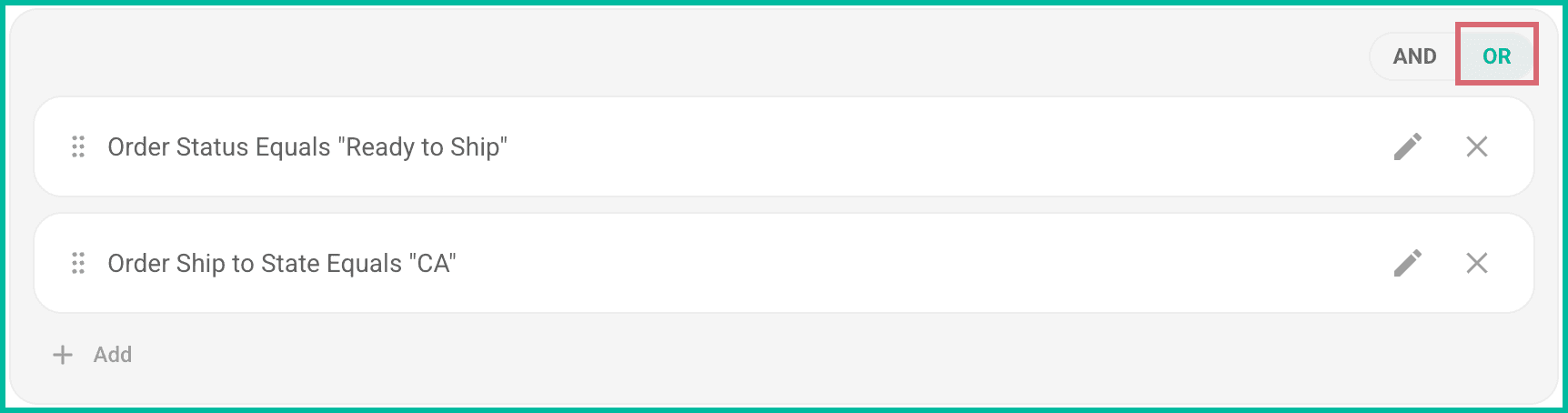
If a Group Uses OR
When OR is used, only one Condition inside the Group needs to match.
Example:
Order Status equals Ready to Ship OR Ship To State equals CA
Either one of the Conditions can be true.
How Groups Work Together
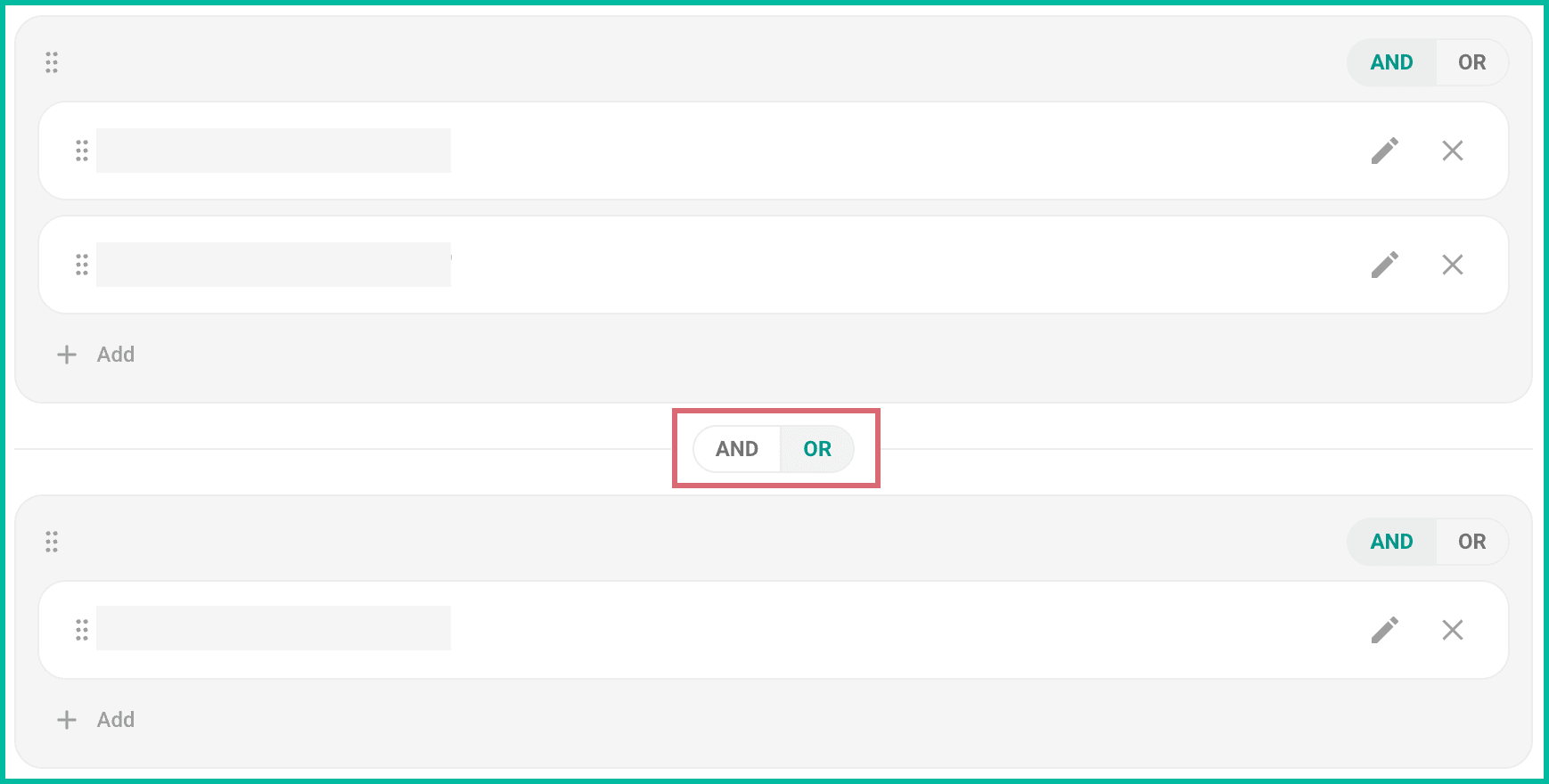
When you add more than one Group, another AND/OR toggle appears between the Groups and specifies how the Groups relate to each other.
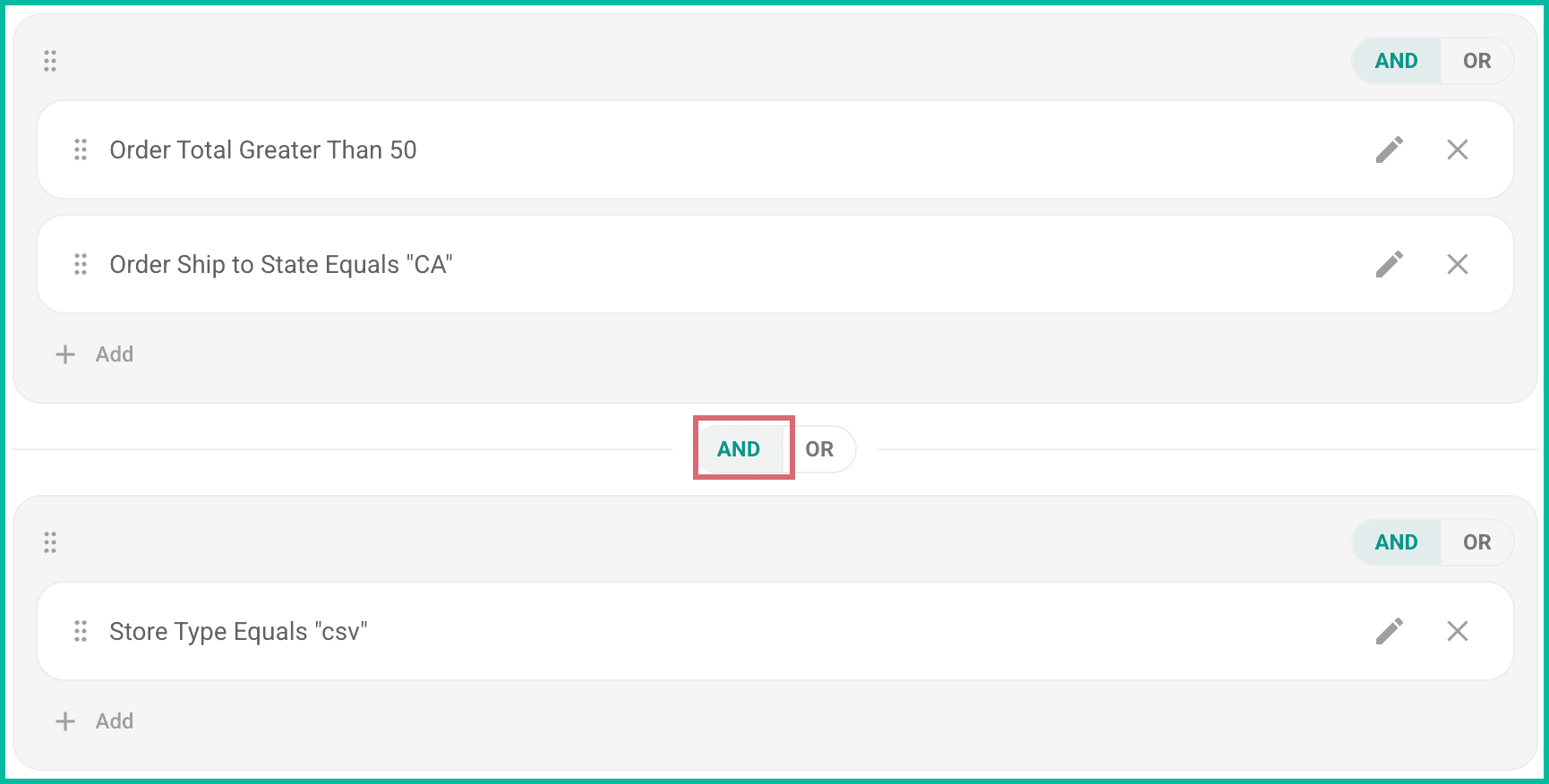
If the Toggle Between Groups Is AND
When the toggle between Groups is set to AND, all Groups must match for the rule to apply.
For example:
Order Total greater than $50 and Ship To State equals CA AND Orders imported from a CSV file
Both Groups of Conditions must be true.
If the Toggle Between Groups Is OR
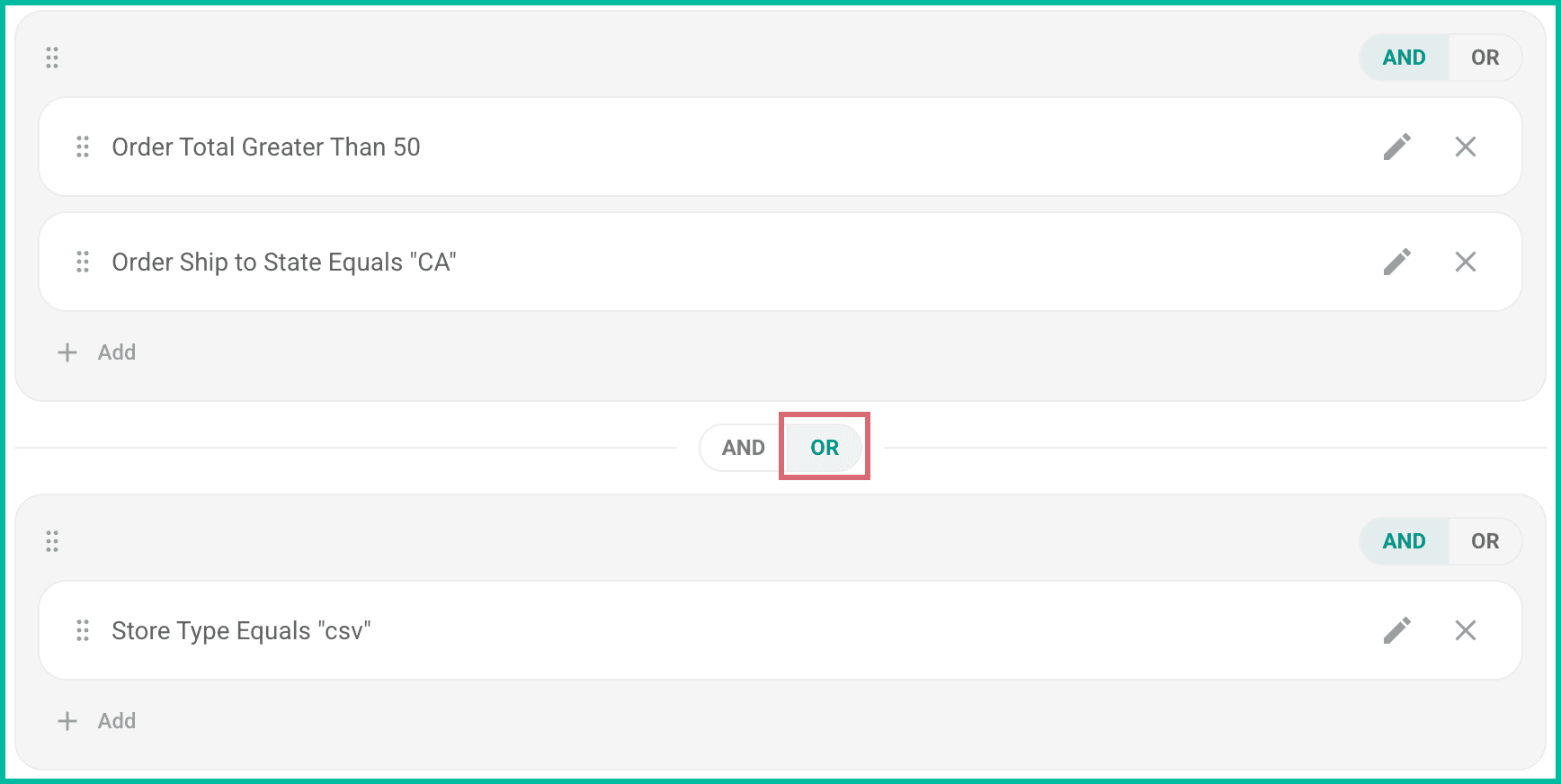
When the toggle between the Groups is set to OR, only one Group's Conditions needs to match.
For example:
Order Total greater than $50 and Ship To State equals CA OR Orders imported from a CSV file
Only one Group of Conditions needs to match.
The Toggle Between Groups Is Shared
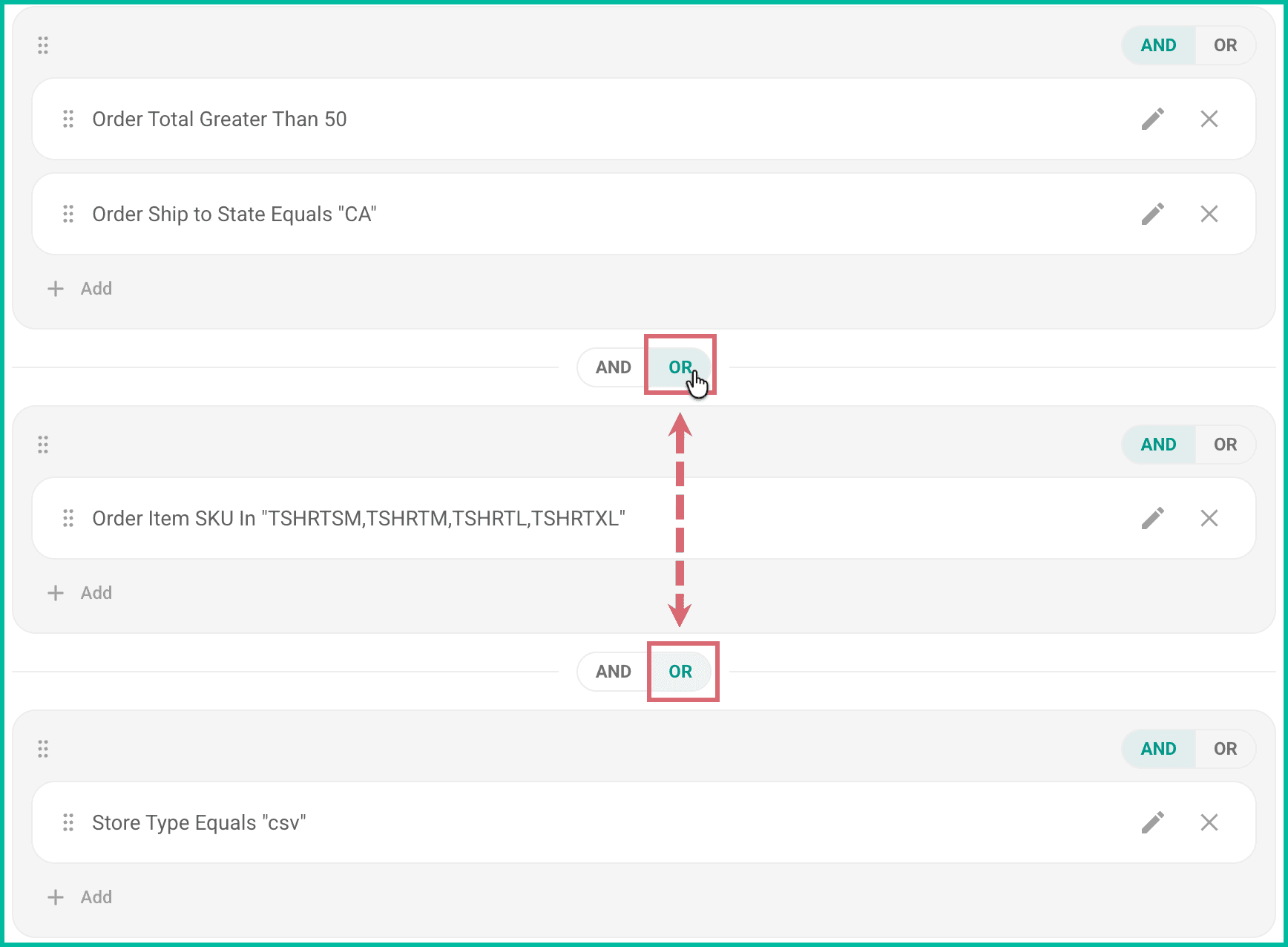
If you have three or more Groups, the AND/OR toggle setting is shared across each set of Groups. When one toggle is changed, all of them are changed.
That means:
- If it’s set to AND, all Groups must match.
- If it’s set to OR, any Group matching will apply the rule.
- Changing it between any two Groups changes it everywhere.
Sub-Groups: Checking What’s Inside the Order
So far, we’ve looked at order-level Conditions, such as an order's status or total. What if we want to use a Condition to find individual records within an order rather than the order itself? This is where creating a Sub-Group comes in.
A Sub-Group lets you evaluate individual records inside an order. To add a Sub-Group, you specify:
- A Collection: This is what you want to look at, and can include:
- Items
- Charges
- Notes
- Shipments
- Labels
- A Quantifier
- Any: At least one record in the Collection matches
- Every - Every record in the Collection must match
Sub-Group Example: Check for ANY Item
Let’s say you want a rule that says “Orders with an Order Status of Ready to Ship AND have ANY item with a specified sku AND an item price greater than $25”.
In this case, only one item in the order would need to have either one of the listed SKUs or a price greater than $25 for the Conditions to be met.
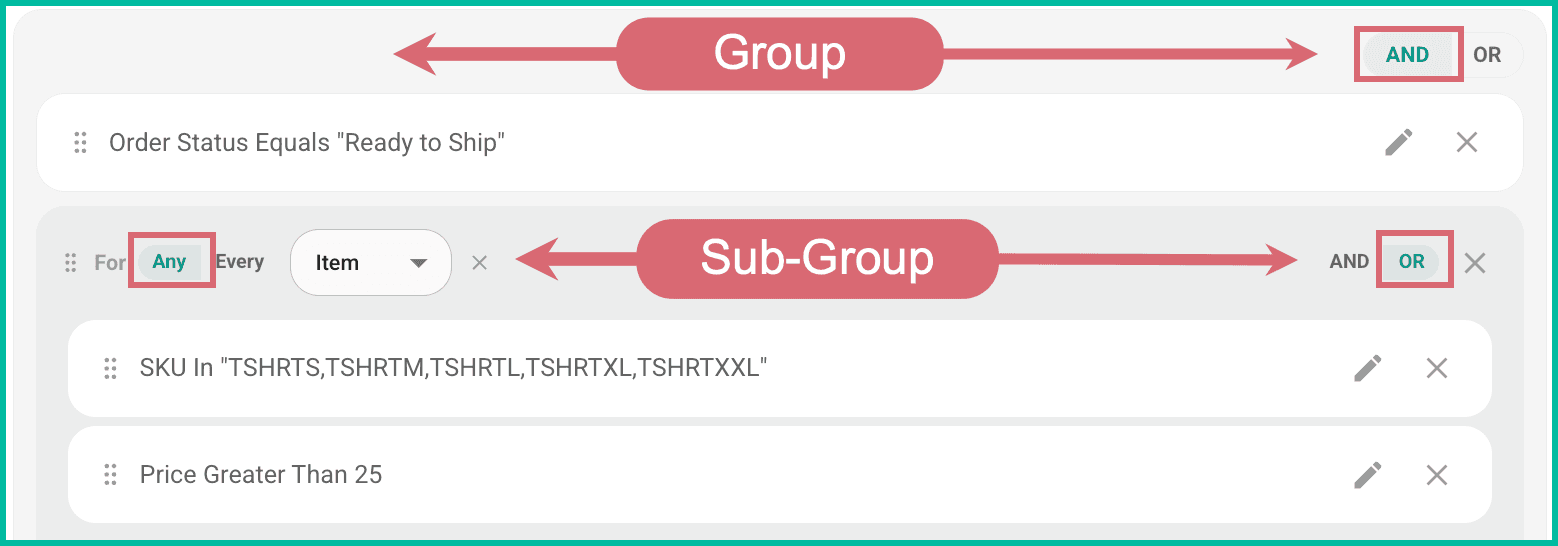
Group Condition: Check for orders where the Order Status equals Ready to Ship. AND Sub-Group Conditions: ANY item contains one of the specified SKUs OR the price is greater than $25.
When created, the Group and Sub-Group would look like this:
Sub-Group Example: Check for EVERY Item
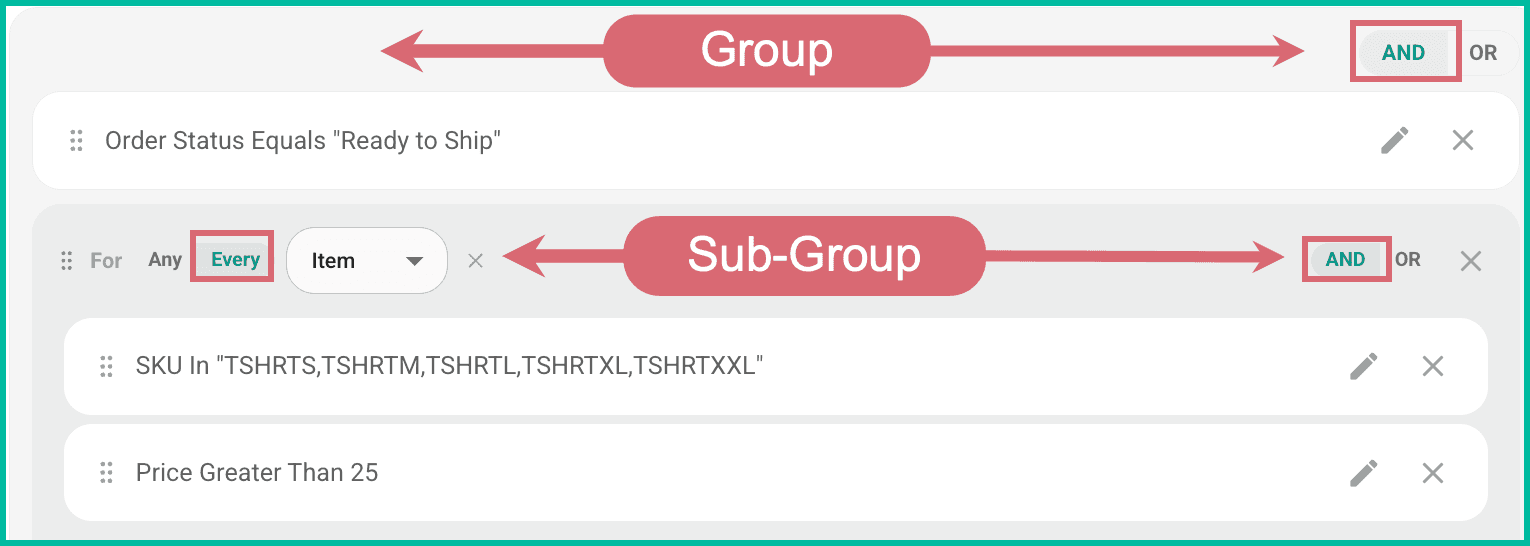
Now, let’s change it so that the rule says “Orders with an Order Status of Ready to Ship AND EVERY item has one of the SKUs AND a price greater than $25”.
In this case, all items in the order would need to have one of the listed SKUs priced at more than $25 for the Conditions to be met.
Group Condition: Check for orders where the Order Status equals Ready to Ship. AND Sub-Group Conditions: EVERY item contains one of the specified SKUs AND a price greater than $25.
When created, the Group and Sub-Group would look like this:
How Sub-Groups Work Together with Groups
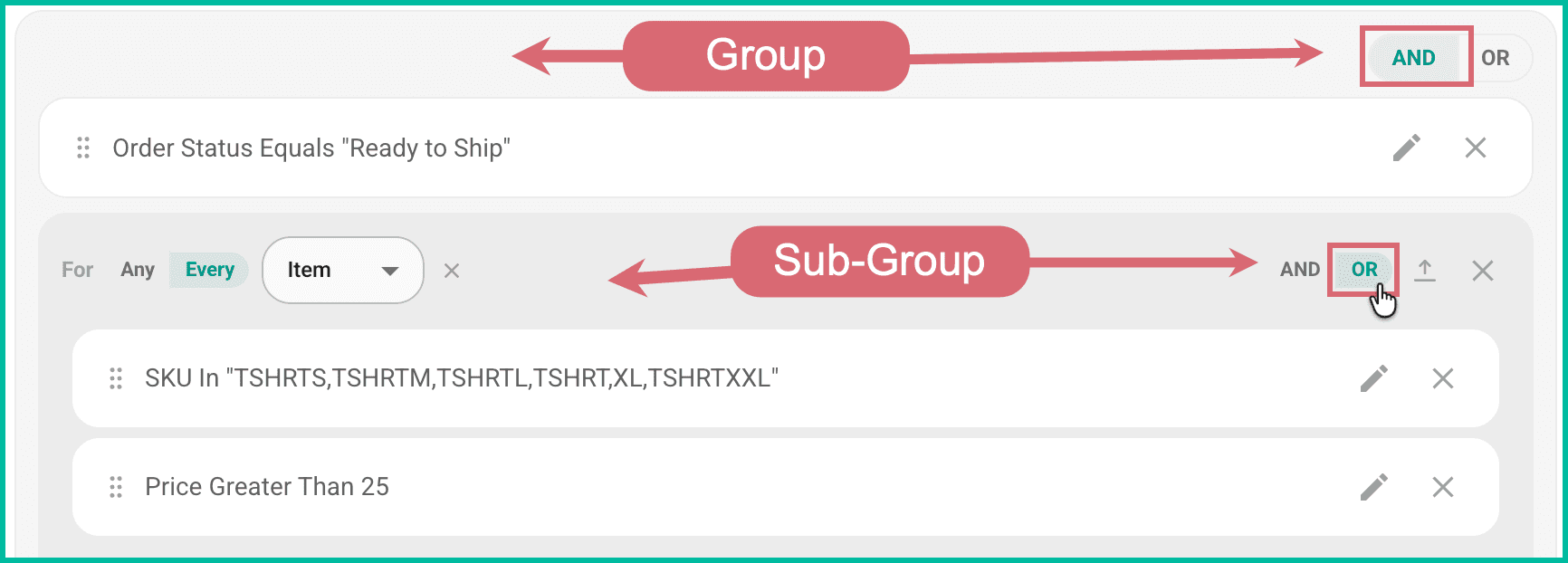
Sub-Groups live inside a Group. That means that they follow the Group's AND/OR setting. But Sub-Groups also have their own AND/OR toggle so that you can control how the Conditions inside the Sub-Group relate to one another.
Take a look at the following image:
- The Group specifies that the Order Status equals Ready to Ship AND meets the Conditions of the Sub-Group
- The Sub-Group then specifies that EVERY Item must have one of the listed SKUs OR have a Price greater than $25.
Best Practices When Building Logic
Think in Plain English First
When working with Logic, write it out:
"When the Order Status equals Ready to Ship AND ANY of these items are on the order AND the price of the item is more than $25…
Then translate that into Groups, Sub-Groups, and Conditions.
Start Simple
Build your logic one Group and Sub-Group at a time.
Be Careful with AND vs OR
Remember that:
- OR makes logic broader (This or this or that or this can be true to meet the Conditions.)
- AND makes the logic stricter (This and this, and that and that, must be true to meet the Conditions.)
Remember the Shared AND/OR Toggles
When using multiple Groups, double-check whether they’re all connected with AND or OR.
Test as You Build - Shipping Rules only
Did you know that you can test your Shipping Rules without actually applying them? You can! We suggest that you test as you build out your Shipping Rules. This will help you identify any issues as you create your rules.
Learn More
Want to learn more about building Shipping Rules, setting up Automations, performing Advanced Searches, and creating Filters? Check out the help articles here.
On this page
Related