The Postsale Dashboard: From Insight to Action, All in One View
Use the Postsale Dashboard to visualize shipping and sales activity with flexible widgets, date filters, and charts that surface actionable insights.
The Postsale Dashboard helps you visualize what matters most by giving clear, actionable insights into your shipping and sales activity at a glance. With flexible, customizable widgets, the Dashboard lets you monitor key metrics and trends, so you can focus on what drives your business forward.
In this article, we’ll explore the available Dashboard widgets and show you how to tailor the view to fit your workflow.
Real-World Example
I want a single view in Postsale where I can monitor shipments, track their status, and spot trends at a glance. I’d like to see details such as shipments by carrier, shipping costs, sales totals, and more.
You can do that with the Postsale Dashboard!
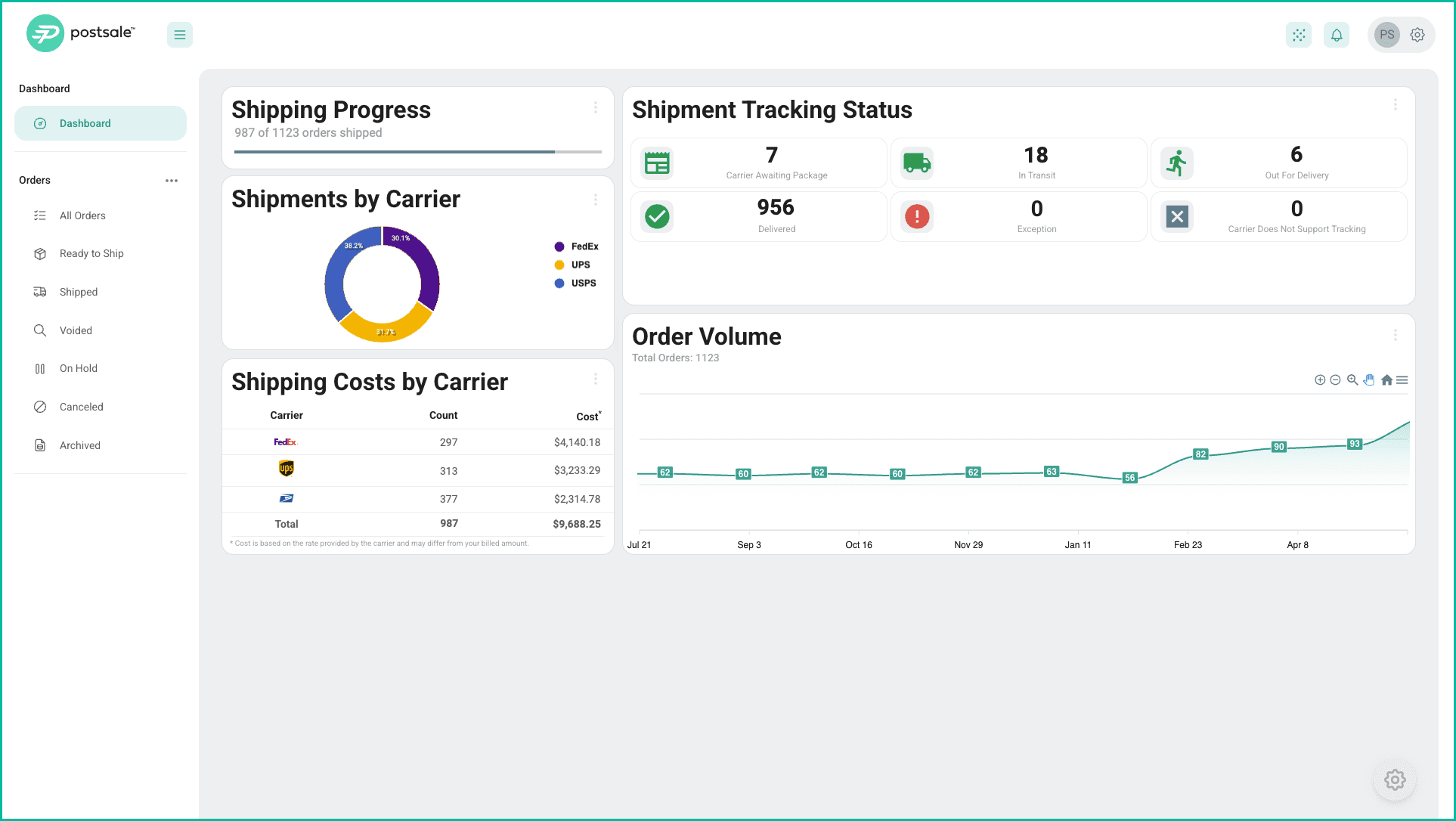
This section provides an overview of each available Dashboard widget, including:
- How the widget evaluates and presents data
- Customizable widget options and settings
By default, all widgets use the All Orders filter, which excludes archived orders.
Select the tab for the widget you wish to view.

Description
The Order Volume widget displays the total number of orders in Postsale over time.
You can group the data by day, week, month, quarter, or year, and apply a saved filter to focus on a specific set of orders.
The data includes orders that were:
- Entered manually
- Imported via CSV
- Received through webhooks
- Synced from connected platforms
Use the built-in tools to identify trends, zoom into specific time periods, or export the data as an image or CSV.
Available Settings
-
Title: Customize the title shown at the top of the widget.
-
Interval: Choose how the order data is grouped by day, week, month, quarter, or year.
-
Filter: Select a saved filter to limit the results to matching orders.

Widget Tools
Use the tools available in the widget toolbar to:
-
Zoom in or Zoom out to view more or fewer dates on the timeline.
-
Select an area in the timeline to zoom in on the selected date range.

-
Pan the timeline left or right.

-
Reset the timeline back to its original view.
-
Download the timeline view to an image file (PNG), a vector graphic file (SVG), or export the data on the timeline to a comma separated value file (CSV).

Description
Displays the total number of orders in Postsale.
Available Settings
-
Title: Customize the title shown at the top of the widget.
-
Filter: Select a saved filter to limit the results to matching orders.


Description
The Shipment Tracking Status widget displays how many shipments are currently in each carrier-provided tracking status. Shipment records are associated with your orders in Postsale.
Click a status to open a list of orders that include at least one shipment in that status. Since orders can have multiple shipments, the same order may appear under multiple categories based on the statuses of its shipments.
This widget reflects carrier tracking statuses, not local or online order statuses. Status updates are based on tracking information received from the carrier, ensuring you always see the most current shipment status available.
Drill Down on Orders
Click on any status within the widget to view the orders with shipments in that status.
For example: Clicking the Exception status would open the Orders Grid and display the orders with shipments in the Exception status. You could then view the tracking history for more information about each shipment.

Available Settings

1 - Title: Customize the title shown at the top of the widget.
2 - Statuses: Choose which carrier tracking statuses to include in the widget.
3 - Filter: Select a saved filter to limit the results to matching orders.
4 - Exclude Voided Shipments: When enabled, voided shipments are excluded from the Carrier Awaiting Package count.
5 - Exclude Return Shipments: When enabled, return labels are excluded from the Carrier Awaiting Package count.

Description
The Shipments widget displays the total count of shipments associated with orders in Postsale.
It includes all shipments including:
- Unprocessed shipments
- Processed shipments
- Voided shipments
Here's a few additional details on how the total is calculated:
- Multi-package shipments are counted as one shipment in the total.
- Pay-on-use return labels, when included with an outbound shipment, are not counted separately.
- On-demand return labels, created independently, are included.
Available Settings
-
Title: Customize the title shown at the top of the widget.
-
Filter: Select a saved filter to limit the results to shipments associated with matching orders.


Description
The Shipments by Carrier widget shows the percentage breakdown of processed shipments, grouped by carrier (e.g., FedEx, UPS, USPS).
- Multi-package shipments are counted as one shipment
- Pay-on-use return labels are not counted separately
- On-demand return labels are included
Available Settings
-
Title: Customize the title shown at the top of the widget.
-
Filter: Select a saved filter to limit the results to shipments associated with matching orders.
-
Exclude Return Labels: When checked, return labels are excluded from the results.


The Shipping Costs by Carrier widget displays the total count of shipments and their combined shipping cost, grouped by carrier.
The widget:
- Includes shipments associated with all orders
- Excludes return labels by default
- Costs are based on rates provided by the carrier and may differ from your billed amount
Available Settings
-
Title: Customize the title shown at the top of the widget.
-
Filter: Select a saved filter to limit the results to shipments associated with matching orders.
-
Exclude Return Labels: When checked, return labels are excluded from the results..


Description
The Shipping Progress widget shows how many orders are considered shipped out of the total number of orders being evaluated. It helps visualize overall fulfillment progress across a selected set of orders.
- An order is counted as shipped if it has at least one processed shipment.
- Orders are not counted as shipped if they only have voided shipments.
- You can also choose to include orders with a local status of Shipped, even if no processed shipment exists. This is useful for workflows that rely on manual status updates.
Available Settings
-
Title: Customize the title shown at the top of the widget.
-
Filter: Select a saved filter to limit the results to matching orders.
-
Consider Local Status: When checked, includes orders with a local status of “Shipped,” even if no processed shipment is present.


Description
The Top Items by SKU widget displays the top 100 selling items, sorted by quantity. It lists each item’s name, SKU, quantity sold, and total sales based on the orders being evaluated. Only items with an assigned SKU are included.
The widget can be resized to show more or fewer rows, depending on your preferred view.
Available Settings
-
Title: Customize the title shown at the top of the widget.
-
Filter: Select a saved filter to limit the results to items from matching orders.


Description
The Total Sales widget displays the sum of the Order Total amounts for all orders in the selected filter.
Each Order Total includes:
- The sum of all line items
- Additional charges (e.g., sales tax, handling fees)
- Any order-level discounts applied
Available Settings
-
Title: Customize the title shown at the top of the widget.
-
Filter: Select a saved filter to limit the sales total to matching orders.

The Postsale dashboard is available on all plans. See features for a full platform overview, or visit pricing to get started.
On this page
Related