Add a Manual Store
Add a manual store | Organize manually added orders
In this article, we’ll cover how to add a manual store to Postsale. Manual stores do not import orders from files or sales channels. Instead, they’re used to organize orders you enter manually into Postsale.
When you signed up for Postsale, a manual store named 'Manual Orders' was automatically set up for you and is ready to use. You can also add as many manual stores as you need, which can be useful for organizing orders you enter into Postsale for specific purposes. For instance, you might use multiple manual stores to:
- Keep phone orders you enter separate from other orders that were manually entered or imported from other sales channels
- Keep will-call/pick-up orders separate from other orders
- Keep one-off business-related shipments separate from shipments sent to your customers
Step By Step
REAL-WORLD EXAMPLE
We would like to keep all phone orders that are manually entered into Postsale separate from orders that are imported from other sales channels.
To do this, we will add a Manual store named ‘Phone Orders’ and associate all manually entered phone orders with this store.
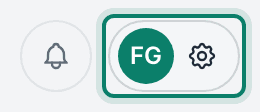
Select the gear icon to open Settings.
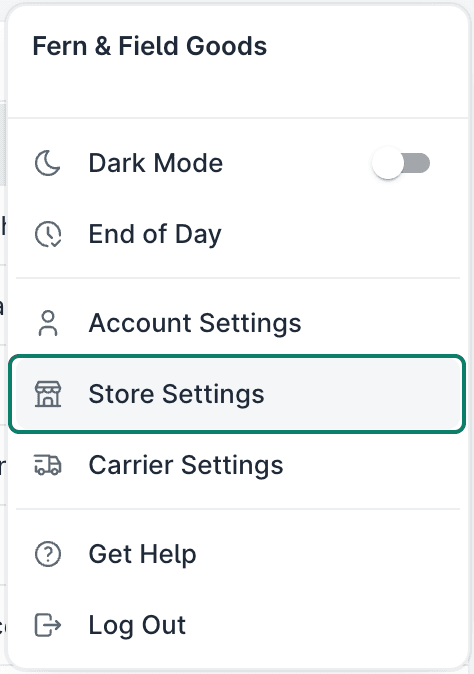
Choose Store Settings.
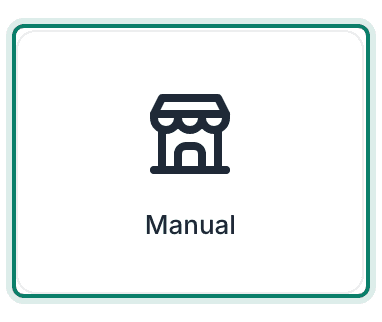
Select the Manual store option in the Add a Store section.
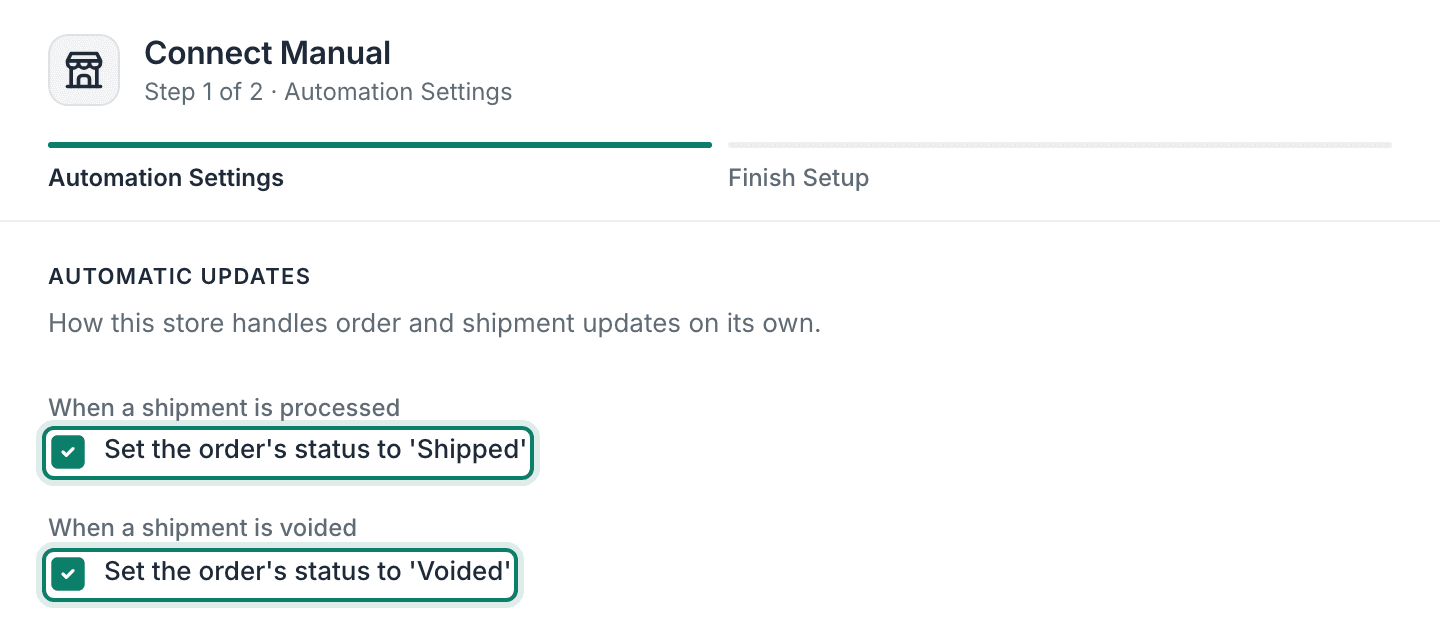
Configure your Automation Settings by checking the appropriate boxes to have Postsale automatically update order statuses. Then, click Next.
- Check the Set the order's status to 'Shipped' box if you want the order status to be updated to Shipped as soon as a label is created for the order.
- Check the Set the order's status to 'Voided' box if you want the order status to be updated to Voided as soon as a label is voided for an order.
Enter the store name in the Store Name field. The store name you enter will be considered the Order Source in Postsale.
- The store name will be displayed in the Source column on the Orders Grid
- Use the store name as the Order Source when creating filters for orders associated with this store
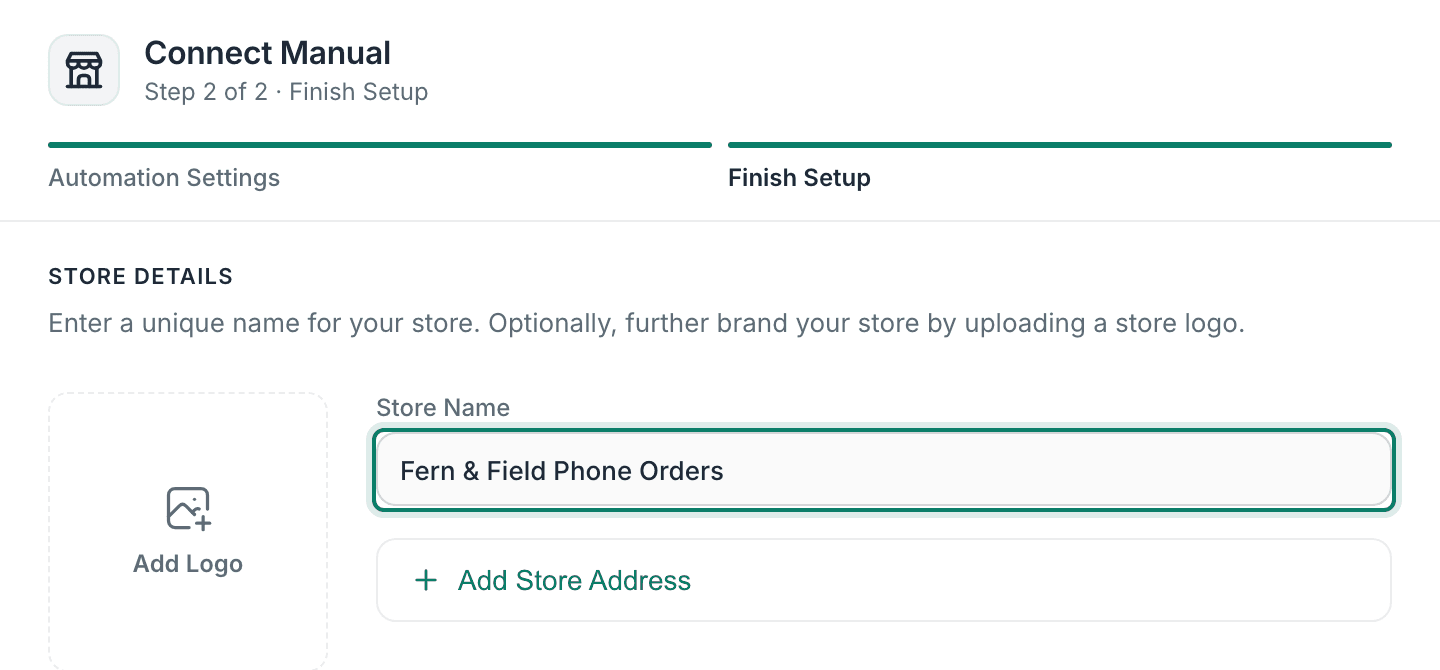
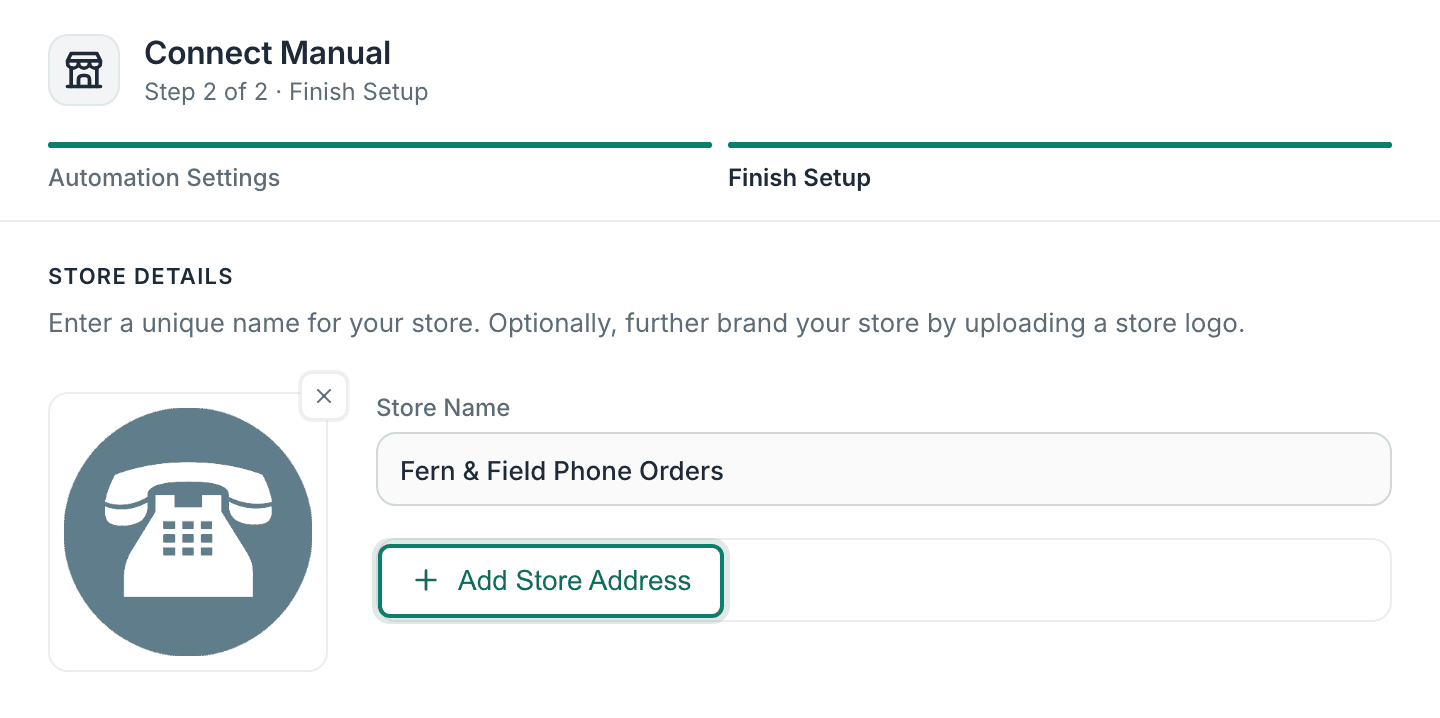
(Optional) Click the Add Logo tile. Then, select an image file (png or jpg) from your computer.
- Postsale supports JPEG and PNG files with a recommended size of 3 MB or less.
- Larger image files will be reduced to the maximum file size of 3 MB when uploaded.
- The image will be uploaded and become the logo for this store.
- The logo will automatically display in Postsale templates that include a logo, such as the Invoice template.
- Learn about editing an image in Postsale
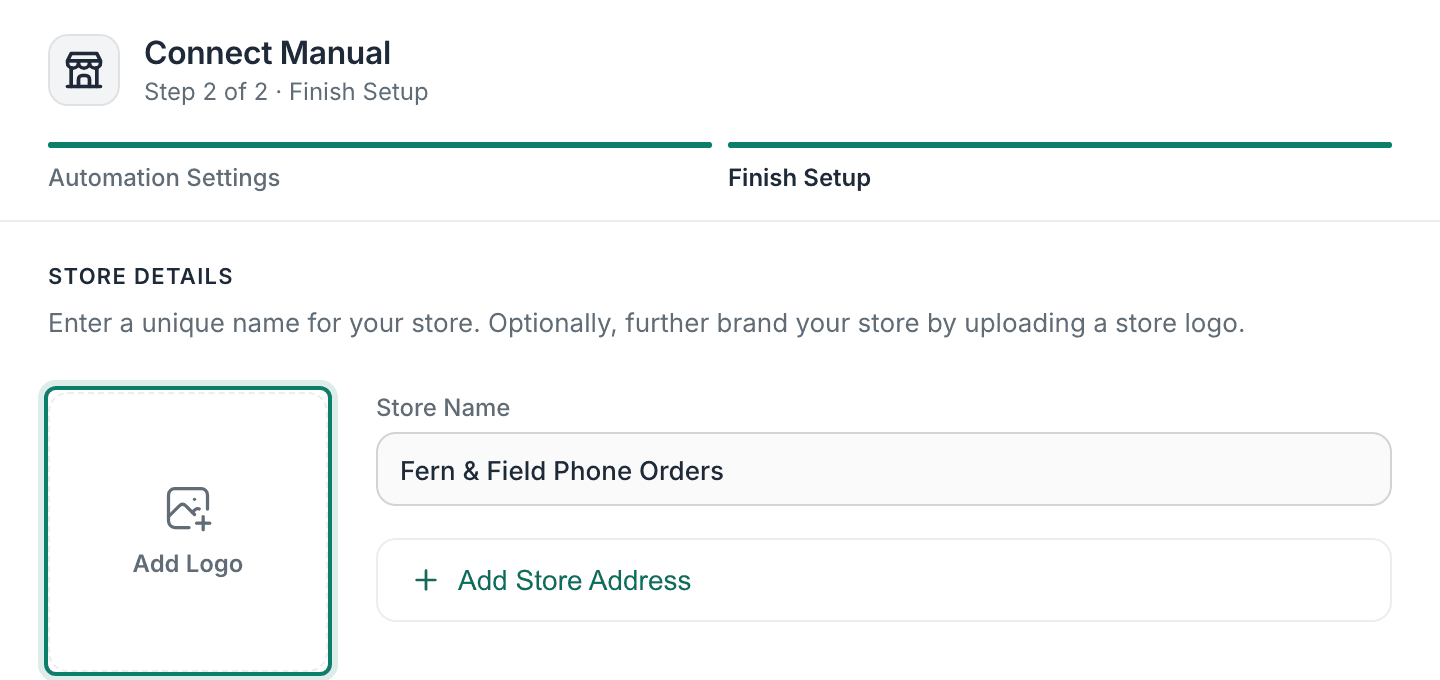
(Optional) Click Add Store Address to add a unique Ship From address for this store. Learn how to configure your Default Shipment settings so that the Store Address is automatically selected as the Ship From address for your shipments.
Once added, the store address is displayed.
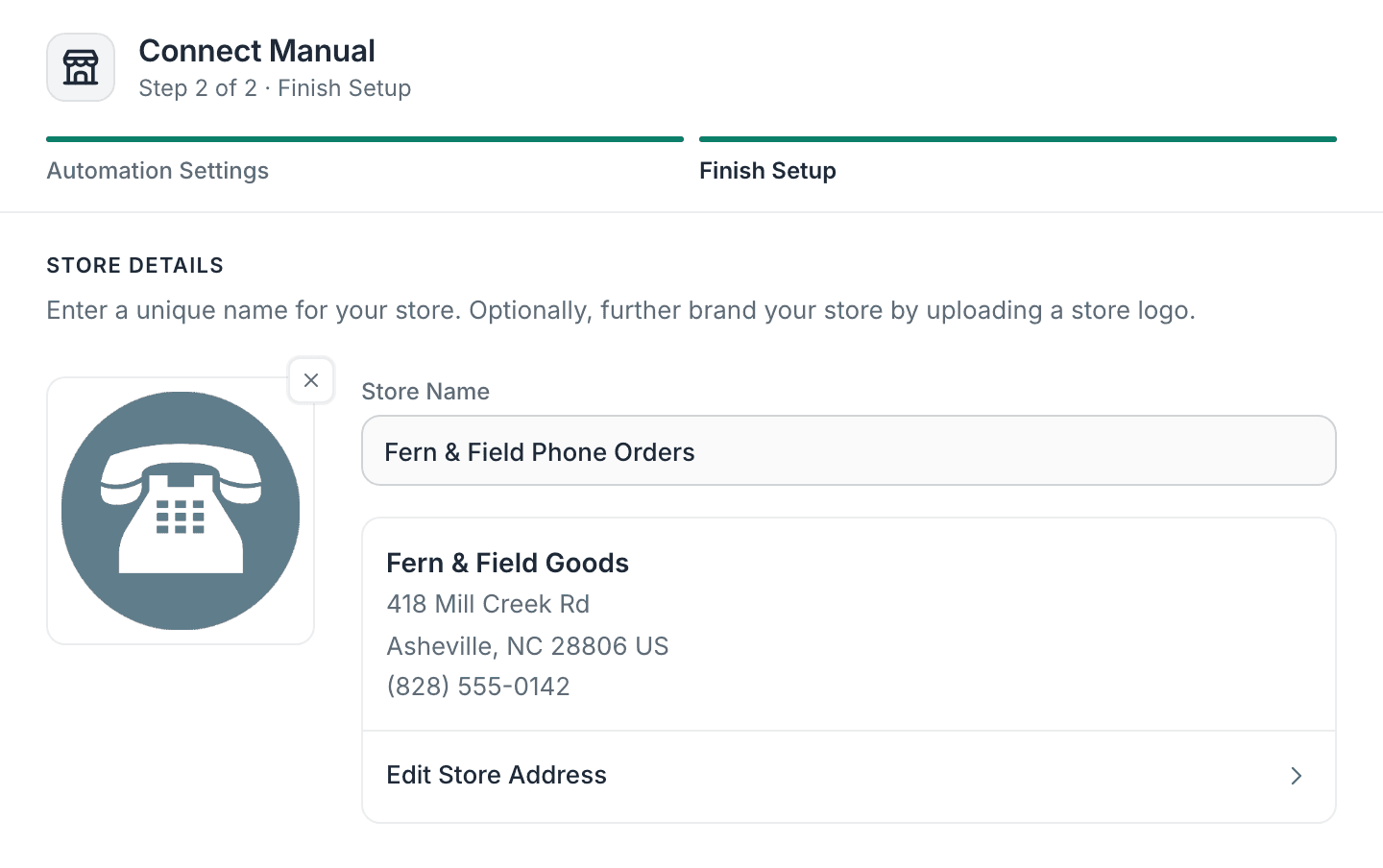
Click Finish.
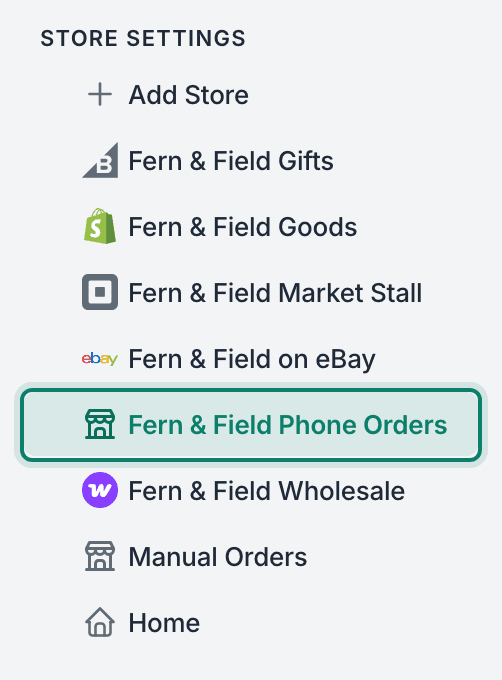
The manual store has now been added and is shown in the list of stores.
Still have a question? Ask a person.
Write to support@postsale.com or send us a message. We reply the same business day, Monday to Friday, 8 AM to 5 PM Central.