Test Your Shipping Rules
Run your shipping rules in test mode | Make sure they work as planned
Test Rules allows you to preview how your Shipping Rules would apply to an order without creating a shipment or making any changes. Think of it as a safe way to confirm that everything is working exactly as expected before it impacts your workflow.
Use Test Rules when you want to:
- Build new Shipping Rules and validate them as you go
- Troubleshoot a rule that isn’t applying the way you expect
This article will show you how to test your shipping rules and how to view and interpret the test results.
Before We Begin
This article assumes that you have set your default shipping settings and that you have created at least one additional Shipping Rule.
Test Your Shipping Rules
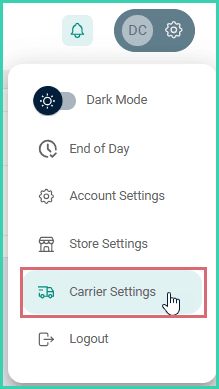
Go to Settings.

Select Carrier Settings.
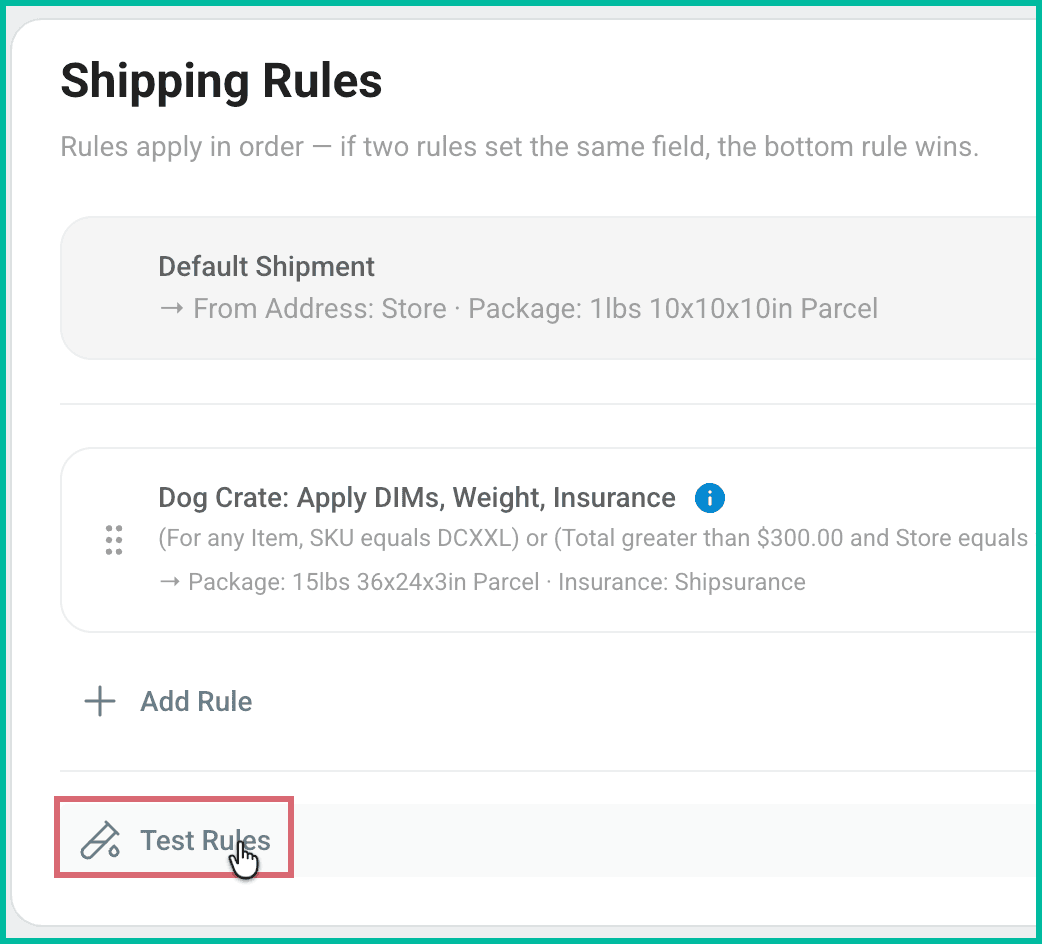
Click Test Rules in the Shipping Rules section.
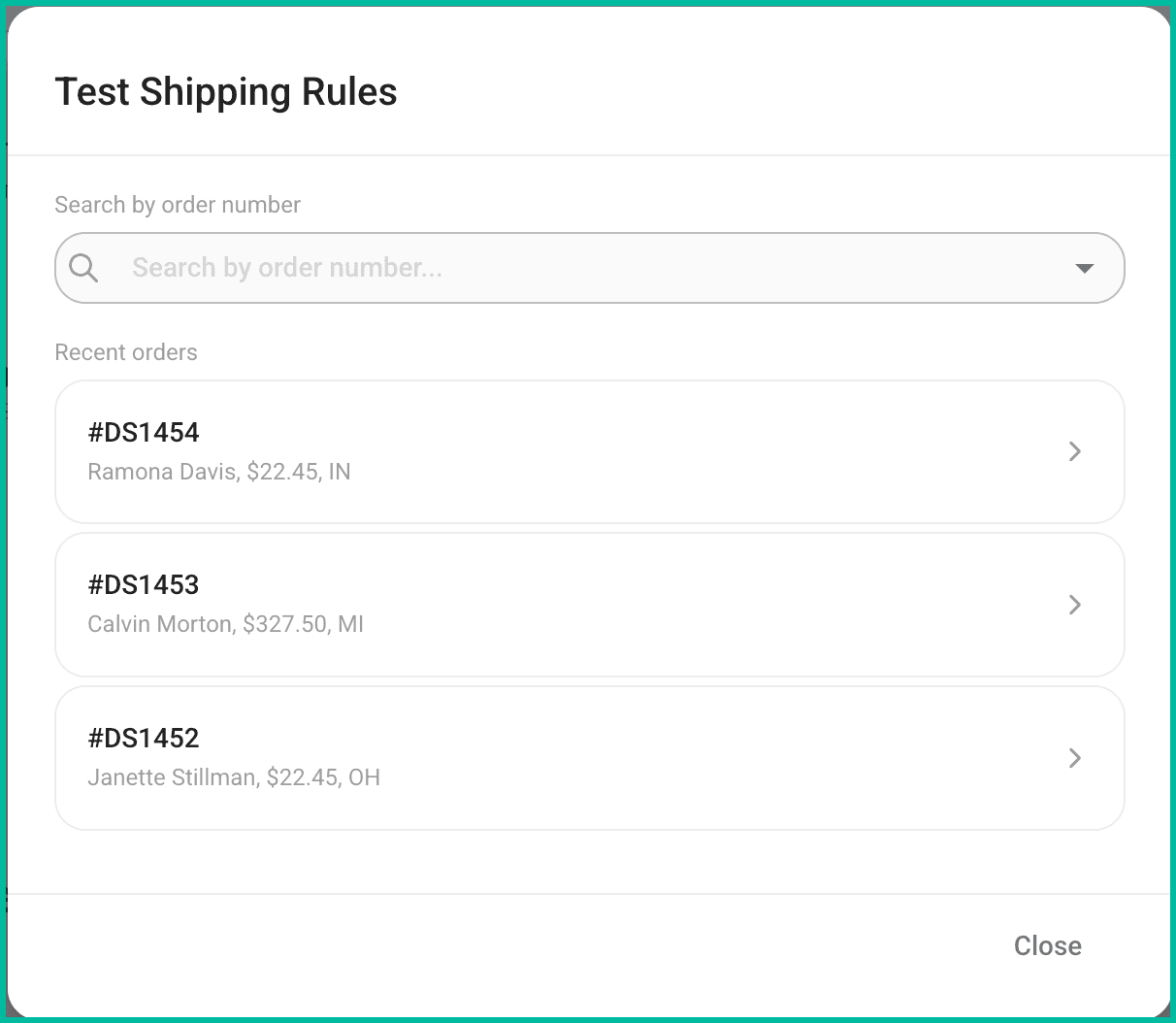
The Test Shipping Rules window opens with the three most recent orders displayed. You have the option to either:
- Test your rules against one of the listed orders.
- Search for a specific order number and run the test against that order.
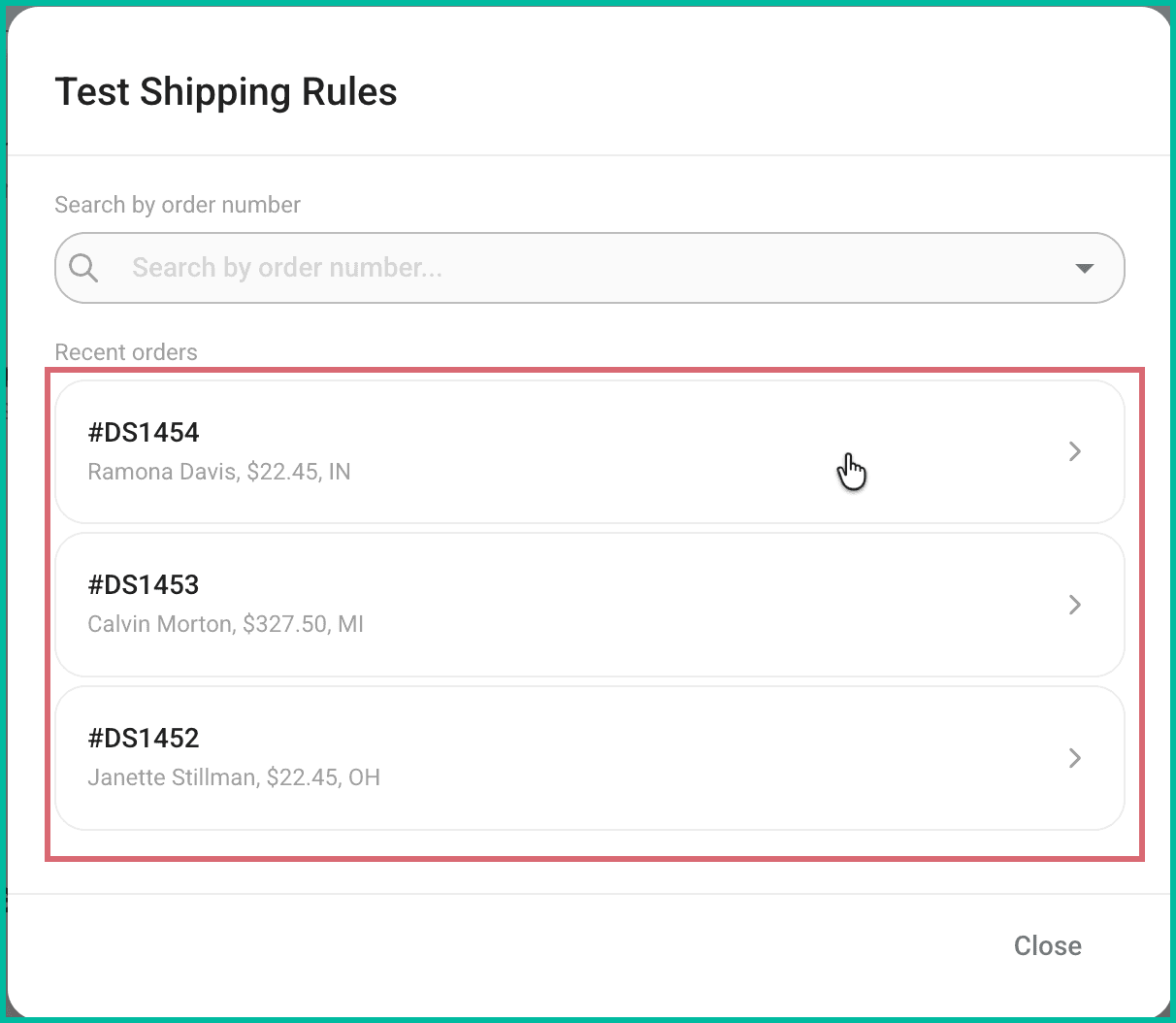
Test Against One of the Listed Orders
The three most recent orders are listed for you. Click on any one of the three orders to run the rules test against that order.
Test Against a Specific Order
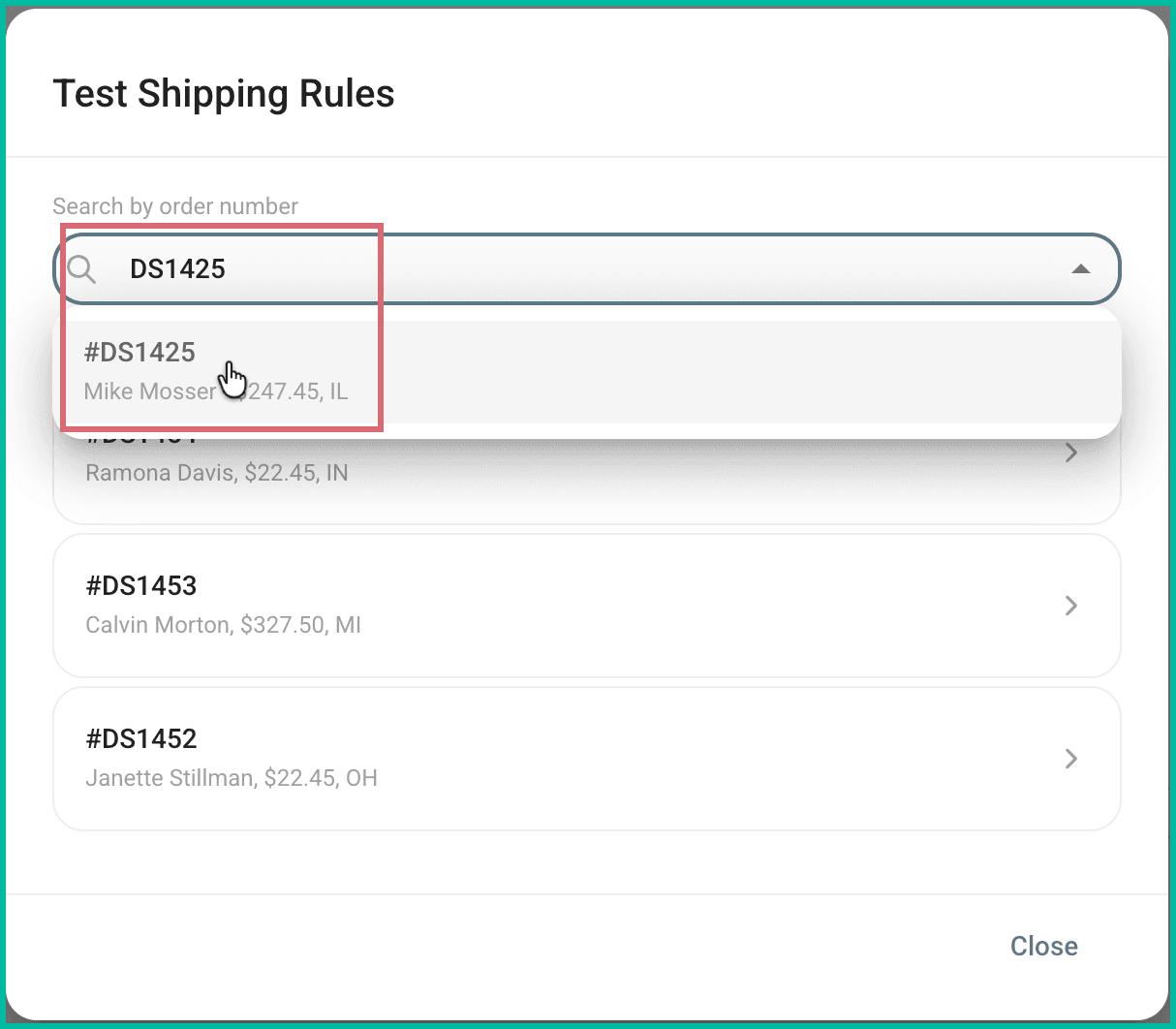
You also have the option to search for and test the rules against a specific order. This is a great option when you have an order that you know should meet the conditions of at least one of your shipping rules, like when you are testing a specific rule to make sure it applies correctly.
Enter the order number into the search field. Then, click the order number in the search results to run the test against the order.
Understanding Your Shipping Rule Test Results
When you run a Shipping Rule test, Postsale shows you exactly how the order would be processed if you created a shipment for it right now.
The results are designed to answer three important questions:
- Which rules apply to this order?
- In what order were they applied?
- What will the final shipment settings be?
Let’s break down each section of the results screen.
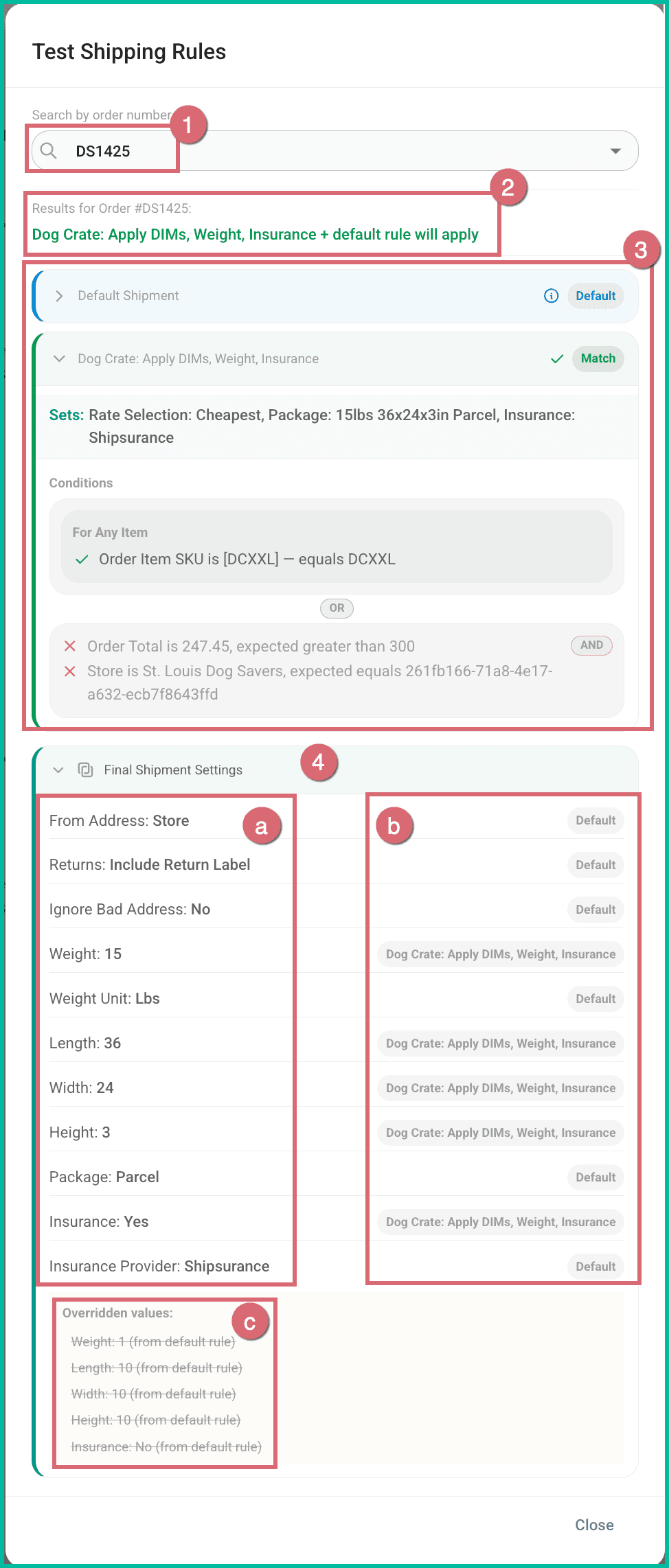
1 - The Order Being Tested
At the top of the results, you’ll see the Order # that the test was run against.
This confirms you’re reviewing the correct order.
2 - Matching Summary
This section provides a quick summary of which Shipping Rules:
- Matched the order and will be applied
- Did not match and will not be applied
If multiple rules match, remember: Shipping Rules are applied in the order they appear in your Shipping Rules list. The Default Shipment settings are applied first, followed by any matching additional rules. When multiple rules apply, the last applicable rule overrides earlier settings.
3 - Detailed Rule Breakdown (Expandable)
This section displays all Shipping Rules included in the test.
You can expand any rule to see:
- The rule’s configured shipment settings
- Each condition within the rule
- Which conditions matched ✅
- Which conditions did not match ❌
This is especially helpful for troubleshooting why a rule did or did not apply.
4 - Final Shipment Settings
Shows the final shipment configuration that would be used if you created a shipment for this order.
Specifically, this section tells you:
a - The Final Applied Values
The complete list of shipment settings that will be used, such as:
- From Address
- Weight and Dimensions
- Package Type
- Insurance settings
These reflect the combined result of the Default Shipment settings and any matching Shipping Rules.
b - Where Each Setting Came From
Next to each setting, you’ll see which rule applied that value:
- Default → The value came from your Default Shipment settings
- Rule Name → The value was applied by that specific Shipping Rule
This makes it easy to see which rule controlled each part of the shipment.
c - Overridden Default Values
At the bottom, you’ll see a list of any Default Shipment values that were overridden by a matching Shipping Rule.
This helps you clearly identify:
- What would have been used by default
- What changed
- From which rule the change occurred
Results not as expected?
The Shipping Rule Test tool shows exactly how Postsale evaluated your rules so you stay in control of your shipping automation and can ship with confidence. If something in the results doesn’t look right, use the test output to pinpoint the cause:
- Confirm which rules matched (and which didn’t).
- Verify the order the rules ran in. Rules apply top to bottom and the last matching rule wins.
- See what was overridden and why in the Final Shipment Settings section of the results, along with which rule the setting came from.
Once you know what influenced the final shipment settings, update your rules and run the test again until the outcome matches your intended workflow.
Still have a question? Ask a person.
Write to support@postsale.com or send us a message. We reply the same business day, Monday to Friday, 8 AM to 5 PM Central.