Shipping Rules: Automate Your Shipping Settings
Save time, minimize errors, and ship with confidence with Shipping Rules | Shipping Rule Examples
Creating shipping labels is only one part of an efficient post-purchase workflow. Behind every successful shipment are the right package settings, like accurate weights, correct dimensions, proper package types, and the best service selected for the order.
That’s where Shipping Rules come in.
Think of Shipping Rules as your behind-the-scenes assistant. Instead of manually adjusting shipment details for every order, you can tell Postsale:
“When an order meets these specific conditions, automatically apply these shipping settings.”
Shipping Rules work by matching orders to conditions you define, such as order source, order total, SKU, destination, or other criteria. When Postsale finds an order that meets those conditions, it automatically applies the shipment settings you’ve configured for that rule.
For example, a rule might say:
When the order contains SKU “DOG CRATE XL”
- Automatically set the package weight to 20 lbs,
- Set the Package Type to Package,
- Set the dimensions to 20 x 15 x 6 inches
- Select the most economical service for the shipment
No manual updates. No second-guessing. No missed details.
The best part? You’re not limited to just one rule. You can create multiple Shipping Rules, each with its own unique conditions and shipment settings, that work together to ensure every order is configured correctly. Whether your workflow is simple or highly customized, Shipping Rules give you the flexibility to build a system that fits your business.
To dive deeper into how conditions, groups, and logic work together within Shipping Rules, check out our Conditional Logic: Understanding Conditions and Groups help article.
By defining when rules should apply and what settings should be used, Shipping Rules help you:
- Save time on repetitive configuration
- Reduce manual errors
- Ensure accuracy and consistency
- Standardize your shipping workflow
- Confidently scale as order volume increases
Much like Automation in Postsale allows you to define triggers, conditions, and actions, Shipping Rules allow you to define conditions and shipment settings so the right configuration is applied automatically, every time.
This article will walk you through creating two Shipping Rules using real-world examples. The goal is to provide you with enough information to create the shipping rules for your workflow, so you can ship with confidence.
Let’s get started.
Before We Begin
Before creating Shipping Rules, there are two important items we recommend reviewing. Taking a few minutes to review them will help ensure your rules work exactly as expected.
1. Configure Your Default Shipment Settings First
Shipping Rules build on top of your Default Shipment Settings.
When a shipment is created in Postsale, your Default Shipment Settings are applied first. Then, Postsale evaluates your Shipping Rules. If an order meets the conditions of a rule, the rule’s shipment settings will override the default settings for that shipment.
Because of this workflow, configuring your Default Shipment Settings should always be your first step.
In most cases, your default settings should reflect the shipping configuration you use most often, such as your most common:
- Package type
- Weight
- Dimensions
- Carrier and Service
- Shipment Protection
Think of your defaults as your baseline. Shipping Rules then fine-tune shipment settings for specific scenarios.
2. Use the Test Rules Tool While You Build
You can safely test your Shipping Rules before applying them to real orders.
Postsale includes a Test Rules tool that lets you evaluate how your rules will behave without updating shipments. This makes it easy to confirm that the correct settings will apply when an order matches your conditions.
We strongly recommend testing each rule as you build it, especially if you are using multiple conditions or layered logic.
Taking these two steps, setting your defaults and testing your rules, will give you confidence that your Shipping Rules are working smoothly and supporting an accurate, efficient shipping workflow.
Shipping Rule Examples
Let’s walk through creating two Shipping Rules using a real-world scenario.
REAL-WORLD EXAMPLE
We specialize in selling dog crates that range from very small to extra large. Each size category ships differently.
Our product lineup includes:
- Tiny, Small, and Medium crates - ship in the same package size and use the same weight configuration.
- Large, XL, and XXL crates - require a bigger box, a higher shipment weight, and insurance because of their increased value.
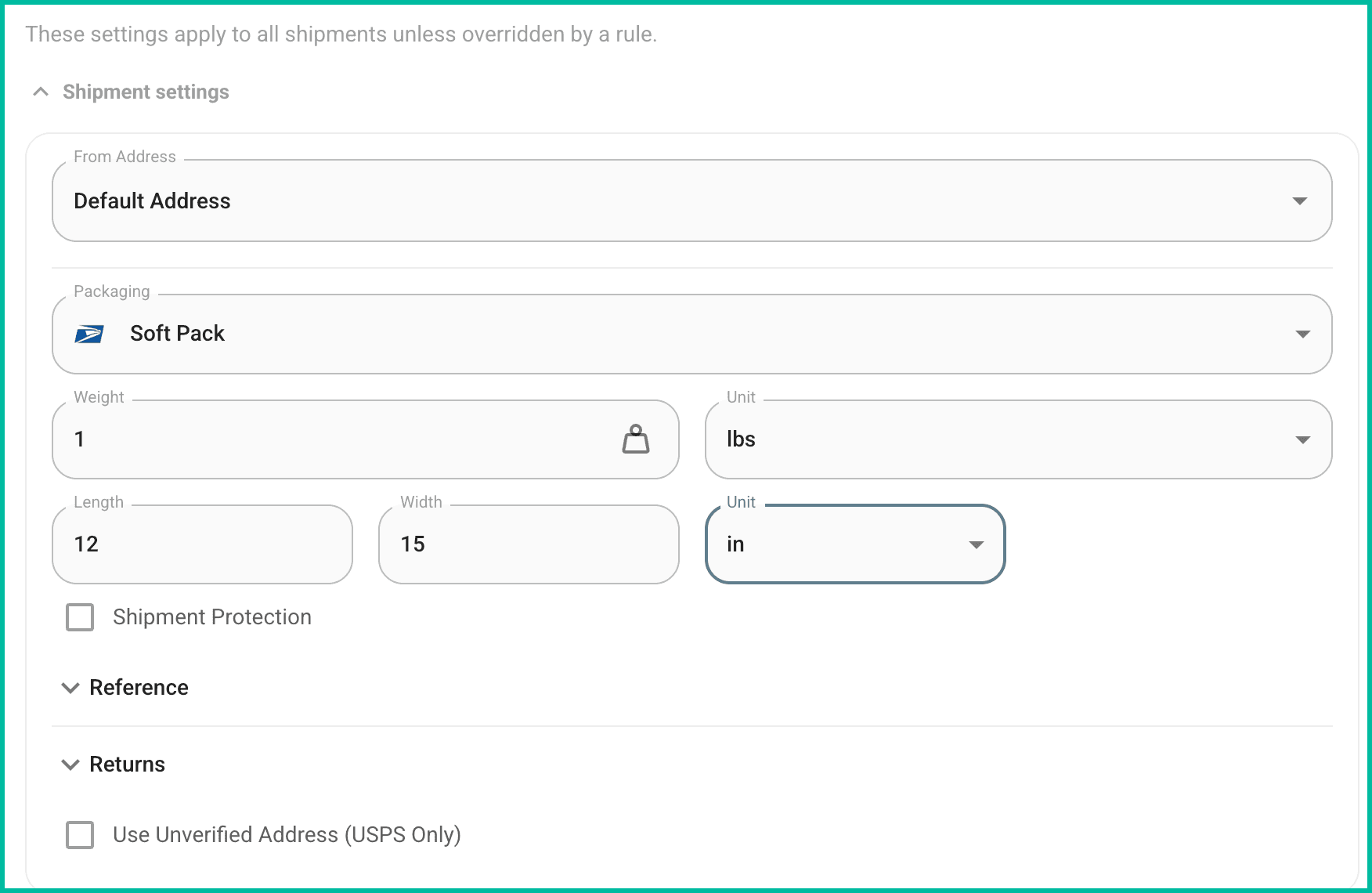
In addition, we run a loyalty program. As part of that program, we ship a T-shirt and a bumper sticker to our most loyal customers in a 12 inch by 15 inch soft pack mailer. These loyalty shipments make up the majority of our orders.
Because loyalty shipments are the most common, our Default Shipment Settings are already configured to automatically apply the correct packaging, dimensions, and weight for those orders.
Create Two Shipping Rules
Now, let's create two shipping rules:
- A rule that overrides the default settings when an order contains a Tiny, Small, or Medium dog crate.
- A second rule that overrides the default settings when an order contains a Large, XL, or XXL crate.
This approach allows our default configuration to handle most shipments, while Shipping Rules automatically adjust shipment settings for crate orders that require different settings.
Manually - Tiny, Small, and Medium Dog Crates
Let's look at how to create this rule manually. We find it helps to write out, in plain English, what the rule should do prior to creating it. This helps ensure that all conditions are met and that the correct shipping settings are applied. Here's what we will set up for this rule:
For orders with only 1 of any of the item SKUs:
- SC-TINY
- DC-SML
- DC-MED
Apply the following shipping settings:
- Default From Address
- Packaging: Parcel
- Weight: 10 lbs
- Dimensions: 24 x 22 x 6 inches
- Rate Selection: Economical
Add and Name the Rule
- Go to Settings and select Carrier Settings.
- Click Add Rule in the Shipping Rules section.
- Give the rule a name that clearly identifies it. For our example, we will name the rule Tiny Small Medium Dog Crates.

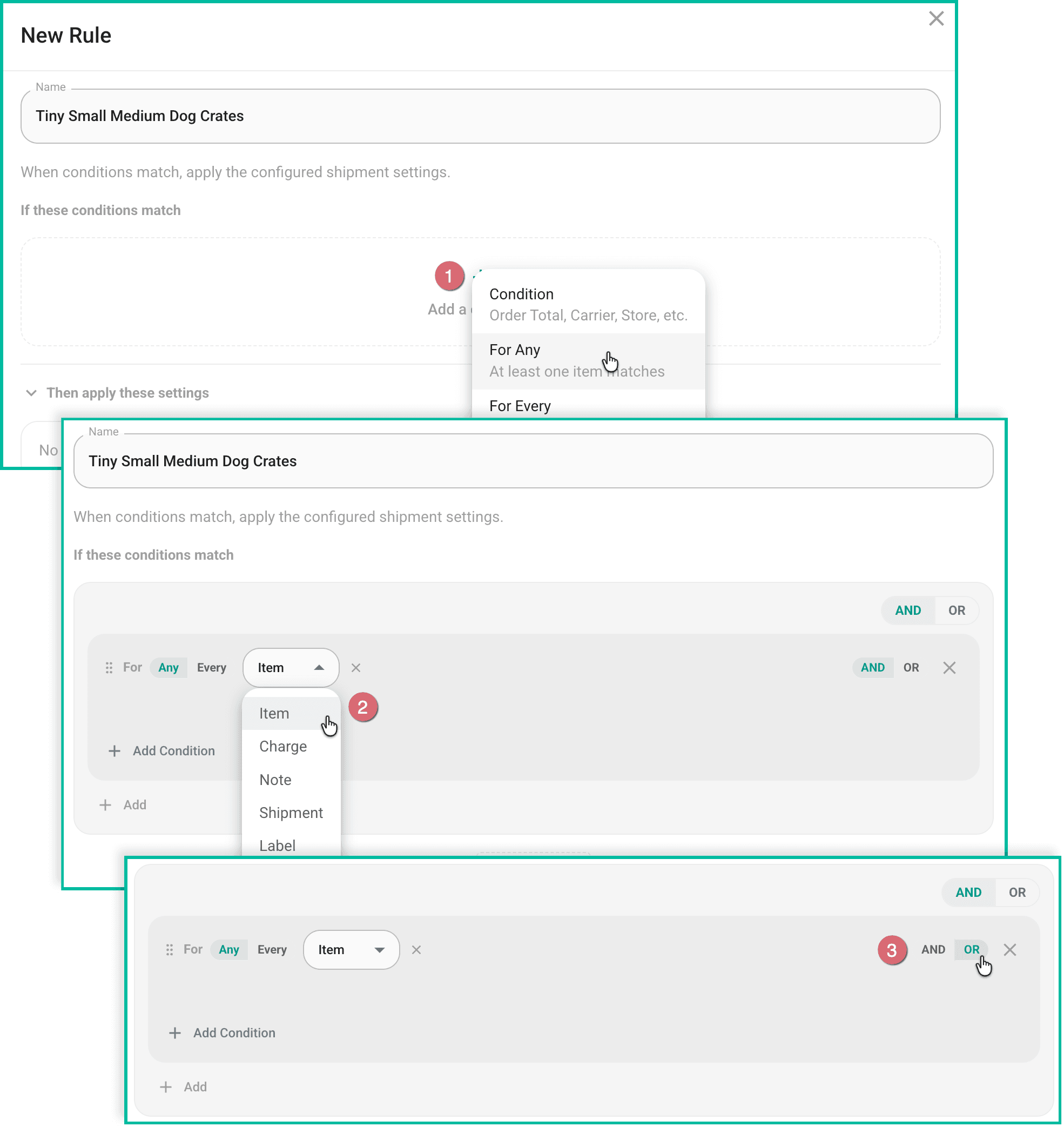
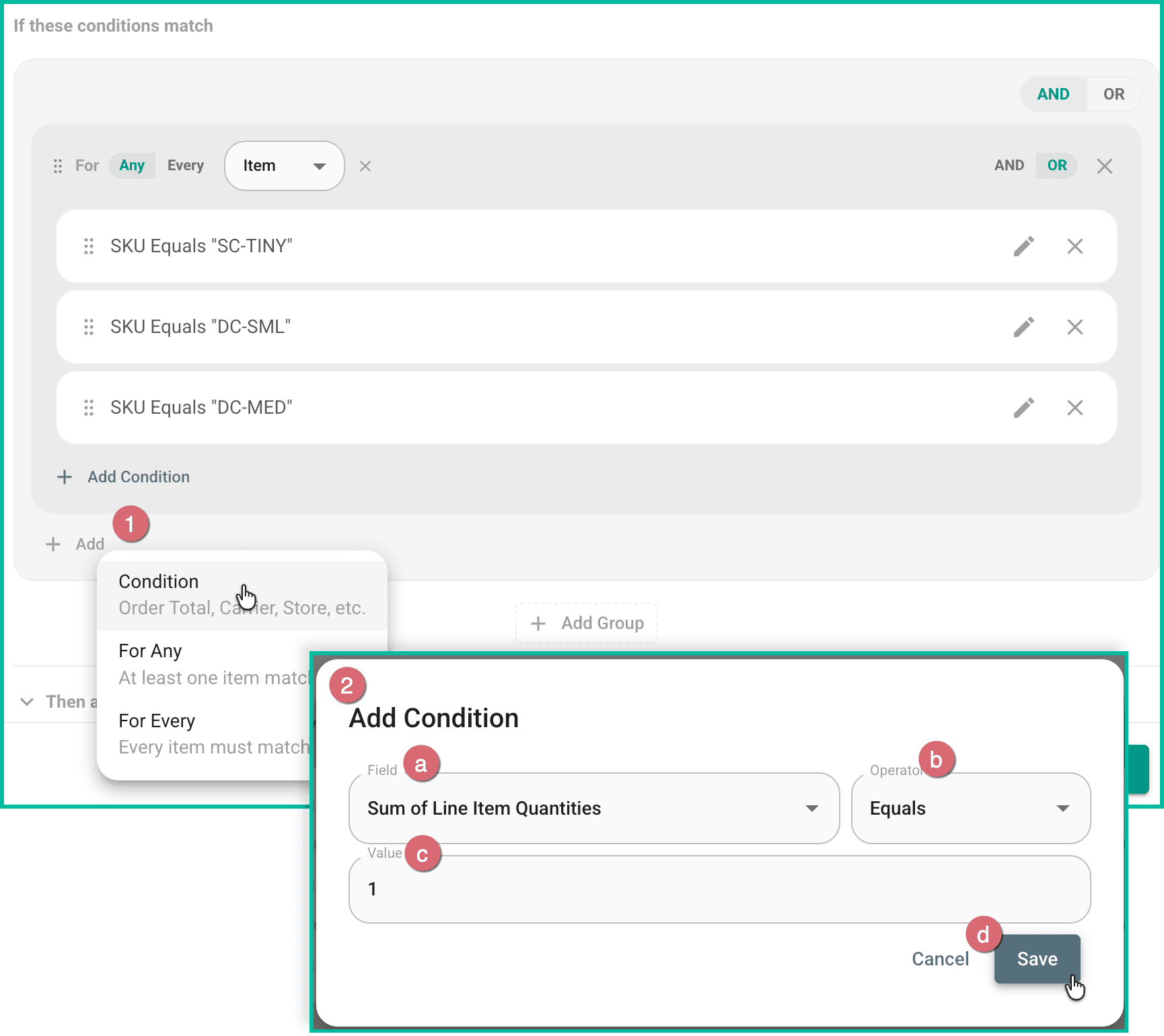
Add a Condition - For Any
- Click Add a condition and select For Any.
- Select Item from the drop-down menu. We are selecting Item to create a list of Item SKUs specific to this rule.
- Switch the Item group's AND/OR toggle to OR. Changing the toggle to OR tells Postsale to “Search for this SKU OR this SKU OR this SKU”
List the Item SKUs
Next, we create a list of SKUs specific to this rule.
- Click Add Condition in the Item group. Then, configure the condition so that:
- Field is set to Order Item SKU
- Operator is set to Equals
- Value - Enter one of the three SKUs In our case, we will enter SC-TINY for our Snuggle Crate, size Tiny
- Save the condition
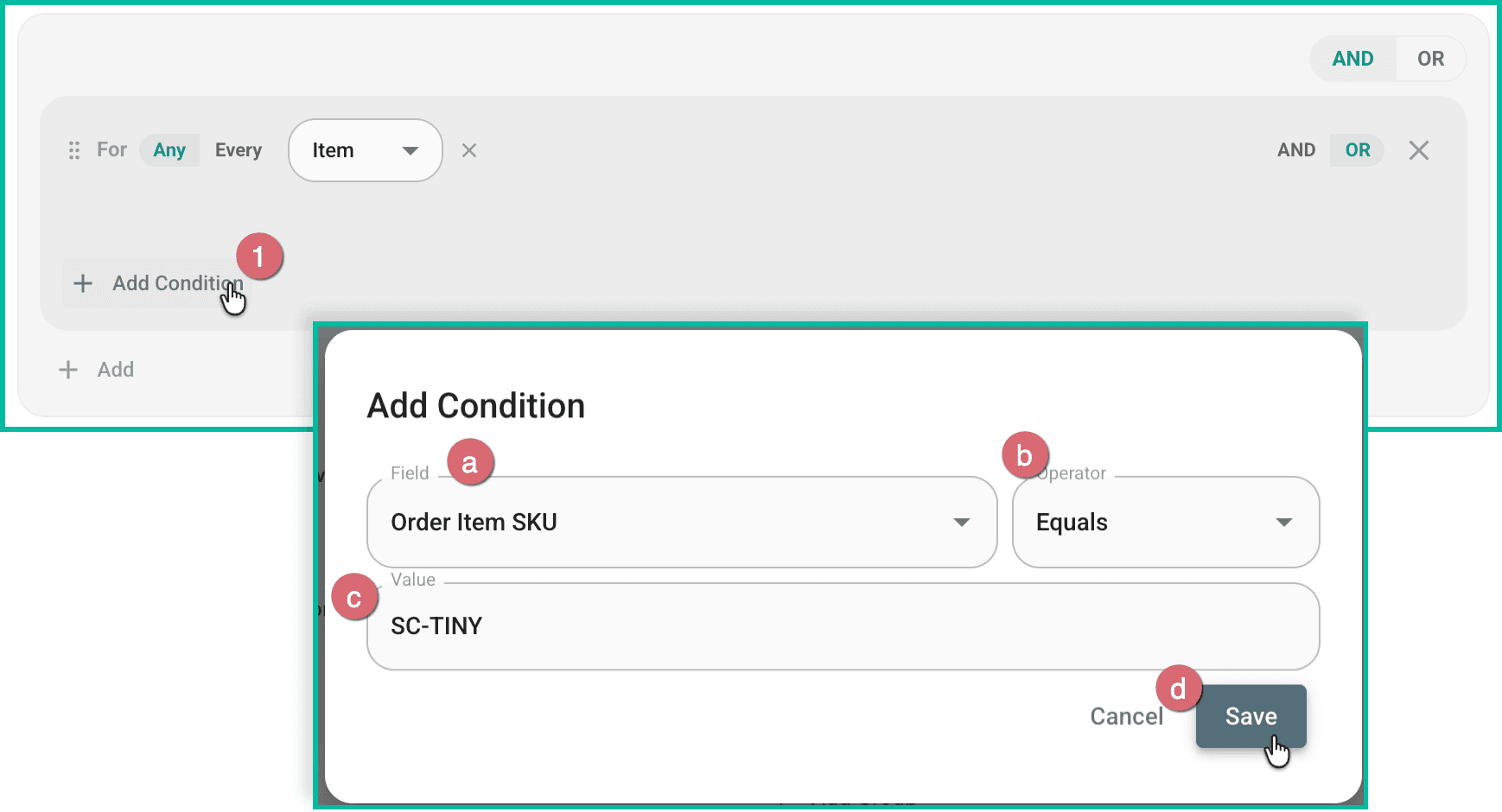
Repeat steps a through d for each SKU relevant to the shipping rule. In our case, we will wind up with three conditions. One for each of the three SKUs for Snuggle Crate -Tiny, Dog Crate - Small, and Dog Crate - Medium.
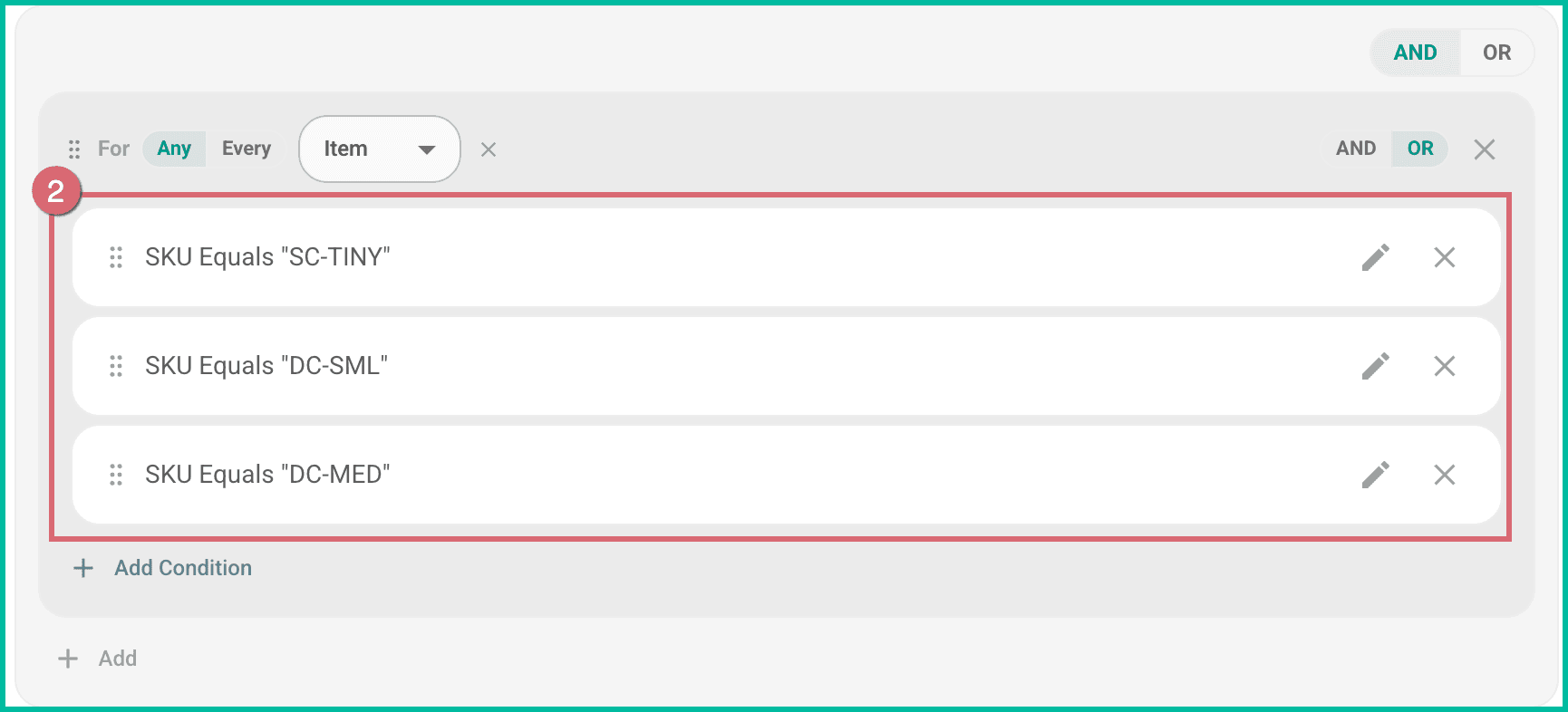
Specify Only One Item on the Order
In our case, we want the shipping settings defined in this rule to apply only to orders with a single dog crate. So, let's create a condition for that.
- Click Add under the Items group and select Condition.
- Configure the condition so that:
- Field is set to Sum of Line Item Quantities
- Operator is set to Equals
- Value - Enter 1
- Click Save.
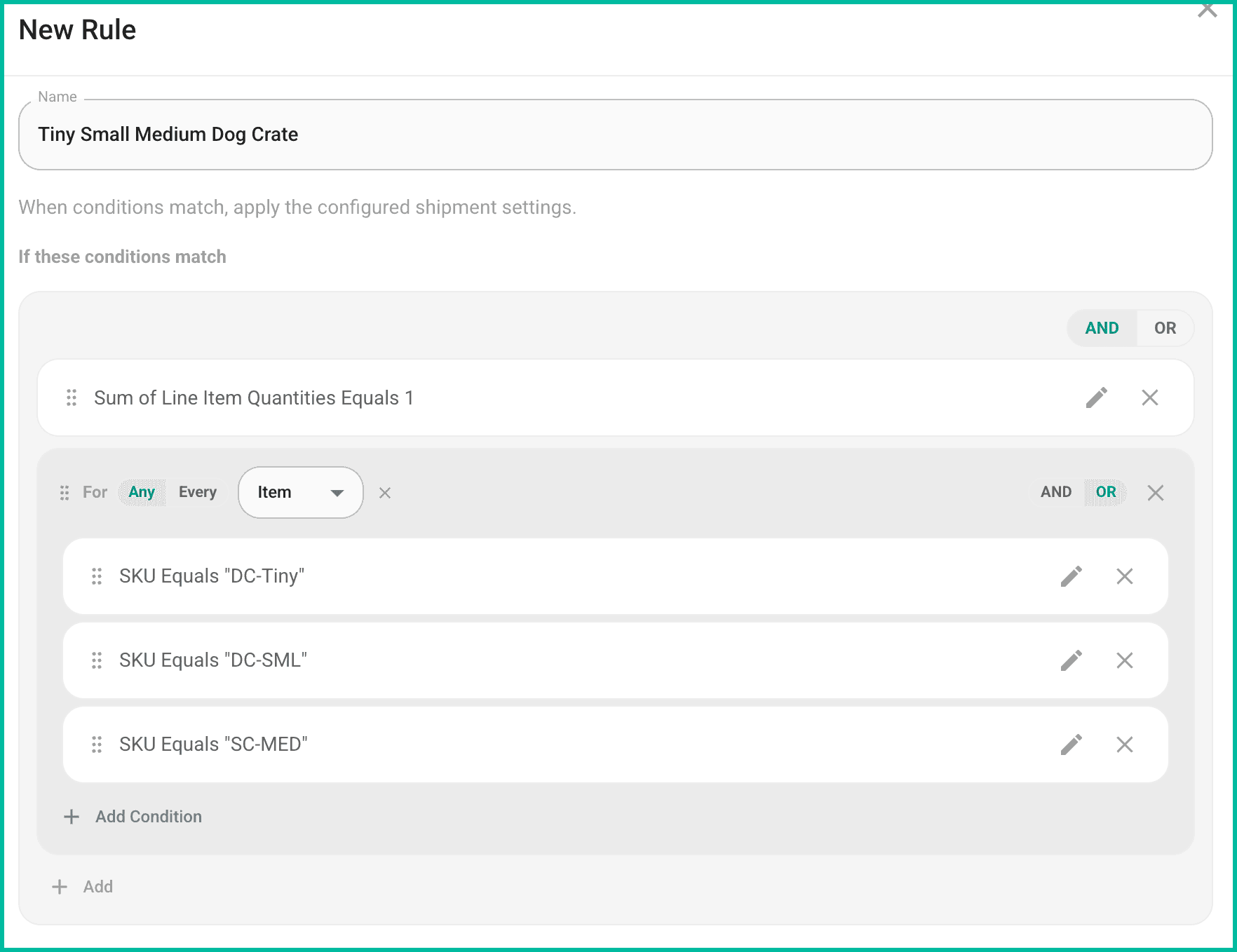
Your Shipping Rule should now look like this:
Specify the Shipping Settings to Apply
Now, we will configure the specific shipping settings to apply to shipments for orders that match the rule's conditions.
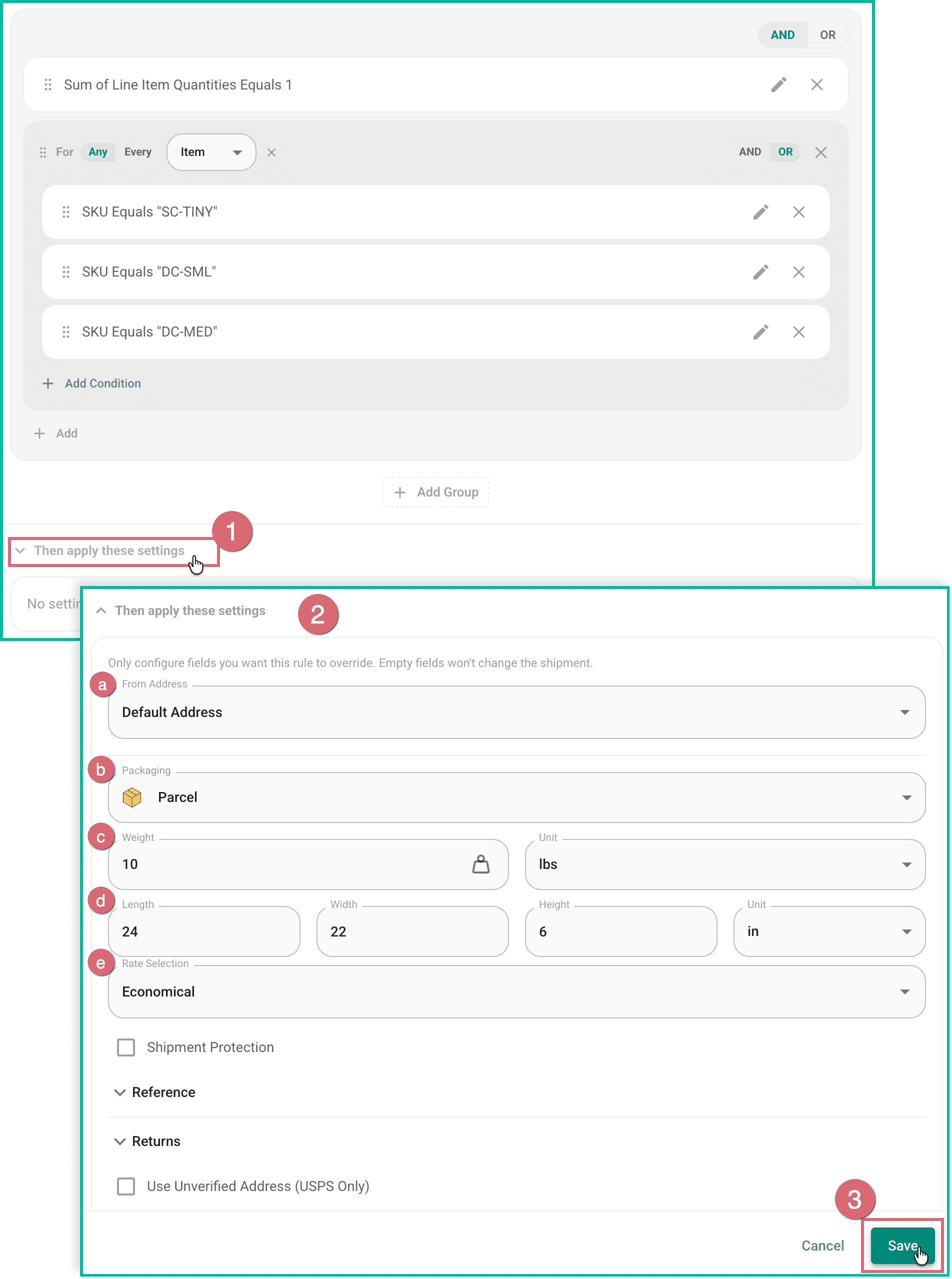
- Click Then apply these settings. The available settings will be displayed.
- Configure the settings that should be applied for this rule.
Based on our example, we will configure the following settings:
- Default From Address
- Packaging: Parcel
- Weight: 10 lbs
- Dimensions: 24 x 22 x 6 inches
- Rate Selection: Economical
- Click Save to save your settings.
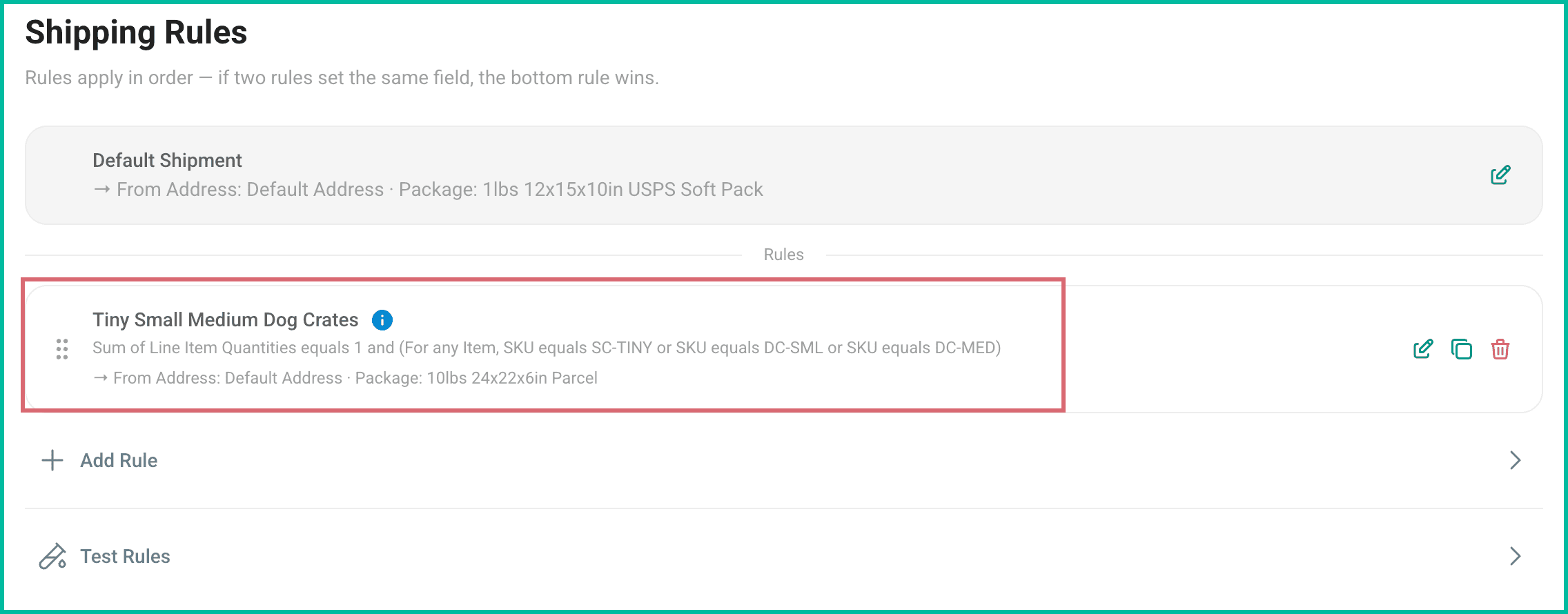
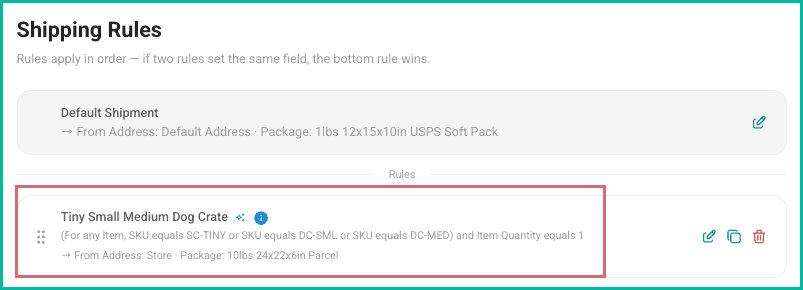
The rule is completed and is shown in the Shipping Rules section.
In the next section, we will create the rule that applies the correct shipping settings for Large, XL, and XXL dog crates.
Configure with AI - Tiny, Small, and Medium Dog Crates
Just like creating the Tiny, Small, and Medium Dog Crates rule manually (see the section above), you'll want to write the rule out in plain, natural language. In fact, that's how you'll tell Postsale exactly what you need the rule to do.
For this rule, it might look like this:
For orders with only 1 of any of the item SKUs (SC-TINY, DC-SML, DC-MED) apply the store address, set Packaging to Parcel, set the weight to 10 lbs, set the dimensions to 24 x 22 x 6 inches, and select the most economical rate.
Here's how to configure the rule with AI.
Go to Settings and select Carrier Settings.
Click Add Rule in the Shipping Rules section.
Enter a name for your rule into the Name field.
Then, select Configure with AI.
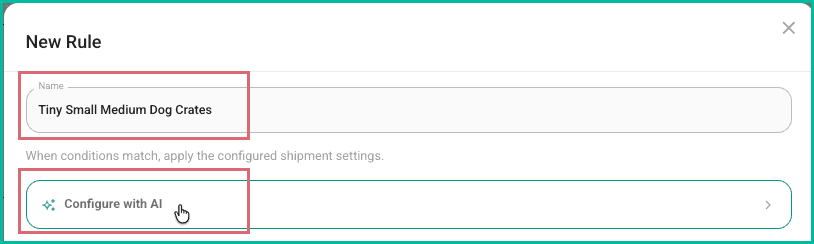
Enter the description for your rule using plain, natural language into the Describe the rule field. Then, click the Generate button.
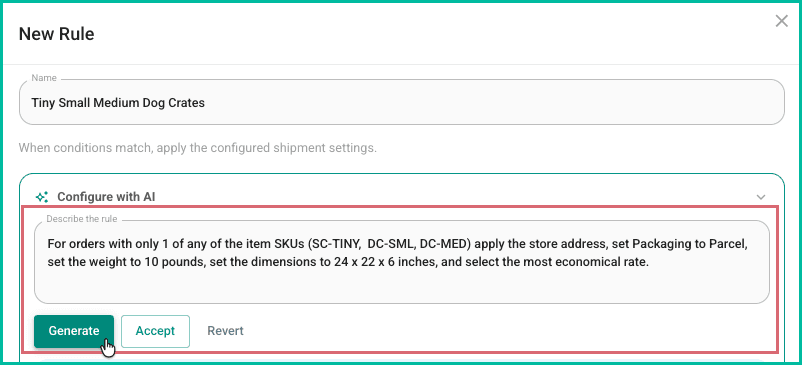
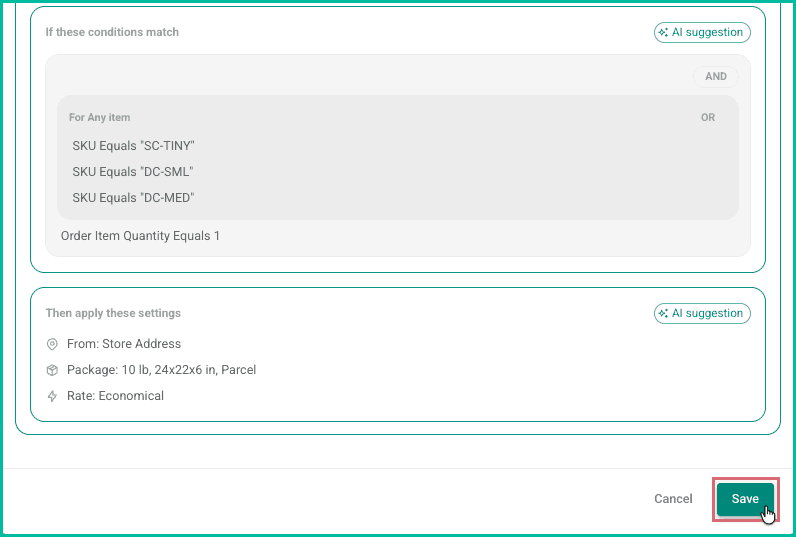
Postsale reads the description you entered and generates the rule's conditions and settings.
Review the conditions and settings to ensure they are correct. Then, do one of the following:
a. Everything looks good: Click Accept to let Postsale know the rule was created correctly.
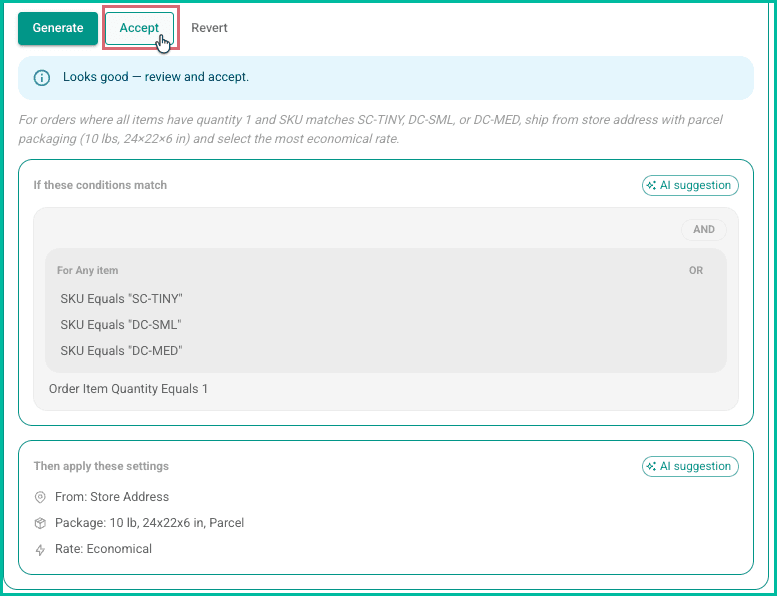
After clicking Accept you can scroll down to review or edit the conditions and settings that were generated for you.
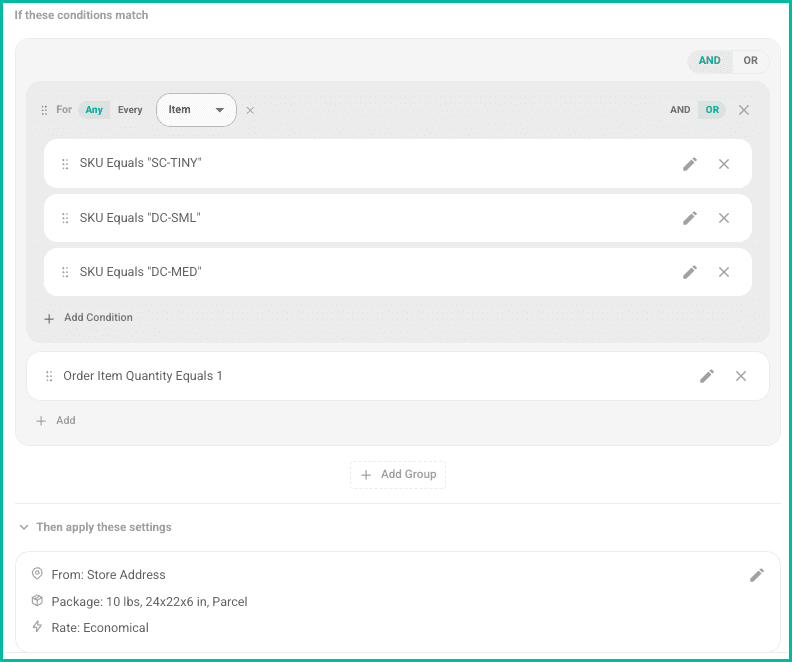
b. Not quite correct: In this case, you can update the description of the rule as needed and click Generate again to regenerate the conditions and settings. You can do this multiple times, if needed.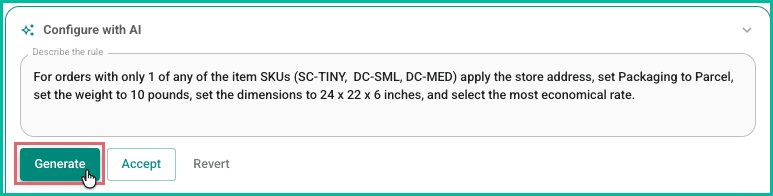
After clicking Accept to confirm the rule is configured correctly, click Save.
The rule is added and is shown in the list of Shipping Rules.
Now is a good time to run a test to be sure the rules work as intended.
Manually - Large, XL, and XXL Dog Crates
In our real-world example, we see that Large, XL, and XXL dog crates weigh more, ship in larger packages, and are insured. So, we need to create a second rule to specify these shipping settings.
When written out, the rule looks like this:
For orders with only 1 of any of the item SKUs:
- DC-LARGE
- DC-XL
- DC-XXL
Apply the following shipping settings:
- Default From Address
- Packaging: Parcel
- Weight: 15 lbs
- Dimensions: 36 x 28 x 6 inches
- Rate Selection: Economical
- Shipment Protection: Shipsurance, insure the value of the items on the order
Copy the Previous Rule
Click the Copy icon associated with the rule we just created. A copy of the rule will be created and appears under the first rule.
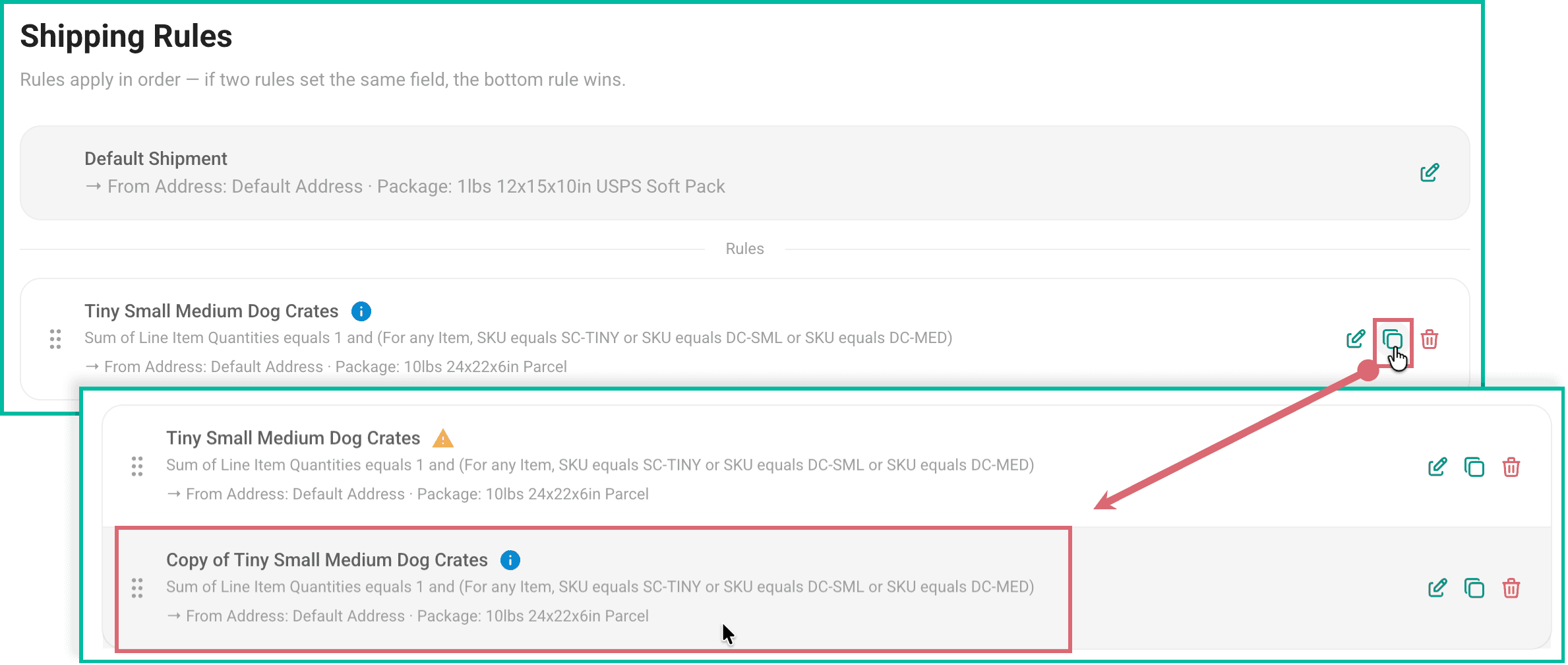
Update the Copy
Now, we can open the copy and update it so that the correct SKUs are listed and the correct shipping settings are applied for the rule.
Click the Edit icon associated with the new rule.

Update the Name of the rule. For our example, we updated the name to Large XL XXL Dog Crates.

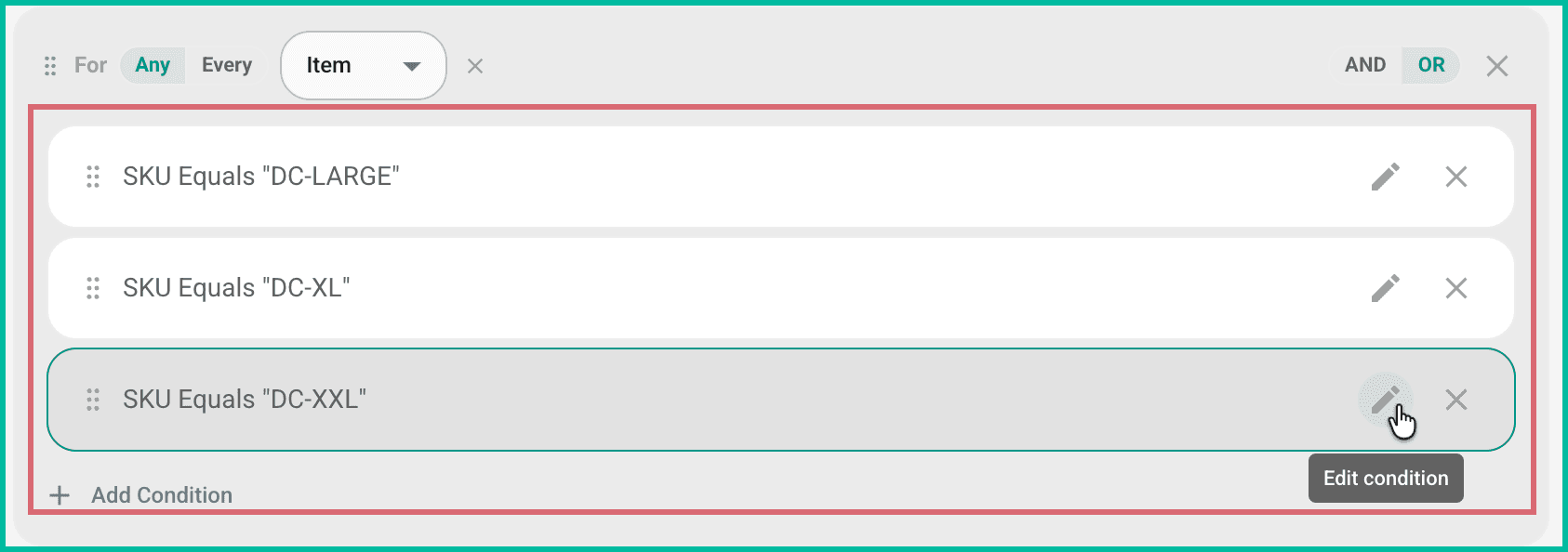
Change the SKUs in the ANY group to the SKUs needed for this rule. In the example, we changed the three SKUs to the SKUs for the Large, XL, and XXL dog crates.
Scroll down to the Then apply these settings section and enter the correct settings to apply for this rule. Then, click Save. Based on our example, we'll update the following settings:
a. Weight: 15 lbs
b. Dimensions: 36 x 28 x 6 inches
c. Shipment Protection: Shipsurance, insure the item's value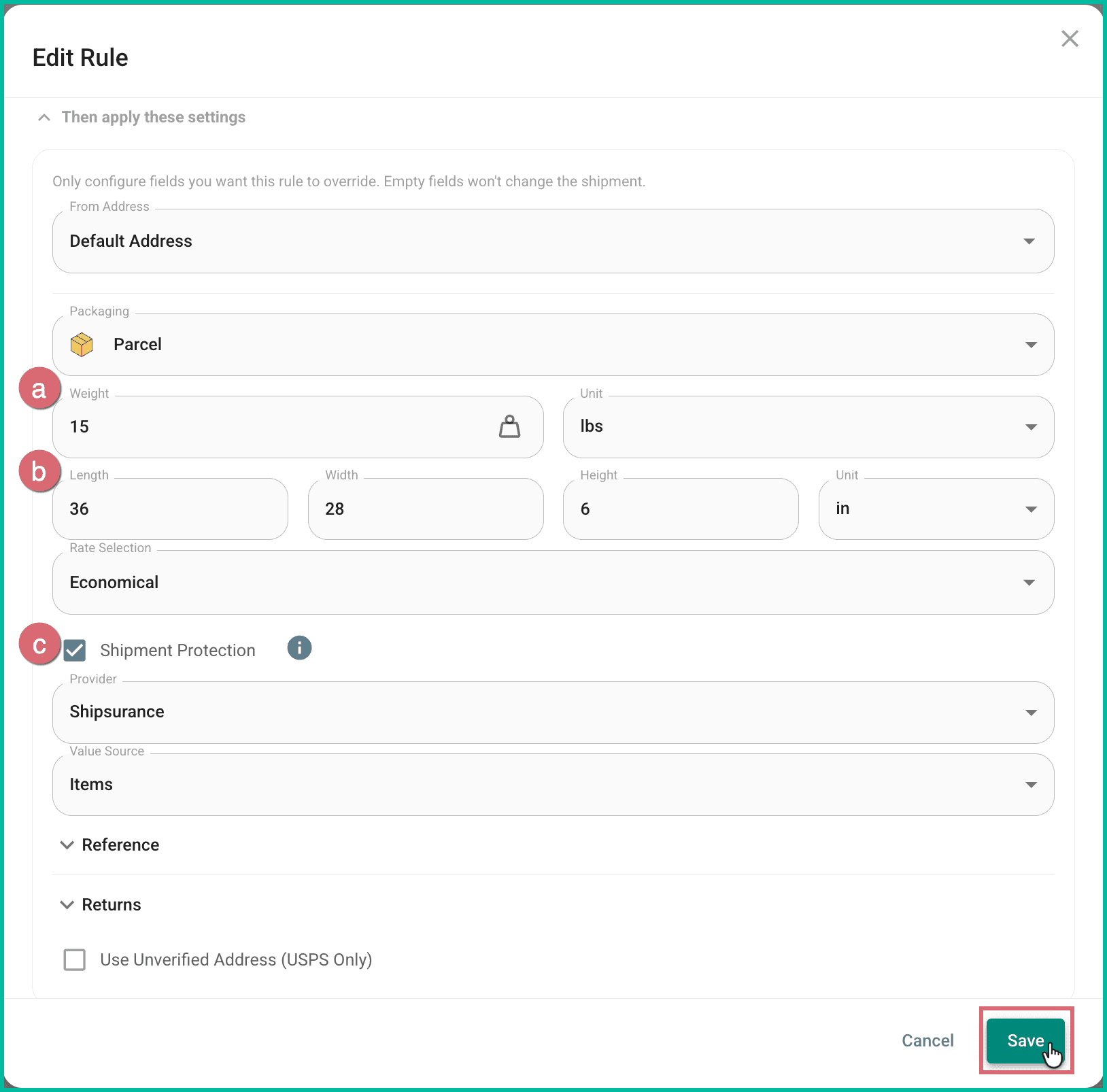
The second Shipping Rule is now updated and appears in the list of Shipping Rules.
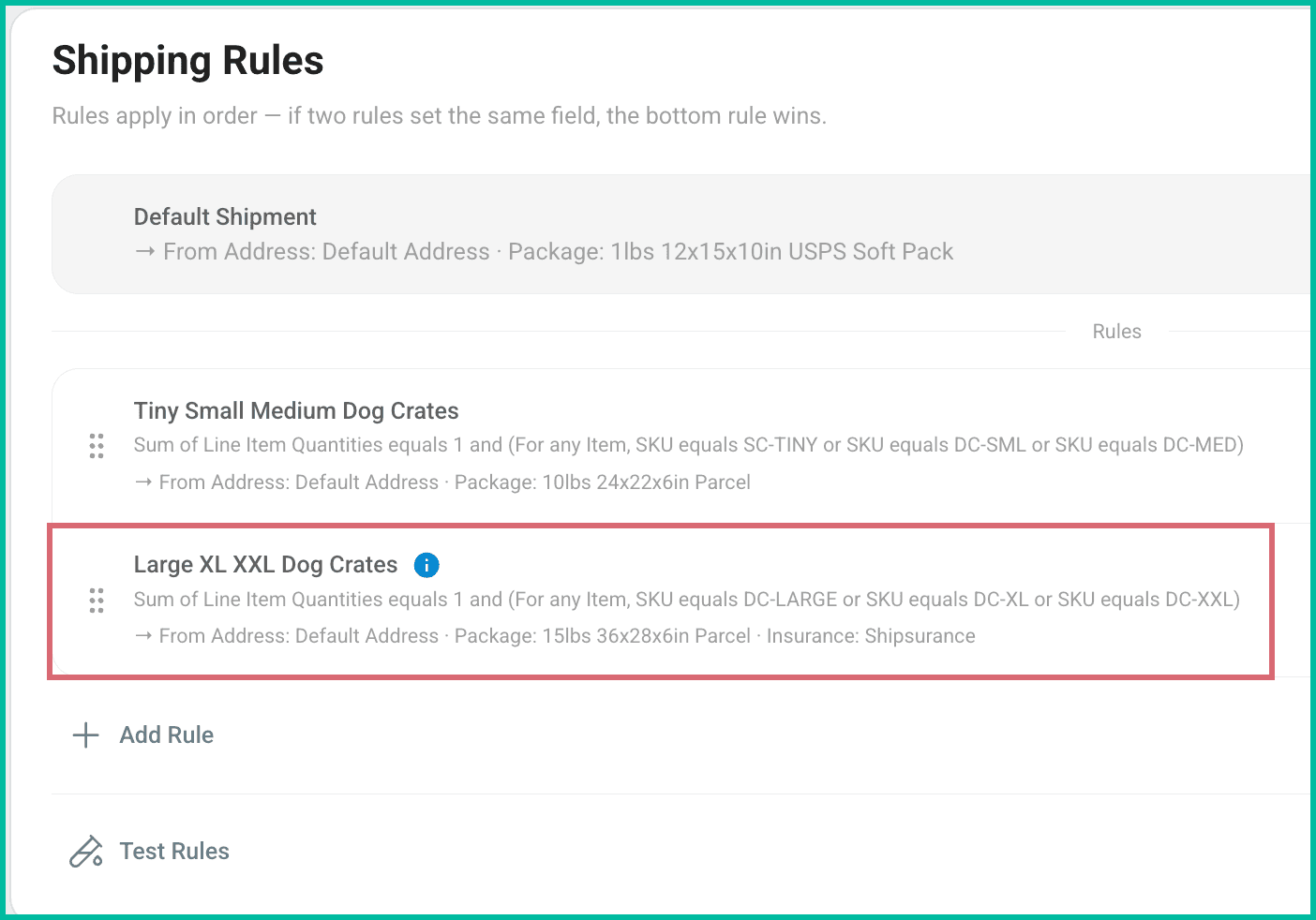
Now is a good time to run another test to be sure the rules work as intended.
Configure with AI - Large, XL, and XXL Dog Crates
Just like creating the Large, XL, and XXL Dog Crates rule manually (see the section above), you'll want to write the rule out in plain, natural language. In fact, that's how you'll tell Postsale exactly what you need the rule to do.
For this rule, it might look like this:
For orders with only 1 of any of the item SKUs (DC-LARGE, DC-XL, DC-XXL) apply the store address, set Packaging to Parcel, set the weight to 15 pounds, set the dimensions to 36 x 28 x 6, select the most economical rate, and turn on shipment protection using Shipsurance using the value of the item on the order.
Go to Settings and select Carrier Settings.
Click Add Rule in the Shipping Rules section.
Enter a name for your rule into the Name field.
Then, select Configure with AI.
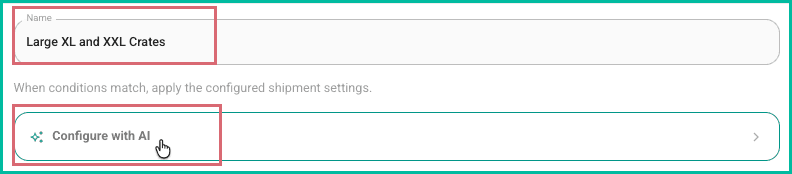
Enter the description for your rule using plain, natural language into the Describe the rule field. Then, click the Generate button.
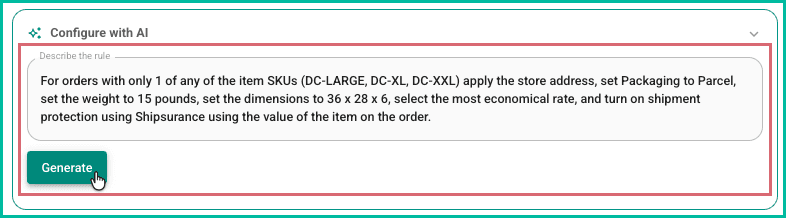
Postsale reads the description you entered and generates the conditions and settings for the rule.
Review the conditions and settings to ensure they are correct. Then, do one of the following:
a. Everything looks good: Click Accept to let Postsale know the rule was created correctly.
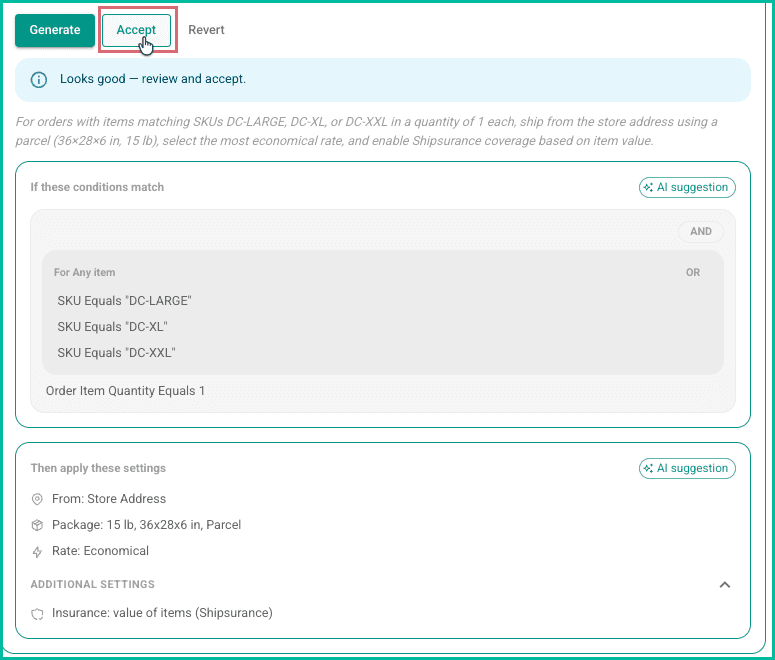
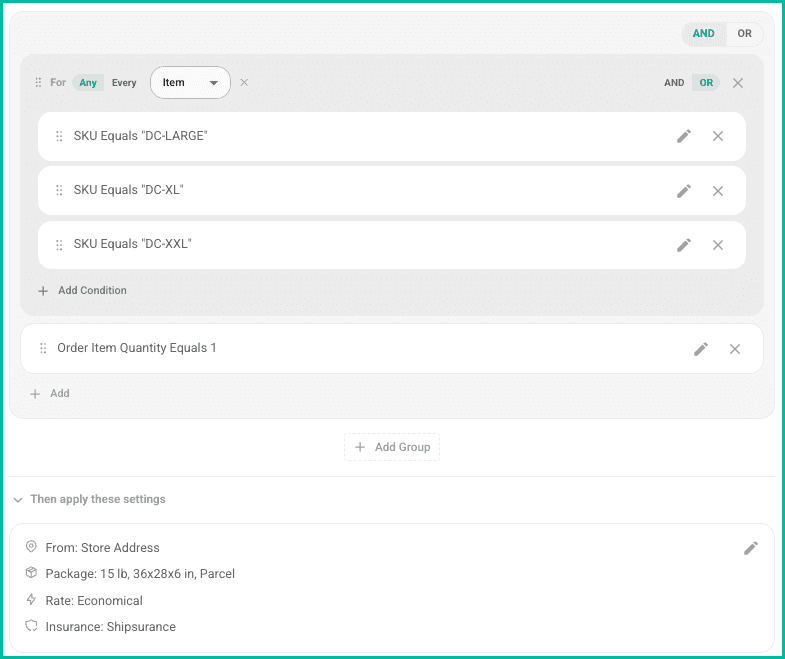
After clicking Accept, you have the opportunity to scroll down and view or edit the conditions and settings that were generated for you.
b. Not quite correct: In this case, you can update the description of the rule as needed and click Generate again to regenerate the conditions and settings. You can do this multiple times, if needed.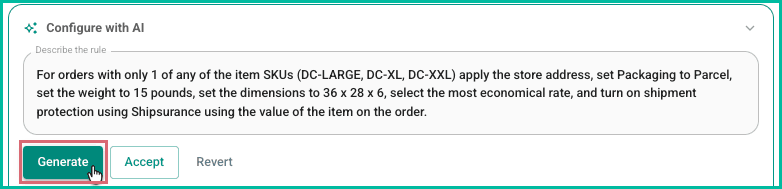
After clicking Accept to confirm the rule is configured correctly, click Save.
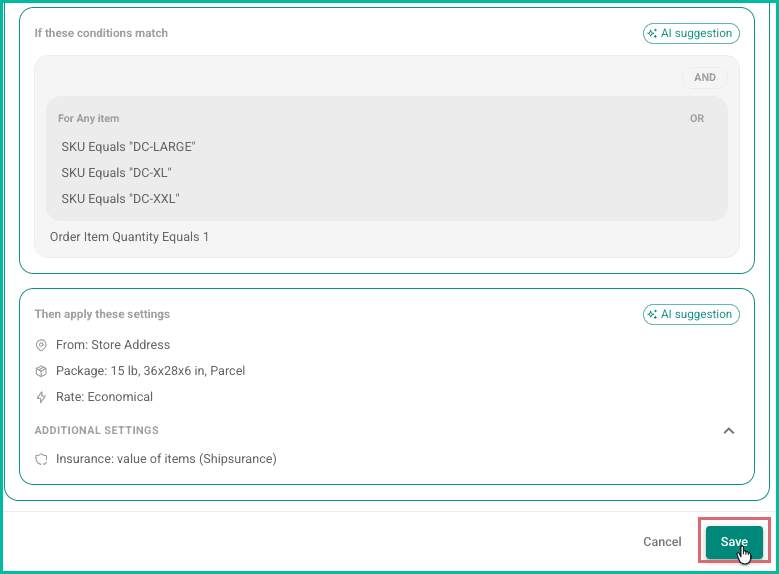
The rule is added and is shown in the list of Shipping Rules.
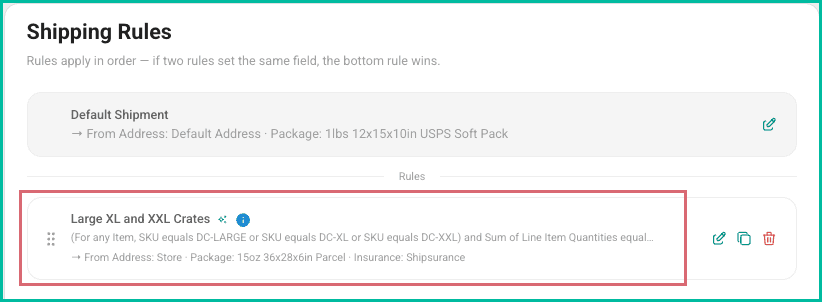
Now is a good time to run a test to be sure the rules work as intended.
Good to Know
How Shipping Rules Are Applied
In this article, we first configured the Default Shipping Settings for our most common shipments. Then, we created two Shipping Rules, one for Tiny, Small, and Medium dog crates and another for Large, XL, and XXL crates.
Understanding how Postsale evaluates these settings is important.
Rules Are Applied in Order
When a new shipment is created, Postsale processes settings in the following sequence:
- Postsale applies the Default Shipment Settings to the shipment.
- It evaluates the first Shipping Rule in the list.
- If the order matches the rule’s conditions, the shipment settings defined in that rule override the default settings.
- Postsale then evaluates the next rule in the list.
- If the order matches this rule, its shipment settings are applied.
- When applicable, these settings override any settings previously applied, whether from the default configuration or a prior rule.
- Postsale continues evaluating rules from top to bottom until all rules have been checked.
Because rules are processed in order, their position in the list matters.
Rearranging Rules in the List
During testing, you may notice that the order in which rules run affects which shipment settings are ultimately applied.
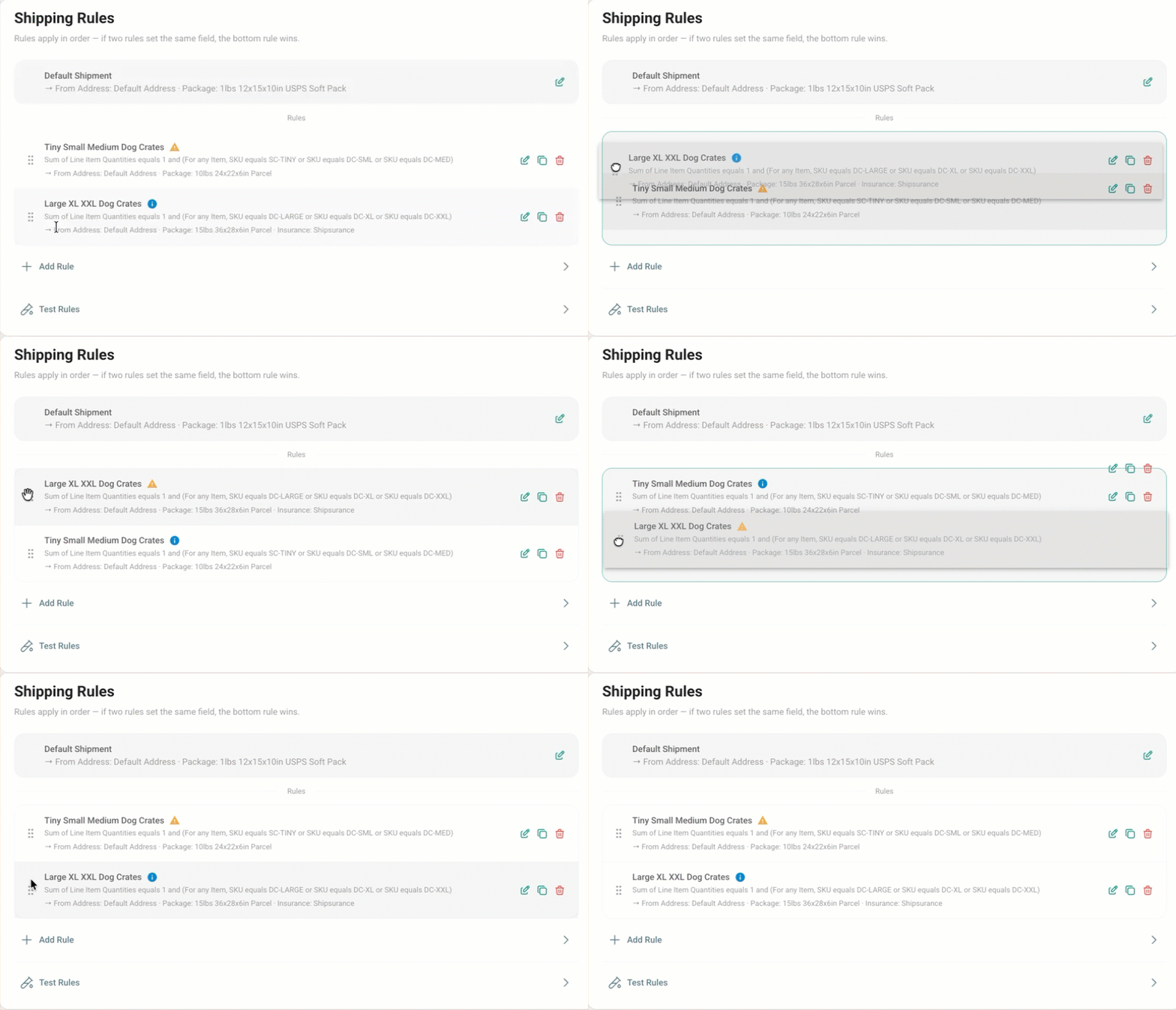
If two rules could potentially apply to the same order, the rule that appears later in the list overrides settings from earlier rules. In these cases, adjusting the rule order ensures the correct settings are applied.
To rearrange Shipping Rules, simply drag and drop them into the desired order.
Rearranging Conditions and Groups Within a Rule
Just as the order of Shipping Rules affects the final shipment settings, the structure and order of conditions within a rule can also influence which orders qualify for that rule.
When Postsale evaluates a rule, it processes the condition groups and conditions based on how they are arranged. If the logic is not structured correctly, orders may match the rule unexpectedly, or fail to match when they should.
While testing your rules, you may discover that adjusting the order or grouping of conditions improves accuracy.
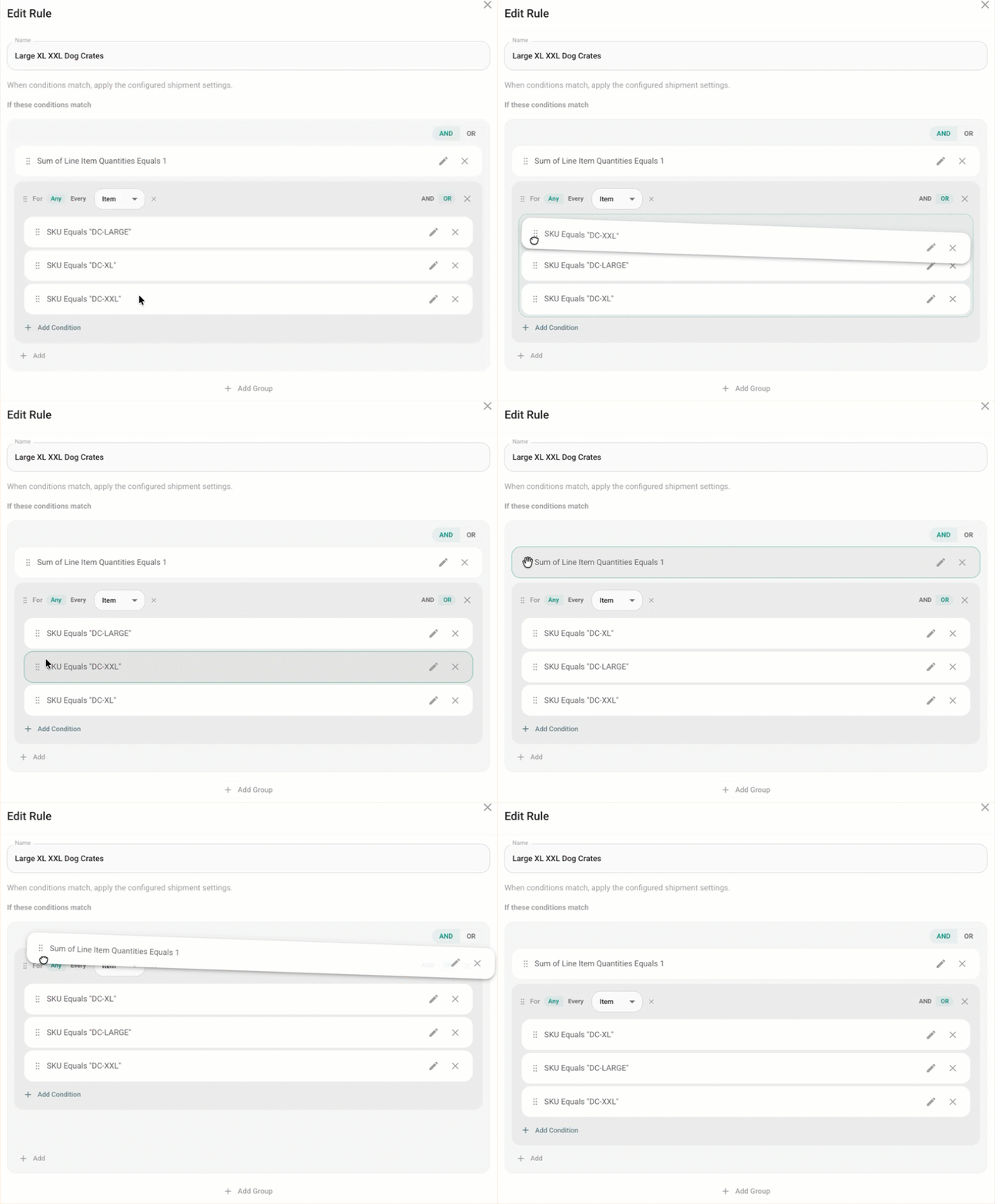
Within a Shipping Rule, you can drag and drop elements to reorganize the logic. You can rearrange:
- Entire groups of conditions
- Individual conditions within a group
Reordering conditions can help ensure that your rule logic reflects your intended workflow and correctly identifies the orders that should receive specific shipment settings.
As always, after making adjustments, use the Test Rules tool to confirm your changes behave as expected.
Still have a question? Ask a person.
Write to support@postsale.com or send us a message. We reply the same business day, Monday to Friday, 8 AM to 5 PM Central.