UPS: Reconnect Your Account
Errors when shipping with UPS? You may need to reconnect your UPS account.
Are you experiencing errors shipping with UPS when…
- You try to view UPS rates
- You attempt to create or void UPS shipping labels
- You attempt to schedule a UPS pickup
It may be necessary to reconnect your UPS account to Postsale.
Adding a New UPS Account to Postsale?
Please see our UPS: Add to Postsale help article for information on how to connect your UPS account to Postsale.
Before We Begin
To reconnect your UPS account to Postsale you will need:
- Your UPS account username or email address
- Your UPS account password
Reconnect Your UPS Account
When Postsale Prompts You
When Postsale detects that there is an issue connecting to your UPS account, you will be prompted to reconnect.
Click the Reconnect button.
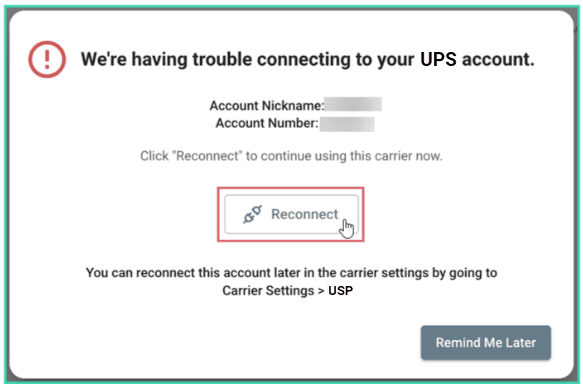
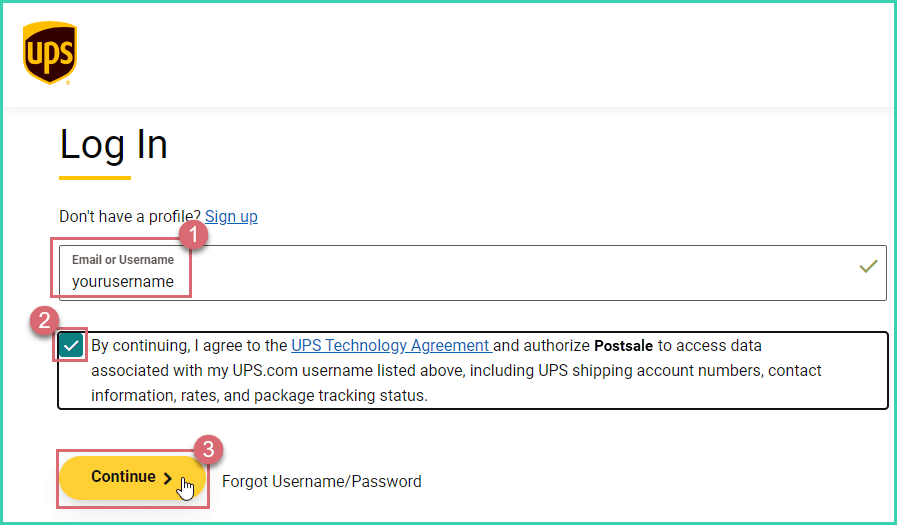
You will be redirected to the UPS Log In page.
Enter your UPS account Email or Username, agree to the UPS Technology Agreement, then click Continue.
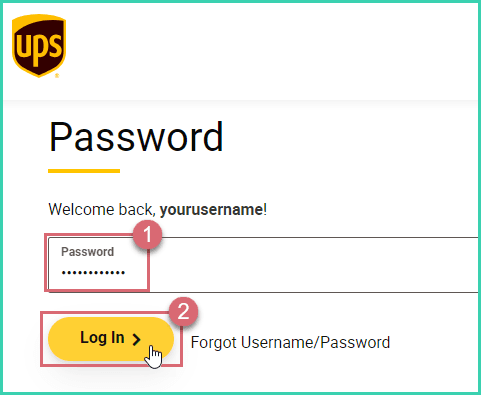
Enter your UPS account password. Then, click Log In.
After successfully logging in, you will be automatically redirected back to Postsale.
Click Done.
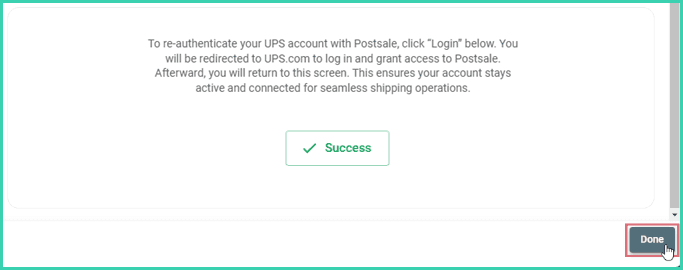
You are now reconnected to your UPS account.
Reconnect Later
When prompted to reconnect your account, you have the option to reconnect your UPS account later. Click the Remind Me Later button.
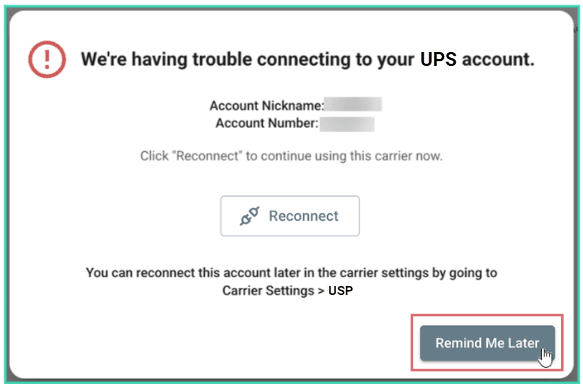
Then, follow the steps below when you are ready to reconnect your UPS account.
Go to Settings.

Select Carrier Settings.
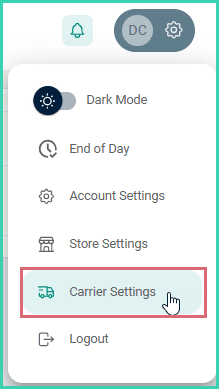
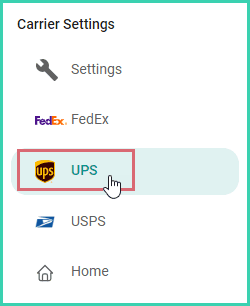
Select UPS.
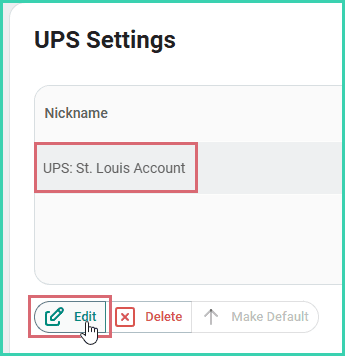
Select your UPS account. Then, click the Edit button.
Click the Log In button in the Connection section.
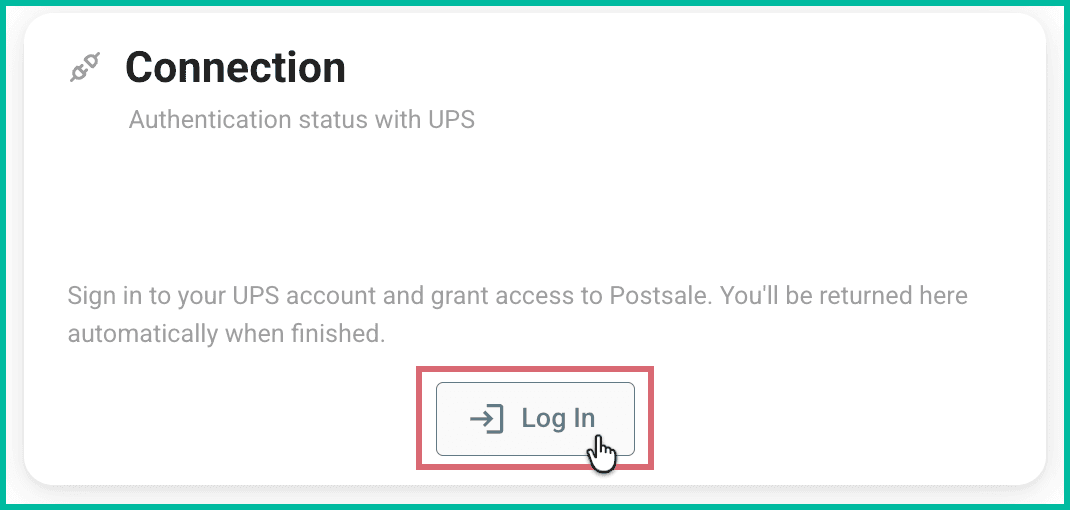
You will be redirected to the UPS log in page.
Follow steps 2 - 4 in the previous section of this article to reconnect your UPS account to Postsale.
On this page
Related