Edit & Manage Your Automations
Learn how to edit, reorder, pause, and delete automations in Postsale so your shipping workflows stay accurate as your business changes.
Review Your Automation Workflow
Modifying or adding automations in Postsale might lead to unexpected changes in your shipping workflow. We recommend reviewing your current automations before making any updates.
Before We Begin
Managing custom automations is a premium feature requiring an Expand, Thrive, or Soar billing plan. Learn more about managing your Postsale account in our Frequently Asked Questions.
Edit an Automation
From time to time you may need to update an Automation. Here's how:
-
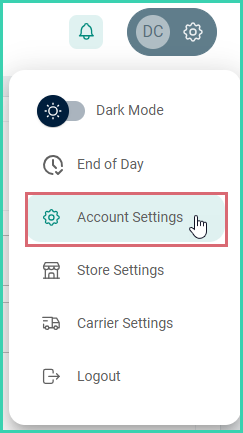
Go to Settings and select Account Settings.
-
Select Automation from the Account Settings menu.
-
Select the Automation you wish to edit. Then, click the Edit button.
-
Make the needed updates to the Automation.
The following updates can be made:1 - Edit or change the Trigger
2 - Edit or delete the existing Conditions or add a new Condition
3 - Edit or delete an existing action or add a new actionSee our Automation Reference Guide for more information about the available Triggers, Conditions, and Actions.
-
Be sure to click the Save button to save your changes.
Delete an Automation
-
Go to Settings and select Account Settings.
-
Select Automation from the Account Settings menu.
-
Select the Automation you wish to delete. Then, click the Delete button.
-
Click Delete to confirm that you do, in fact, wish to permanently delete the Automation.
The Automation is deleted and any actions associated with the Automation will no longer run.
Pro Tip: Automation Logs
View Automation Logs whenever you need insights into your Automation activity. The logs are great for viewing detailed information about specific Automation events or digging deeper when troubleshooting an Automation issue.
-
Go to Settings and select Account Settings.
-
Select Automation from the Account Settings menu.
-
Select View Logs.
The Logs screen opens. Automation events are listed chronologically with the most recent event at the top of the list. The Date and Time the Automation was triggered and a Message describing the Automation are listed for each event.
-
View additional details about a specific Automation by clicking the + sign at the beginning of the event's row.
After expanding a row, you can click the - sign at the beginning of the row to collapse the additional details.
Automation is available on Expand plans and above. Visit the Postsale features page for an overview, or check the pricing page for plan details.
On this page
Related