Create and Print Test Labels
Create and print carrier test labels.
Creating test labels is useful when:
- You need to be sure your label printer is printing correctly, such as after replacing the print media or when setting up a new printer.
- You've updated a custom label template and want to ensure the layout is correct and prints properly.
- You are setting up your Postsale workflow and want to test label printing before adding carrier accounts to Postsale.
This article explains how to create and print USPS and UPS test labels.
Before We Begin
- Only USPS and UPS support creating test labels.
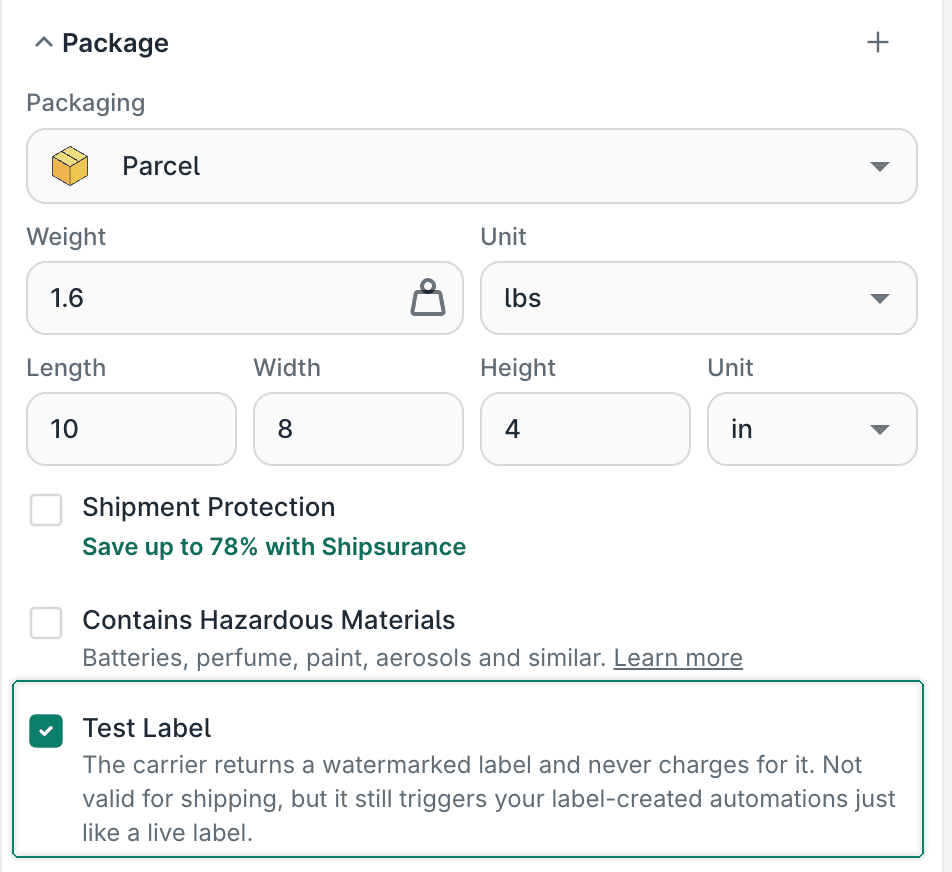
- A test label is watermarked, does not incur a label charge, and is not valid for shipping.
Create a Test Label
Select an order in the Ready to Ship filter.
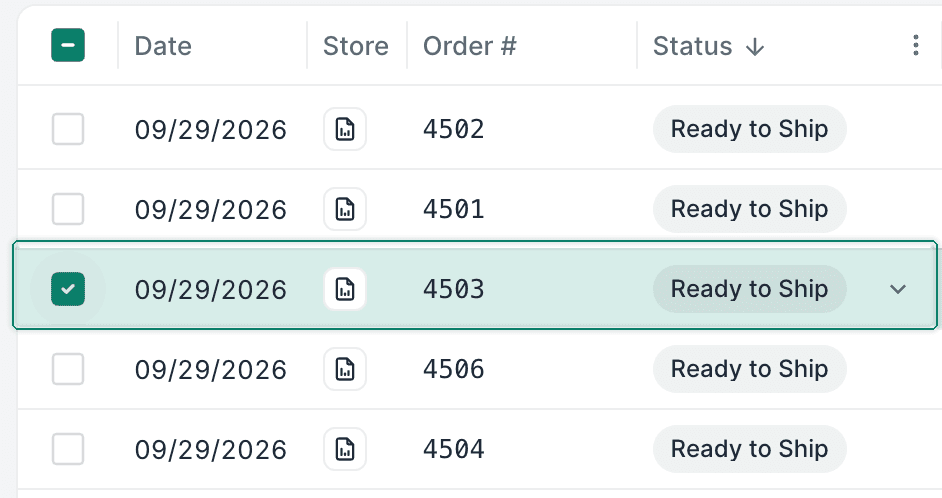
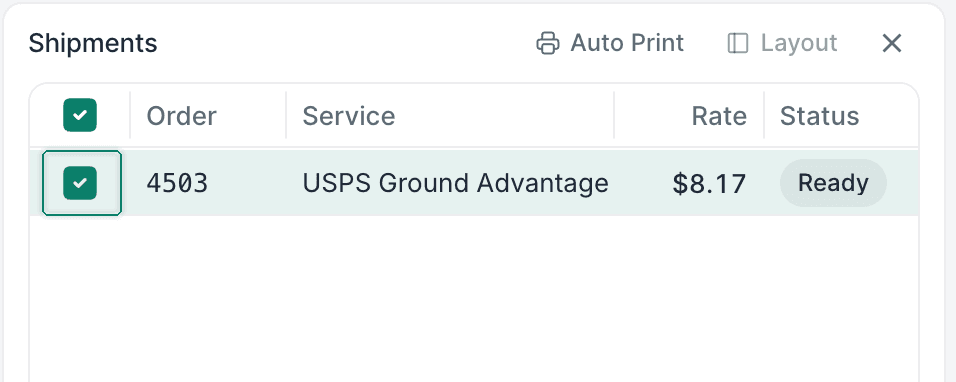
Open the Dock if it is not already open.

Select the checkbox for the shipment you want to use for the test label.
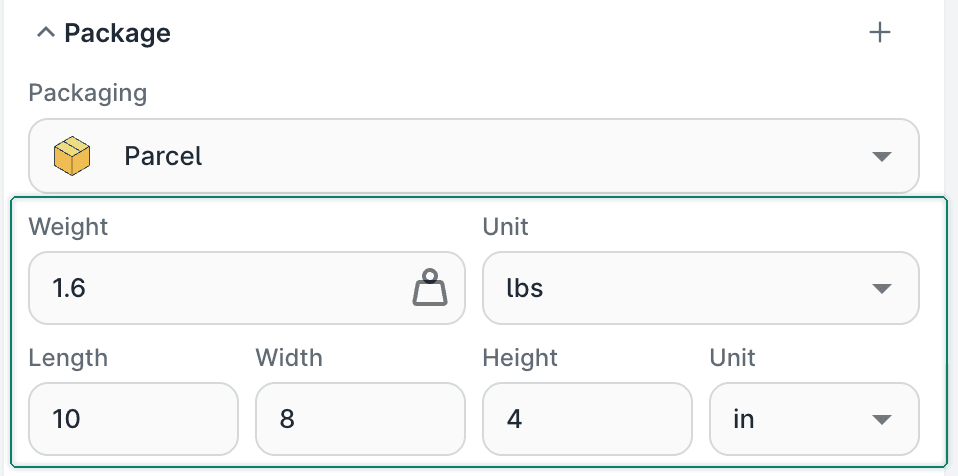
Select the package type and enter the weight and dimensions for the shipment.
Select Test label.
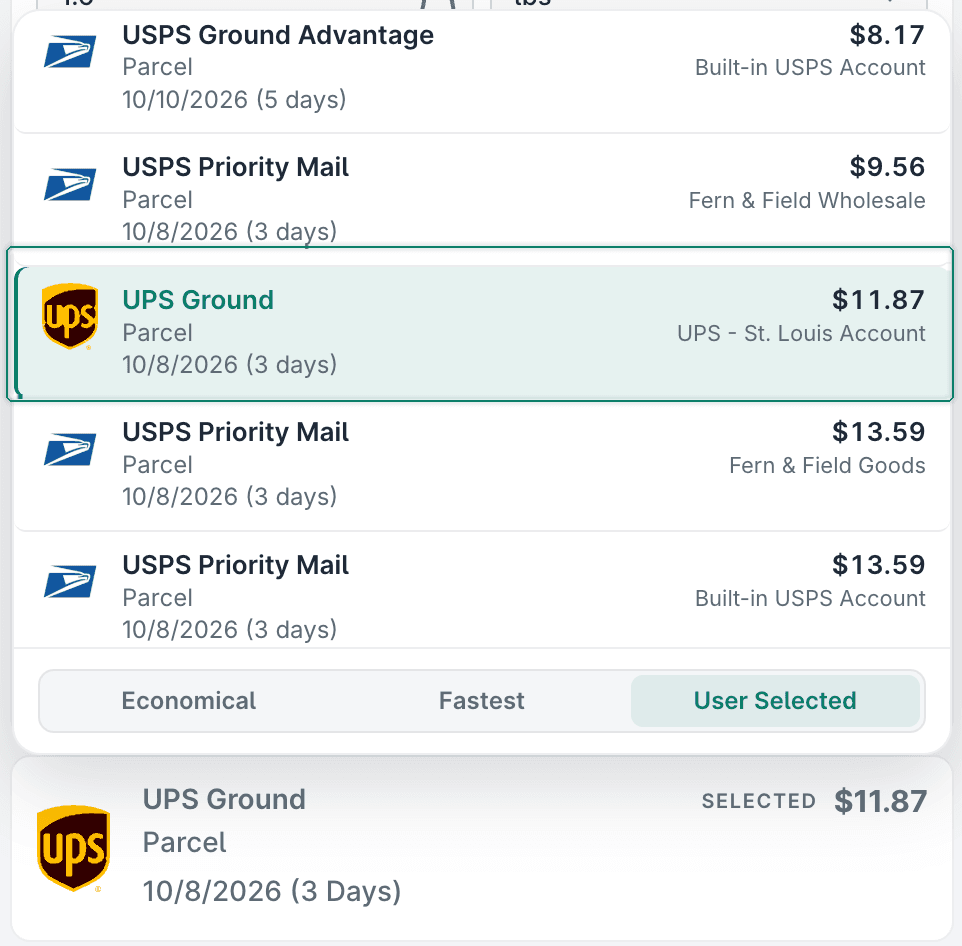
Select a USPS or UPS service for the test label. In this example, we selected UPS Ground.
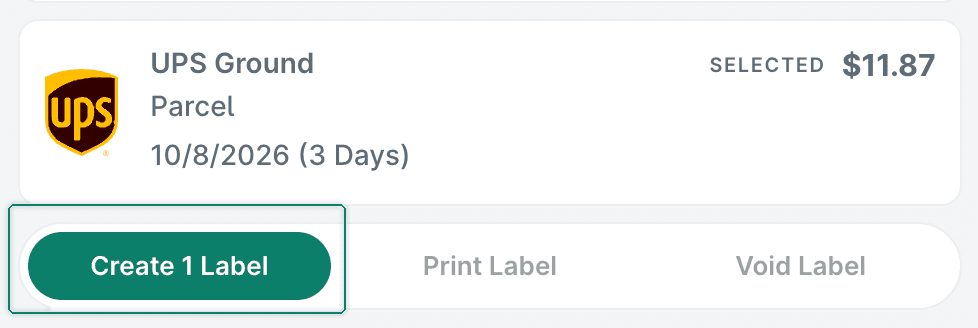
Select Create 1 Label.
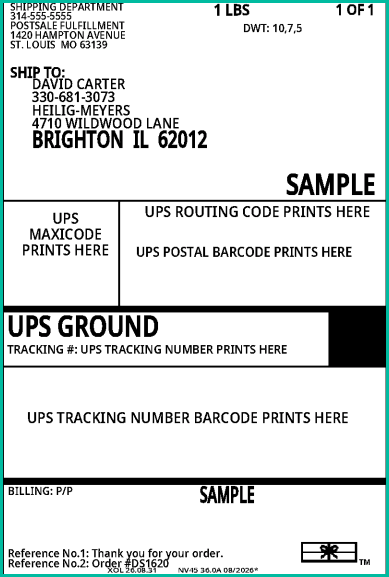
A test label is generated for the carrier and service you selected.
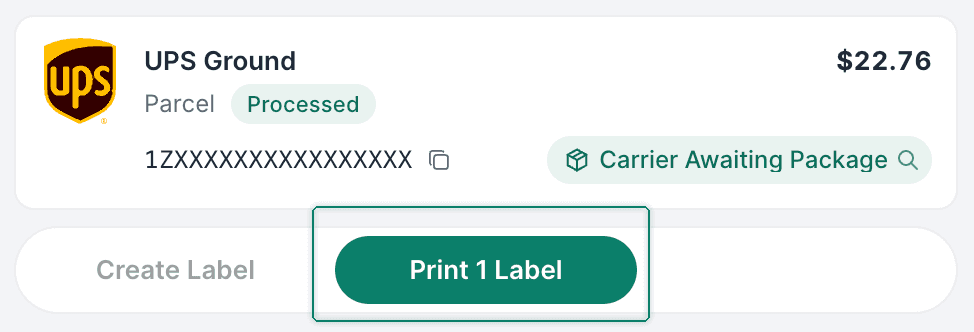
Select Print 1 Label to view and send the label to your printer.
Still have a question? Ask a person.
Write to support@postsale.com or send us a message. We reply the same business day, Monday to Friday, 8 AM to 5 PM Central.