Archive Orders
Archive orders when you need to remove them from the main workflow but need to be able to access your order history.
Postsale allows you to archive orders when you would like to remove them from the main workflow but still be able to access your order history when needed.
When you archive orders, they are moved to the Postsale archive so that they are no longer a part of your normal shipping workflow. You then have the option to view and search for your archived orders using the Archived filter, giving you easy access to your archived orders.
In this article, we will learn how to:
- Archive orders
- View your archived orders in the Archived filter
- Recover archived orders
Real World Example
We have orders fulfilled in 2022 and no longer need to manage them. We would like to remove those orders from our everyday workflow. However, we may need to access order history for those orders.
Let’s archive those orders. Then, we'll use the Archived filter to access them any time we need to.
Archive Your Orders
First, let’s find all the 2022 orders. For our example, we searched for orders with an order date between January 1, 2022 and December 31, 2022. However, you can use Postsale’s Advanced Search functionality to find the orders that you wish to archive.
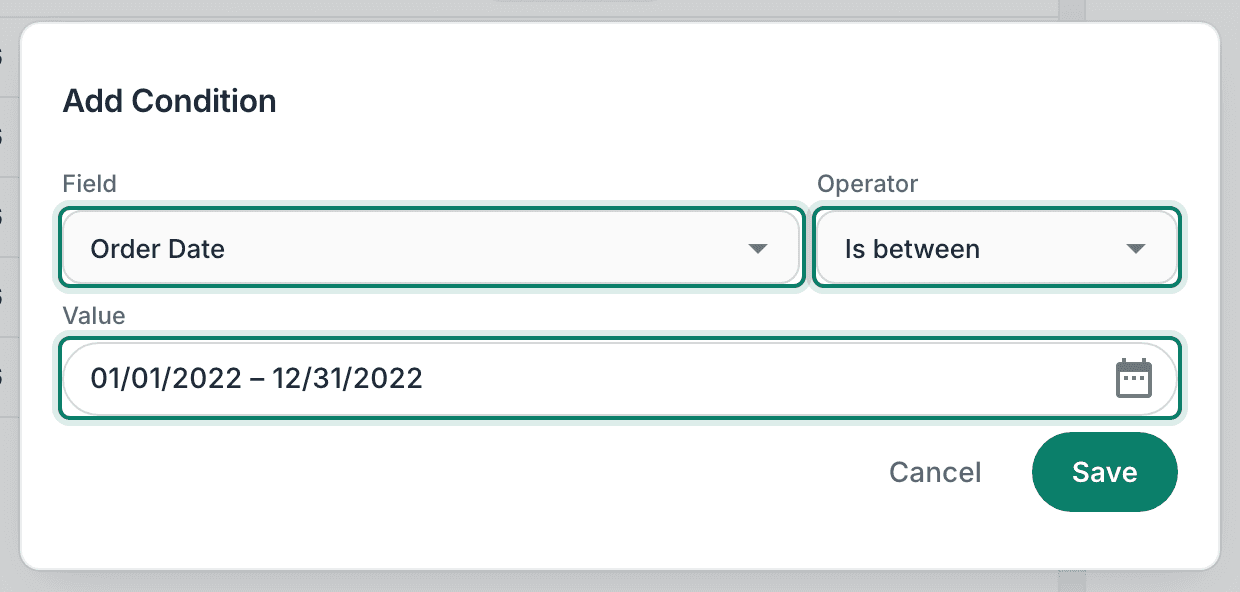
Now that we have found the orders, let’s archive them. Here’s how:
- Select the orders that you wish to archive.
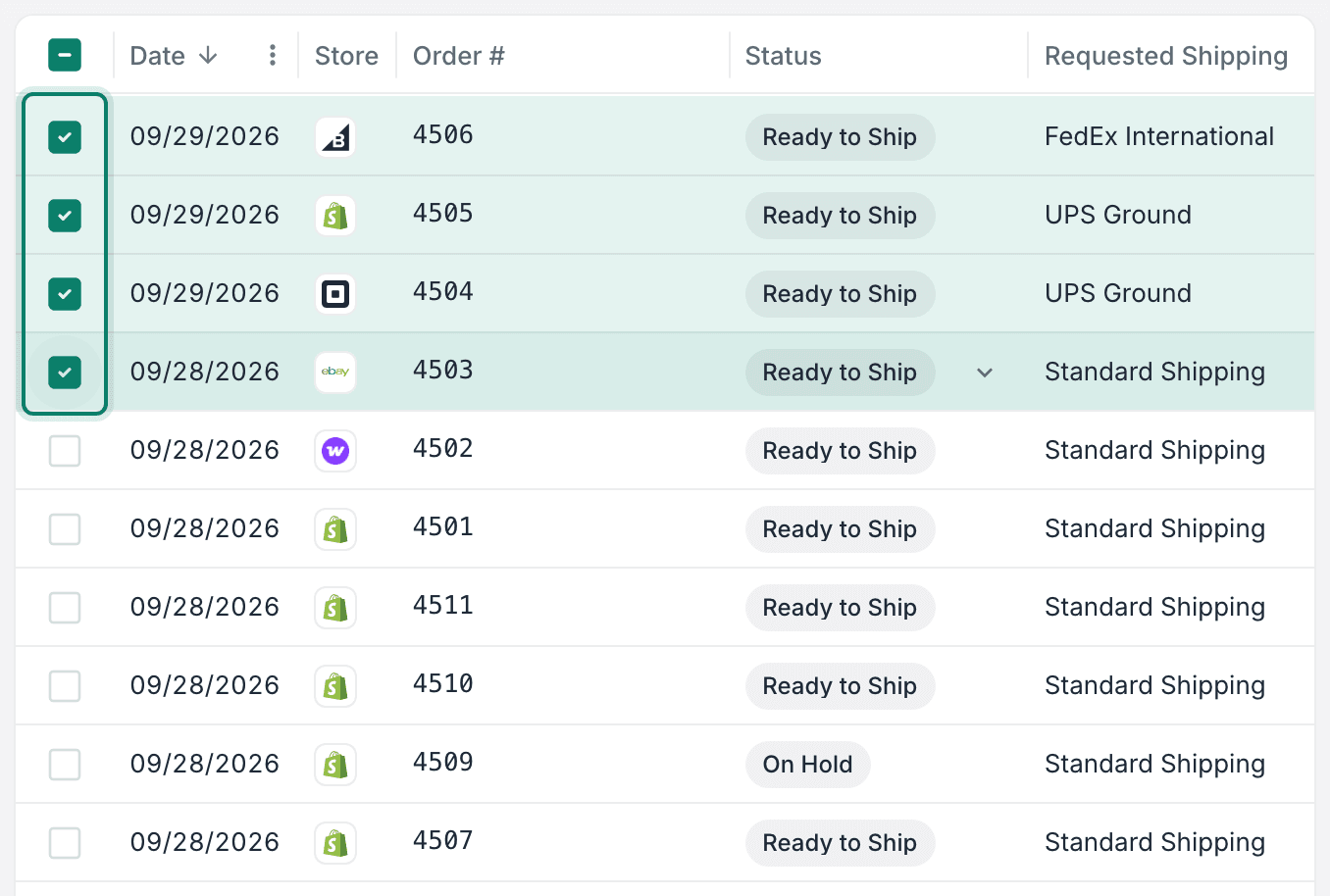
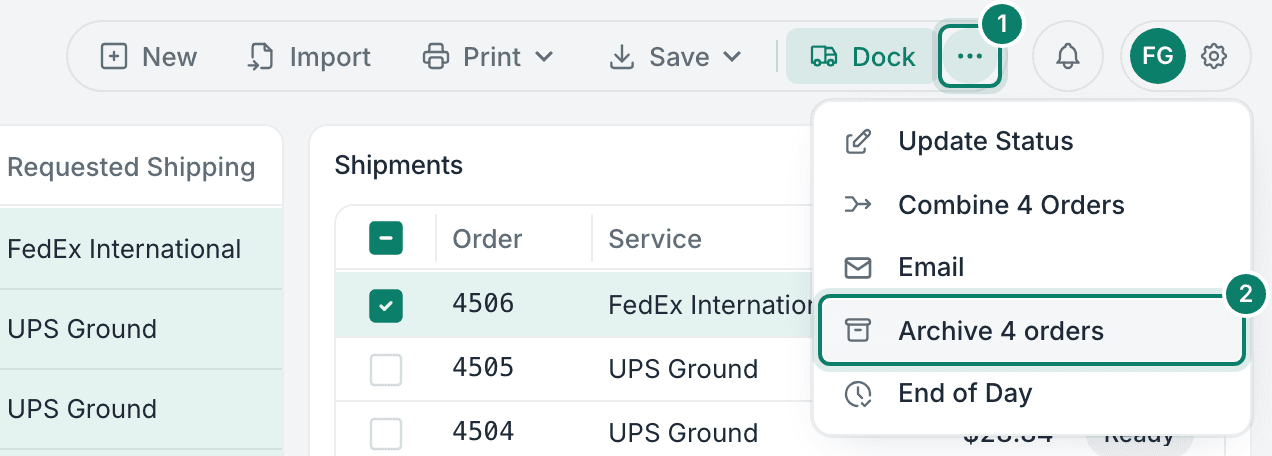
Click More actions (the three dots) and select Archive XX orders.
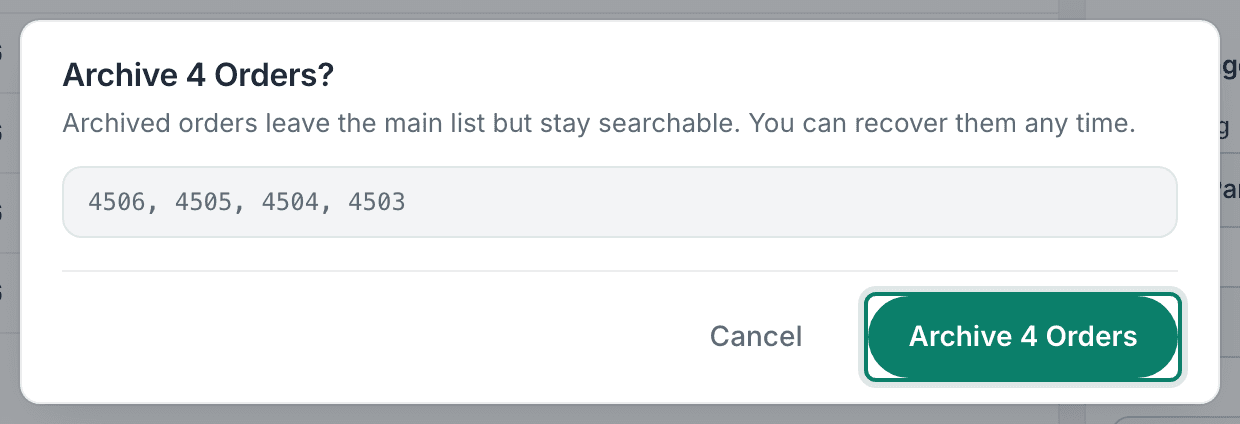
Click the Archive XX Orders button to confirm that you wish to archive the selected orders. The selected orders are listed for you so that you can review them prior to archiving them.
The orders are moved to the Postsale archive. It is important to note that archived orders won't appear in the following, default filters or in search results performed within those filters.
- All Orders
- Ready to Ship
- Shipped
- Voided
- On Hold
- Cancelled
View & Search for Archived Orders
View all of your archived orders by selecting the Archived filter in the Orders Menu.
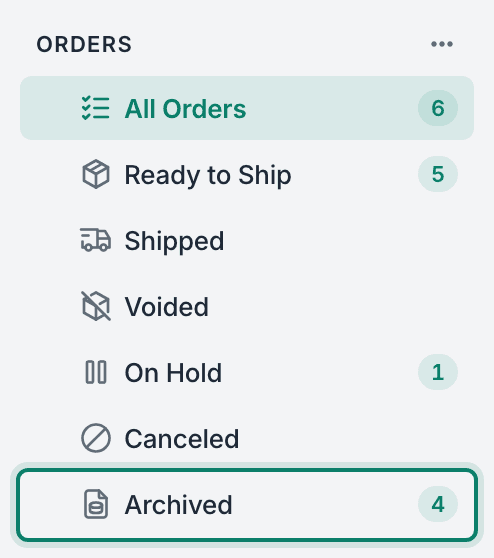
To search for specific, Archived orders:
Select the Archived filter.
Use the Search Archived box to perform your search.
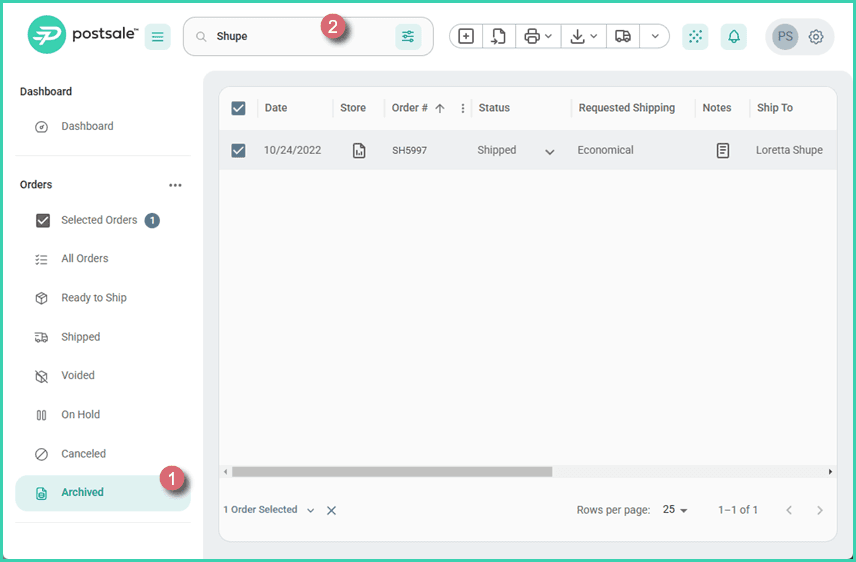
Since the Archived filter is selected, the search only returns results for orders that have been archived.
Recover Archived Orders
Postsale gives you the ability to recover archived orders when you wish to move the orders out of the archive and include them in the normal Postsale workflow again. Here’s how:
Select the archived orders that you wish to recover.
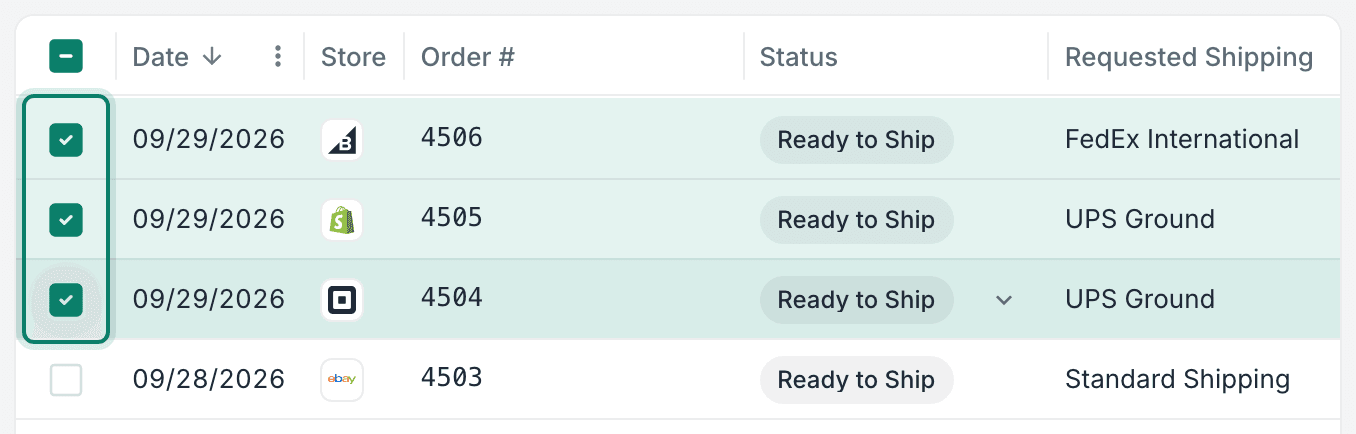
Click More actions (the three dots) and select Recover XX orders.
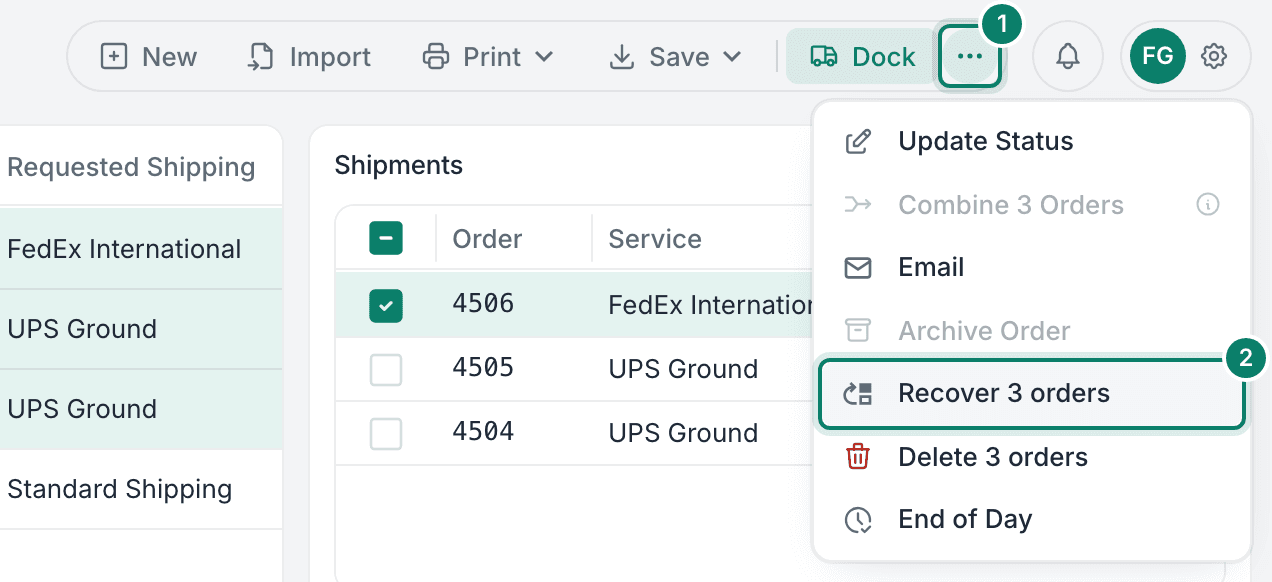
Click the Recover XX Orders button to confirm your wish to recover the selected orders.
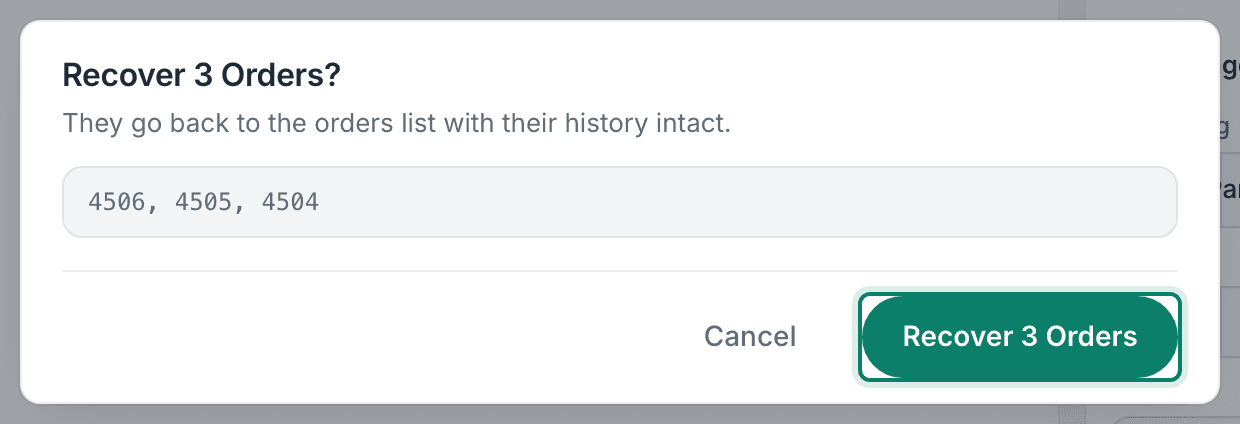
The orders are returned to the Orders Grid and are available in your normal Postsale workflow.
Still have a question? Ask a person.
Write to support@postsale.com or send us a message. We reply the same business day, Monday to Friday, 8 AM to 5 PM Central.