Select & Take Action on Orders
How to select, deselect, and work with selected orders.
Selecting orders is the first step to taking action, such as preparing shipments, printing packing slips, or updating order statuses. In this article, we will look at how to select and deselect orders and how to view and work with the orders you select.
Selecting Orders
Individual Orders
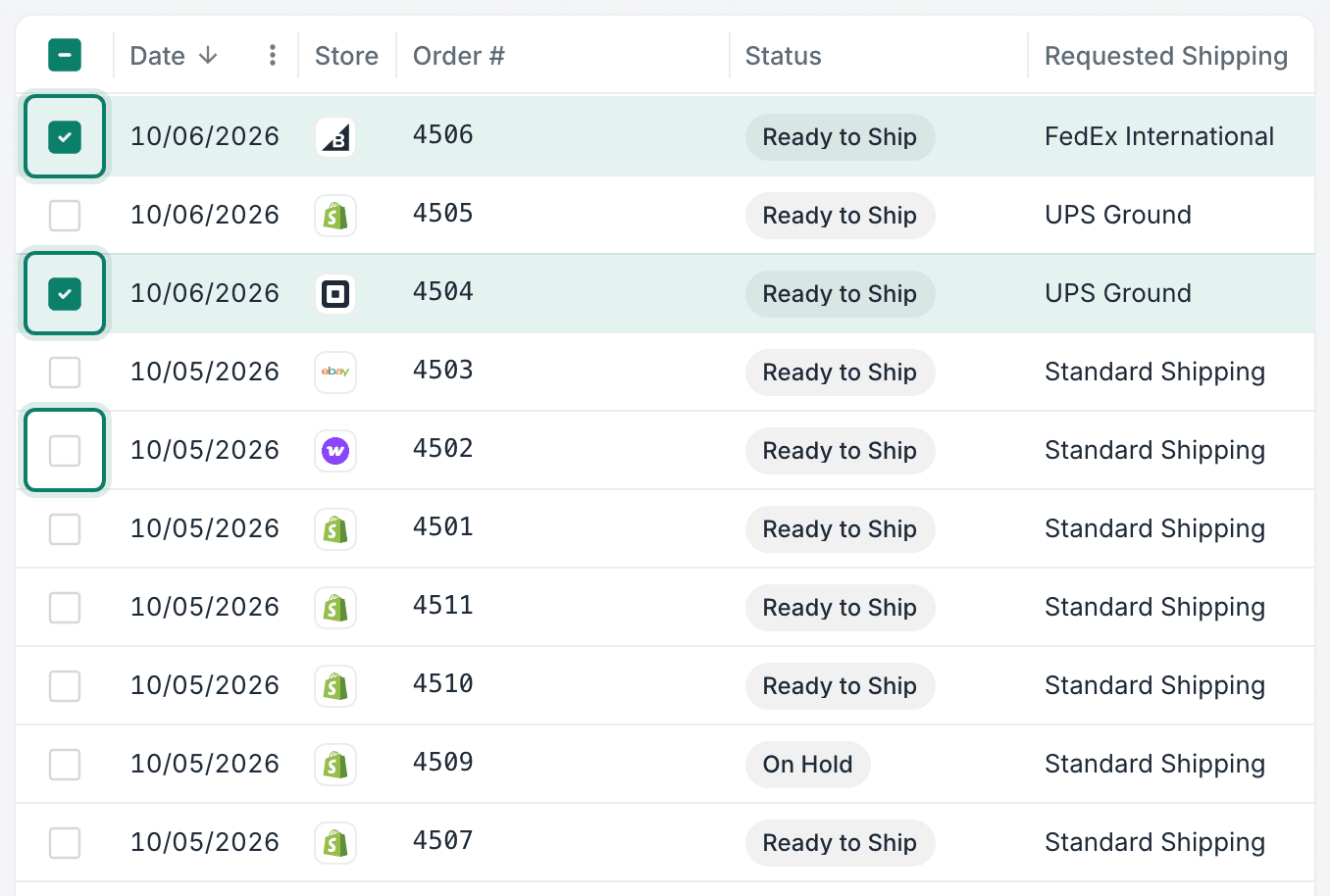
Check or uncheck the box next to an order to add or remove it from your selection.
All Orders
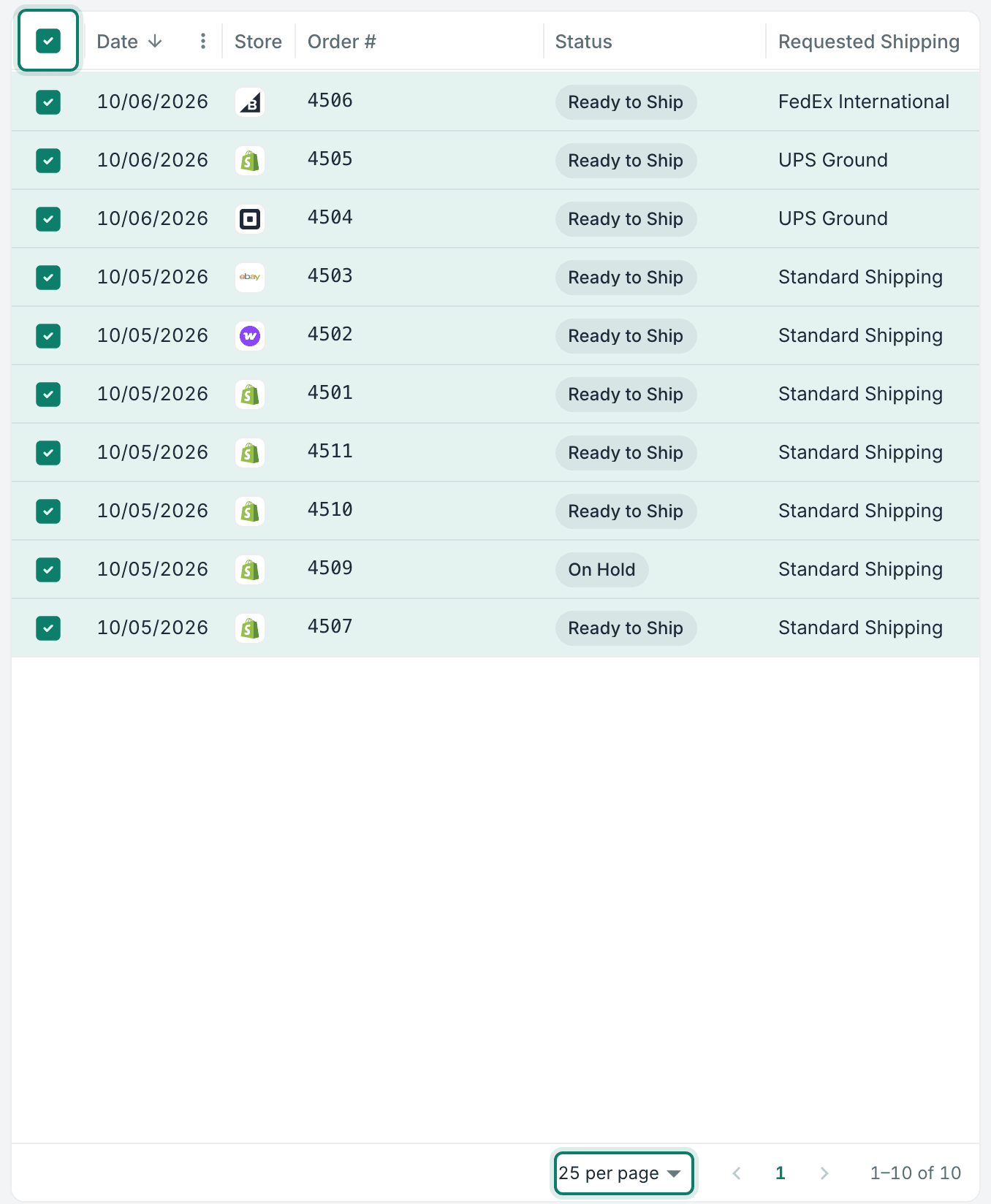
To select or deselect all orders currently loaded in the grid, use the checkbox at the top of the column. This method selects the rows currently displayed per page, shown in the per-page menu (25 per page) at the bottom-right corner of the Orders Grid.
Good to Know
- Selected orders stay selected until you deselect them, allowing you to search for orders and select them, switch to a filter to select more orders, and so on until all the orders you need are selected.
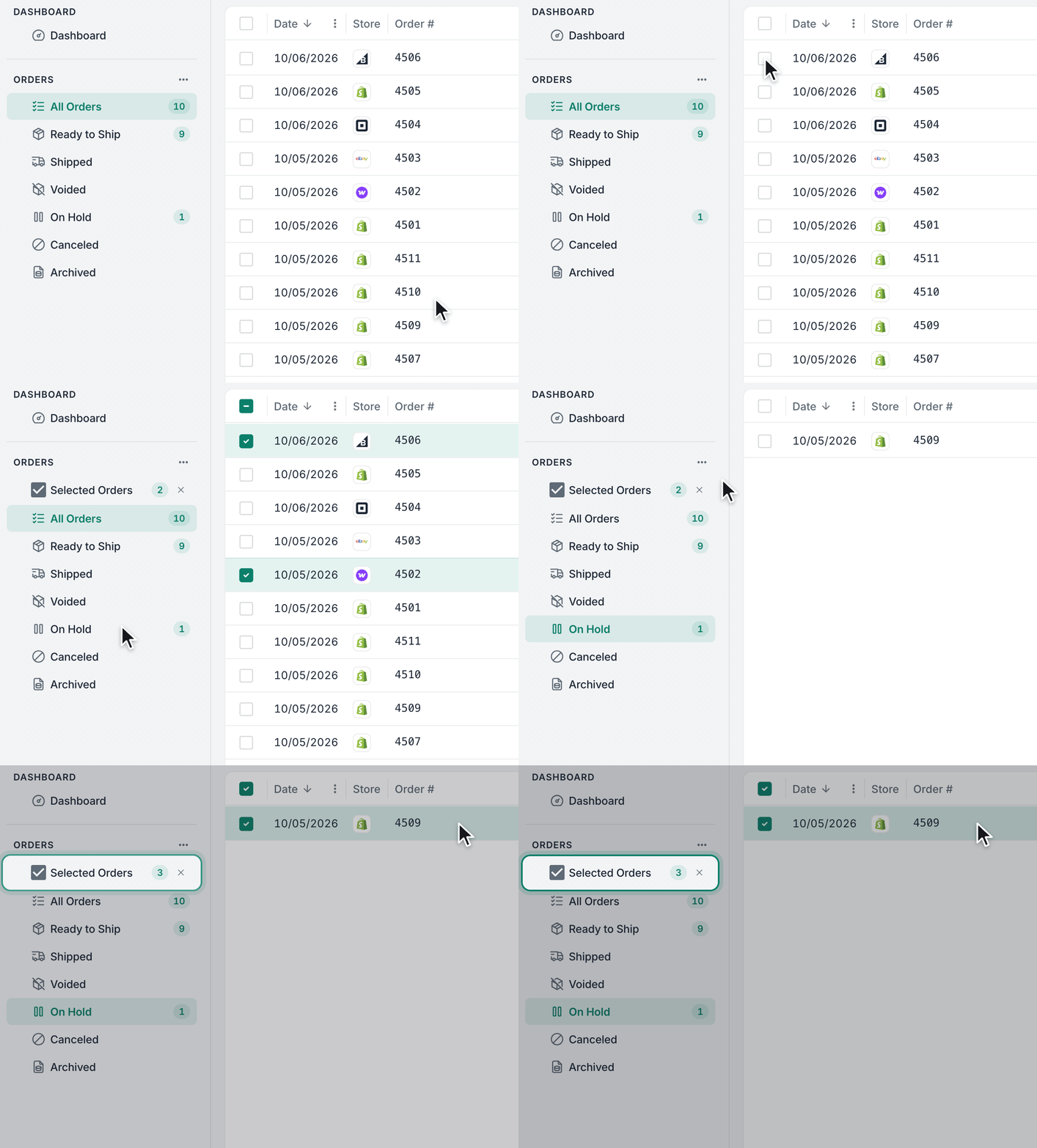
- When you select orders, a new filter called Selected Orders appears. This filter shows the total number of orders you currently have selected and provides an easy location to view and interact with all your selected orders. Use the Selected Orders filter any time you wish to review your selection or remove any orders you don't need.
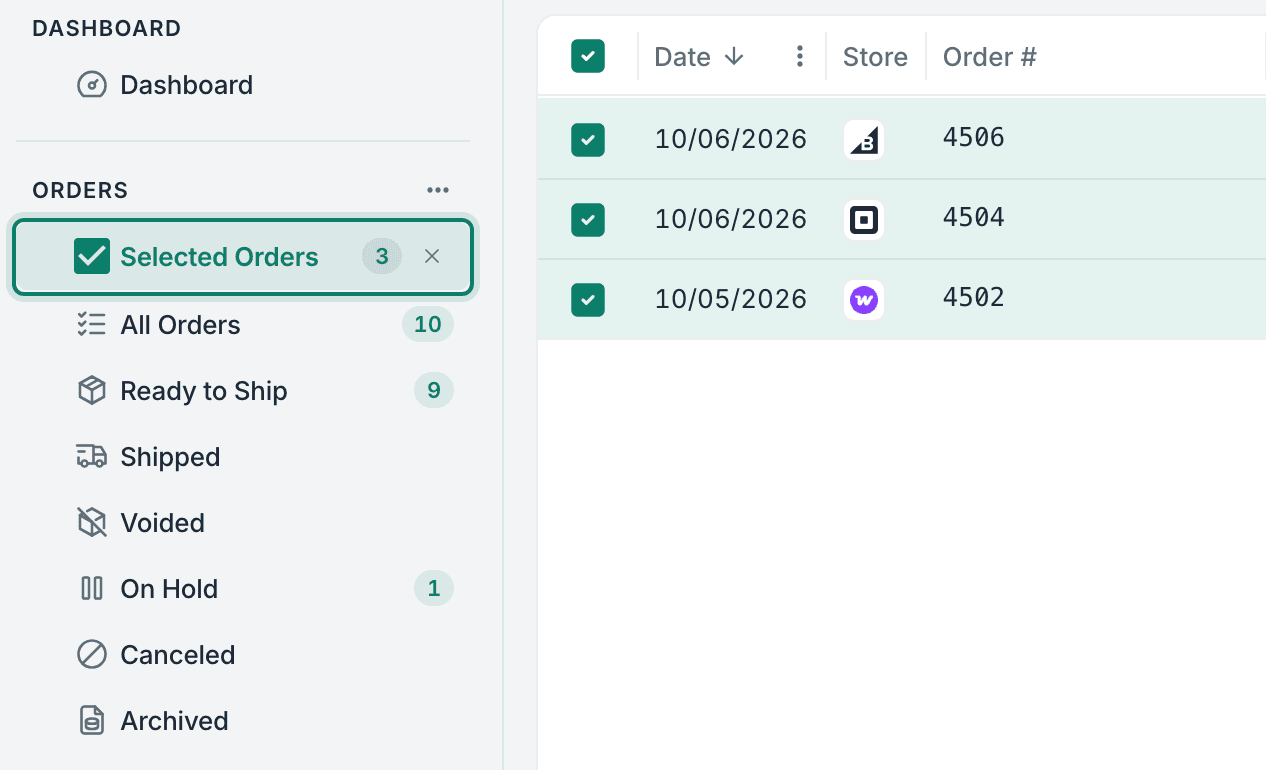
- Click the X in the Selected Orders filter to quickly deselect all of your selected orders. This method is useful when you have selected orders across multiple filters and not all of your selected orders are currently displayed in the grid.
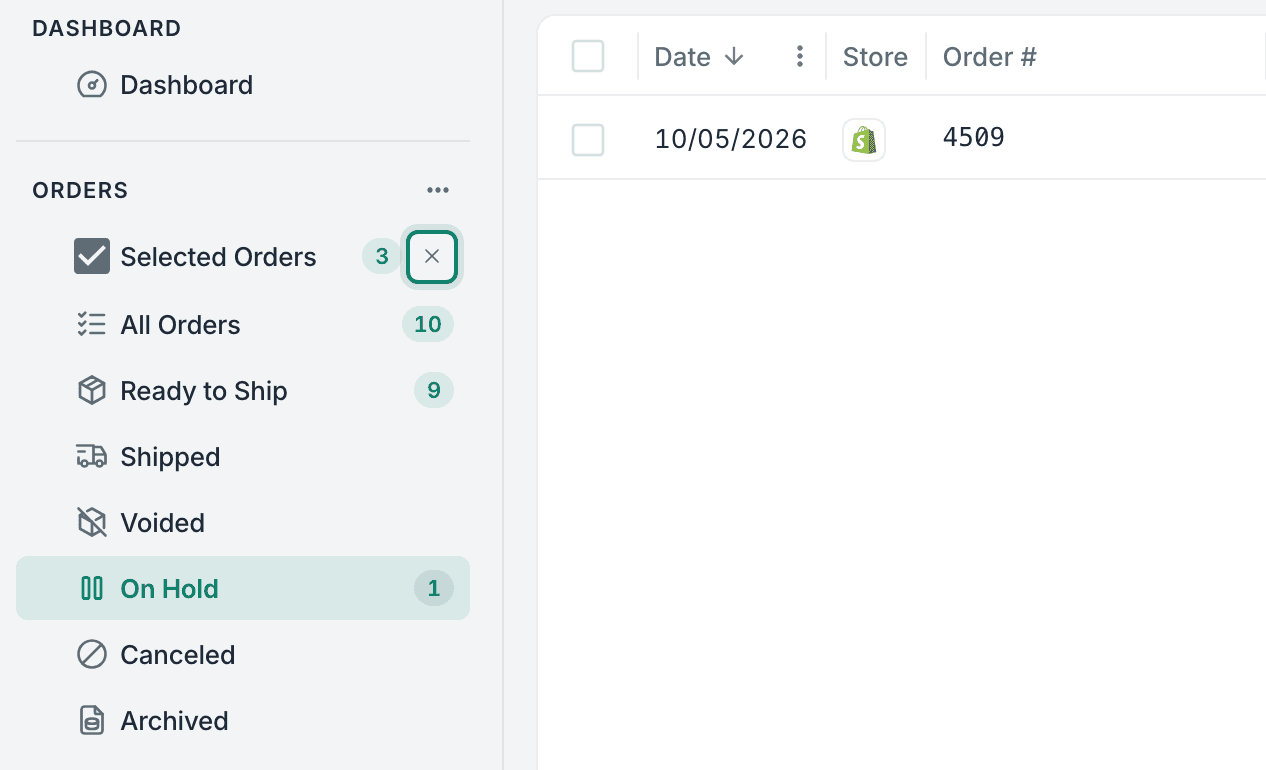
- The number of selected orders is displayed on the Selected Orders filter in the Orders menu. Click Selected Orders to display a list of all selected orders. Use the list to deselect individual orders.
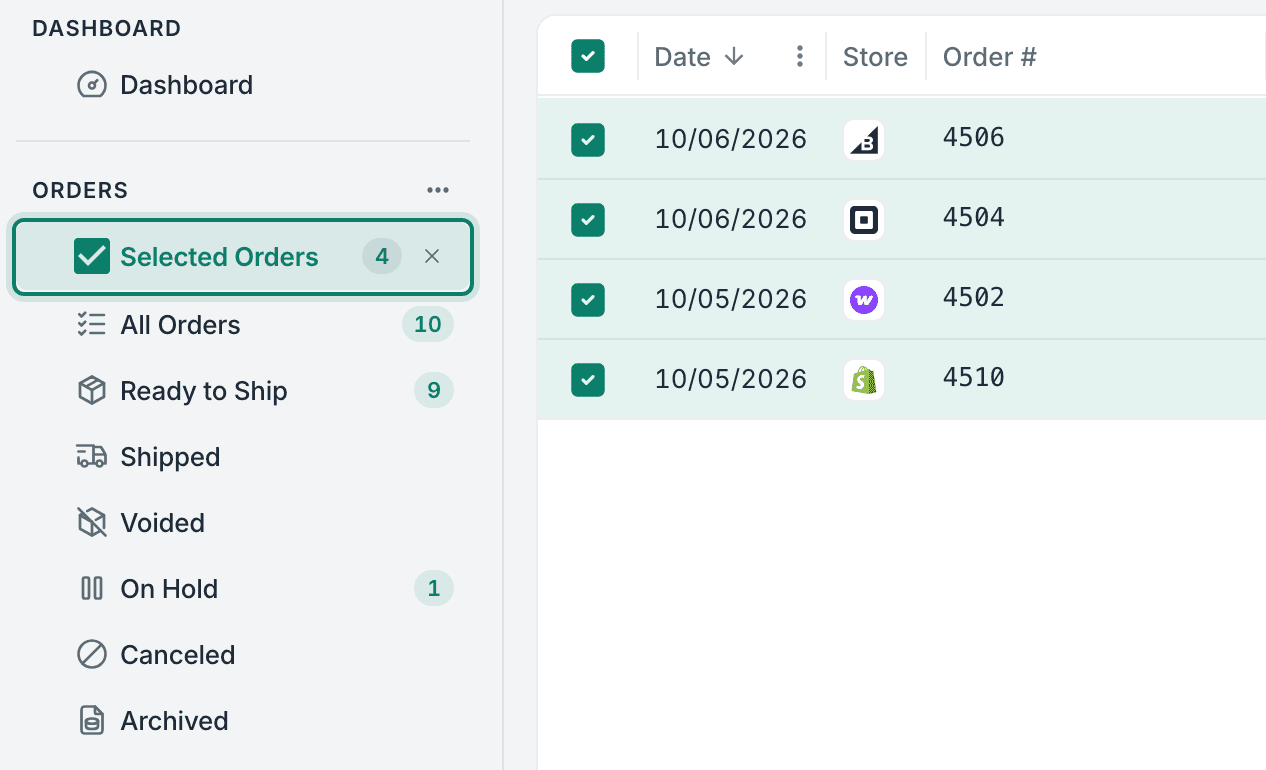
-
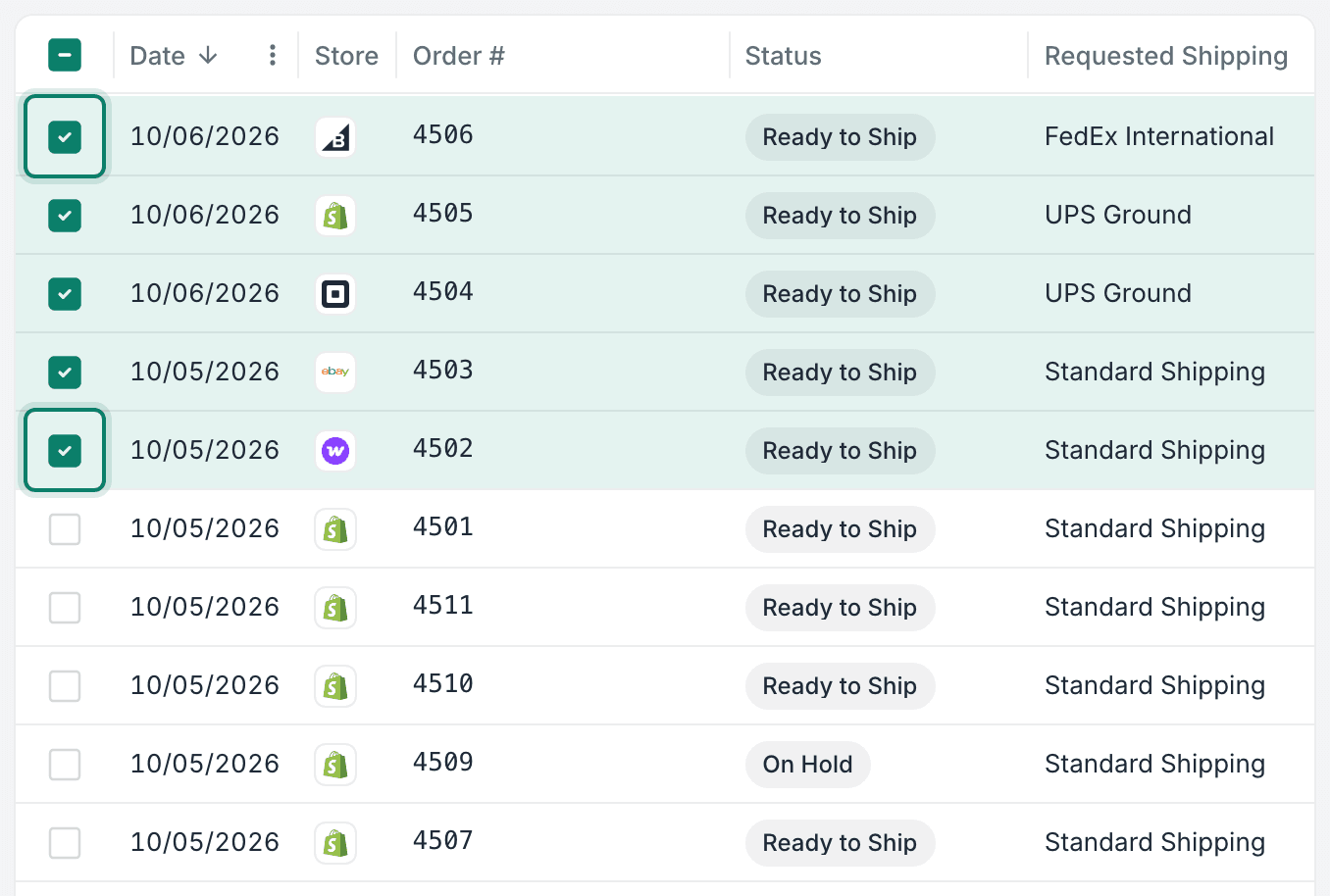
Use the following keyboard shortcuts to quickly select/deselect a group of specific orders within the Orders Grid:
- On a desktop, hold down the Shift key to select multiple consecutive orders. Just click the first and last orders in the range.
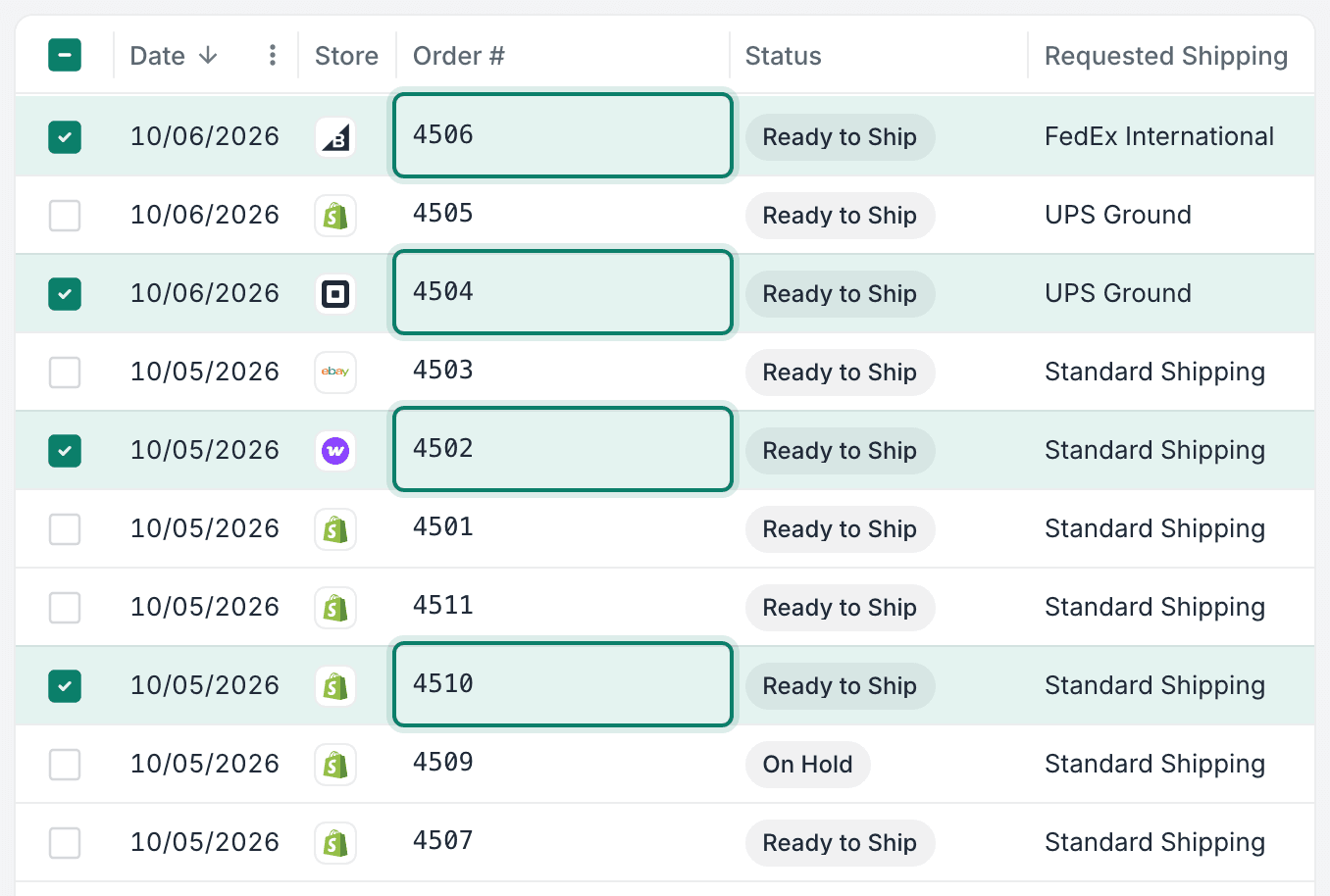
- To select non-consecutive orders, hold down the Ctrl key (Windows) or Command key (Mac) and click each order you want to select. This method is useful when you choose not to show the selection boxes on the Orders Grid.
Still have a question? Ask a person.
Write to support@postsale.com or send us a message. We reply the same business day, Monday to Friday, 8 AM to 5 PM Central.