Combine Orders
Combine multiple orders into a single order
Postsale lets you combine multiple orders into one combined order. This can help when:
- A customer places multiple orders shipping to the same address. You can manage their items and shipments together while preserving the details of each original order. Shipping the items in one package may also cost less than shipping them separately.
- You want one master order number for a customer's orders. Once combined, only the combined order appears in the Orders Grid. Open it in the Order Editor to view the individual orders' information.
This article covers:
- Combining two or more orders
- Viewing combined order details
- Removing an order from a combined order
- Uncombining a combined order
Combine Two or More Orders
Real-World Example
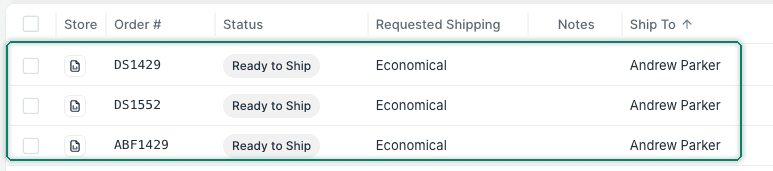
We have three orders for the same customer and want to ship all their items together. We'd like to combine the orders, choose one order as the primary, create a new shipment, and assign a new order number to the combined order. This will allow us to more easily manage multiple orders with a single shipment.
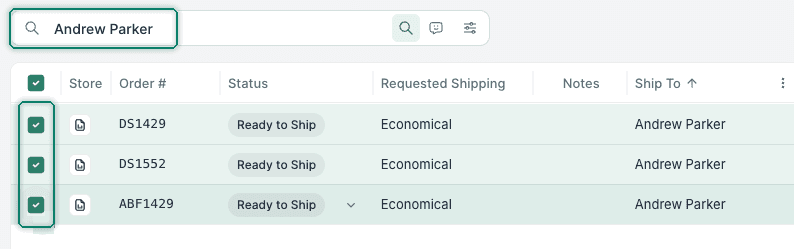
Search for and select the orders you wish to combine.
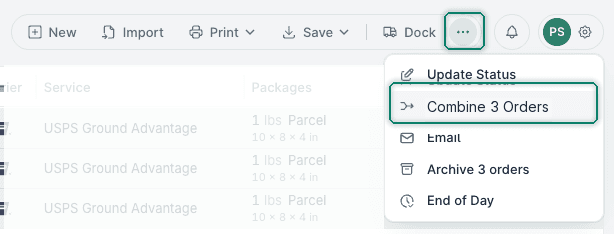
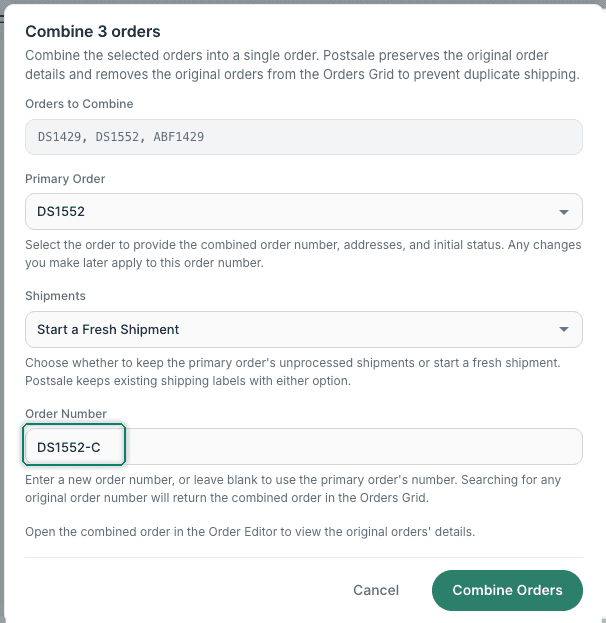
Open the Order Actions and select Combine [number] Orders. Postsale replaces [number] with the number of selected orders. The action in this example reads Combine 3 Orders.
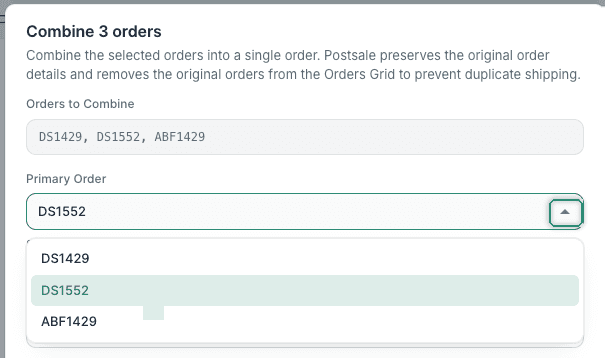
Choose a Primary Order in the Combine [number] Orders pop-up. The selected primary order provides the combined order's:
- Order Number
- Ship To and Bill To addresses
- The initial Order Status
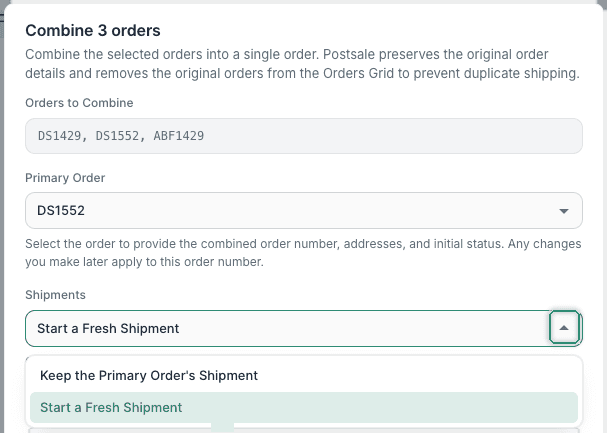
Choose how to handle Shipments.
- Select Keep the Primary Order's Shipment to keep the primary order's unprocessed shipment(s).
- Select Start a Fresh Shipment to create a new shipment for the combined order. We selected Start a Fresh Shipment so we can prepare a new shipment for all the items.
- Postsale keeps any previously created shipping labels with either option.
(Optional) Enter a new Order Number if you want to identify the combined order by a different number. Leave the field blank to use the primary order's number. In this example, we entered DS1552-C: the primary order number plus -C to mark it as combined.
Select Combine Orders.
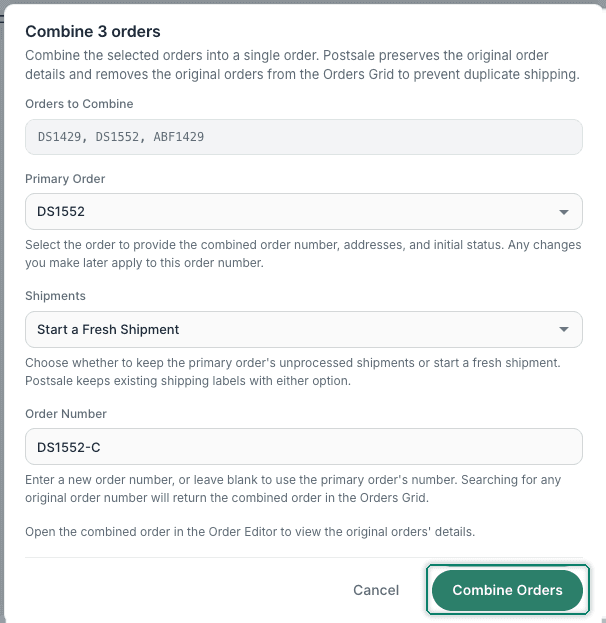
Postsale creates the combined order and removes the original orders from the Orders Grid to prevent duplicate shipping. The individual order details are preserved in the combined order.

View Combined Order Details
Combined orders retain the original order details, so you can view the specifics of the original orders that were combined. In the Order Editor, you can view each original order's details individually.
You can also locate the combined order in the Orders Grid by searching for any original order number.
Open the combined order in the Order Editor.
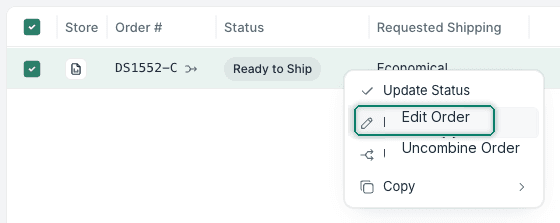
The Order Editor opens to show the details of the combined order.
Select any of the original order numbers to view or edit the details of the order. Any edits made to the selected order are reflected in the combined order and on the Combined tab.
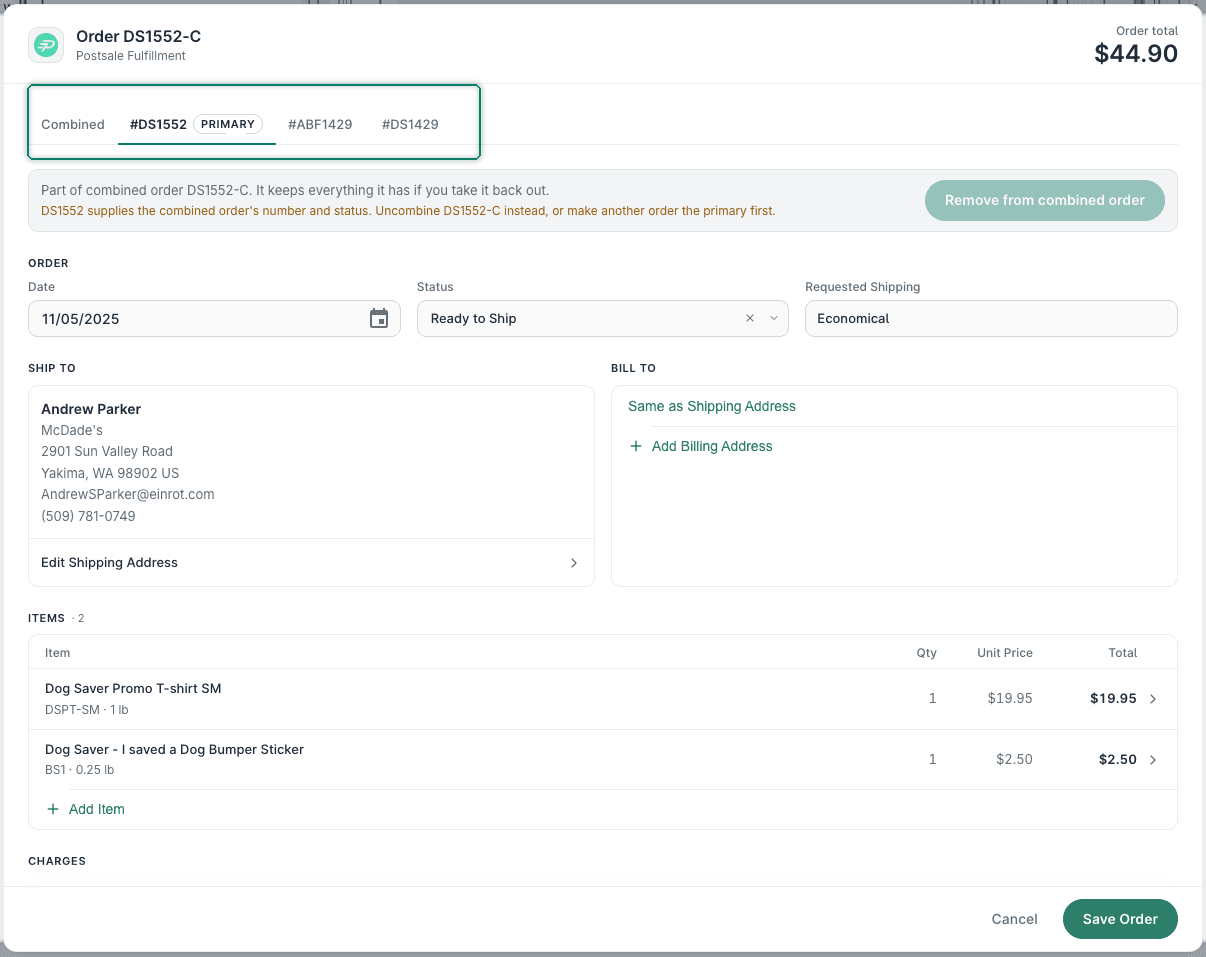
Remove an Order from a Combined Order
You can remove one or more orders from a combined order. This can be helpful if you combined an order by mistake.
You can't remove the primary order from a combined order.
Open the combined order in the Order Editor.
Select the order you wish to remove.
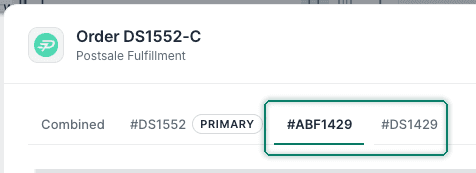
Select the Remove from combined order button. Any changes made to the selected order while combined remain with the order when uncombined.

The order is removed from the combined order and becomes available again in the Orders Grid.

Uncombine a Combined Order
Combined orders can be uncombined at any time. Here's how:
Search for and select the combined order.
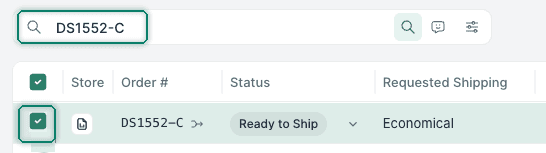
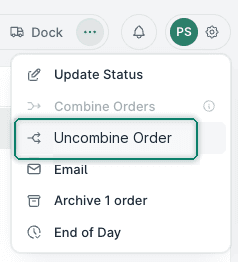
Open the Order Actions and select Uncombine Order.
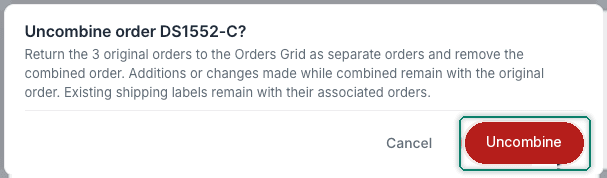
Read the notification and confirm that you want to uncombine the orders.
The orders are uncombined and returned to the Orders Grid.
Good to Know
- You can combine orders from different stores.
- When a combined order is shipped, the tracking information is sent back to the original order's store
- You can combine unshipped and shipped orders.
- Archived orders cannot be combined.
Still have a question? Ask a person.
Write to support@postsale.com or send us a message. We reply the same business day, Monday to Friday, 8 AM to 5 PM Central.