Edit Order Details
Discover how to make changes to your order details
In this article, we look at how to open the Order Details screen and how to edit the information associated with an order.
Open the Order Details Screen
Use one of the following methods to access the Order Details screen:
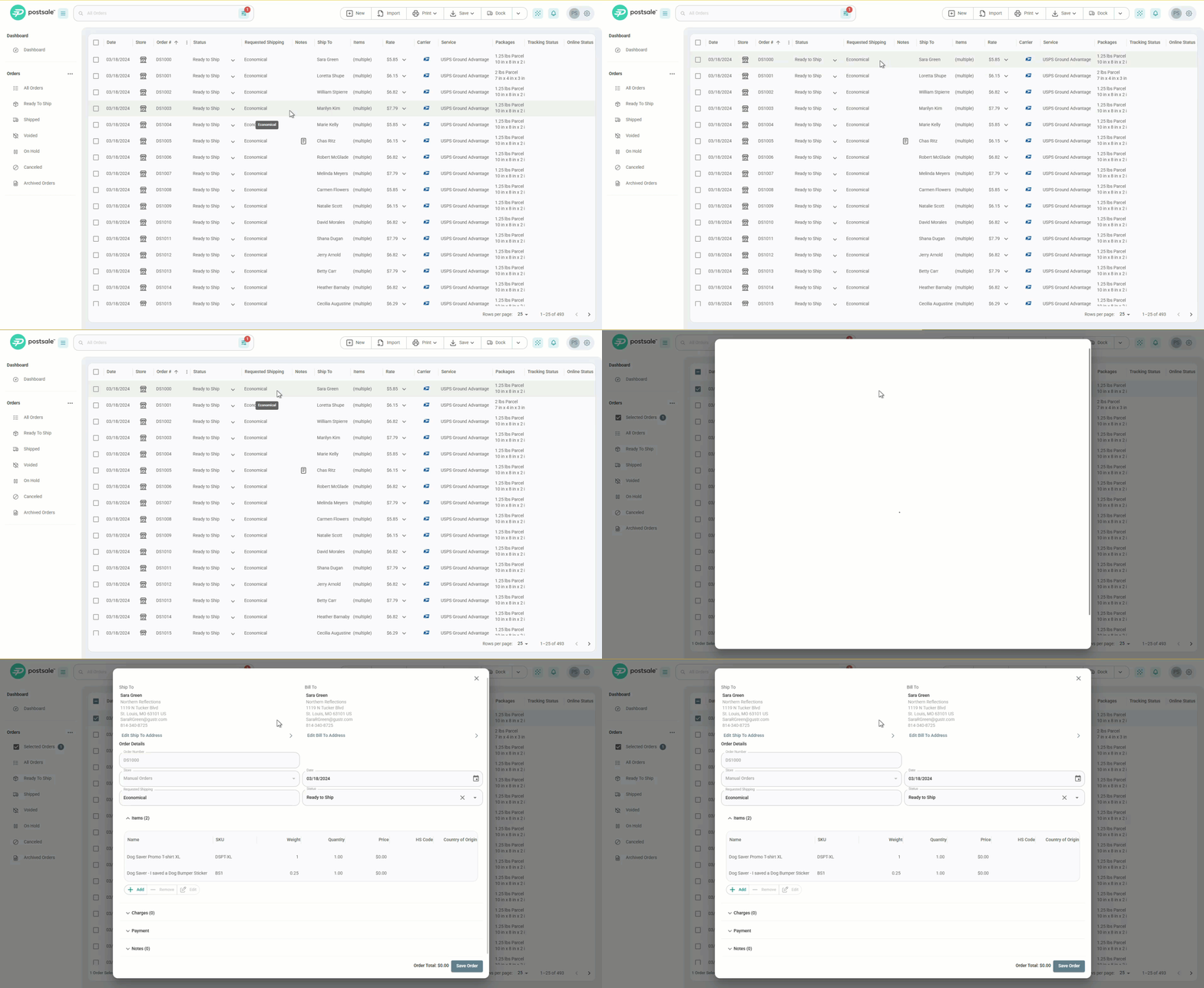
Double-Click
Double-click the order you wish to edit in the Orders Grid. The Order Details screen will open.
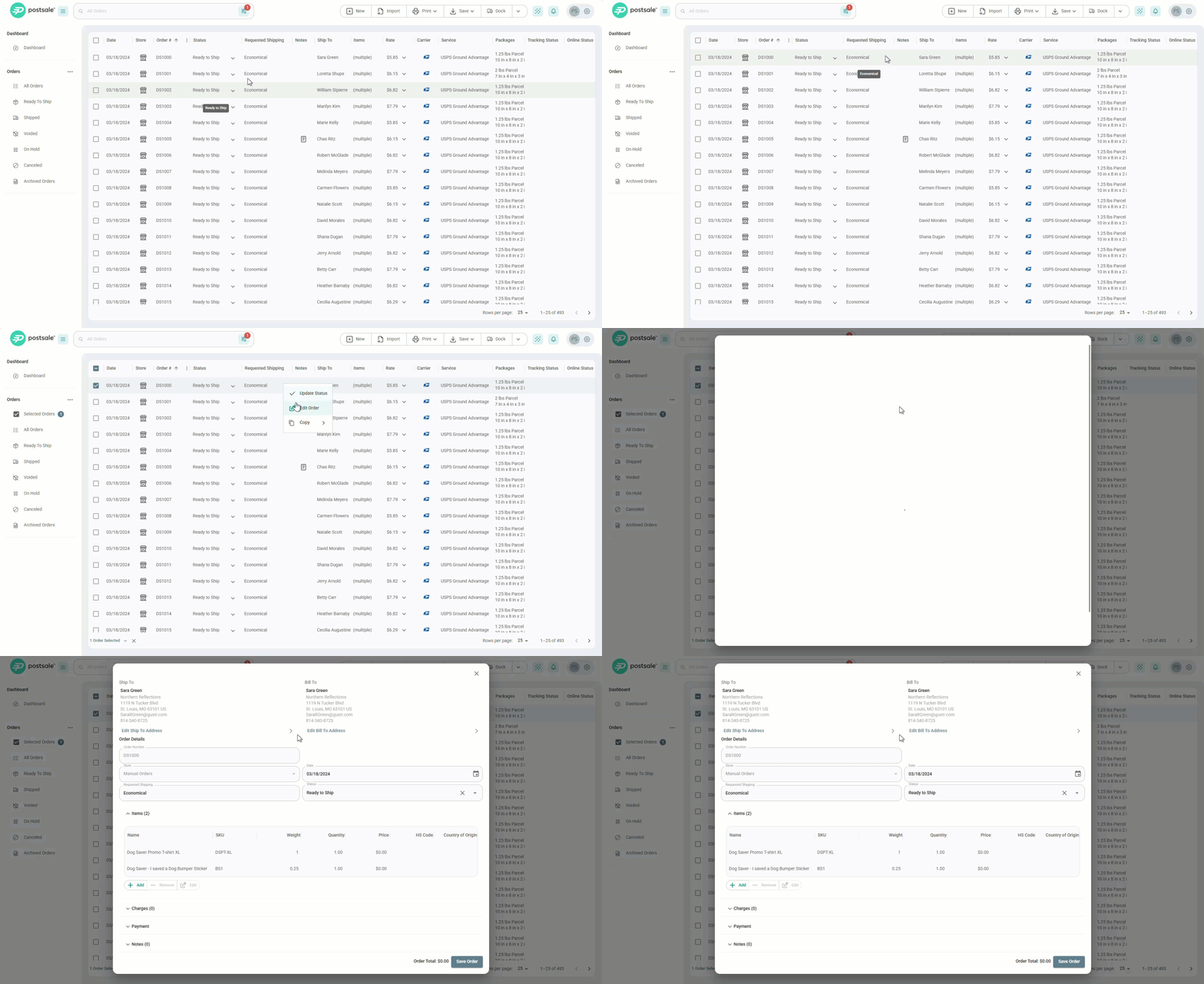
Use the Shortcut Menu
Right-click (Windows) or Control + click (Mac) the order you wish to edit. Then, select Edit Order from the shortcut menu. The Order Details screen will open.
Edit the Order
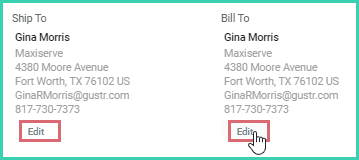
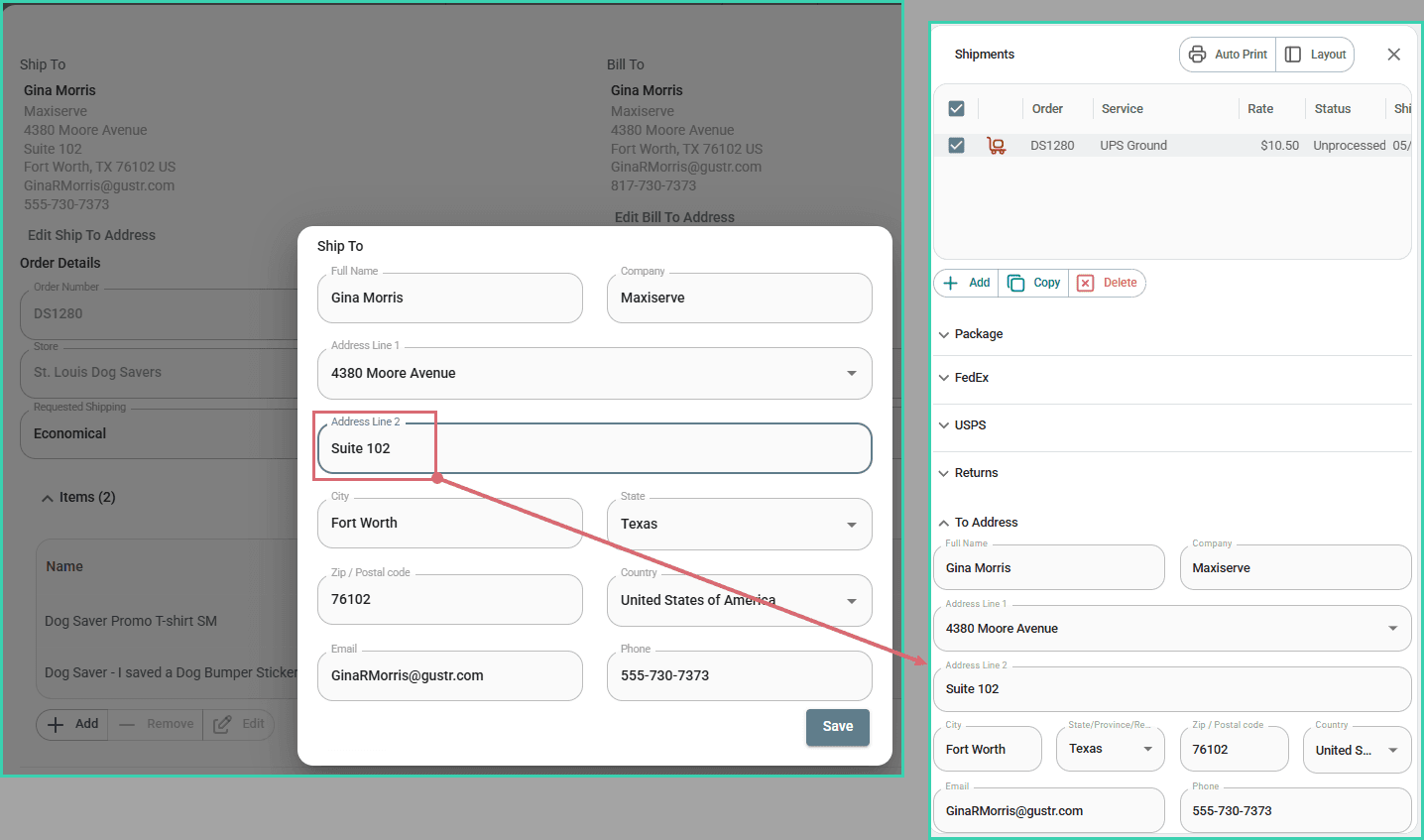
Ship To or Bill To Address
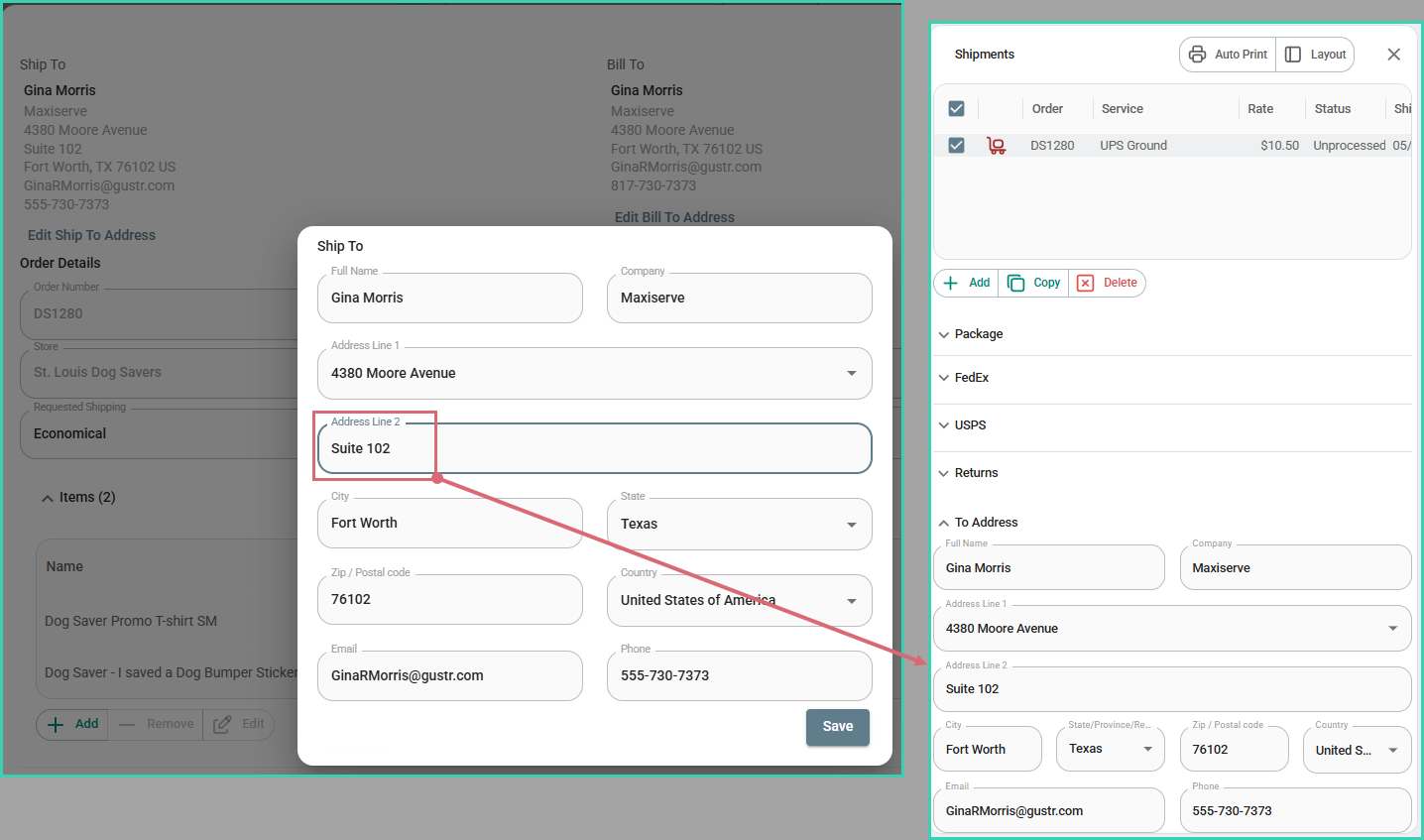
Modify the Ship To or Bill To address by clicking the Edit link for either address.
Order Details
Update the following information in the Order Details section:
- Date
- Requested Shipping
- Status

Additional Order Details
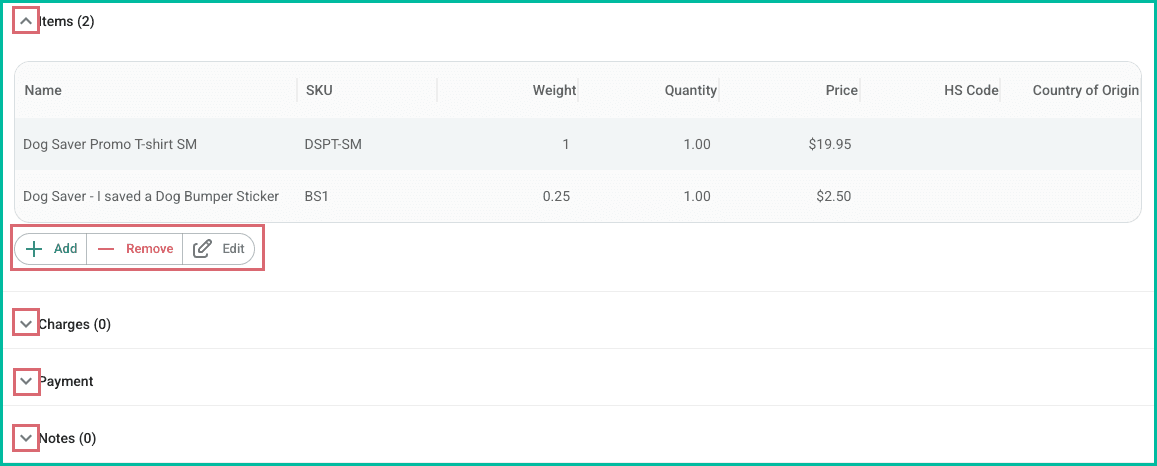
Expand any of the following sections. Then use the Add, Remove, and Edit buttons to modify the section’s details.
- Items
- Charges
- Payment
- Notes
Save Your Changes
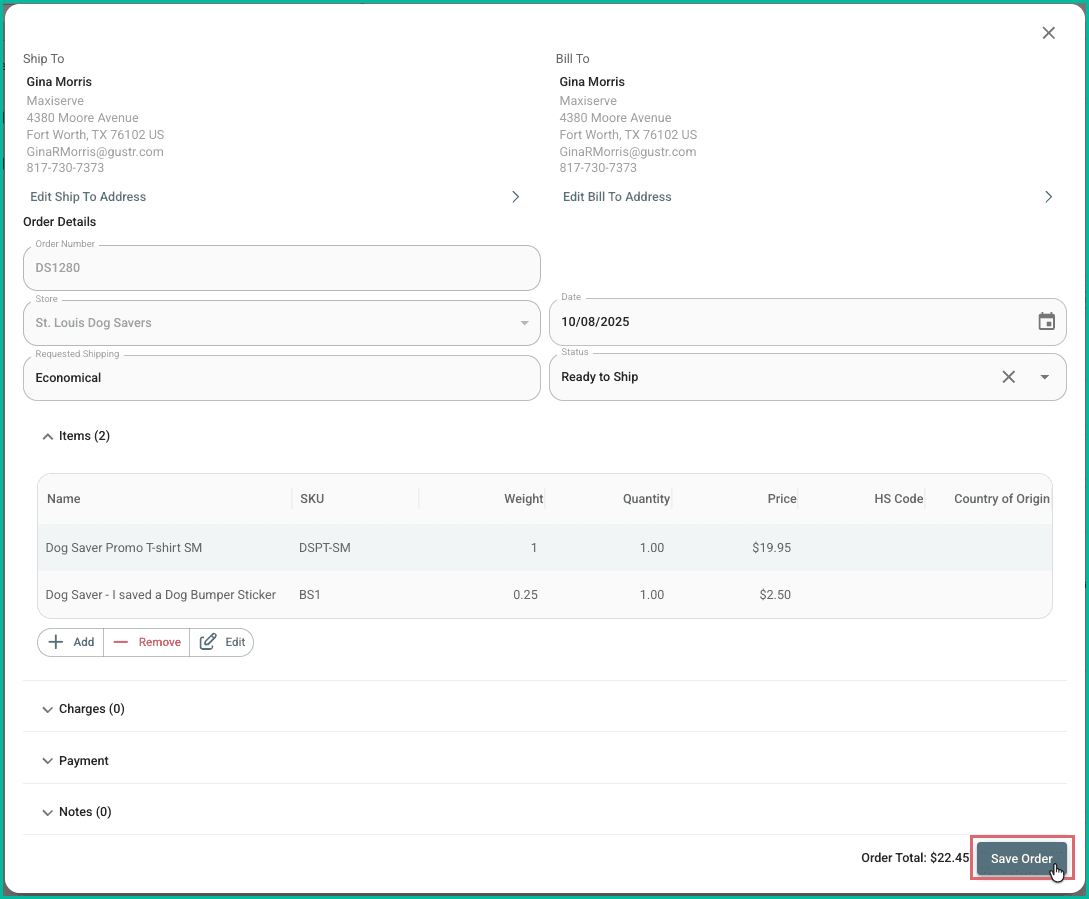
Click the Save Order button to save your updates.
Still have a question? Ask a person.
Write to support@postsale.com or send us a message. We reply the same business day, Monday to Friday, 8 AM to 5 PM Central.