Copy Order Information
How to copy information from one or more orders.
Use the shortcut menu to copy order details (like order numbers, tracking numbers, and customer names). In this article, we'll use real-world examples to show how to copy order information from one or more orders.
Copy Order Information
Real-World Example
We need an easy way to search Postsale by the Ship To name. Sometimes, we're trying to confirm whether or not a duplicate shipment has already been shipped to them. Other times, we are looking to see if multiple orders have been placed and shipped to the same recipient.
Let's copy the Ship To name from one of the orders and then do a quick search to see if there are any additional orders with the same Ship To name. Here's how:
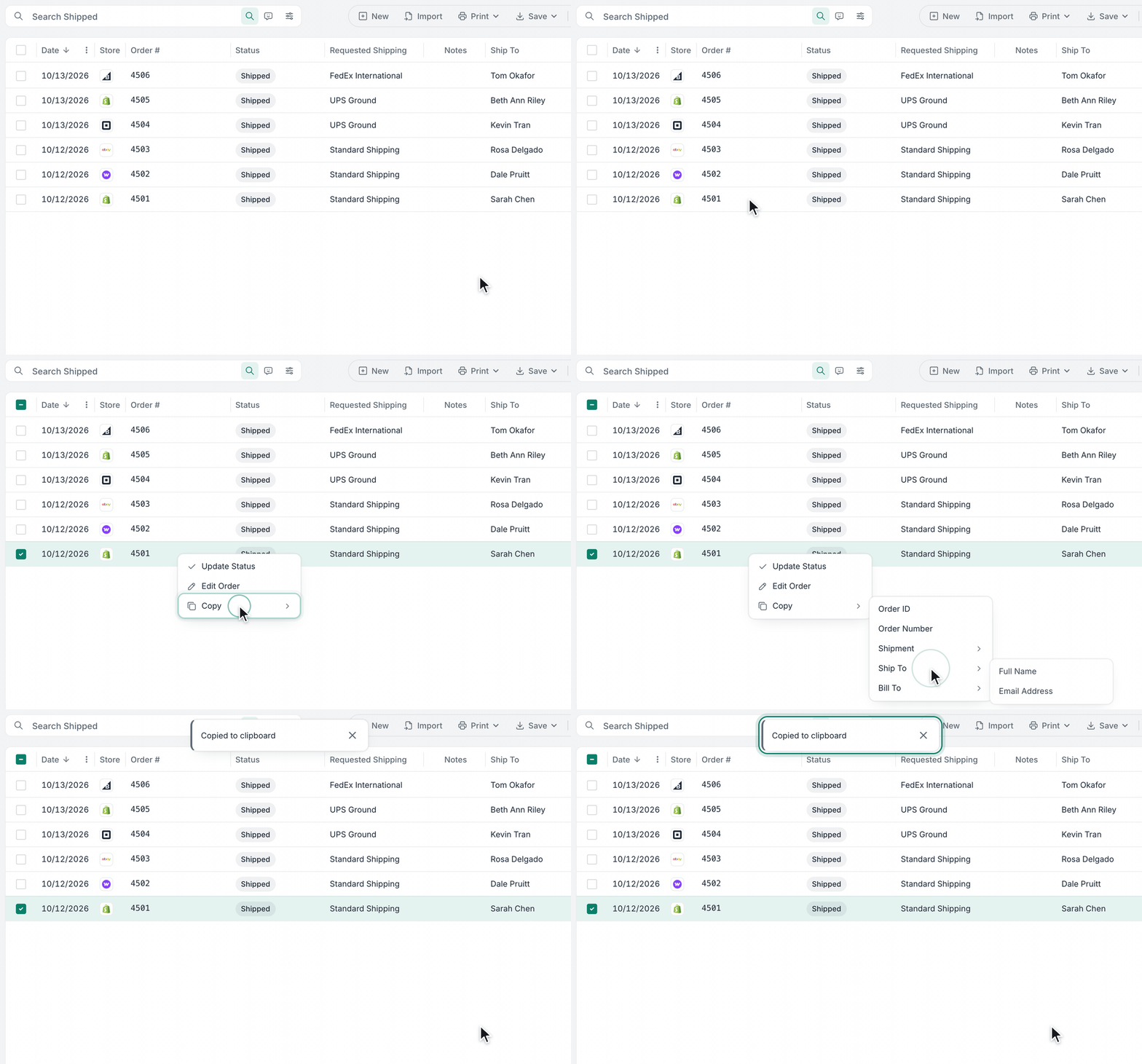
Right-click (PC) or Control + click (Mac) the order to access the shortcut menu. Then, select Copy > Ship To > Full Name. (You can also copy the Bill To > Full Name if needed.)
Postsale will notify you that the information was successfully copied.
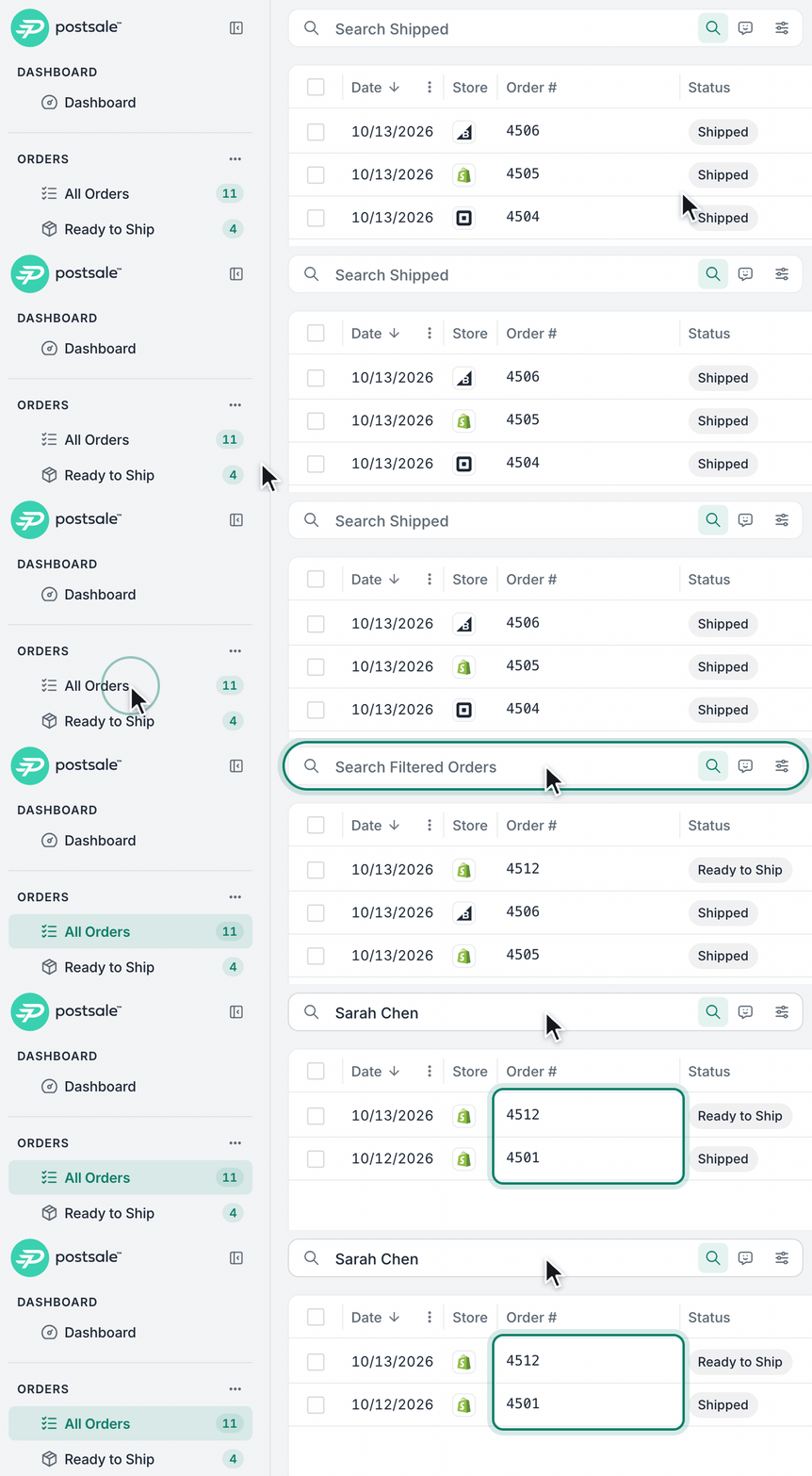
Select the All Orders filter. Then, paste the copied information into the search bar.
Postsale searches for and displays any orders with the same Ship To name.
Real-World Example (Search for Multiple Names)
Sometimes we need to search for multiple names. We need a way to copy multiple Ship To names and then use the list of copied names to search for orders in Postsale.
You can do that, too! In fact, you can copy order numbers, names, email addresses, and tracking numbers from multiple orders. Here's how: (We will copy multiple Ship To names for this example.)
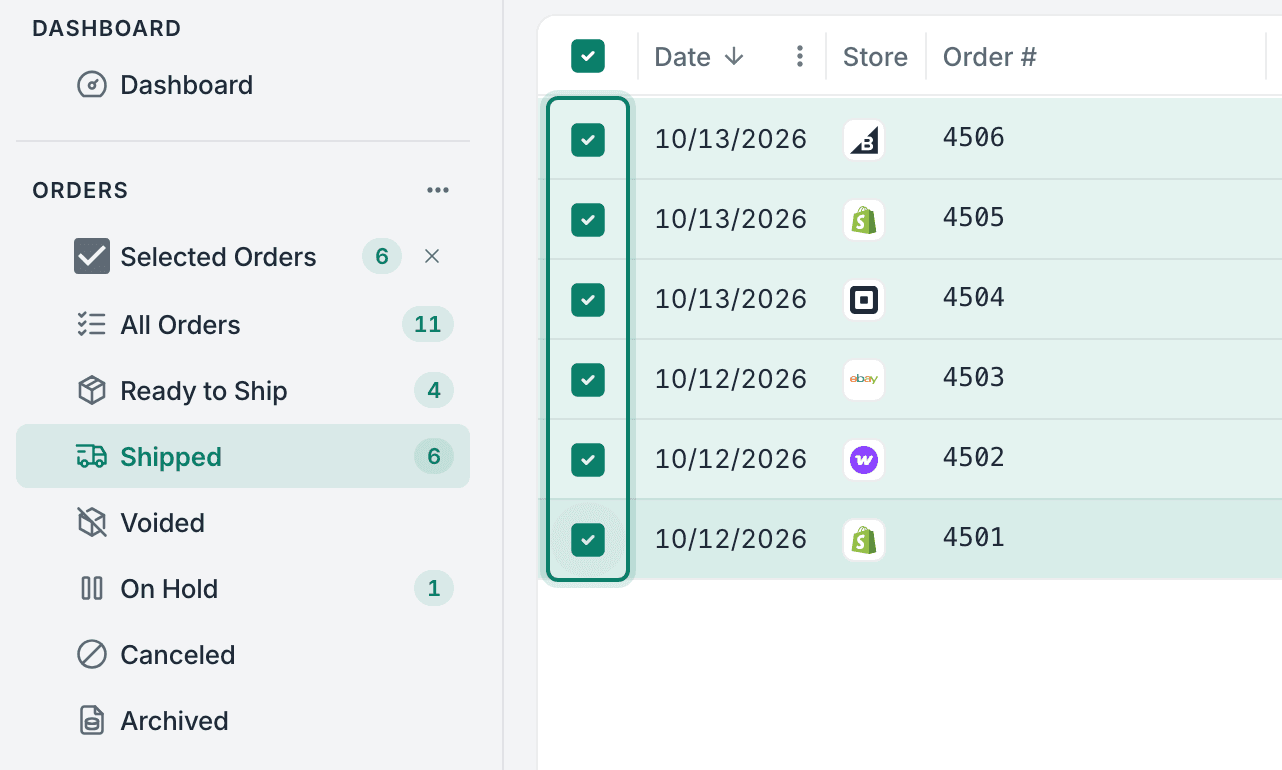
Search for and select the orders that contain the names you wish to copy.
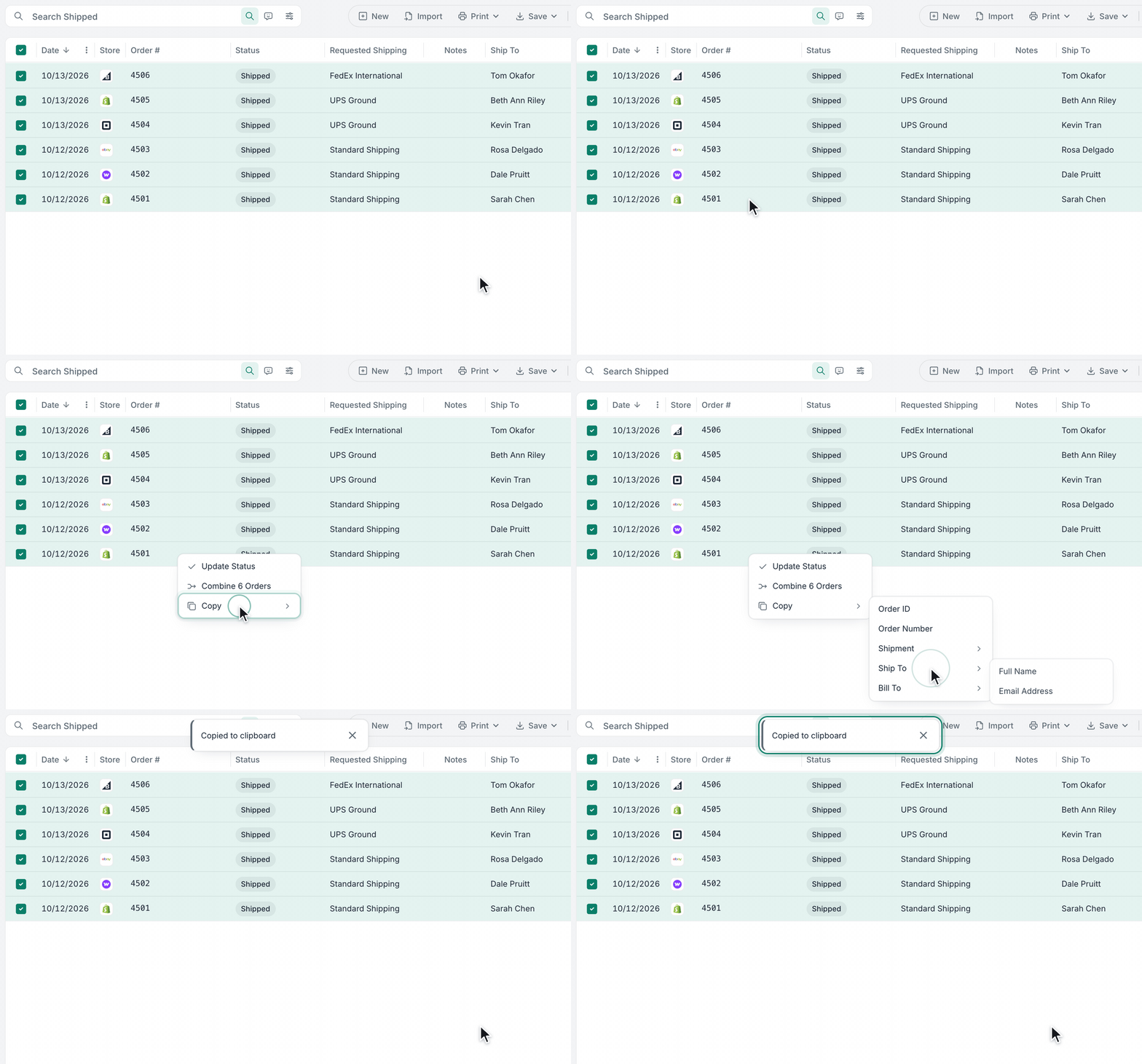
Right-click (PC) or Control + click (Mac) any of the selected orders to access the shortcut menu. Then, select Copy > Ship To > Full Name.
Postsale copies all of the Ship To names from all selected orders as a comma-separated list and notifies you that the information was successfully copied.
Select the All Orders filter. Then, click the Filters button in the search bar. Click Add Condition, then Condition, and set up the following condition:
- Field: Order Ship to Name
- Operator: In
- Value: Paste the list of names you just copied
Then, click Save.
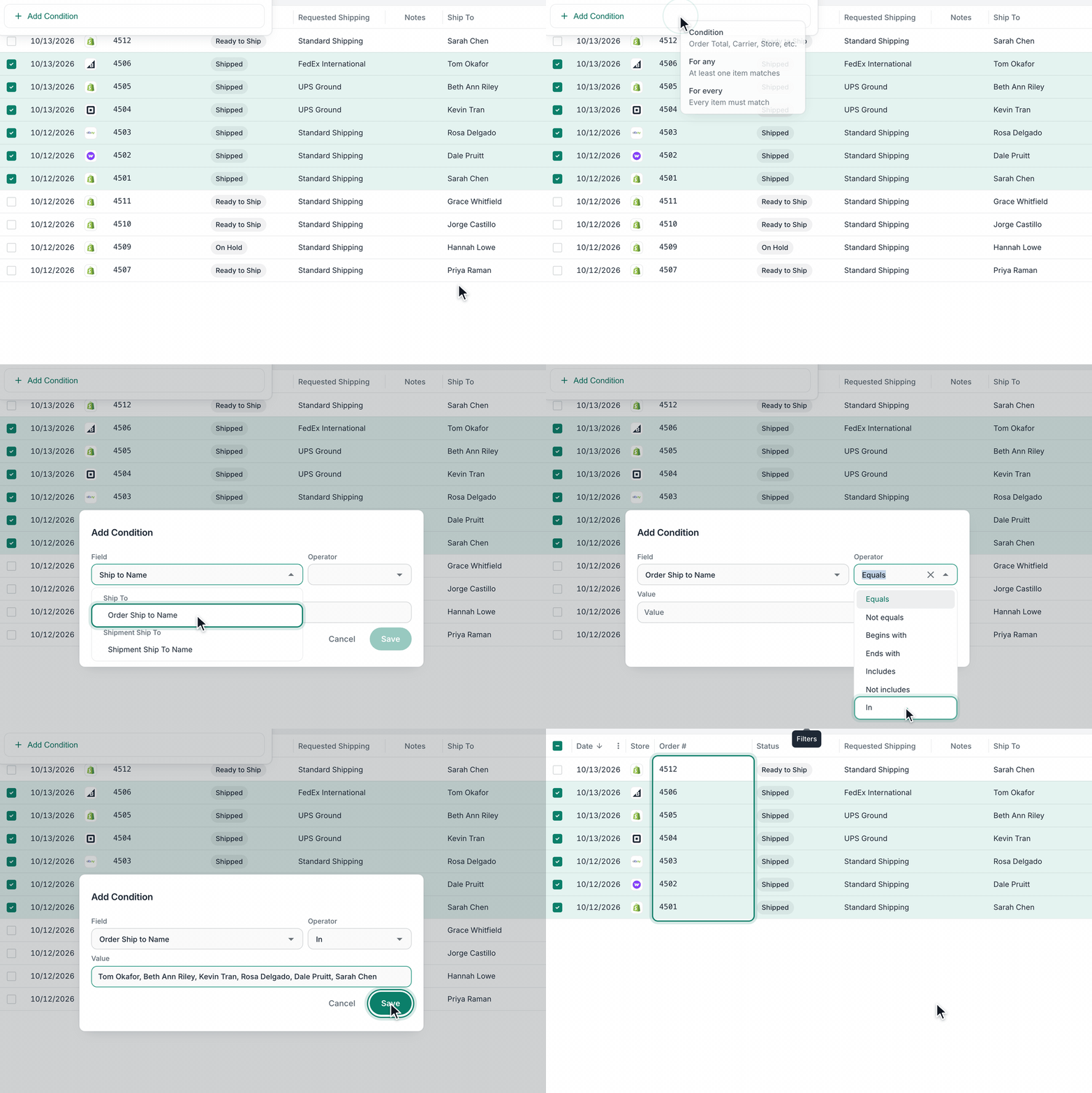
Postsale searches for and displays all orders with any of the Ship To names in the list.
Good to Know
-
You can copy the following information for a single or multiple orders from the shortcut menu:
- Order ID
- Order Number
- Shipment
- All Tracking Numbers
- Outbound Tracking Number
- Return Tracking Number
- Ship To
- Full Name
- Email Address
- Bill To
- Full Name
- Email Address
-
When you copy multiple items (like names or tracking numbers), Postsale formats them as a comma-separated list. This makes it easy to search multiple values in Postsale or to paste them elsewhere, such as into Notepad, a spreadsheet, an external email tool, or a custom reporting tool.
For example, copied order numbers would look like this when pasted:
4501, 4502, 4503, 4504, 4505, 4506
Still have a question? Ask a person.
Write to support@postsale.com or send us a message. We reply the same business day, Monday to Friday, 8 AM to 5 PM Central.