Add & Manage Tags
Learn about tags and how to add, edit, and remove them.
Tags give you a flexible way to organize your orders and keep track of the details that matter to your business. Need to show that an order's shipment has insurance? Add an Insurance tag. Need to associate orders with a sales representative? Use a Sales Rep tag and enter the sales representative's ID number as its value.
Once you've added tags to your orders, you can use them to search and filter orders, create automations, add columns to the Orders Grid, create Dashboard widgets, and include tag information in your templates.
In this article, you'll learn how to add, edit, and delete tags. Learn more about adding tags to orders and working with tags in our series of help articles.
Before We Begin
Before adding tags to Postsale, it may help to create a list of the information you want to keep track of with tags. It may also help to identify which tags can stand on their own and which tags you will want to add your own value to.
For example, as mentioned above, you may need a tag called Insurance with no value associated with it just to identify orders with shipment protection added. Or you may want a tag named Sales Rep to associate orders with a sales representative by entering a value (the sales rep's ID number) along with the tag.
Don't worry, you can always add more tags as you need them, edit your existing tags at any time, or delete them altogether.
Add Tags
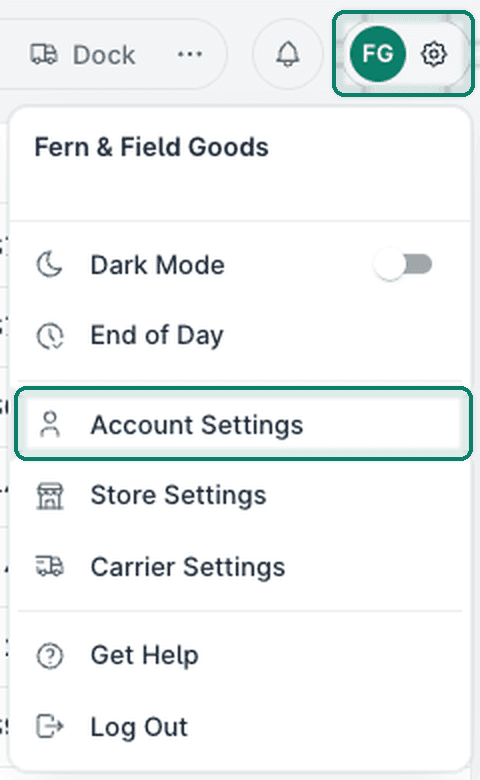
Open Settings.

Select Account Settings.
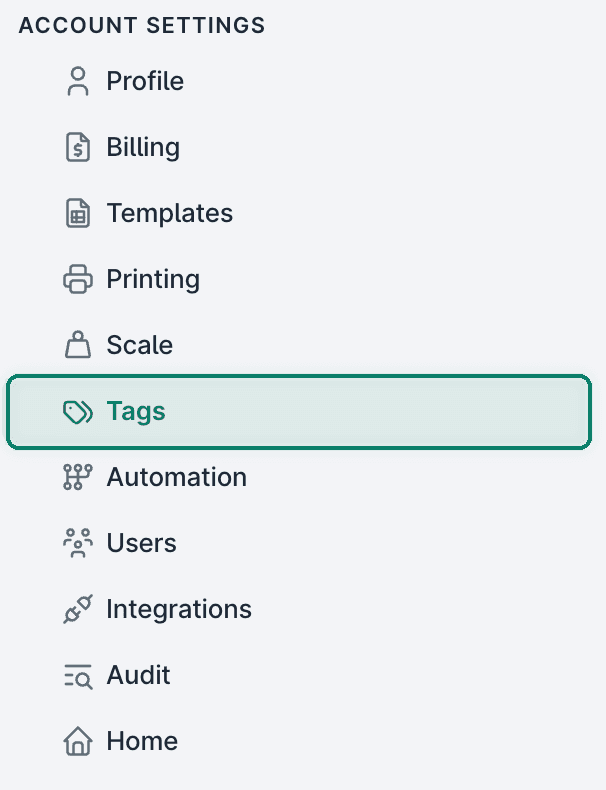
Select Tags from the list of available options.
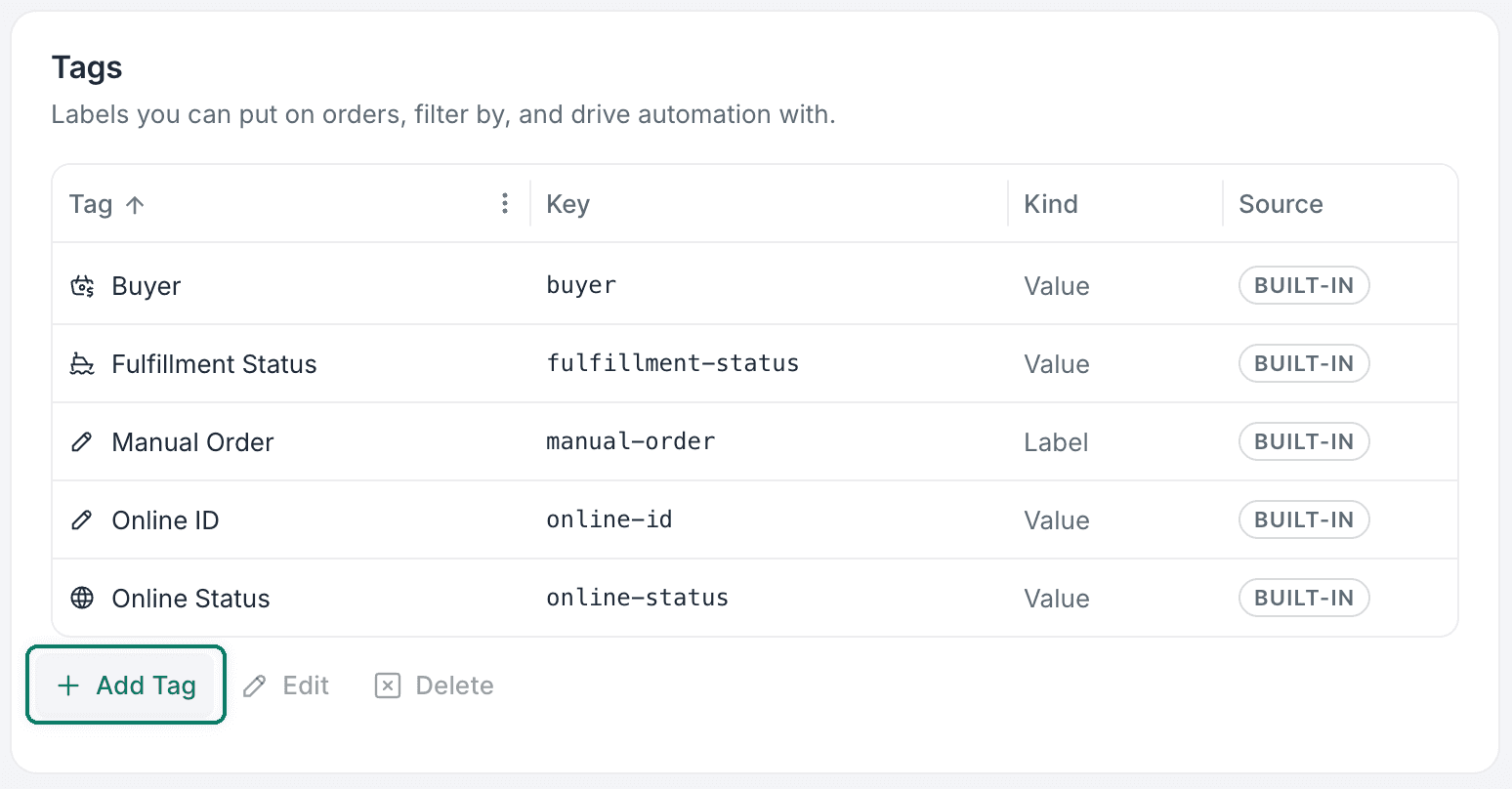
Click + Add Tag.
Enter the tag's Display Name.
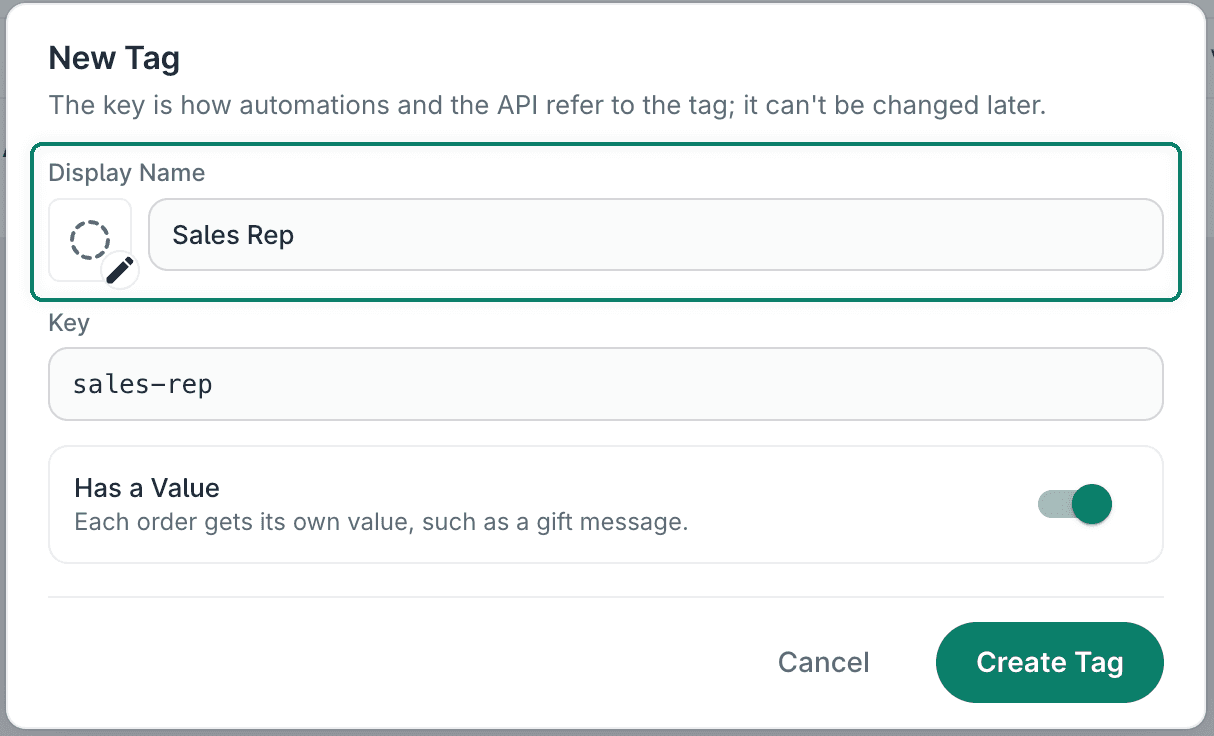
Verify the Key is correct. As you type the Display Name, a key is created for you. However, you can change the key if you want. Postsale uses the key to identify the tag in templates or Liquid references.
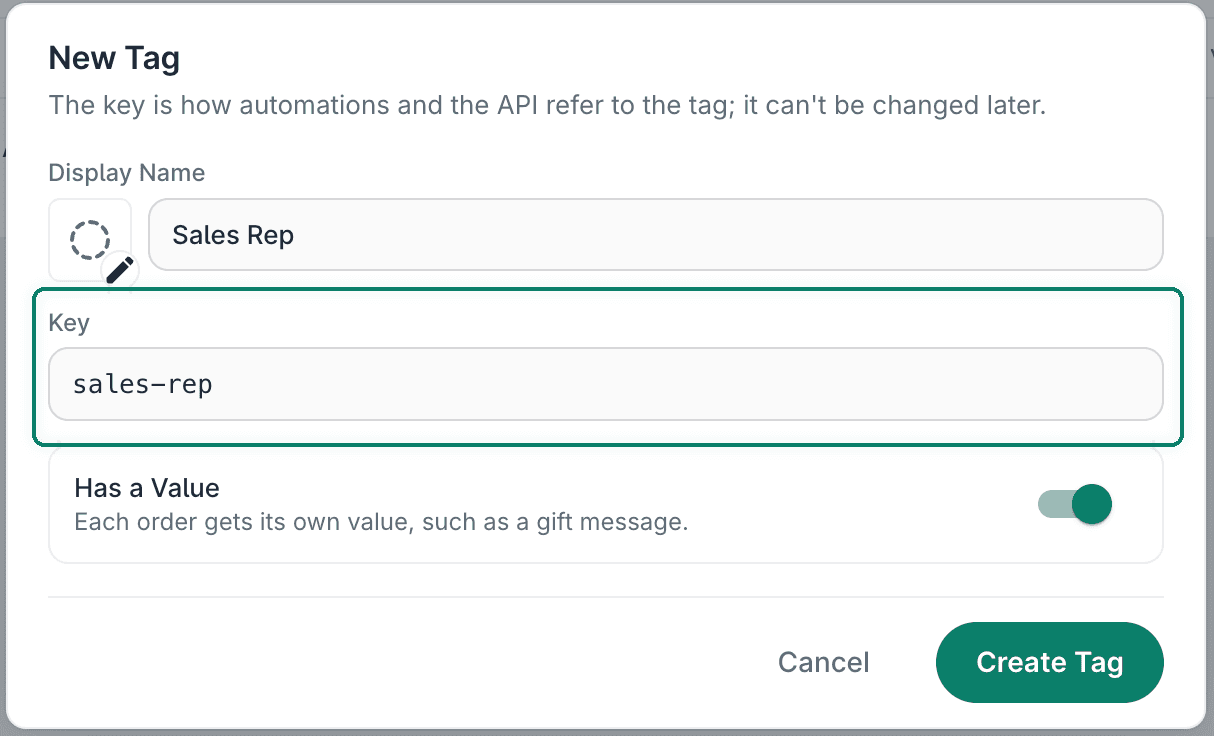
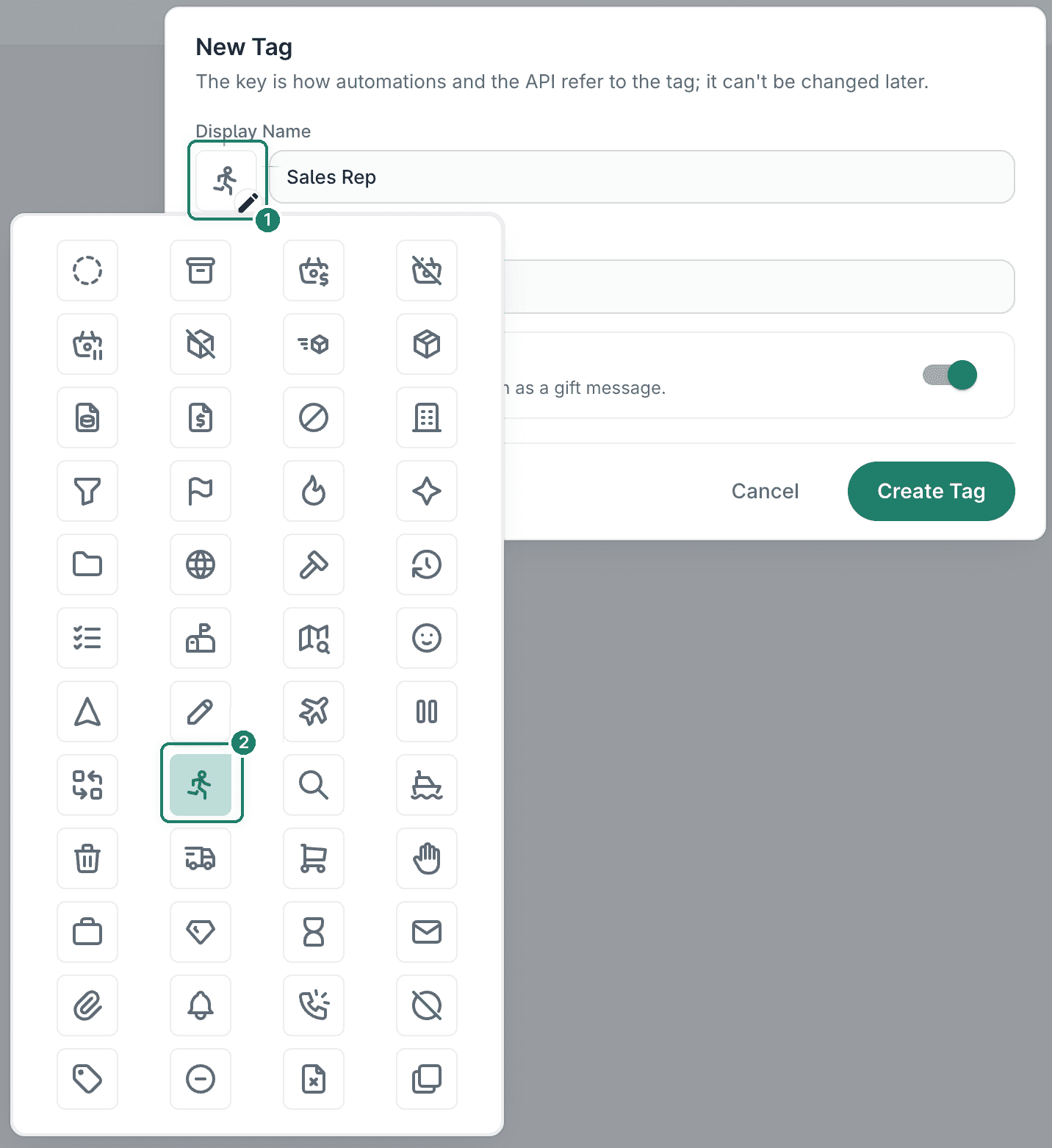
(Optional) Add an icon for the tag. The icon makes the tag easy to identify.
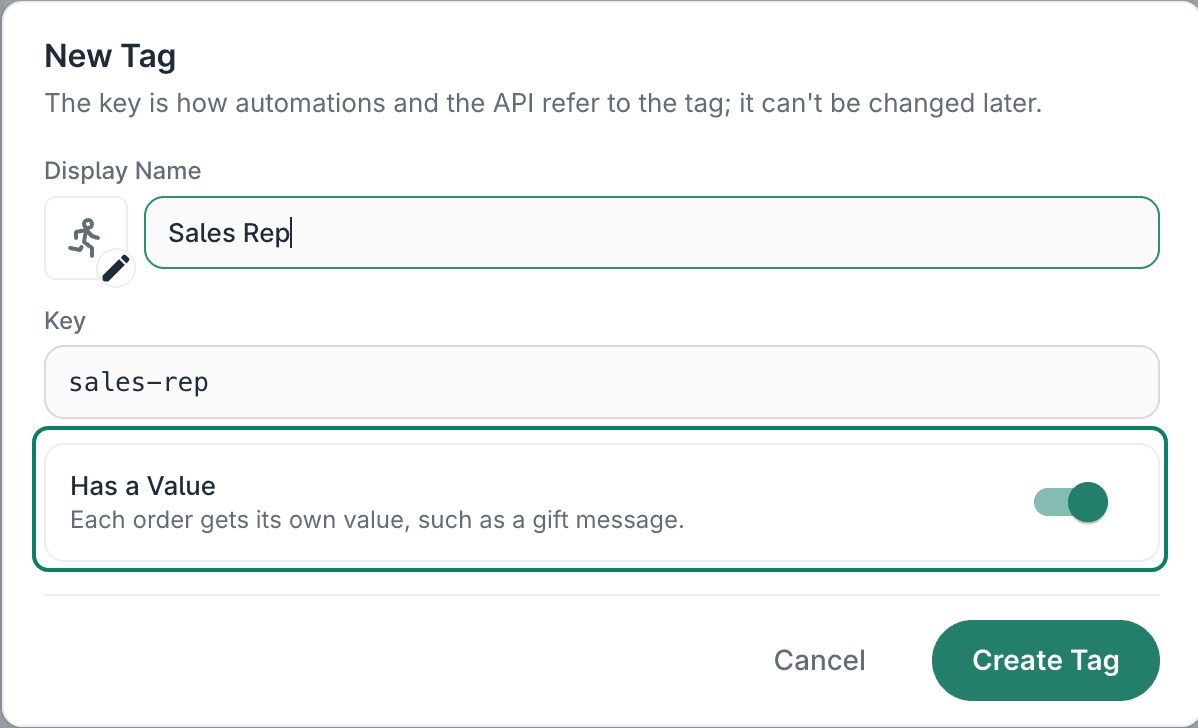
Enable or disable Has a Value.
- Enabled: You can enter a value, and it will be associated with the tag for each order.
- Disabled: The tag can be associated with orders, but no value can be associated with it.
In this example, Has a Value stays enabled so you can add a sales rep's ID to the tag.
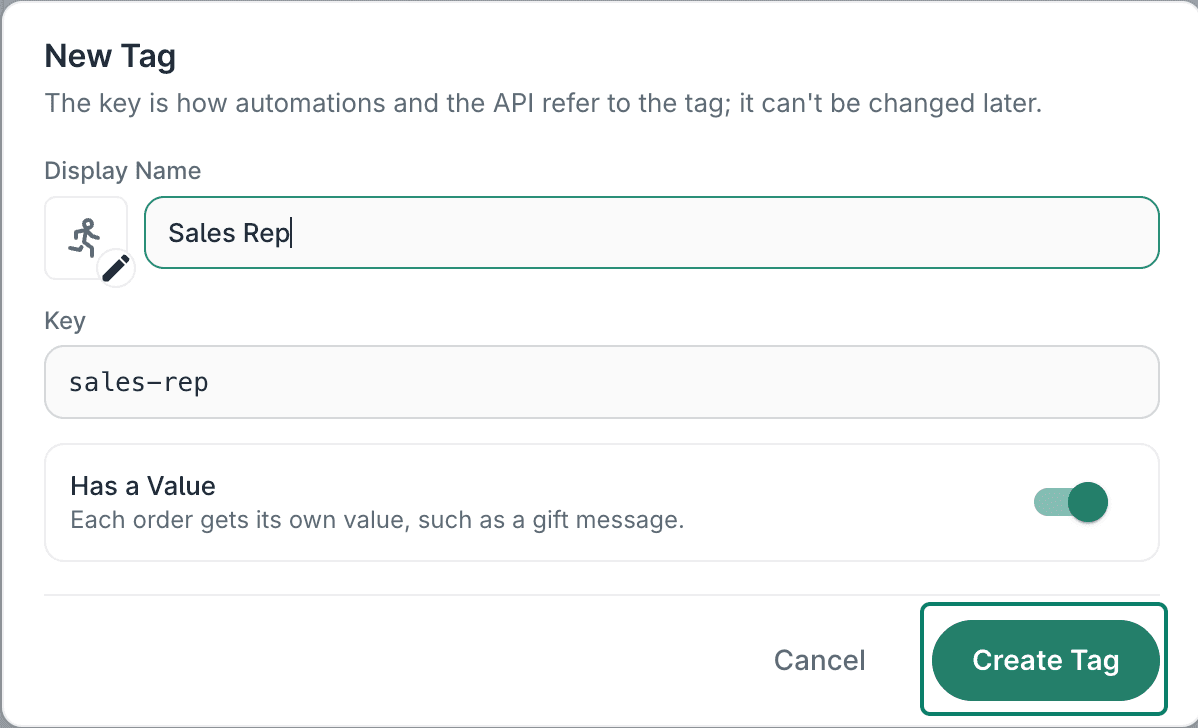
Click Create Tag.
The tag is added to the list of tags.
Edit Tags
Open Settings.
Select Account Settings.
Select Tags from the list of available options.
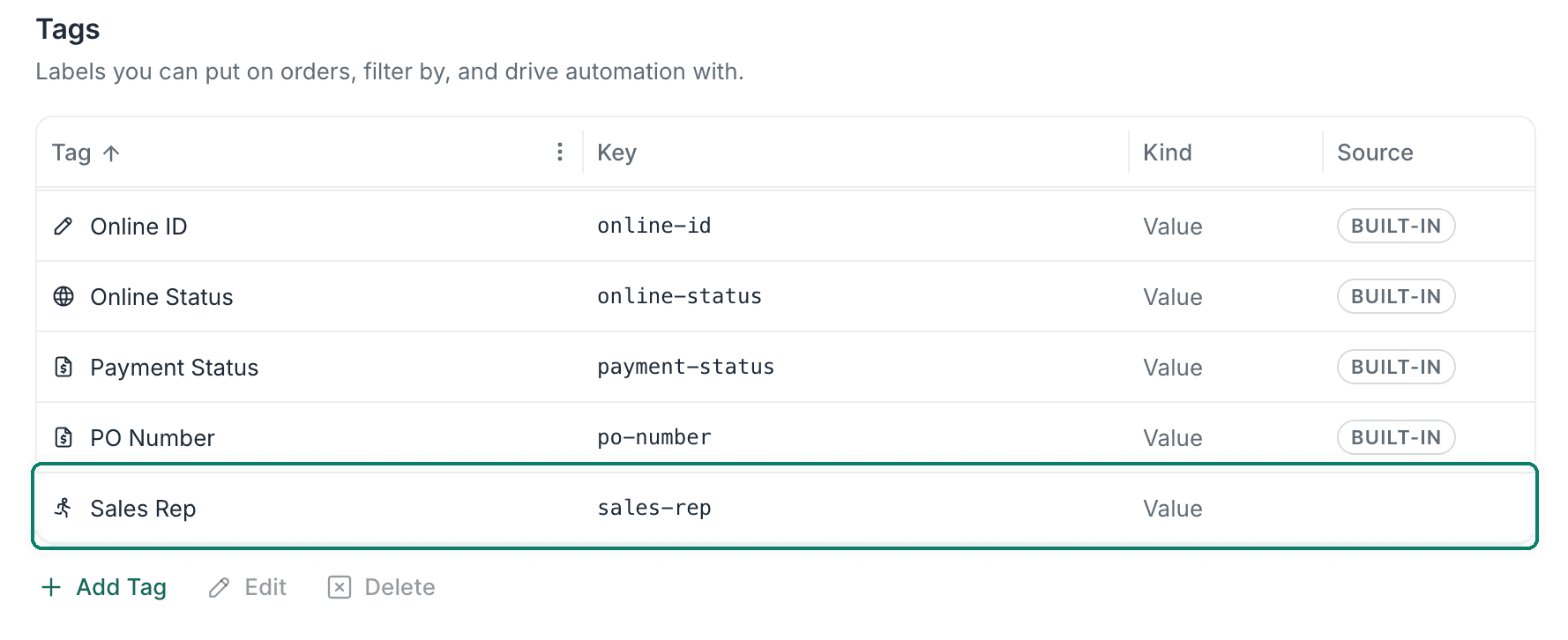
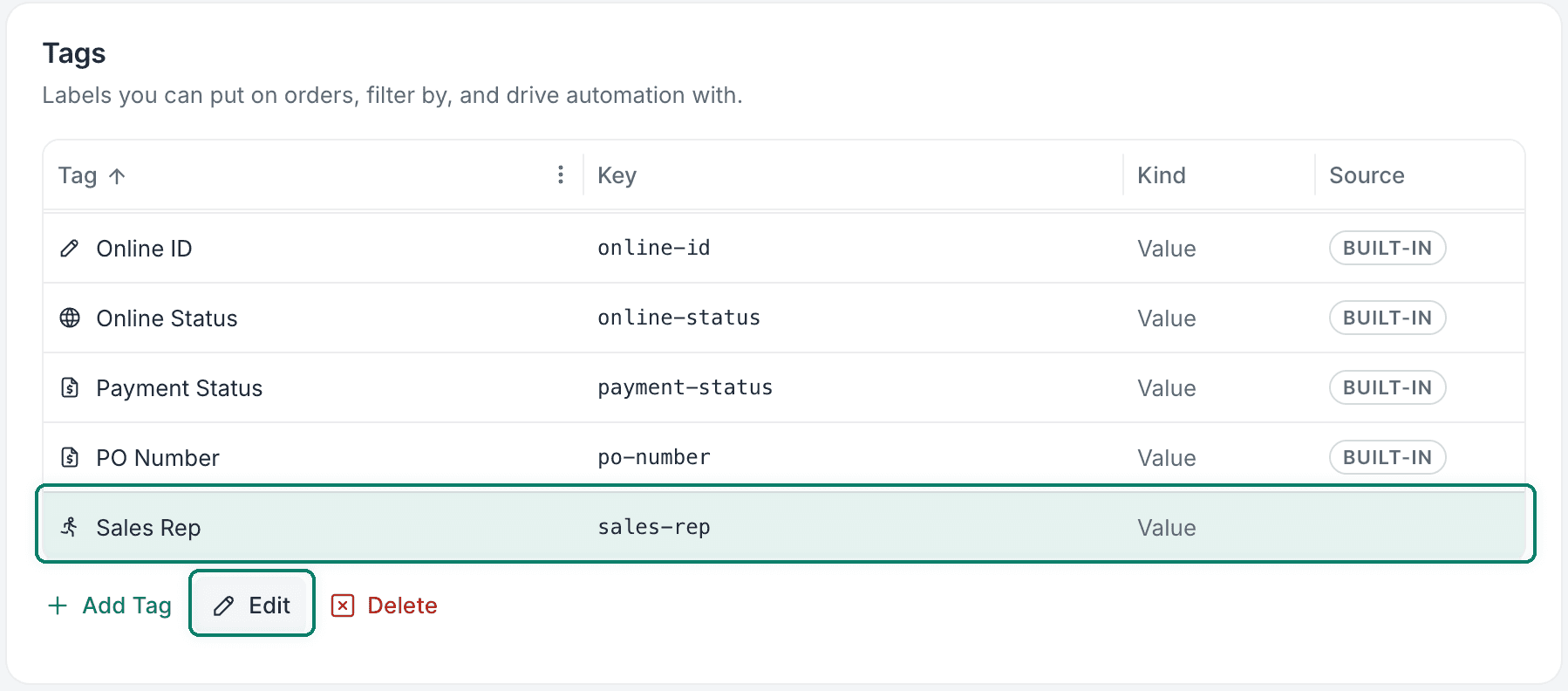
Select the tag you want to edit. Then, click Edit.
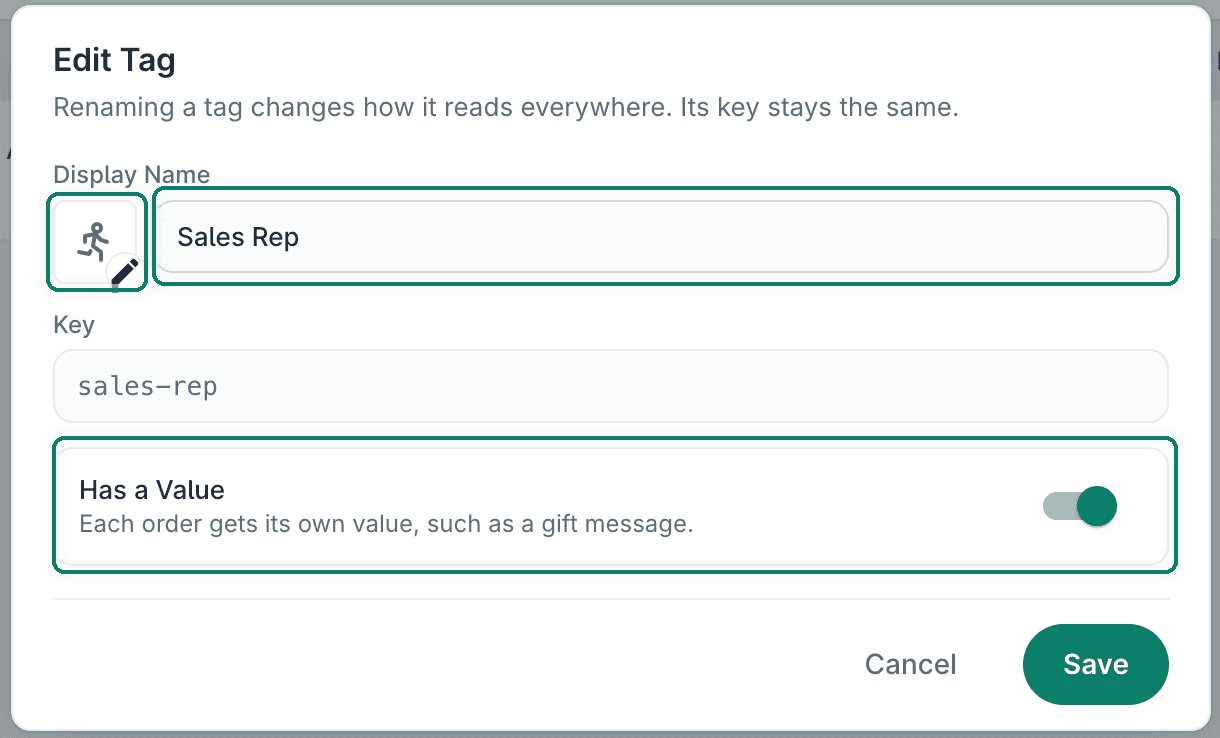
Make the needed updates.
- You can change only the tag's icon, Display Name, and Has a Value setting. The Key cannot be modified.
- When you disable Has a Value, any orders that previously had the tag with a value will retain that value.
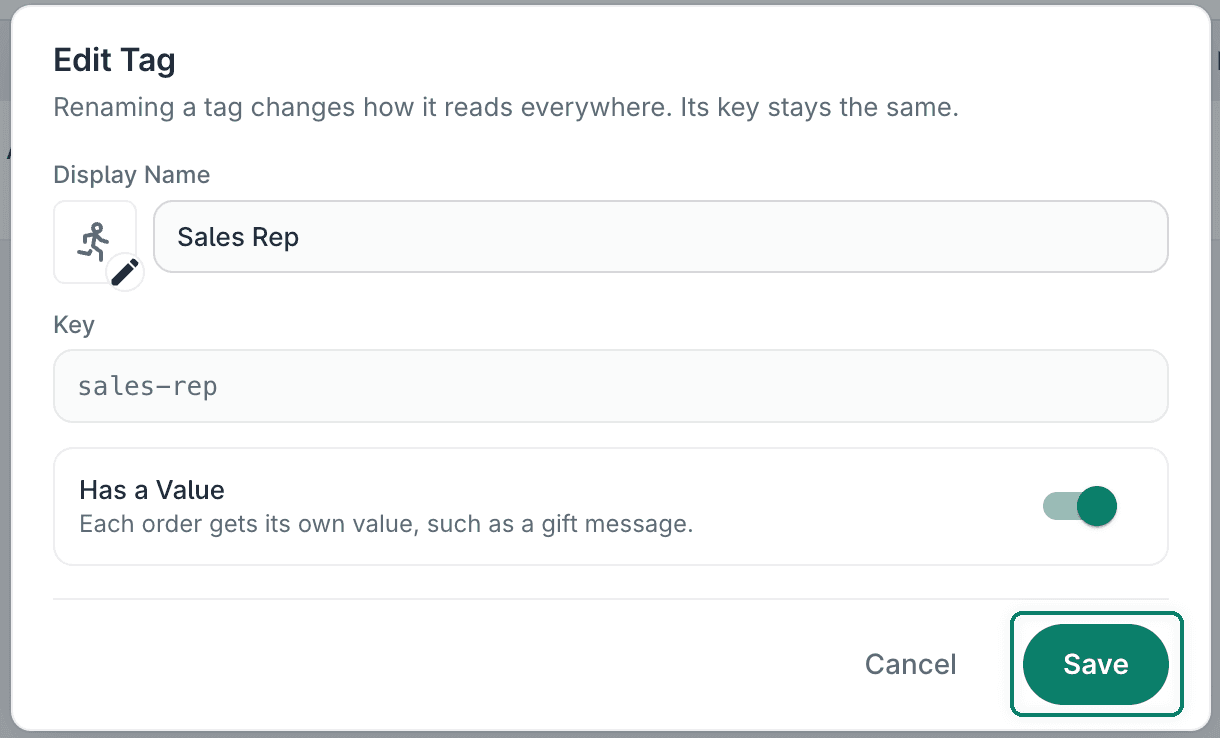
Click Save to apply the changes.
Delete Tags
Open Settings.
Select Account Settings.
Select Tags from the list of available options.
Select the tag you want to delete. Then, click Delete.
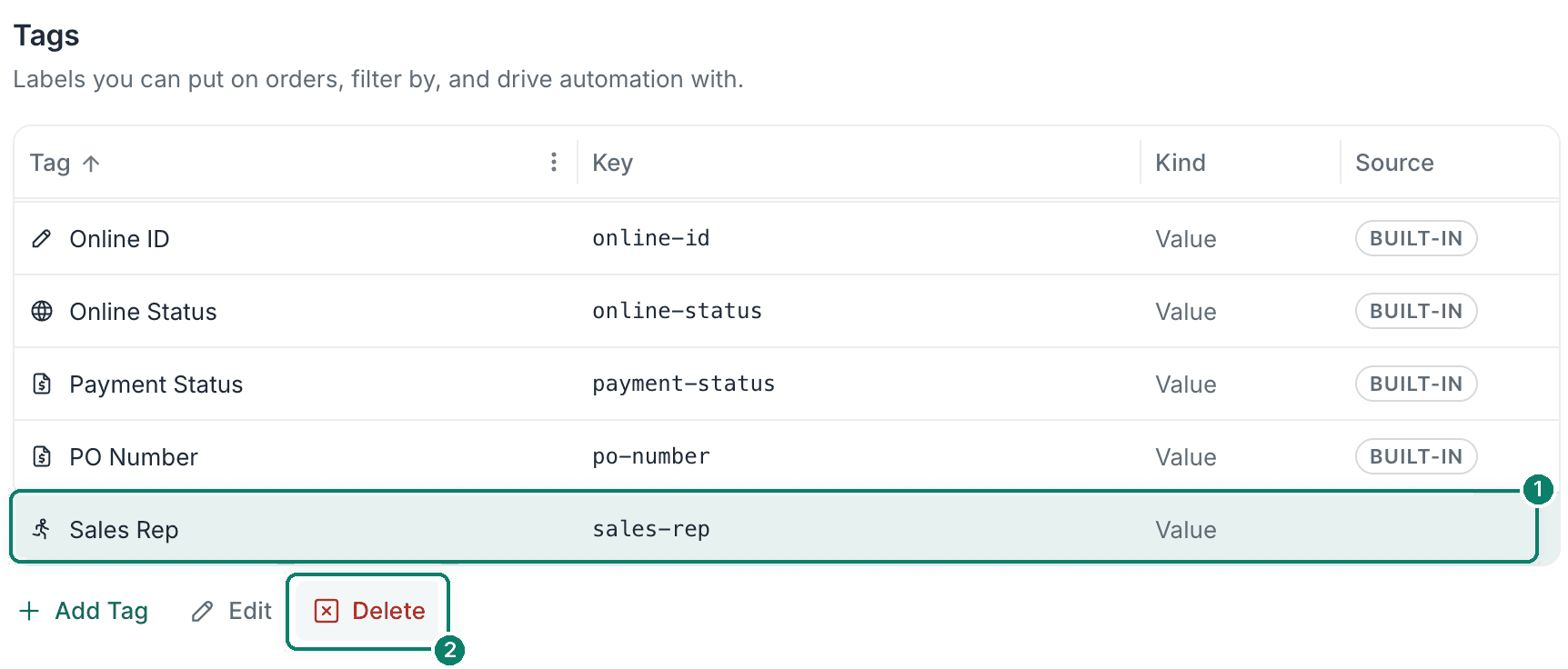
Click Delete Tag to confirm that you want to delete the tag.
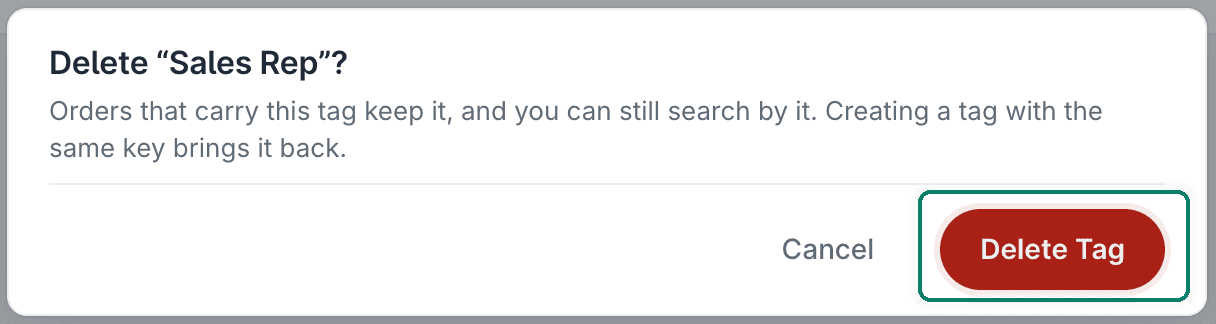
The tag is deleted and no longer appears in the list of tags.
Still have a question? Ask a person.
Write to support@postsale.com or send us a message. We reply the same business day, Monday to Friday, 8 AM to 5 PM Central.