Personalize Your Orders Grid
Customize the Orders Grid. Arrange and sort your orders.
Want to make it easier to find and manage your orders? Customizing the Orders Grid lets you display only the information that matters most to you. By rearranging columns and sorting your orders just the way you like, you can quickly access the details you need without any extra clutter.
In this article, we will explore how to personalize the grid by adding, removing, and rearranging columns. We will also look at how to sort orders within the Orders Grid.
Quick Tip Video
Customize Columns
The most convenient way to manage which columns are visible in the Orders Grid and in what order they appear is to use the Customize Columns dialog.
To access Customize Columns:
Hover over any column header in the Orders Grid.
Click the
 menu in the column header.
Select Customize Columns.
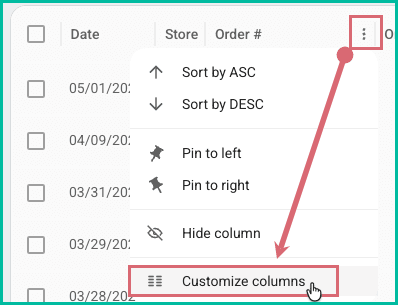
The Customize Columns dialog opens.
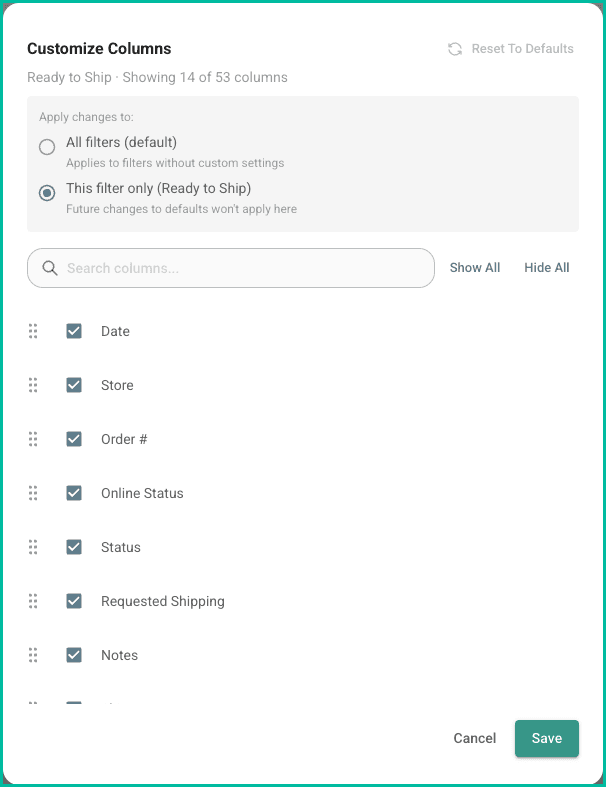
Show/Hide Columns
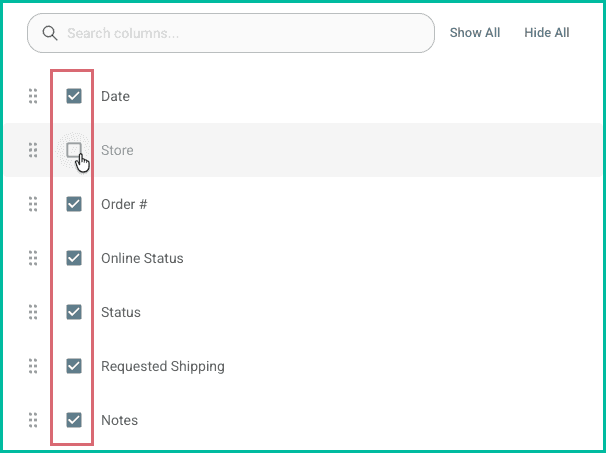
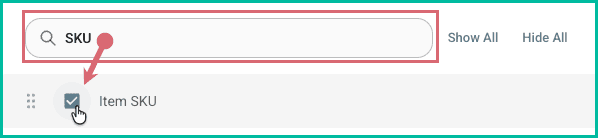
Specify which columns should be visible or hidden in the Orders Grid by checking or unchecking the checkbox next to each column name.
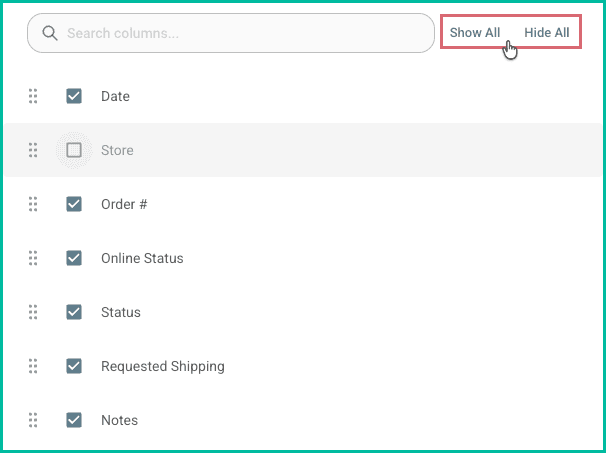
Use the Show All and Hide All options to select or deselect all columns.
Use the Search columns field to find a column in the list quickly.
Rearrange the Grid Columns
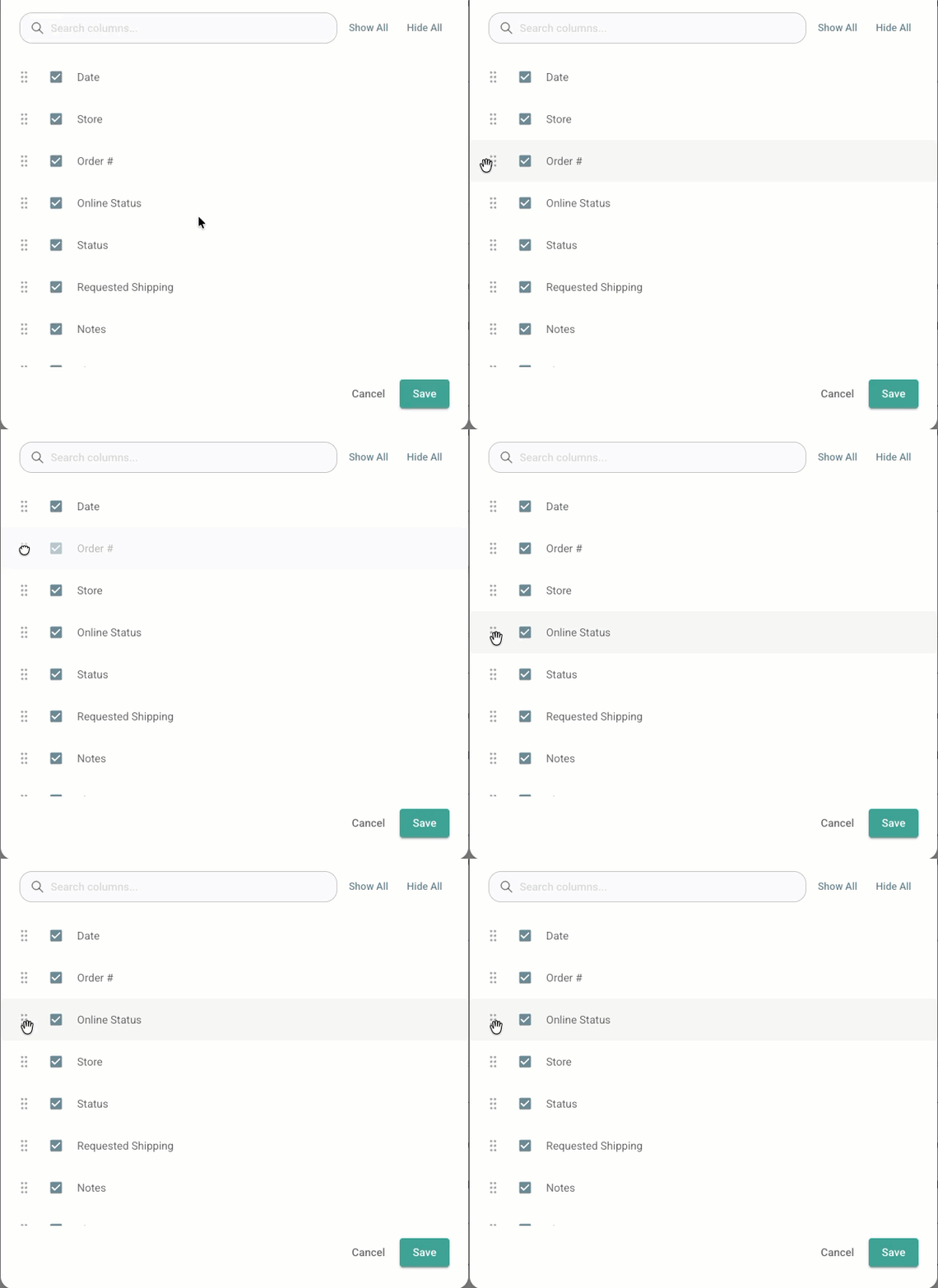
Drag and drop the columns into the order they should appear in the Orders Grid.
Reset the Orders Grid to Default Settings
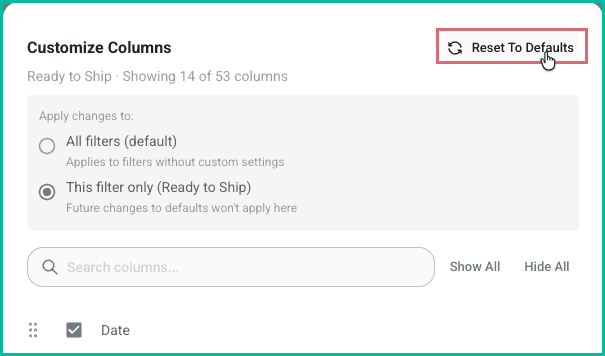
Click Reset To Defaults to quickly reset the Orders Grid's column visibility and order to their default settings.
Additional Orders Grid Customization Options
Pin Columns Left or Right
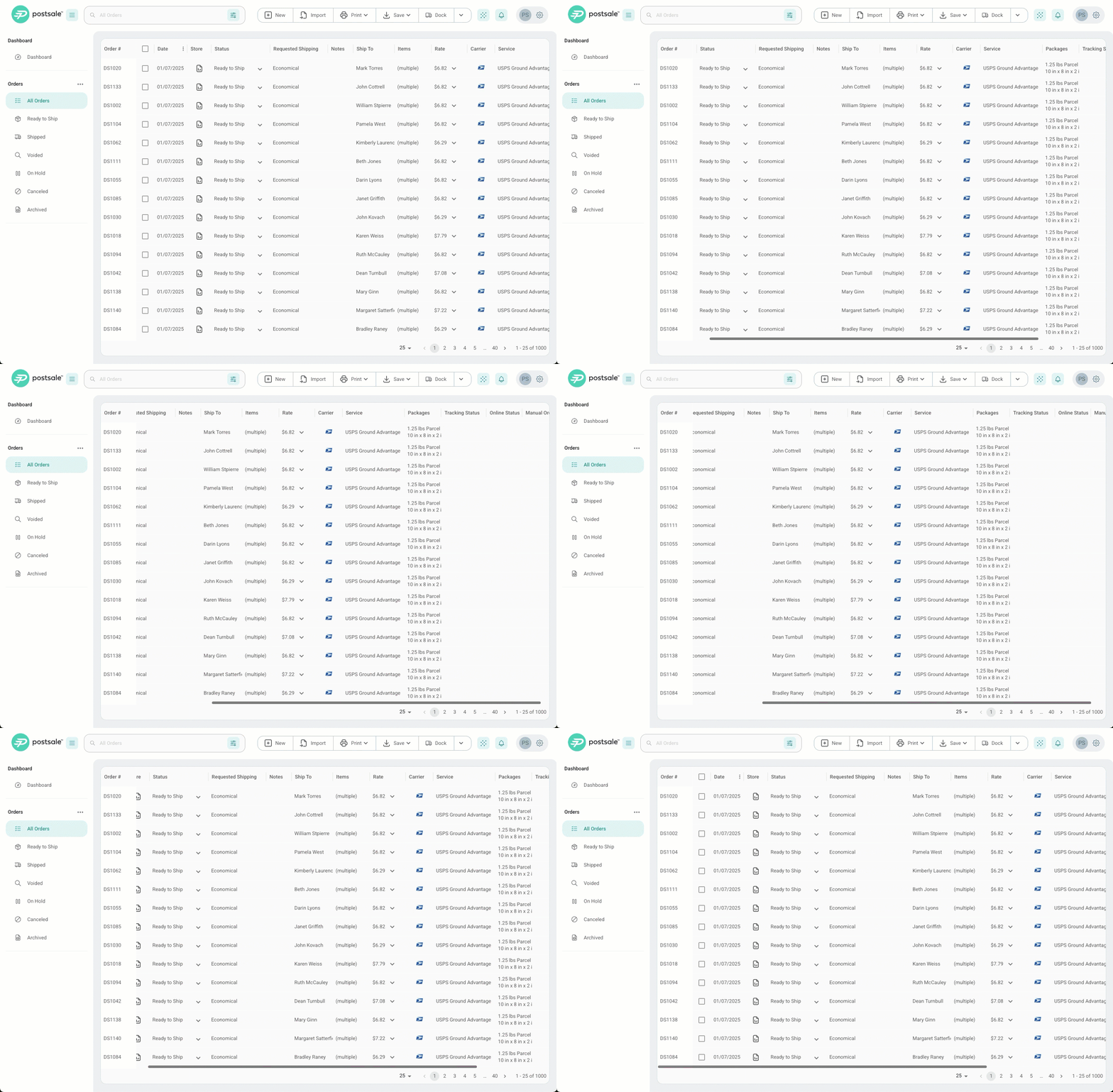
Pin columns to either the left side or right side of the Orders Grid so that the information is always visible when scrolling. For this example, we will pin the Order # column to the left side of the Orders Grid.
Pin a Column
Hover over the column heading for the column you wish to pin and click the
 menu in the column.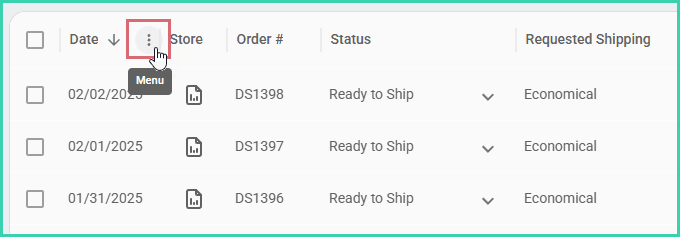
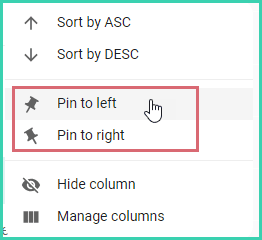
Select Pin to Left or Pin to Right.
The column remains visible as you scroll left or right in the Orders Grid.
Unpin a Column
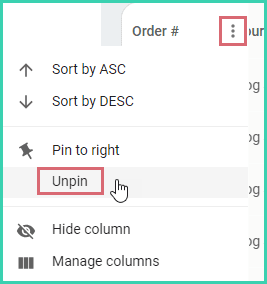
Hover over the column heading for the column you wish to unpin and click the
menu in the column.Select Unpin.
Pin the Order Checkboxes
Want to pin the orders checkboxes to the left or right on the Orders Grid? Here's how:
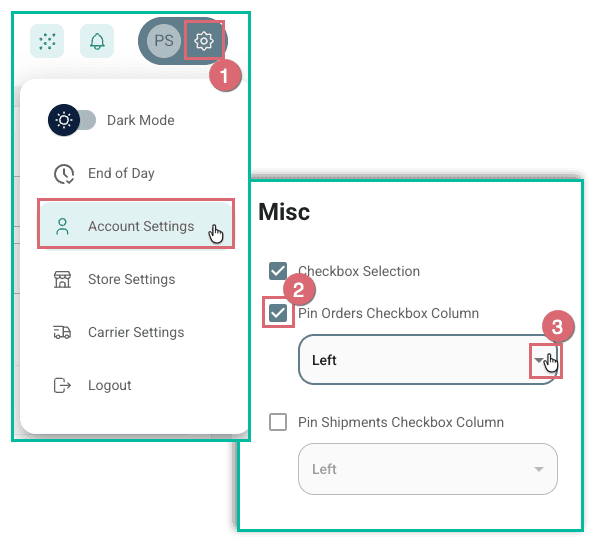
Go to Settings and select Account Settings.
Check the box for Pin Orders Checkbox Column in the Misc section.
Specify Left or Right in the drop-down menu.
Sort Orders on the Orders Grid
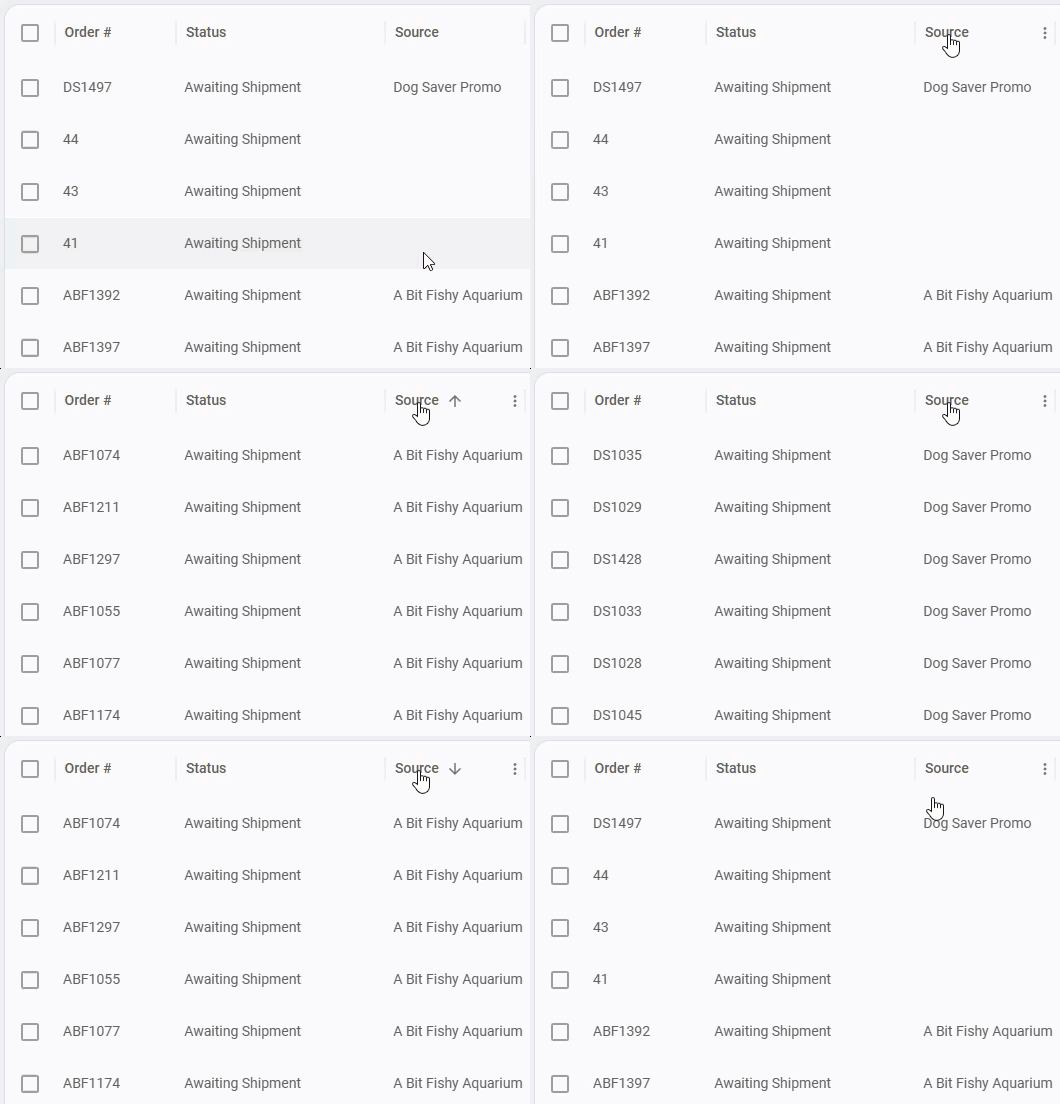
Most columns on the orders grid can be sorted by clicking the column heading you wish to sort the orders by. Clicking multiple times alternates between ascending, descending, and unsorted order. The current sort order is indicated with an arrow in the header of the sorted column.
Download, Load, and Reset the Orders Grid State
Save and download your current grid state so you can easily restore it later or load the same settings across multiple devices without manually reconfiguring the layout each time.
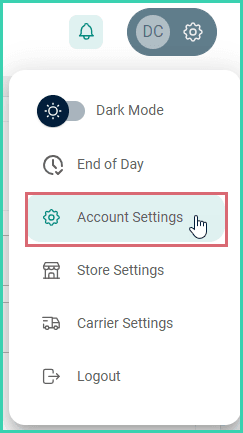
Go to Settings.

Select Account Settings.
Download the Current Grid State
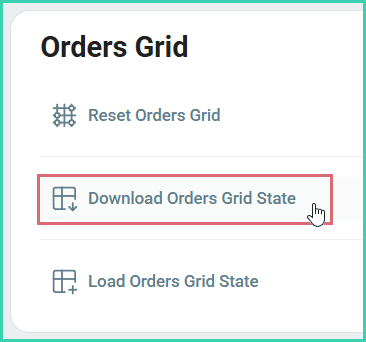
Click Download Orders Grid State in the Orders Grid section. A file containing your current grid settings and layout is automatically downloaded to your computer. The default filename is Order_Grid.json and is typically downloaded to the Downloads folder in your web browser.
Load a Grid Configuration
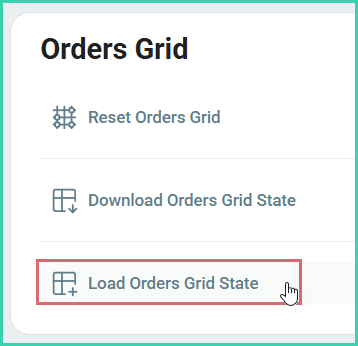
Click Load Orders Grid State in the Orders Grid section. Then, navigate to the saved Orders_Grid.json file that you wish to load. Once selected, the grid state will be restored, and the Orders Grid will be updated.
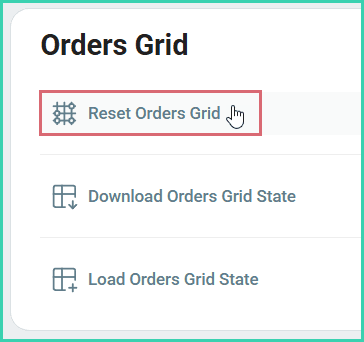
Reset Orders Grid
Need to restore the Orders Grid to its original, default layout? Here's how:
Click Reset Orders Grid in the Orders Grid section. Then, confirm your selection. The grid will be restored to the default layout.
Good to Know
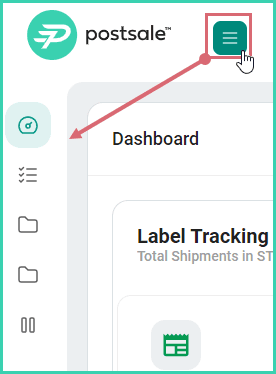
- Need a little more real estate available for the Orders Grid? Expand/collapse the left-side menu to make a bit more room when needed.
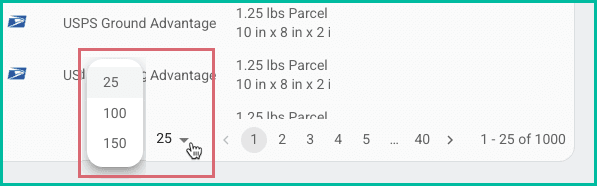
- Need to access more than 25 orders at a time on the orders grid? You can choose to load 25, 100, or 150 orders per page. Select the number of rows to load from the Rows Per page: menu at the bottom of the grid.
-
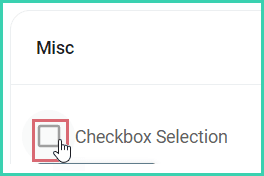
You can hide the selection checkboxes in the Orders Grid. They're shown by default to make it easy to select or deselect orders.
However, they can be hidden when you need more space in the Orders Grid, like when working on a mobile device.
Go to Settings > Account Settings and uncheck Checkbox Selection in the Misc section at the bottom of the page.
Still have a question? Ask a person.
Write to support@postsale.com or send us a message. We reply the same business day, Monday to Friday, 8 AM to 5 PM Central.