Manage Filters & Folders
Organize your Filters and Folders for a streamlined workflow.
Help keep your shipping workflow organized by categorizing your Filters into Folders and rearranging your Filters into a more logical order.
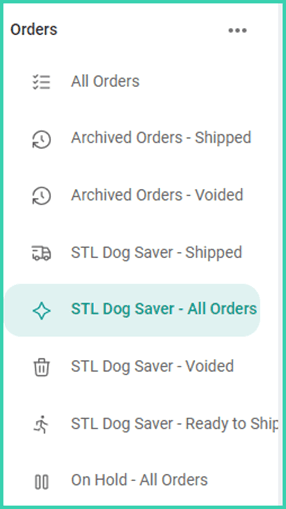
In this article, we will use the Edit Orders Menu screen to rearrange Filters and categorize them into Folders.
Quick Tip Video
Real World Example
We have created several filters to help keep track of archived orders and to organize St. Louis Dog Saver Promo orders by shipping status. Currently, the Filters are not arranged logically. We’d like to group the Filters into Folders and rearrange them into a more logical order.
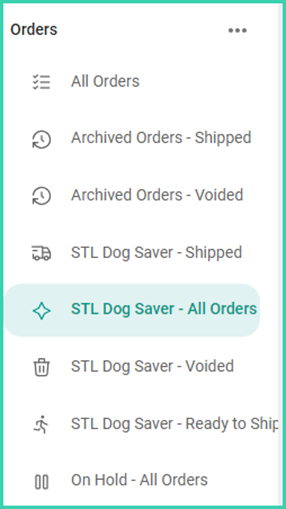
Introduction to the Edit Orders Menu Screen
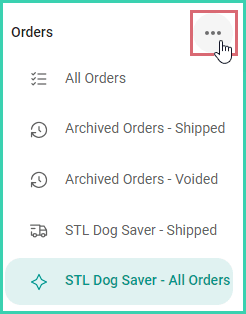
The Edit Orders Menu is Postsale’s central hub for organizing all your filters. Access it by clicking the  icon in the Orders Menu.
Let’s look at the options available to you:
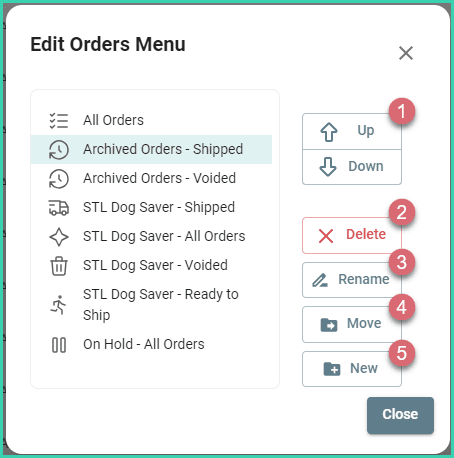
- Up/Down: Move the selected Filter or Folder up or down in the list.
- Delete: Delete the selected Filter or Folder and its contents. Deleting a filter or folder cannot be undone. Be aware that when you delete a folder, all its contents are also deleted.
- Rename: Rename the selected Filter or Folder.
- Move: Move the selected Filter or Folder into a Folder.
- New: Create a new Folder.
Organize Your Filters
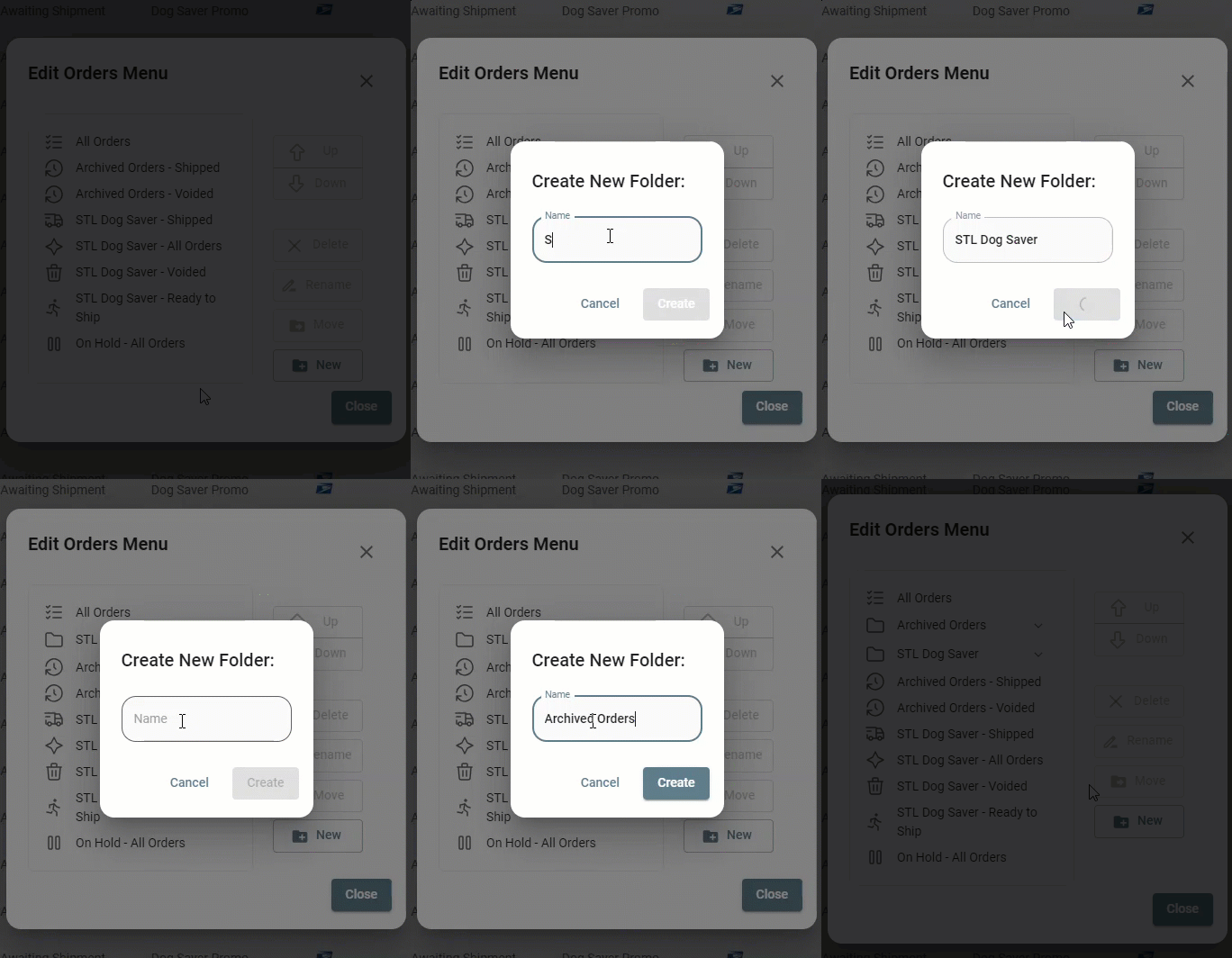
Create New Folders
- Click the New button.
- Enter a name for your Folder into the Name field.
- Click Create.
Move Filters into Folders
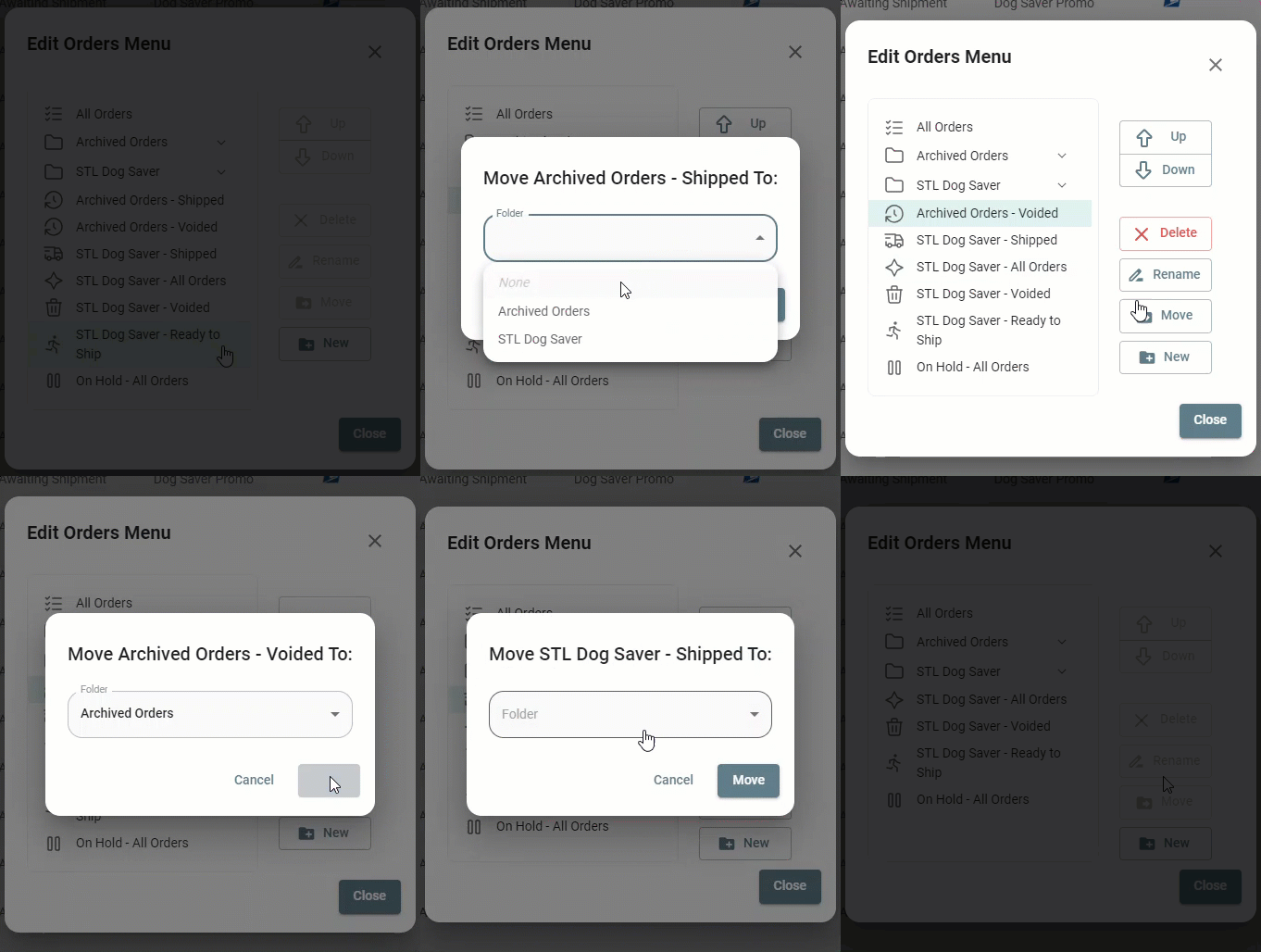
- Select the Filter you wish to move.
- Click the Move button.
- Select the Folder from the Folder drop-down menu.
- Click Move.
Rearrange Filters
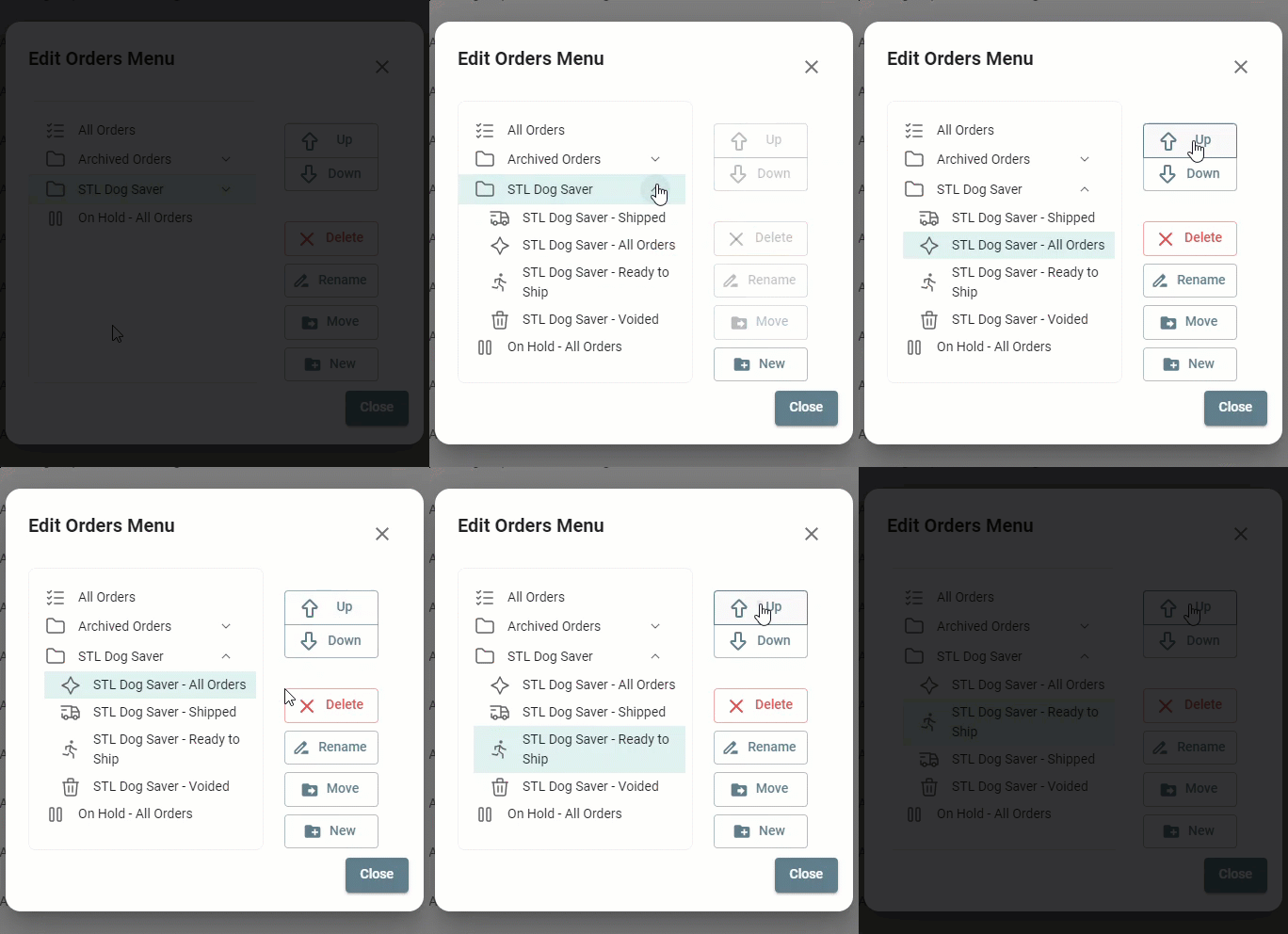
- Select the Filter or Folder you wish to rearrange.
- Use the Up and Down buttons to reorder the Filter or Folder in the list.
Conclusion
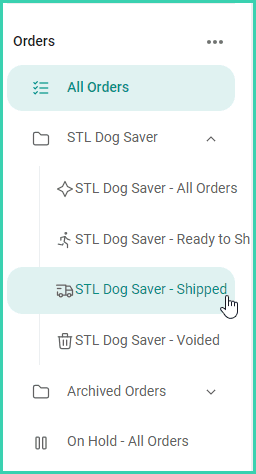
Now that we have categorized our Filters into Folders and have rearranged the Filters into a more logical order, it is much easier to find the Filter we need when we need it.
Good to Know
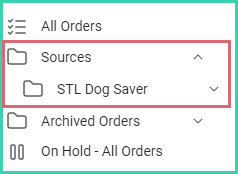
- Folders can be nested within other Folders for a deeper level of organization. For example, you could have a ‘Sources’ folder. In it, you could have a folder for each order source.
- Deleting a Filter or Folder cannot be undone. Be aware that when you delete a Folder, all its contents are also deleted.
Still have a question? Ask a person.
Write to support@postsale.com or send us a message. We reply the same business day, Monday to Friday, 8 AM to 5 PM Central.