Select Your Label Template
Select the template to use for printing labels | Print a packing slip with your labels
Whether you're printing labels to a 4" x 6" thermal printer, letter postage to 2" x 1.5" roll labels, or sending your labels to a laser printer so that a label and packing slip are printed together on a single 8.5" x 11" sheet, selecting the correct label template lets Postsale know how to format your shipping labels.
You can also let Postsale know if you would like to print an additional document, such as a packing slip, at the same time as the shipping label.
Real-World Example
We print 4" x 6" shipping labels to a thermal printer, and we include a 4" x 6" packing slip in each package. We would like to set up Postsale so that the shipping labels and packing slips are formatted correctly for our printer. We also want packing slips to print automatically whenever shipping labels are printed.
Let's use the example above to configure Postsale:
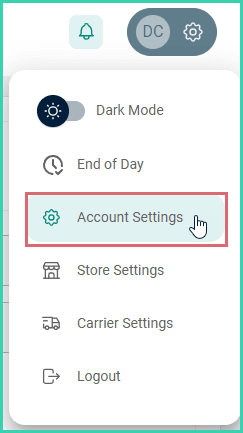
Go to Settings.

Select Account Settings.
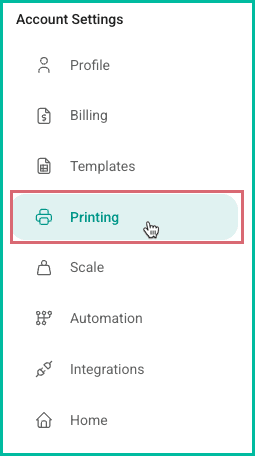
Select Printing.
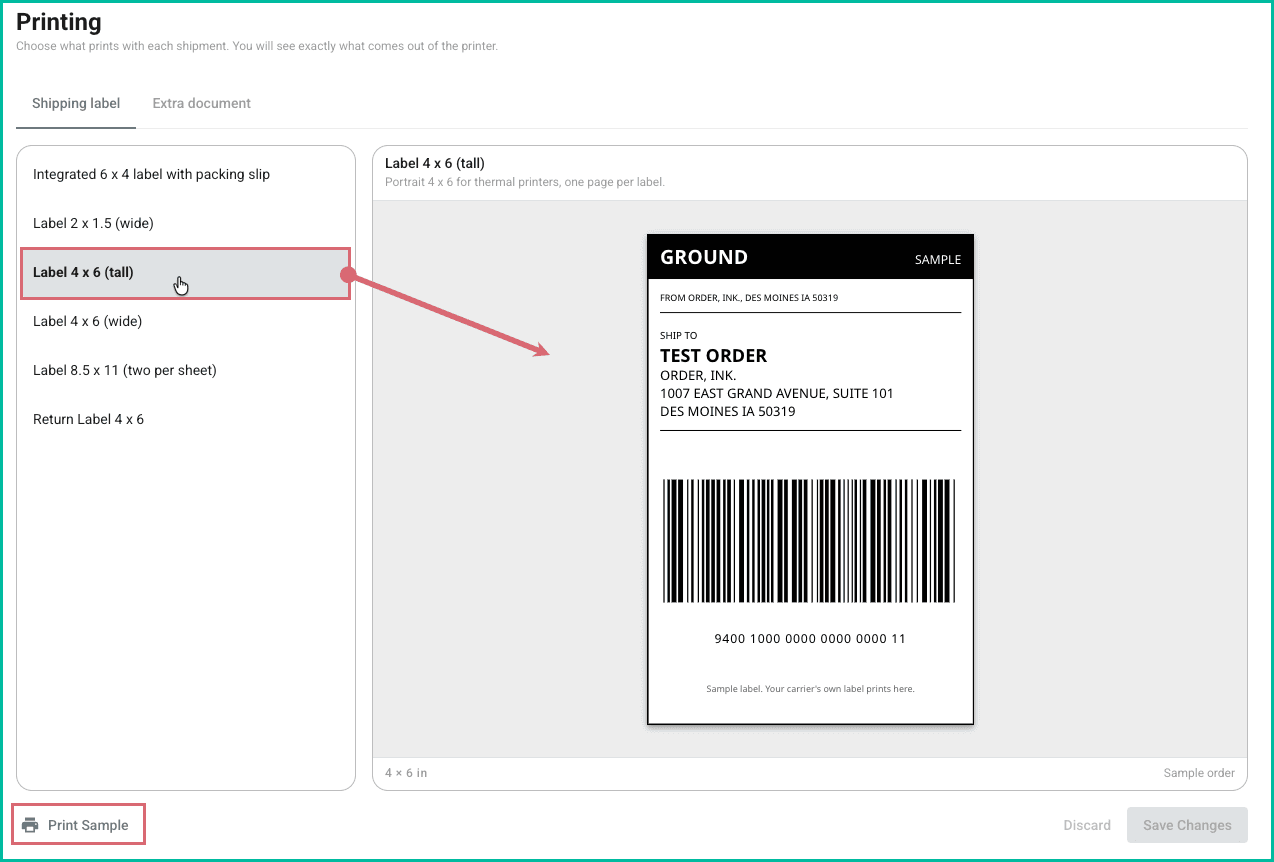
Select the Label Template
Select the correct label template from the list. The template you select will specify the label size and orientation of the printed shipping label.
For example: Since our Real-World Example specifies that the labels should be printed on a 4" x 6" thermal printer, we will select the Label 4 x 6 (Tall) template so that our labels are the correct size for our thermal printer and formatted vertically (portrait orientation).
Be sure to select the correct template for your printing needs.
Example Label Preview
Selecting a label template generates a preview so that you can see how the template will format the printed label. You can also send a sample label to your printer using the selected template to ensure the label prints correctly.
Check out the Default Postsale Templates help article for more information about the available label templates.
Extra Document
Optionally, you can specify that you want an additional template, such as an invoice or packing slip, printed at the same time as the shipping label.
Select the Same Size as Your Shipping Label
Since the extra document will print at the same time and to the same printer as your shipping label, be sure to select the same size packing slip or invoice template.
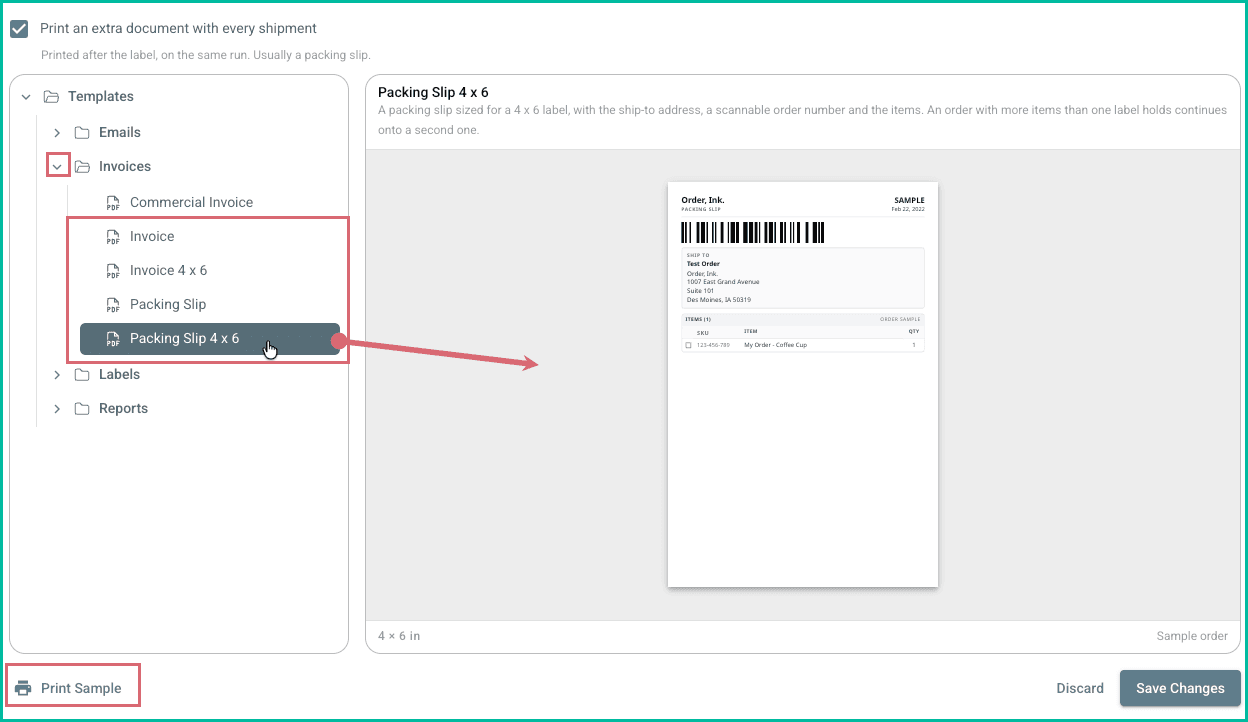
For example, if you are printing to a 4 x 6-inch thermal printer, you would want to select the 4 x 6-inch invoice or packing slip template.
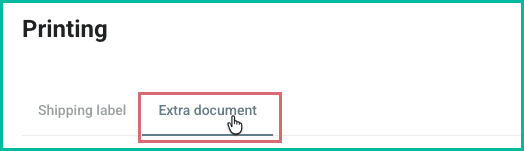
Select Extra document.
Check Print an extra document with every shipment.
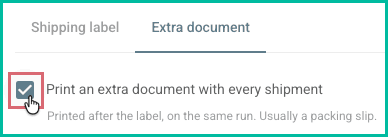
Select the template you wish to print along with the shipping label.
Example Preview
Selecting a template generates a preview so you can see how it will look when printed. You can also send a sample to your printer using the selected template to ensure it prints correctly.
Check out the Default Postsale Templates help article for more information about the available templates.
Save your changes.

Now, when you print your shipping labels, the correct template will be used to format the label for your printer. If you opted to include an additional document with each shipment, it will be printed automatically at the same time as your labels.
On this page
Related