The Default Postsale Templates
Learn about the default templates included with Postsale
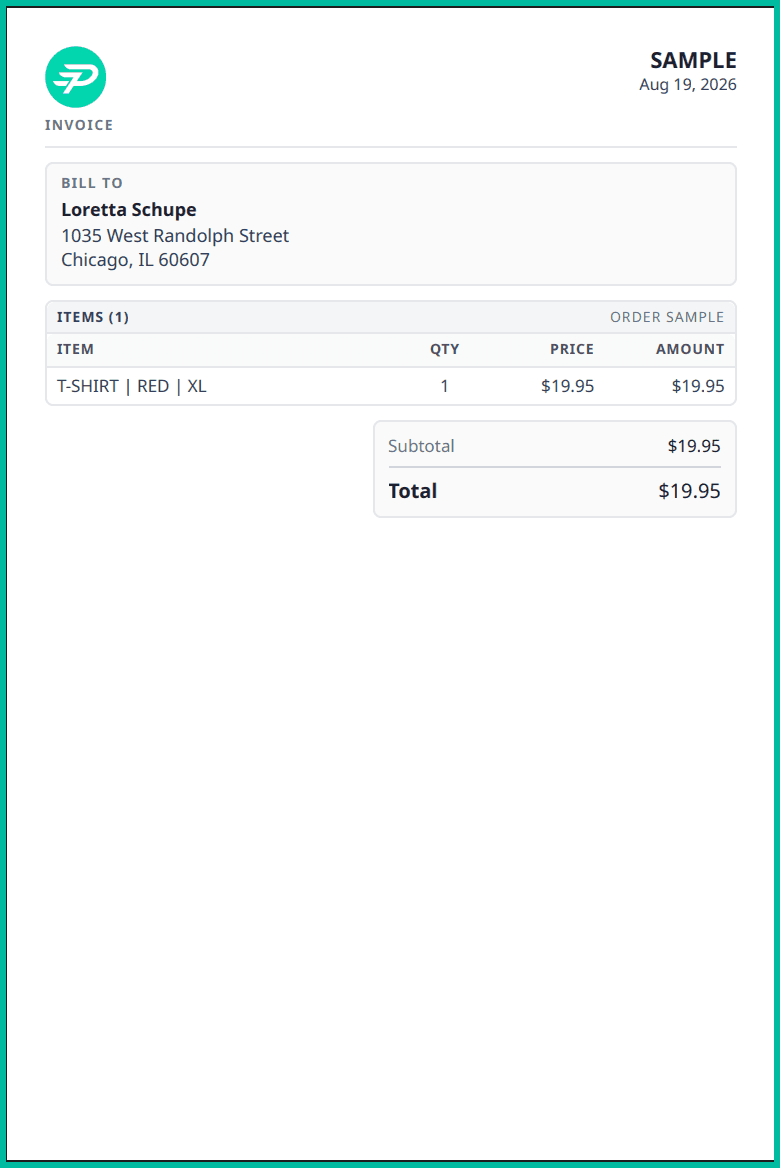
Postsale comes with ready-to-use default templates for invoices, packing slips, shipment notification emails, and label printing. They’re designed to work out of the box, so you can start printing and emailing right away. If you're on the Expand, Thrive, or Soar plan, you can also customize these templates to match your brand.
This article provides useful information about the default templates and includes examples showing how they look in action.
Learn more about templates in Postsale.
The Default Templates
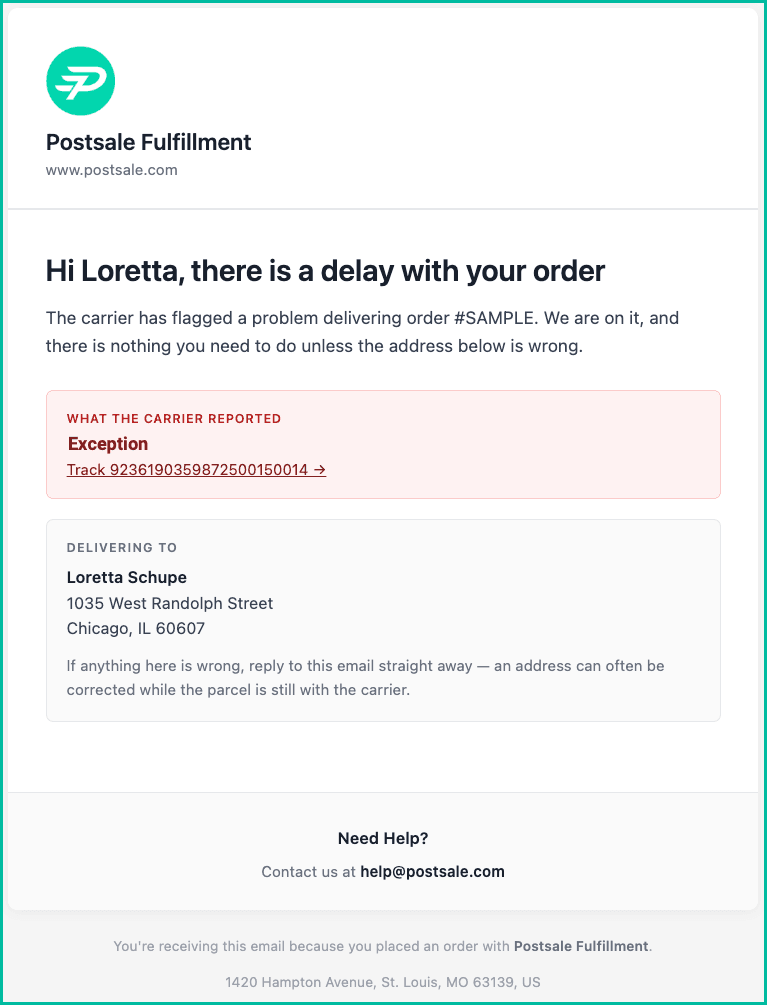
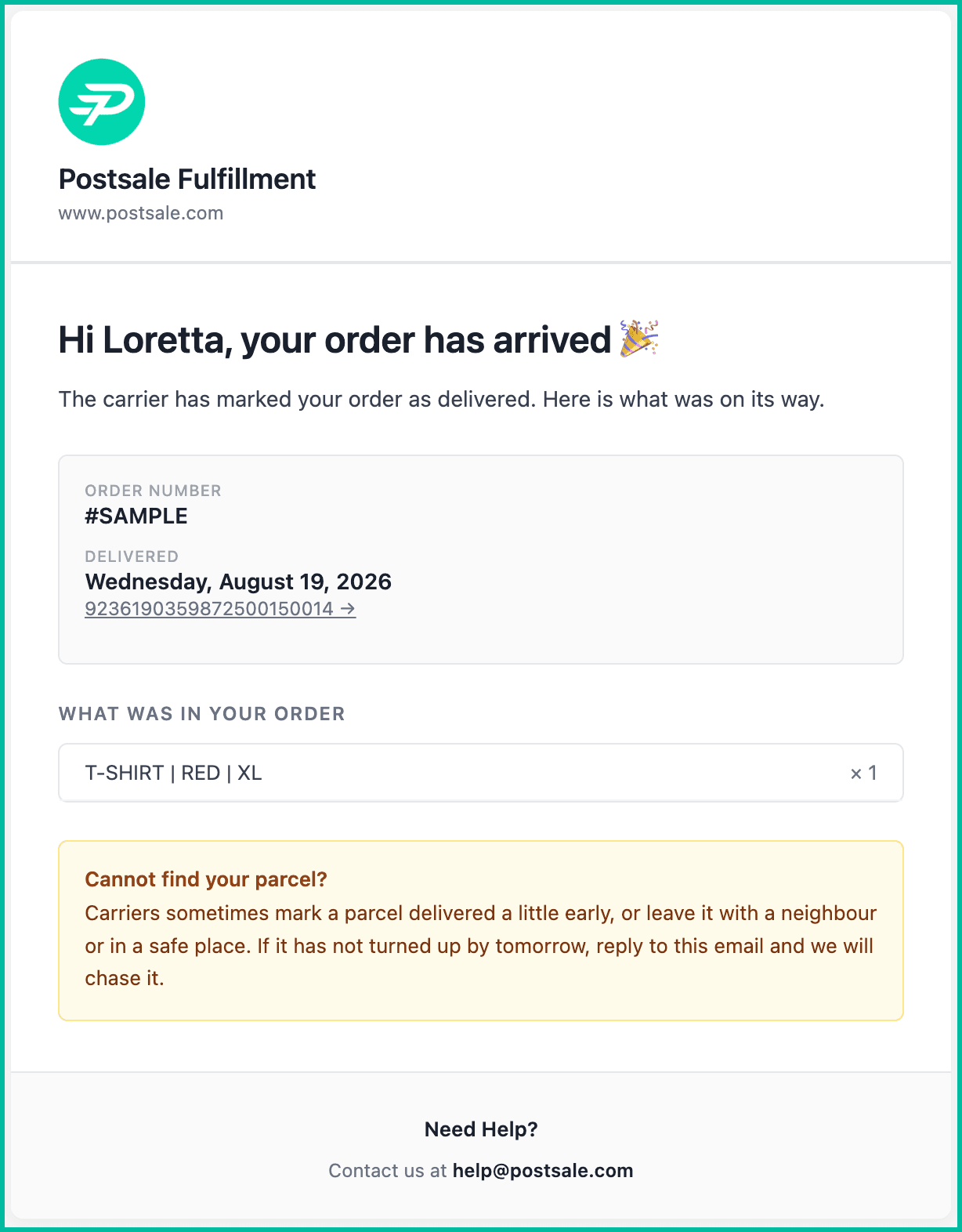
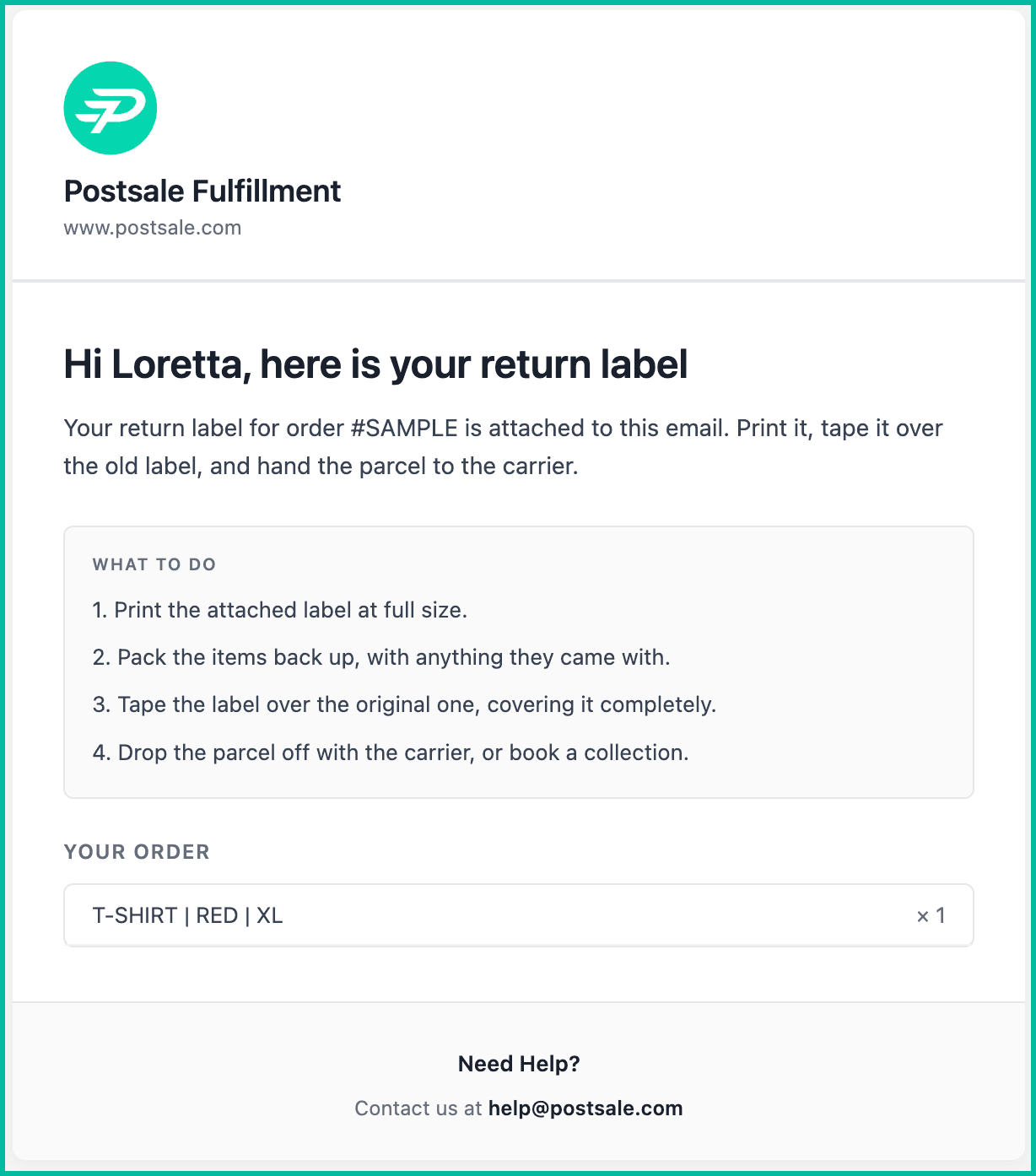
Postsale's default templates are organized into four folders: Emails, Invoices, Labels, and Reports. Select a tab in the sections below to view a preview and a description of the template.
Emails
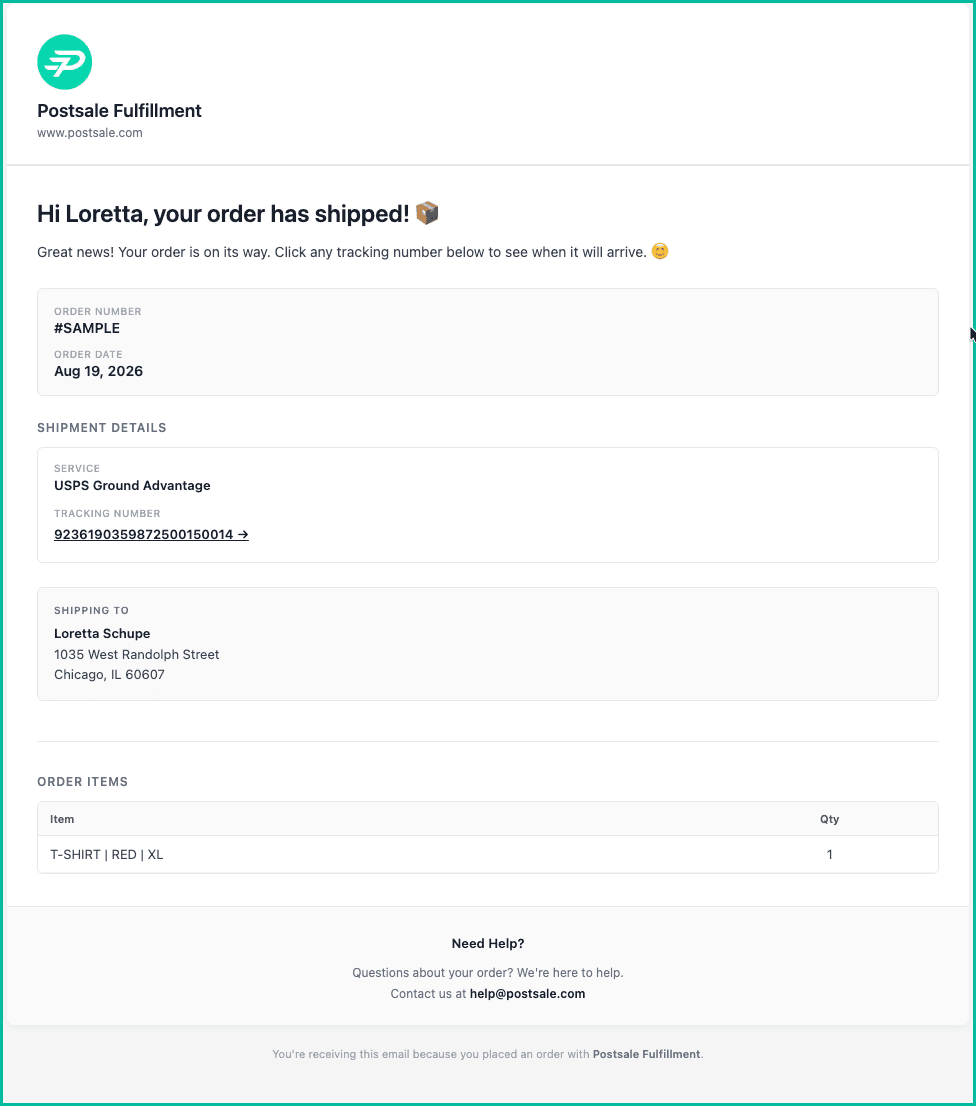
The Order Shipped Notification Email template lets customers know their order is on the way. It includes the order number and date, carrier service, a clickable tracking number, shipping address, and the ordered items, so customers can quickly review shipment details and track delivery progress.
Invoices
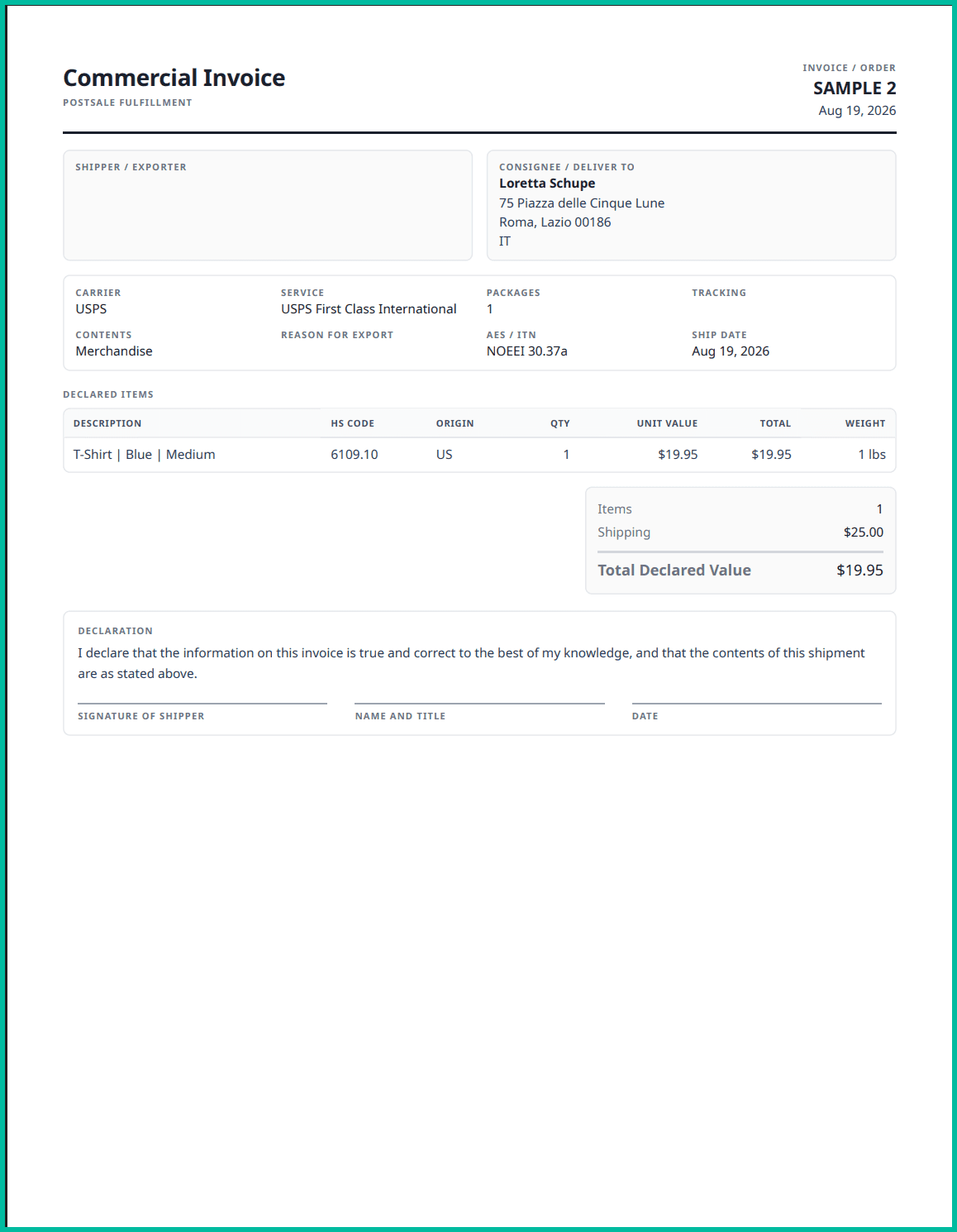
A commercial invoice is an international shipping document that lists the goods in a shipment and their declared value, helping customs assess duties and clear the shipment for import. This template organizes the shipper and recipient details, carrier and service information, item descriptions, HS codes, country of origin, quantities, values, and shipment totals in a clear, customs-ready format. It also includes a declaration and signature area for the shipper.
Requirements can vary by destination, so review the requirements for the country you are shipping to. U.S. International Trade Administration
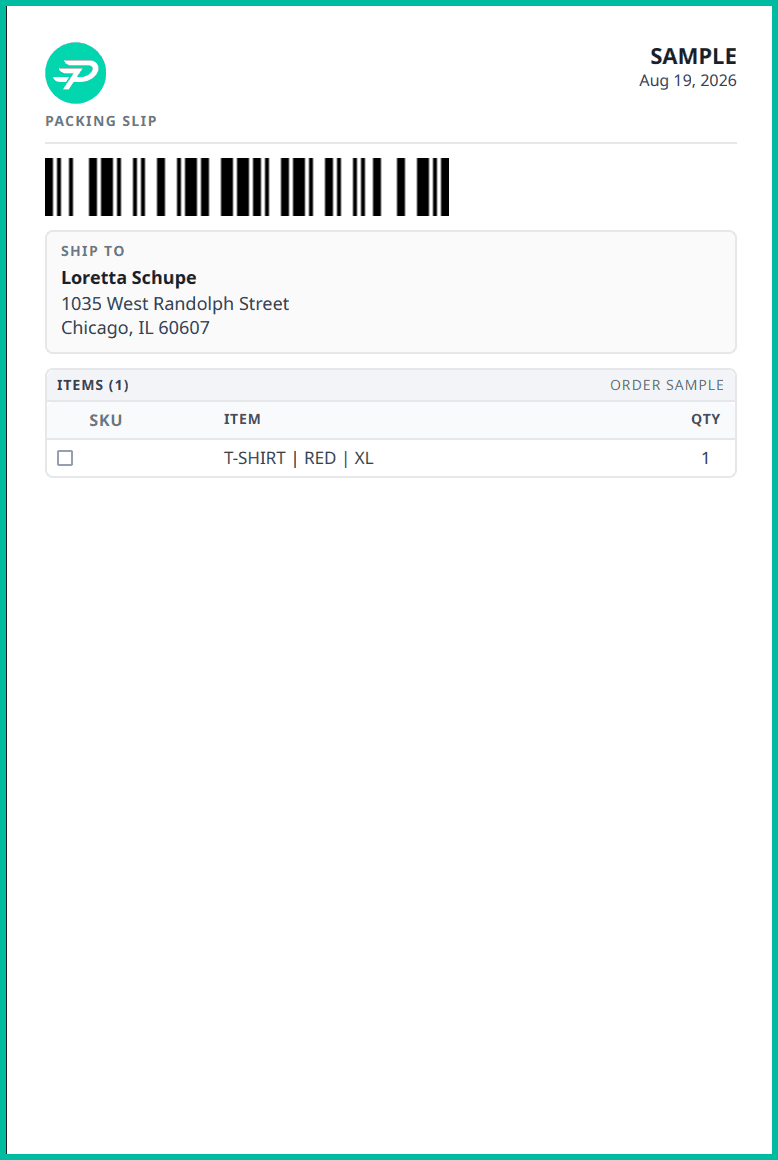
Labels
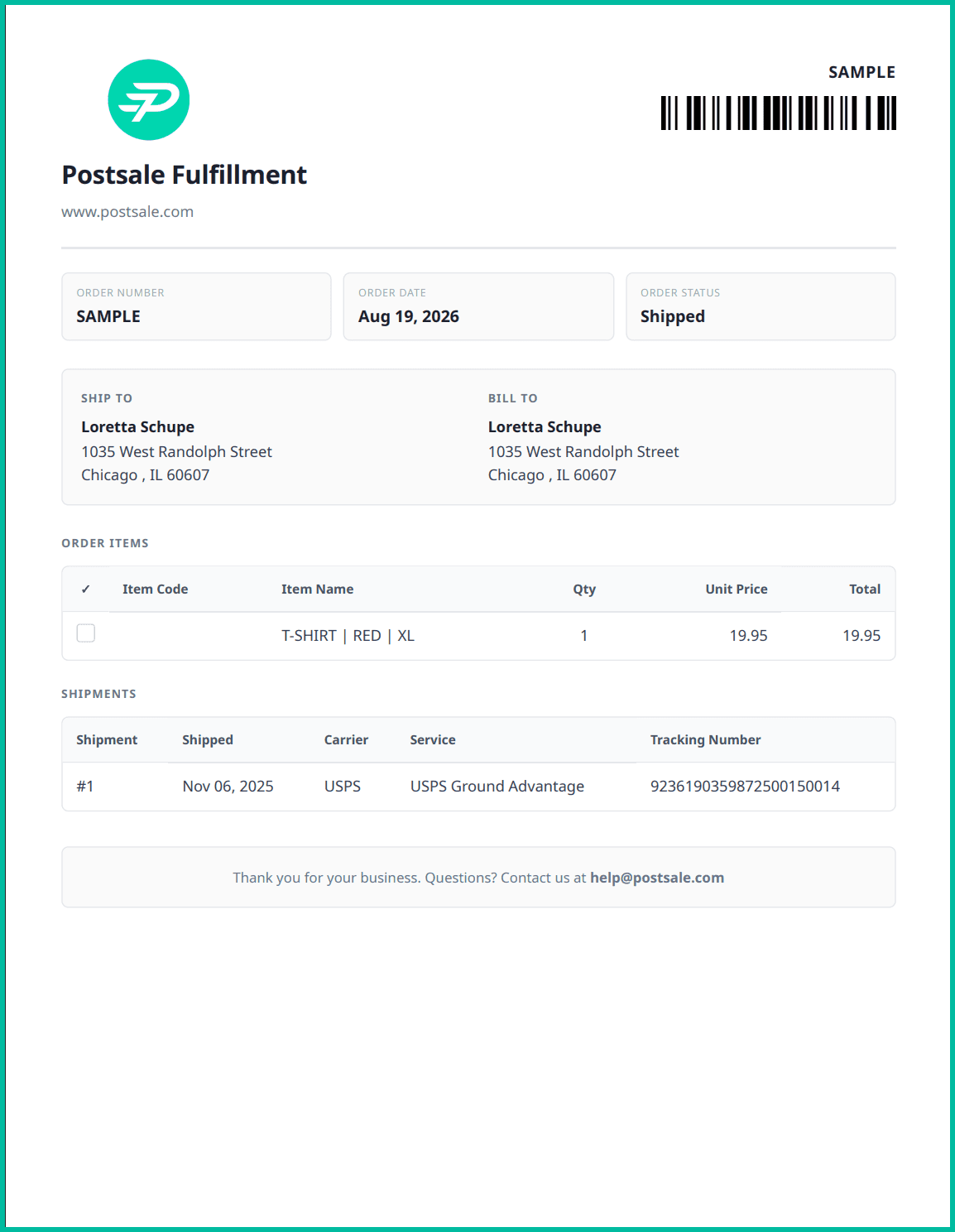
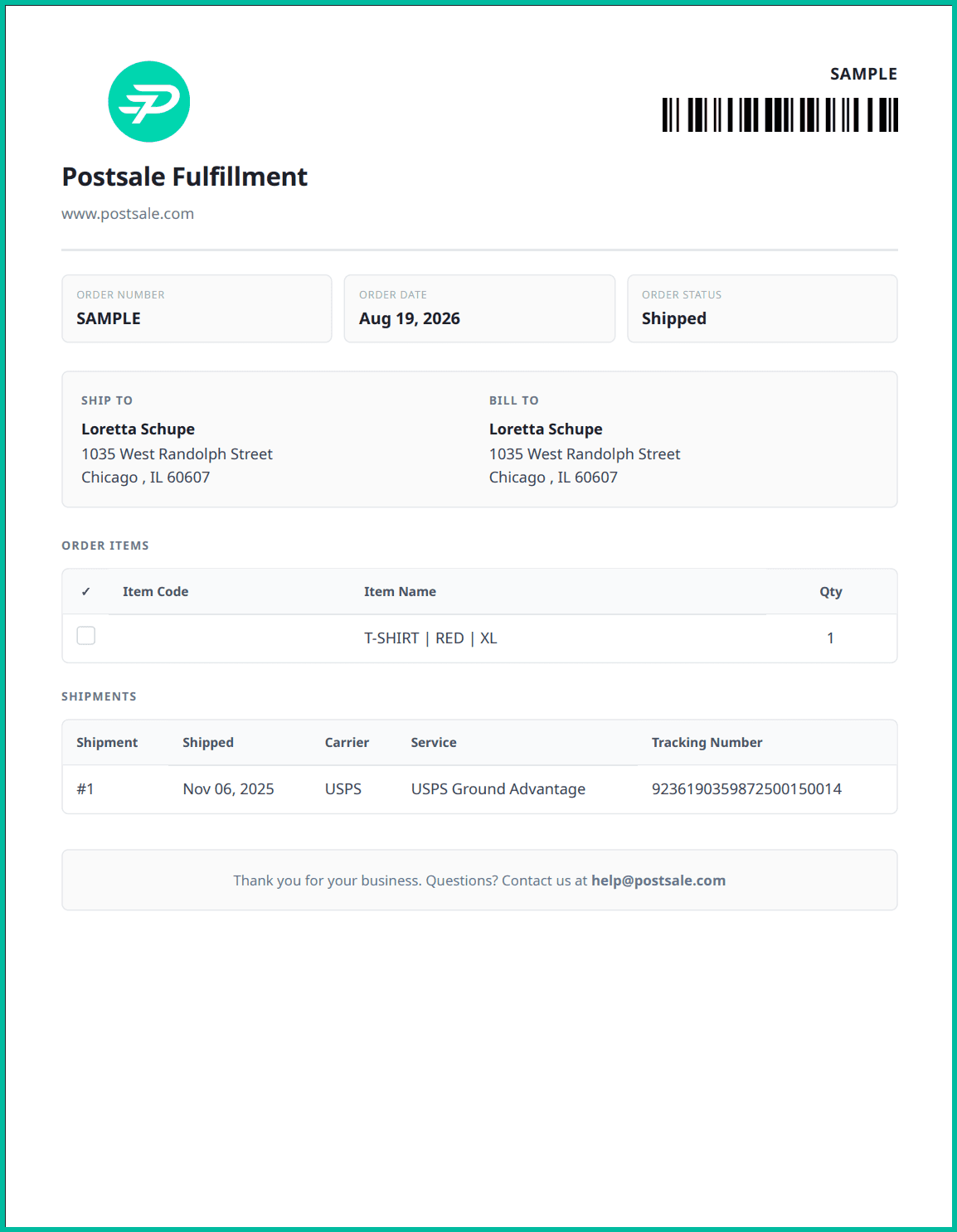
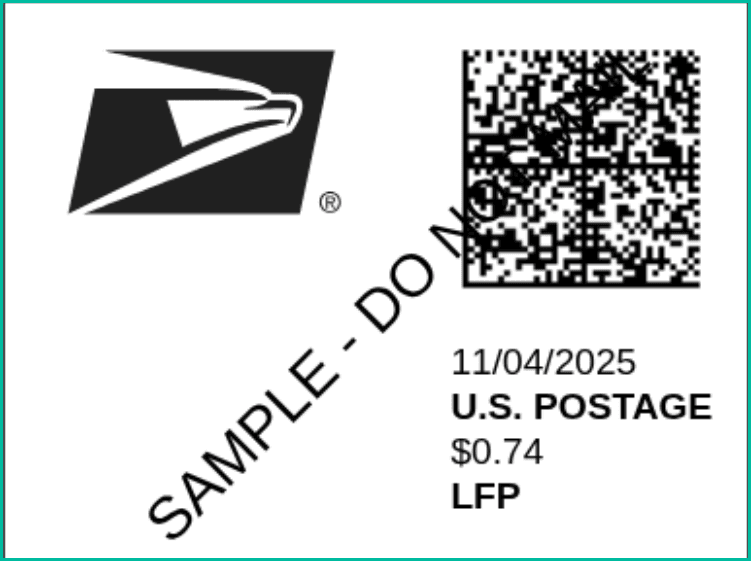
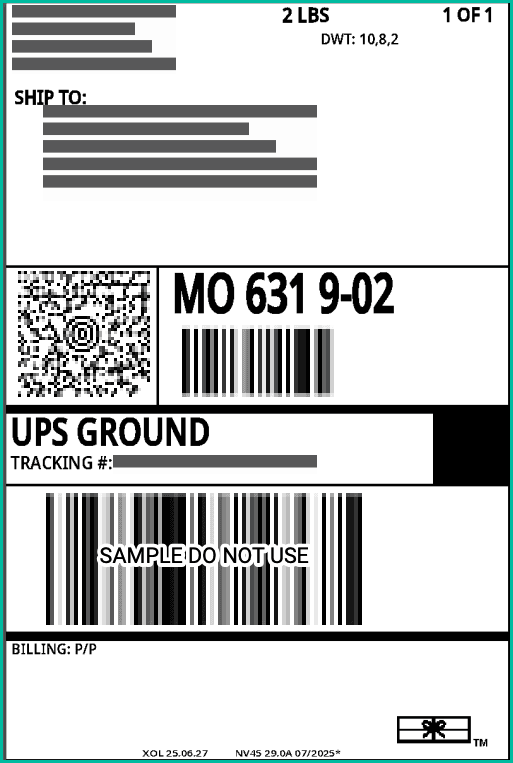
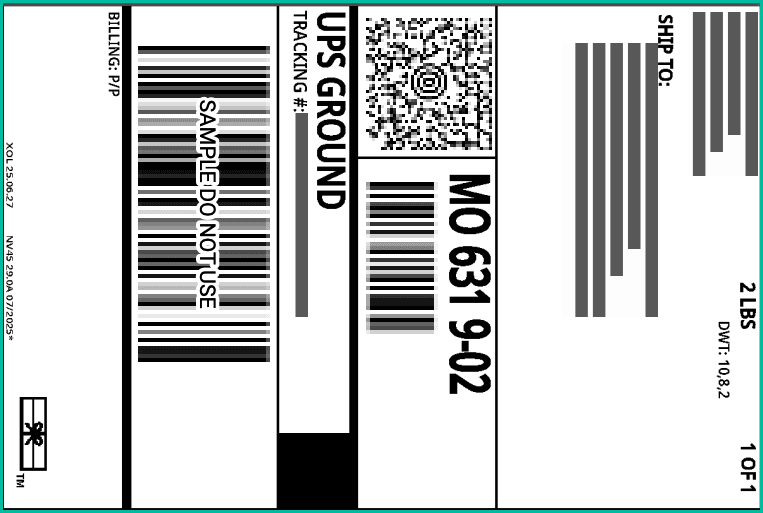
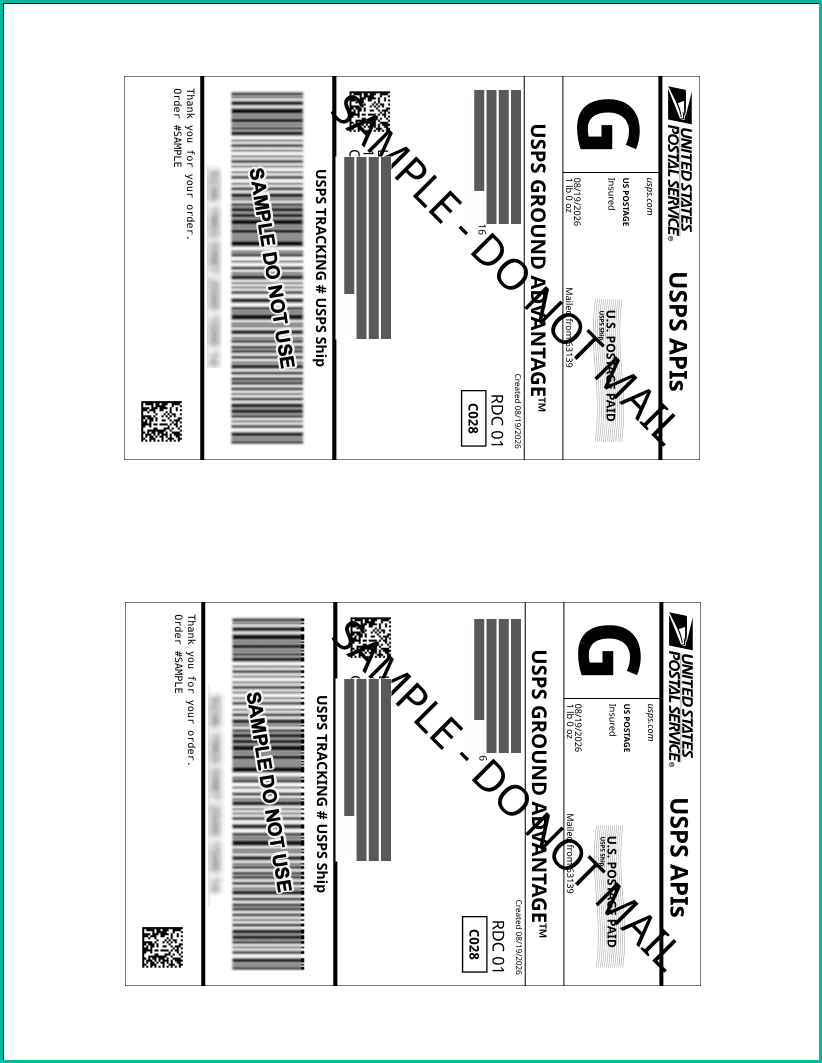
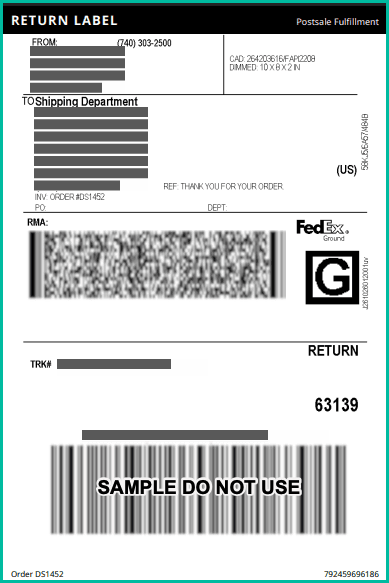
The Integrated 6 × 4 Label with Packing Slip template is designed for integrated label stock, with a packing slip on the plain-paper top section and a peel-and-stick 4 × 6 shipping label at the bottom. It gives your fulfillment team the order, recipient, shipment, and item details they need to pack the order, then provides a ready-to-apply carrier label for shipping.
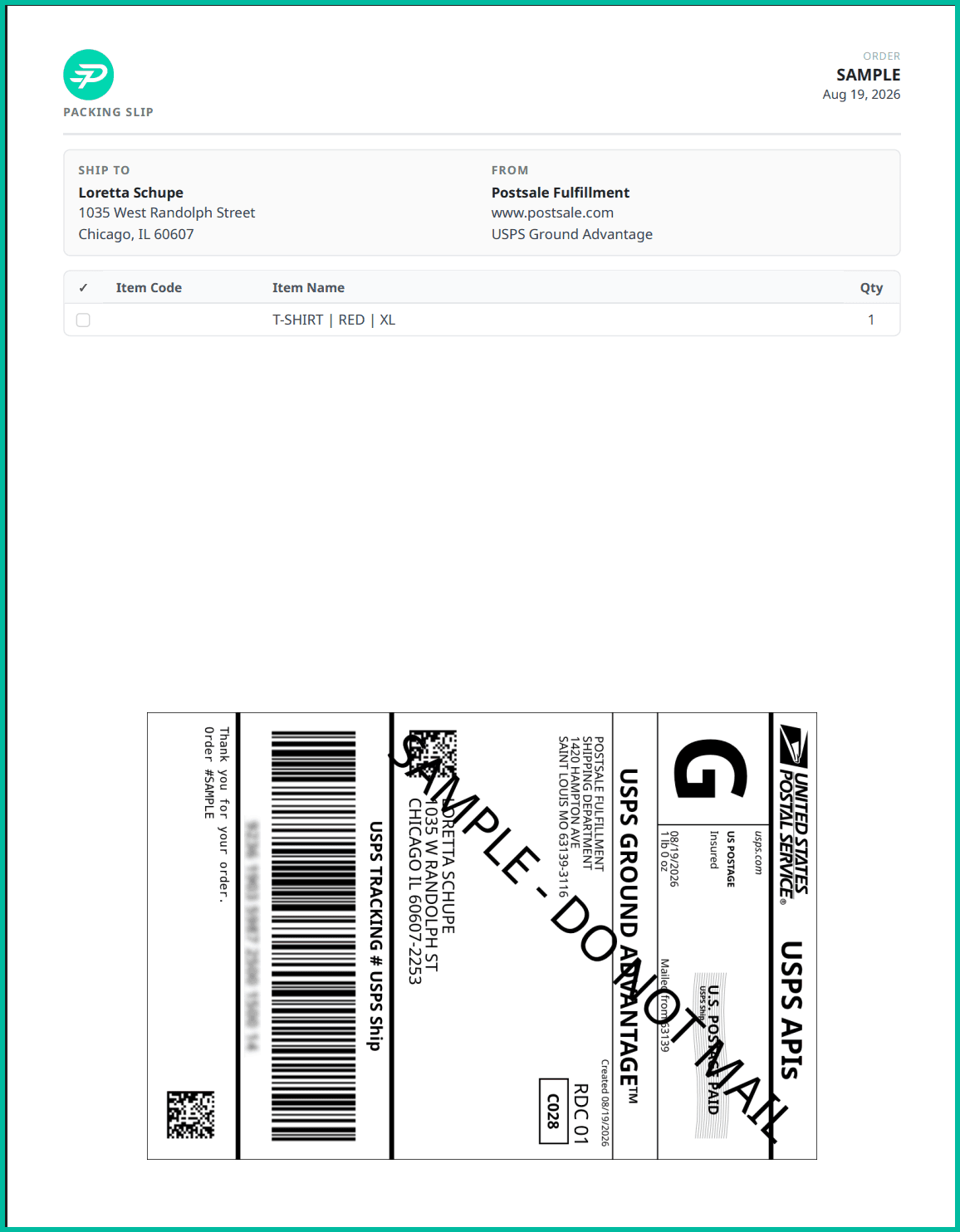
Reports
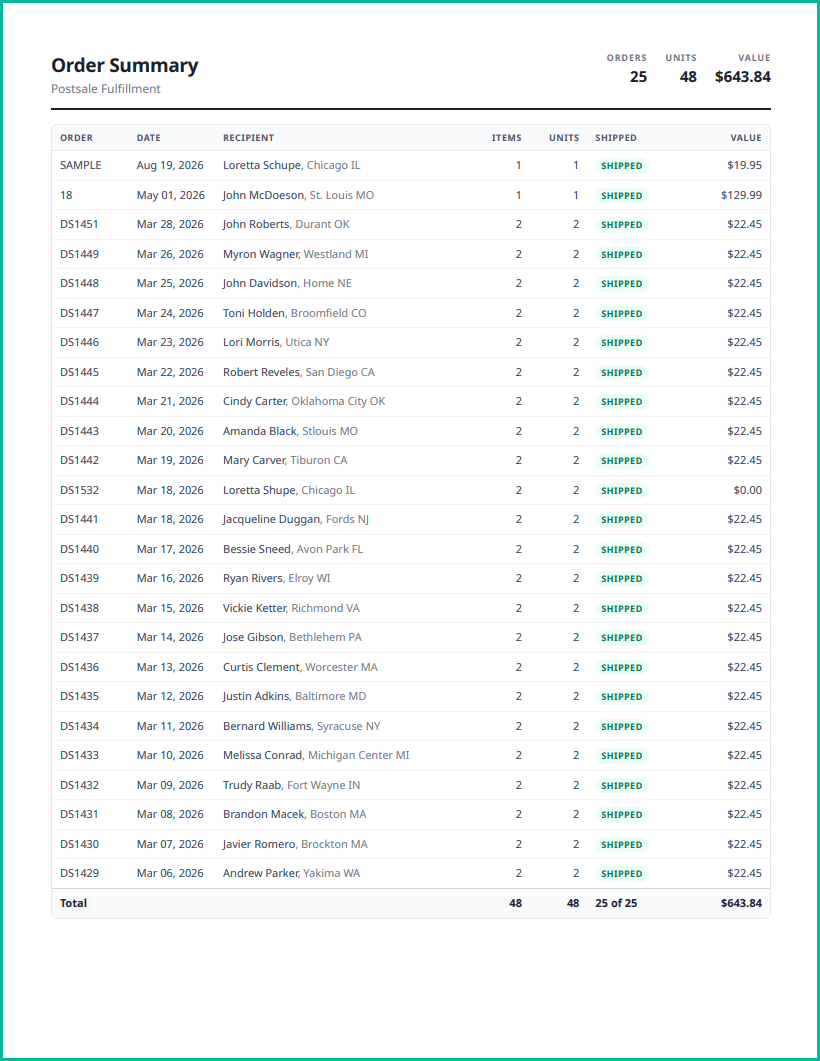
The Order Summary report provides a print-ready overview of the orders you select in the Orders Grid. Use it to review a group of orders at a glance, confirm fulfillment progress, or share a concise order record with your team.
The report includes a summary of the total number of orders, units, and order value. Each selected order appears in a detailed table with its order number, order date, recipient, item count, unit count, shipment status, and value. A totals row at the end summarizes the selected orders, including the number shipped.
Still have a question? Ask a person.
Write to support@postsale.com or send us a message. We reply the same business day, Monday to Friday, 8 AM to 5 PM Central.