USPS: Schedule a Pickup
Schedule a pickup with the USPS
Schedule and manage pickups for your USPS packages directly in Postsale.
Before We Begin
This article assumes that:
- You have a USPS account added to Postsale
- You have at least one USPS package ready to be picked up
Check with the Carrier
Before scheduling a pickup, it’s a good idea to check with the carrier to see if there are any extra fees to do so and to make sure that pickups are available in your area.
Schedule & Manage USPS Pickups
To schedule a USPS pickup:
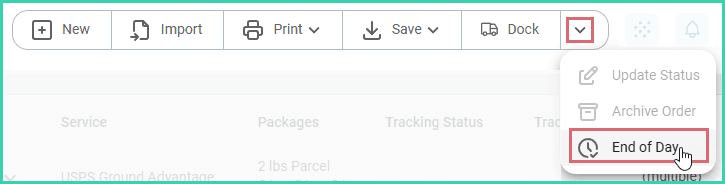
Select End of Day from the Order Actions Menu.
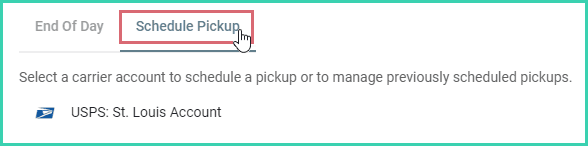
Select the Schedule Pickup tab.
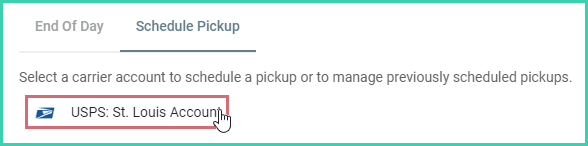
Select the USPS account.
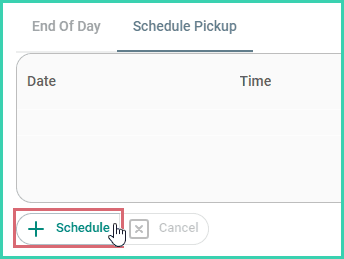
Click the Schedule button.
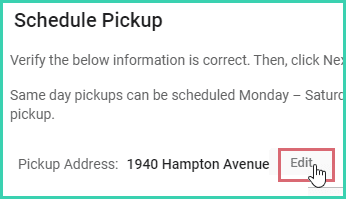
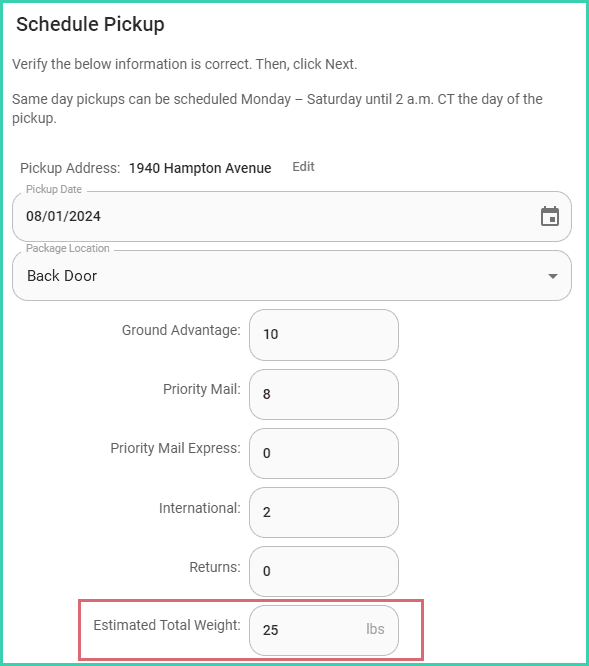
Verify that the Pickup Address is correct. Click Edit if you need to update the address.
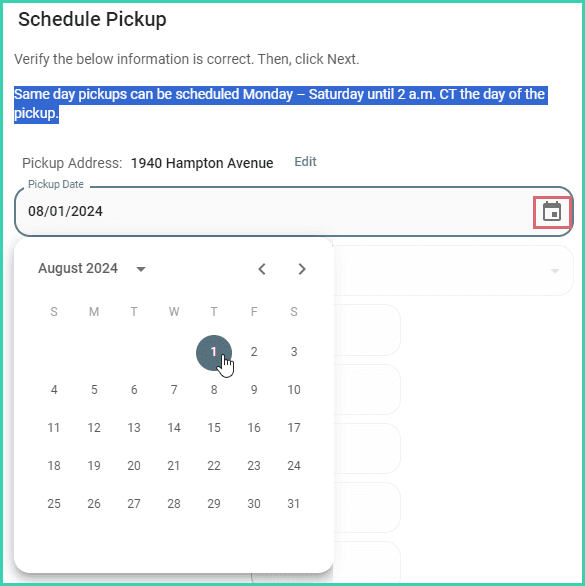
Select the Pickup Date from the calendar pop-up. Same day pickups can be scheduled Monday – Saturday until 2 a.m. CT the day of the pickup.
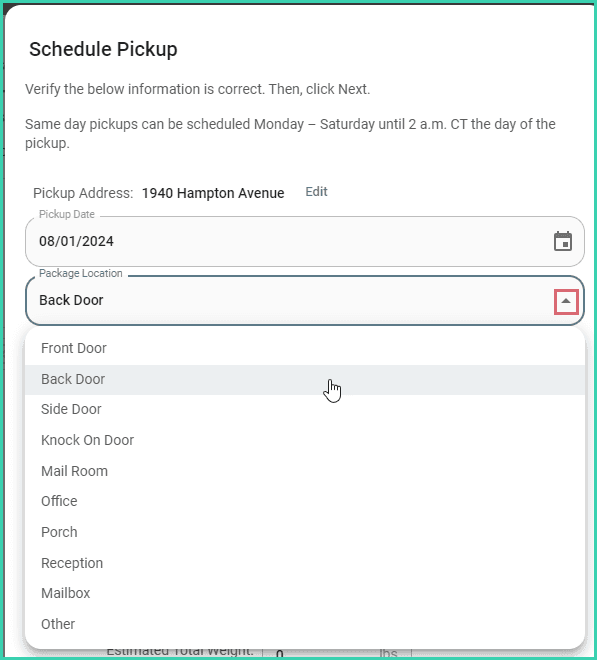
Select where the packages will be physically located from the Package Location drop-down menu.
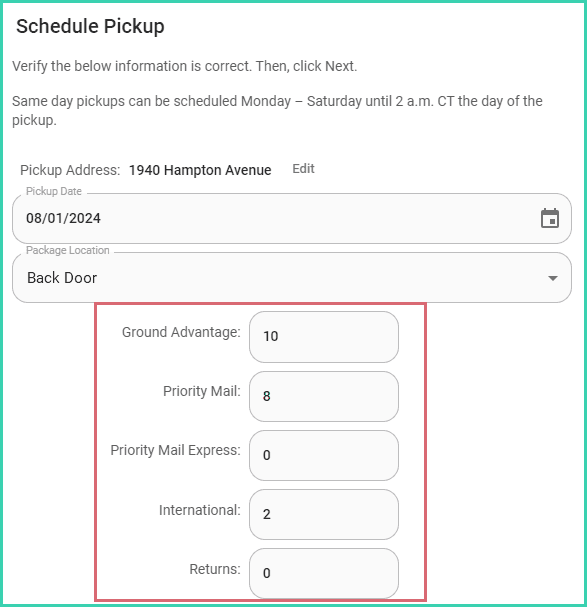
Verify that the number of packages for each package type is correct.
The number of packages for each package type is prepopulated with shipments that are in the Carrier Awaiting Package tracking status for the current week (Sunday through Saturday). However, you can edit the number of packages for each package type.
Verify that the Estimated Total Weight of all packages is entered.
The weight is prepopulated with the combined weight of all shipments that are in the Carrier Awaiting Package tracking status for the current week (Sunday through Saturday). However, you can edit the weight if needed.
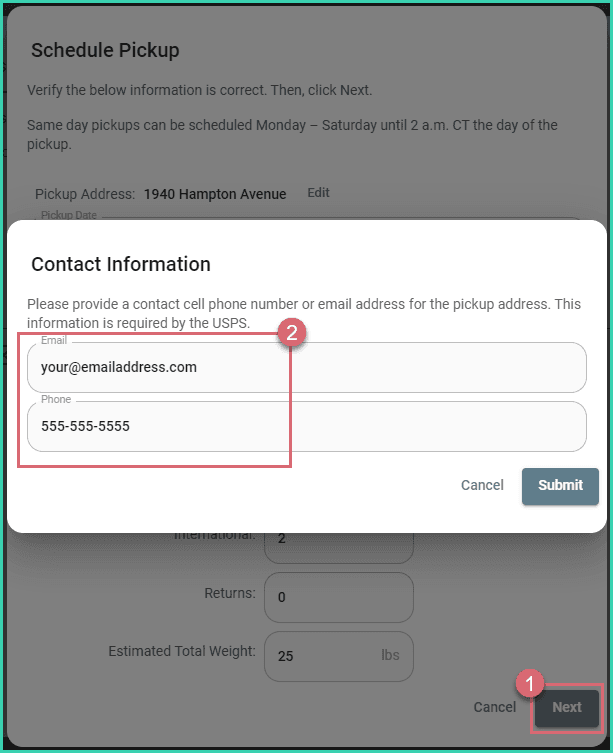
Click Next. Then, verify that the Email and/or Phone number are entered correctly.
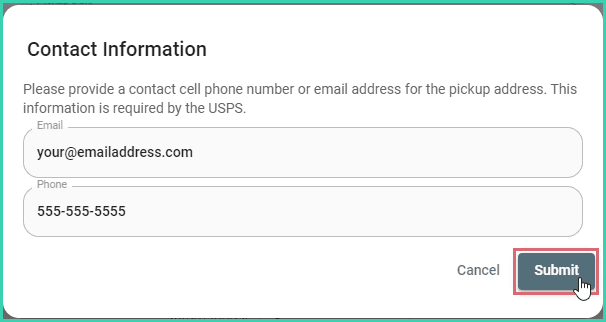
Click Submit to schedule the pickup.
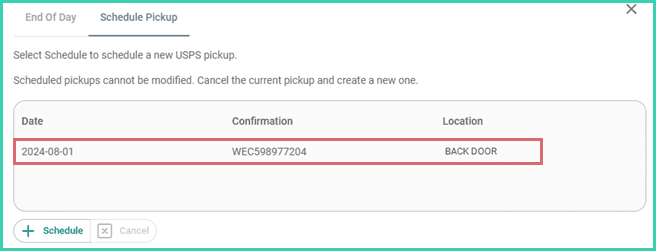
The pickup is scheduled and is displayed on the Schedule Pickup screen.
Pickups Cannot be Edited
Once a pickup has been scheduled it cannot be edited or modified. When you need to change a pickup, please cancel the current pickup and create a new one with the correct date and time.
To cancel a pickup:
Select End of Day from the Order Actions Menu.
Select the Schedule Pickup tab.
Select the USPS account.
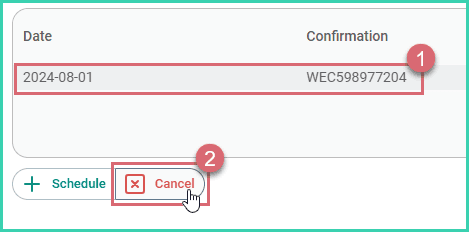
Select the pickup you wish to cancel. Then, click the Cancel button.
Click Okay to verify that you wish to cancel the selected pickup.
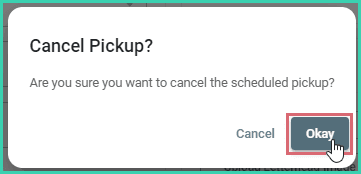
The pickup is canceled and removed from the list of pickups.
On this page
Related