Add and Edit Users
Add and manage multiple users and their permissions on your Postsale account
Add users to your Postsale account so your team and fulfillment partners can log in with access suited to their responsibilities. You can grant full access or use roles and permissions to limit access to specific tasks, such as viewing analytics on the Dashboard or shipping only the orders you specify.
This article guides you through adding and editing users, managing their permissions, and viewing user activity.
Before We Begin
Before adding a new user, it may help to outline which tasks they will perform, which areas of Postsale they need access to, and whether there are any specific orders they should or should not be able to access. This will help you define the role or permissions when adding the user.
Additional things to consider:
- You must be logged into Postsale as the account owner to add or manage users.
- To add and manage multiple users, you must be on the Grow, Expand, Thrive, or Soar plan.
Add Users
REAL-WORLD EXAMPLE
We have a fulfillment center that ships a specific set of item SKUs for one of our stores. We want to add a new Postsale user who can only configure shipments and ship orders, but only for the items we define and for orders for our Fern & Field Goods store.
Let's use the real-world example to set up a new user.
Email Address and User Name
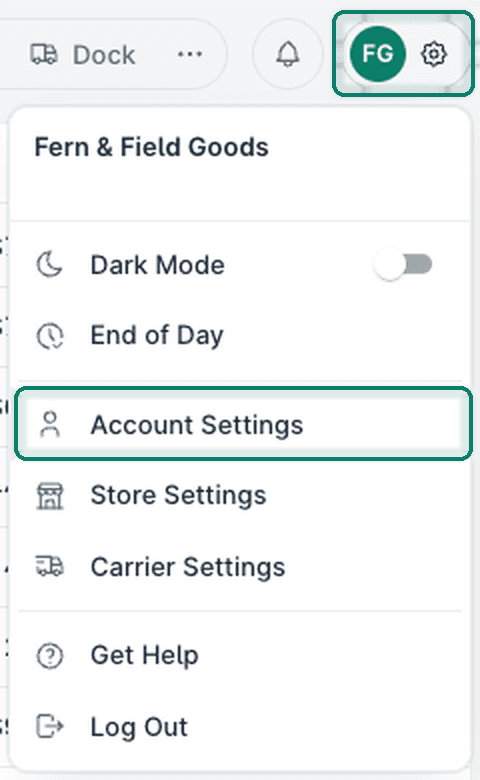
Open Settings and select Account Settings.
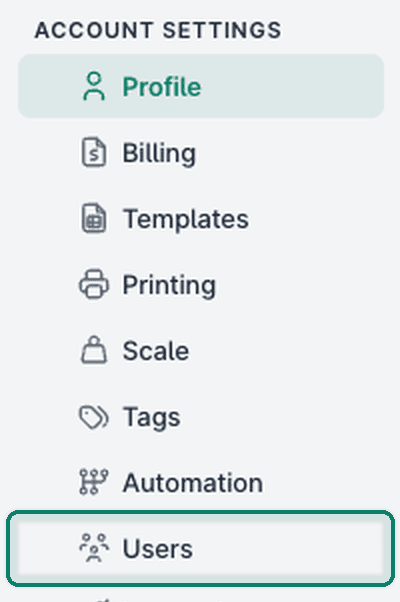
Select Users.
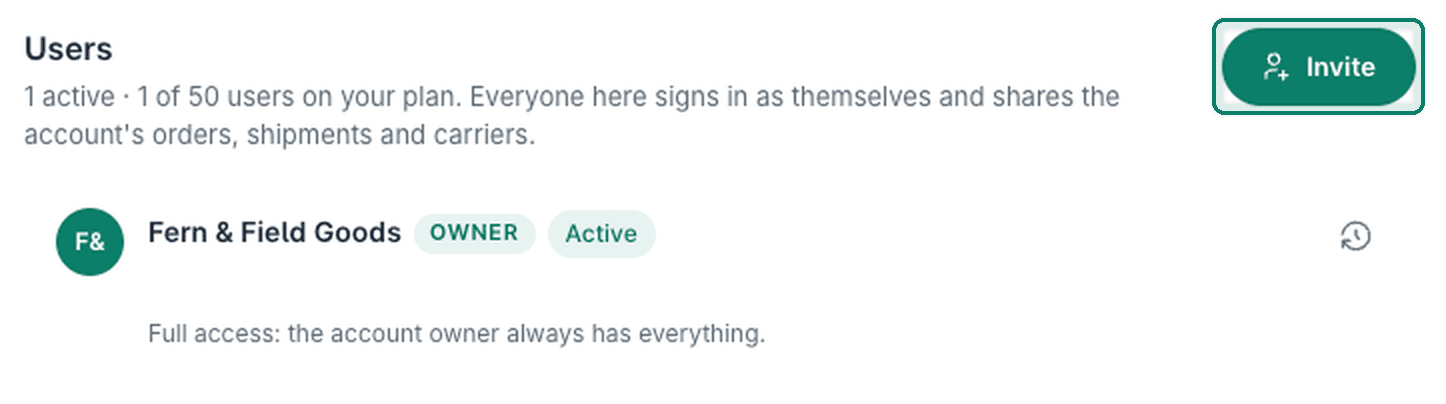
Click Invite.
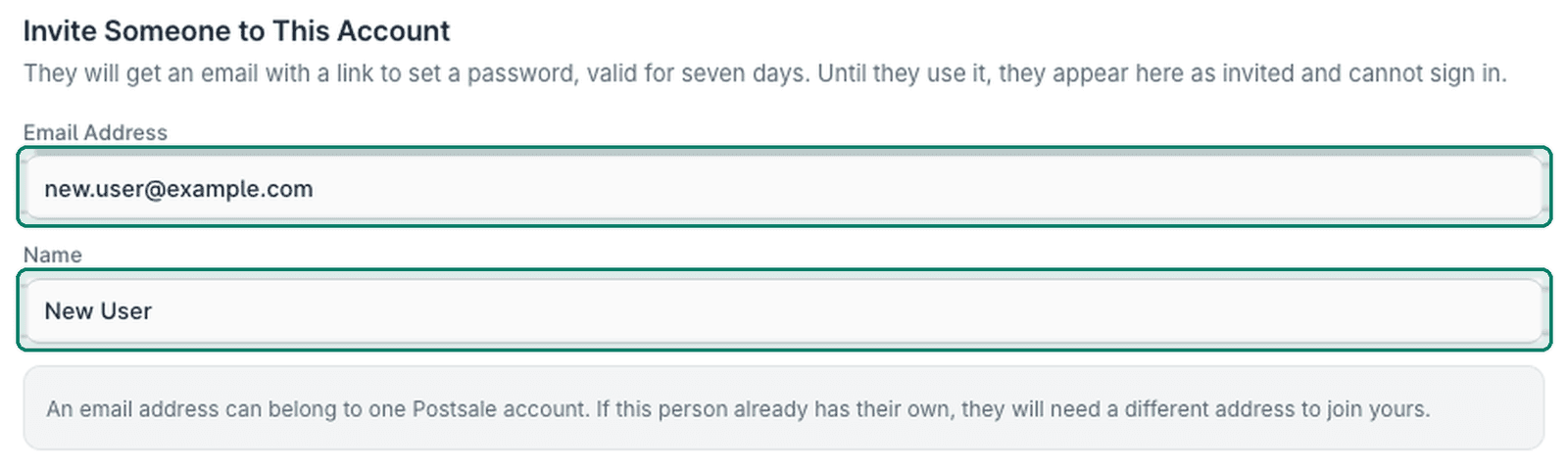
Enter the Email Address and Name of the person you wish to invite as a user.
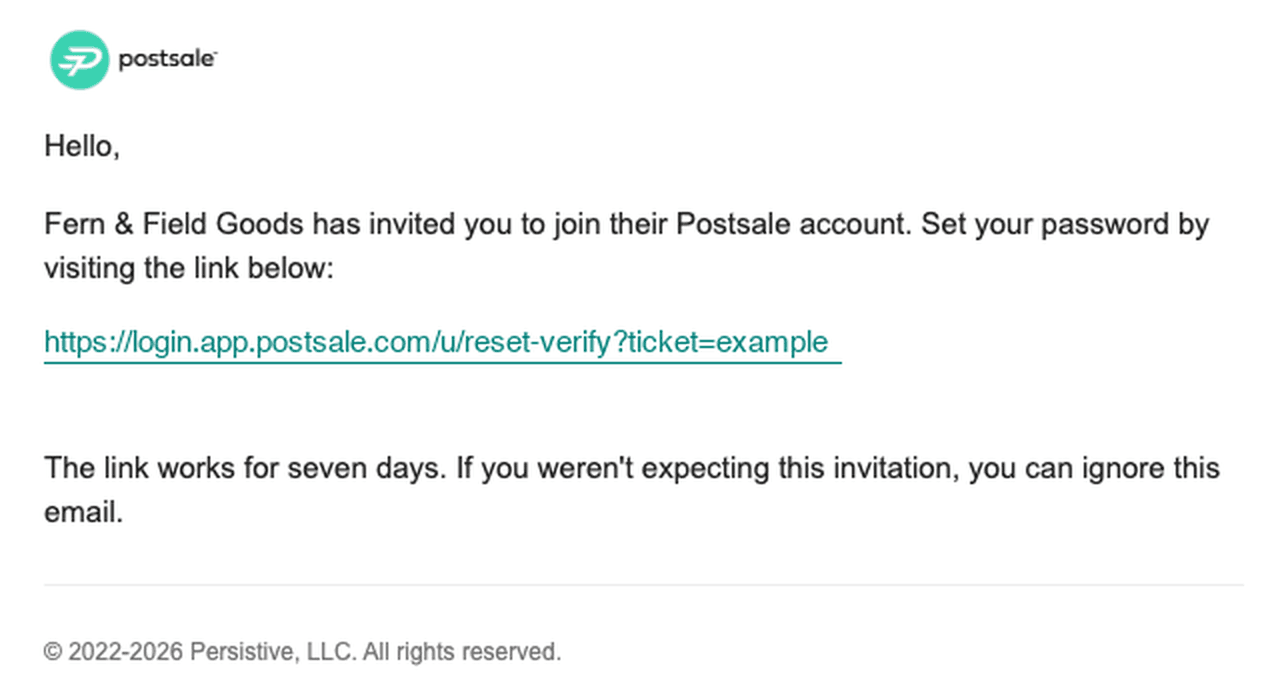
- The new user will get an email at this address with a link to set a password. The link is valid for seven days.
- An email address can belong to one Postsale account. If this person already has their own Postsale account, they will need a different address to join yours.
- The Name you enter will be displayed as the username in Postsale.
Define Access
Use the Access section to define what the new user can do and which areas of Postsale they can access.
- Roles: Select a predefined role on the Role tab to automatically apply a set of defined permissions for the user.
- Permissions: Use the Permissions tab to define the specific permissions and access you want to assign to the user.
In the real-world example above, we stated that the user should only have access to ship orders. So, for this example, we selected the Shipper role to apply the appropriate permissions.
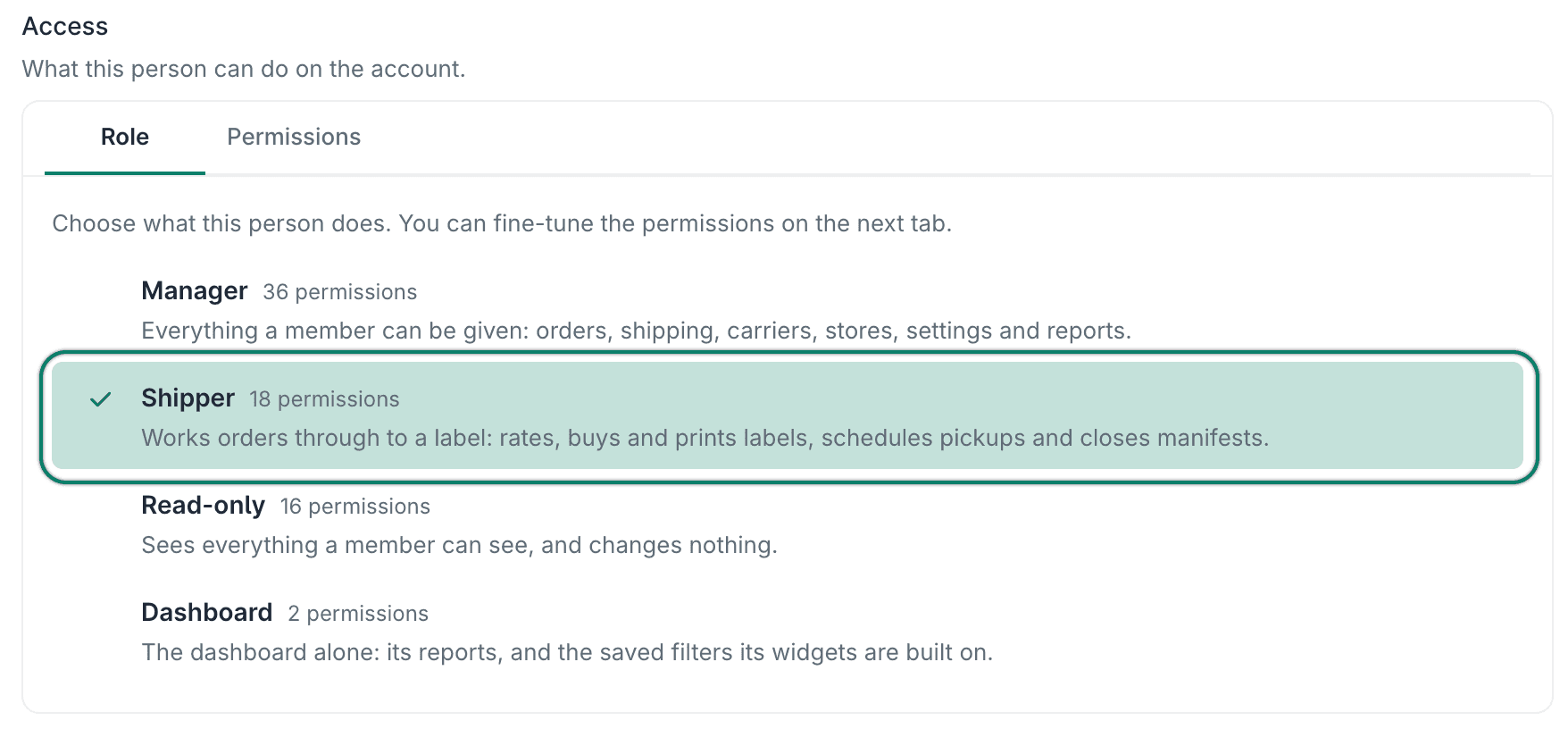
More information on roles and permissions is listed for you on the tabs below.
Select from four predefined roles:
-
Manager: Gives the user access to all 36 permissions for orders, shipping, carriers, settings, and reports.
-
Shipper: Gives the user access to the 18 permissions needed to create and print shipping labels for orders, such as selecting rates, buying and printing labels, scheduling pickups, and running end-of-day or closing manifests.
-
Read-only: Gives the user access to view all areas of Postsale, but the user cannot change or modify anything.
-
Dashboard: Gives the user read-only access to the Postsale Dashboard.
Define the Orders a User Can Access
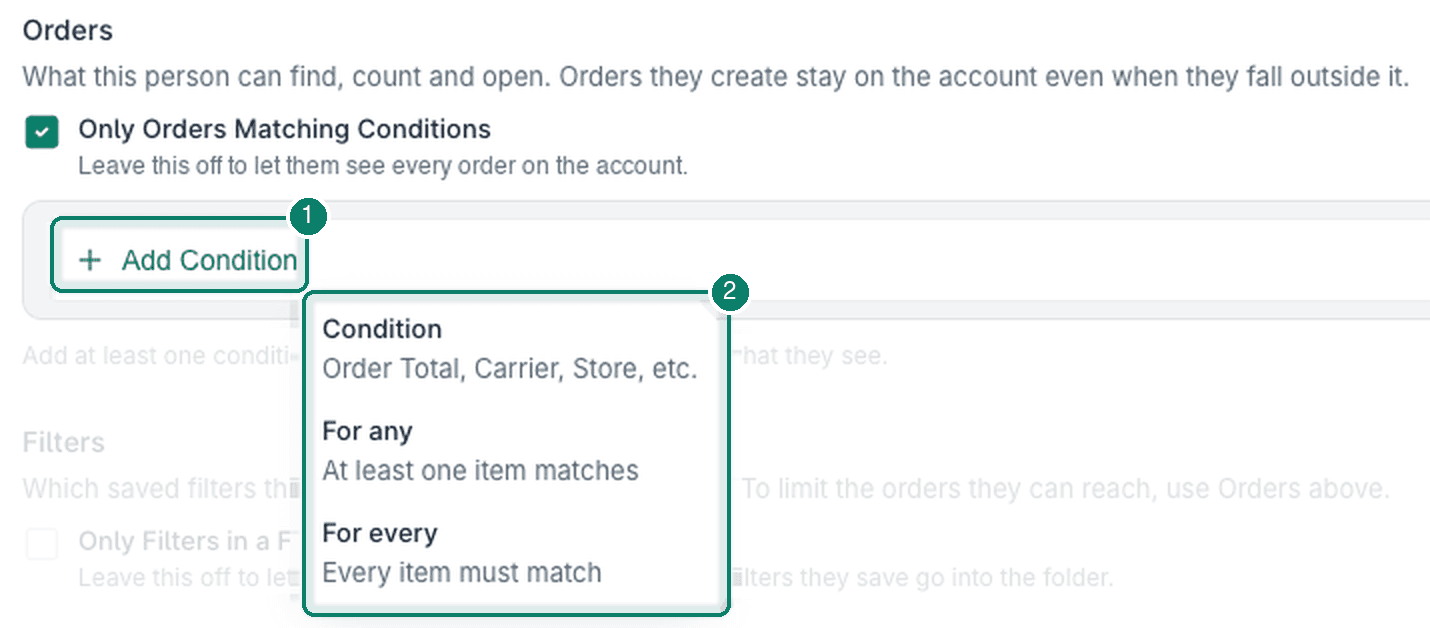
While this step is optional, it is a powerful tool for defining what a new user can access. Using conditions, the Orders section lets you clearly specify which orders the user can view and access.
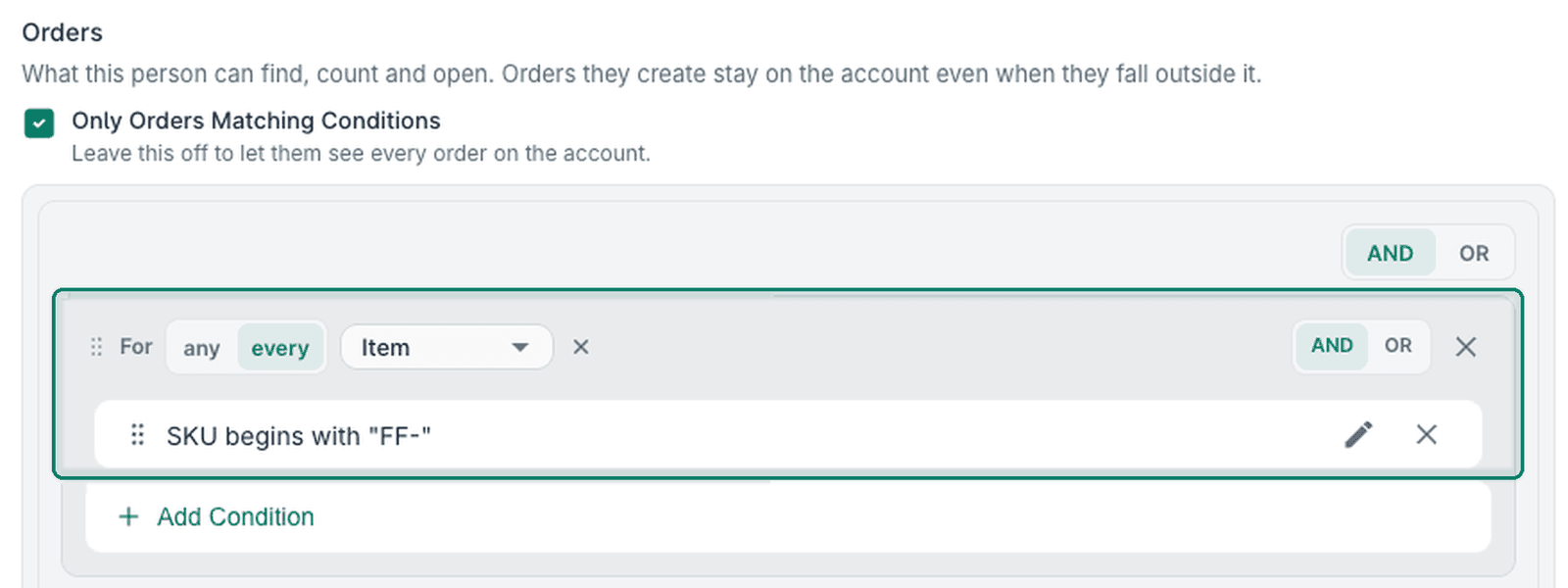
According to the real-world example above, we need to clearly define that this user can ship only orders with a certain group of SKUs. The Orders section lets you do exactly that. In the image below, the Orders section is configured to specify that the new user can only view orders that contain items with a SKU beginning with "FF-".
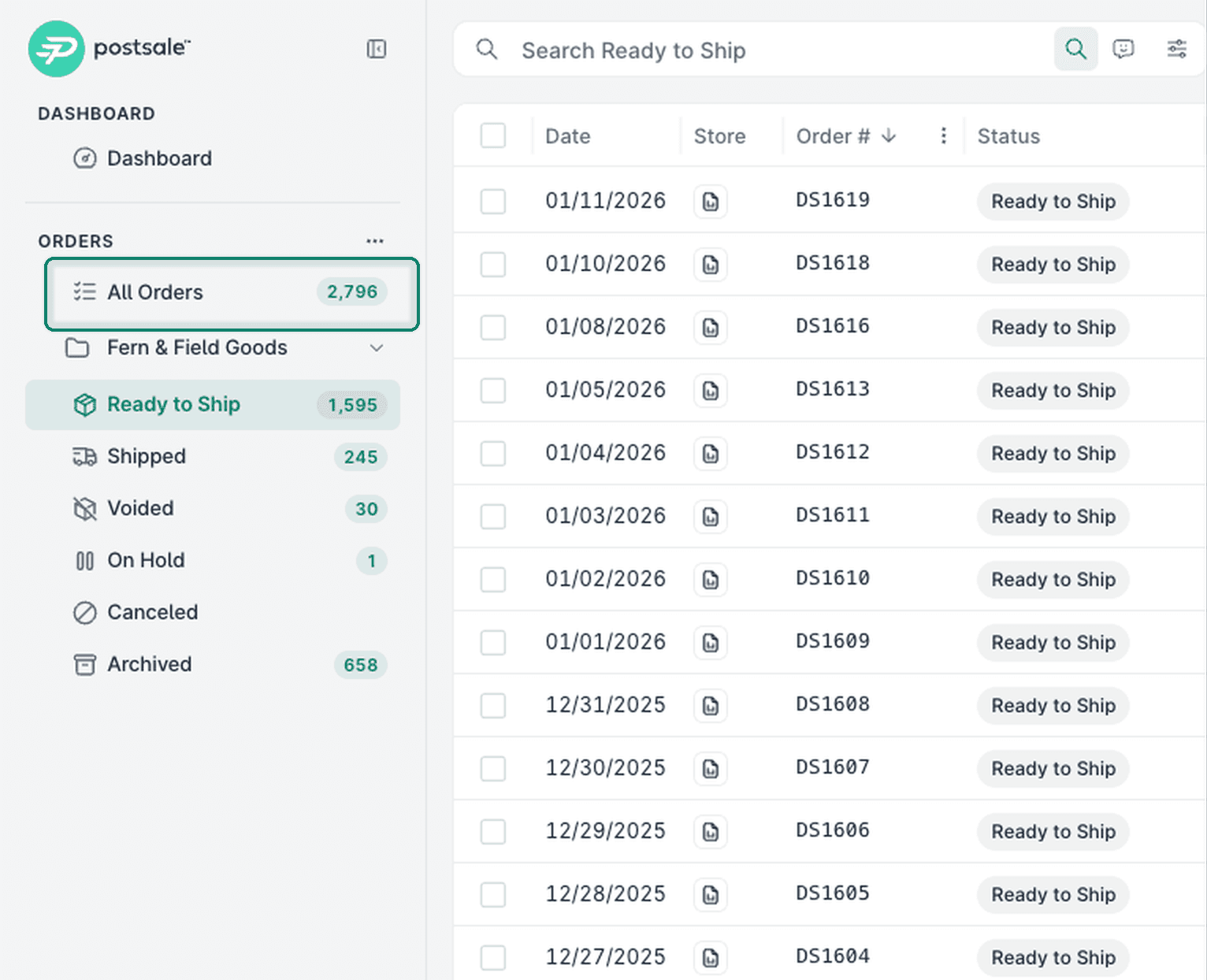
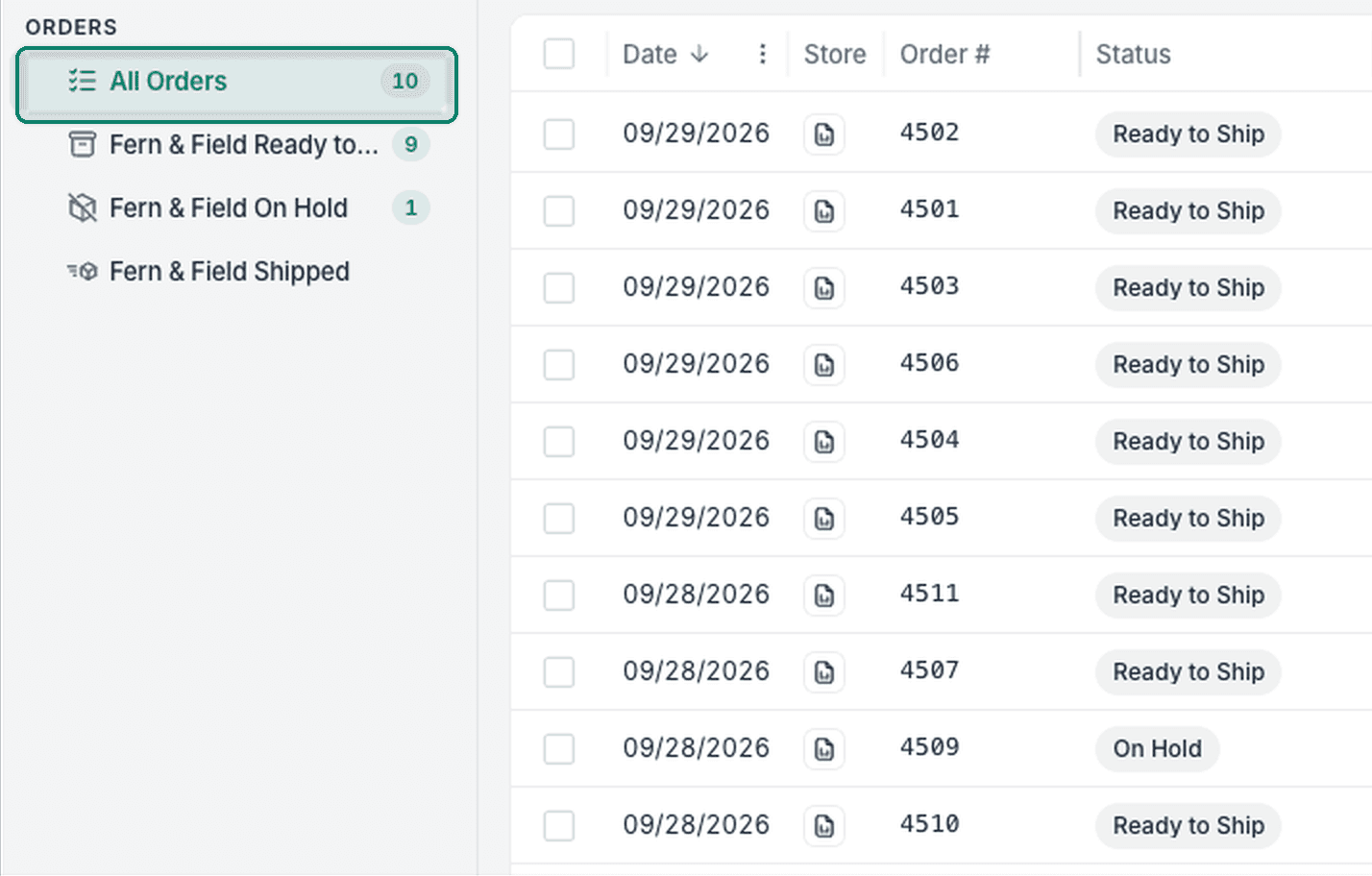
Here's an example of what the Postsale account owner sees when logged in (top image) versus what a logged-in user with defined order conditions sees (bottom image). The owner can view all orders, while the user can only view the 10 orders containing a SKU that begins with "FF-".
What the owner sees.
What the user sees.
To set up your own order condition(s):
Enable Only Orders Matching Conditions.

Click Add Condition and define the conditions that must be met for the user to have access to the orders.
Define the Filters a User Can See
This is also an optional step. However, it's another powerful way to limit the orders a user can view and access. By enabling the Filters option, you can specify that the user can view only the orders within a folder you created in your filters list.
According to the real-world example above, we need to limit the user so they can only view and access orders that belong to the Fern & Field Goods store. Since our filters list includes a folder that contains only orders in various statuses for the Fern & Field Goods store, we can give the new user access to that folder only.
To specify a folder for the user:
Enable Only Filters in a Folder.
Select the folder you want to allow the user to access.
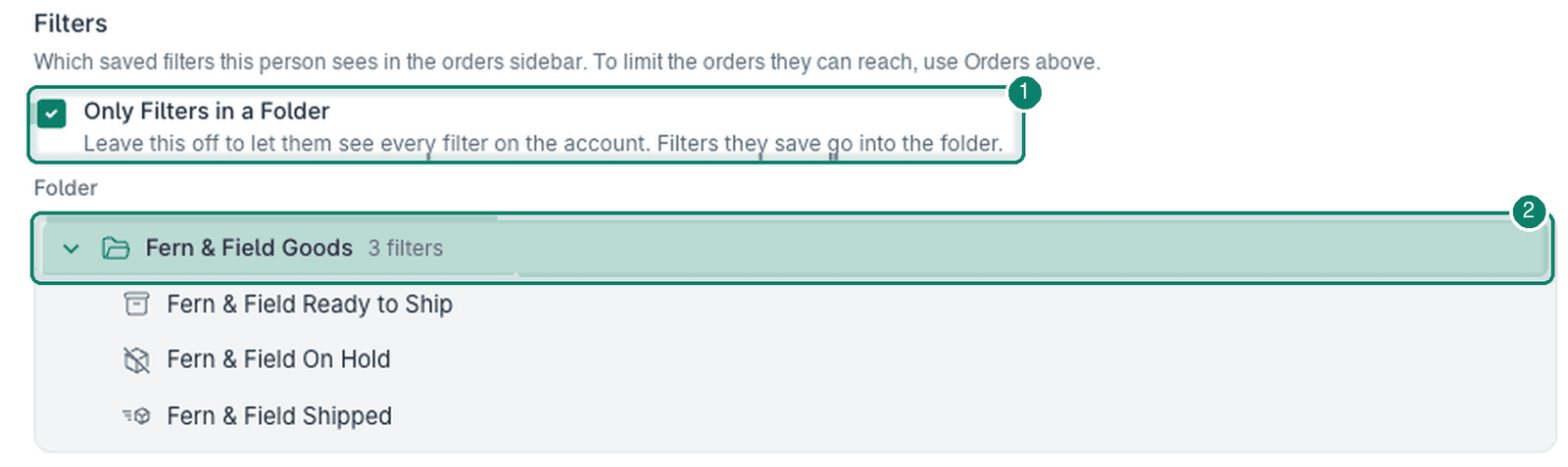
In the image above, we have granted access to the Fern & Field Goods folder. As you can see, the folder contains three filters for orders that are in different statuses: Ready to Ship, On Hold, and Shipped. The new user will have access to all three filters in the folder.
Here's an example of what the Postsale account owner sees when logged in (left image) versus what a logged-in user with defined folder access sees (right image). The owner can view all filters and folders, while the user can only view the three filters contained in the Fern & Field Goods folder.
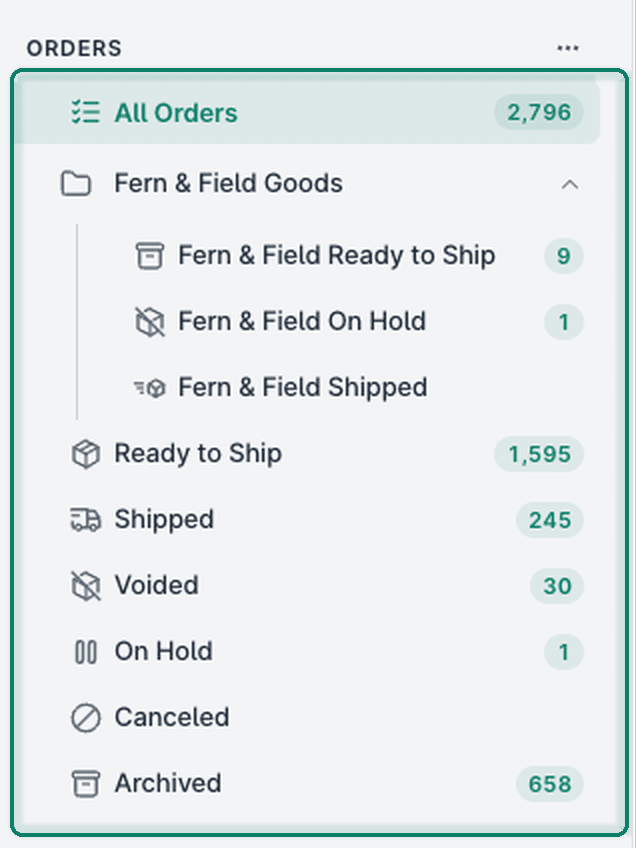
What the owner sees.
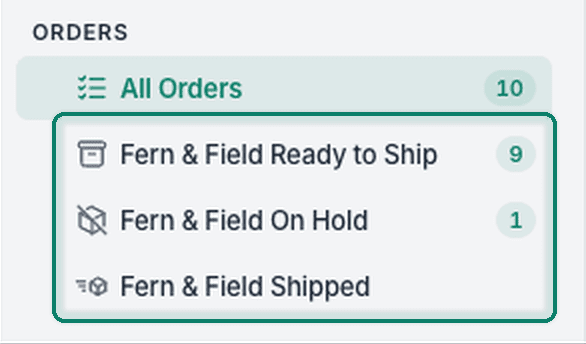
What the user sees.
Send the Invite
Now that you have configured the new user and defined the permissions, orders, and filters the user can access, you are ready to send the invite.
Click the Send Invite button. An email is sent to the email address you entered when setting up the new user.
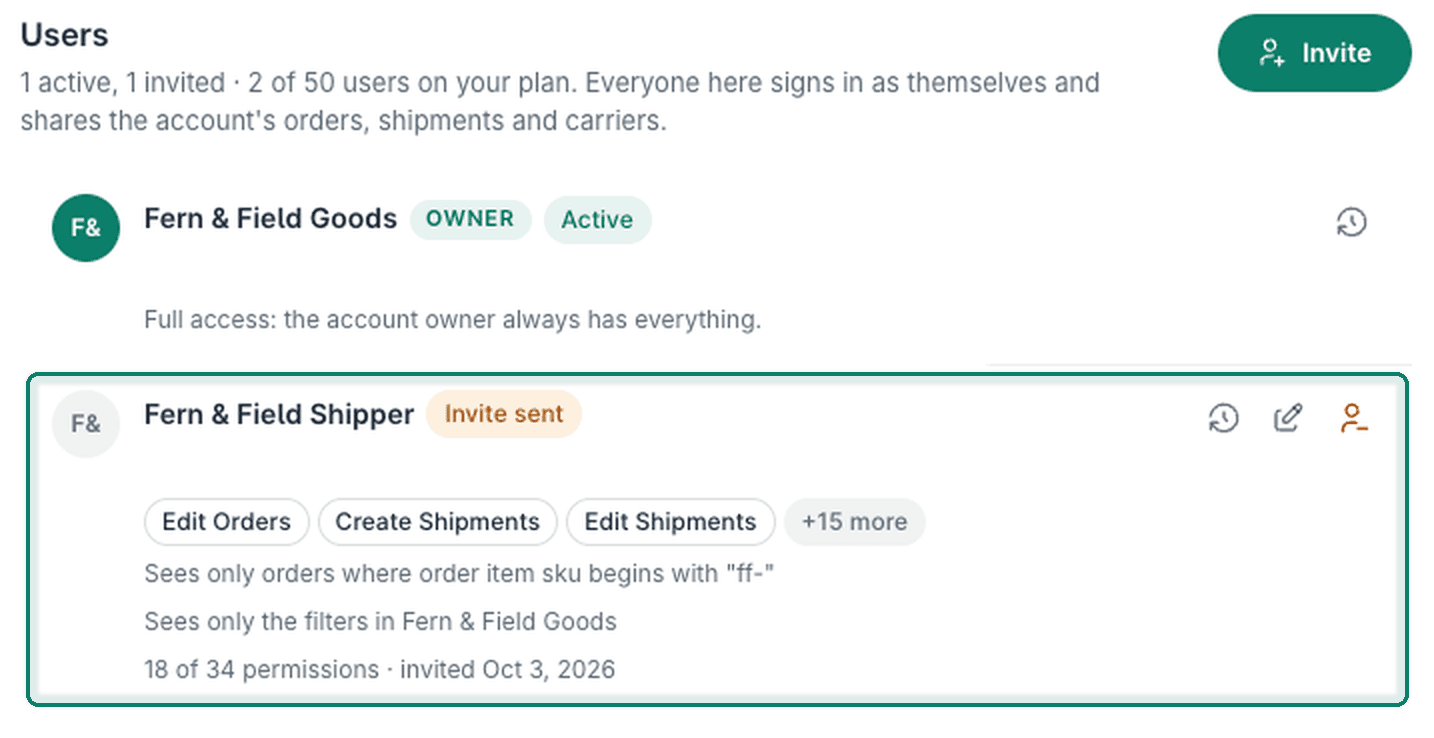
The new user will appear in your user list with a status of Invite sent.
Let the new user know they will receive the email and should follow the steps to create a password so that they can log in. The link is valid for seven days.
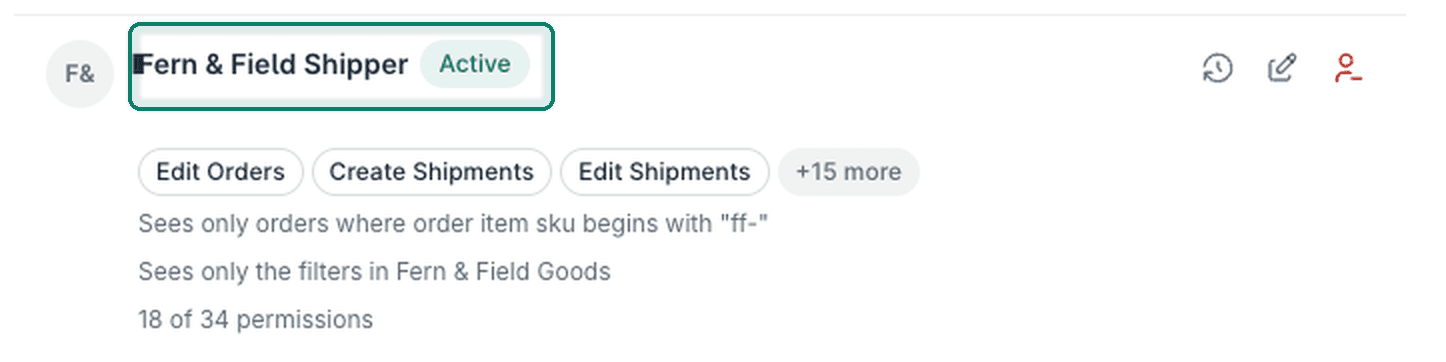
Once the new user has followed the steps in the email, the status changes to show the user is now active.
Edit Users, View User Activity, Remove a User
View a user's activity, edit a user's permissions, or remove a user. Here's how:
Open Settings and select Account Settings.
Select Users.
View a User's Activity
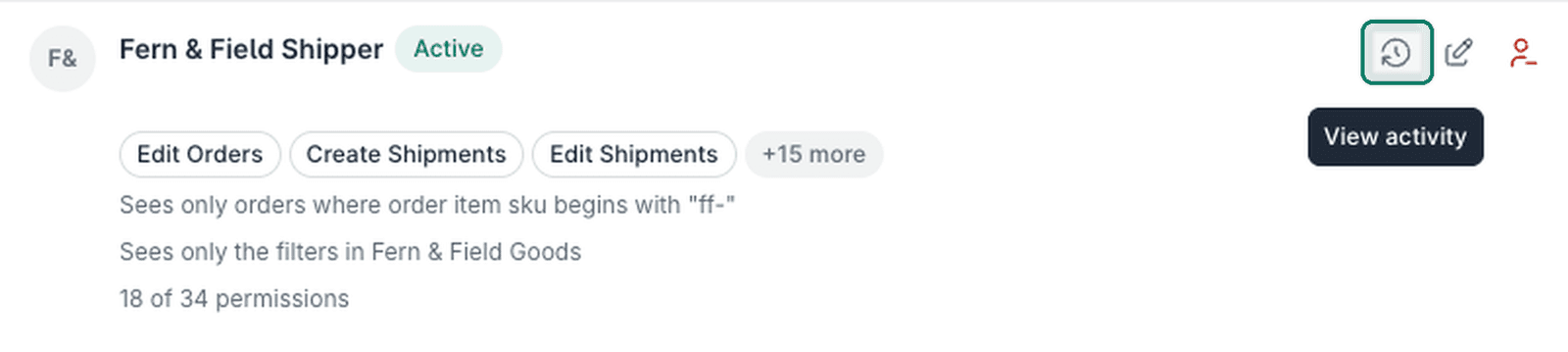
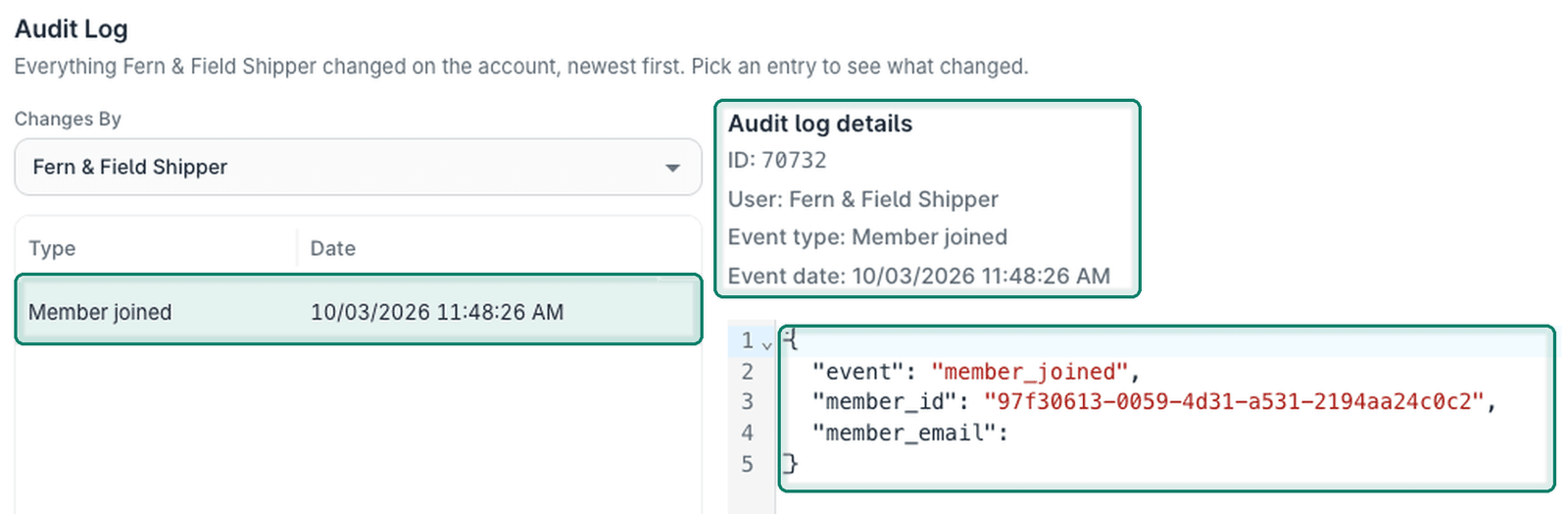
Open a user's audit log details to view the activities a specific user has performed in Postsale.
Click View activity for the user.
The audit log opens for the user.
Select any activity to view additional details about the activity.
Edit a User's Permissions
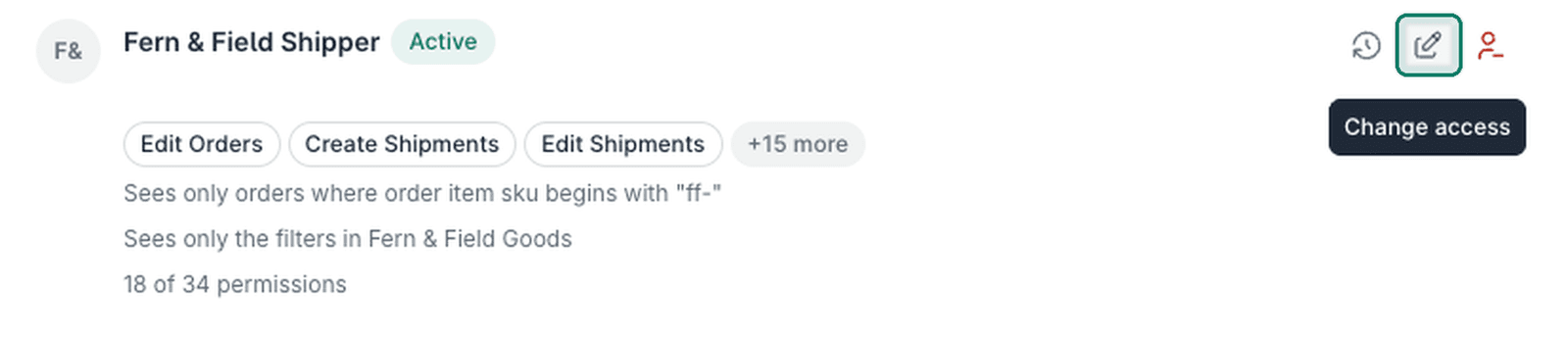
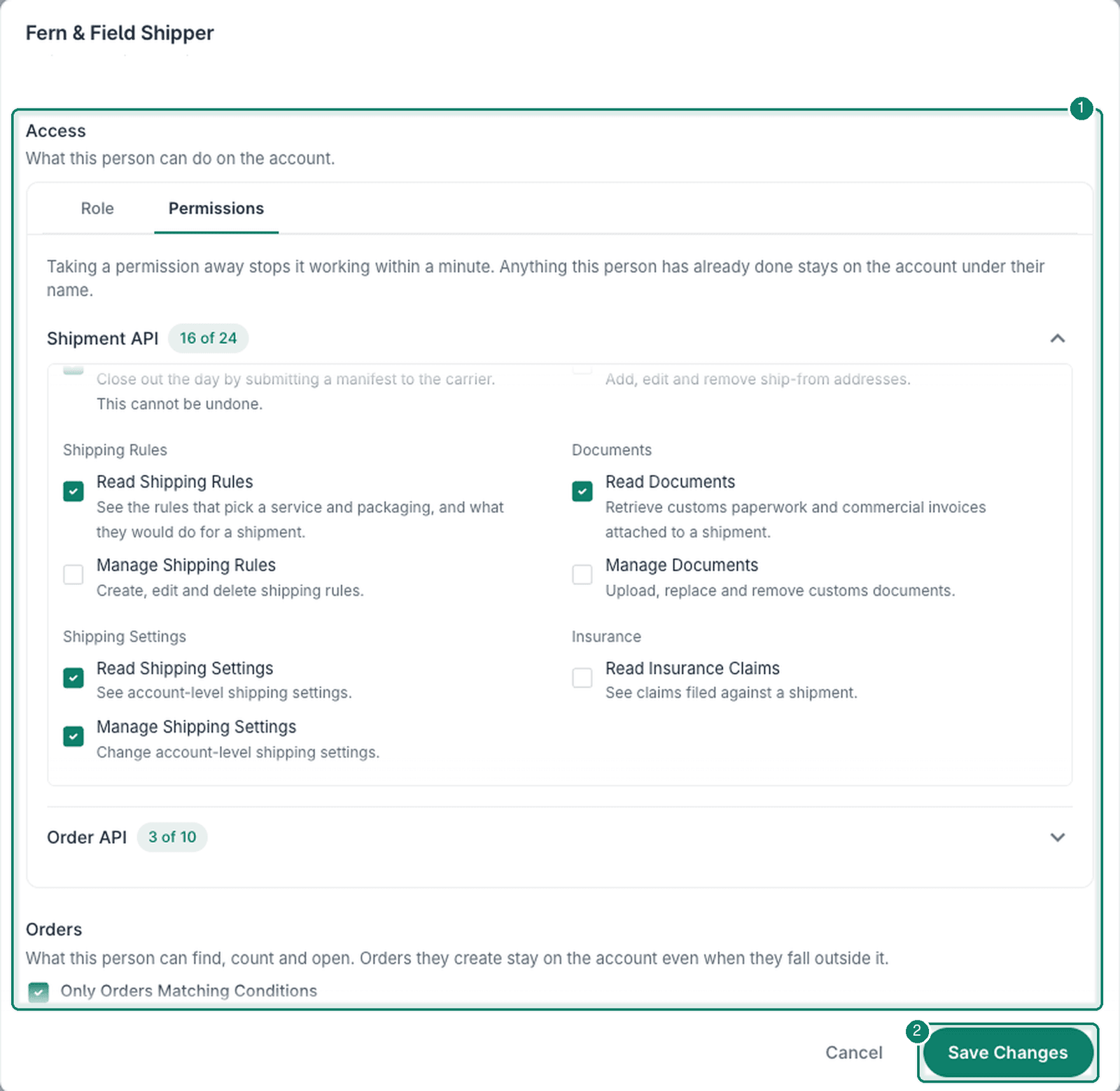
You may need to edit a user's permissions or access when their role changes, they take on additional responsibilities, or some permissions need to be restricted. Here's how:
Click Change access for the user.
Modify the permissions and access for the user. Then, click Save Changes.
Remove a User
You can remove a user from your account at any time, for example, when a user no longer needs access to your Postsale account.
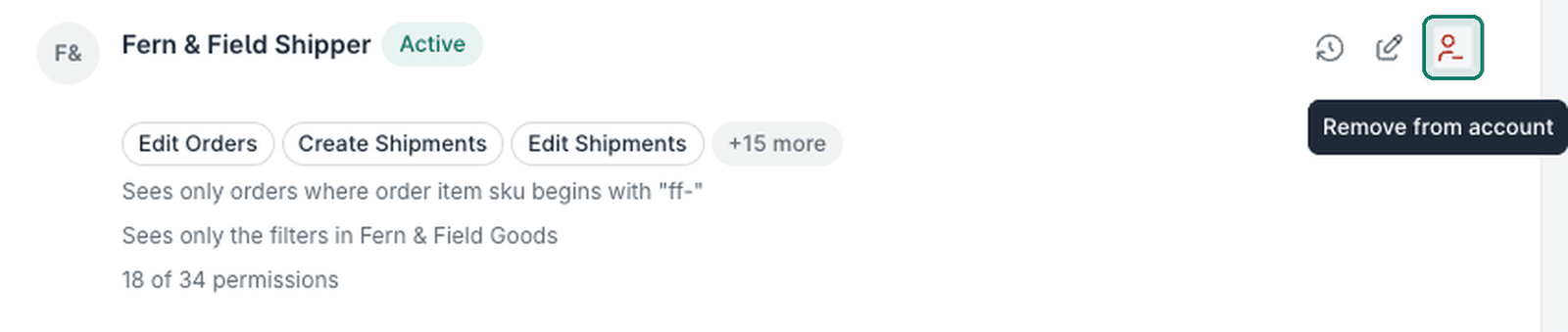
Click Remove from account for the user.
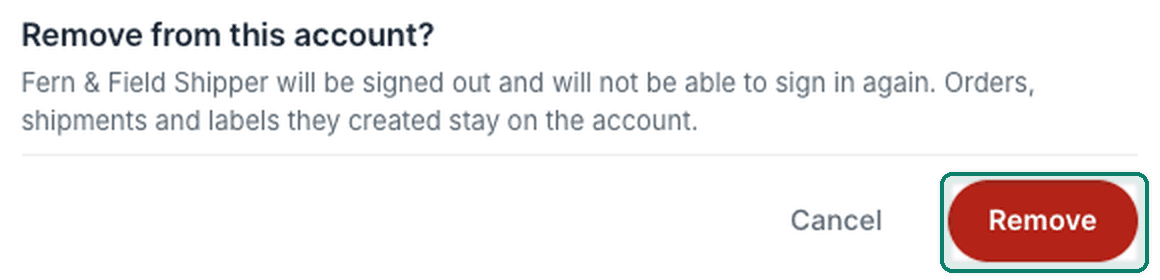
Confirm that you wish to remove the user from your account.
Still have a question? Ask a person.
Write to support@postsale.com or send us a message. We reply the same business day, Monday to Friday, 8 AM to 5 PM Central.