I Forgot My Postsale Password
How to reset your Postsale login password
It happens to the best of us. With so many logins to keep track of these days, it is almost inevitable that we will forget at least one password.
This article will guide you through resetting your Postsale password if you are unable to log in.
Reset Your Postsale Login Password
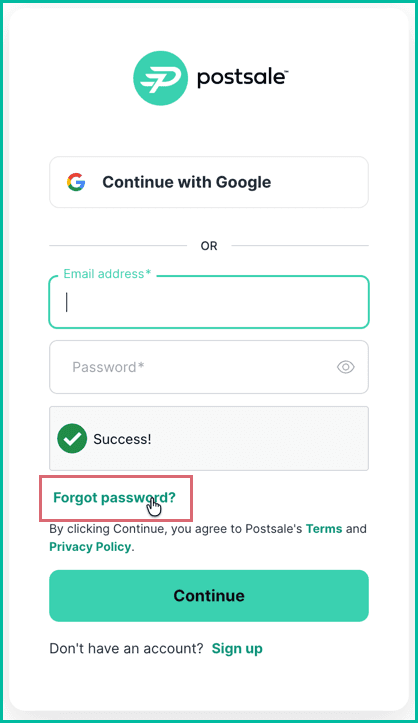
Click the Forgot password? link on the login page.
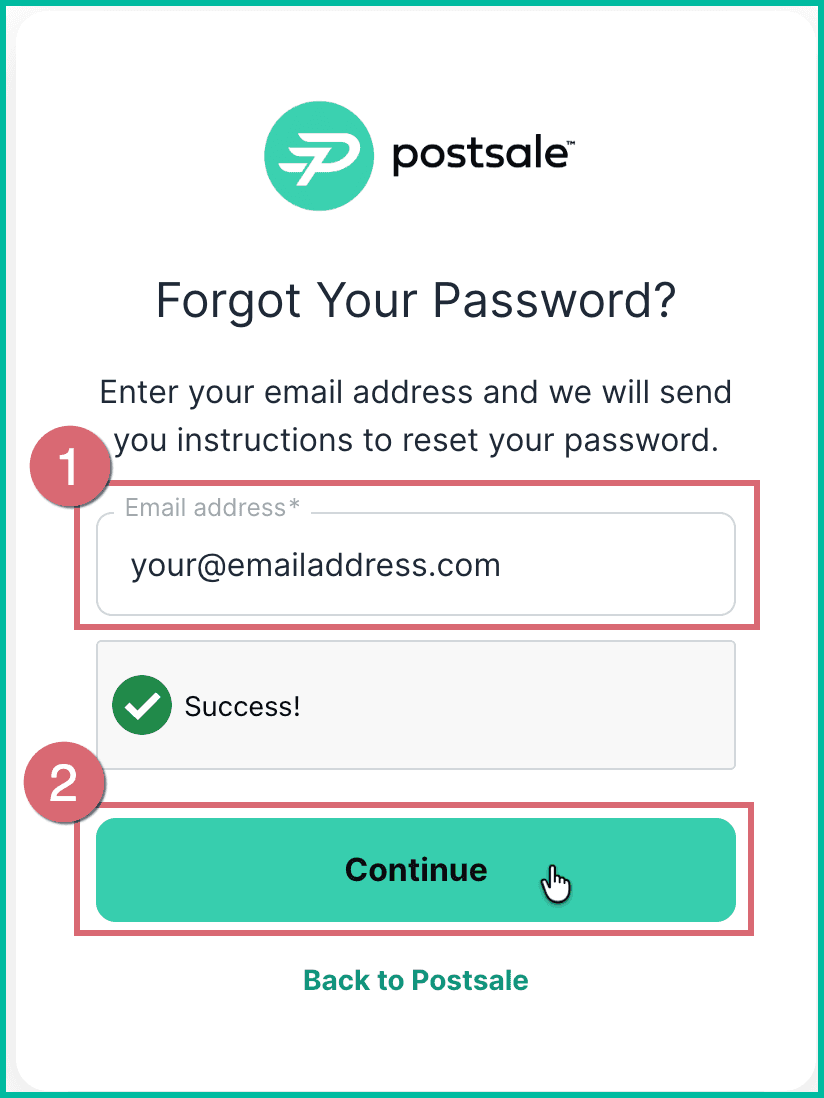
Enter the email address you use to log in to Postsale. Then, click the Continue button.
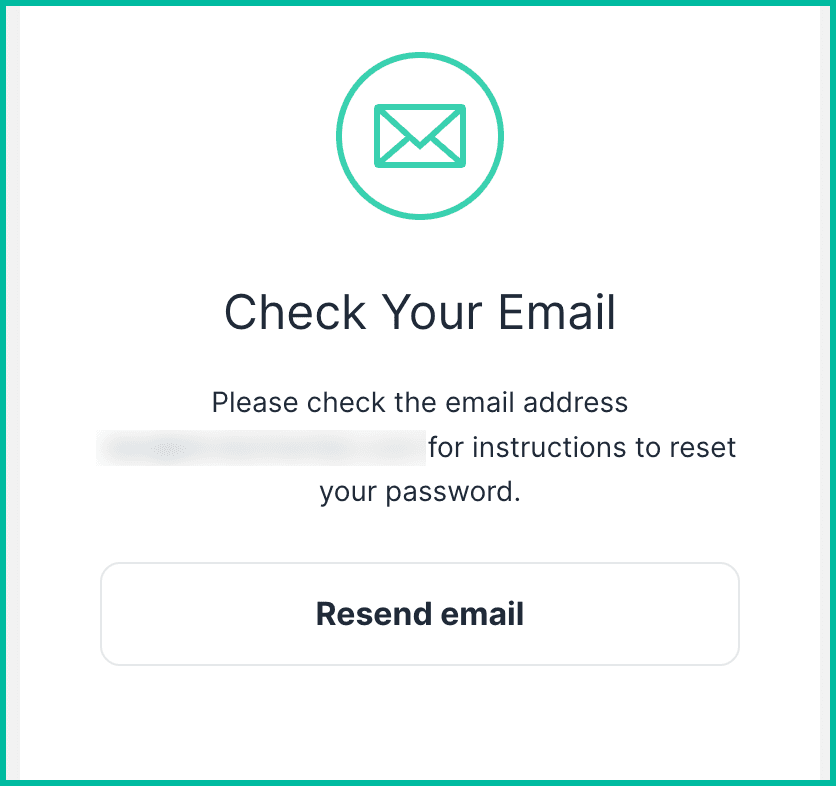
Check for an email from Postsale with the subject Reset your password. If you do not receive the email within a few minutes, check your SPAM or click the Resend email button.
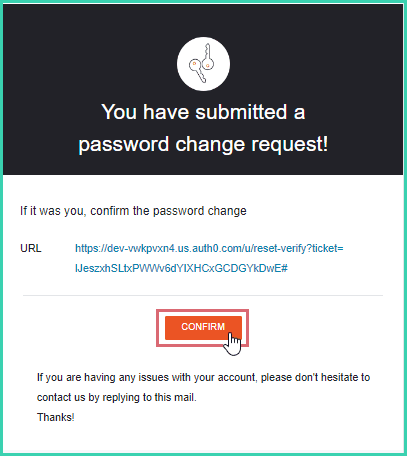
Click the Confirm button in the email. The Postsale Change Your Password page will open in a new browser tab.
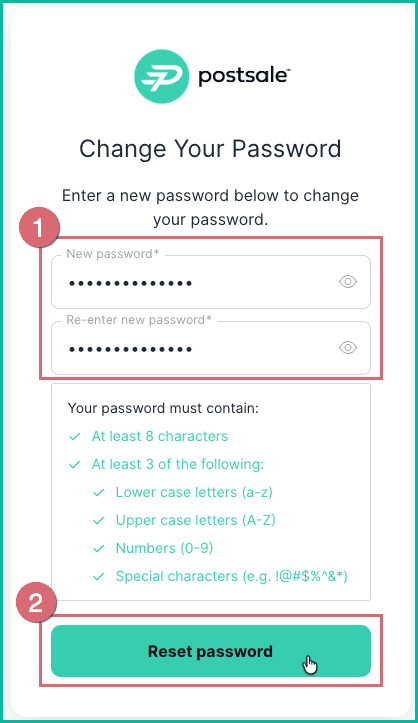
Enter the new password into the New Password and Re-enter New Password fields. Then, click the Reset password button.
To help keep your account secure, your new password must contain:
- At least 8 characters
- At least 3 of the following
- Lowercase letters (a-z)
- Uppercase letters (A-Z)
- Numbers (0-9)
- Special characters (e.g. !@#$%^&*)
A success message is displayed notifying you that your password has been changed. You can now log in to Postsale using your new password.
On this page
Related