About Filters: Examples & Use Cases
Learn about Filters. Then create Filters to customize your shipping workflow.
What Are Filters?
Filters help you organize your orders so you can quickly access the orders you need with a single click. A Filter displays only the orders that match the criteria you define, and you can create as many Filters as your workflow requires.
Think of a Filter as a saved Advanced Search. Instead of rebuilding the same search each time, you simply click the Filter, and the matching results appear in the Orders Grid.
In this article, we'll review the default Filters available in Postsale and walk through several practical examples of creating your own. By the end, you'll have the foundation you need to build Filters that support your specific workflow.
Advanced Search Logic
In this article, we will use Conditions to tell Postsale what criteria the orders must match to show up in the search results.
Postsale’s conditional logic supports Condition Groups, sub-groups, and flexible AND / OR logic, allowing you to build highly specific Advanced Searches and Filters tailored to your business.
Learn more about how Postsale's conditional logic works in our Conditional Logic: Understanding Conditions and Groups reference guide.
Postsale's Included Filters
Postsale includes a few default Filters to help you organize your orders. Let’s take a look at the criteria for each one to get a better understanding of how Filters work:
- All Orders: Has no criteria defined. It lists all orders in the Order Grid.
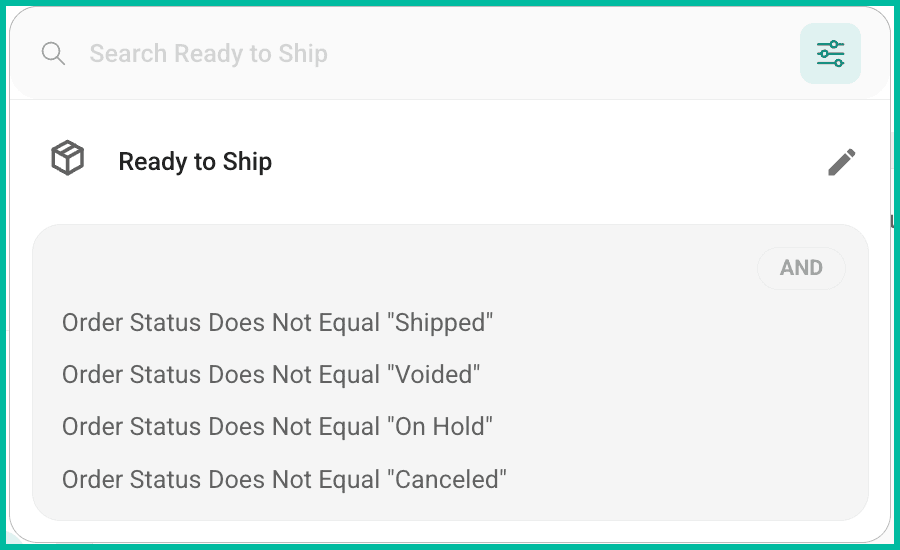
- Ready to Ship: Searches for orders where the order status is not Shipped, not On Hold, not Voided AND not Canceled.
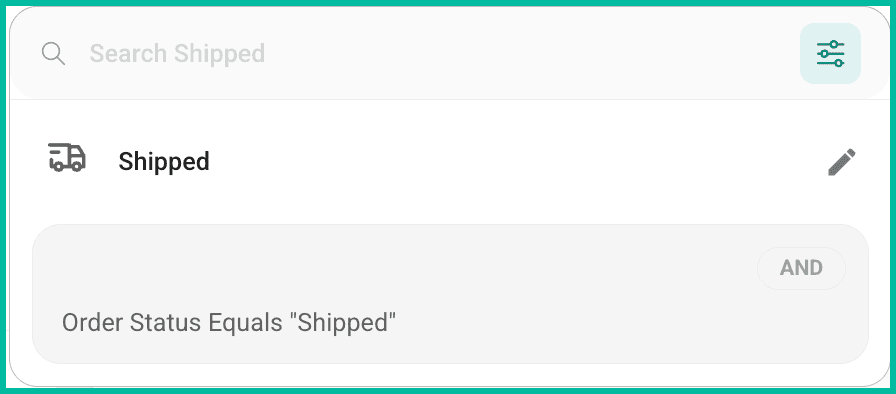
- Shipped: Searches for orders with order status Shipped.
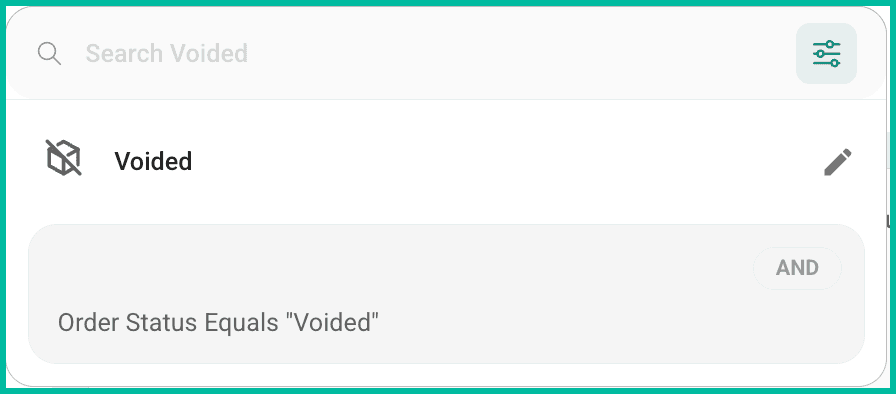
- Voided: Searches for orders where the order status is Voided.
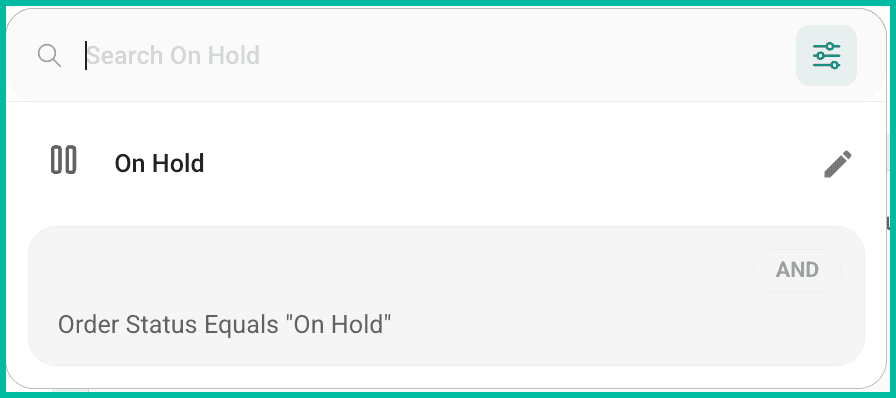
- On Hold: Searches for orders where the order status is On Hold.
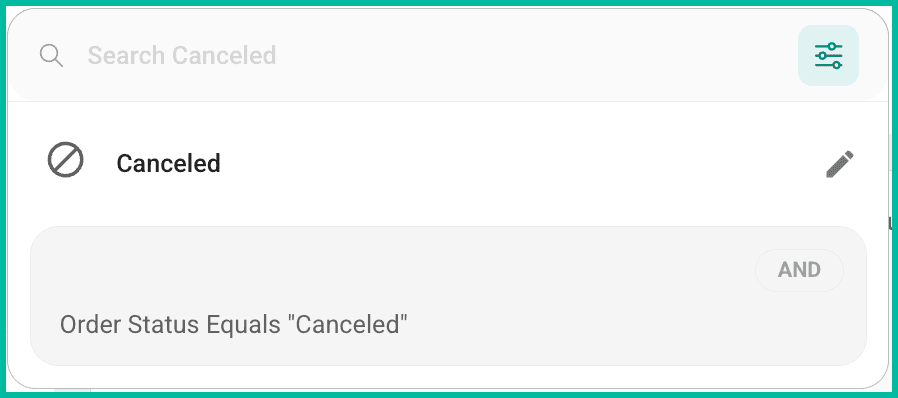
- Canceled: Searches for orders with order status Canceled.
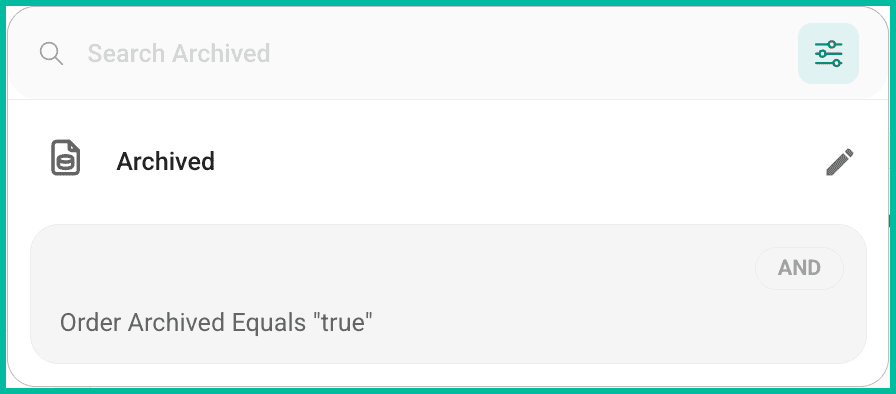
- Archived: Searches for orders where Order Archived is True.
Should I Create My Own Filters?
Great question. Creating your own Filters lets you drill down into the specific search results you need. As an example, let’s look at the use cases we will walk through later in this article. You can use Filters to:
- Group orders by their order source when fulfilling orders from multiple sales channels or for multiple third parties.
- Track orders as they move through your shipping workflow. Quickly view orders awaiting shipment, being picked, that have been packed, that have been shipped, and so on.
- Group orders by the requested shipping method to quickly view orders shipped by the same carrier and service.
- Track orders once they have shipped by creating Filters for each tracking status (In Transit, Exception, Delivered, etc.).
- Separate domestic and international orders.
- Organize orders for inclusion in reports. Perhaps you need to organize orders by date to include them in a quarterly sales report.
- View your archived orders.
There are many, many more ways to use filters to organize your orders. In this article, we will walk through creating several Filters to give you a solid understanding of how to create filters for your own needs.
Examples & Use Cases
Let's explore several real-world examples and walk through how to create Filters for each use case. The goal is to empower you with the basic knowledge of how Filters are created, so you can create the Filters you need for your specific workflow.
Organize Your Filters
As you create more filters, you may find you need to rearrange and organize them into a more logical order. See our Manage Filters & Folders help article to learn how.
About Operators
When building an Advanced Search, you'll choose from a set of Operators to define how a field should be evaluated. The available Operators vary depending on the type of field selected, such as a date field versus a non-date field.
Each Operator changes how Postsale evaluates your criteria, allowing you to narrow results with precision. By understanding how these Operators work, you'll gain a clearer understanding of how Conditions function overall, and you'll be able to build more targeted, creative searches and filters tailored to your workflow.
Expand the sections below to see the available Operators and how each one works.
On this page
Related