Search for Protected Shipments
Create an advanced search to find orders with shipment protection
Postsale’s advanced search feature makes it easy to locate orders with shipment protection applied. Whether you’re preparing to file a claim, reviewing orders with existing claims, or just need to find orders with shipment protection applied, using the Advanced Search allows you to quickly find the orders you need.
In this article, we will walk through setting up advanced searches. We'll also save the searches as Filters. Filters are great because they allow you to simply select it to quickly repeat the Advanced Search without having to recreate it.
We will create searches to:
- Locate orders that have shipments with shipment protection applied
- Locate orders with a specific type of shipment protection applied (carrier declared value or Shipsurance parcel insurance)
- Locate orders with a claim submitted with Shipsurance
- Locate orders with a specific Package Value associated with the applied shipment protection
Learn more about creating Advanced Searches and Filters.
Before We Begin
This article assumes that you have shipped at least one order with either the carrier's shipment protection or Shipsurance parcel insurance applied to the shipment.
If you have not added shipment protection to any shipments, that's OK. You can still create the Advanced Searches and save the Filters. However, the search will not return any results until at least one of your shipments has shipment protection applied.
Create Advanced Searches
In the following sections, we will create four separate Advanced Searches so that you can learn how to create them and so that you become familiar with the search options related to locating orders with shipment protection applied.
Multiple Search Criteria
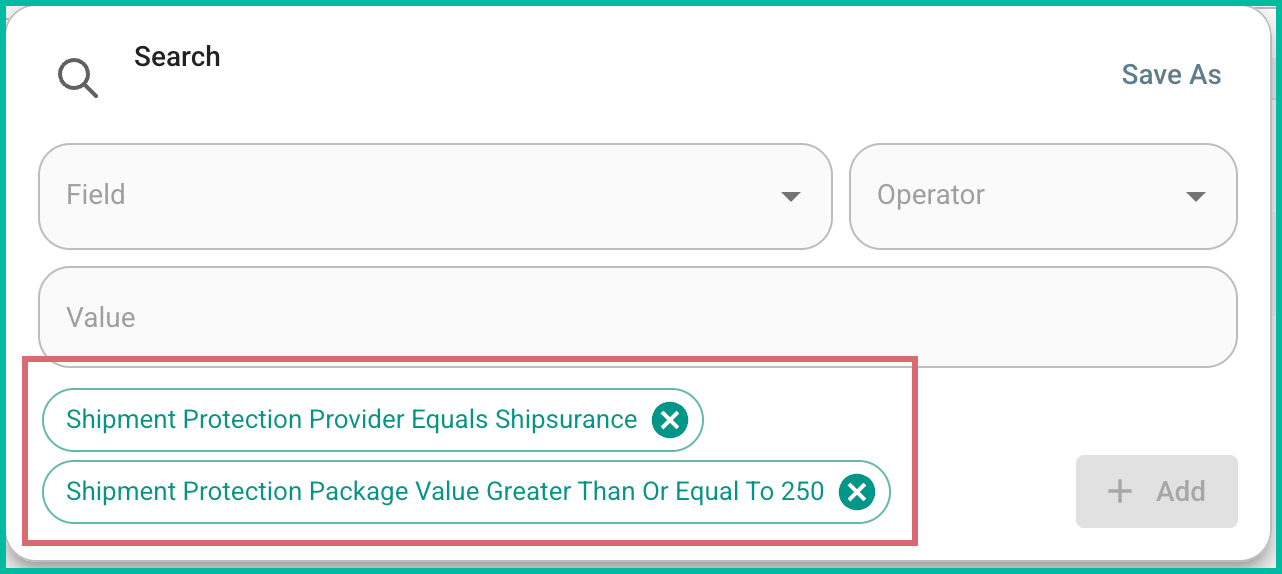
Did you know that you can add multiple search criteria to an Advanced Search? You can! For example, you could search for orders that have Shipsurance package insurance applied to shipments with a Package Value of $250 or more.
You would just follow the steps in the Find Orders with Specific Shipment Protection AND the Find Protection with a Specific Package Value sections below to add both sets of criteria to your search. Your Advanced Search would look like this:
Open the Advanced Search Pop-Up
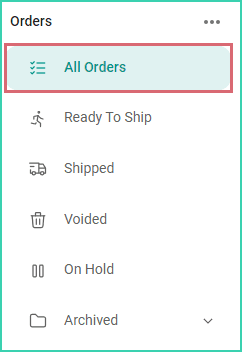
Select All Orders in the Orders Menu. Selecting All Orders ensures that no criteria have already been added to your search.
Click the Advanced Search button in the Search Bar.

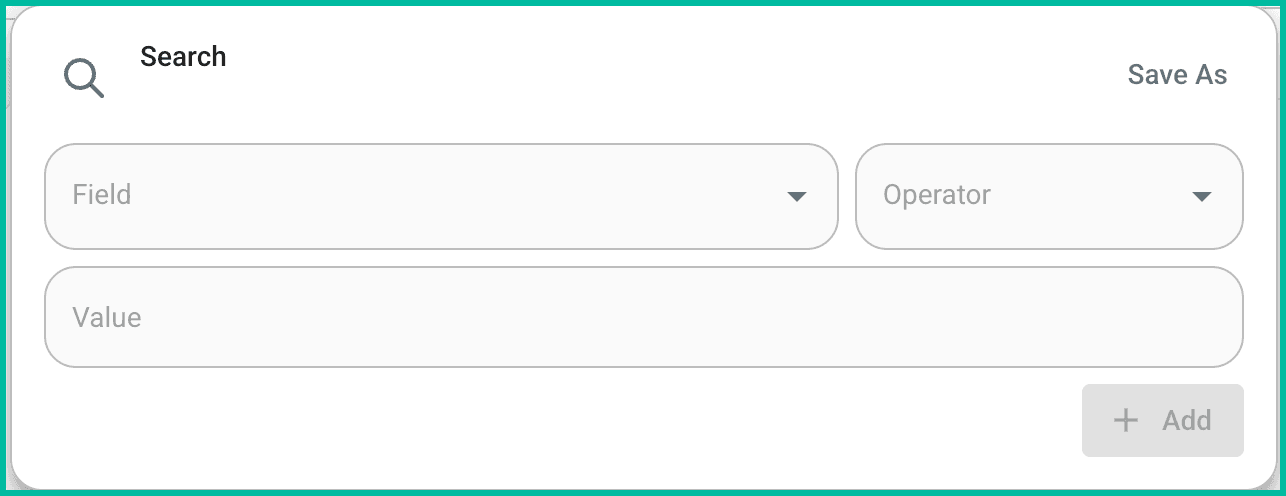
The Search pop-up opens. This is where you will add the specific criteria to locate the orders you need.
Next, follow the steps in the appropriate tab for the type of Advanced Search you'd like to create.
Real Word Example
I am trying to locate any order that has a shipment with shipment protection applied. It doesn't matter if it is the carrier's declared value coverage or Shipsurance parcel insurance.
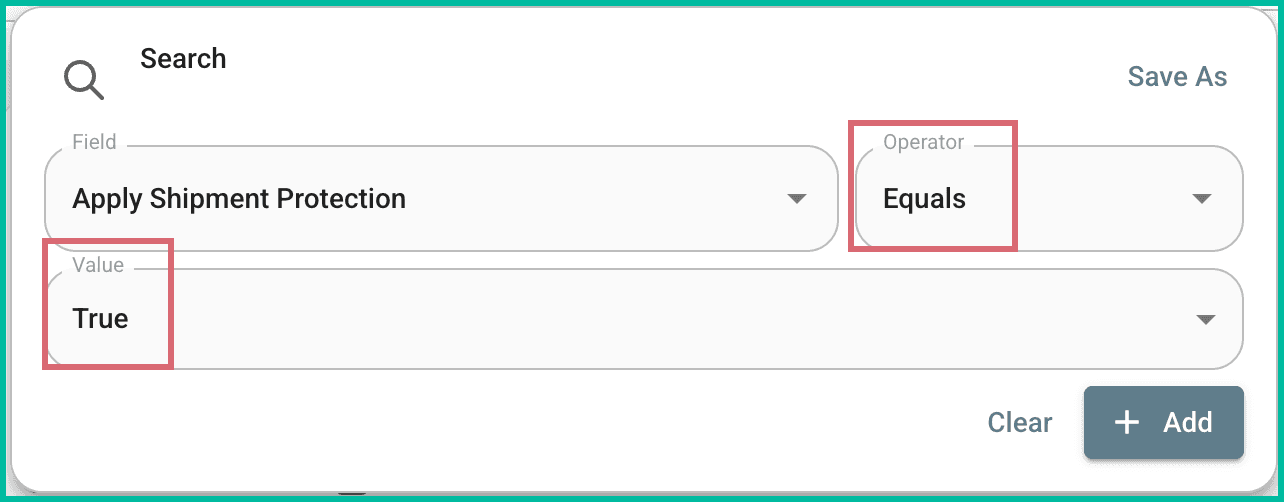
Click the Field drop-down menu in the Search pop-up from step 2 above. Then, locate and select Apply Shipment Protection. Hint: You can type the name of the field to quickly locate it in the list of available fields.
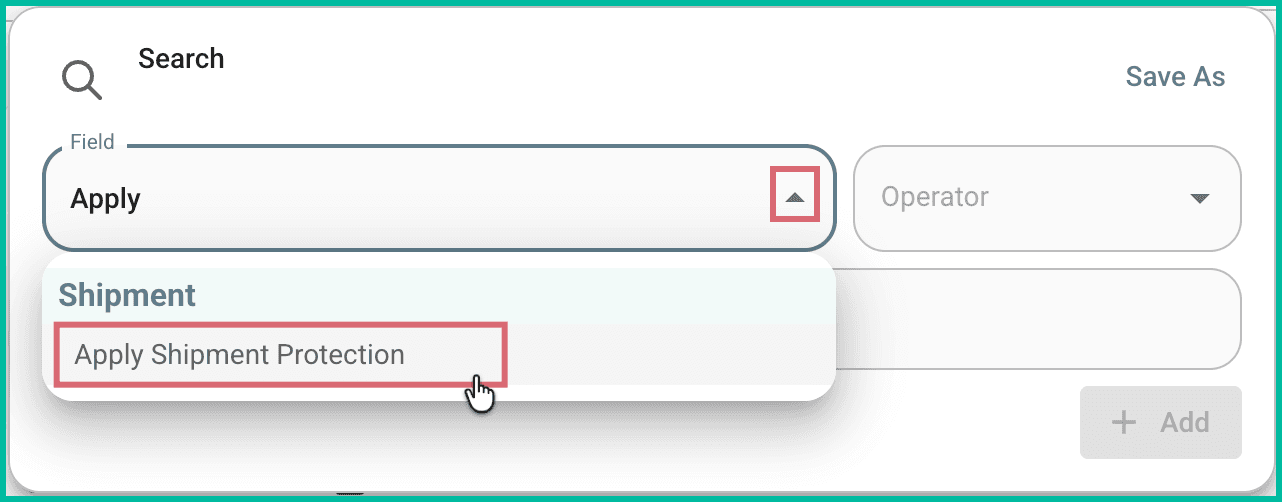
The Operator field is set to Equals and the Value is set to True for you. Leave these values as they are since they tell Postsale to search for all orders that have shipment protection applied.
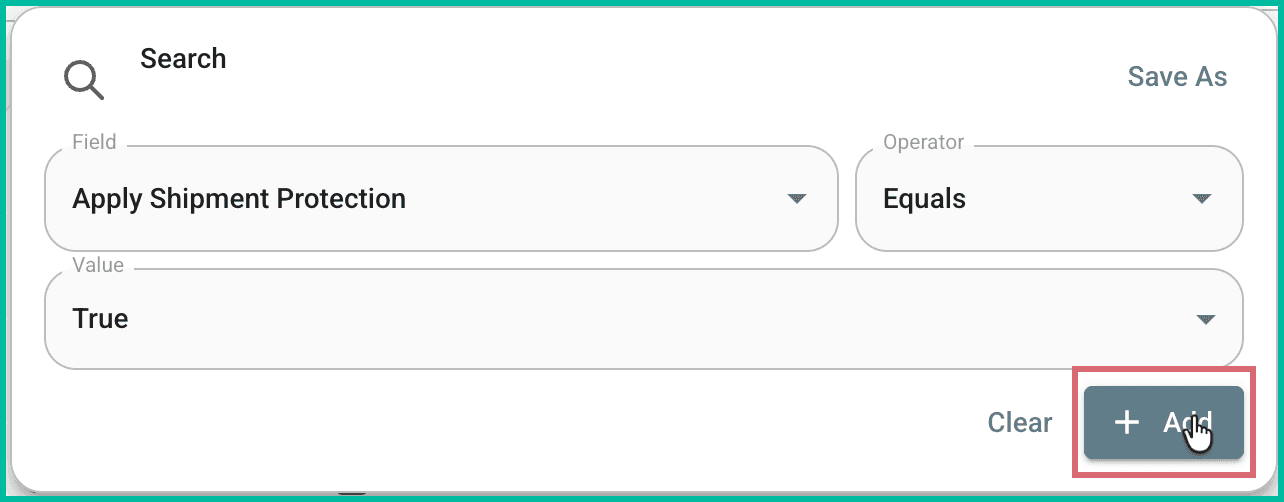
Click the Add button to add the search criteria to the Advanced Search.
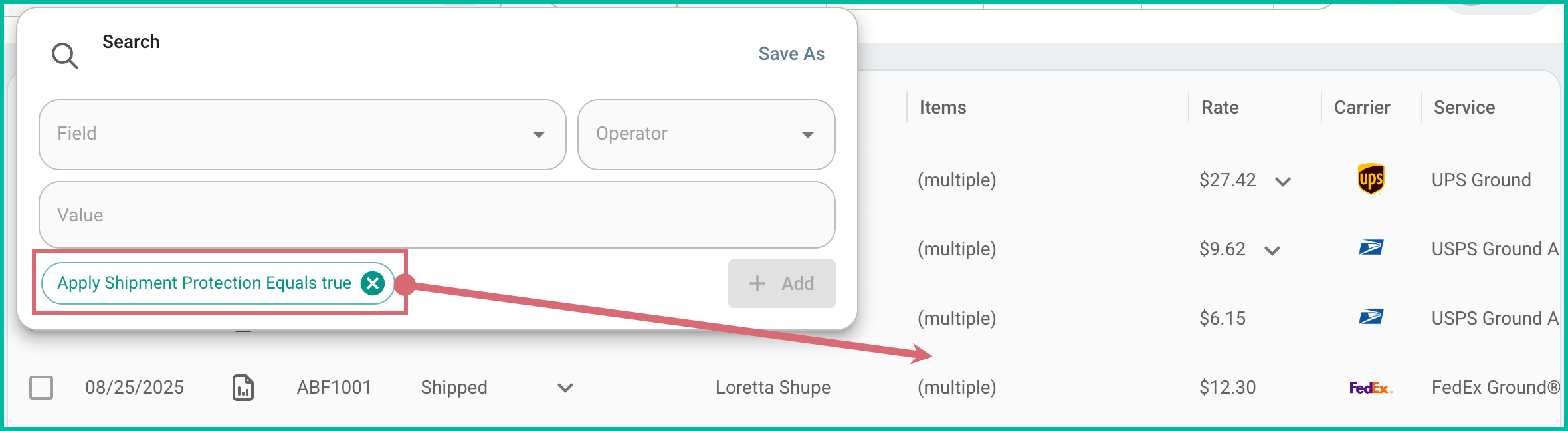
The search criterion is added to the Advanced Search and the Orders Grid updates to reflect the search results.
Jump to the Save Your Advanced Search as a Filter section below to learn how to create a Filter.
Real Word Example
I am trying to locate all orders that have a shipment with Shipsurance parcel insurance applied.
Click the Field drop-down menu in the Search pop-up from step 2 above. Then, locate and select Shipment Protection Provider. Hint: You can type the name of the field to quickly locate it in the list of available fields.
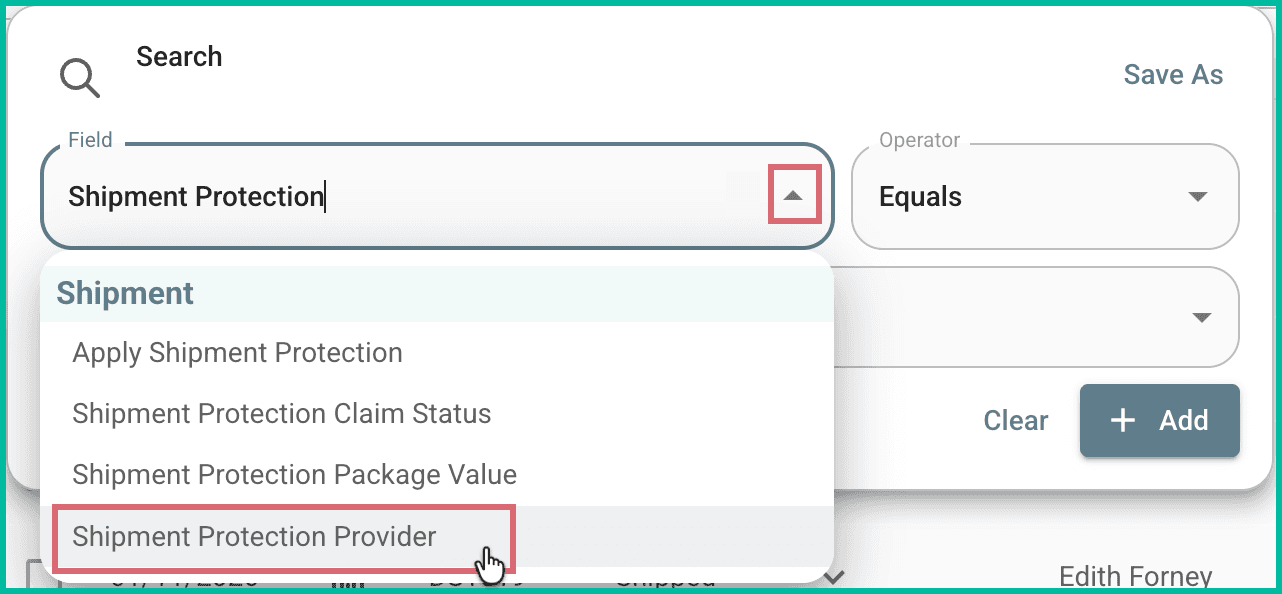
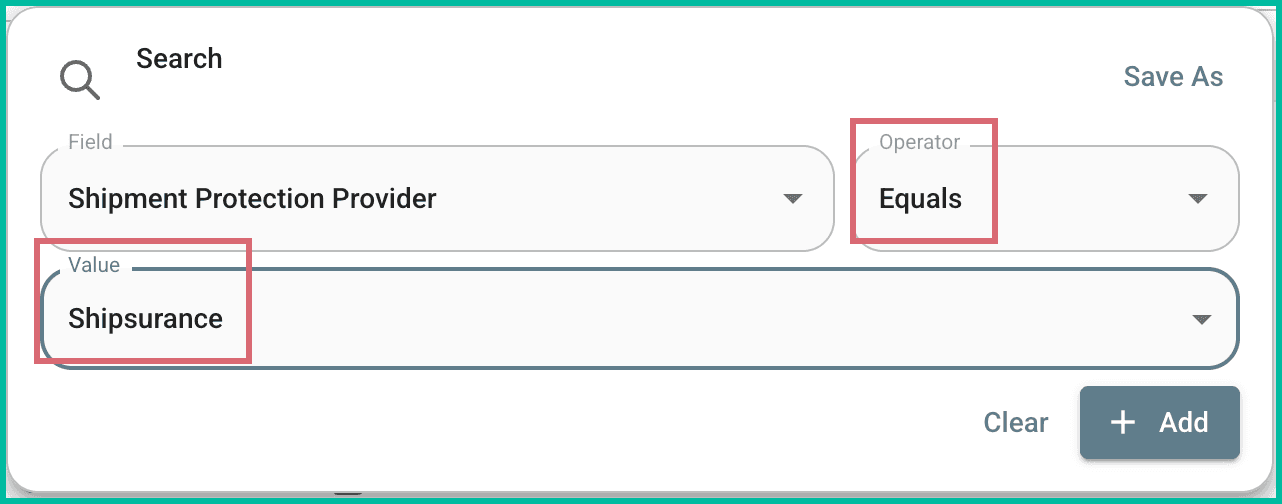
The Operator field is set to Equals and the Value is set to Shipsurance for you. Leave these values as they are since they tell Postsale to search for all orders that have Shipsurance shipment protection applied.
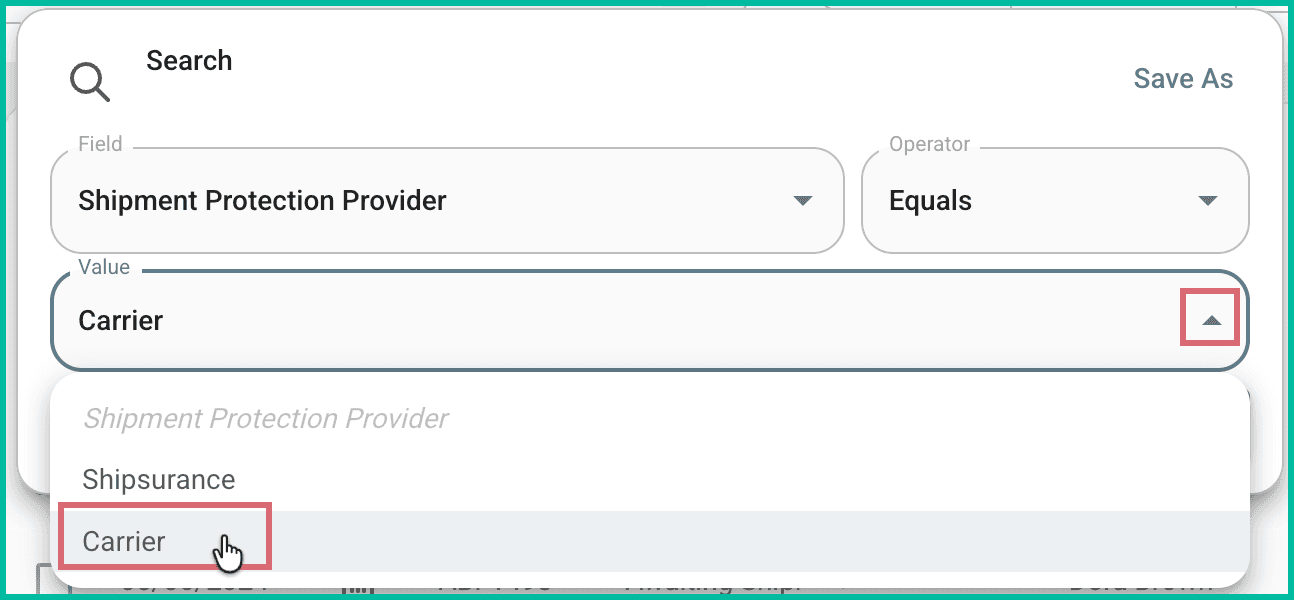
If, instead, you wanted to locate orders with carrier shipment protection, you could select Carrier from the Value drop-down.
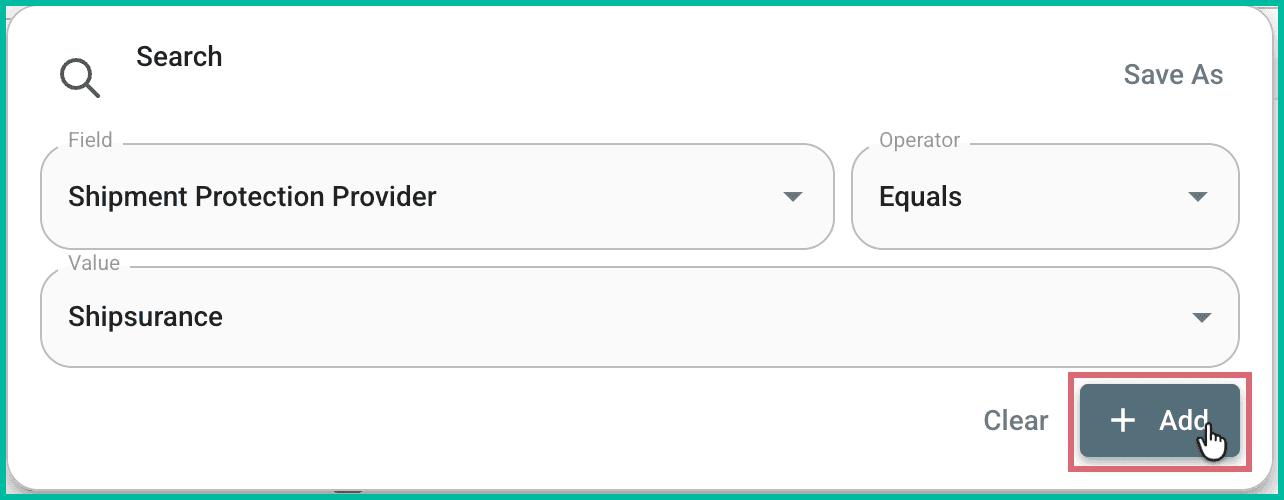
Click the Add button to add the search criteria to the Advanced Search.
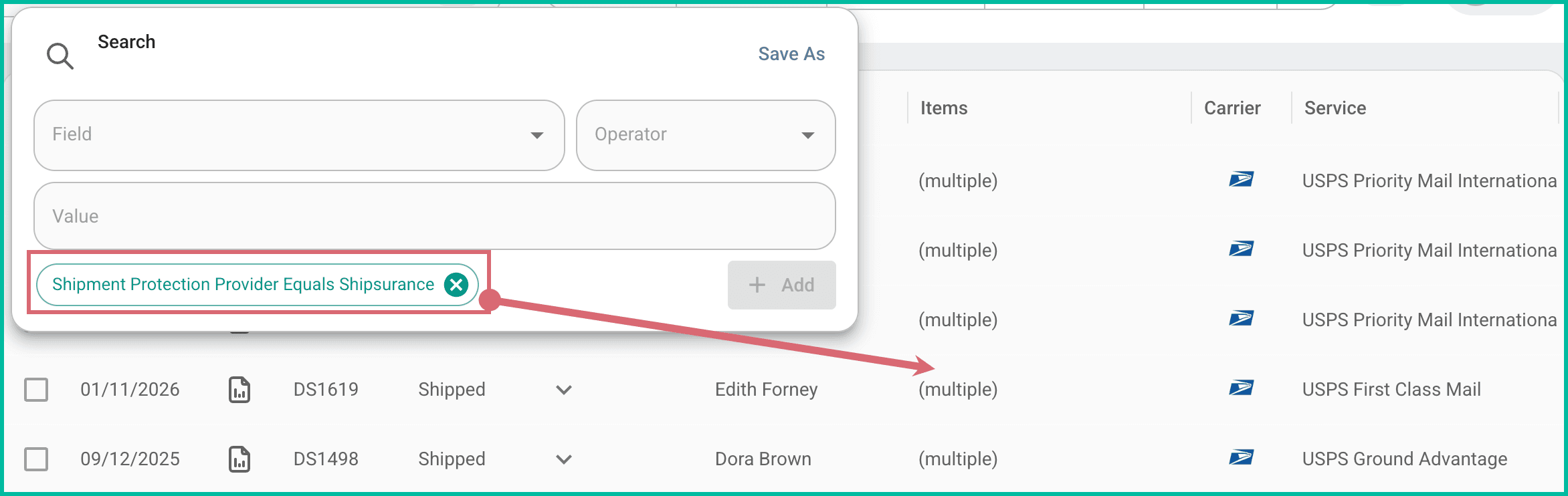
The search criterion is added to the Advanced Search and the Orders Grid updates to reflect the search results.
Jump to the Save Your Advanced Search as a Filter section below to learn how to create a Filter.
Real Word Example
I need to locate any orders with a shipment that I have submitted a claim for with Shipsurance.
Protection Claim Status Field
Because Shipsurance is the only shipment protection provider that supports direct claim submissions within Postsale, the Shipment Protection Claim Status field in this search only applies to shipments insured with Shipsurance.
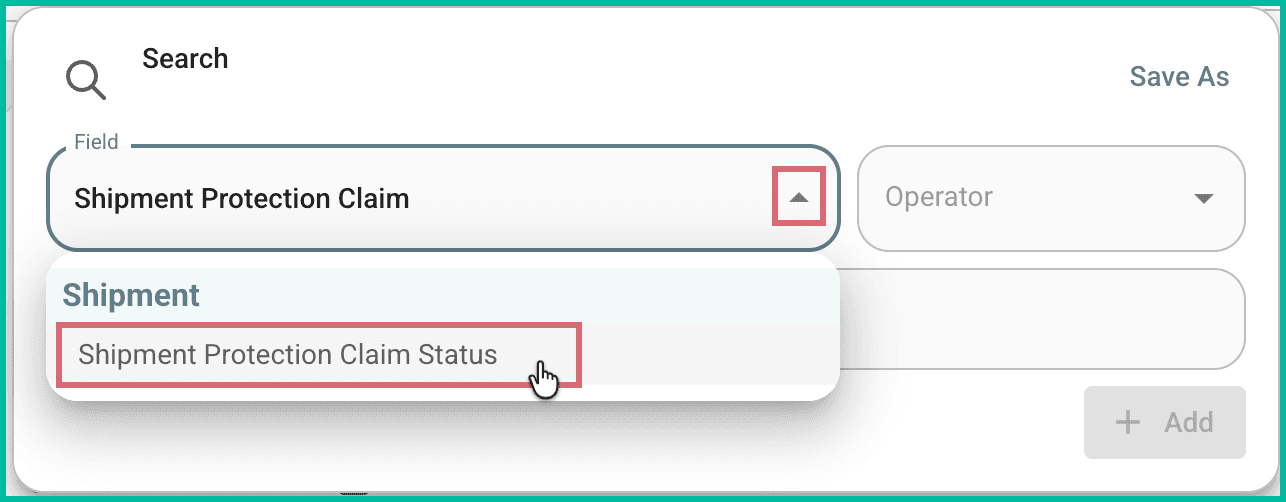
Click the Field drop-down menu in the Search pop-up from step 2 above. Then, locate and select Shipment Protection Claim Status. Hint: You can type the name of the field to quickly locate it in the list of available fields.
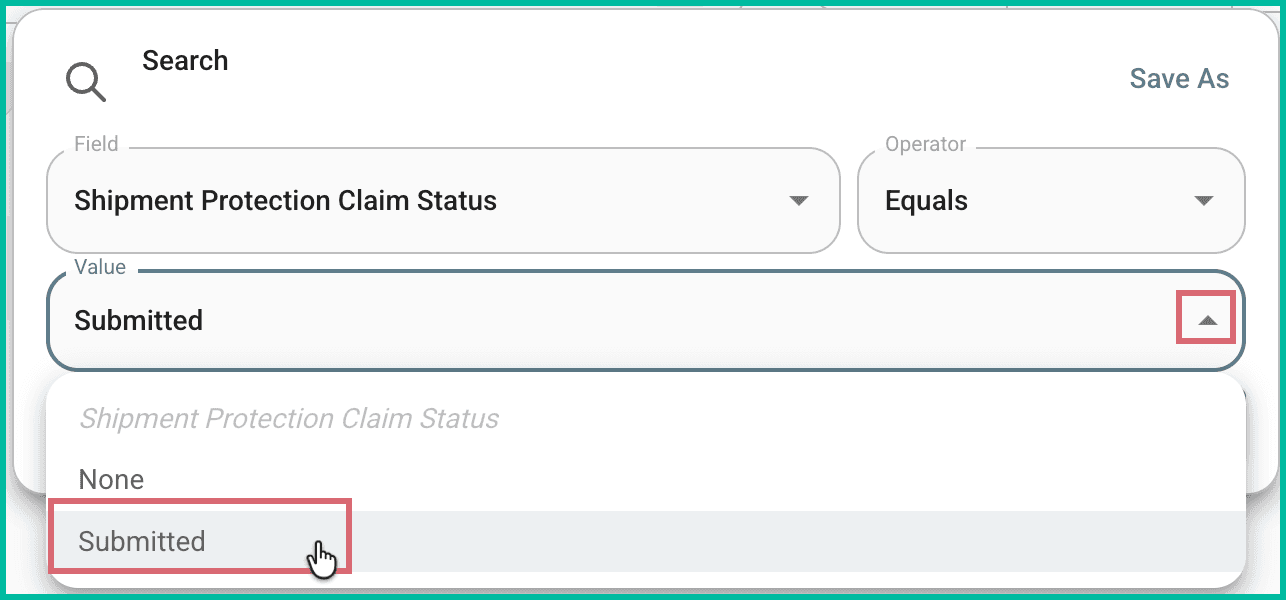
Leave the Operator as Equals. Change the Value from None to Submitted.
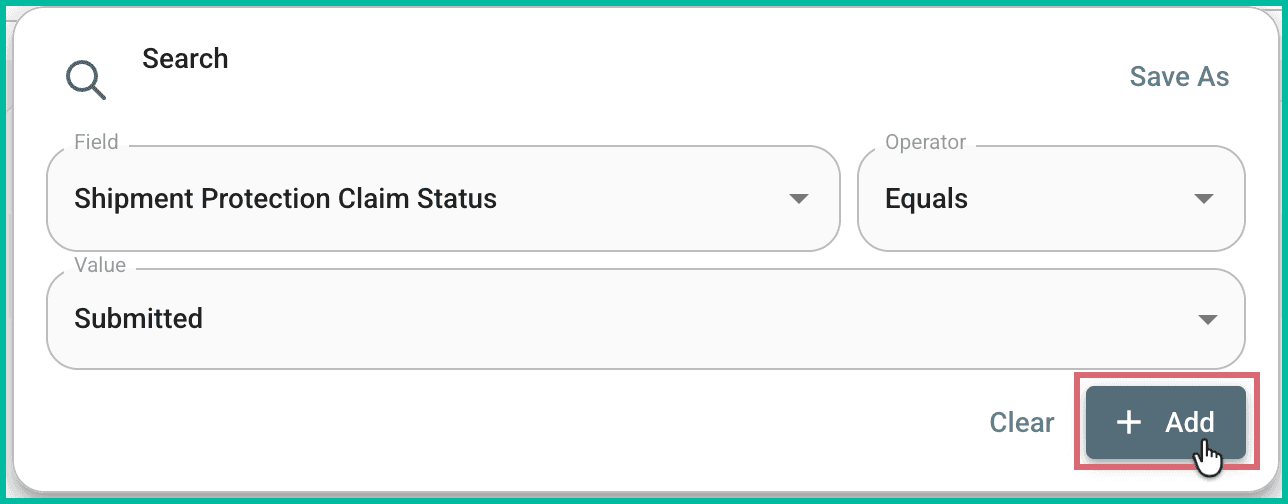
Click the Add button to add the search criteria to the Advanced Search.
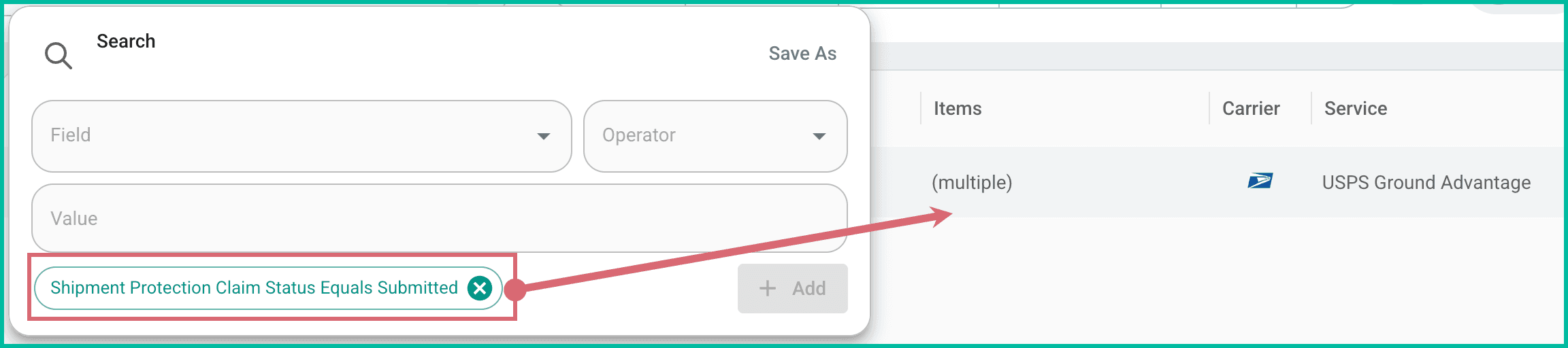
The search criterion is added to the Advanced Search and the Orders Grid updates to reflect the search results.
Jump to the Save Your Advanced Search as a Filter section below to learn how to create a Filter.
Real Word Example
I add shipment protection to any shipments with a package value of $250 or more. I'd like to locate all of the orders with shipment protection applied and a package value equal to or greater than $250.
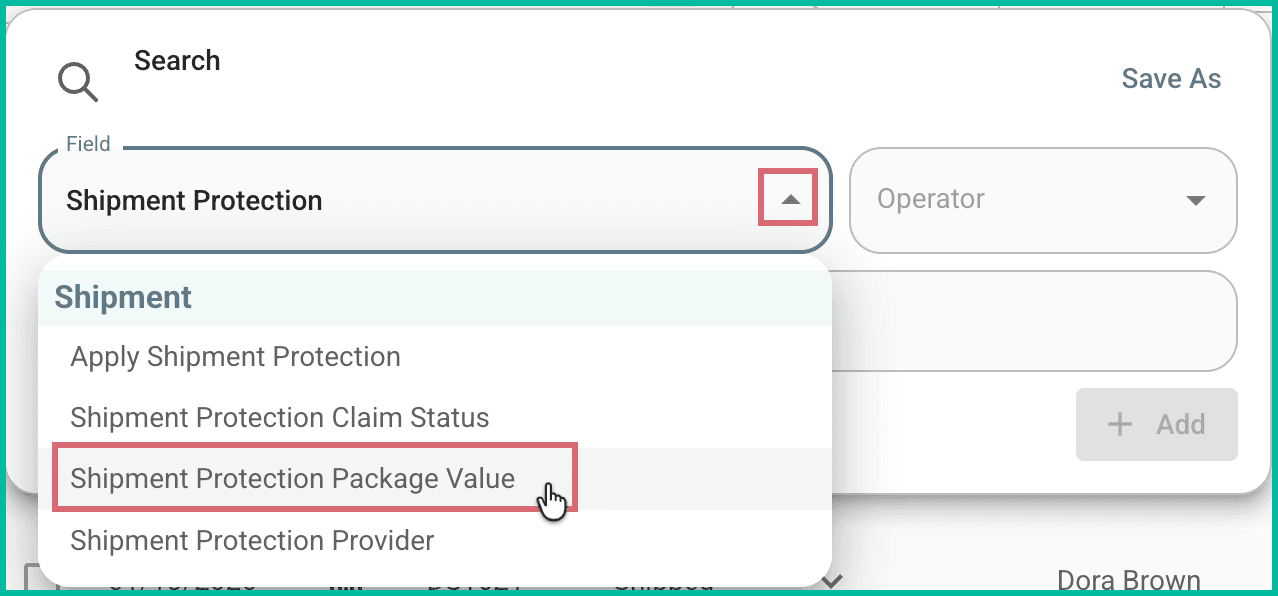
Click the Field drop-down menu in the Search pop-up from step 2 above. Then, locate and select Shipment Protection Package Value. Hint: You can type the name of the field to quickly locate it in the list of available fields.
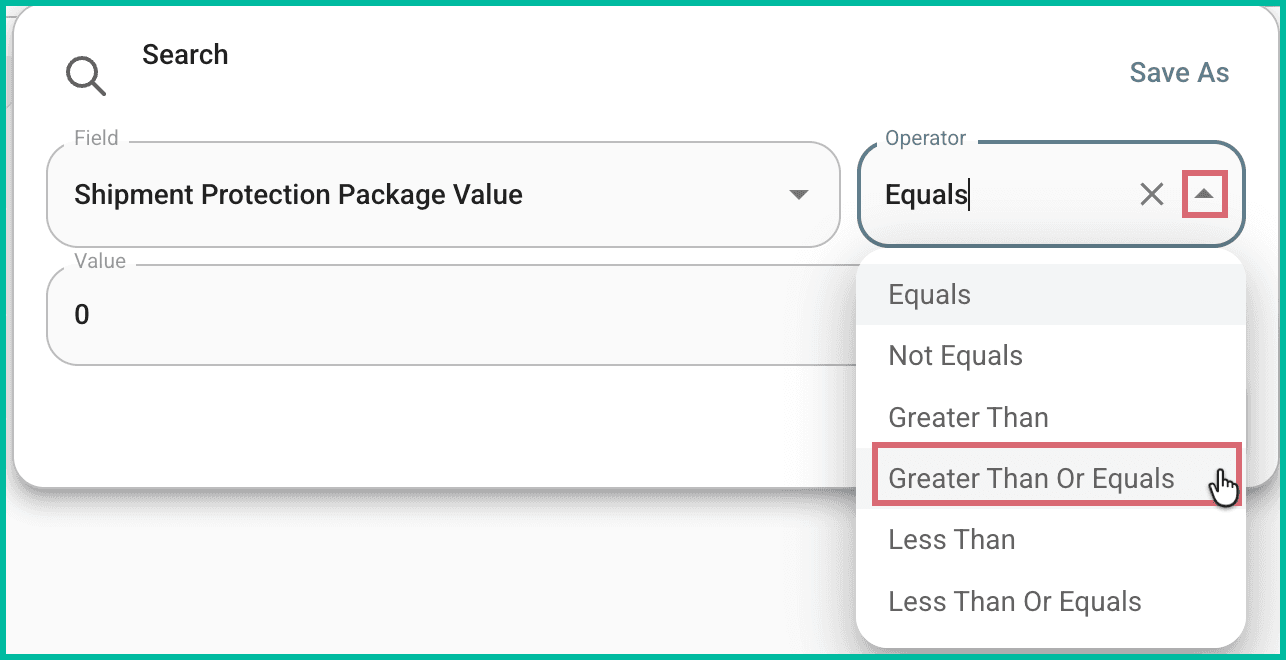
Change the Operator to Greater Than or Equals.
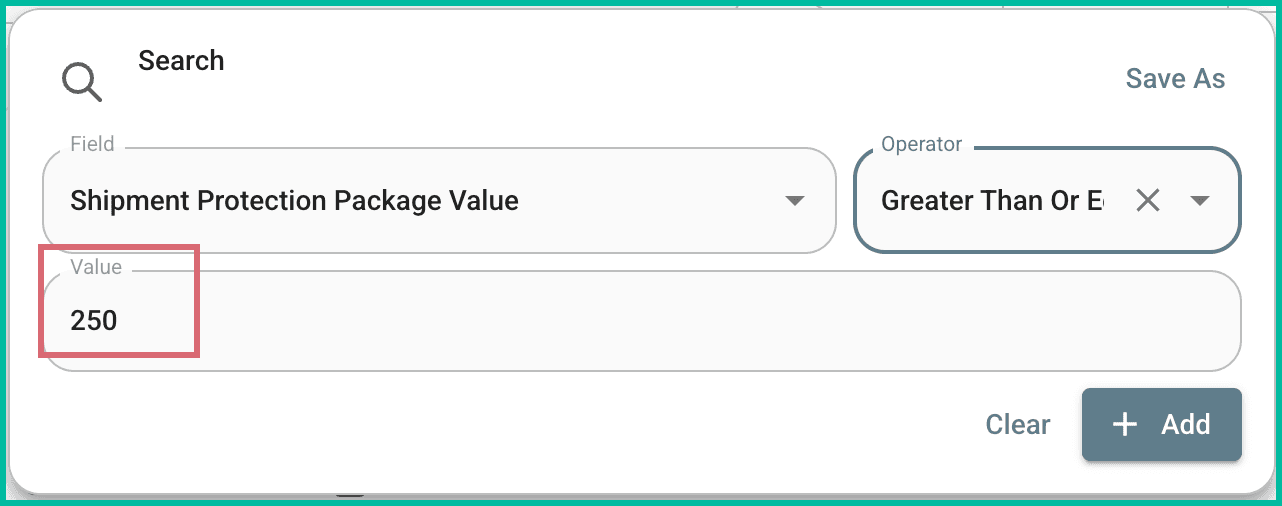
Enter 250 as the Value. Keep in mind, you can enter any value that works for you. For example, if you add protection to packages with a value of $300 or more, you would enter 300 as the Value.
Click the Add button to add the search criteria to the Advanced Search.
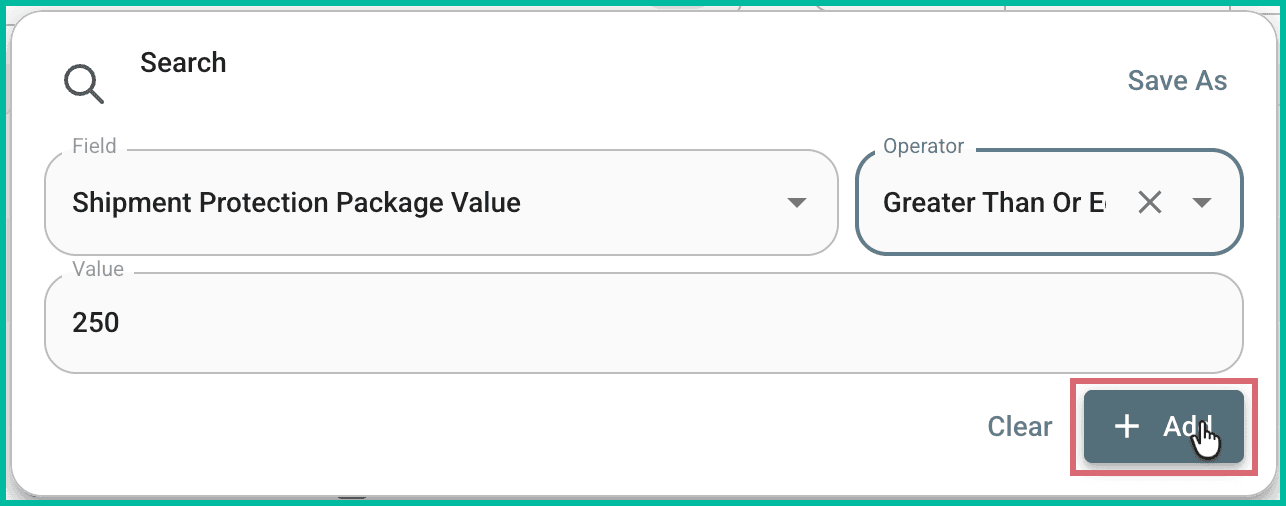
The search criterion is added to the Advanced Search and the Orders Grid updates to reflect the search results.
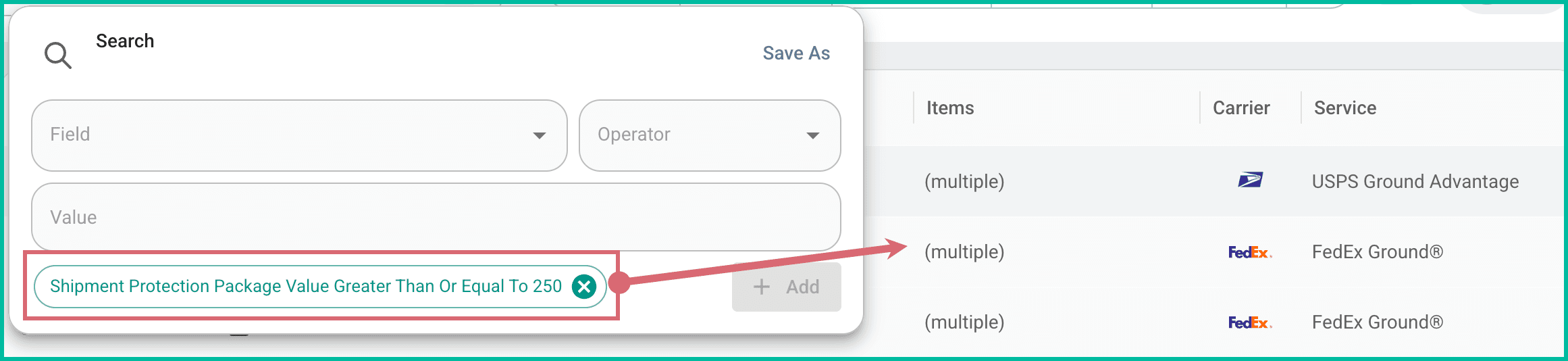
Jump to the Save Your Advanced Search as a Filter section below to learn how to create a Filter.
Save Your Advanced Search as a Filter
Now that you've added your search criteria to your Advanced Search and located your orders, it's time to save your search as a Filter. Saving your search as a Filter allows you to simply select the Filter at any time to repeat the search without having to recreate it. Just select the Filter and the results are displayed in the Orders Grid for you.
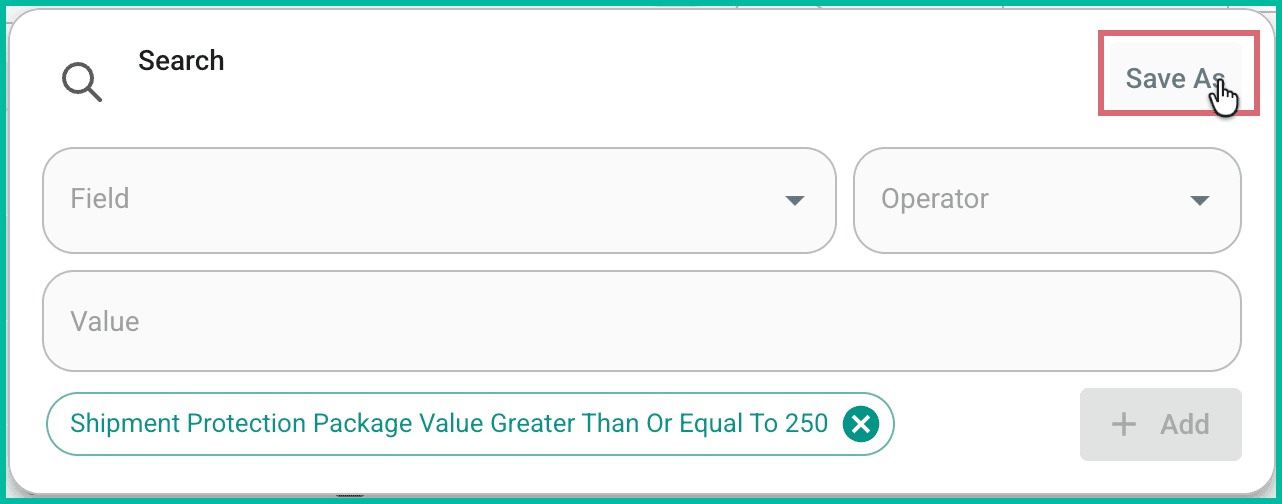
Click Save As at the top of the Search pop-up.
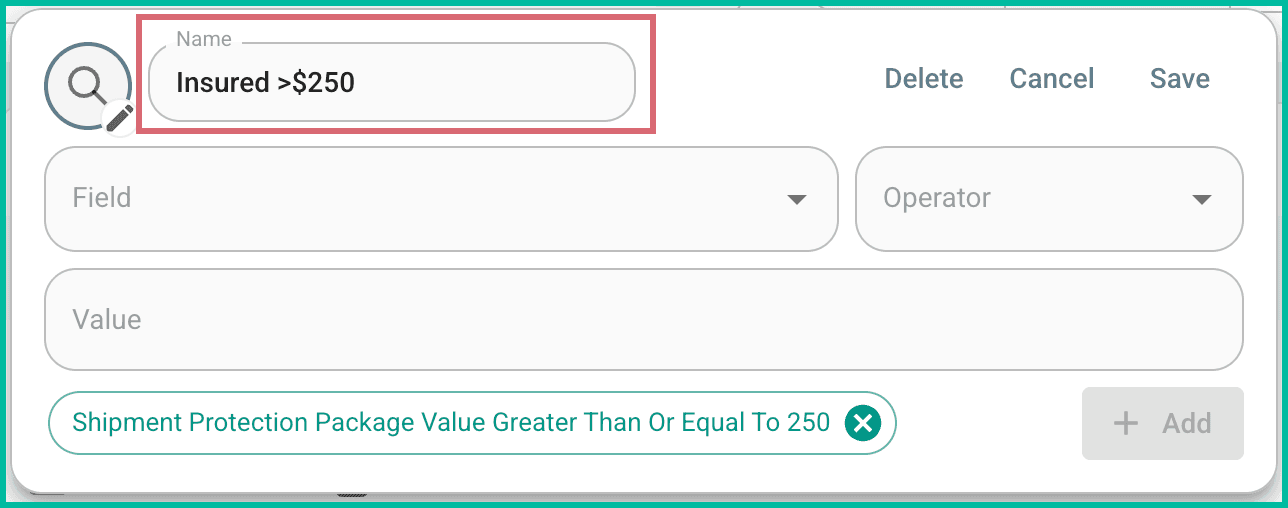
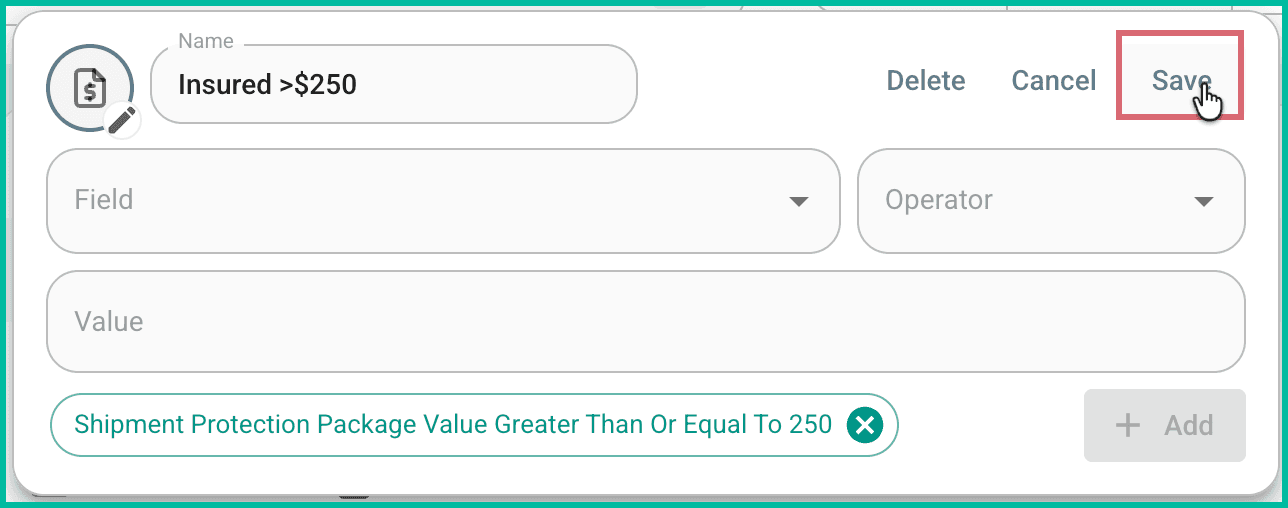
Enter a name for your Filter. We suggest giving it a name that helps identify the search associated with it.
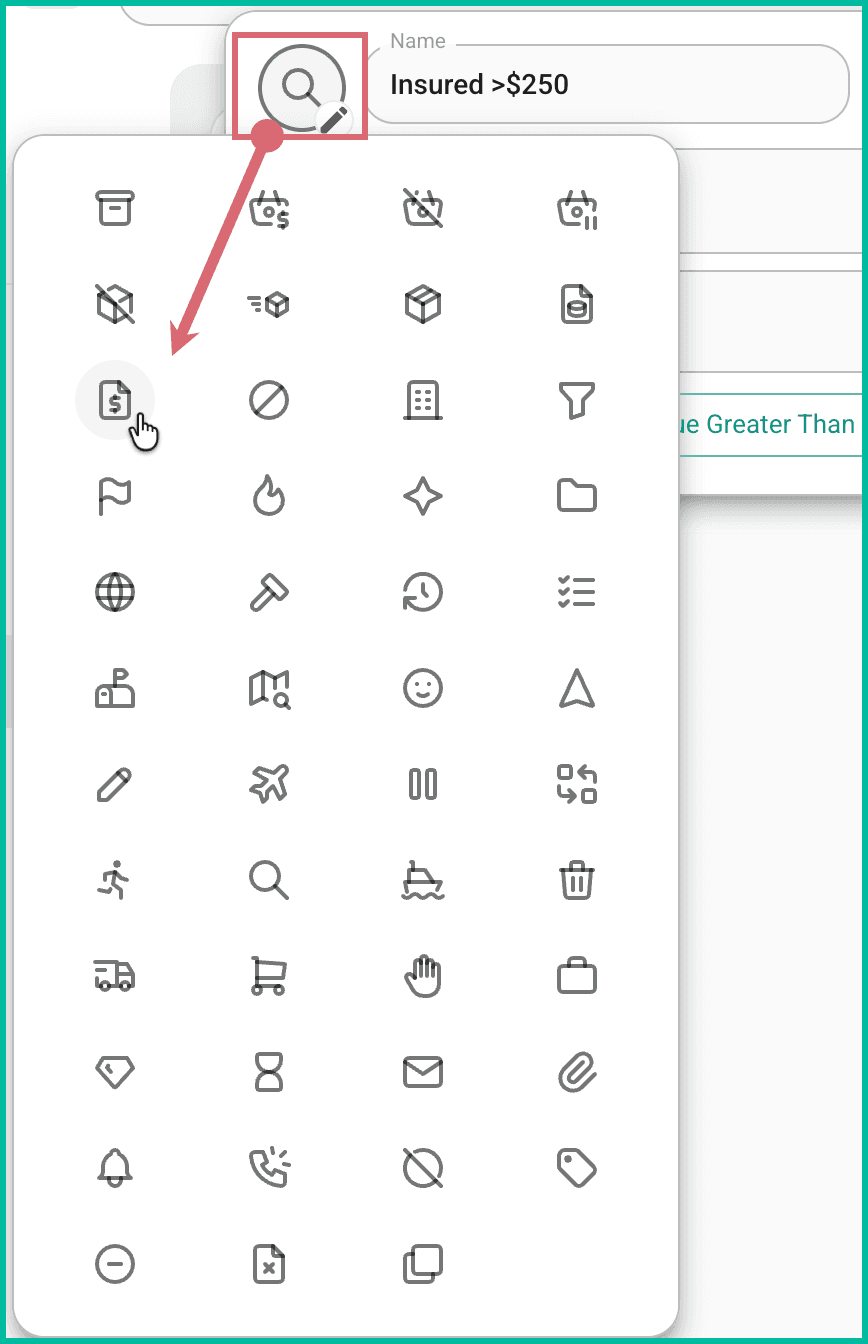
(Optional) Click the magnifying glass icon and select an icon that represents your filter.
Click Save.
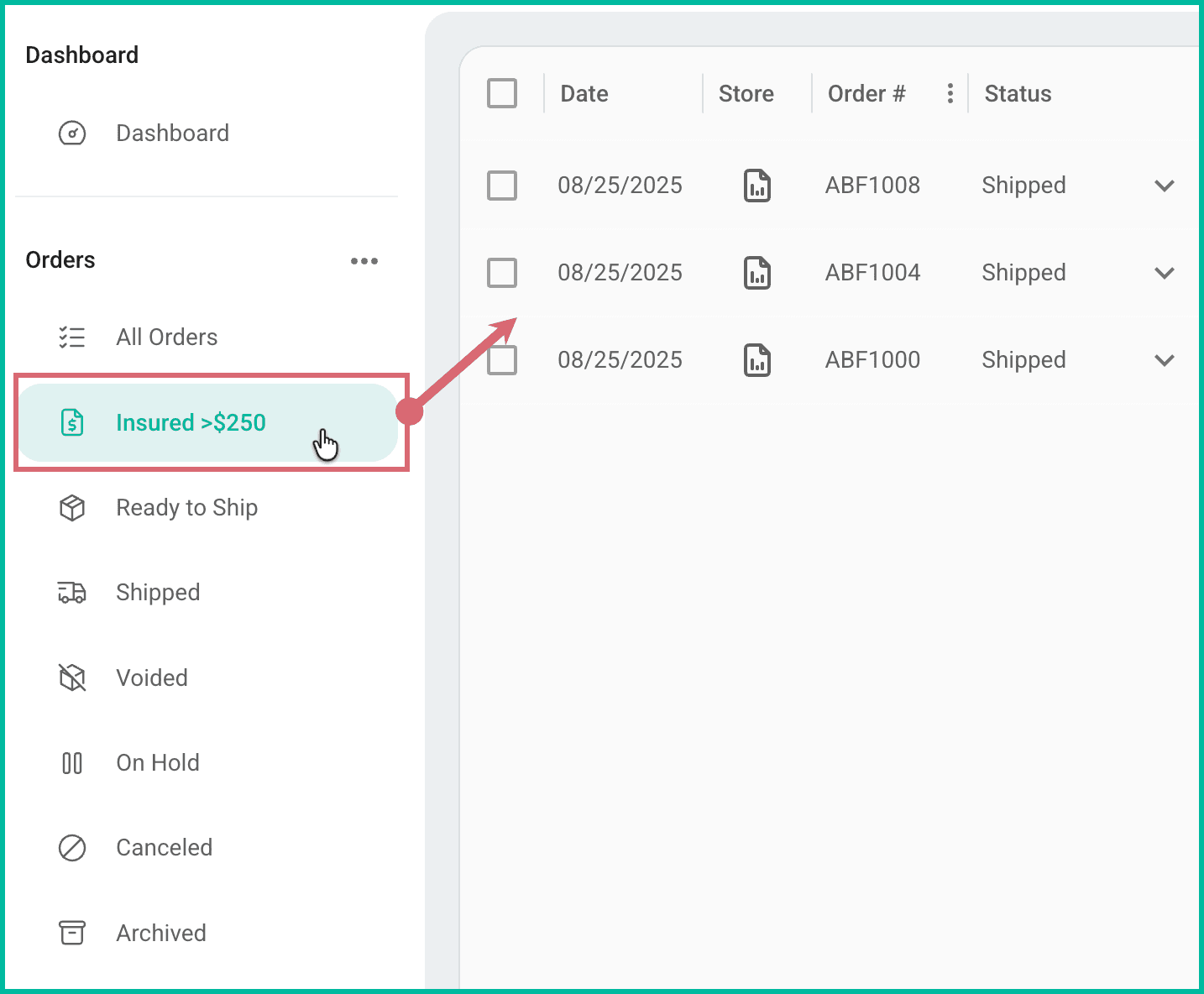
The Filter is added to the list of filters in the Orders Menu. Select it any time you wish to perform the search.
Learn how to rearrange and organize your filters.
On this page
Related