Restore Templates
Restore default templates to their original version
There may come a time when you need to recover the original, unedited version of one or more of the default Postsale templates. Maybe you accidentally deleted one. Or maybe you don't like the edits you made, and you'd like to just start over.
This help article will walk you through using Postsale's Restore Template feature to recover your default templates.
Before We Begin
Customizing your templates is a premium feature requiring the Expand, Thrive, or Soar billing plan. Learn more about managing your Postsale account in our Frequently Asked Questions.
Restore a Template
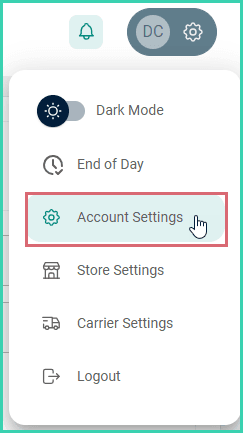
Go to Settings. Select Account Settings.
Go to Settings.

Select Account Settings.
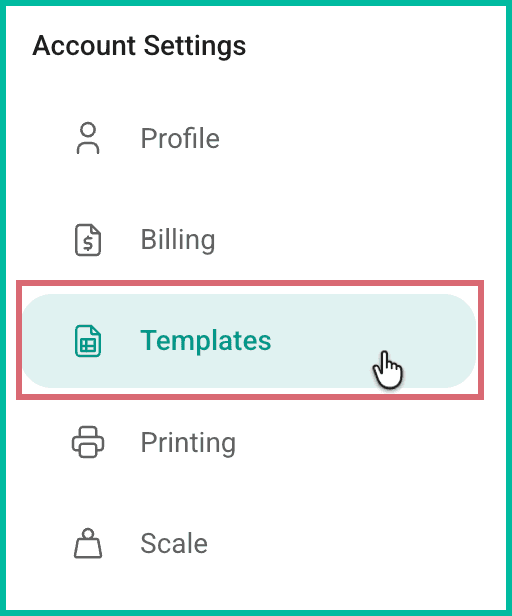
Select Templates.
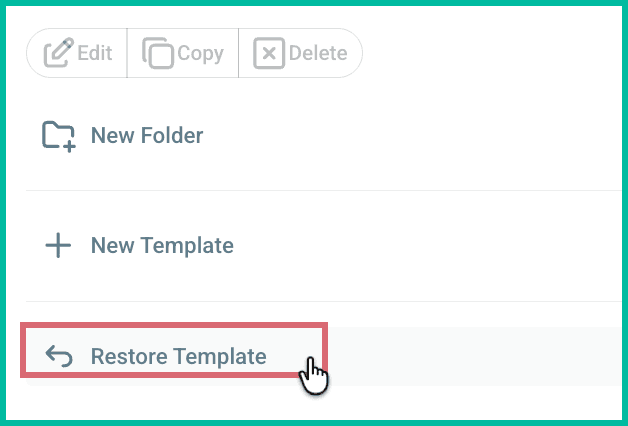
Click Restore Template.
The Restore Built-In Templates pop-up opens.
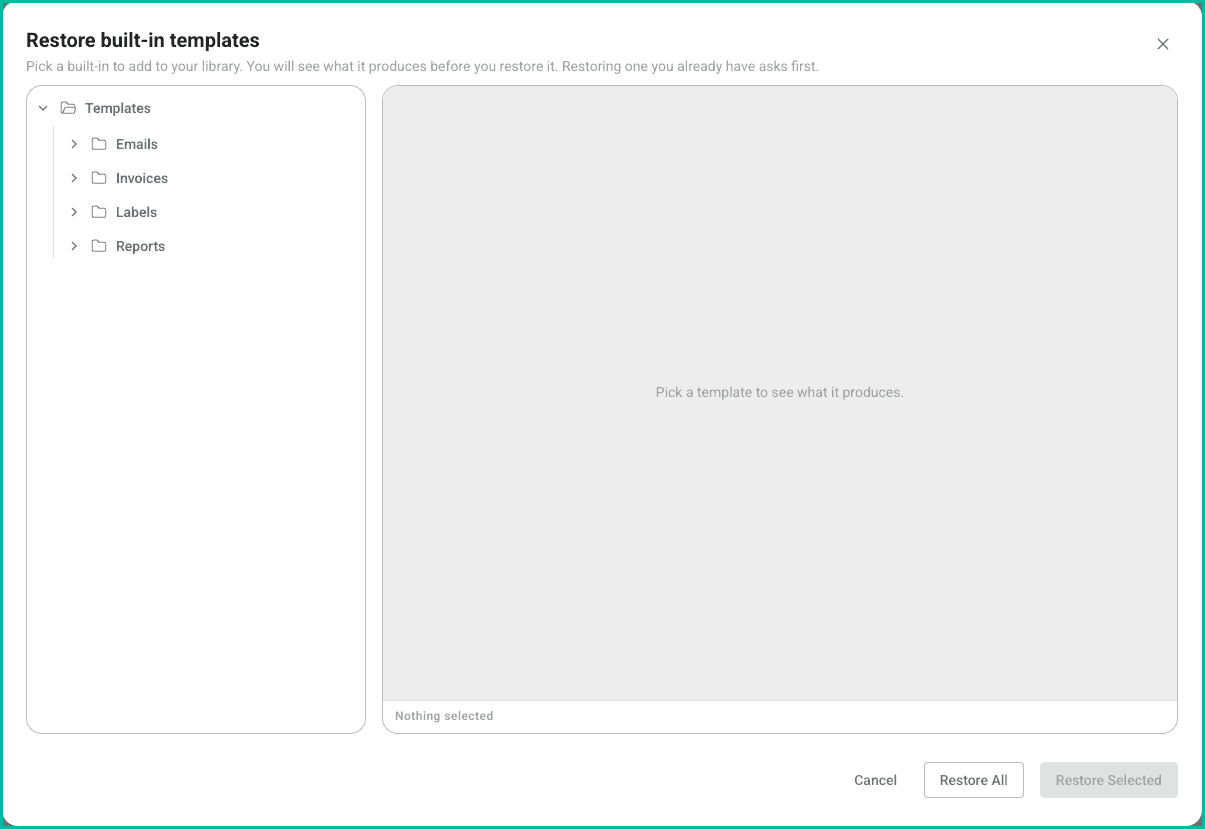
Expand the correct section below for step-by-step instructions on how to restore a single template or restore all templates.
On this page
Related