Connect & Manage Email via SMTP
Connect your own SMTP email server to Postsale so shipping notifications, invoices, and return labels send from your business email address.
Keep your customers in the loop with customized emails that build trust and loyalty. With Postsale, you can send emails using Postsale's built-in email functionality and templates. You can also connect your email account via SMTP and/or your SendGrid account to use your own email addresses and personalized, branded templates.
In this article, we'll focus on how to add your email account to Postsale using SMTP.
Before We Begin
- Integrating your email using SMTP is a premium feature requiring a Thrive or Soar billing plan. Learn more about managing your Postsale account in our Frequently Asked Questions.
- To add your email account to Postsale you will need:
- The SMTP host address
- The Port used by your email host
- To specify whether you are connecting via TLS or SSL security
- Your email account's username and password (Needed if your email server requires authentication.)
Connect Your Email Account
-
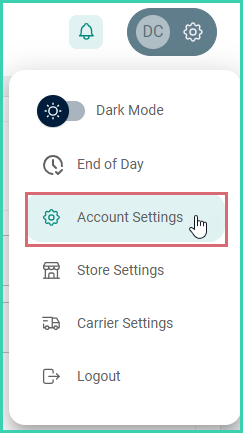
Go to Settings.

-
Select Account Settings.
-
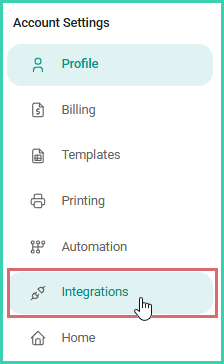
Select Integrations from the left-side menu.
-
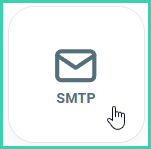
Select SMTP.
-
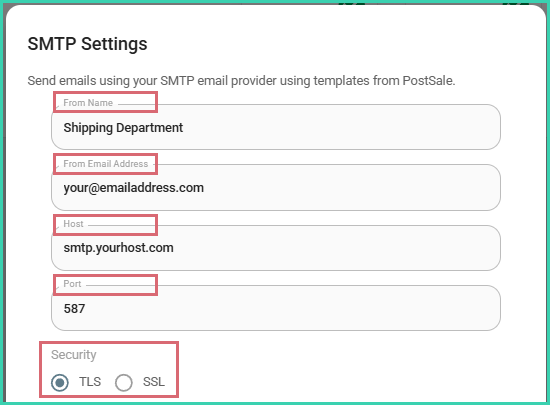
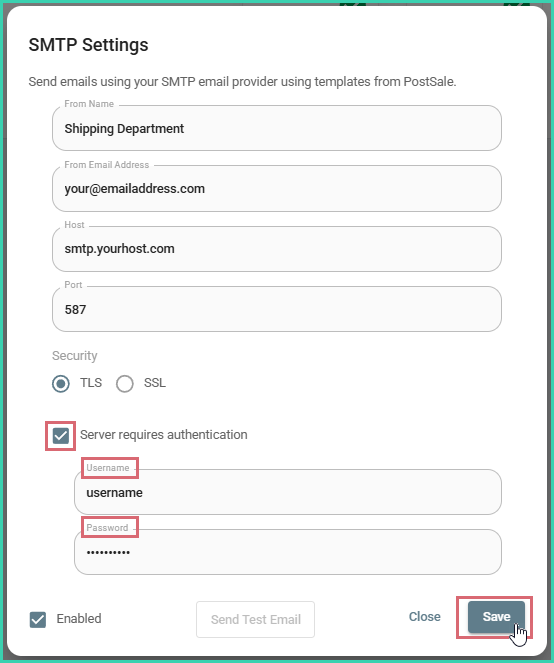
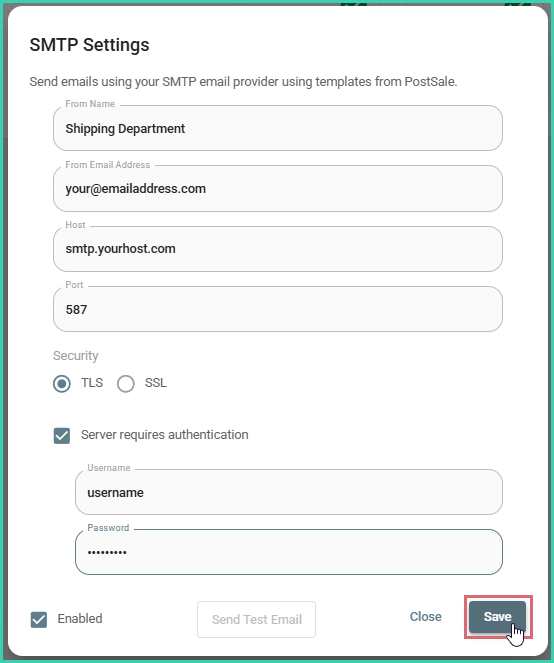
Enter the following information and specify whether your email host uses TLS or SSL security.
-
From Name
-
From Email Address
-
Host
-
Port
-
If your server requires authentication, check the Server requires authentication checkbox. Then, enter the Username and Password. Click Save.
-
(Optional) Click the Send Test Email button to test your email setup.
A test email will be sent to the email address you entered in the From Email Address field in step 5.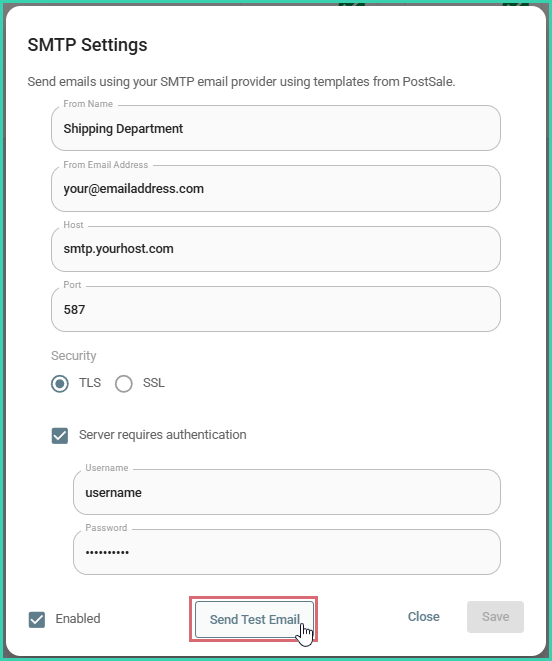
You will be notified whether the email was sent successfully or failed to send.
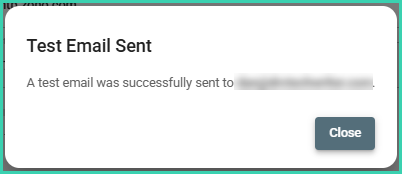
-
Click Close.
Your email address has been added to Postsale and is indicated with a green arrow in the SMTP tile.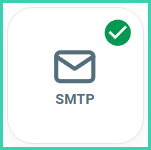
Manage Your Email Account Settings
Need to update your email account settings? Here's how:
-
Go to Settings.
-
Select Account Settings.
-
Select Integrations from the left-side menu.
-
Select SMTP.
-
Update the information you need to update. Then, click Save.
Email integrations are part of the Postsale platform. See all available integrations or explore automation features.
On this page
Related