Introduction to Automation with Examples
Fulfilling orders isn't just about creating shipping labels and getting orders out the door. It's also about monitoring the status of your orders throughout ...
What is Automation?
Fulfilling orders isn't just about creating shipping labels and getting orders out the door. It's also about monitoring the status of your orders throughout the shipping workflow, keeping track of shipments to make sure the packages arrive at their destination, communicating with your customers to let them know their package is on the way or has been delivered, and much more.
The good news is that Postsale's Automation features can assist you with many of these tasks. Think of Automation as your personal assistant, performing many of the repetitive tasks that are required to ensure an efficient shipping workflow and a positive customer experience.
A Quick Automation Overview
Creating custom automations is a premium feature requiring an Expand, Thrive, or Soar billing plan. See the pricing page for plan details, or learn more about managing your Postsale account in our Frequently Asked Questions.
Triggers & Actions
When you create a custom Automation in Postsale, you are telling Postsale, “Hey Postsale, when this certain thing happens (the Trigger) I need you to do something for me (the Action).”
For example, you might set up an Automation that says, “ When I create a shipping label, update the order's status to Shipped.” The Automation looks like this in Postsale.
A single Automation can run multiple Actions. For example, in addition to updating the order's status to ‘Shipped’, you could add another Action to send an email to your customer notifying them that their order is on the way.
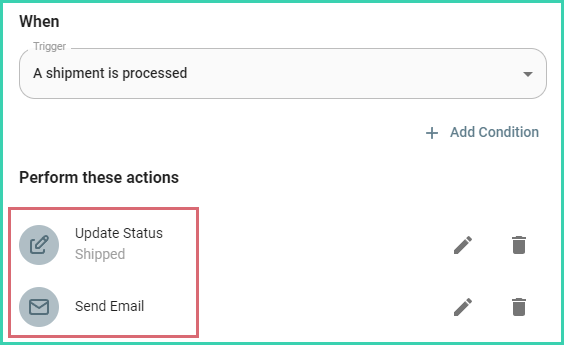
It's important to note that when there are multiple Actions triggered in a single Automation, the Actions run in the order they are displayed. In the above screenshot, the order status is updated to ‘Shipped’ then the email is sent to the customer. The order in which the Actions run is important. Using the same example, we want the order's status to be updated to Shipped before the email is sent because the email includes a message that indicates the order's current status.
Actions can be rearranged by dragging and dropping them into the order that you would like them to run.
Conditions
You can also tell Postsale to perform the Automation only under certain Conditions. A condition allows you to clearly define under what exact circumstances the Automation should be performed. For example, “When I create a shipping label, only for Dog Saver Promo orders (the Condition), set the order's status to Shipped.” In this case, the Automation in Postsale looks like this:
Why Should I Create Automations?
Good question! As you can see, Automations are a powerful tool in your arsenal. By defining when something should happen, what should happen, and under what circumstances it should happen, you can tell Postsale to automate many of the repetitive tasks that you would otherwise have to manually perform. Automations:
- Save time
- Increase efficiency
- Ensure accuracy and consistency
Examples & Use Cases
Let’s explore several real-world examples and walk through how to create Automations for each use case. The goal is to empower you with the basic knowledge of how Automations are created so that you can then create the Automation you need for your specific workflow.
Review Your Automation Workflow
Modifying or adding automations in Postsale might lead to unexpected changes in your shipping workflow. We recommend reviewing your current automations before making any updates.
Helpful Resources
- Automation Reference Guide - List of available Triggers, Conditions, and actions when creating Automations. Also includes additional Automation examples.
- Postsale Features Overview - See how automation fits into the broader Postsale platform.
On this page
Related