Automation Reference Guide
This reference guide lists the available triggers, conditions, and actions when creating automations. We have also included a list of example automations to ...
This reference guide lists the available triggers, conditions, and actions when creating automations. We have also included a list of example automations to demonstrate how triggers, conditions, and actions can be used in combination to automate your post-sale tasks.
Creating custom automations is a premium feature requiring an Expand, Thrive, or Soar billing plan. Learn more about managing your Postsale account in our Frequently Asked Questions.
Triggers
| WHEN… | USE CASE |
|---|---|
| A shipment is processed | The automation is triggered when a label is created. |
| A label's tracking status has changed | The automation is triggered when the label's tracking status changes to the status that you specify. |
| A shipment is voided | The automation is triggered when you void a shipping label. |
| An order's status has changed | The automation is triggered when the status of an order is changed. |
| An order is imported | The automation is triggered when an order is imported into Postsale for the first time. |
| An order is reimported | The automation is triggered when an order that has already been imported into Postsale is imported again. |
Conditions
Actions
| PERFORM THESE ACTIONS… | USE CASE |
|---|---|
| Update the order status | When the automation is triggered, update the order's status to the status you specify. |
| Upload the shipment | When the automation is triggered, upload the shipment details to the sales channel. |
| Archive the order | When the automation is triggered, archive the order. |
| Send an email | |
| When the automation is triggered, send an email using the template you select, with the subject line you enter, to the email address(es) you specify. |
In addition to manually entering email addresses, there are three tokens you can select from when configuring the action so that the customer's email address is automatically populated:
- {{ orders[0].ship_address.email }} - Automatically populates the Ship To email address associated with the customer's Order.
- {{ orders[0].bill_address.email }} - Automatically populates the Bill To email address associated with the customer's Order.
- {{ shipments[0].to_address.email }} - Automatically populates the email address entered in the To Address section of the Dock when configuring the shipment.
|
Example Automations
This is not a complete list of every possible automation. The goal is to give you ideas on how the triggers, conditions, and actions can be used in combination to automate your shipping workflow.
Automate Order Statuses
Update an Order's Status When a Label is Created
Order Status vs. Shipment Status
There are two different statuses in Postsale:
- Order Status: Indicates the status of the order in Postsale and is visible in the Orders Grid. Typically, this would be a status such as ‘Not Shipped’, ‘Shipped’, ‘Back Ordered’, etc. Order statuses can be anything you would like them to be.
- Shipment Status: Indicates the current status of a shipment associated with an order and is visible in the Shipments panel of the Dock. The available Shipment Statuses are ‘Ready’, ‘Processed’, and ‘Voided’.
This automation updates the Order Status.
A good option to automate marking orders as shipped (or to any status you specify) once the label is created for the order.
View detailed steps to create this automation in our Introduction to Automation with Examples help article.
- Trigger: A shipment is processed
- Condition: None
- Action: Update the order status
Email Notifications
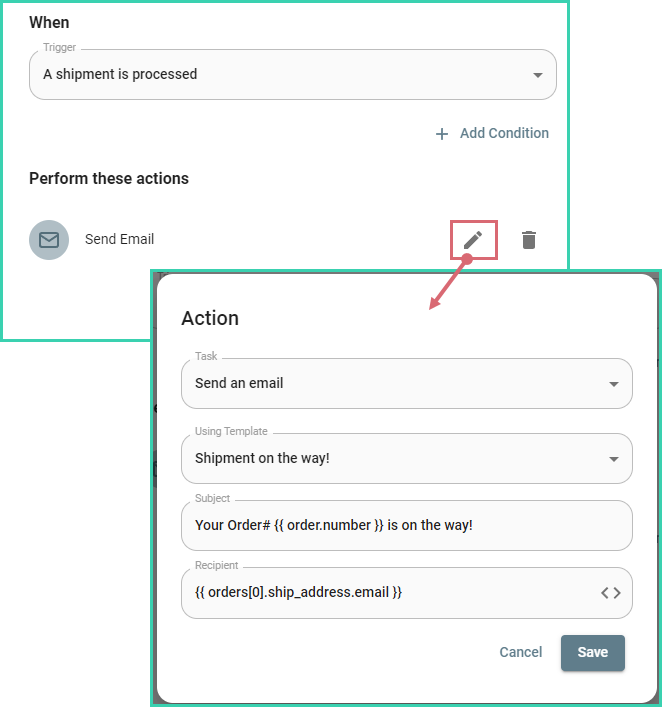
Notify Customers Their Order Has Been Shipped
Send an email to your customer to let them know that their order has been shipped.
- Trigger: A shipment is processed
- Condition: None
- Action: Send an email
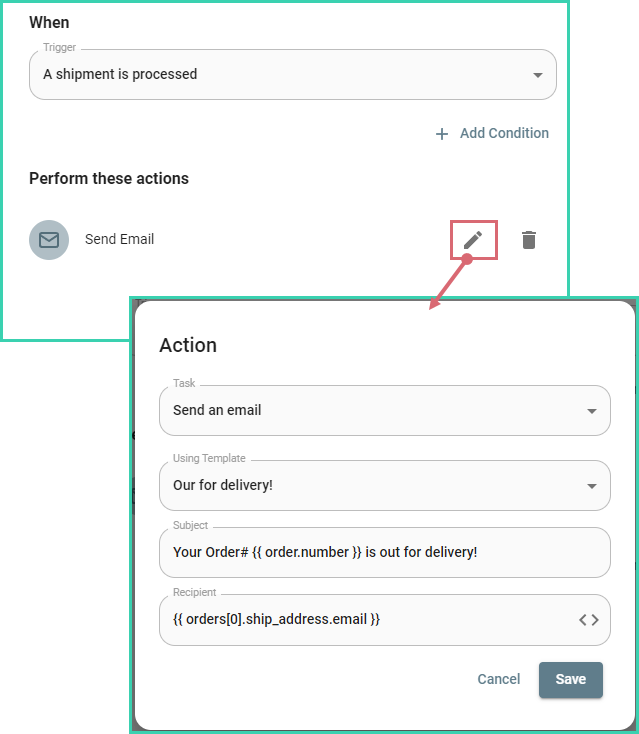
Notify Customer Package is Out for Delivery
Send an email to your customer informing them that their order is out for delivery.
View detailed steps to create this automation in our Introduction to Automation with Examples help article.
- Trigger: A shipment is processed
- Condition: None
- Action: Send an email
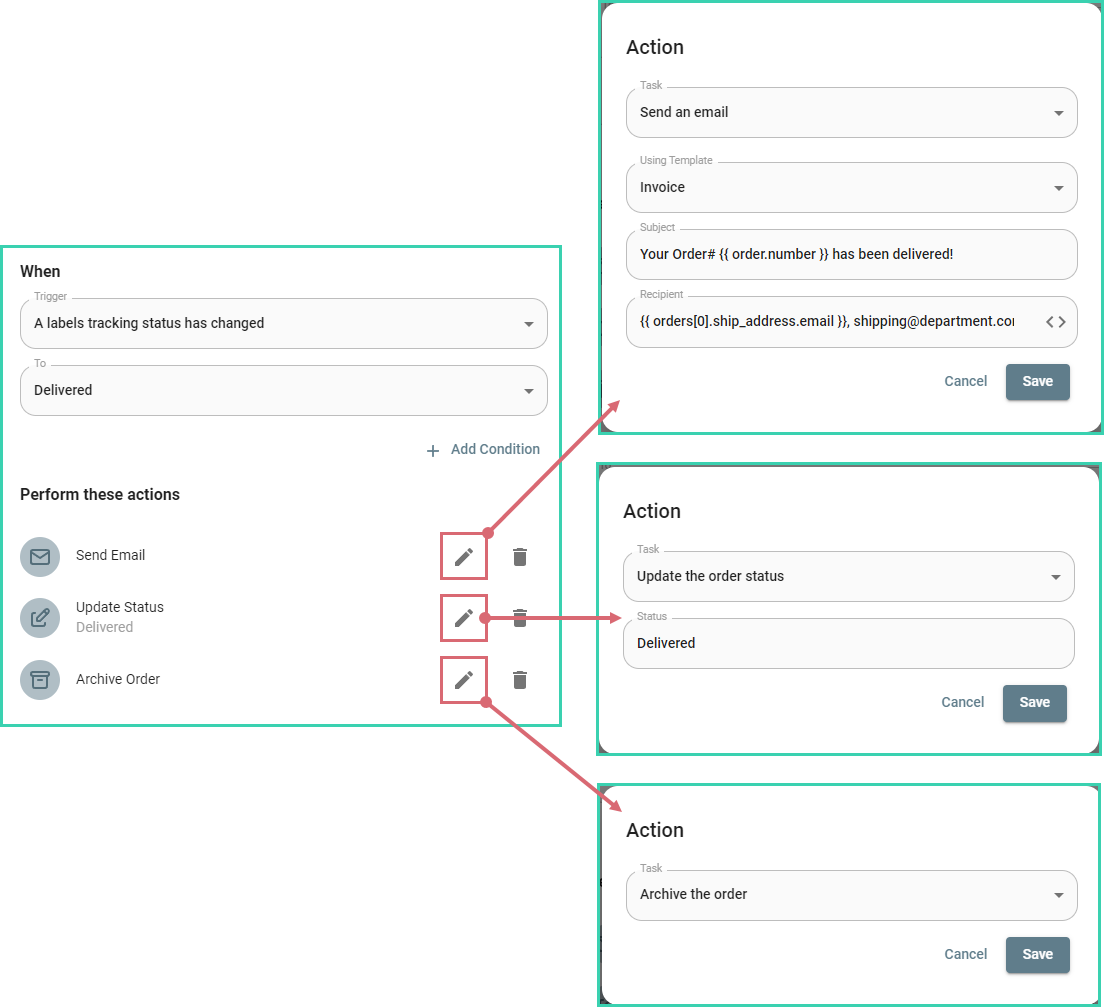
Notification a Shipment Has Been Delivered
Send an email to your customer and your shipping department to notify them that the shipment has been delivered. The email includes a copy of the invoice as a reference. Update the order's status to 'Delivered. Then, archive the order.
- Trigger: A label's tracking status has changed to ‘Delivered’
- Condition: None
- Actions:
- Send an email
- Update the order status to ‘Delivered’
- Archive the order
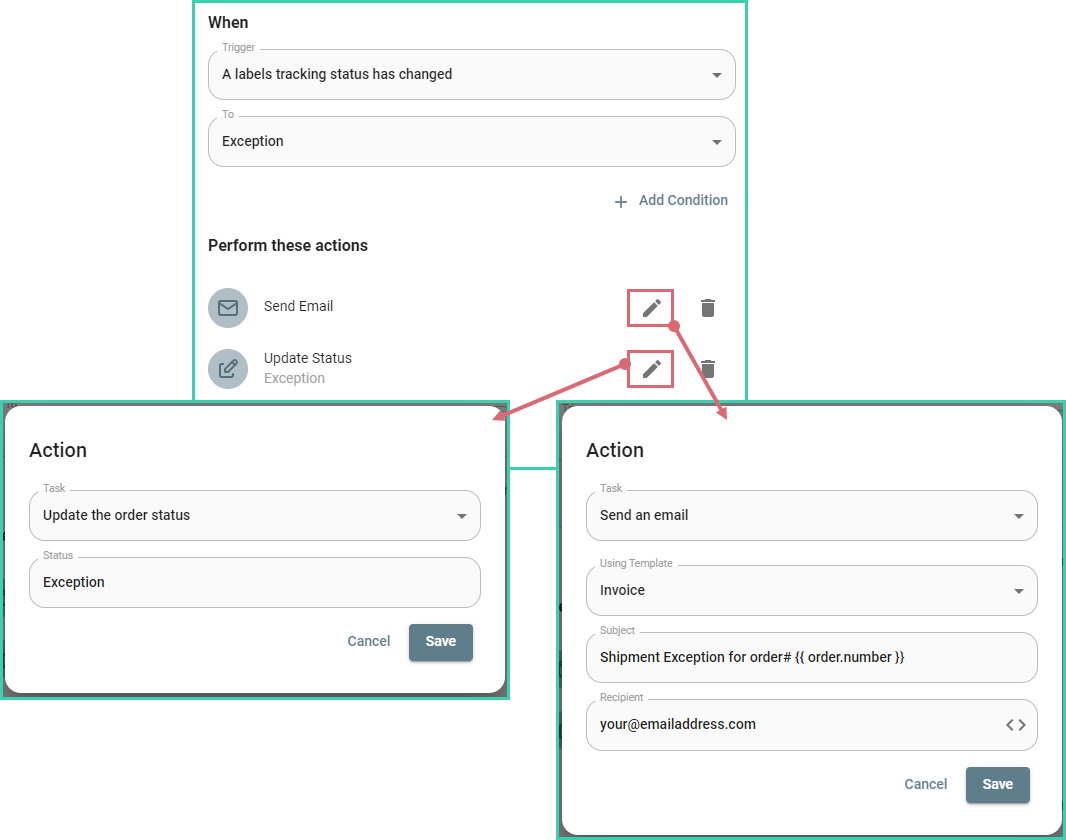
Notification of Delivery Exceptions
Receive an email letting you know that a delivery exception has occurred. The email includes a copy of the invoice for reference. Also, change the order's status to 'Exception'.
View detailed steps to create this automation in our Introduction to Automation with Examples help article.
- Trigger: A label's tracking status has changed to ‘Exception’
- Condition: None
- Actions:
- Send an email
- Update the order status to ‘Exception’
Return Labels
Send Return Labels to Your Customers in an Email
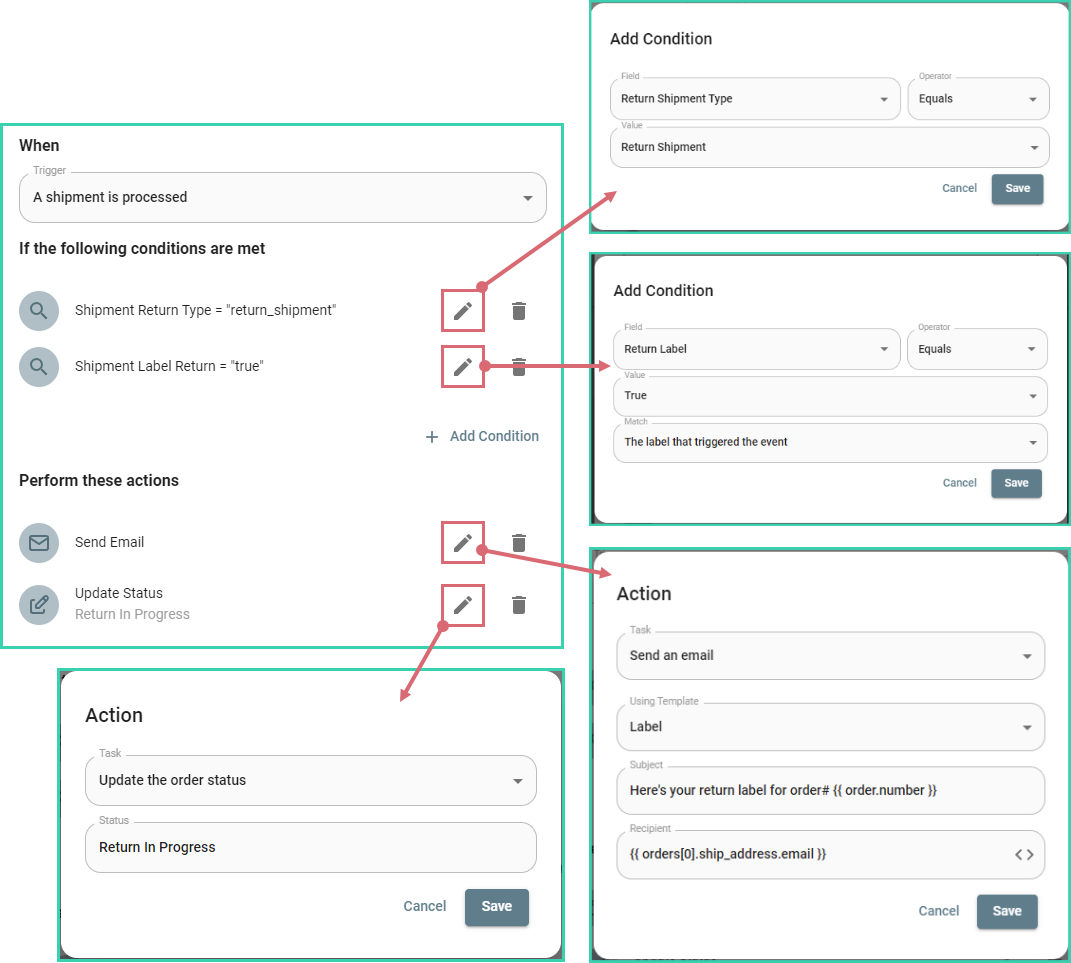
This automation sends an email to your customer with a printable return label as soon as you create the return label. It also updates the order's status to ‘Return In Progress’ to help you keep track of orders that are being returned.
View detailed steps to create this automation in our Automation: Send Return Labels via Email help article.
- Trigger: A shipment is processed
- Conditions:
- Return Label > Equals > True
- Shipment Return Type > Equals > Return Shipment
- Actions:
- Send an email
- Update the order status to ‘Return In Progress’
Notification that a Return Has Been Used
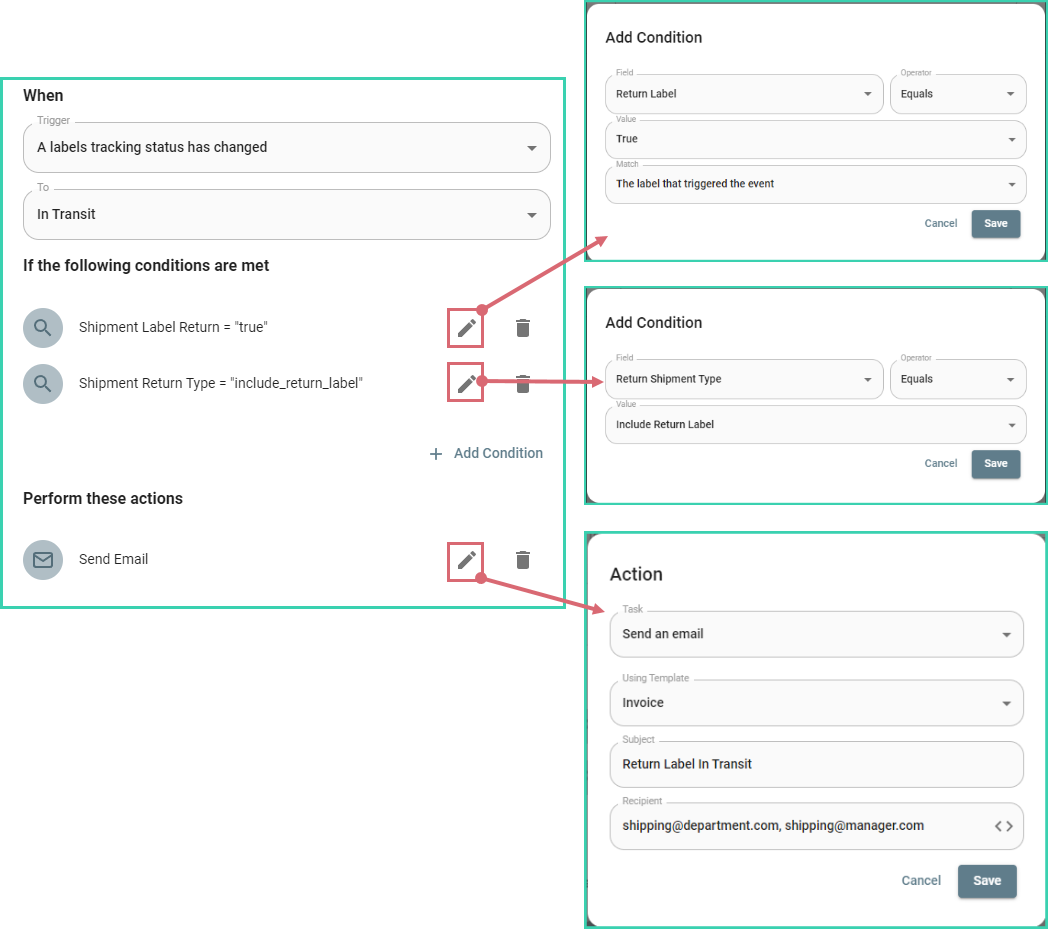
Send an email to the shipping department notifying them that a return label you included in the original shipment to your customer has been used and is now in transit to you. The email includes a copy of the invoice for reference.
- Trigger: A label's tracking status has changed
- Conditions:
- Return Label > Equals > True
- Shipment Return Type > Equals > Return Shipment
- Actions:
- Send an email
Here's an Idea!
Why not set up individual automations for each tracking status? You could have automations for In Transit, Out for Delivery, Exception, Delivered, etc.
And… did you know that you can organize your orders by the order's current tracking status? You can with Filters! Learn all about it in our About Filters: Examples and Use Cases article.
Automation is available on Expand plans and above. Visit the Postsale features page for an overview, or check the pricing page for plan details.
On this page
Related