Automation: Notification of Return In Transit
Postsale gives you the ability to easily include pay on use return labels with your shipments or to email a return label to a customer who wishes to return a...
Postsale gives you the ability to easily include pay on use return labels with your shipments or to email a return label to a customer who wishes to return an order. This is a great way to offer convenient returns to your customers. You may wish to be notified any time a customer uses the included return label to send an order back to you. You can configure Postsale to do that, too!
In this article, we will set up an automation that tells Postsale to keep an eye out for any return label's shipping status that changes to ‘In Transit’ and send you an email to notify you of the status change.
Real World Example
We include a return label with every shipment to our customers. We would like to be notified any time a return label is used and a return package in on its way back to us. This helps our shipping department keep track of incoming returns so that they can be processed efficiently.
Before We Begin
Creating custom automations is a premium feature requiring an Expand, Thrive, or Soar billing plan. Learn more about managing your Postsale account in our Frequently Asked Questions.
Create the Automation
Review Your Automation Workflow
Modifying or adding automations in Postsale might lead to unexpected changes in your shipping workflow. We recommend reviewing your current automations before making any updates.
Specify When the Automation Runs
-
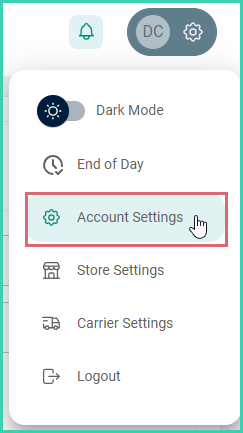
Go to Settings and select Account Settings.
-
Select Automation from the Account Settings menu.
-
Click the + Add button.
-
Select A label's tracking status has changed from the Trigger drop-down menu.
-
Select In Transit from the To drop-down menu.
Add a Condition to Specify Return Labels
-
Click + Add Condition.
-
Configure the condition. Then, click Save.
- Field: Return Label
- Operator: Equals
- Value: True
- Match: The label that triggered the event
Add the Action
-
Click + Add Action under Perform these actions.
-
Select Send an email from the Task drop-down menu.
-
Configure the Action. Then, click Save.
-
Template: Return In Transit
-
Subject: Enter a subject for the email into the Subject field. We suggest using a Postsale token to autofill the order number to make it easy to identify which order the return label is associated with. Here is an example: Return label for order# {{ order.number }} is In Transit
-
Recipient: Enter the email address the email notification should be sent to. Multiple emails can be entered separated by a comma.
-
-
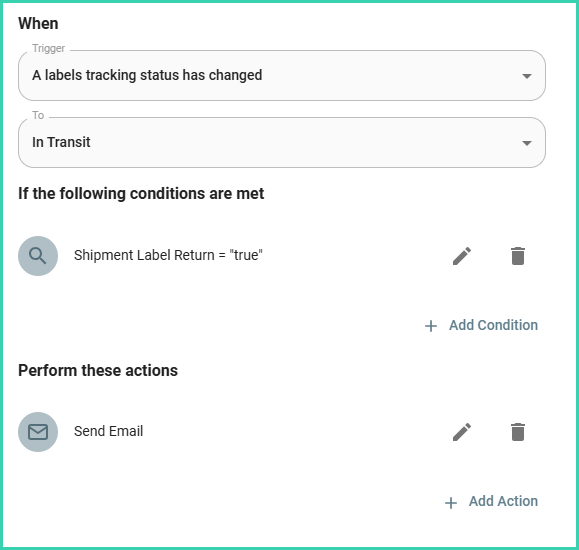
Verify that the Automation is configured like the below image.
-
Select the Settings tab. Then, enter a Name for the Automation, such as Return Label In Transit.
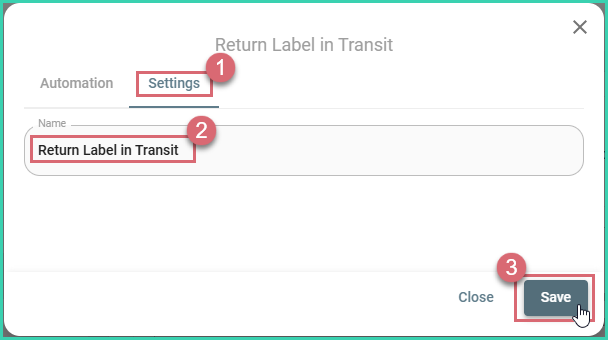
The Automation is added. Now, when a return label's shipping status changes to ‘In Transit’, an email will be sent to the email addresses you specified.
Here's an Idea!
You could add an additional Action to this automation that also sends an email to your customer, letting them know that you are aware that the return is on its way to you.
Follow the steps in the Add the Action section above to add a second Action. Configure it like this, so that the email is sent to the order's Ship To email address:
- Task: Send an Email
- Using Template: Return In Transit
- Subject: Here is an example: Your return for order# {{ order.number }} is on its way!
- Recipient: Click the brackets < > and select Order Ship To Email. Multiple emails can be entered separated by a comma.
Automation is available on Expand plans and above. Visit the Postsale features page for an overview, or check the pricing page for plan details.
On this page
Related