Postsale Anywhere App
Turn a screenshot into a shipment | See it. Capture it. Ship it.
Shipping data often comes from emails, spreadsheets, internal tools, text documents, chat messages, and other sources, as well as from your connected systems.
The Postsale Anywhere app is a Menu Bar (Mac) and Taskbar (Windows) application that uses AI to read a screenshot of order and shipment details. It then pulls in the addresses, items, and order info into Postsale. You can then review the details, compare USPS, UPS, and FedEx rates, and print your labels right inside the Postsale Anywhere app.
Quick Tip Video
We also have a Quick Tip video that covers the information contained in this help article.
What it Reads
- Names and shipping addresses
- Item details and quantities
- Order numbers
- Service preferences
- Special handling instructions
See it. Capture it. Ship it. No templates, no field mapping, and no data cleanup required.
Where It Works
Postsale Anywhere works anywhere your shipping and order data appears:
- Gmail and email order confirmations
- Wholesale spreadsheets and bulk order lists
- Marketplace order pages
- Internal tools, ERPs, and warehouse systems
- Phone orders typed into documents
- Chat messages and customer DMs
- Any webpage with address and/or order information
If you can see it, you can ship it.
What You Can Do
- Use "Capture Address" to grab a screenshot and load the order and shipment data into Postsale
- Copy/paste shipment and order information from any data source
- Compare real-time rates across carriers, side-by-side
- Generate, reprint, and void labels without leaving the page
- Search and manage existing orders
- Use your USB scale to read weights
- Review and edit the read data before creating labels
How Postsale Anywhere Reads Shipping Data
Single Button Click
With a single button click, Postsale Anywhere:
- Allows you to take a screenshot of your shipment and order details
- Reads the screenshot and identifies order and shipment data using AI
- Loads the shipment and order information into Postsale Anywhere
- When multiple addresses are identified, individual Ship To addresses and order information are displayed
Copy/Paste
Copy shipment and order information from any open source and paste it directly into Postsale Anywhere. This is a great option when:
- You only need to create shipments for a specific address or a group of addresses within a large list, such as one from an address spreadsheet.
- You would like to copy a single address from within an open document, webpage, email, chat, etc.
After pasting your content, Postsale Anywhere:
- Reads the pasted information and identifies order and shipment data using AI
- Displays the shipment and order information in Postsale Anywhere
- When multiple addresses are identified, individual Ship To addresses and order information are displayed
Get Started with the Postsale Anywhere App
Ready to get started using Postsale Anywhere? In the following sections, we'll cover:
- Where to download the Postsale Anywhere app from for Mac and Windows
- Explore the Postsale Anywhere app interface
- How to capture address and order information from a screenshot
- How to copy/paste information into Postsale Anywhere
- How to review the order and shipment information and create shipping labels
Before We Begin
Postsale Anywhere is included free with all Postsale plans. To use Postsale Anywhere, you'll need:
- An active Postsale account
- Your Postsale account login email and password
- To install the Postsale Anywhere application. Download the installer for your platform:
- Mac (Apple Silicon): https://postsale.com/api/download/mac-arm64
- Mac (Intel): https://postsale.com/api/download/mac-x64
- Windows: https://postsale.com/api/download/win-x64 (works on both Intel and ARM)
The Postsale Anywhere Interface
Now that we've covered what the Postsale Anywhere app can do, let's take a closer look. Let's begin by looking at the Postsale Anywhere interface.
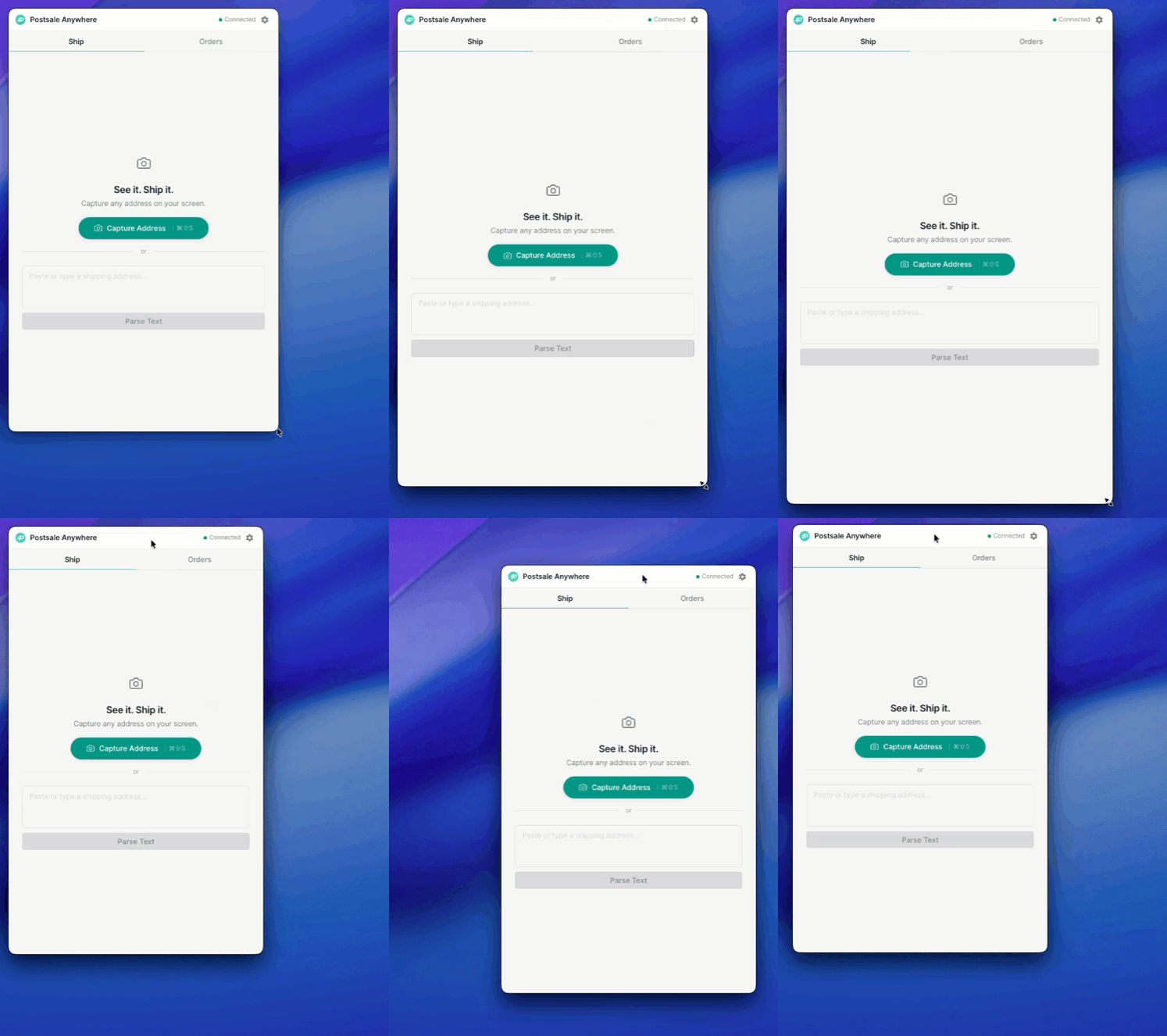
Resize and Reposition the App
Grab any edge or corner of the Postsale Anywhere app to resize it. To reposition the app, click and drag the Title bar.
Tabs and Settings
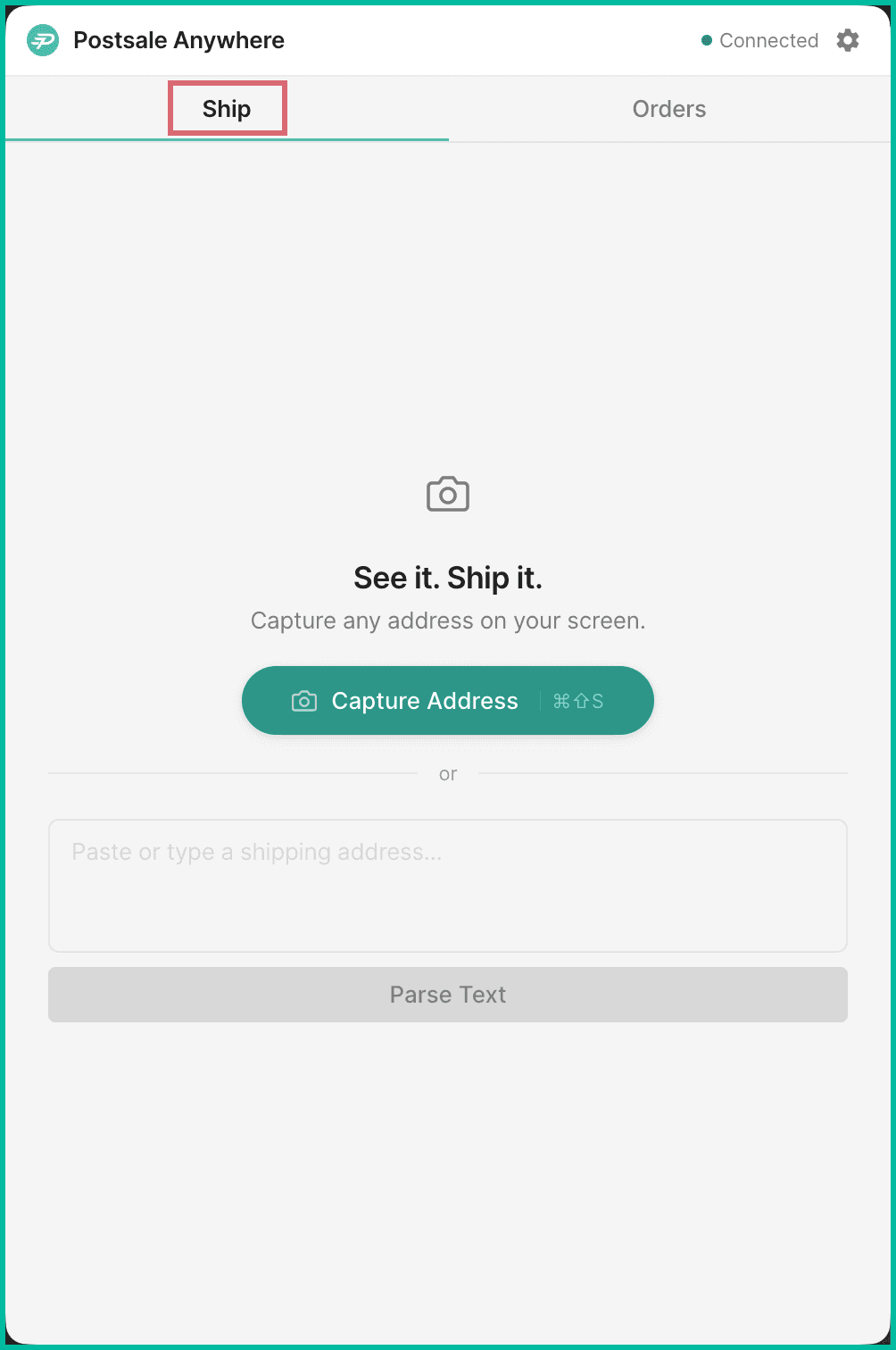
When you open the Postsale Anywhere app, you are presented with two tabs and a settings icon:
Ship Tab
The Ship tab is used to:
- Capture address and order information from a screenshot
- Paste shipping information
- Preview and edit the imported information
- Create orders and shipments, and to create shipping labels
Orders Tab
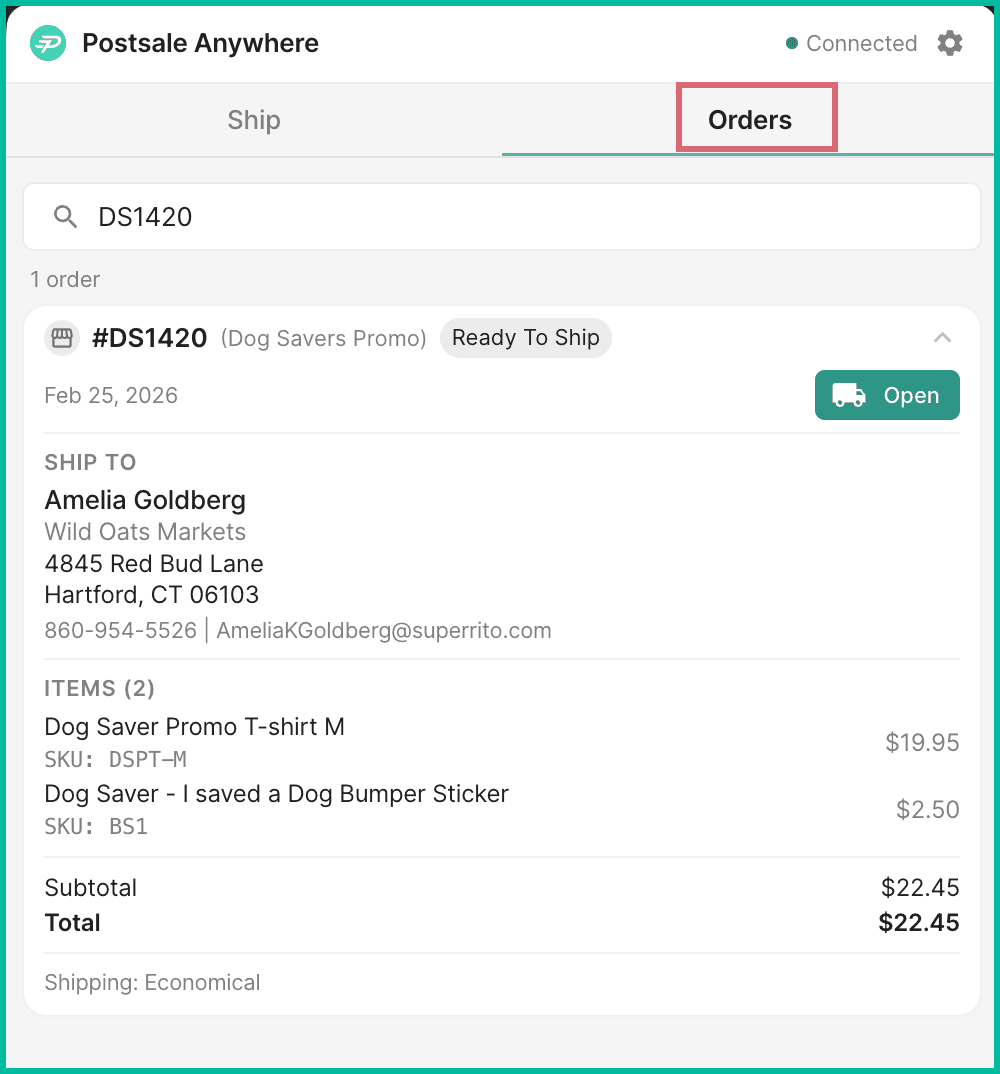
The Orders tab gives you access to all of your existing Postsale orders so that you can:
- Search for and preview existing order and shipment information
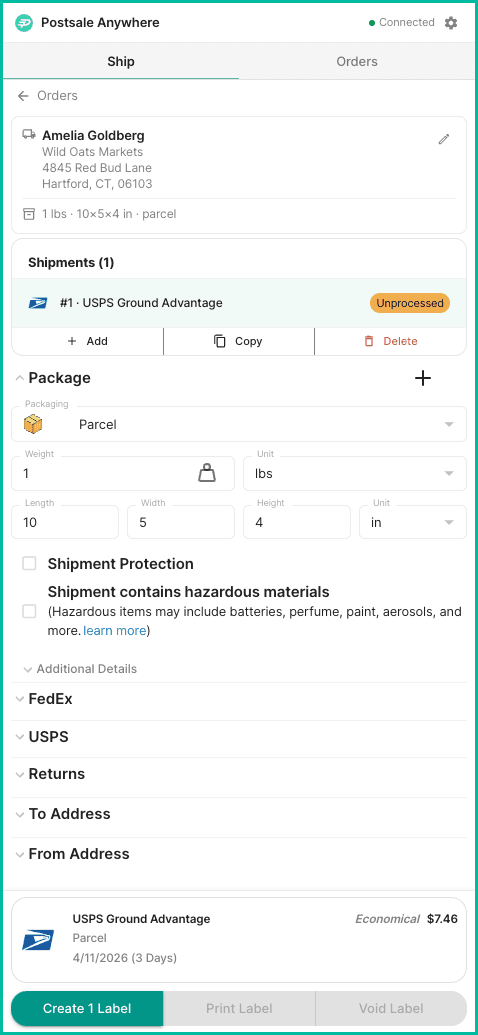
- Open an order to:
- View or edit the existing shipment information for the order
- Create, print, or void a shipping label
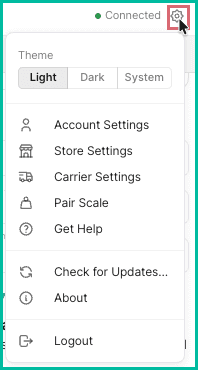
Settings
Use the Settings icon to access:
- Dark/Light Mode - Toggle between dark and light modes.
- Account Settings - Open the Postsale Account Settings screen in a new browser tab.
- Store Settings - Open the Postsale Store Settings screen in a new browser tab.
- Carrier Settings - Open the Postsale Carrier Settings screen in a new browser tab.
- Pair/Unpair Scale - Use to connect or disconnect a USB scale with Postsale Anywhere
- Get Help - Launch the Postsale help center in a new browser tab.
- Check for Updates - Select this option to make sure you are on the latest version of the Postsale Anywhere app.
- Logout
Capture Shipment and Order Information from an Email
In this example, we'll screen-capture part of an email that includes a request to ship specific items to three different addresses.
While this walkthrough uses an email, the same process works with any source you can capture a screenshot from.
Real-World Example
Our shipping department is often provided a list of orders to fulfill via an email from our sales department. The shipping department staff has to copy and paste the shipping addresses, item information, and item quantities from the email into the shipping software so that labels can be created.
We need a way to quickly import the order details and shipping addresses to save time and reduce the number of errors made.
Postsale Anywhere is designed specifically for this type of situation. For example, here's an email sent internally asking the shipping department to ship 3 orders:
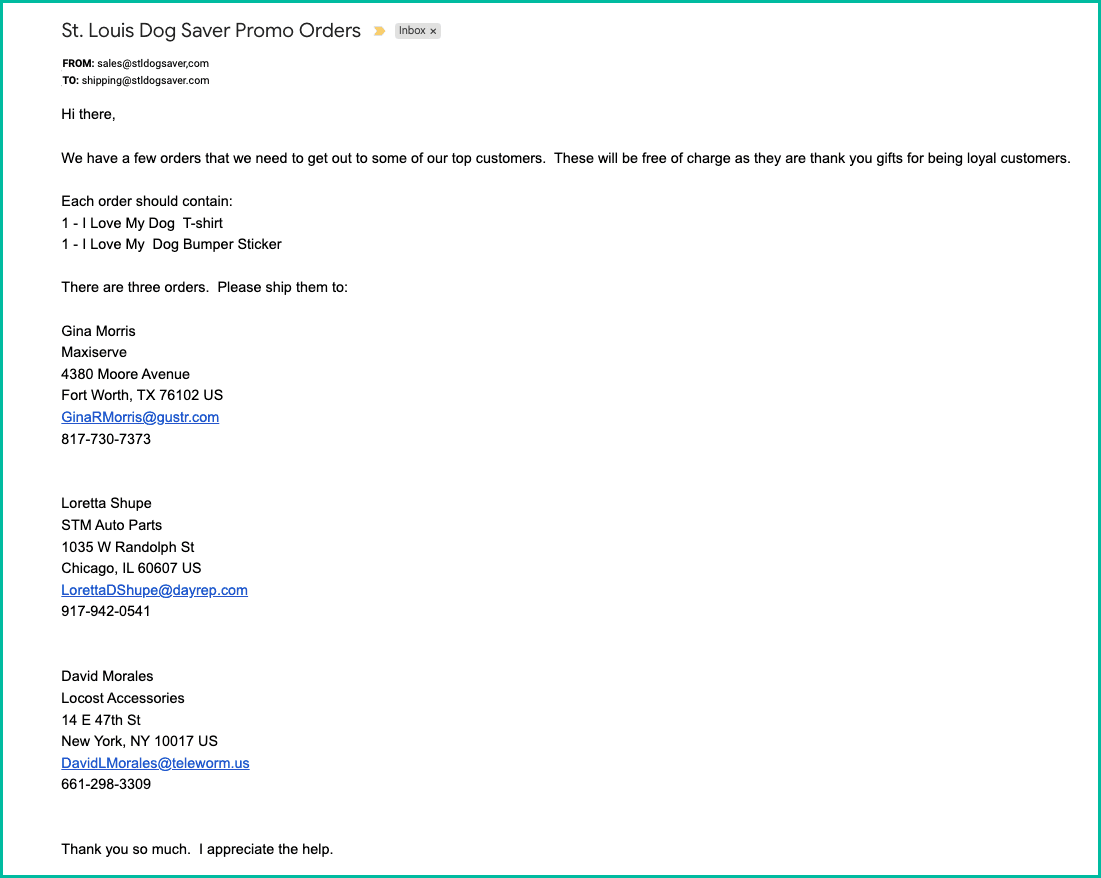
Let's use Postsale Anywhere to capture a screenshot of the items and addresses in the email so that we don't have to copy and paste any information.
Capture the Information
- Make sure the email is open. Then, launch the Postsale app.
- Click the Capture Address button.
- Click and drag to select the portion of the screen you wish to include in the capture. In our example, we selected the portion of the email with the item and address information.
Postsale Anywhere analyzes the capture and creates shipment records.
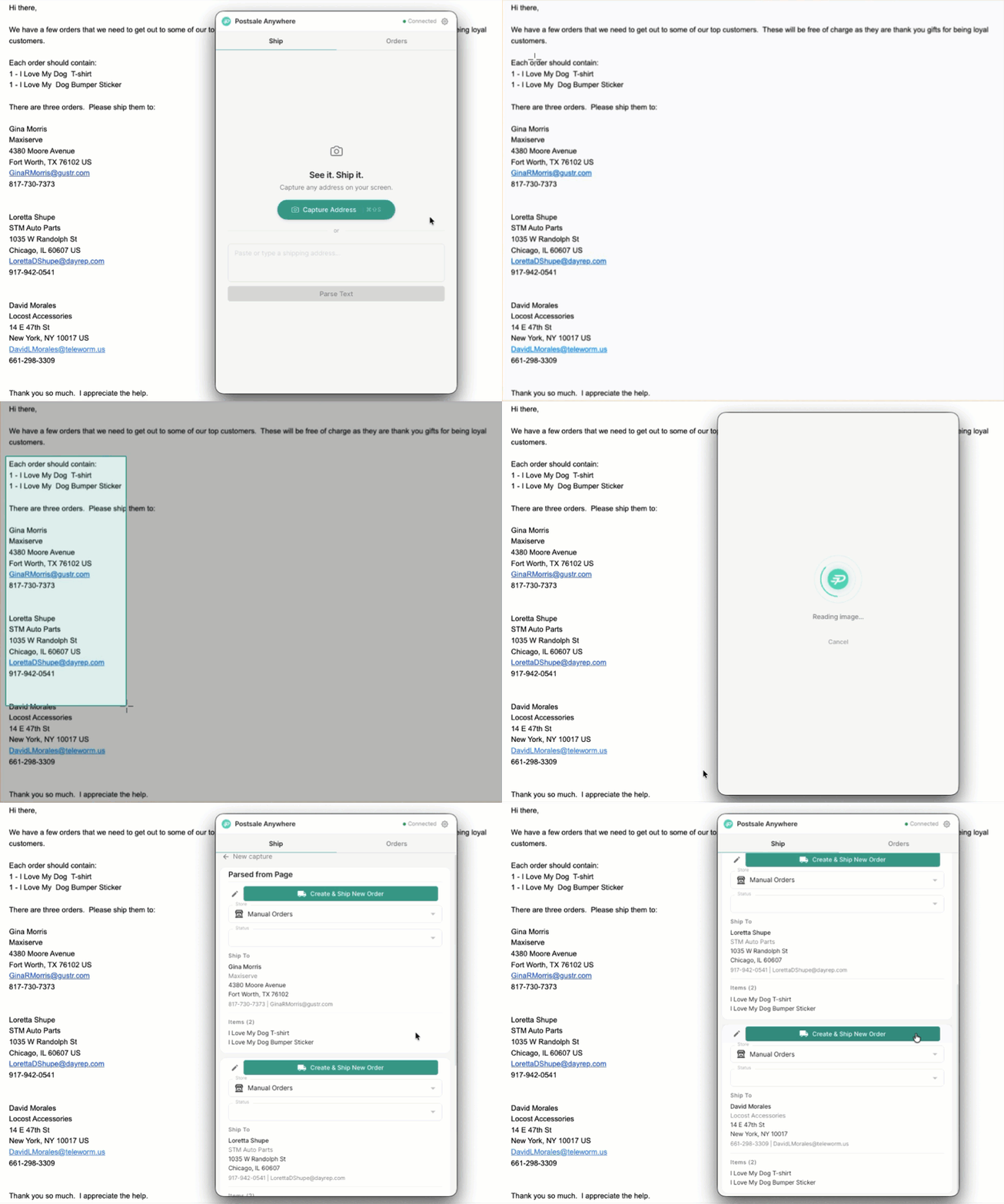
You're ready to print your labels.
Capture Shipment and Order Information from a Spreadsheet
Let's look at how to grab a screen capture of part of a spreadsheet containing rows of orders. In this case, we will capture a few rows from the spreadsheet.
While this walkthrough uses a spreadsheet, the same process works with any source you can capture a screenshot from.
Real-World Example
We receive spreadsheets that contain hundreds of Ship To addresses along with order details. However, many times we only need to create shipments for a select few of those addresses.
We would like a quick and efficient way to create shipping labels for only the addresses we need.
Capture the Information
- Make sure the spreadsheet is open. Then, launch the Postsale app.
- Click the Capture Address button.
- Click and drag to select the rows you wish to include in the capture. In our example, we selected the rows with the item and address information we need.
Postsale Anywhere analyzes the capture and creates shipment records.
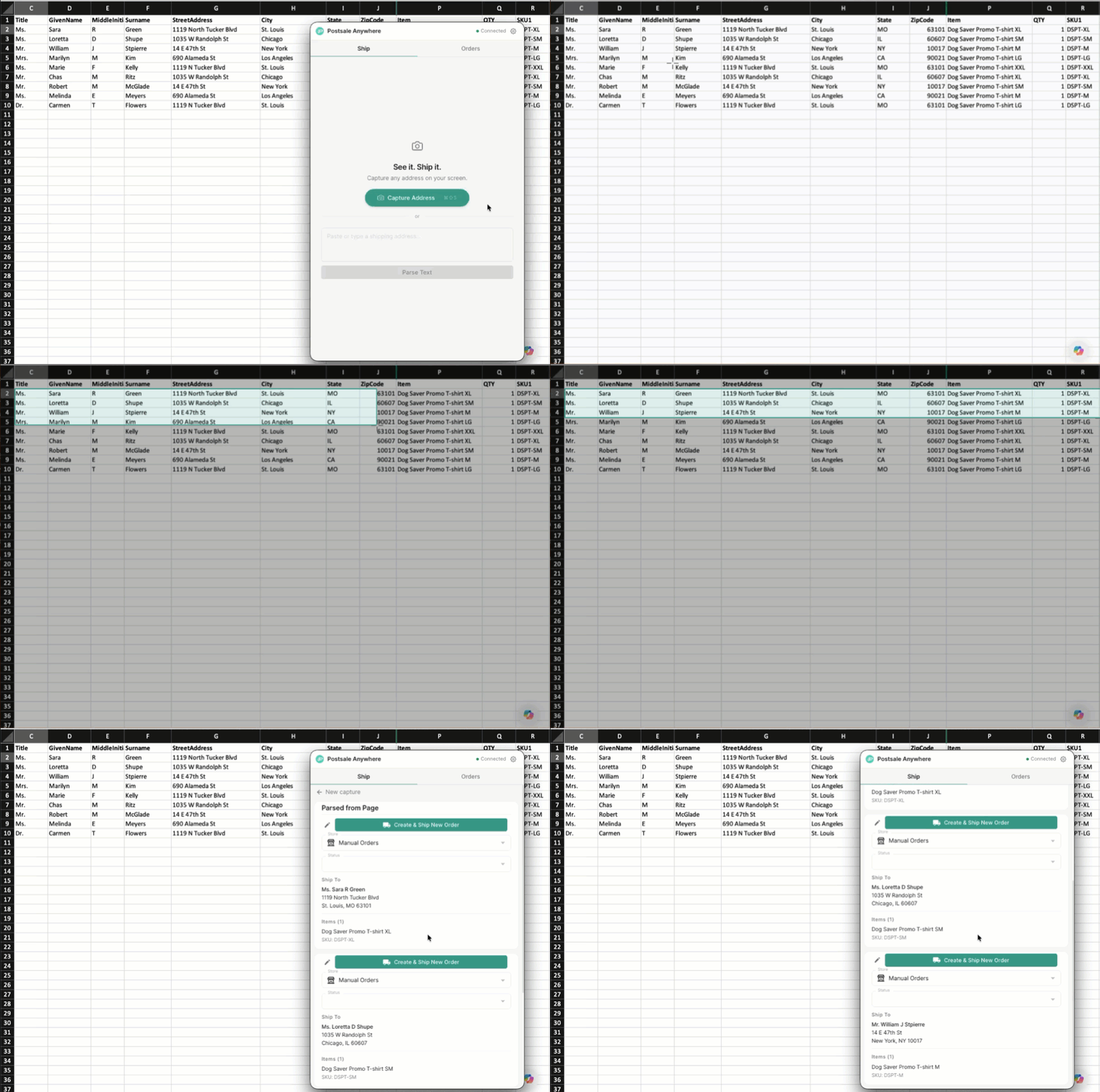
You're ready to print your labels.
Copy/Paste Information into Postsale Anywhere
You can also copy an address and paste it into Postsale Anywhere.
In this example, we will copy an address from a web page and paste it into Postsale Anywhere. Any address from any webpage can be copied from the page and pasted into Postsale Anywhere. This is a great way to create quick, one-off shipping labels.
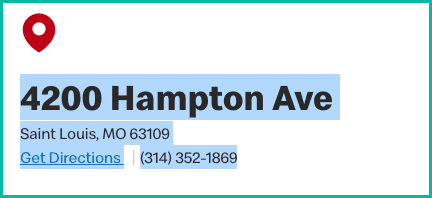
Select and copy the address information on the webpage.
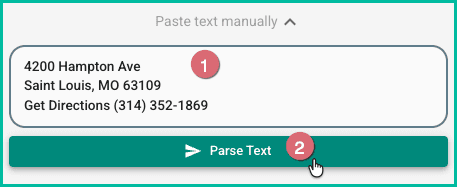
Paste the address into the Paste text manually field in Postsale Anywhere. Then, click Parse Text.
Postsale uses AI to read the information and display the shipment information for you.
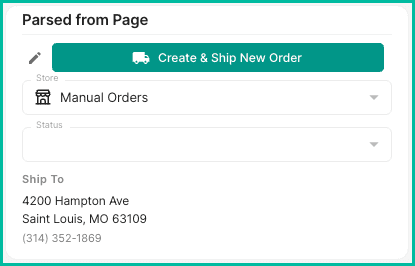
You are now ready to create your shipping label.
Review the Information and Create Labels
Now that the shipment and order information is displayed for you in Postsale Anywhere, you are ready to create your shipping labels.
Be sure to review the information for each new shipment to ensure it is correct.
(Optional) Verify that each record is associated with the correct store in Postsale. This is useful when you have multiple stores in Postsale and wish to associate the order and shipment with a specific store.
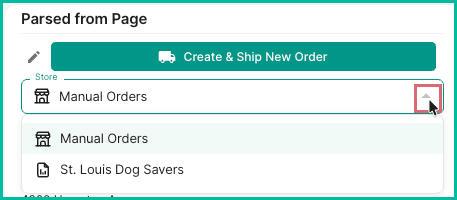
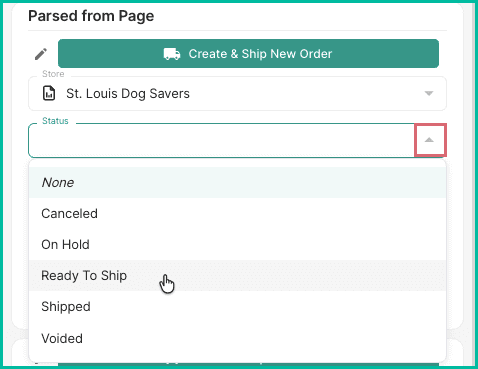
(Optional) Select the correct order status from the Status drop-down menu.
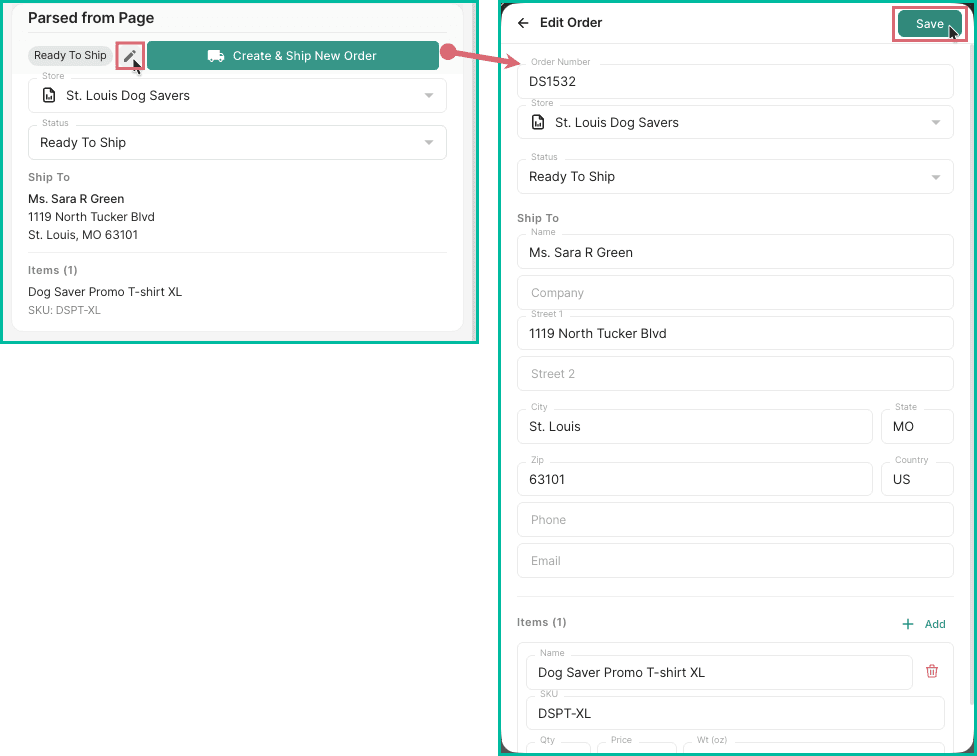
(Optional) Click the Edit icon next to each order to edit or add an order number, edit the ship to address information, or to edit the item details. Be sure to click Save when finished.
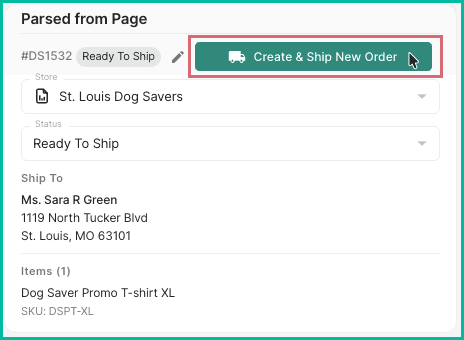
Click the Create & Ship New Order next to the record you wish to ship.
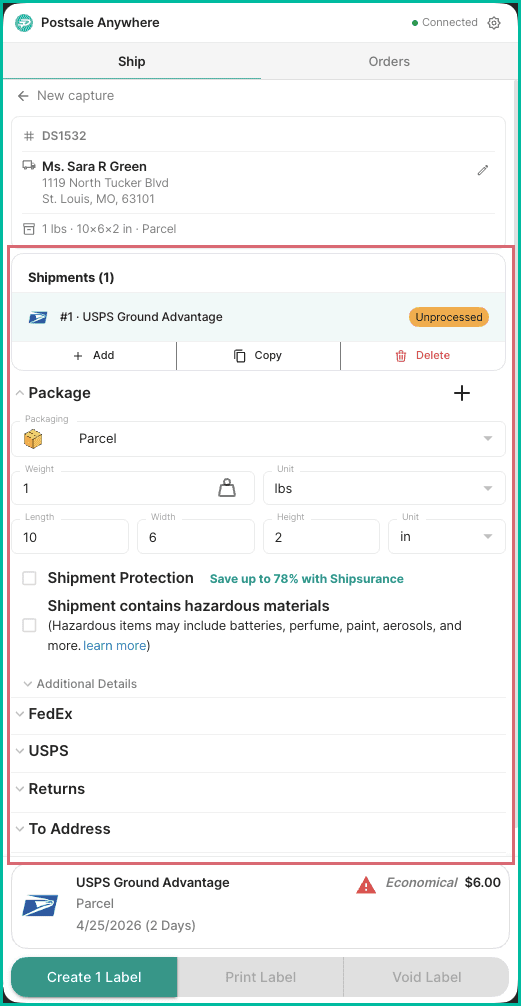
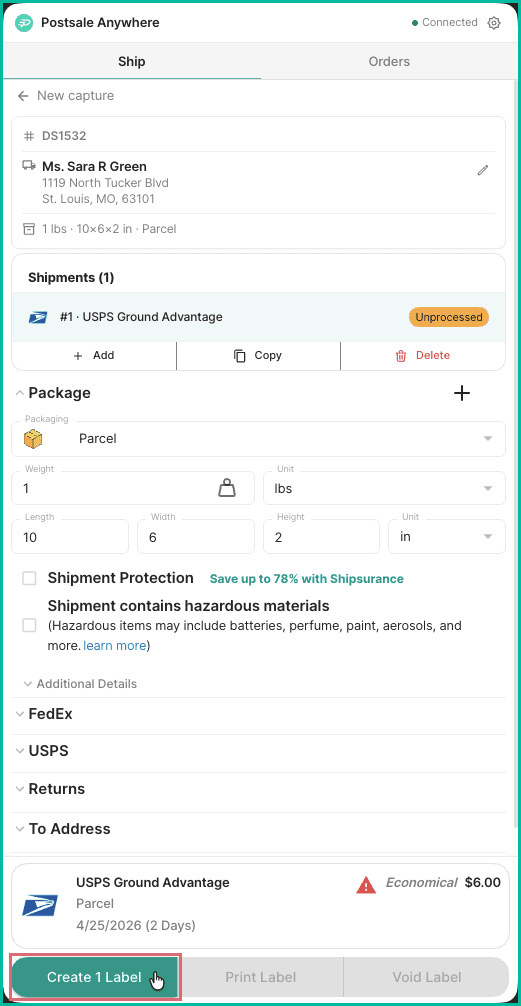
The app changes so that you can configure the shipment.
Configure the shipment's packaging, dimensions, weight, and any additional settings as appropriate.
Create and Print your shipping label. Check out these help articles for more information on configuring shipments, creating shipping labels, and printing them.
Repeat steps 3-6 for each record you wish to create and ship a new order.
Still have a question? Ask a person.
Write to support@postsale.com or send us a message. We reply the same business day, Monday to Friday, 8 AM to 5 PM Central.