Import Shipping Weights from a USB Scale
Import weights from your scale | Ensure accuracy
Save time and reduce manual entry by connecting a USB postage scale and importing package weights directly into Postsale. By importing weights from a scale, you increase accuracy, prevent costly shipping errors, and speed up label generation so you can get orders out the door faster.
This article will guide you through connecting your scale to Postsale and importing weights when configuring your shipments.
Before We Begin
For proper scale connectivity and accurate scale readings:
- We recommend running Postsale in Chrome
- The scale must connect via USB
- The scale must support HID (Human Interface Device)
Please be sure that:
- The scale is connected to a USB port on your computer or device
- The scale is powered on
Read Weights from Your Scale
Select at least one order you wish to ship.
Open the Dock.
Click the Scale icon in the Weight field of the Package section.
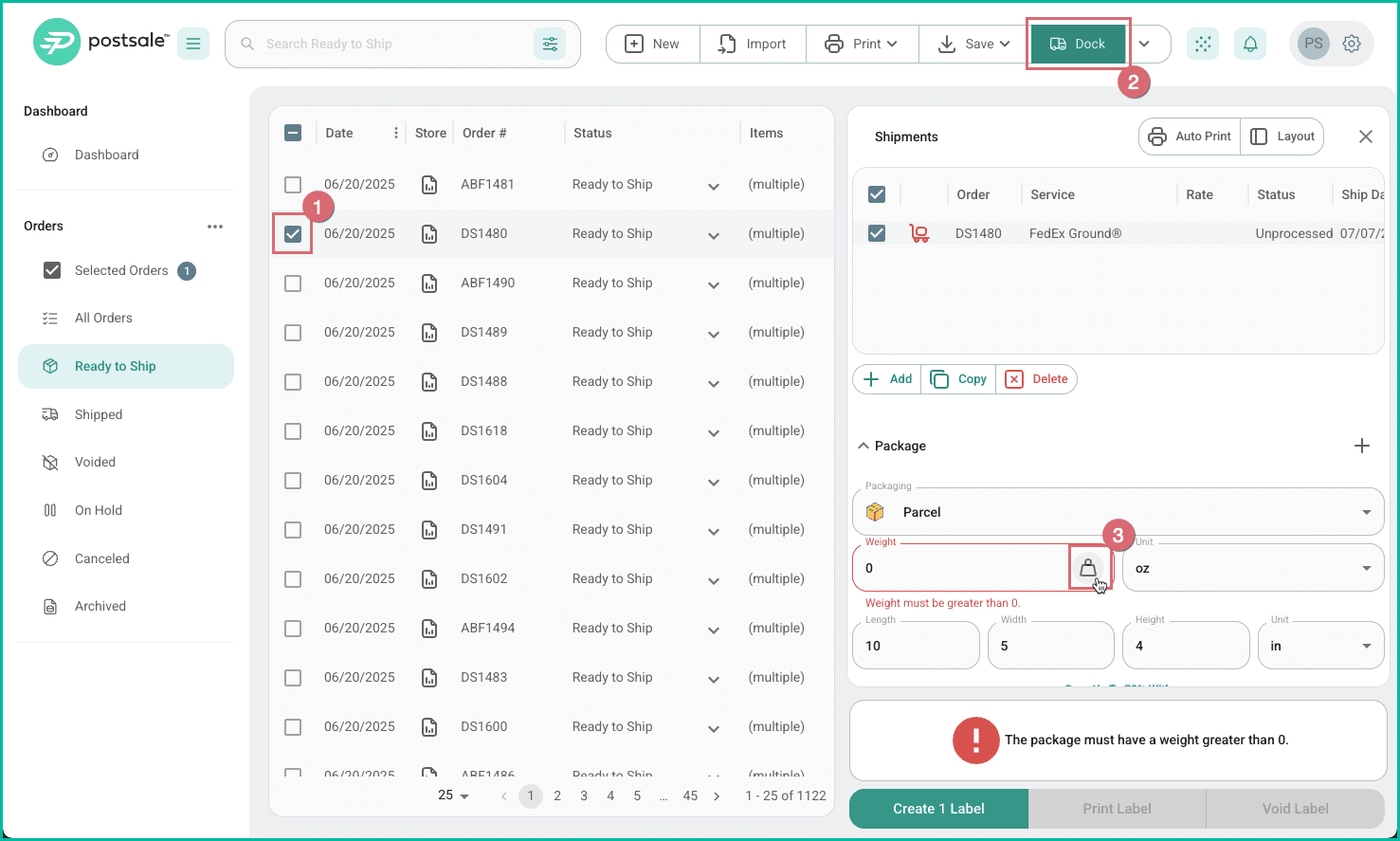
Connecting the Scale
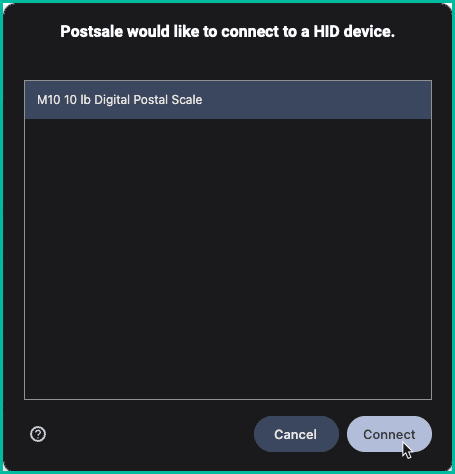
You may be prompted to connect the HID device. The prompt you are presented with will differ slightly depending on the scale you are connecting to.
Select the scale from the list of available HID devices and select the option to connect it. Here's an example:
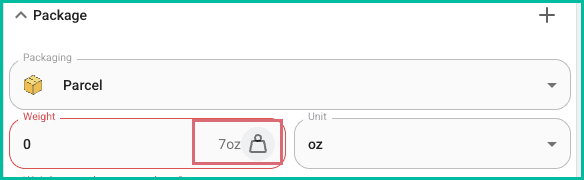
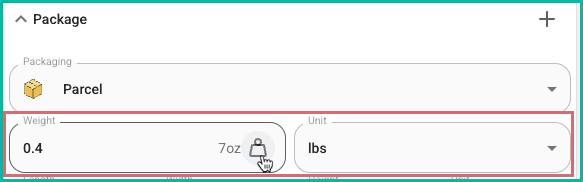
Place the package on the scale. The weight the scale is reading is displayed next to the scale icon in the Weight field. The displayed weight updates in real time as the scale reading changes.
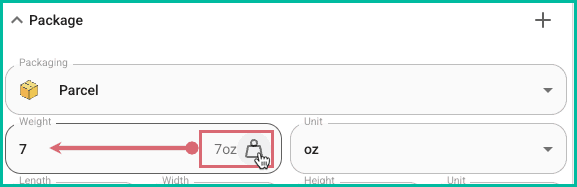
Click the Scale icon to import the weight into Postsale.
Weight Units
The imported weight is displayed according to the weight Unit selected in Postsale. To avoid confusion, we recommend that the weight unit set on the scale matches the weight unit selected in Postsale.
Here's an example of the scale being set to ounces and Postsale being set to pounds. Notice that the weight was converted from 7 ounces to 0.4 pounds.
Scale Frequently Asked Questions
I don't see a Scale icon in the Weight field in the Dock, and I cannot read weights from my scale.
Here are some things to try:
Make sure that the scale is connected to your computer.
Make sure the scale is on. Some scales automatically power off after a few moments when not in use.
Are you running Postsale in a web browser that supports reading from a Human Interface Device?
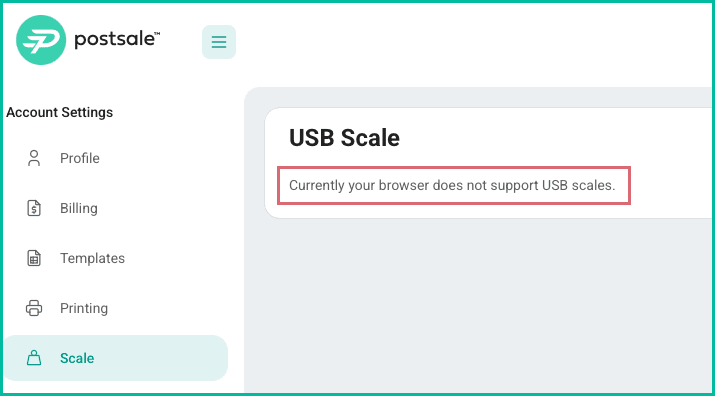
a. In Postsale, go to Settings > Account Settings. Then, select Scale. If you see a message indicating that USB scales are not supported, we recommend running Postsale in Chrome rather than in your current browser.
I have two scales connected to my device. Postsale seems to have connected to the wrong one. Can I reconnect to the correct scale?
Yes. Here's how:
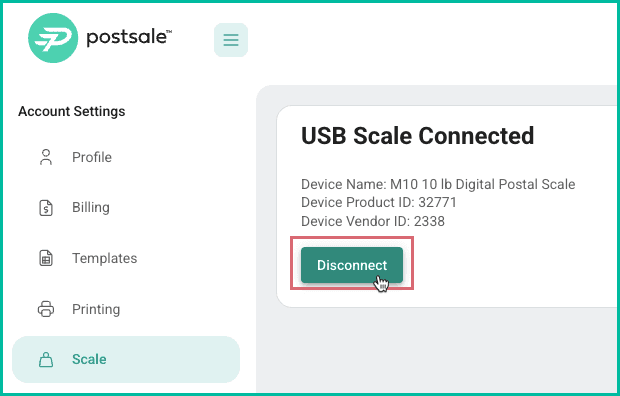
Go to Settings > Account Settings. Then, select Scale.
Click Disconnect.
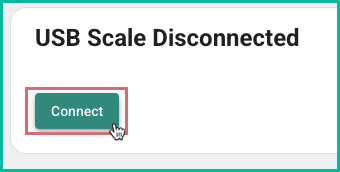
Now, click Connect. You'll be presented with a pop-up that lets you select and connect to the correct scale.
On this page
Related