Connect Postsale to Your AI Platform
Step-by-step guide to connecting Postsale's MCP server to Claude, ChatGPT, Cursor, Windsurf, and other MCP-compatible AI platforms.
Connect Postsale to your AI assistant and manage your shipping workflow through simple, natural conversations. Once connected, your AI can search orders, compare carrier rates, create shipping labels, track packages, and pull analytics, all without switching between apps.
Think of it as having a shipping assistant built directly into your AI.
Real-World Example
We use Claude to manage our day-to-day operations and want to connect Postsale so we can handle shipping without switching between tools. We want to create shipping labels, check order statuses, and pull shipping reports directly from our AI.
You can do all of that with Postsale’s MCP connector, which gives your AI access to 37 powerful shipping tools. Setup takes only a few minutes, depending on the AI platform you use.
What You Can Do
Once connected, your AI platform automatically detects and gives you access to 37 tools across five key areas:
Orders
Search, create, update, and manage your orders. Update statuses individually or in bulk, archive and restore orders, add tags for organization, and view order counts with filtered summaries.
Shipping and Labels
Compare real-time rates across USPS, UPS, and FedEx. Create shipments, purchase labels, and void labels. The Create Label tool handles the entire workflow in one step. It finds the order, compares rates, selects a service, purchases the label, and returns the tracking number.
Package Tracking
Check the current tracking status, scan events, and delivery progress for any shipment. Monitor tracking status counts across all shipments.
Analytics and Reporting
Pull revenue totals, shipping cost breakdowns by carrier, order volume over time, and top-shipped products. Get dashboard-style insights without opening a browser.
Account and Configuration
View your Postsale plan and account details, view connected carriers and storefronts, check connection status, and review available order statuses and saved filters.
Sample Prompts
Here are a few things you can ask your AI assistant:
-
"What's the cheapest way to ship order #1042 to California?" - Compares rates across all carriers and presents your options. Confirm to create the label.
-
"How much did I spend on shipping this week?" - Pulls costs by carrier, shipment counts, and revenue.
-
"How many orders are on hold right now?" - Searches by status and shows a count. Ask it to update them if needed.
-
"What are my options for shipping order #1087?" - Compares rates across USPS, UPS, and FedEx and presents the results.
-
"How many orders shipped this month?" - Returns shipment counts with optional carrier and store breakdowns.
Before We Begin
Prior to connecting your AI platform, be sure that:
- You have an active Postsale account on any plan (Launch through Soar). MCP access is included on all plans at no extra cost.
- You have access to one of the supported AI platforms listed in the Connect Your AI Platform section below.
Connect Your AI Platform
Choose your AI assistant below for platform-specific instructions.
To connect Claude.ai to Postsale:
- Go to Settings and select Connectors.
- Click Add Custom Connector.
- Enter Postsale into the Name field.
- Enter https://mcp.postsale.com/mcp into the Remote MCP server URL field.
- Click Add.
- Select the Postsale connection you just added.
- Click Connect. A new browser window opens to the Postsale login screen.
- Log in to your Postsale account using your Postsale email address and password.
You are now connected to Postsale.
Postsale MCP Server Settings
Access additional MCP Server settings and logs in Postsale:
Go to Settings > Account Settings > Integrations.
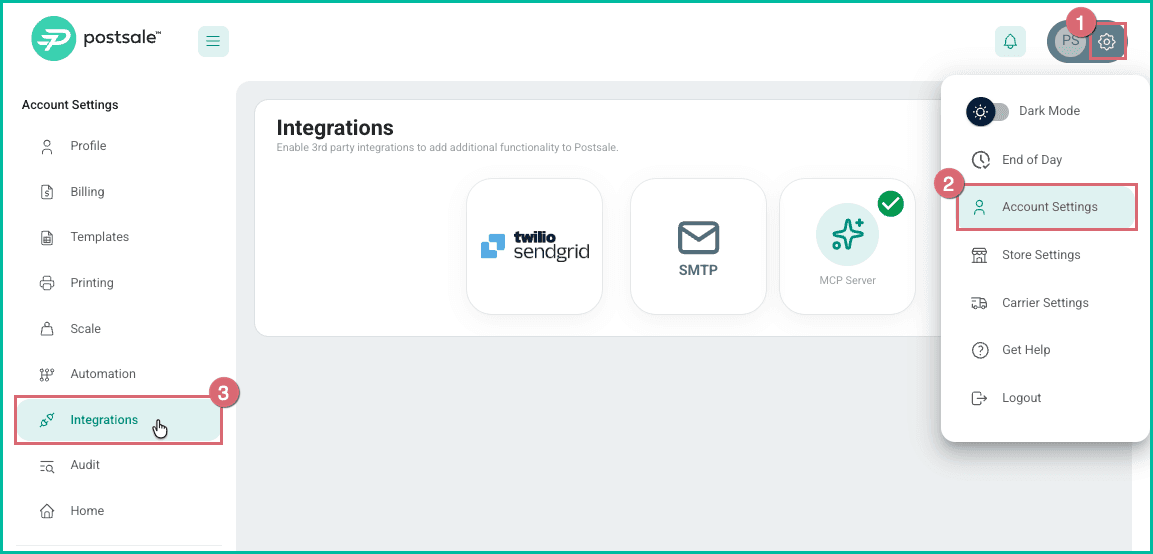
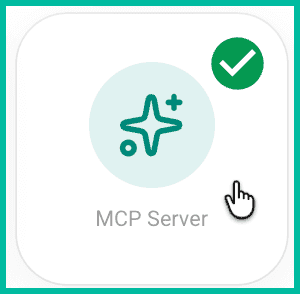
Select MCP Server.
The Postsale MCP Server pop-up opens. You have the following options:
- Server Status - Give or deny access to the Postsale MCP server by enabling or disabling the server status. Disabling the server status disables access to all AI assistants.

- Server URL - The Postsale MCP Server URL is listed for your reference. Use the Copy button to easily copy the address.

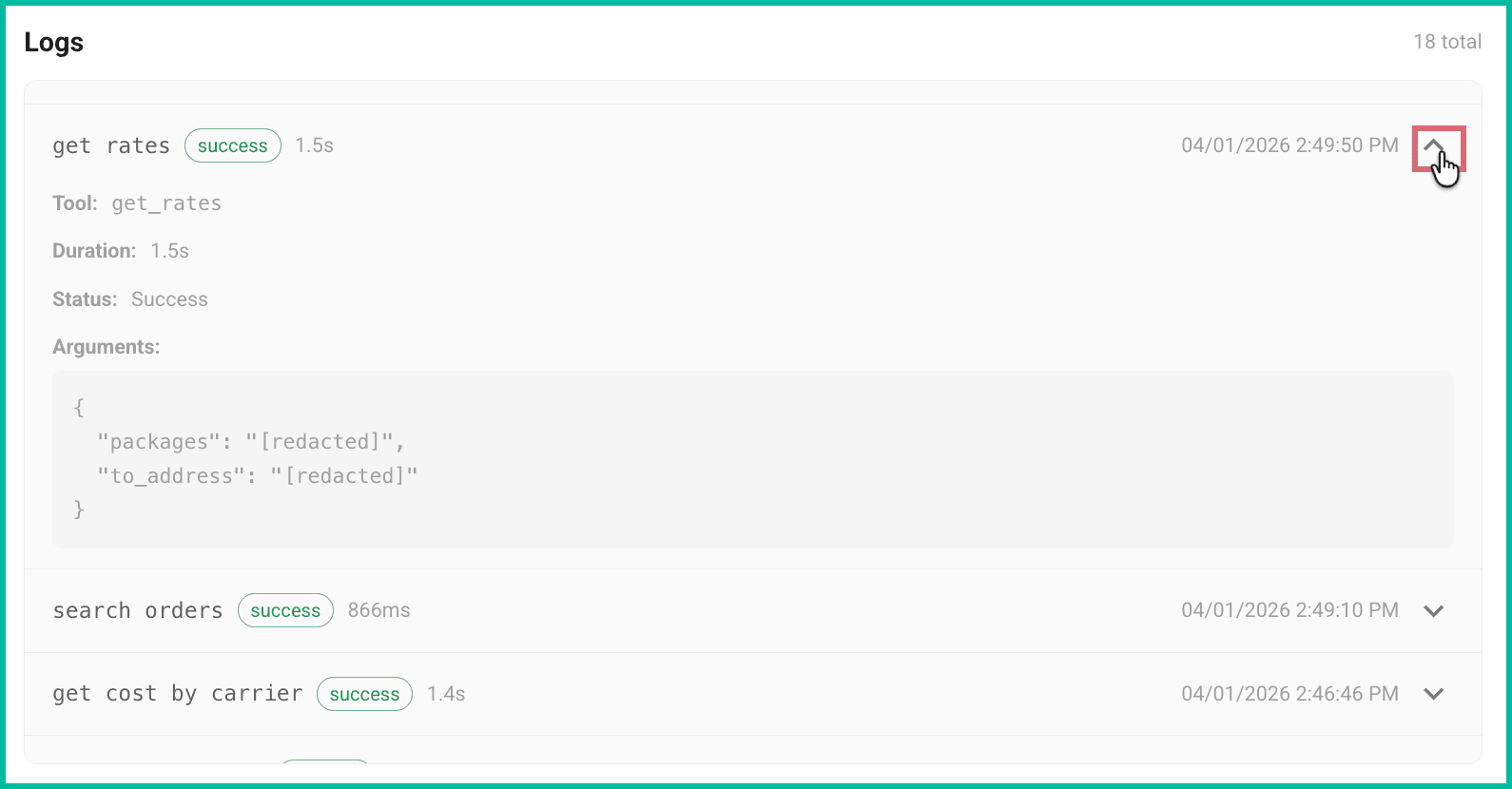
- Logs - Postsale logs the activity your AI assistants perform when accessing the MCP Server.
Expand any log to view the following information:
- The date and time of the request
- What request was performed
- Which tool was used to perform the request
- The duration of the request
- Whether the request succeeded or returned an error
- The arguments used in the request
Good to Know
Security and Access
Postsale is designed with security and control in mind. You stay in full control of your data and can manage your AI connection at any time.
- OAuth 2.0 authentication - You authorize Postsale through a secure sign-in flow. No API keys are copied or stored in your AI platform.
- Scoped to your account - Your AI can only access data in your Postsale account. It cannot access other users' data.
- Revoke anytime - You can disconnect your AI's access by removing the MCP connector from your AI platform at any time.
- Your data stays yours - Postsale does not use your shipping data to train AI models.
- Session Access - The connection works across sessions. You authorize once, and your AI remembers the connection.
- Write Operations - Write operations (creating labels, updating orders) use the same permissions as your Postsale account. If you can do it directly in Postsale, your AI can do it through MCP.
Additional Information
- MCP access is available on all Postsale plans from day one of your 14-day free trial. No add-on fees.
- Your AI discovers all 37 tools automatically when you connect. No manual tool selection or configuration is needed.
- If you use multiple AI platforms, you can connect Postsale to each one independently.
Still have a question? Ask a person.
Write to support@postsale.com or send us a message. We reply the same business day, Monday to Friday, 8 AM to 5 PM Central.