Shipping Rule: Enable Specific Carrier Accounts
Specify which carrier accounts can be used to ship orders
Postsale gives you the ability to enable specific shipping carrier accounts that can be used when creating shipping labels. This is a great option when you need to limit which carrier accounts certain shipping locations, warehouses, 3PL companies, etc., can use.
In this article, we'll walk through how to set up a shipping rule that restricts a warehouse location to using only the USPS account assigned to that location. It also limits the warehouse to only viewing rates for the selected carrier account.
Before We Begin
If you haven't already done so, it may be helpful to familiarize yourself with Shipping Rules and Tags, as this help article will touch on each of these Postsale features. We will link to additional help articles for you throughout this article so you have a quick reference if you need more information.
Set Up the Rule
REAL-WORLD EXAMPLE
We have a shipping warehouse that handles all of our Fern & Field Goods store orders. We want that location to use only a specific USPS account when fulfilling these orders.
Let's use this example to show how this works. We will cover each of the steps below, but here's a quick overview of the process:
- Add a new tag to Postsale that allows us to specify the fulfillment location for orders.
- Associate the new tag with the correct orders.
- Create a new Shipping Rule that tells Postsale to limit carrier accounts to the specific USPS account when the tag is associated with an order.
Here's a closer look:
1 - Add a Tag
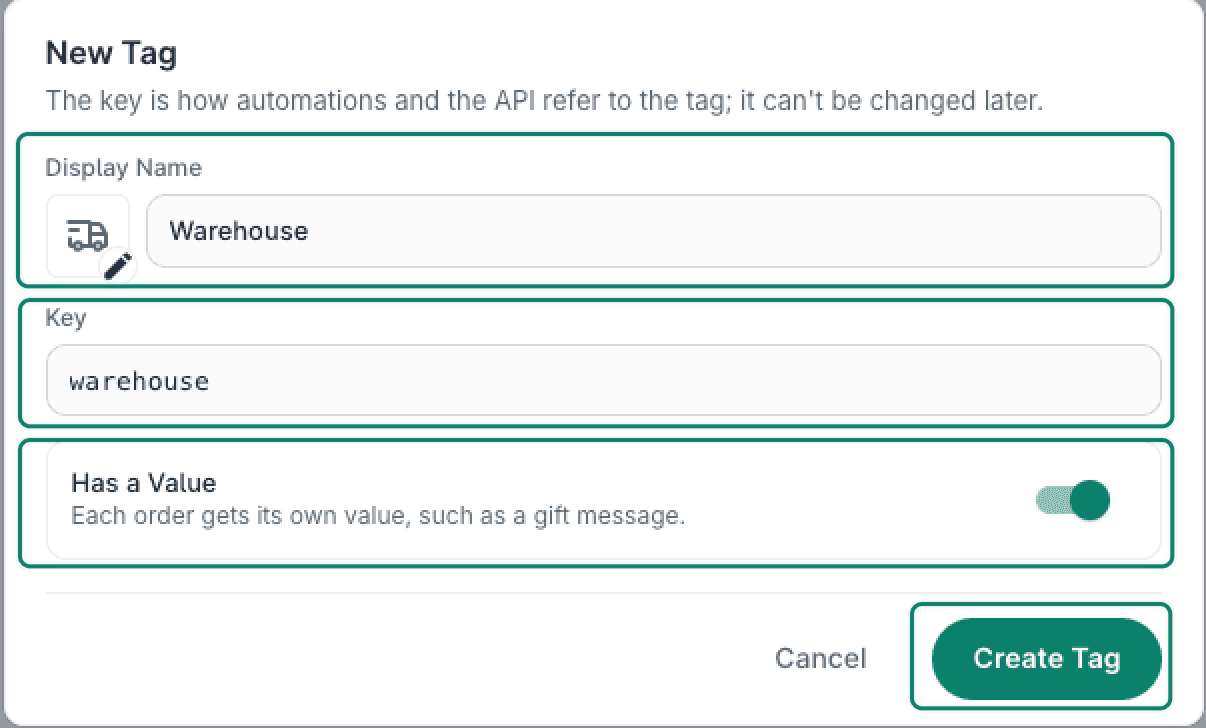
The first step is to add a new tag in Postsale that can be used to identify which location is responsible for fulfilling certain orders. For this example, we will add a new tag named Warehouse that allows us to enter a value to identify a specific warehouse.
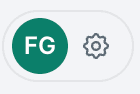
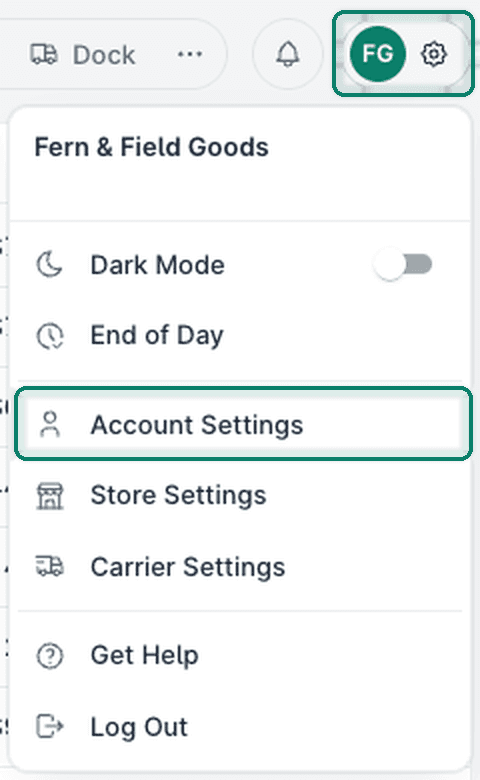
Open Settings.
Select Account Settings.
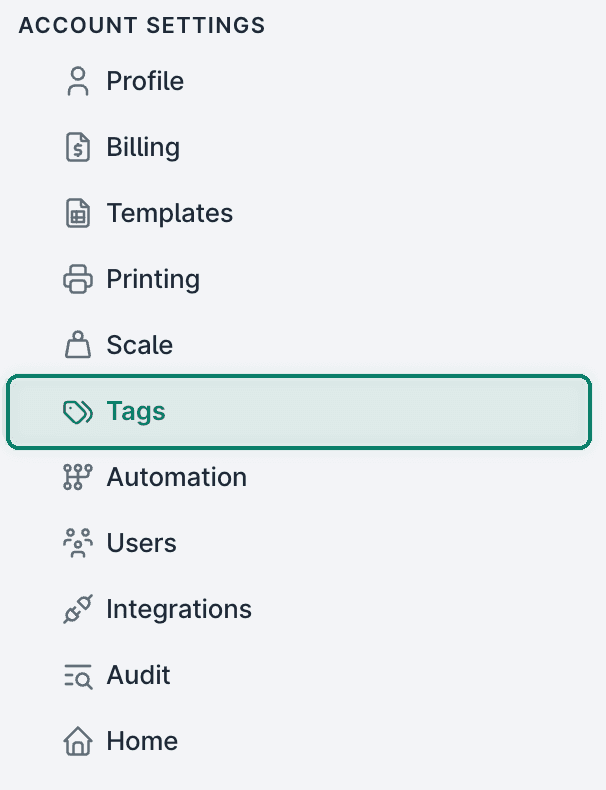
Select Tags from the list of available options.
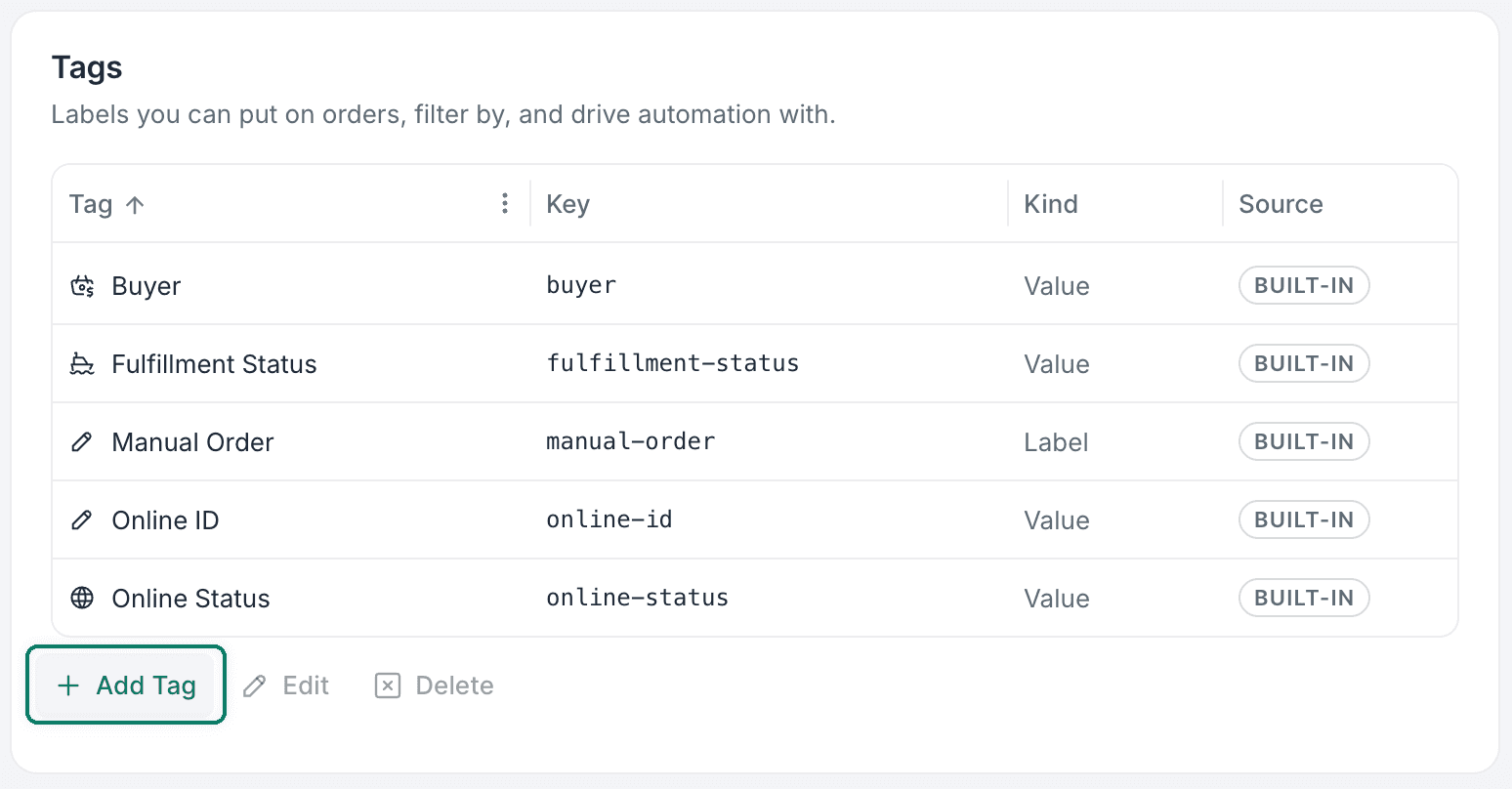
Click + Add Tag.
Configure the tag like this: Be sure to click Create Tag to save your new tag.
2 - Add the Tag to the Orders
The next step is to add your new tag to the correct orders. Adding the tag with the correct value identifies which orders belong to which location.
For our example, we will add the Warehouse tag with a value of Fern & Field to indicate that the order is fulfilled by this warehouse. You can enter any value that works for your workflow.
There are two ways to add tags to orders:
- Manually Add Tags to Orders
- Import a File to Bulk Update Orders (only available for CSV file import stores)
Here is a quick overview of manually adding a tag to an order:
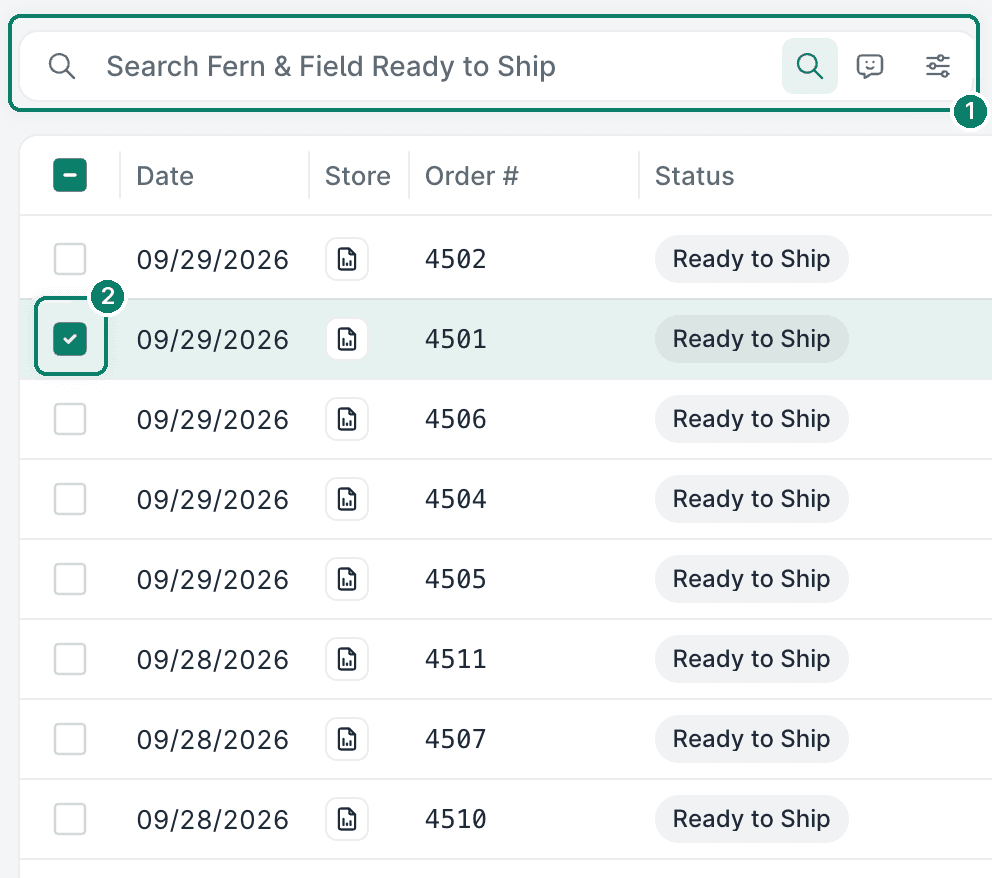
Search for and select the order you want to add tags to.
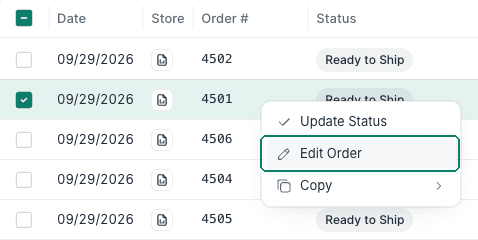
Open the order's context menu and click Edit Order to open the Order Editor.
Locate the Tags section.
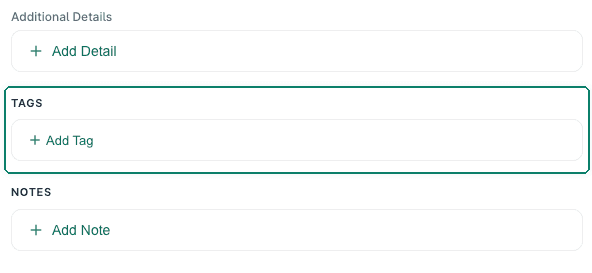
Click + Add Tag.

Select the tag you wish to add to the order. In this case, we selected the Warehouse tag we created earlier.
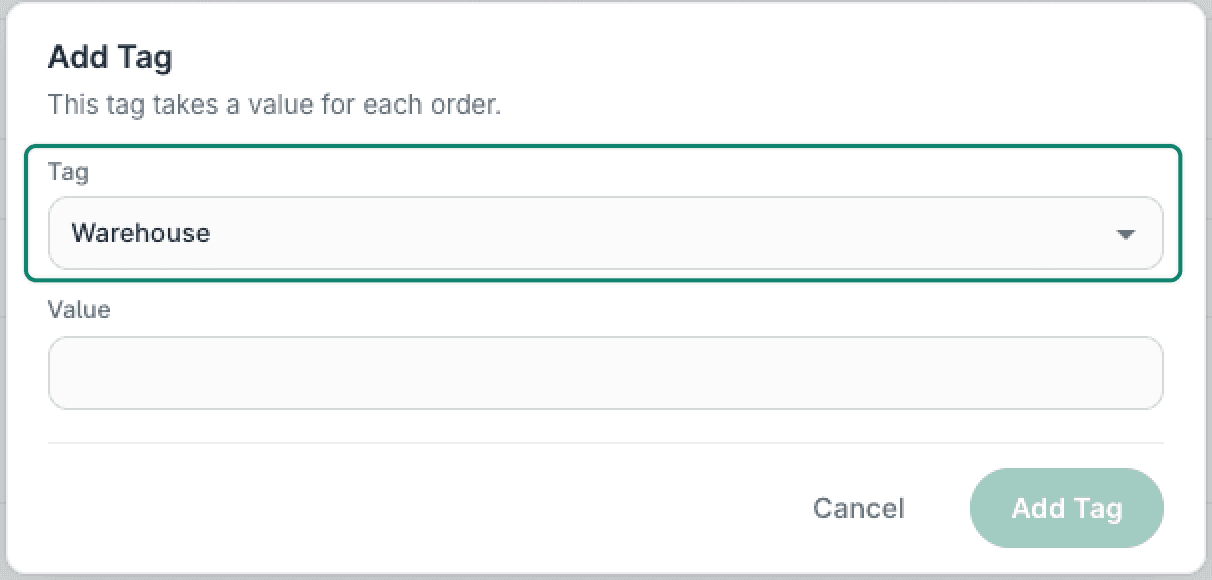
Enter the value that identifies the correct fulfillment location for the order. For this example, we entered Fern & Field.
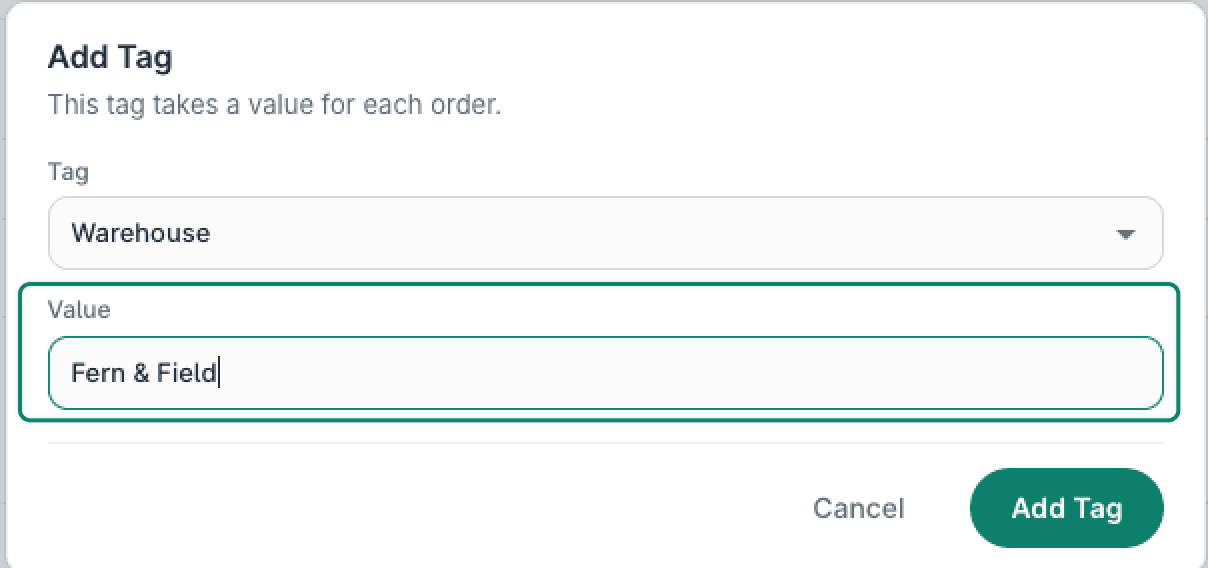
Click Add Tag.
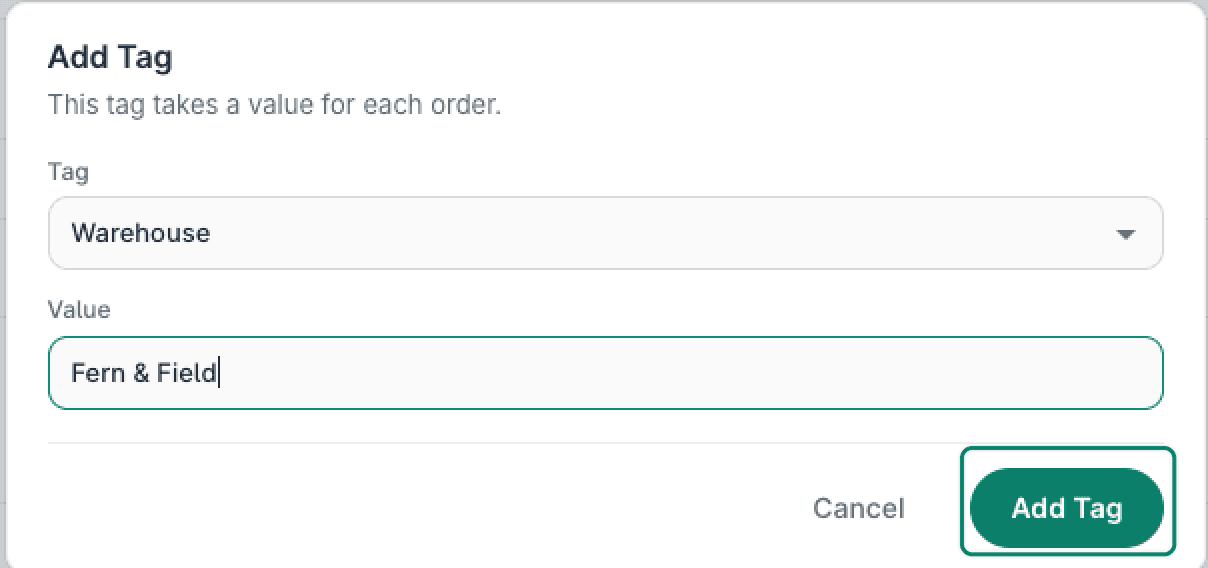
The tag is now added to the order.

Click Save Order.
3 - Create the Rule
The last step is to create the Shipping Rule to tell Postsale:
“Hey Postsale, when an order has a tag of Warehouse: Fern & Field, limit the carrier accounts that can be used for shipments to the Fern & Field Goods USPS account.”
Here's how:
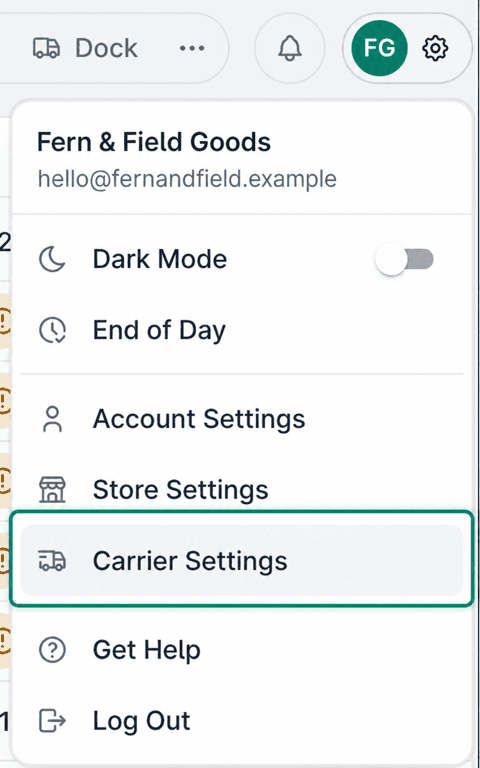
Open Settings.
Select Carrier Settings.
Click + Add Rule.
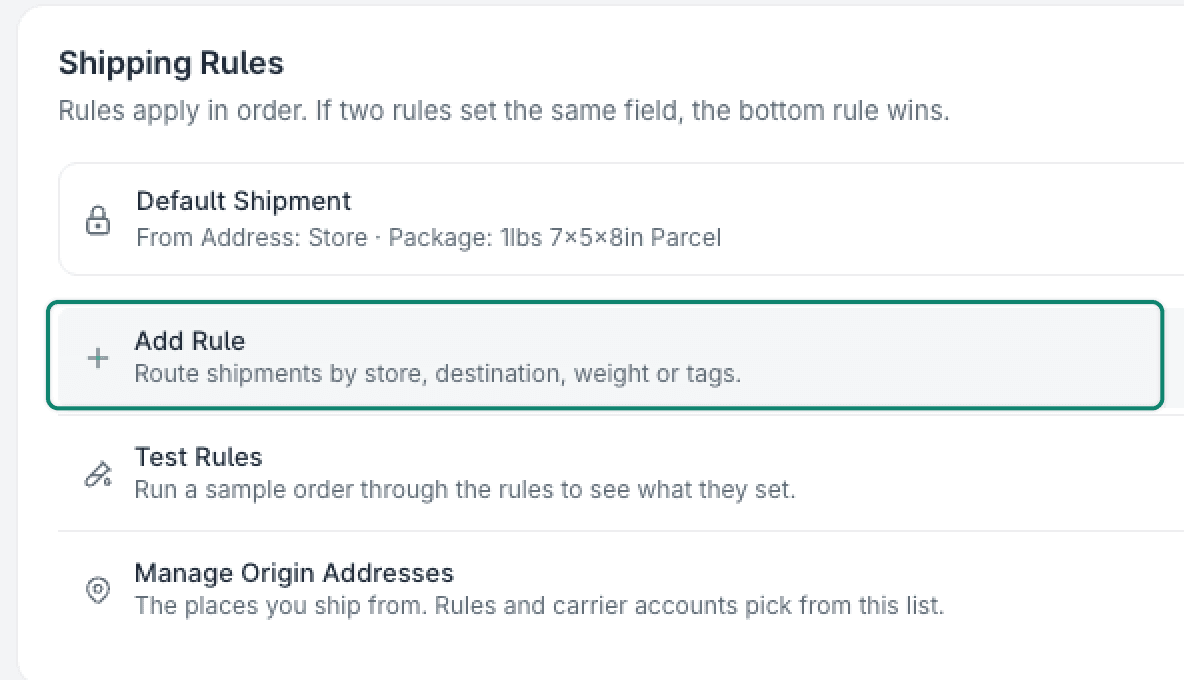
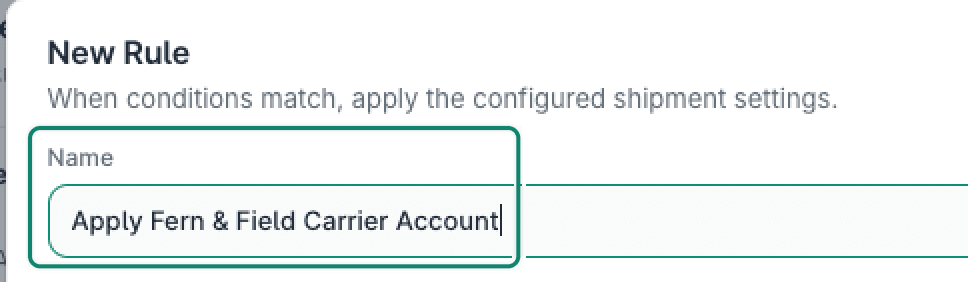
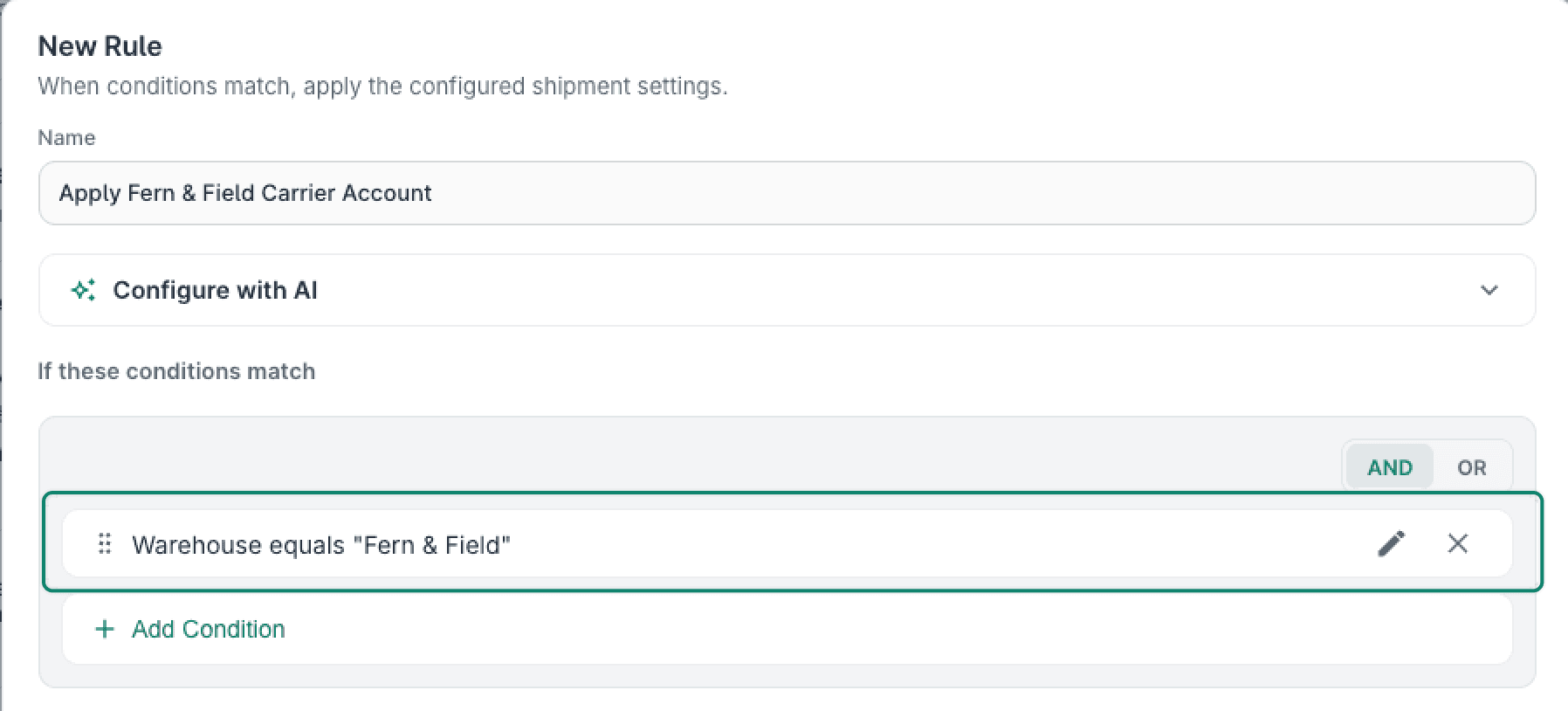
Enter a Name that clearly identifies what the rule does. For this example, we entered Apply Fern & Field Carrier Account.
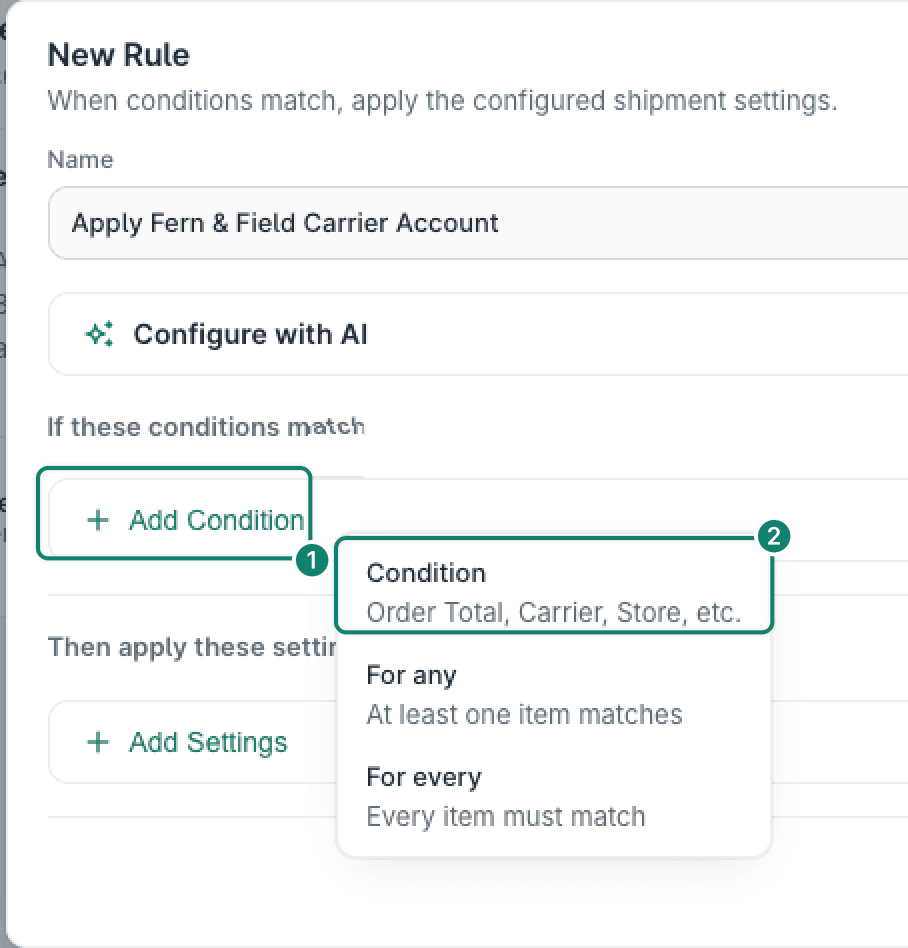
Click + Add Condition and select Condition.
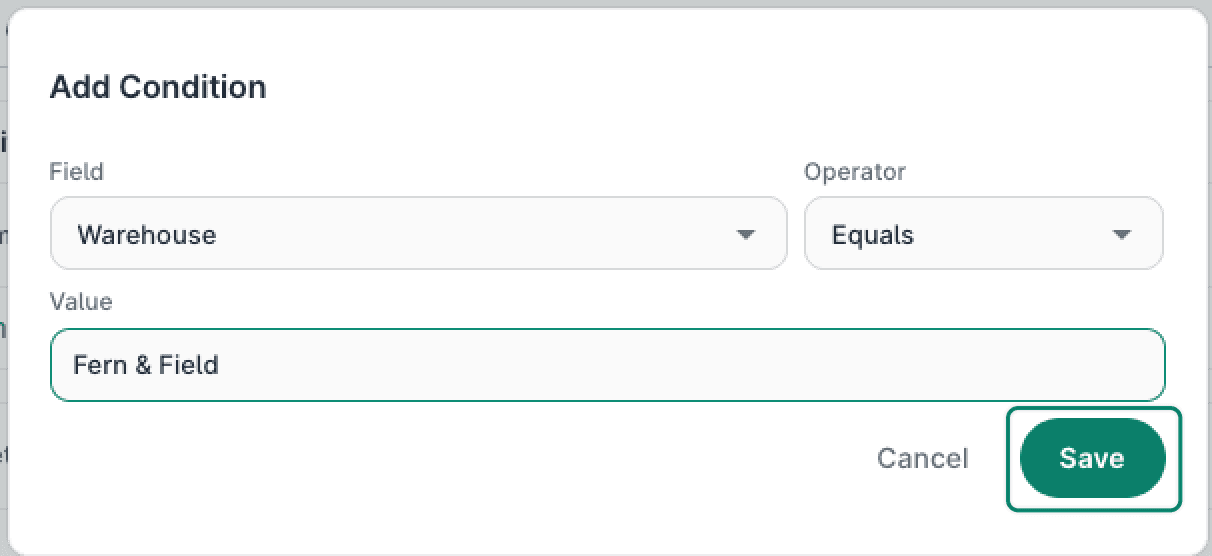
Configure the condition like this:
a. Field: Warehouse Select your tag. It will be listed as r [your tag name] in the Field drop-down menu.
b. Operator: Equals
c. Value: Fern & Field Enter the correct value for your workflow.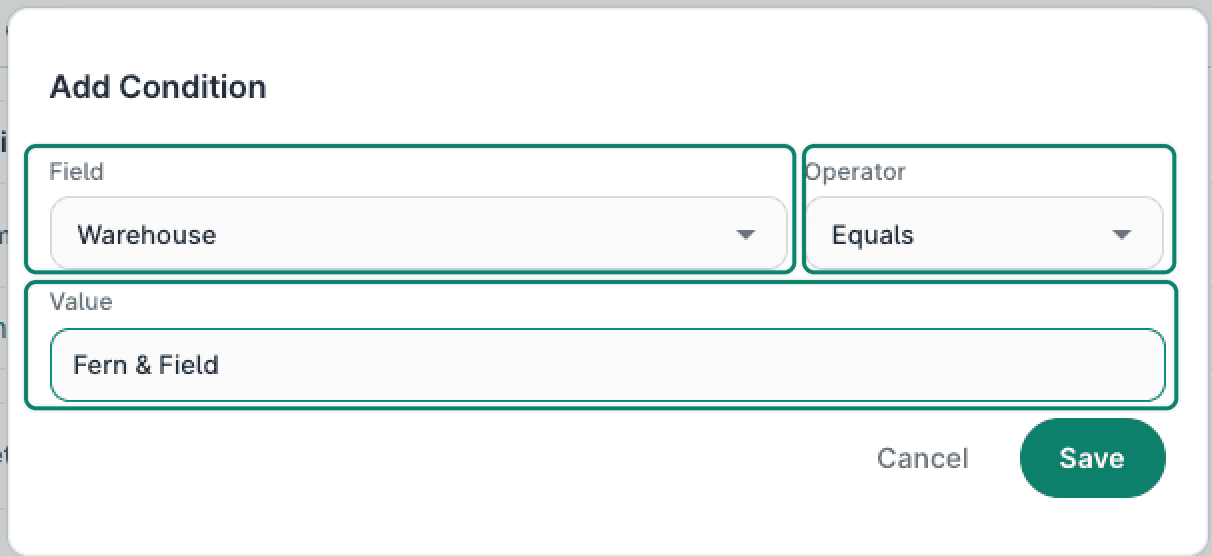
Click Save.
The condition is added to the Shipping Rule.
Click + Add Settings under Then apply these settings.

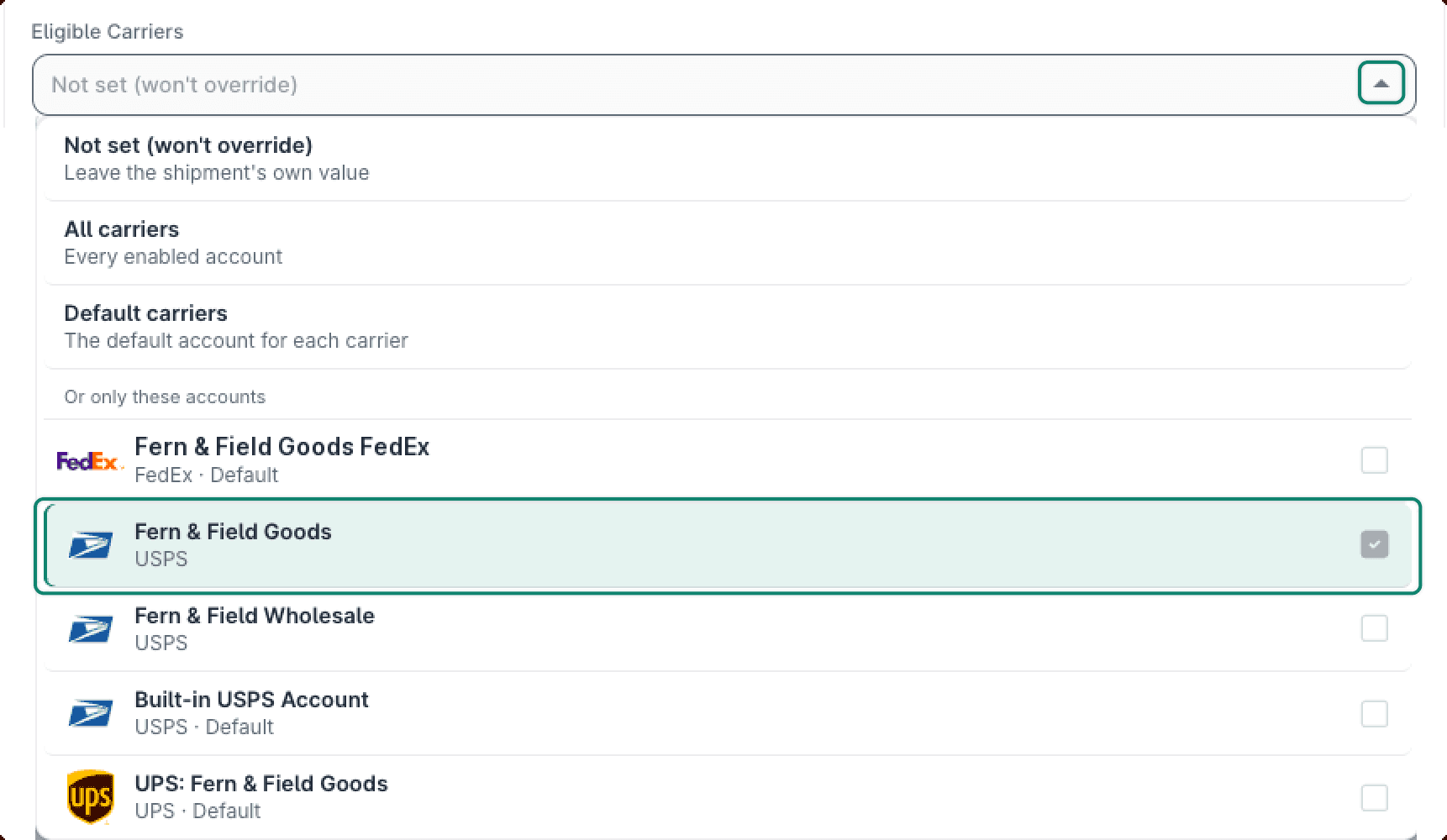
Locate the Eligible Carriers drop-down menu. Expand it and select the correct carrier account. For our example, we selected the Fern & Field Goods USPS account.
Click Save. The new rule is added to the list of Shipping Rules.
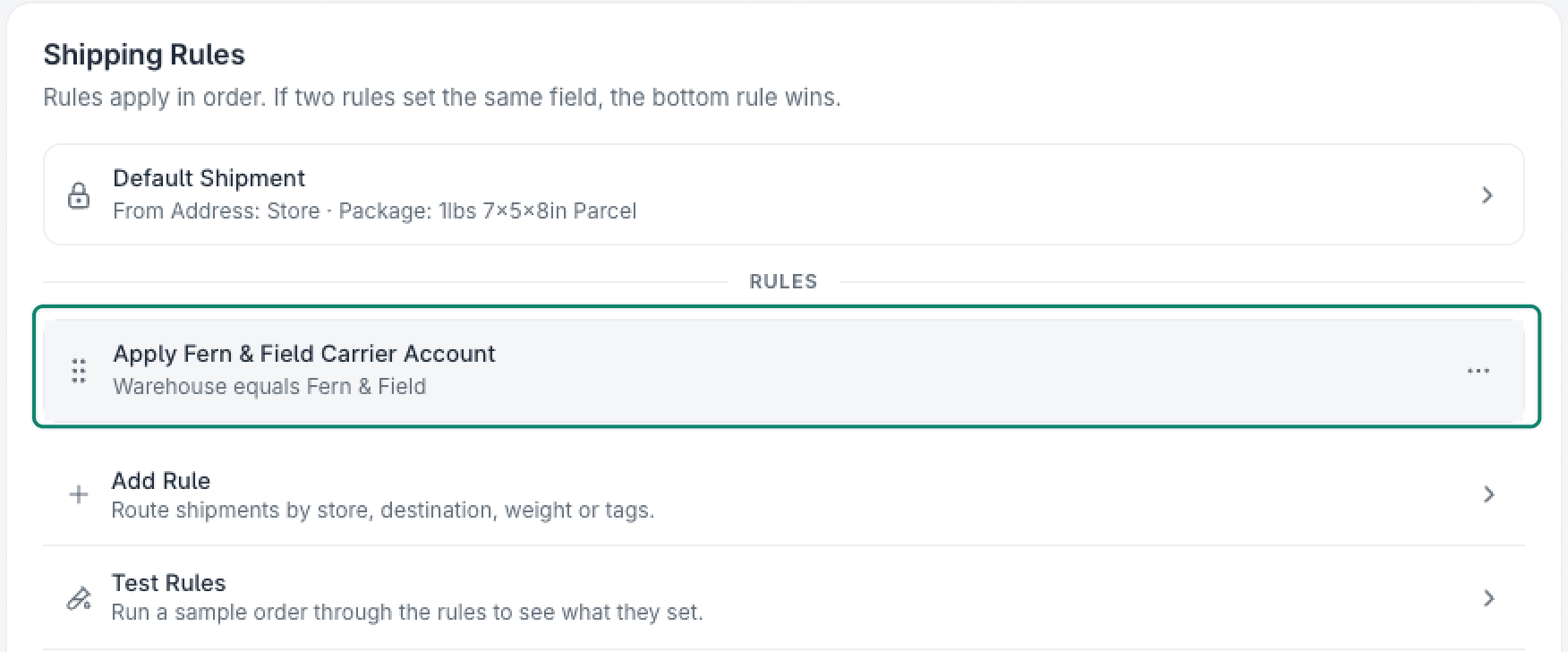
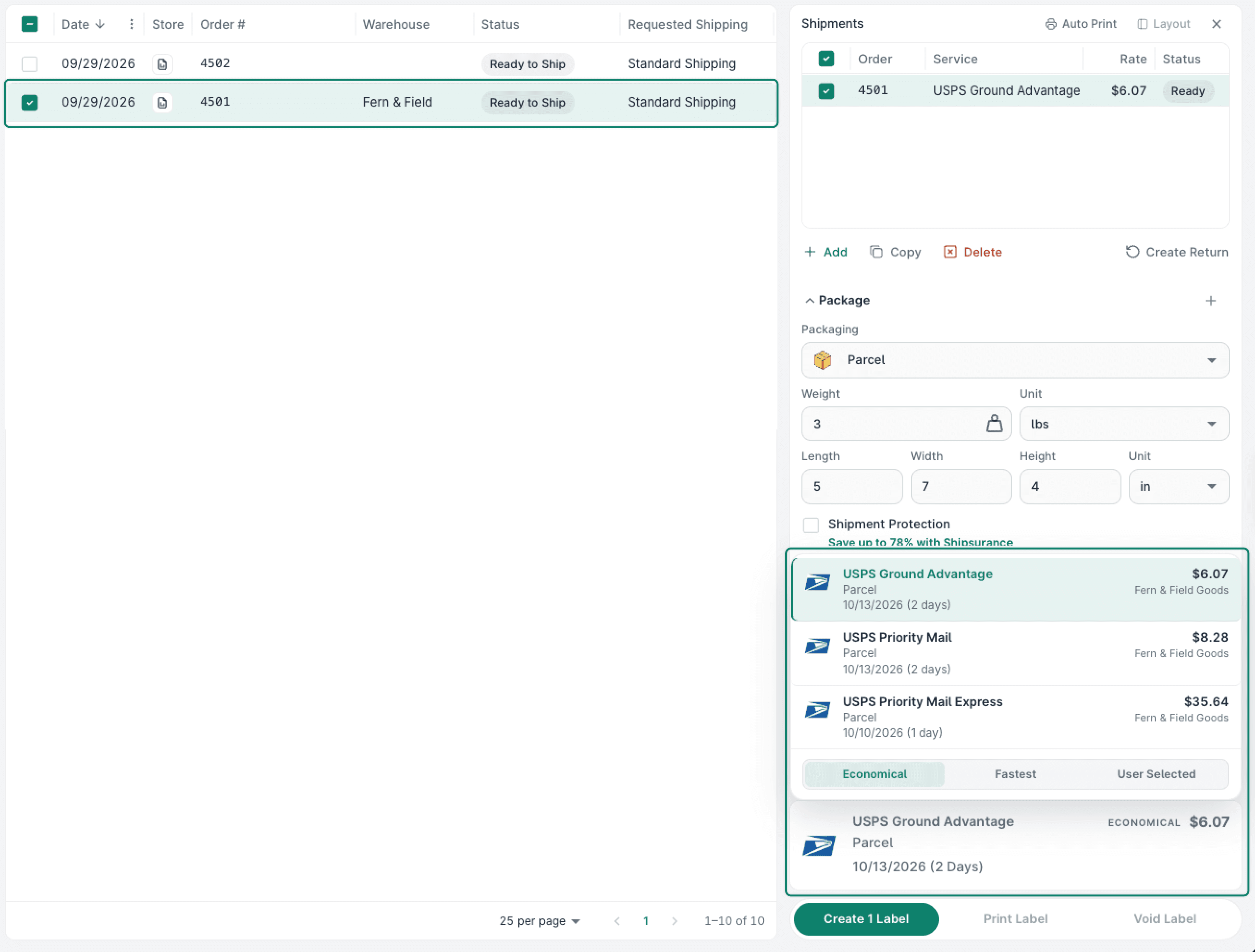
Now that the new Shipping Rule has been added, any order tagged with Warehouse: Fern & Field will be limited to the Fern & Field Goods USPS carrier account when shipped.
Still have a question? Ask a person.
Write to support@postsale.com or send us a message. We reply the same business day, Monday to Friday, 8 AM to 5 PM Central.