Shipping Rules: Set Shipping Settings Based on Customer Notes
Automatically apply shipping settings based on a customer's note.
This article will guide you through using Shipping Rules to automatically apply a carrier, service, weight, dimensions, and other shipping settings based on a note in a customer’s record.
REAL-WORLD EXAMPLE
We want to reward our VIP customers with faster shipping. We’ve already added “VIP” as a note in the customer records. We normally ship their orders with USPS Ground Advantage, but we’d like to automatically change the service to USPS Priority Mail for our VIP customers. This upgrade can shorten the estimated delivery time without our having to change the service on each shipment.
Before We Begin
This article assumes that:
- Your customer records already contain the note you want the rule to match.
- For this article, we'll use a customer note that equals “VIP”.
- You are logged into Postsale as a user with Read and Manage Shipping Rules permissions.
Add the Shipping Rule
We will use AI to generate a Shipping Rule that checks whether any customer note equals “VIP” and automatically sets the carrier to USPS and the service to USPS Priority Mail for those customers.
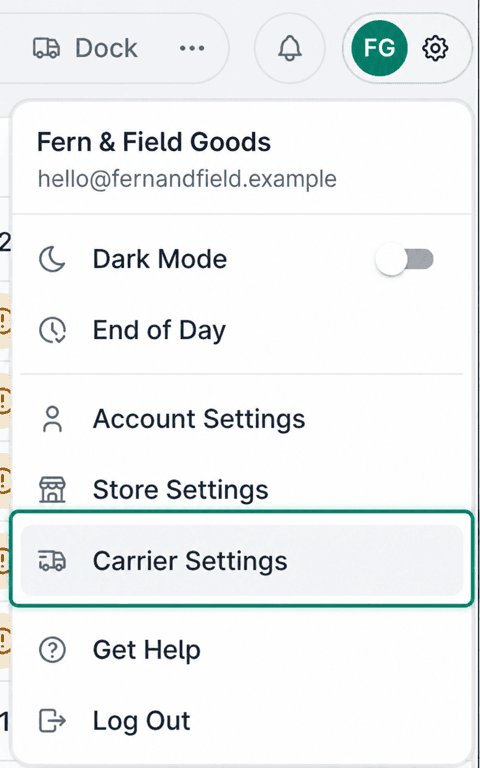
Go to Settings.

Select Carrier Settings.
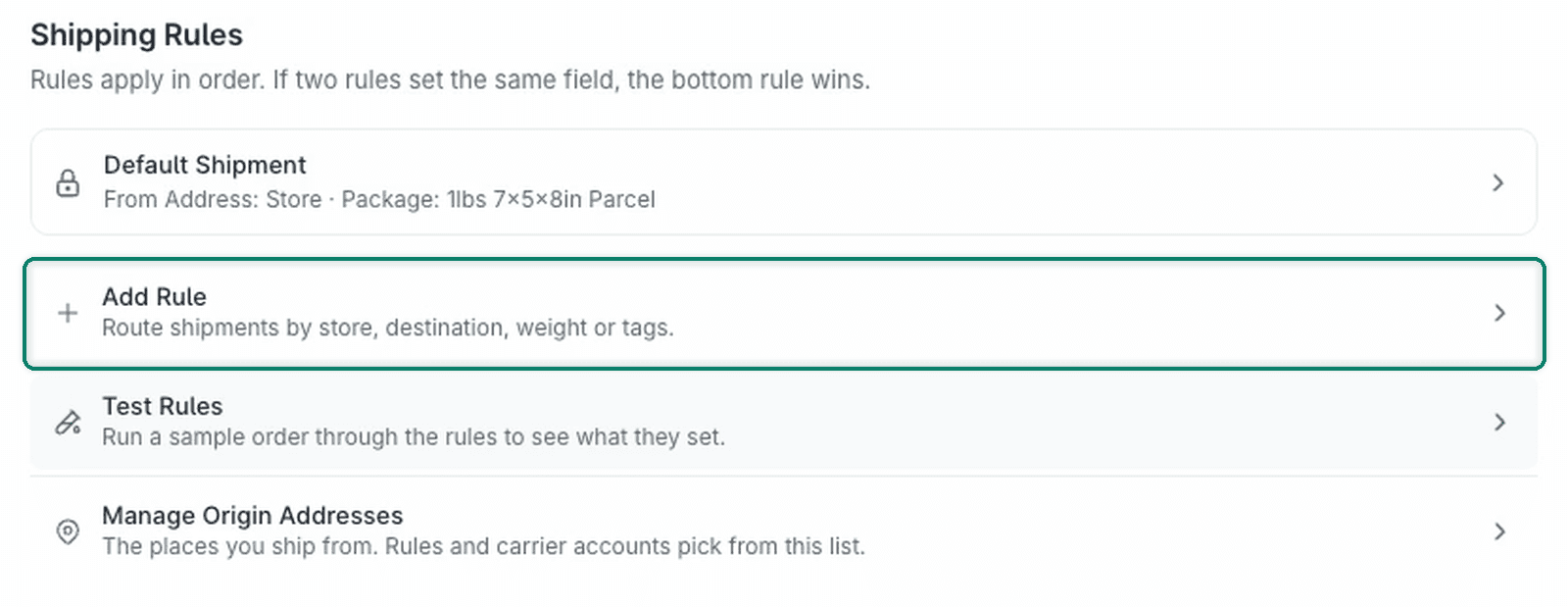
Select Add Rule in the Shipping Rules section.
Enter a Name for the rule. In this example, we entered VIP Priority Mail.

Select Configure with AI.

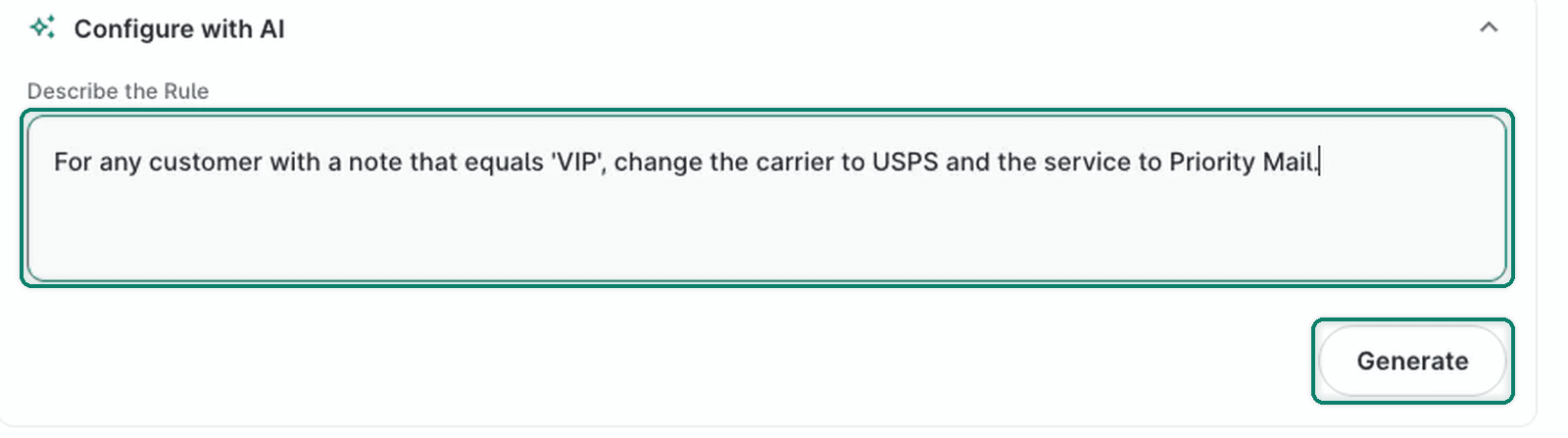
Enter the following prompt in Describe the Rule, then select Generate.
For any customer with a note that equals 'VIP', change the carrier to USPS and the service to Priority Mail.
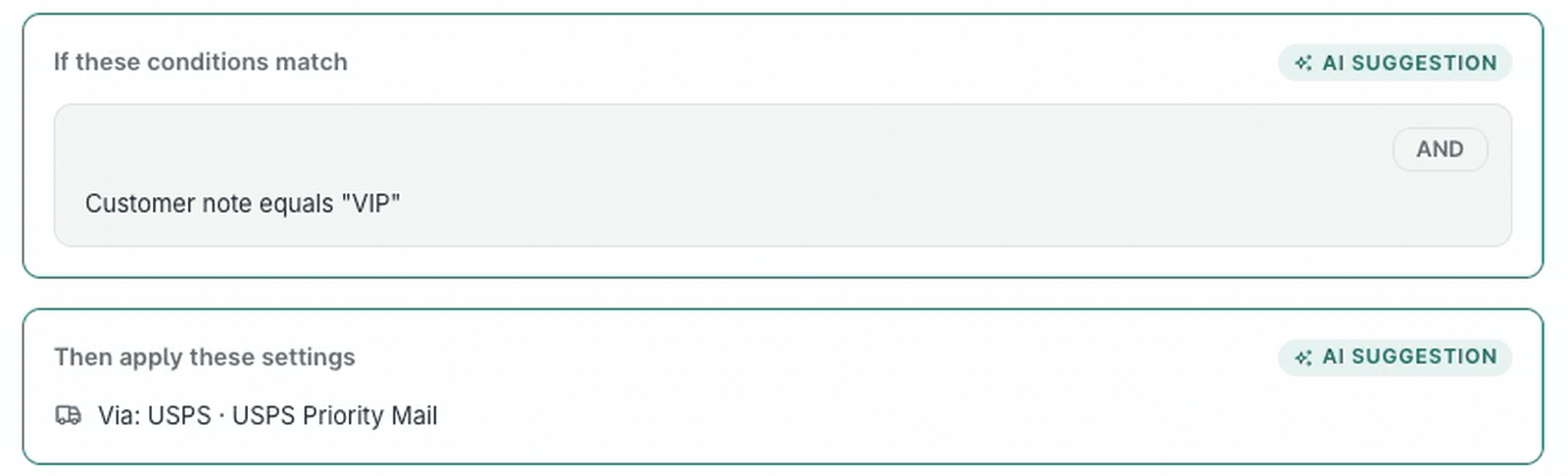
Review the AI-generated condition and shipping settings. Confirm that the suggestion includes both of the following:
- If these conditions match: Customer note equals “VIP”
- Then apply these settings: Carrier is USPS and service is USPS Priority Mail
This condition checks the note in the customer’s record. If the suggestion does not match your intended rule, select Discard, revise the description, and generate a new suggestion.
Select Accept to apply the AI suggestion to the rule. You'll still need to save the rule.

Select Save to save the rule.

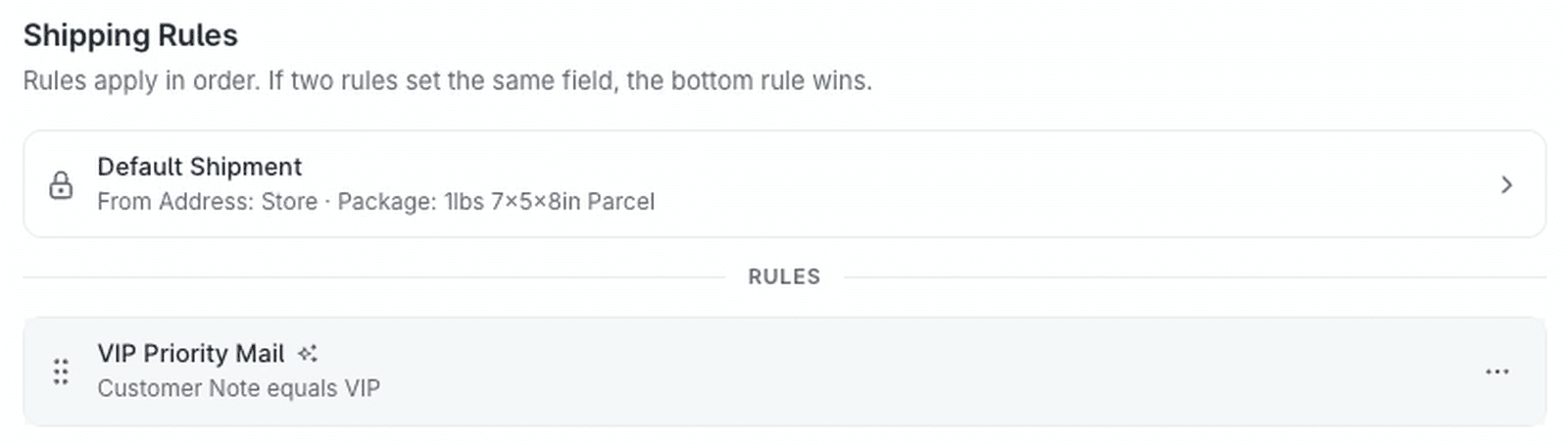
The rule now appears in Shipping Rules with the condition Customer Note equals "VIP". When the rule applies to a matching shipment, it sets the carrier to USPS and the service to USPS Priority Mail.
Still have a question? Ask a person.
Write to support@postsale.com or send us a message. We reply the same business day, Monday to Friday, 8 AM to 5 PM Central.