Manage Customers with Notes
Add notes to customer records to track important information about your customers.
Use customer notes to remember details about a customer, such as their sales rep, gift wrap preferences, the carrier and service to use for their orders, or a ‘VIP’ label. Customer notes are different from order notes. An order note is tied to a specific order, while customer notes follow the customer. Add and edit customer notes on the customer record.
In this article, we will:
- Explore how to use customer notes.
- Add a new customer note.
- Learn what information is available with each note.
- Edit a note.
- Delete a note.
Before We Begin
To view and manage customer notes and see the orders that belong to a customer, you must be logged in to Postsale as:
- The Postsale account owner or
- A user with the Manager role assigned or
- A user with these permissions assigned:
- Read Customers: Allows the user to view customer records
- Read Orders: Allows the user to view the orders that belong to a customer
- Manage Customers: Allows the user to add, edit, and delete customer notes and to save customer Filters
How Customer Notes Can Be Used
Here are a couple of ways you can put customer notes to work:
- Customer Filters: Use customer notes to search for specific customers. Then save the search as a Filter you can click to repeat it anytime.
- Shipping Rules: Tell Postsale to automatically apply shipping settings, like a certain carrier and service, when the customer has a specific note.
Add a Customer Note
REAL-WORLD EXAMPLE
We would like to mark our repeat customers as ‘VIP’ so that these customers receive additional benefits, such as upgraded shipping at no cost to them.
You can do that using a customer note. Here's how:
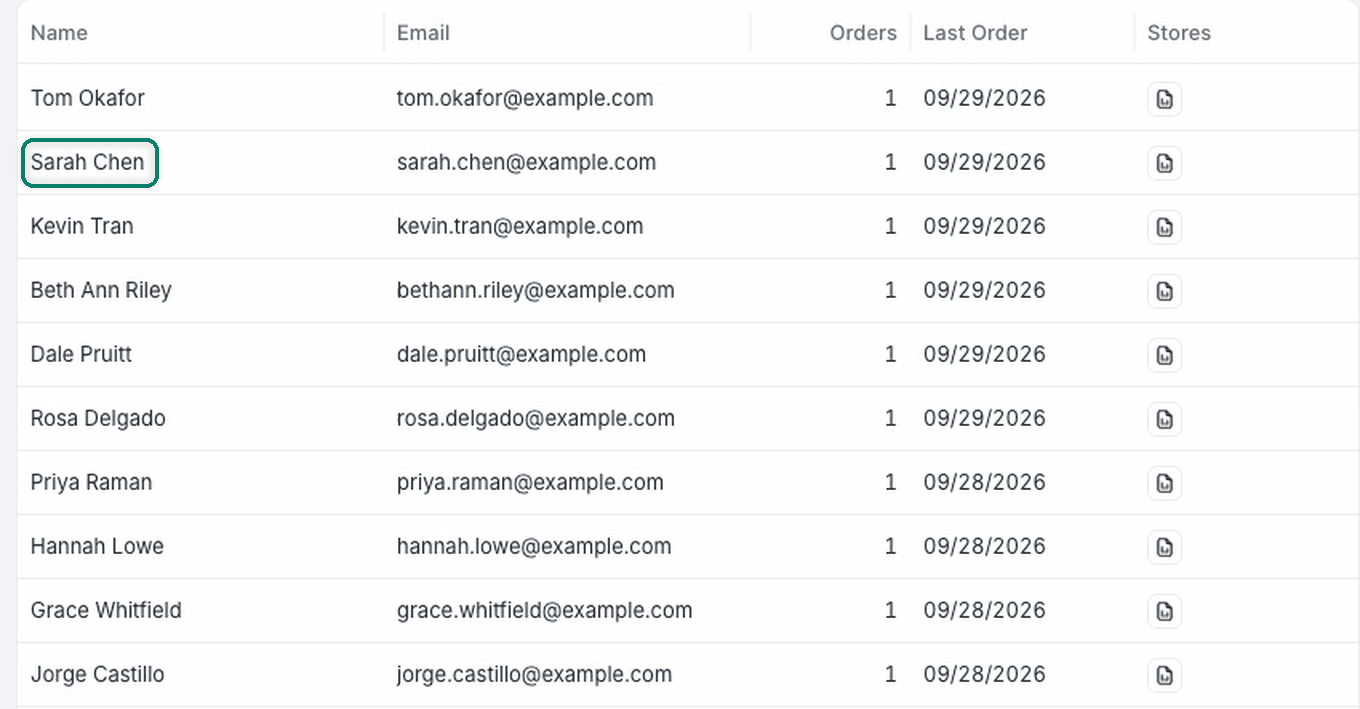
Locate the customer record you want to add the note to.
Select the customer to open the customer record.
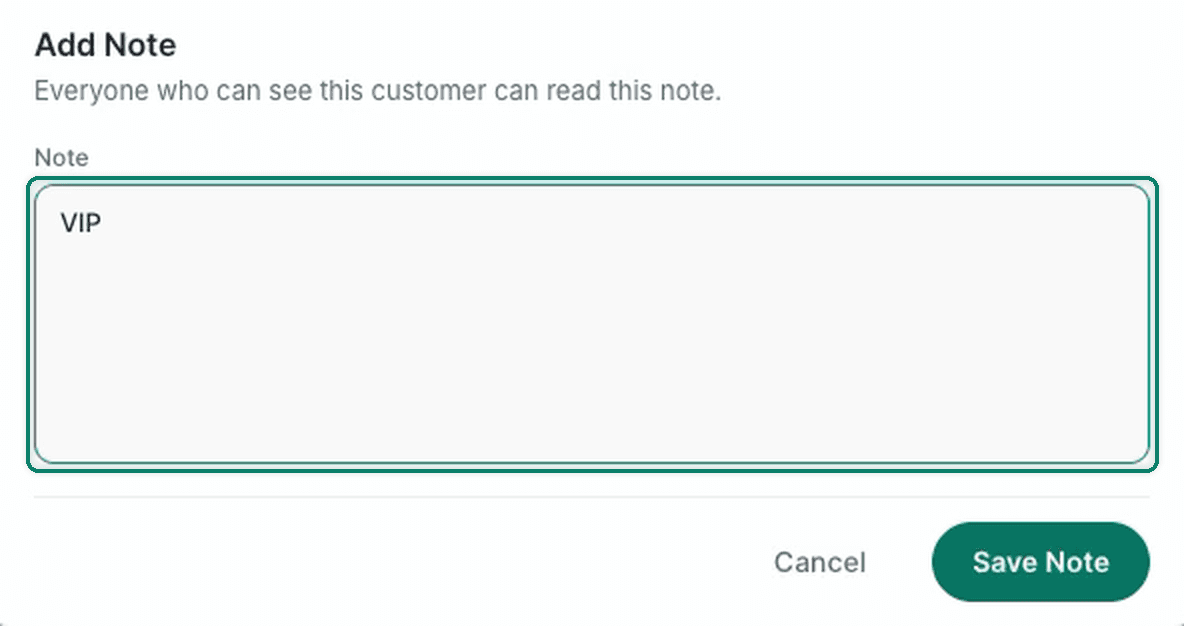
Select + Add Note.

Enter the note for the customer. In this case, we entered VIP as the customer note.
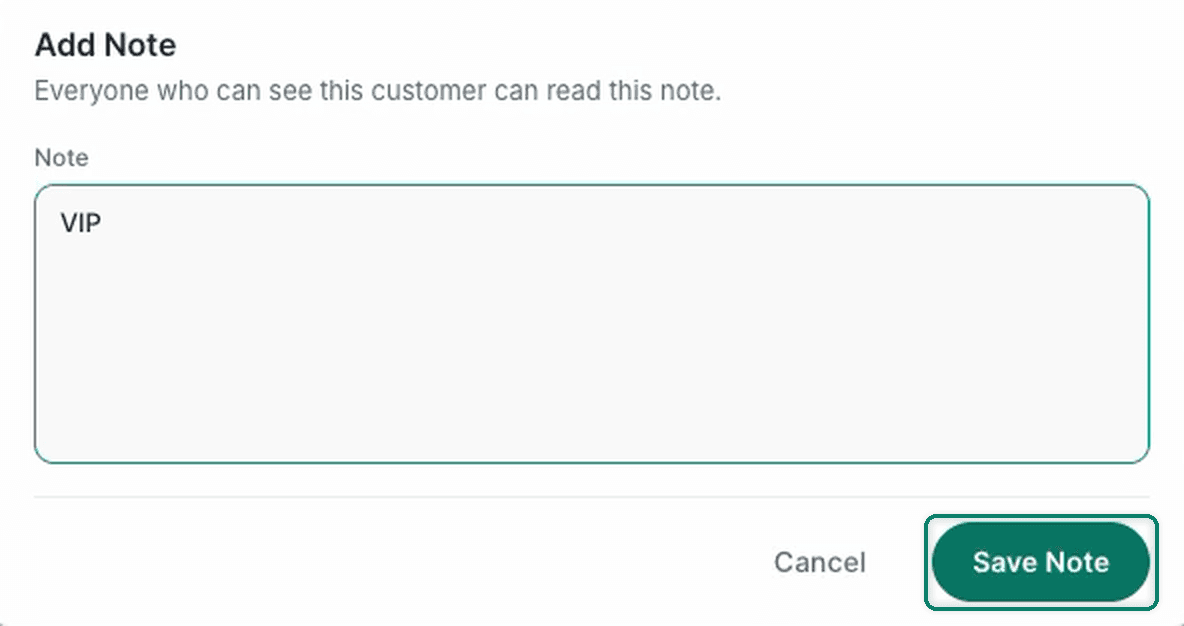
Select Save Note.
View Customer Notes
In the Orders Grid
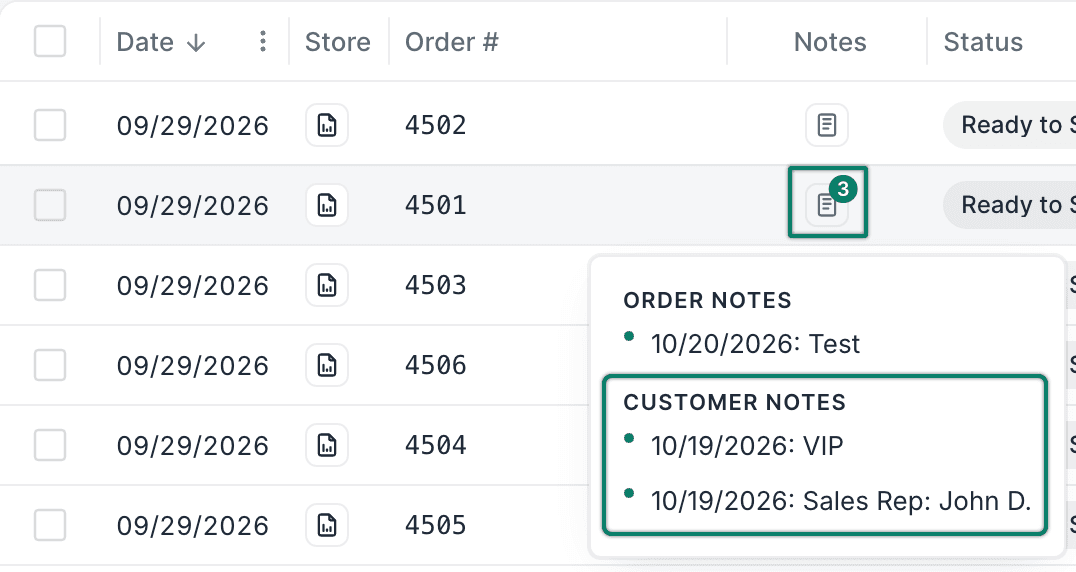
Hover over the notes icon on the main Orders Grid to view order and customer notes associated with an order.
In the Customer Record
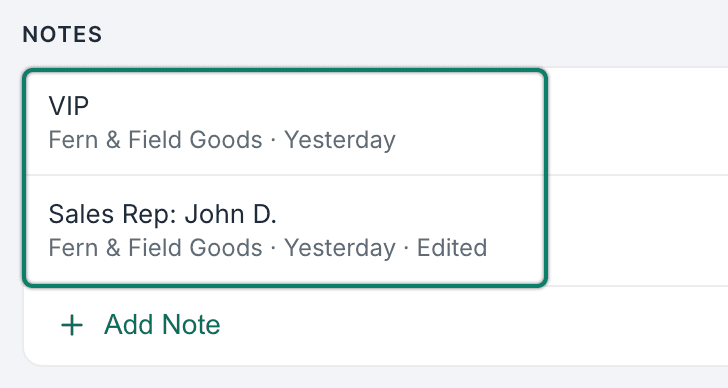
Customer notes appear in the Notes section of the customer record. Each note shows the user who created it and when.
In the Order Editor
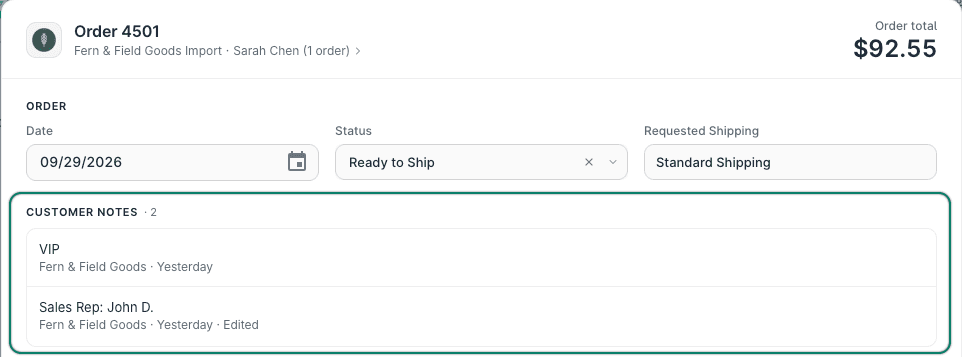
They also appear at the top of the Order Editor for any order associated with the customer.
Edit a Customer Note
Edit a customer note at any time.
REAL-WORLD EXAMPLE
We use customer notes to assign a sales rep to customers. We need to edit the note to update the sales rep assigned to one of our customers.
Locate the customer record you want to modify.
Select the customer to open the customer record.
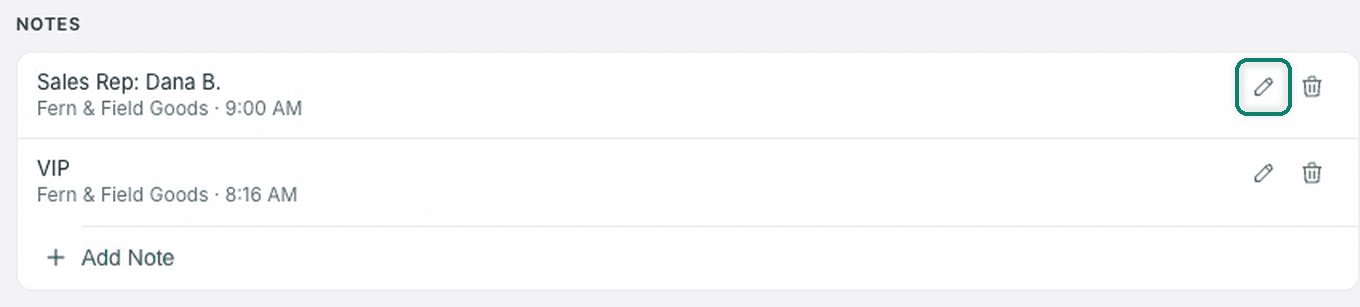
Select the Edit icon for the note you want to modify.
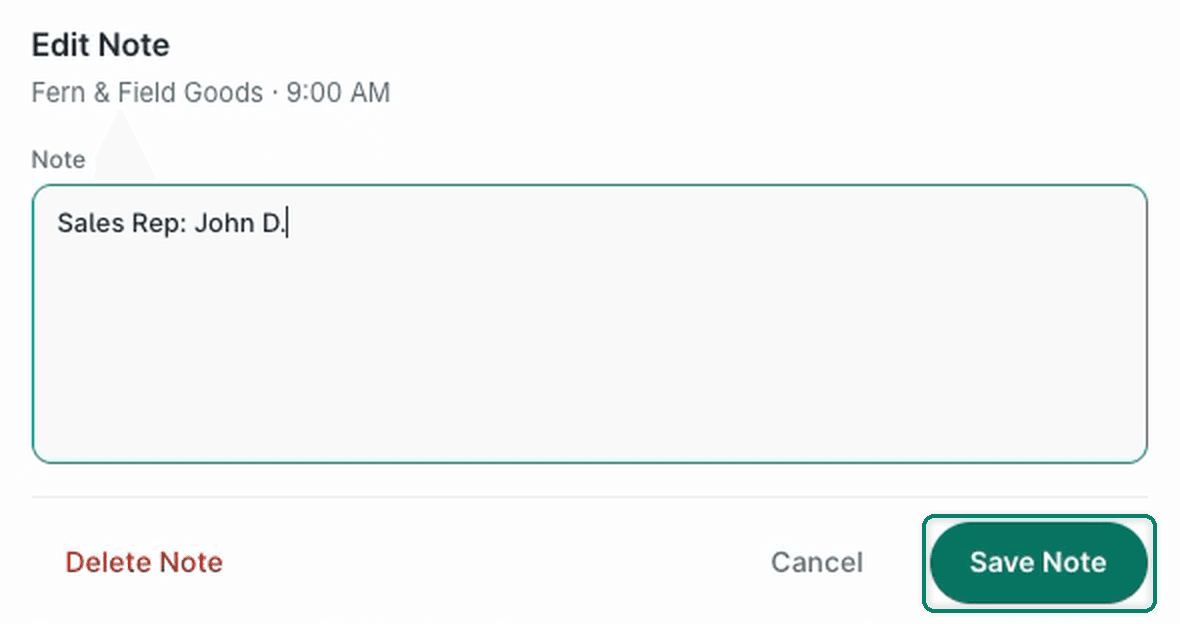
Update the text in the Note field of the Edit Note pop-up.
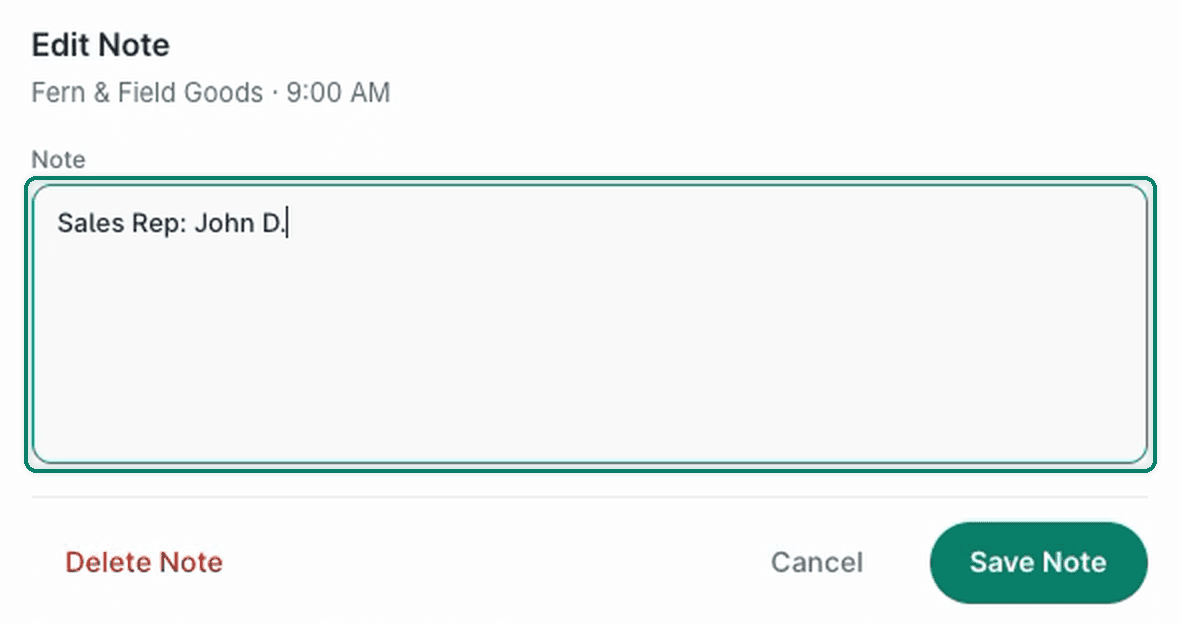
Select Save Note.
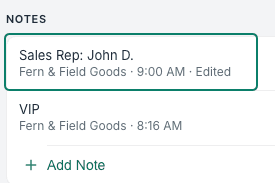
Your updated note appears in the Notes section with an Edited label.
Delete a Customer Note
To delete a customer note:
Locate the customer record you want to modify.
Select the customer to open the customer record.
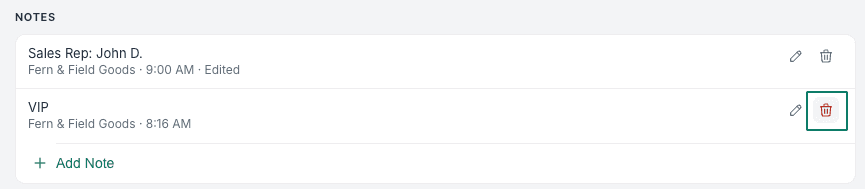
Select the Delete icon next to the note you want to delete in the Notes section.
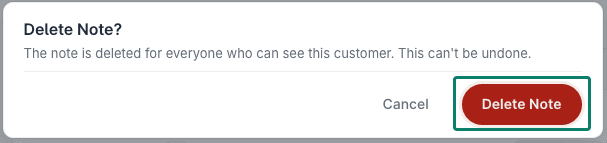
Verify that you want to permanently delete the note.
The note is deleted and no longer appears in the Notes section.

Still have a question? Ask a person.
Write to support@postsale.com or send us a message. We reply the same business day, Monday to Friday, 8 AM to 5 PM Central.