FedEx: Add Your Account
Add your FedEx account to Postsale
Postsale is a certified FedEx Compatible solution provider. Add your FedEx account to Postsale to:
- Create domestic and international shipping labels using your FedEx account
- Take advantage of Electronic Trade Documents (ETD) when shipping internationally
- Ship using FedEx Ground Economy (formerly SmartPost)
- Schedule pickups directly from Postsale
- Perform FedEx Ground Close and print an End Of Day Manifest
- And much more
In this article, we will walk through adding your FedEx account and how to manage its settings in Postsale. We will also point you to additional help articles where you can learn more about the available FedEx features in Postsale and how to perform common shipping tasks with FedEx.
Before We Begin
To connect your FedEx account to Postsale, you will need:
- Your FedEx account number.
- The shipping address, email address, and phone number used when you created your FedEx account.
- Access to the cell phone or email associated with your FedEx account or a recent invoice in order to verify your FedEx account.
No FedEx Account? No Problem.
We have partnered with FedEx to offer you the opportunity to sign up for a FedEx account with built-in discounts. Once you have created your account, return to Postsale to finalize the setup process with your new FedEx account information.
Add Your FedEx Account
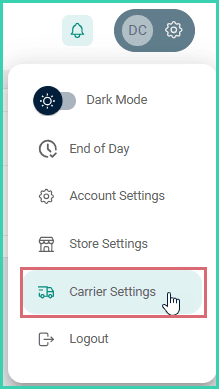
Go to Settings.

Select Carrier Settings.
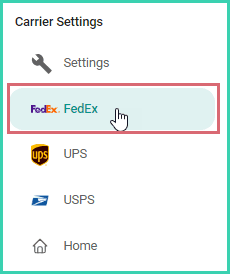
Select FedEx.
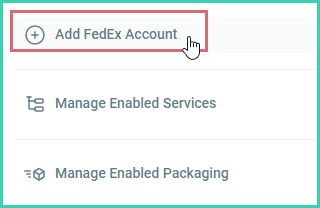
Click the Add button.
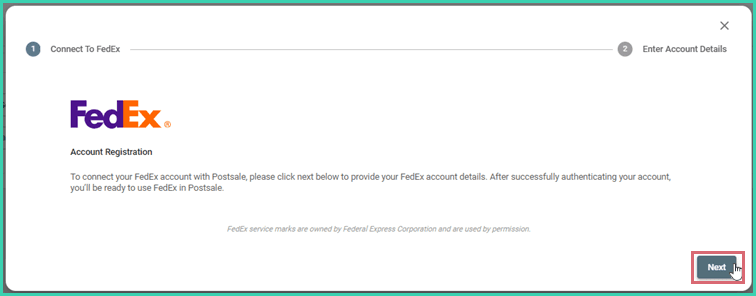
The Connect to FedEx pop-up opens.
Click the Next button.
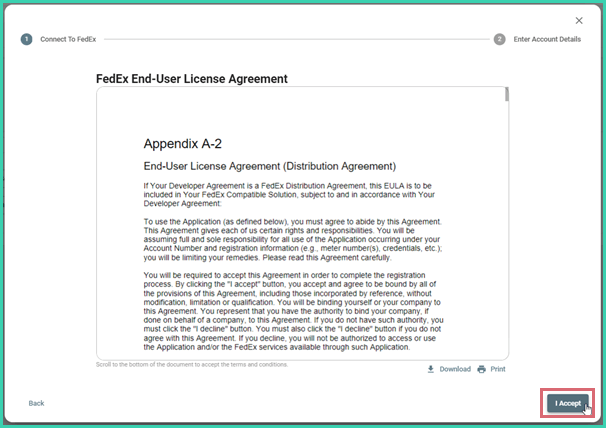
Review the FedEx End-User License Agreement. Scroll to the bottom of the agreement. Then, click I Accept.
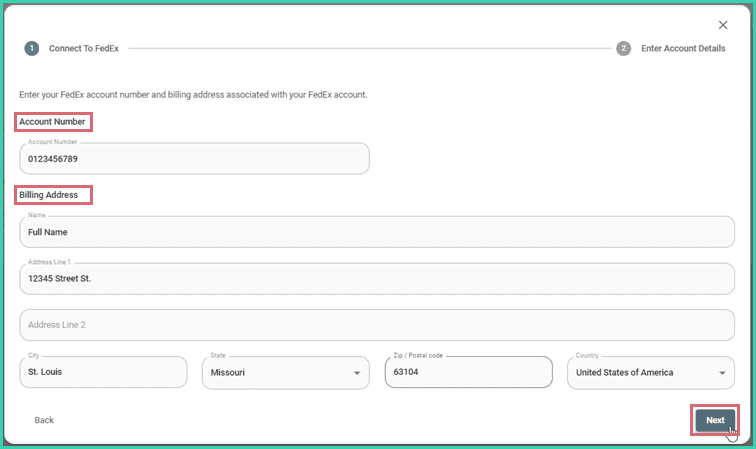
Enter the Account Number and the Billing Address associated with your FedEx account. Then, click Next. If your Ship From address is different from your FedEx account address, you can update the Ship From address once the account has been added.
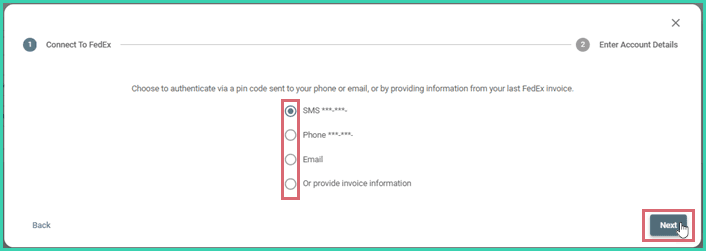
Select whether you wish to verify your account with a PIN code sent to the cell phone or email associated with your account, or by entering information from your last FedEx invoice. Then, click Next.
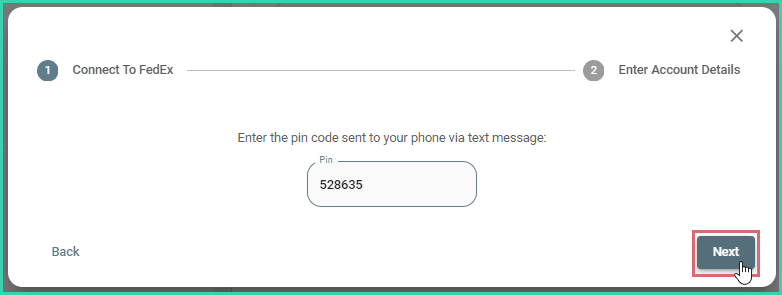
Complete the verification process for the method you selected.
Enter the following information. Then, click Save.
a. Nickname: Enter a nickname to help identify this FedEx account.
b. Address: Enter the address you wish to use as the Ship From address when creating labels.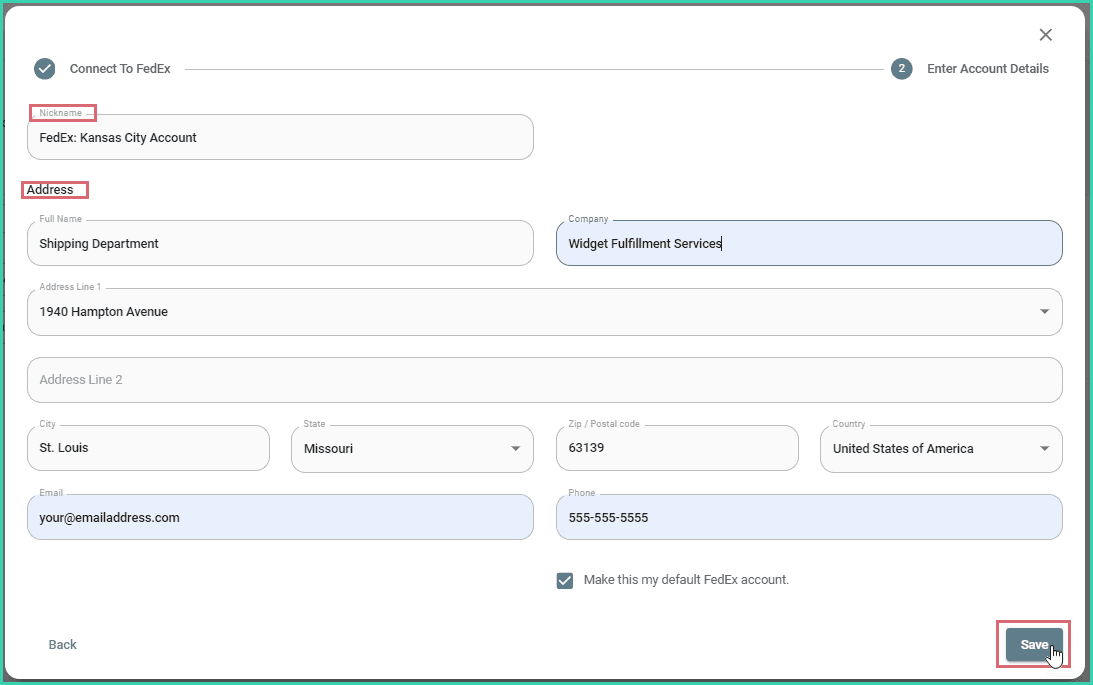
Default Account
When more than one FedEx account is added to Postsale, use the Make this my default FedEx account checkbox to indicate that this account should be used to calculate and display rates in Postsale and to create FedEx shipping labels.
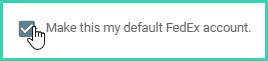
Select the Default Account
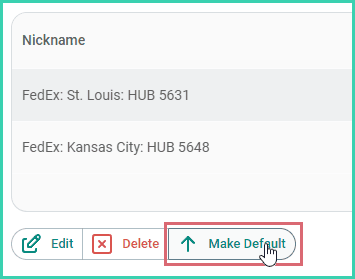
Need to switch default accounts? Select the account and click the Make Default button.
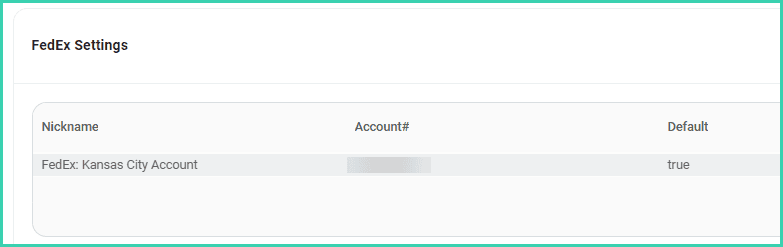
The account has been added to Postsale and is displayed on the FedEx Settings screen.
May We Suggest
We suggest the following help articles to assist you with shipping your orders with FedEx.
On this page
Related