Add a Customer Record
Learn how to add a customer record in Postsale, with or without an address, before their first order arrives.
Want a customer record in place before they place their first order? Add the customer to Postsale yourself.
Before We Begin
To add a customer, you must be logged in to Postsale as:
- The Postsale account owner or
- A user with the Manager role assigned or
- A user with both of these permissions assigned:
- Read Customers: Allows the user to view customer records
- Manage Customers: Allows the user to add customers
New to customer records? Read Introduction to Customer Records first.
Add a New Customer
REAL-WORLD EXAMPLE
A customer phones in an order before any order from them exists in our store. We want to add them with an address so we can create and ship their order right away.
You can do that! Here's how to add them:
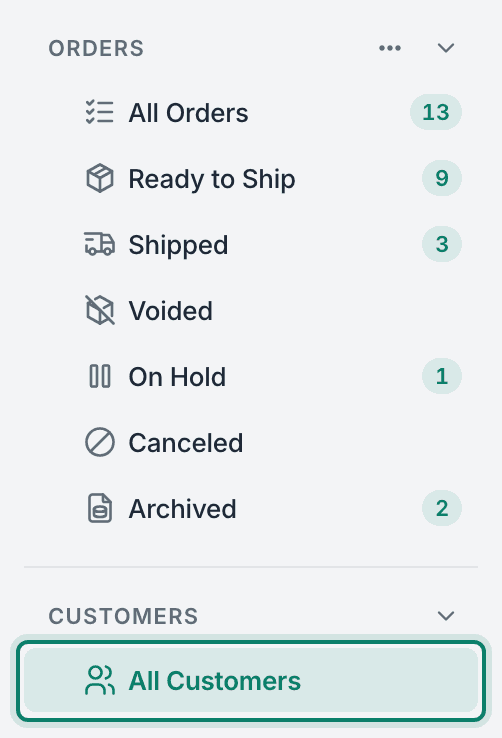
Select All Customers under Customers in the main menu.
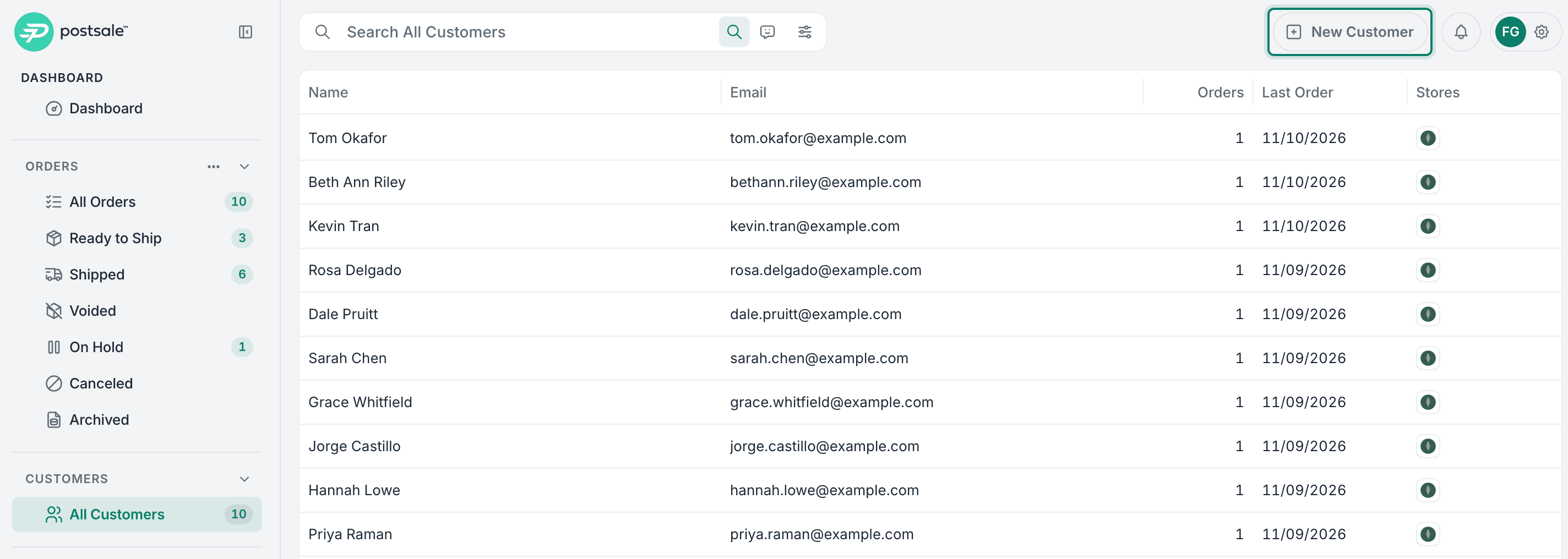
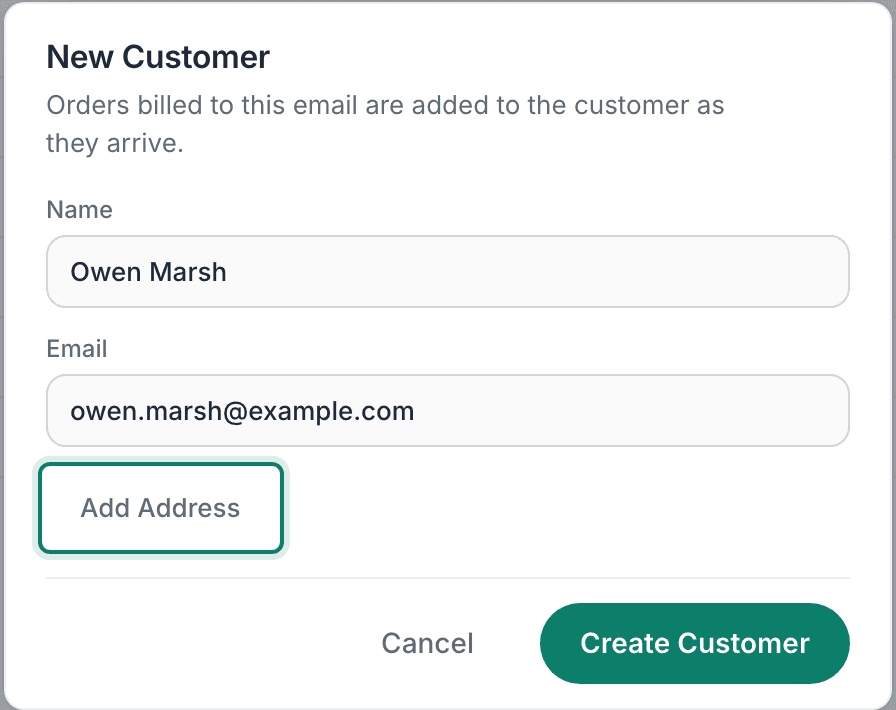
Select New Customer. The new customer window opens.
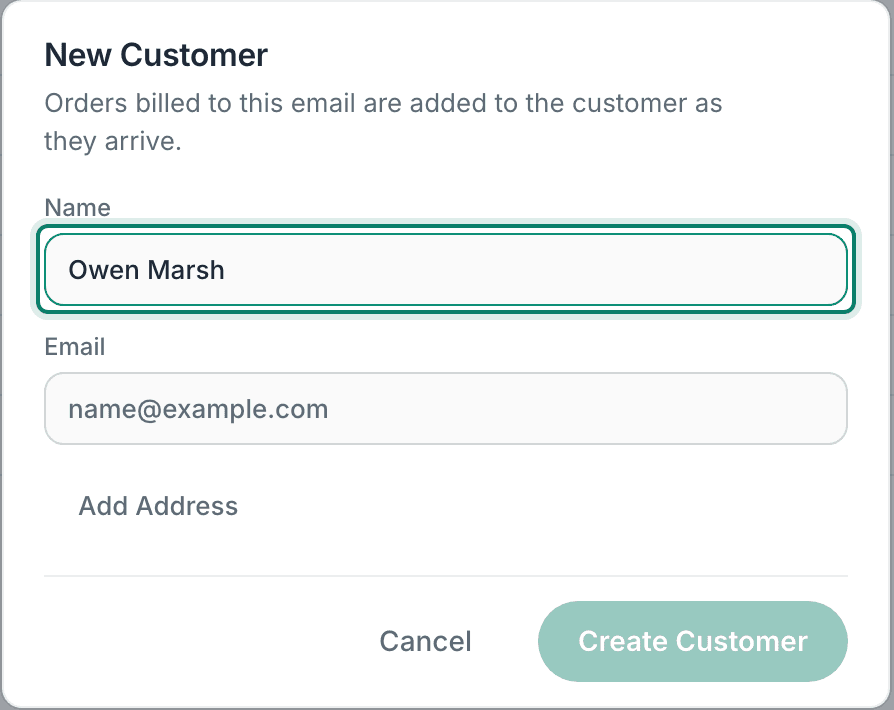
Enter the customer's name in the Name field. This field is required.
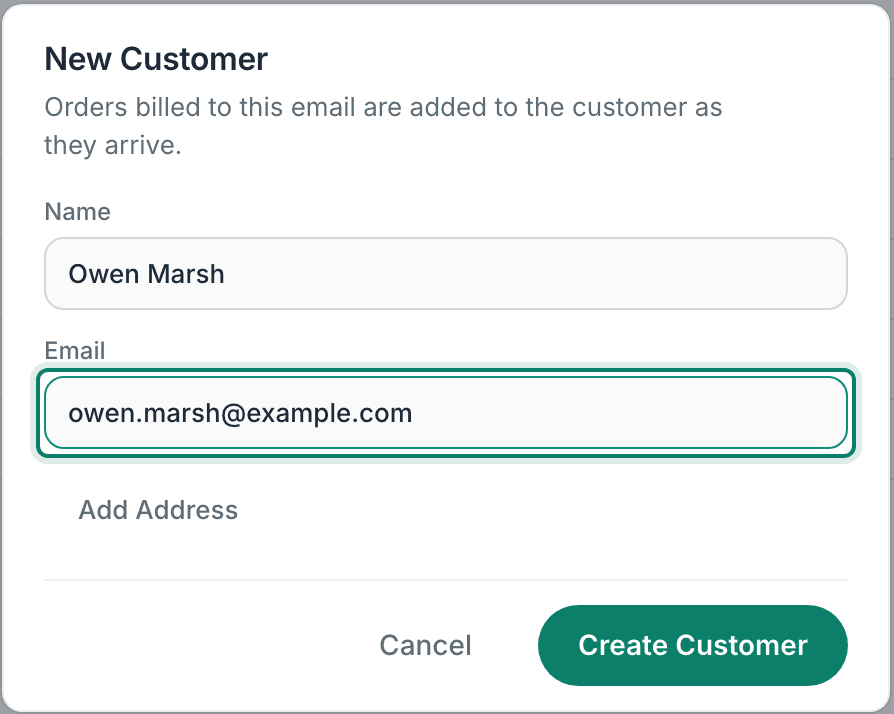
Enter the customer's email address in the Email field. This field is required.
- You can't change the email address after you add the customer, so check it before you continue.
- Orders with this email are added to the customer when they import into Postsale.
(Optional) Select Add Address to enter the customer's address. In our example, we entered the customer's address. See the Good to Know section below for more information.
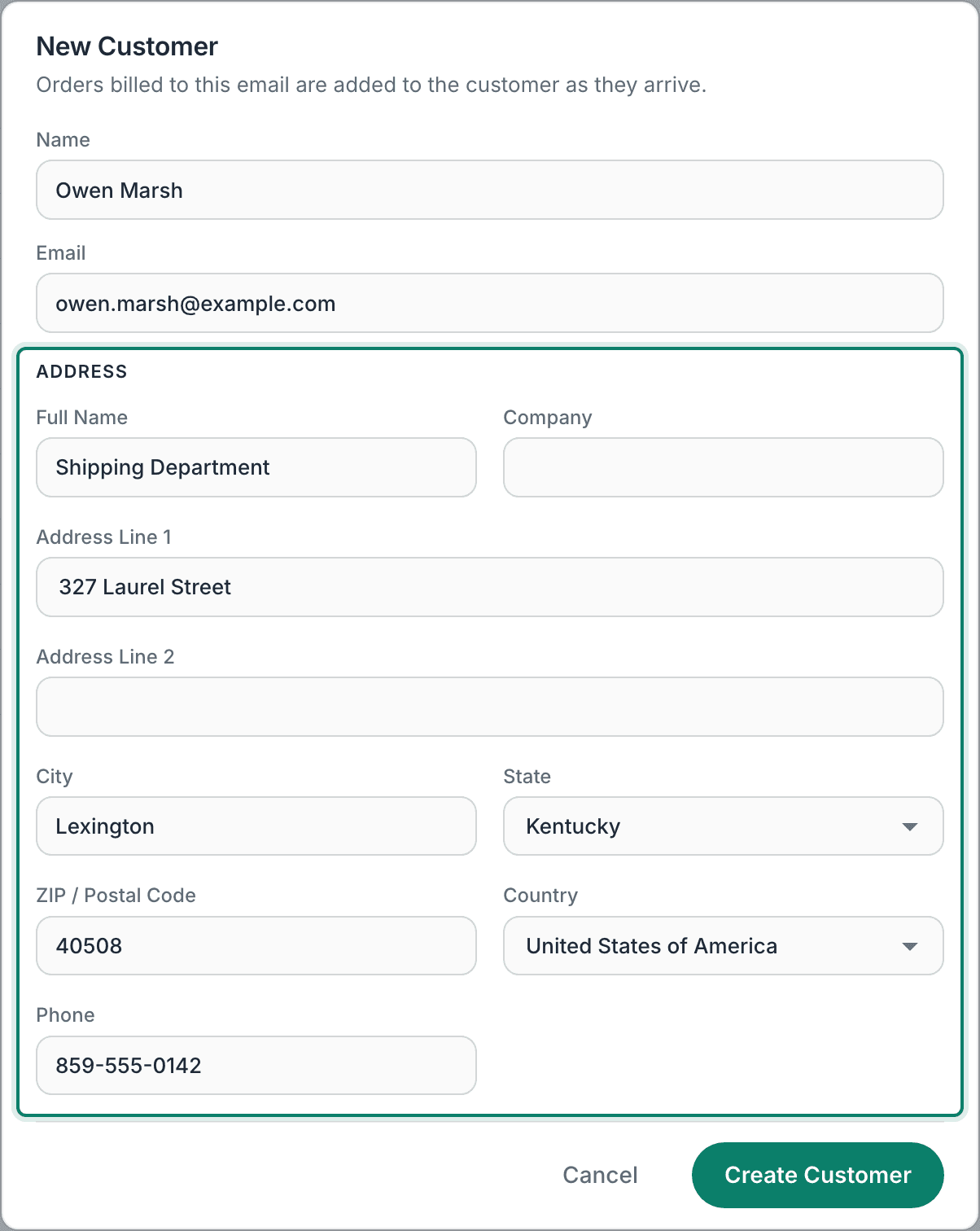
Select Create Customer. The new customer record opens.
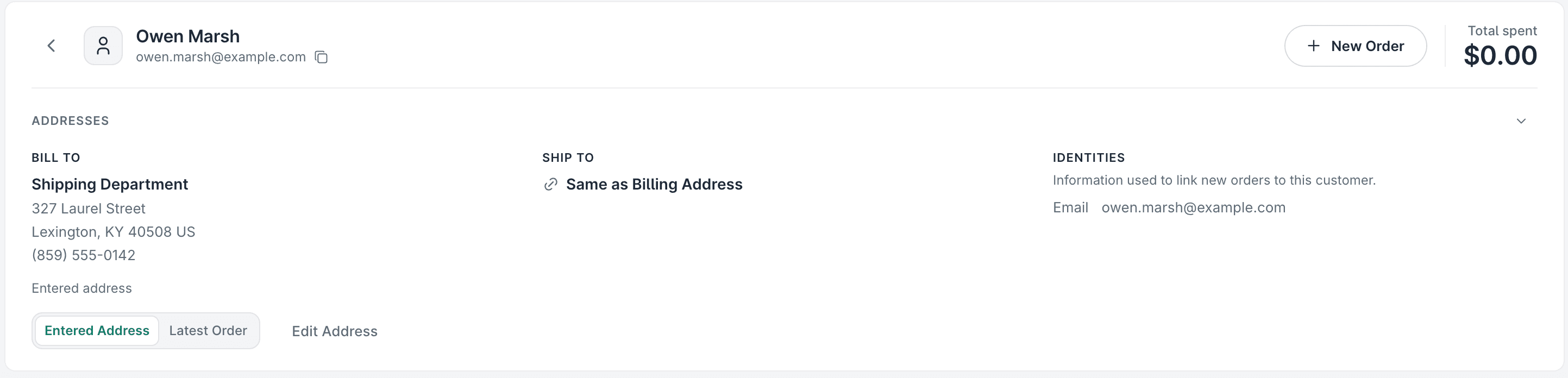
To start an order for this customer, select New Order on the customer record.
Good to Know
- Postsale builds customer records for you as orders come in. Adding a customer yourself is optional.
- The email address links future store orders to the customer. You can't change it after you add the customer.
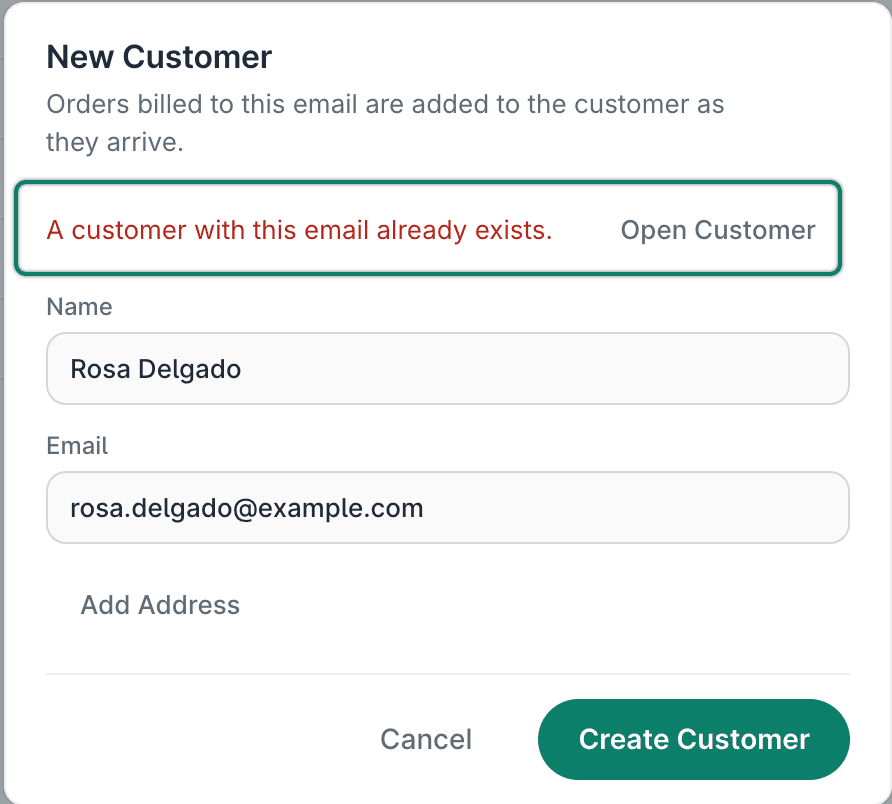
- Postsale shows A customer with this email already exists. when you enter an email that already belongs to a customer. The Open Customer link in that message opens the existing record instead.
Add a New Customer With or Without an Address
You don't have to add an address when you create a new customer because Postsale uses the email address to link the customer's future orders to the customer record. You also have the option to add an address to the customer in the future if needed.
With an address
- The address you enter is saved as the customer's address. It shows under Addresses on the customer record.
- When you create a new order for that customer, the customer's address fills in automatically.
- The advantage is that you can create and ship an order for someone right away, before any order from them comes in from a store.
Without an address
- The customer is saved as just a name and email. Their record shows no address until an order is imported for them.
- Creating a new order for that customer starts with a blank address.
- The advantage is that it's quicker to set up. Once an order comes in, Postsale uses the shipping and billing addresses on their latest order, so it stays current with nothing to update by hand.
Still have a question? Ask a person.
Write to support@postsale.com or send us a message. We reply the same business day, Monday to Friday, 8 AM to 5 PM Central.