Introduction to Customer Records
Learn how to view, manage, and use customer records in Postsale.
Get to know your customers better with customer records in Postsale. Review a customer's details, view and edit their orders, add new orders, see analytics about their orders, and keep customer notes, all in one place. Each customer record also has a Dashboard tab that shows widgets for that customer alone, and you can arrange it to show the business insights that matter to you.
Postsale builds customer records for you. As your orders come in, Postsale links each order to a customer using details from the order, such as the email address, phone number, or customer ID from your store. There's nothing to set up.
This article will:
- Introduce you to customer records and how they can be used in Postsale
- Show you how to search for customers
- Show you how to view a customer's information
- Point you to other helpful customer-related help articles
Before We Begin
To view and manage customer records and see the orders that belong to a customer, you must be logged in to Postsale as:
- The Postsale account owner or
- A user with the Manager role assigned or
- A user with these permissions assigned:
- Read Customers: Allows the user to view customer records
- Read Orders: Allows the user to view the orders that belong to a customer
- Manage Customers: Allows the user to add, edit, and delete customer notes and to save customer Filters
- Read Reports: Allows the user to view the customer's Dashboard tab
- Create Orders: Allows the user to create orders with the New Order button
How Customer Records Can Be Used
Customer records are more than a contact list. Here are some of the ways you can put them to work:
- Create Filters: Save a customer Filter to list a group of customers in one click. For example, list every customer with a customer note that names their sales rep, or every customer who has placed 5 or more orders.
- Shipping Rules: Automatically apply shipping settings based on customer information. For example, when a customer's note includes "VIP", ship their orders with UPS Next Day Air. Learn more in Shipping Rules: Automate Your Shipping Settings.
- Create an Order for a Customer: Start a new order for a returning customer with their addresses already filled in.
- Share What You Know with Customer Notes: Customer notes appear on every order from that customer, so anyone shipping the order sees them.
Access Your Customer Records
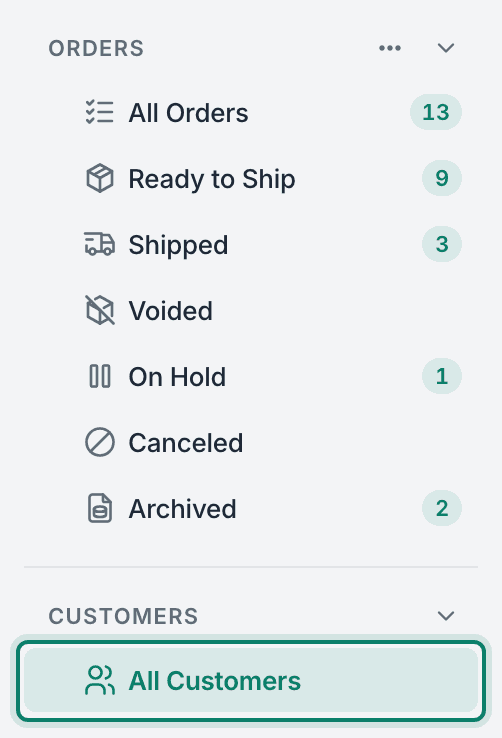
All of your customers are listed in one place. Select All Customers in the Customers section of the main menu.
The Customers grid lists your customers, with the customers who ordered most recently at the top.
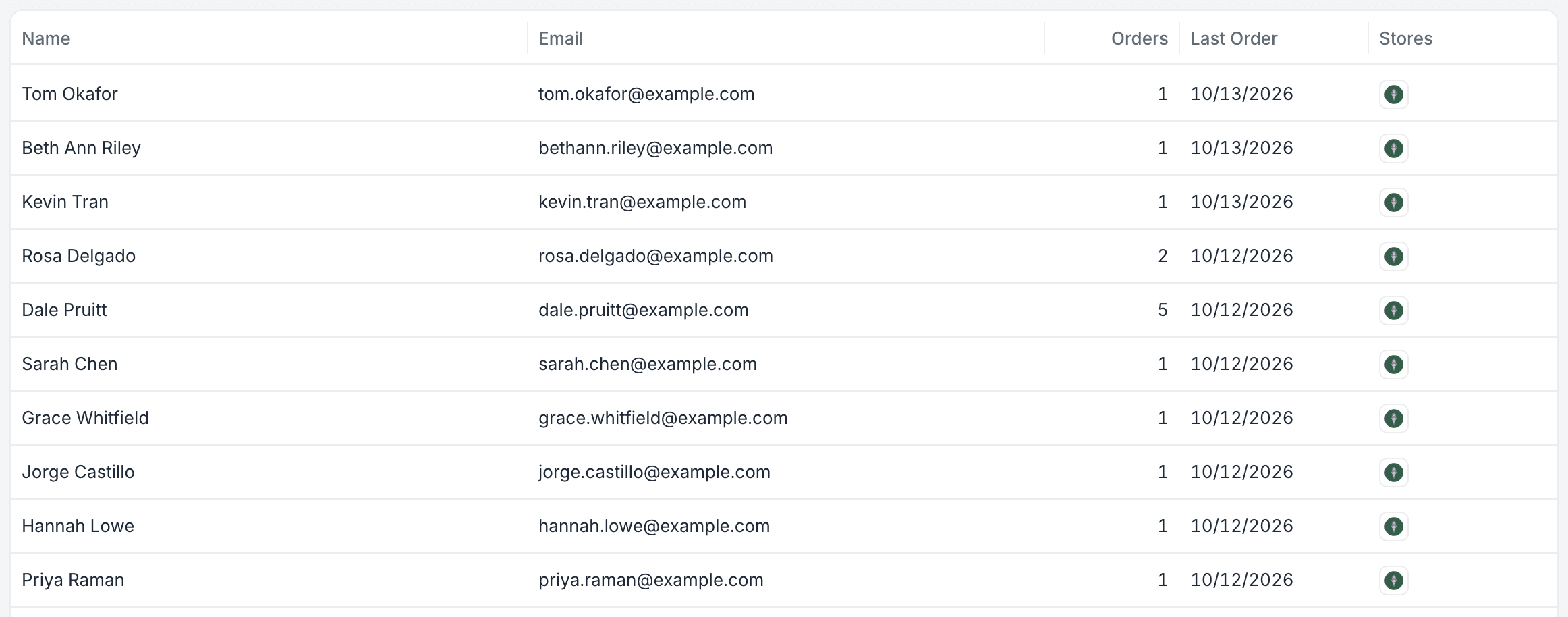
The Customers grid shows these columns:
- Name: The customer's name. When an order has no name, Postsale shows the customer's email address instead.
- Email: The email address the customer is known by.
- Orders: The number of orders the customer has placed.
- Last Order: The date of the customer's most recent order.
- Stores: The logo of each store the customer has bought from. Point to a logo to see the store's name.
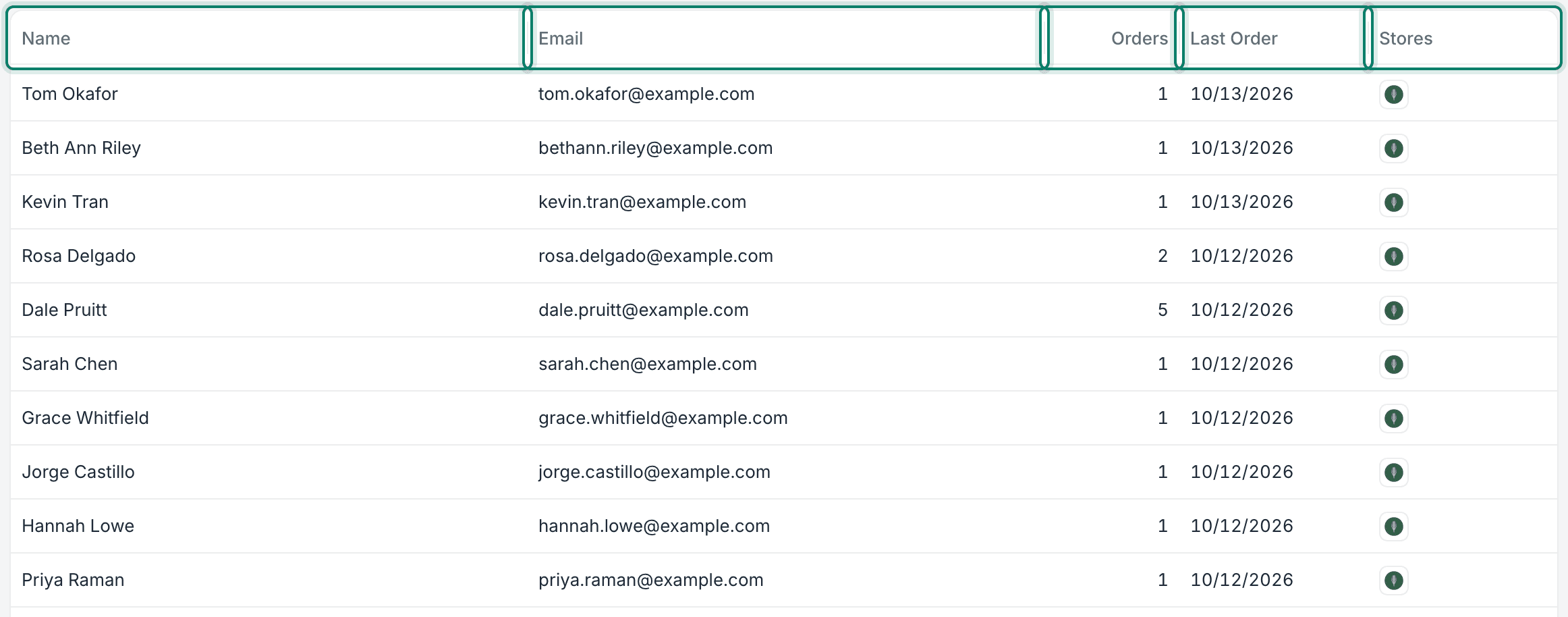
Helpful Tips
- Select the Name or Last Order column heading to sort the list by that column. Select it again to switch between ascending, descending, and unsorted.
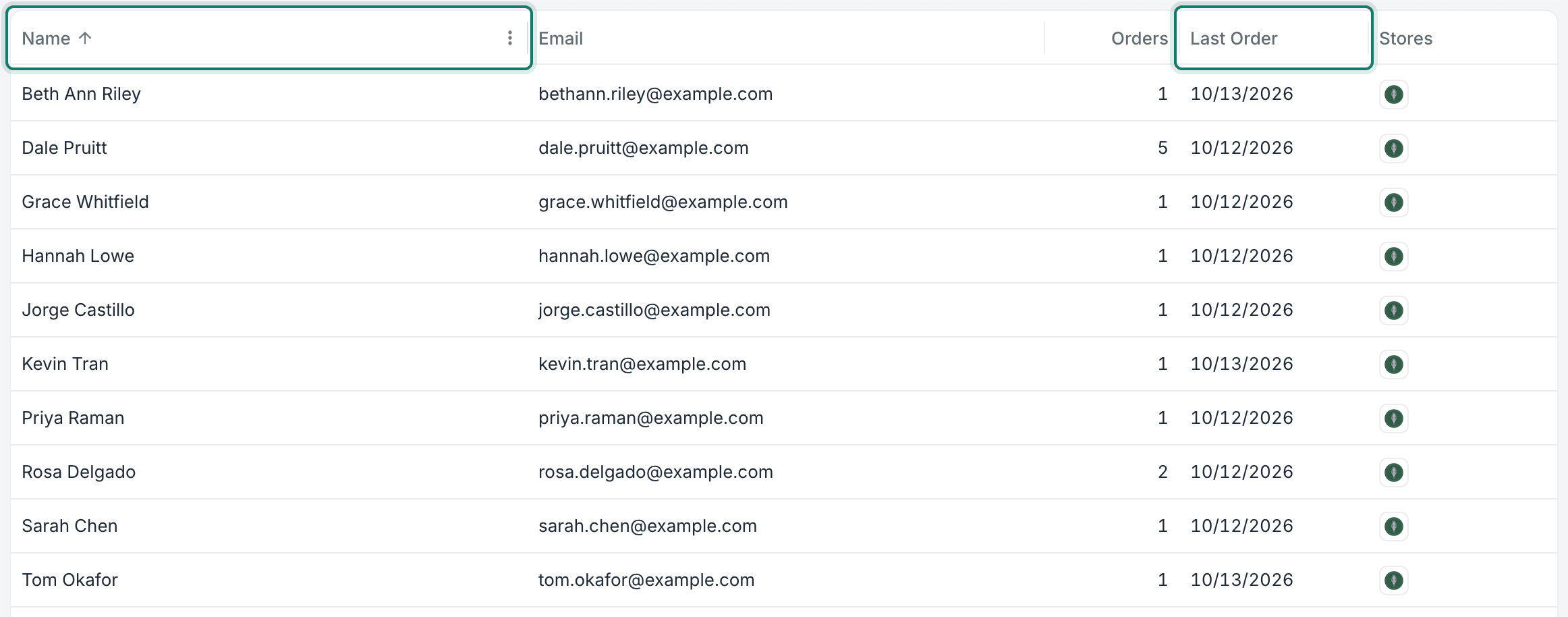
- At the bottom of the grid, choose to show 25, 100, or 150 customers per page.

Search for Customers
The search bar at the top of the Customers grid works just like the one you use to search for orders. However, instead of returning orders, it returns customers as the search results.

Helpful Tips
- With All Customers selected, it searches all customer records.
- When a customer Filter is selected, it searches only the customers within that Filter.
- Postsale finds customers by searching their orders. It searches:
- Order number
- First, last, or full name from the Ship To or Bill To address
- Tracking number
- Email address
- Phone number
- To learn more about customer searches and each search type below, see Search for Customers & Create Filters.
Standard Search
Postsale's search bar allows you to quickly find customers within the currently selected customer Filter. With Standard search selected, type into the search bar to find customers that match. Search using an order number, a name from the Ship To or Bill To address, or a tracking number.

Filters
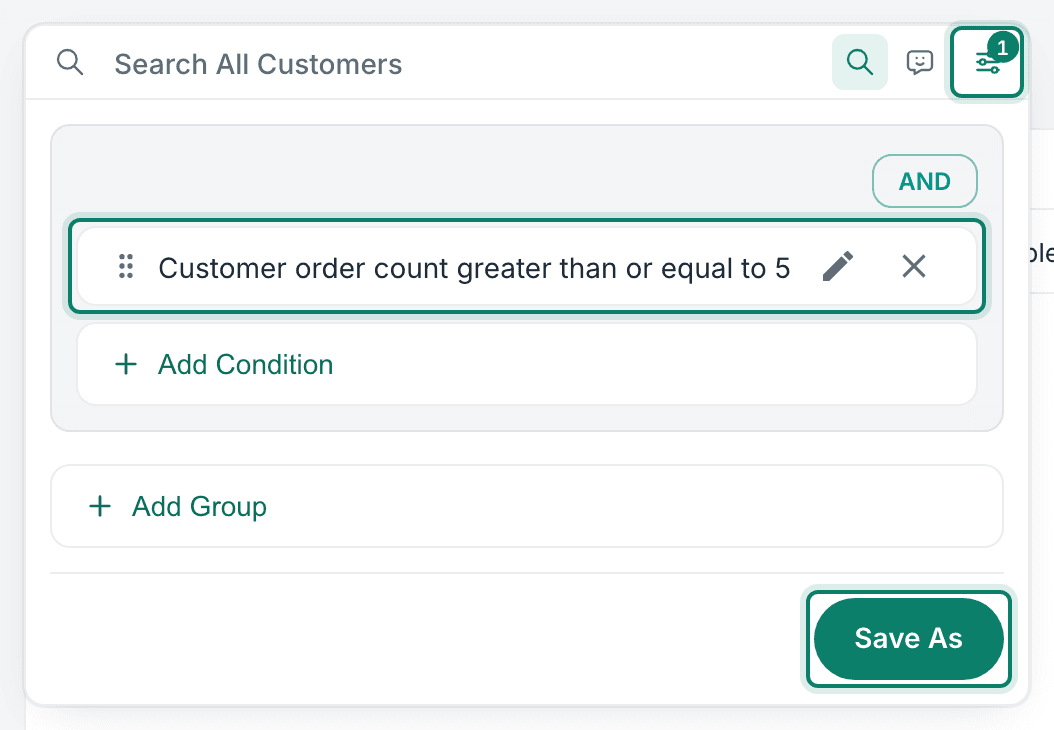
Select Filters in the search bar to build a search with conditions, the same way you would for orders. For example, add a Customer Order Count condition to list customers with 5 or more orders, or a Customer Note condition to list customers whose note names a sales rep.
Users with the Manage Customers permission can save the search as a customer Filter that appears under All Customers in the main menu.
Natural Language Search
Natural Language Search allows you to enter what you are looking for in plain language directly into the search bar. Postsale then uses AI to automatically build a Filters Search based on your input.
This is especially helpful when:
- You're not sure which field in Postsale contains the data you need.
- Your search needs to include multiple criteria, such as the number of orders, the total spent, or the date of a customer's first or last order, but you're not sure how to configure a Filters Search.
- You want to save time by simply typing what you are searching for.

View a Customer's Information
Here's how to open a customer record:
- Select All Customers under Customers in the main menu.
- Search for and select the customer you wish to view.

The customer record opens.
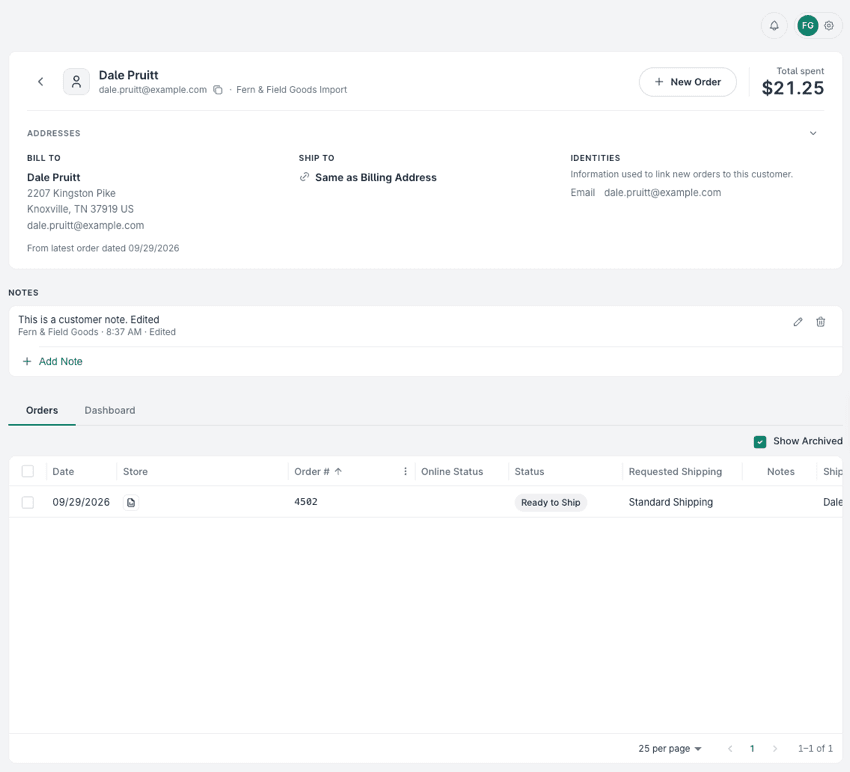
Let's look at each section of the customer record.
The Customer Header
The top of the customer record tells you who the customer is and how much they've spent with you. The following information is available:
- Back arrow: Returns you to the Customers grid you came from, with your search still in place.
- Name: The customer's name.
- Email: The customer's email address. Select the copy icon beside it to copy the email address.
- Stores: The store or stores the customer buys from, shown after the email address.
- New Order: Starts a new order for this customer, with the addresses from their latest order already filled in. Review and complete the order as usual.
- Total spent: The total of all the customer's orders.

Addresses
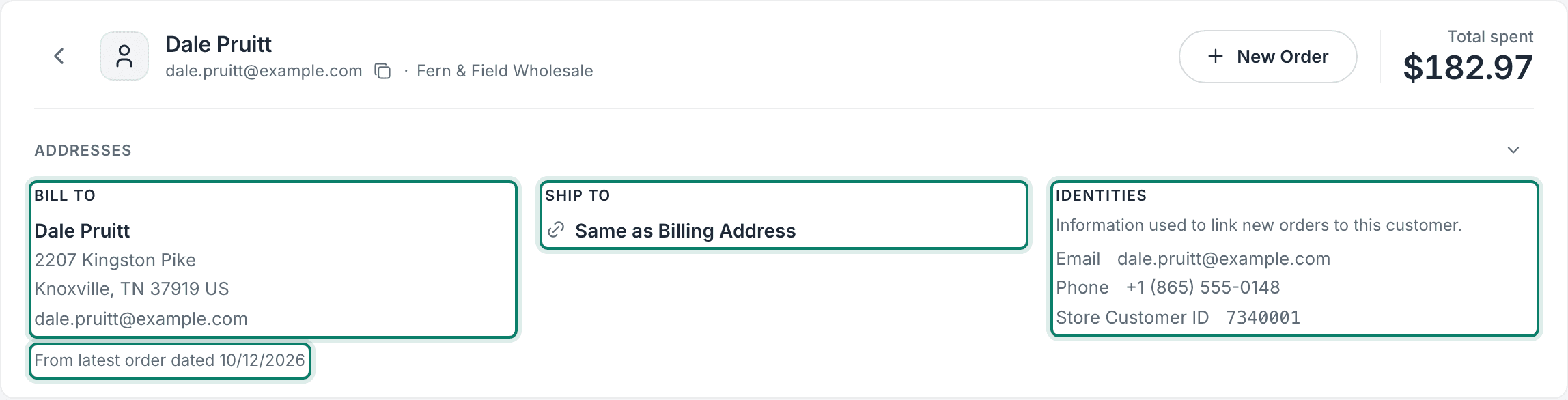
Below the name is the Addresses section, which contains the following information:
- Bill To: The billing address.
- Ship To: The shipping address. When it's the same as the billing address, it reads Same as Billing Address.
- Identities: The email addresses, phone numbers, and store customer IDs associated with this customer. This is the information Postsale uses to link new orders to this customer.
- From latest order dated: The addresses shown come from the customer's most recent order. This line tells you which order that is. Select the line to open that order in the order editor.
Notes
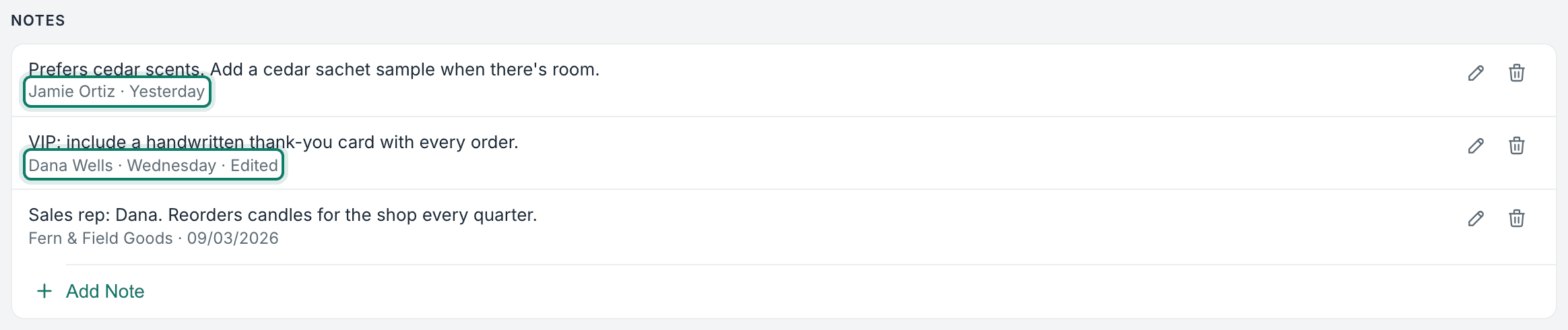
Customer notes are different from order notes. While an order note is associated with a specific order, customer notes follow the customer. Use customer notes for anything you want to remember about a customer, such as their sales rep, gift wrap preferences, the carrier and service to use for their orders, or a "VIP" label. Customer notes are added and edited on the customer record.
- Each note shows who wrote it and when.
- A note shows Edited if the original note is modified.
The three newest notes appear in the Customer Notes section of the order editor for every order from this customer.

The Orders and Dashboard Tabs
Below the notes, two tabs show the customer's Orders and Dashboard.
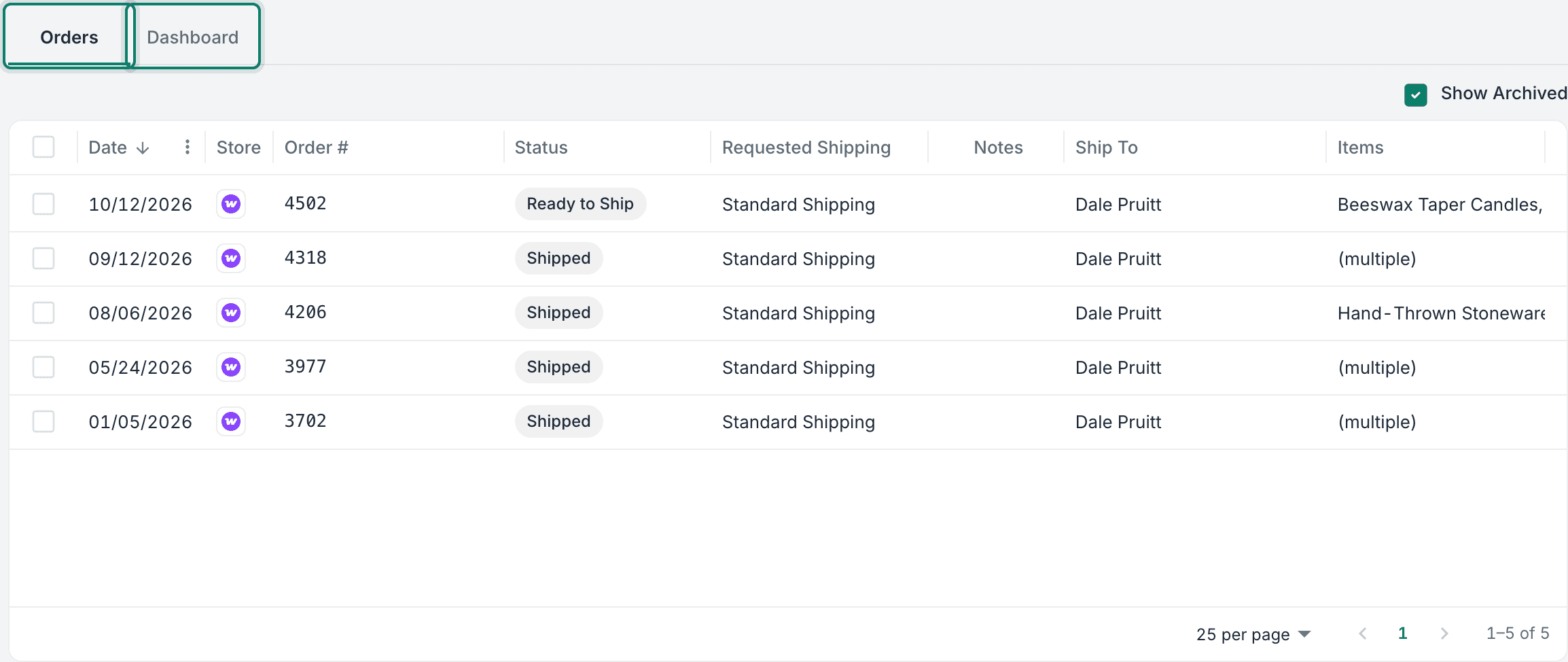
Orders Tab
The Orders tab lists every order from this customer in a familiar grid. Double-click an order to open it in the order editor, where you can view and edit it just as you would from the Orders grid.
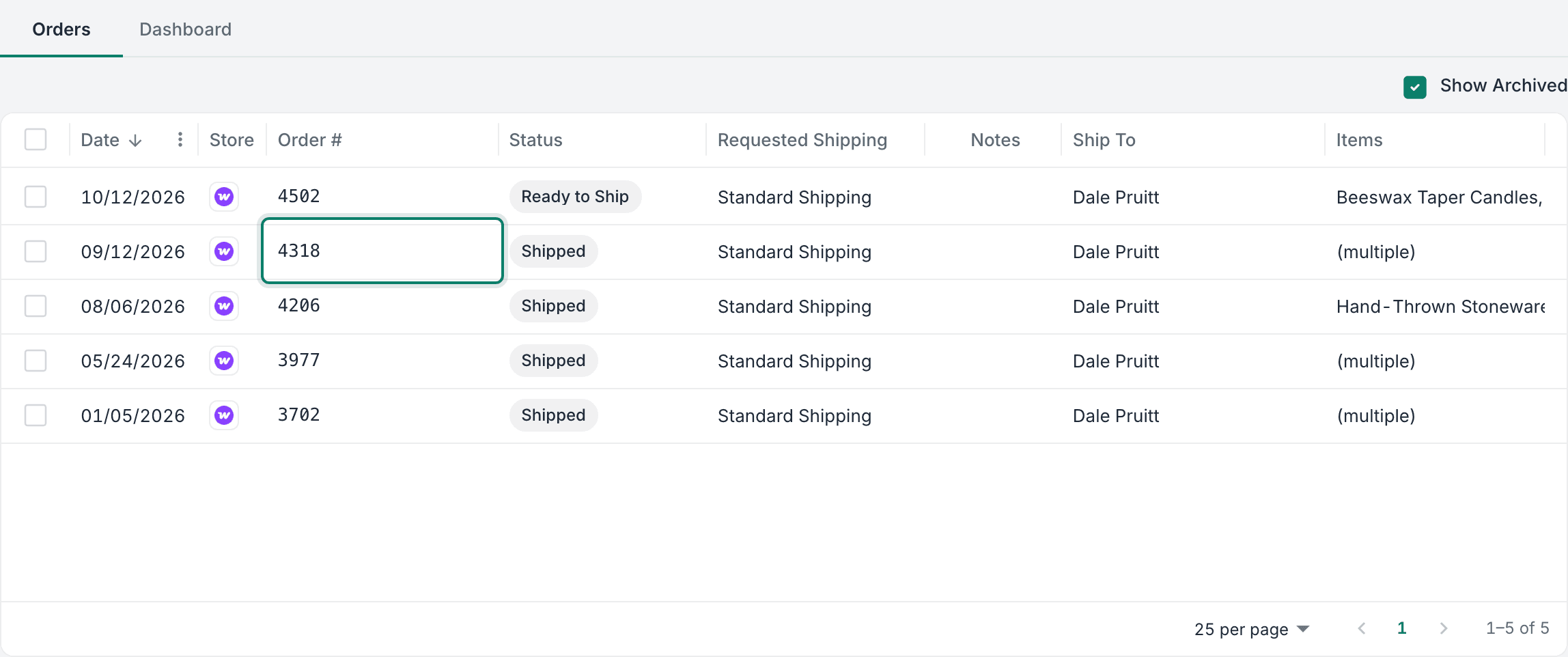
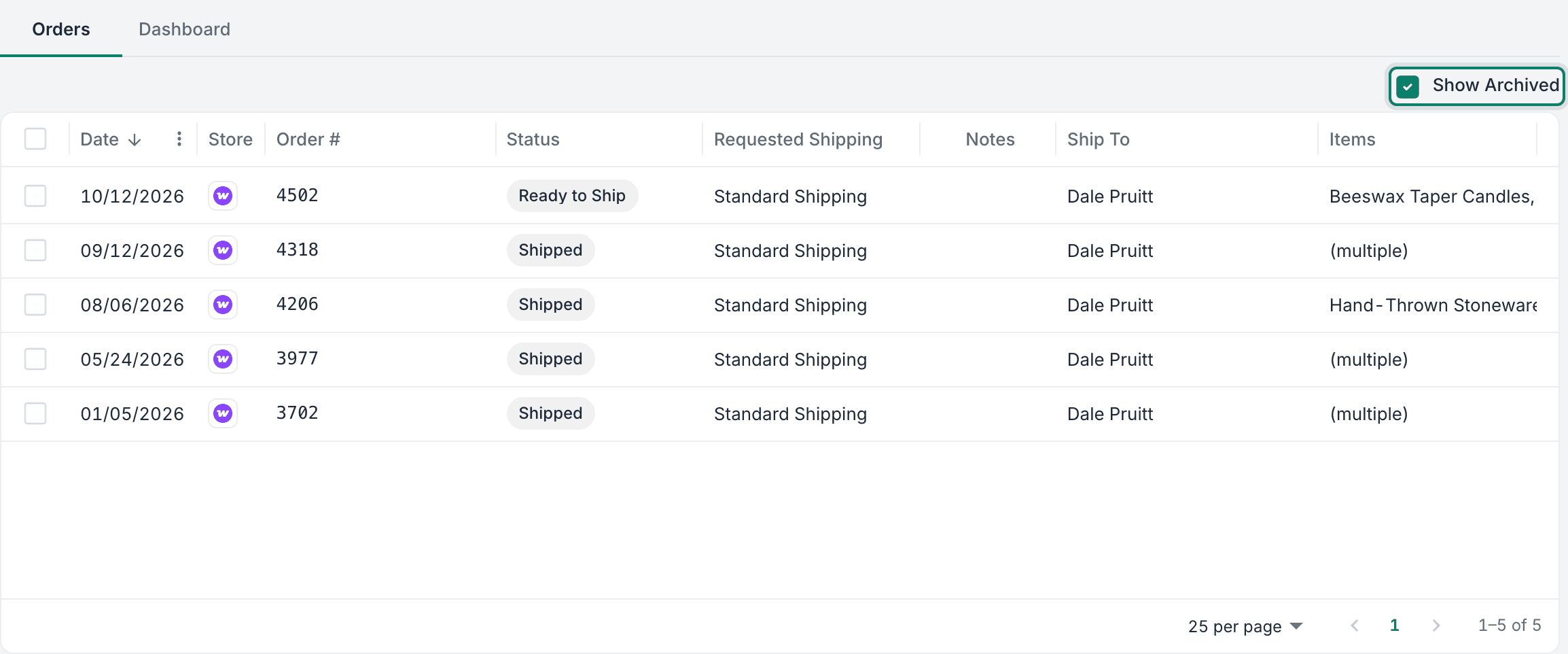
Archived orders are included. To hide them, uncheck Show Archived. Postsale remembers your choice on this device for every customer.
Dashboard Tab
The Dashboard tab shows dashboard widgets with figures and charts specific to this customer.
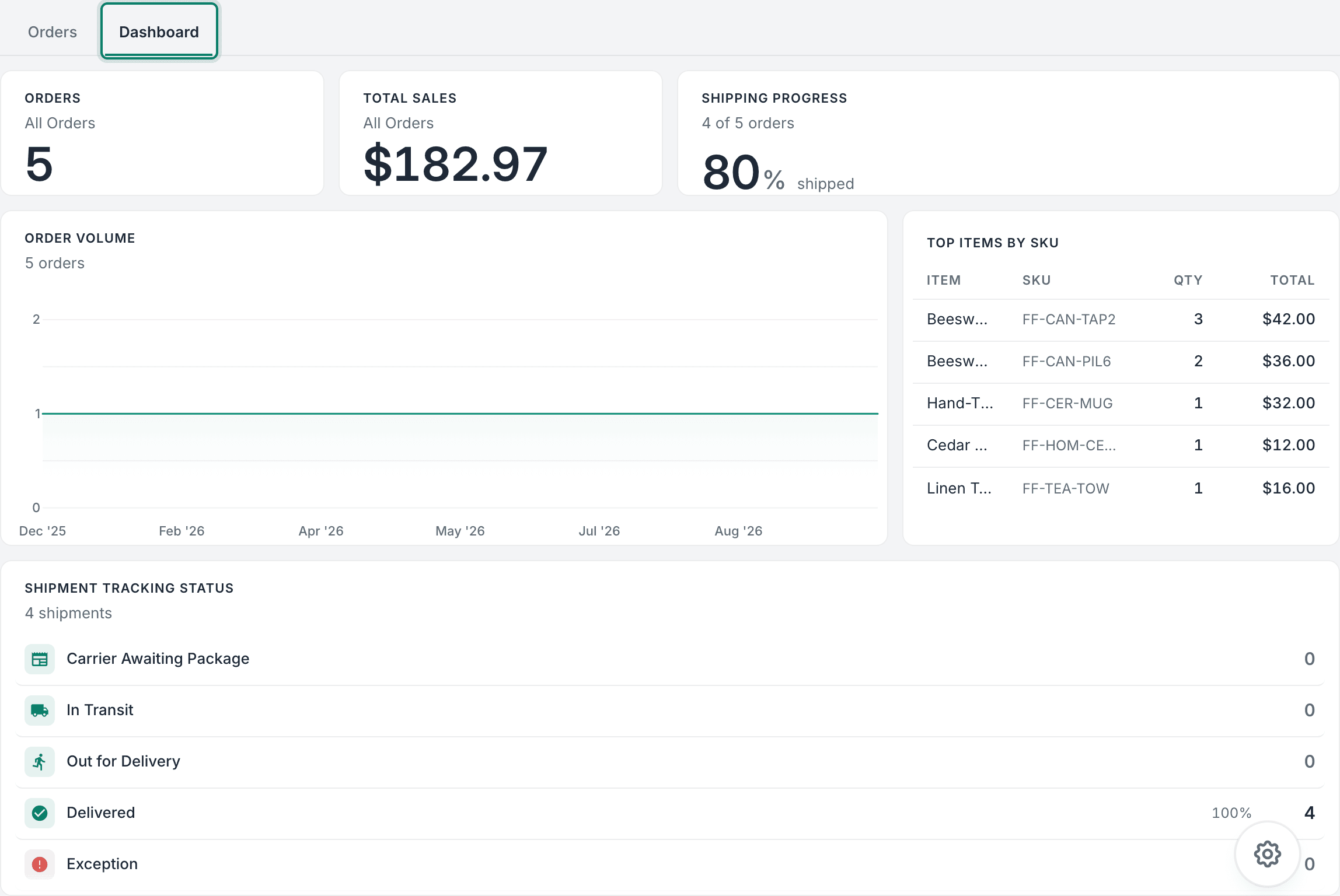
You can add, remove, and arrange widgets the same way you do on the main Dashboard. Learn more in The Postsale Dashboard: From Insight to Action, All in One View.
Still have a question? Ask a person.
Write to support@postsale.com or send us a message. We reply the same business day, Monday to Friday, 8 AM to 5 PM Central.