Edit Order Details
In this article, we look at how to open the Order Details screen and how to edit the information associated with an order.
In this article, we look at how to open the Order Details screen and how to edit the information associated with an order.
Open the Order Details Screen
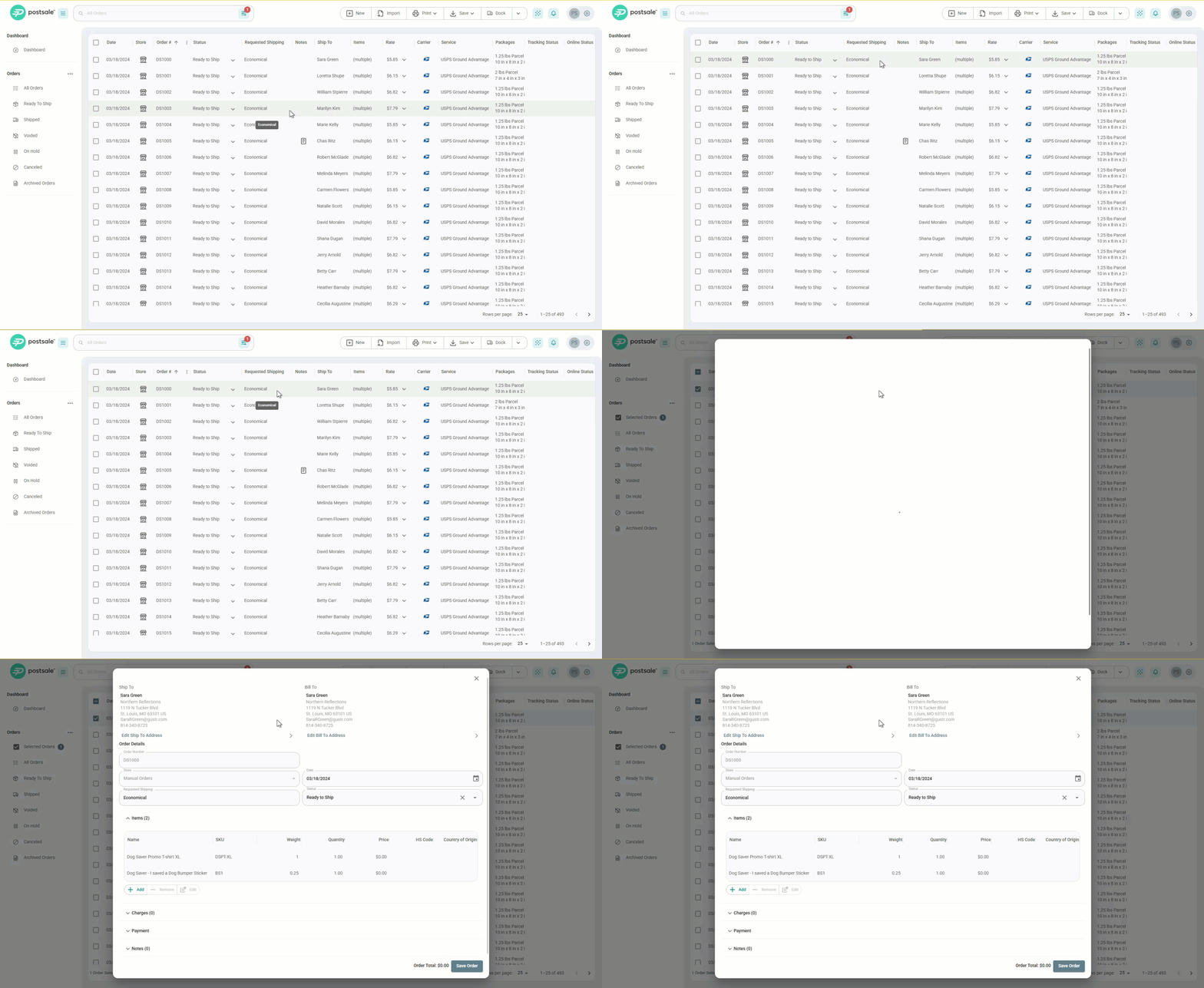
Use one of the following methods to access the Order Details screen:
Double-Click
Double-click the order you wish to edit in the Orders Grid. The Order Details screen will open.
Use the Shortcut Menu
Right-click (Windows) or Control + click (Mac) the order you wish to edit. Then, select Edit Order from the shortcut menu.
The Order Details screen will open.
Shortcut Menu on Tablets & Smartphones
The Shortcut Menu can be accessed on a tablet or smartphone by long pressing (tapping and holding for approximately one second).
Edit the Order
Ship To or Bill To Address
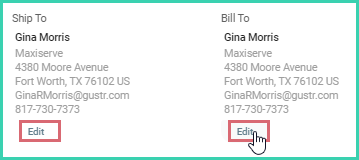
Modify the Ship To or Bill To address by clicking the Edit link for either address.
Editing the Ship To Address
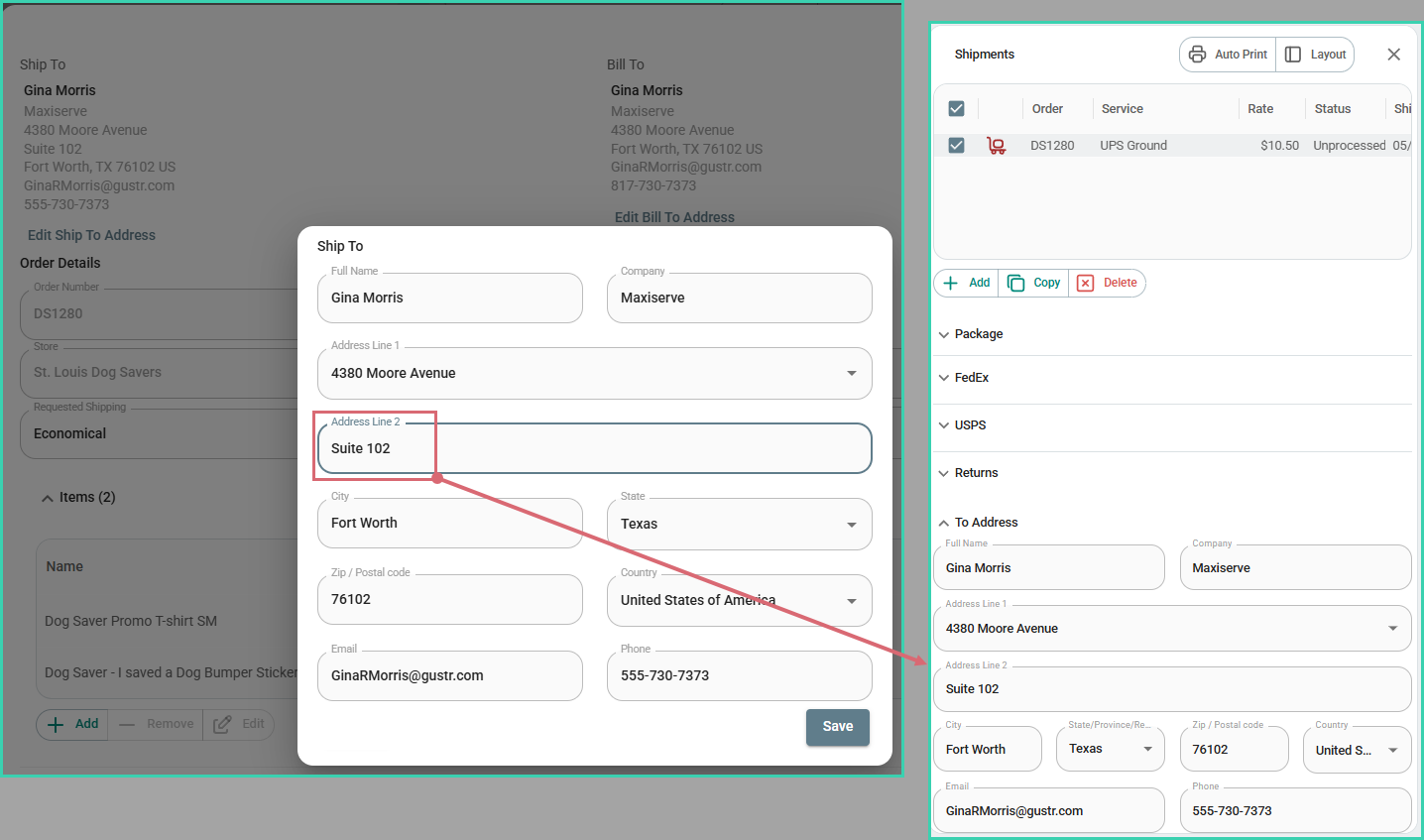
Editing the Ship To Address in Order Details also updates the Ship To address for any existing, unprocessed shipments associated with the order. This saves you time, since you don't have to update the address in multiple places.
Order Details
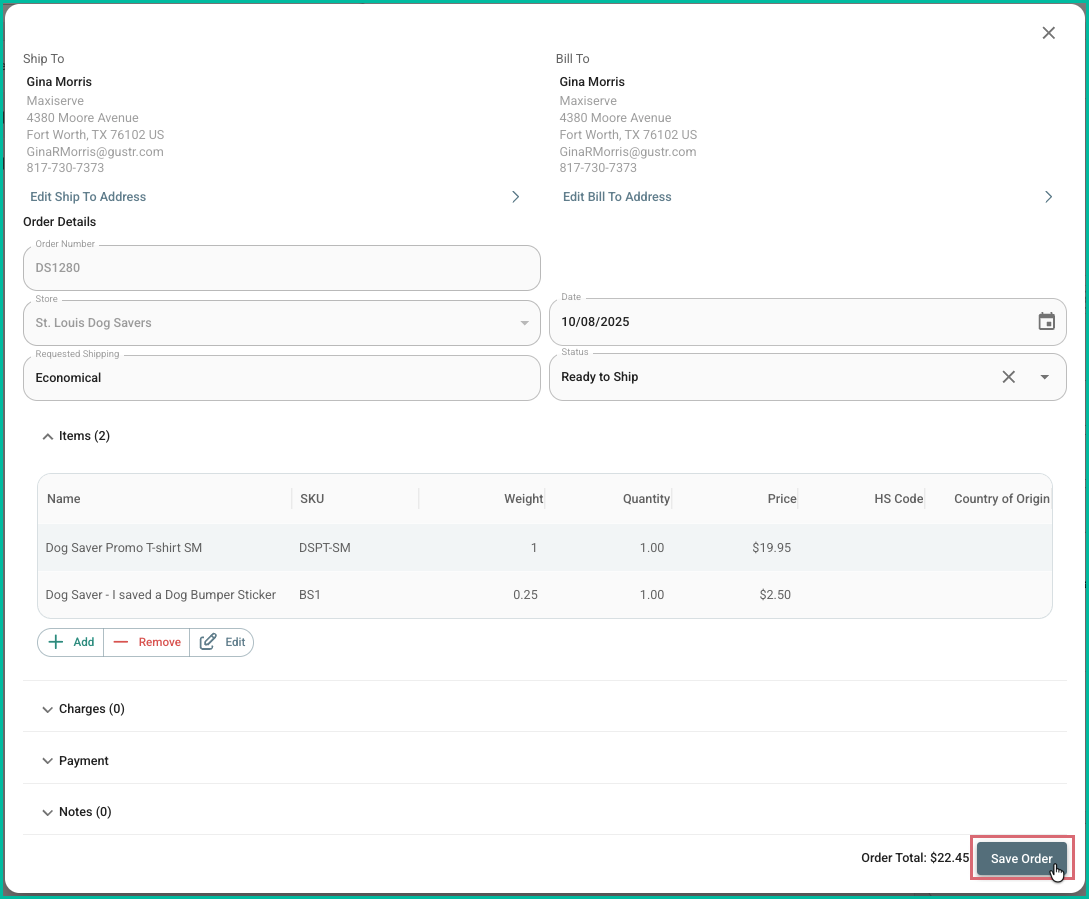
Update the following information in the Order Details section:
- Date
- Requested Shipping
- Status
Additional Order Details
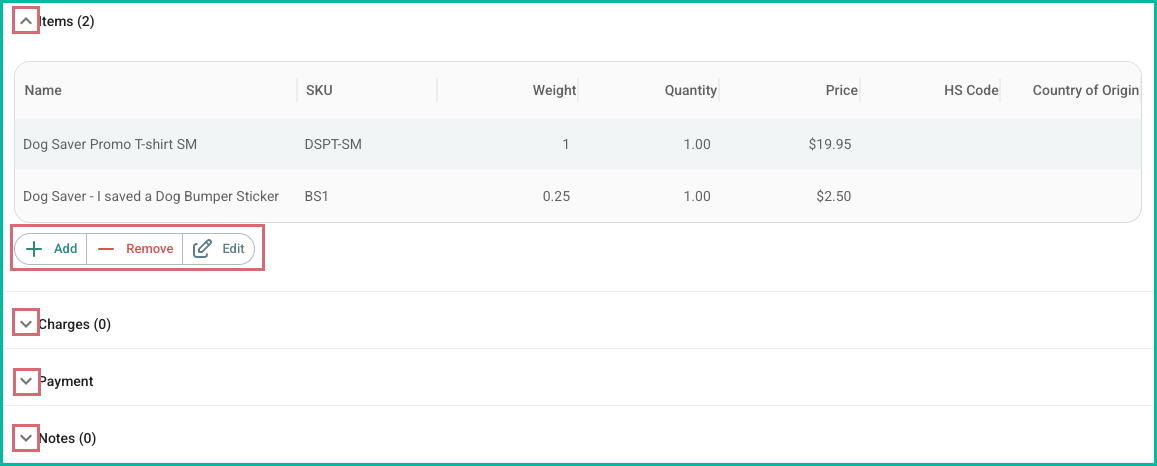
Expand any of the following sections. Then use the Add, Remove, and Edit buttons to modify the section’s details.
- Items
- Charges
- Payment
- Notes
Save Your Changes
Click the Save Order button to save your updates.
Exit Without Saving
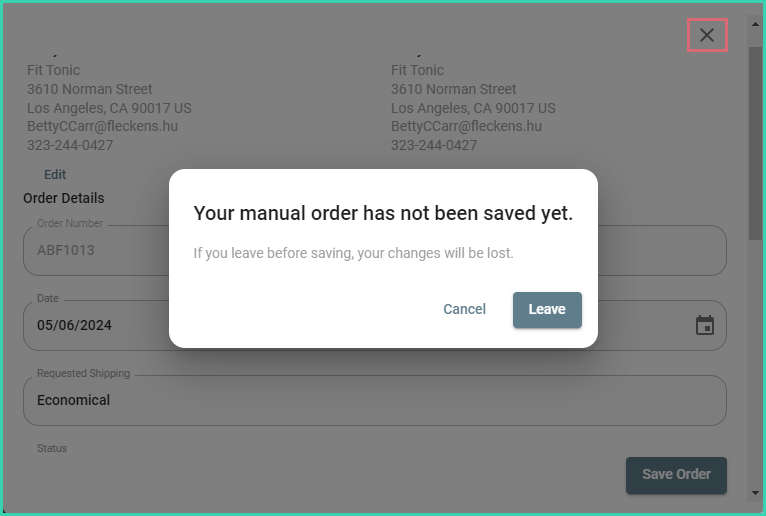
In the event you wish to exit without saving your changes, (perhaps you realized you edited the wrong order) click the X or click anywhere outside of the Order Details screen. Then, click Leave.
Click Cancel if you wish to stay on the Order Details screen and continue with your updates.
On this page
Related