Import a File: Update Existing Orders
In the Import a CSV File: Create a New Map help article, we look at how to import new orders into Postsale. However, you can also import a CSV file to bulk u...
In the Import a CSV File: Create a New Map help article, we look at how to import new orders into Postsale. However, you can also import a CSV file to bulk update orders in Postsale.
Real World Example
We are fulfilling 500 shipments for St. Louis Dog Saver. They initially specified that they would like all 500 shipments shipped using USPS Priority Mail. However, we found that by using USPS Ground Advantage we could save St. Louis Dog Saver a considerable amount on postage while still getting the packages to their customers in the same number of days.
The issue is that we have already imported all 500 orders and each order is configured to ship with USPS Priority Mail. We need to quickly update the service for all 500 orders to USPS Ground Advantage.
In this article, we will look at how to update and import an existing CSV file to bulk update orders.
Before We Begin
What You Will Need
In this article, we assume that you have already imported orders into Postsale from a CSV file and that you have the original file used to import your orders. You will need access to this file so that you can make the needed updates and reimport it.
Don't Have the Original CSV file?
Using the original file and file mapping is the quickest method of updating orders in bulk. However, if you no longer have the original CSV file, see the Alternate Method section below.
What You Should Know
Postsale needs to know which orders it should update when importing a CSV file. It does this by matching the Order Number and the Source fields in your file to the Order Number and Source associated with the orders in Postsale. If Postsale finds a match, the order is updated with the information contained in your file.
Be sure that the CSV file you update and import contains the Order Numbers and Source for the orders you wish to update.
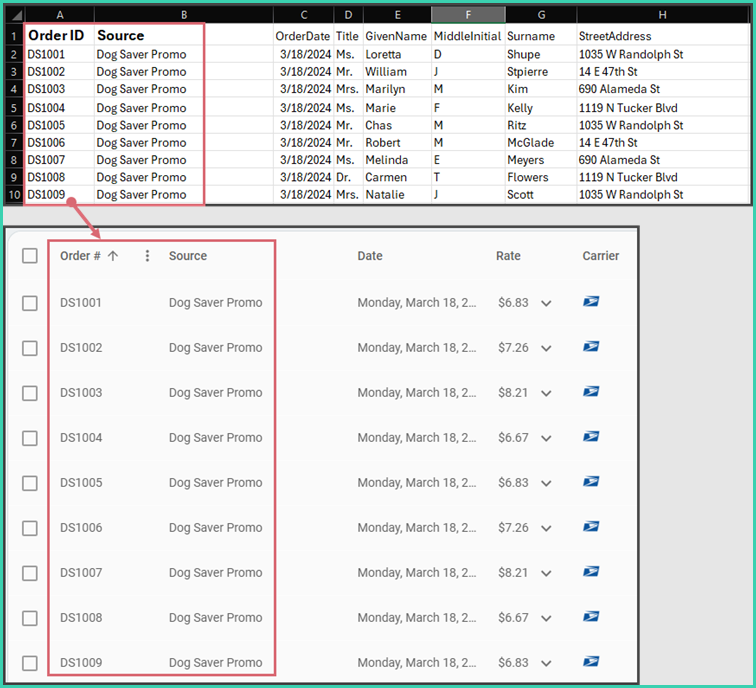
The Order Numbers and Source match, so the orders will be updated.
Bulk Update Your Orders
Let's look at how to bulk update your orders:
Alternate Method
When the original file used to import your orders is unavailable, you can create and map a new CSV file. The good news is that the file only needs to contain the following columns:
- The order numbers of the orders you wish to update
- The source associated with the orders you wish to update
- The columns containing the information that needs to be updated for each order
Using the above real world example, our file would look like this:
Follow the steps in the Import a CSV File: Create a New Map help article. It will guide you through the process of creating your CSV file and importing it into Postsale.
On this page
Related