Import a File: Use a Saved Map
In this article, we look at how to use a saved map when importing orders from a CSV file. We’ll also look at how to make minor edits to an existing mapping f...
In this article, we look at how to use a saved map when importing orders from a CSV file. We’ll also look at how to make minor edits to an existing mapping file.
Importing orders using a saved mapping file is a big time saver since you won’t need to create a map from scratch when importing orders from a CSV file that is formatted the same as a previously imported file. This method is best when:
- You regularly import orders into Postsale from a custom order source and the CSV file is always formatted the same way.
- You regularly fulfill orders for a third-party and they always supply you with an identically formatted CSV file.
- You need to bulk update orders in Postsale. Check out our Import a CSV File: Update Existing Orders in Postsale help article.
Real-World Example
We fulfill orders for STL Dog Saver. They regularly have us ship a T-shirt and a bumper sticker to a list of donors. They always supply us with an identically formatted CSV file containing the Ship To addresses, order information, and shipment details.
So, when we import the file into Postsale, we use a saved Mapping file so that we don’t have to recreate the mapping each time. We just select the CSV file, choose the correct mapping, and import the orders.
Before We Begin
This article assumes that:
- You have previously mapped and imported orders from a CSV file.
- You have a CSV file formatted exactly the same as the previously imported file.
- The file should have the same columns with the same names.
- The file should have the same columns with the same names.
Importing New vs. Updating Existing Orders
Postsale updates existing orders by matching the Order Number and the Source fields in your imported file to the Order Number and Source associated with the orders in Postsale. If Postsale finds a match, then the order is updated with the information contained in your file. Otherwise, when no match is found, a new order is created.
Step By Step
Select & Import Your CSV File
-
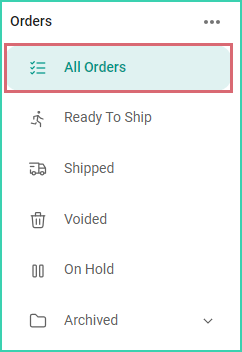
Select any filter in the Orders Menu. For this example, we selected the All Orders filter.
-
Select Import from the Order Actions menu.

-
Select your CSV file using one of the following methods:
-
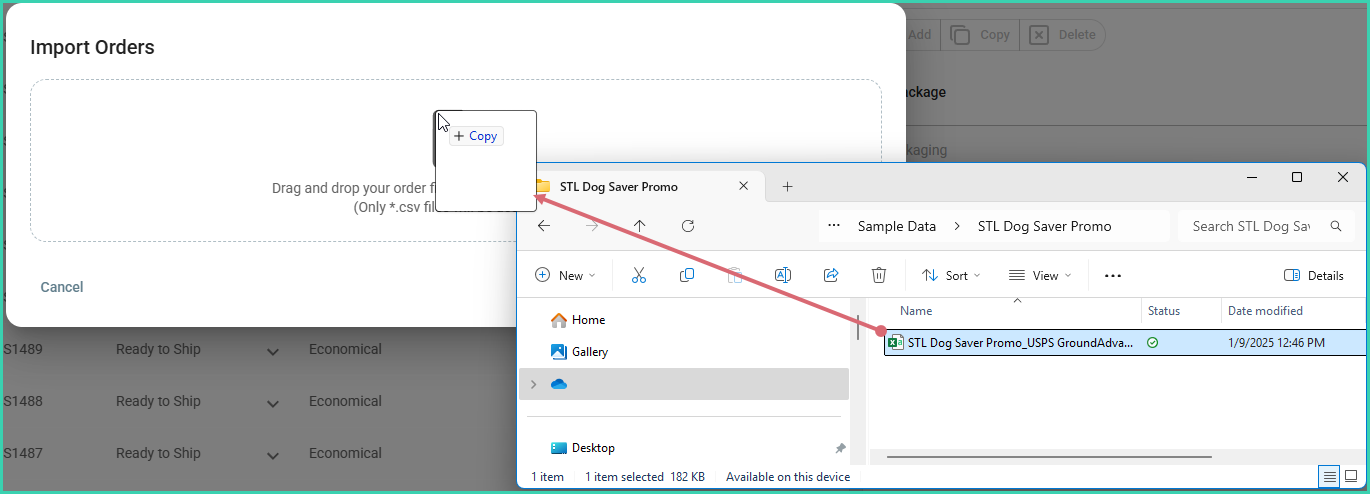
Drag and drop your file from your computer into the drag and drop interface.
-
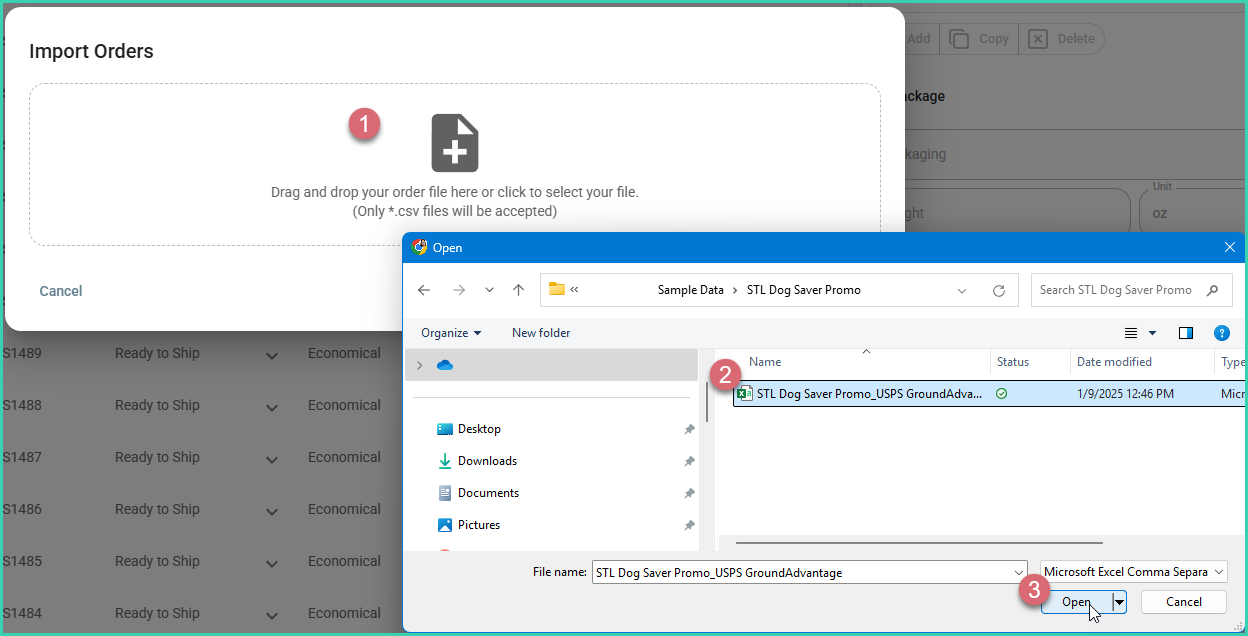
Click in the drag and drop interface. Then, navigate to your file and select it.
-
-
Select the correct CSV store from the Store drop-down menu.
-
Click the Import Orders button to begin the import.
Since the file matches the columns mapped in the store, we are good to go! The orders will be imported.
Monitor the Import Progress
Monitor the status of your import by viewing Notifications.
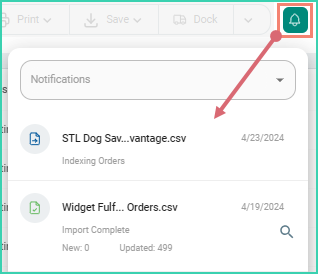
Once the import is complete, the Import Complete notification will list the number of new orders that were imported and the number of orders already in Postsale that were updated.
Click the magnifying glass icon to quickly view the orders included in the import.
When You Need to Update the Mapping File
In some cases you may need to update the mapping.
When there isn’t a 100% match to the columns mapped in the store, Postsale selects the store that is most closely mapped to your CSV file and tells you the percentage of the columns that are mapped correctly and lists the columns that need to be updated.
If the incorrect store is selected, you have the option to select the correct one.
Update the Mapping
-
Ensure that the correct store is selected.
-
Click the Edit Mapping link.
-
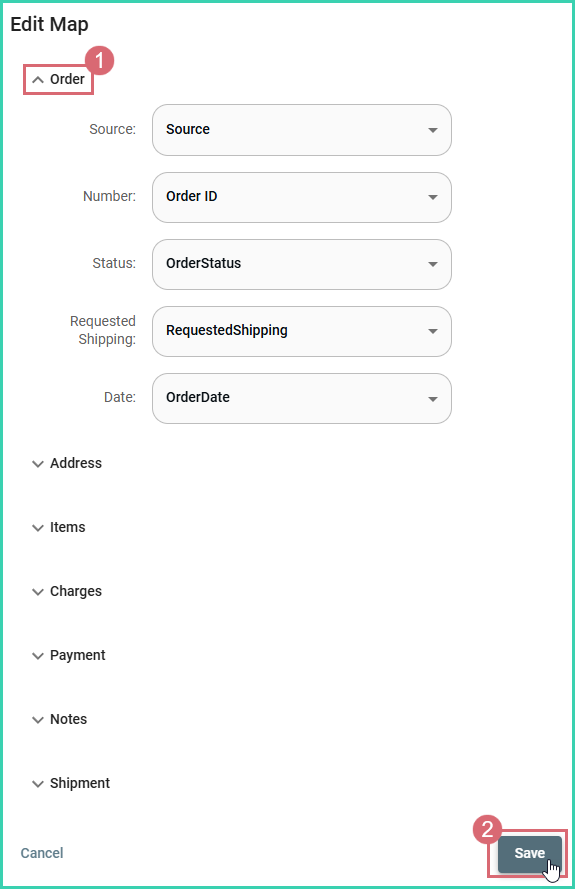
Expand the categories you need to update and make the necessary changes. Then, click Save.
-
Click the Import Orders button once all your updates are made.
The orders will now be imported. Use Notifications to monitor the status of your import.
On this page
Related