Add Products
Manually add new products to Postsale
Product records give you one place in Postsale to see each product you sell, how much it's earned, how many units have sold, and which orders it appears in.
Postsale builds product records for you. As orders come in, Postsale creates new product records based on the products on the orders. You can also manually add new products when needed or edit existing product records.
This article will:
- Show you how to add a new product in the Products Grid
- Create a new product when adding or editing an order
- Provide you with important information about products in Postsale
Before We Begin
To view and manage product records and see the orders that belong to a product, you must be logged in to Postsale as:
- The Postsale account owner or
- A user with the Manager role assigned or
- A user with these permissions assigned:
- Read Products allows the user to view product records
- Read Orders allows the user to view the orders that belong to a product
- Manage Products allows the user to save product Filters and to edit and save products
Manually Add Products
From the Products Grid
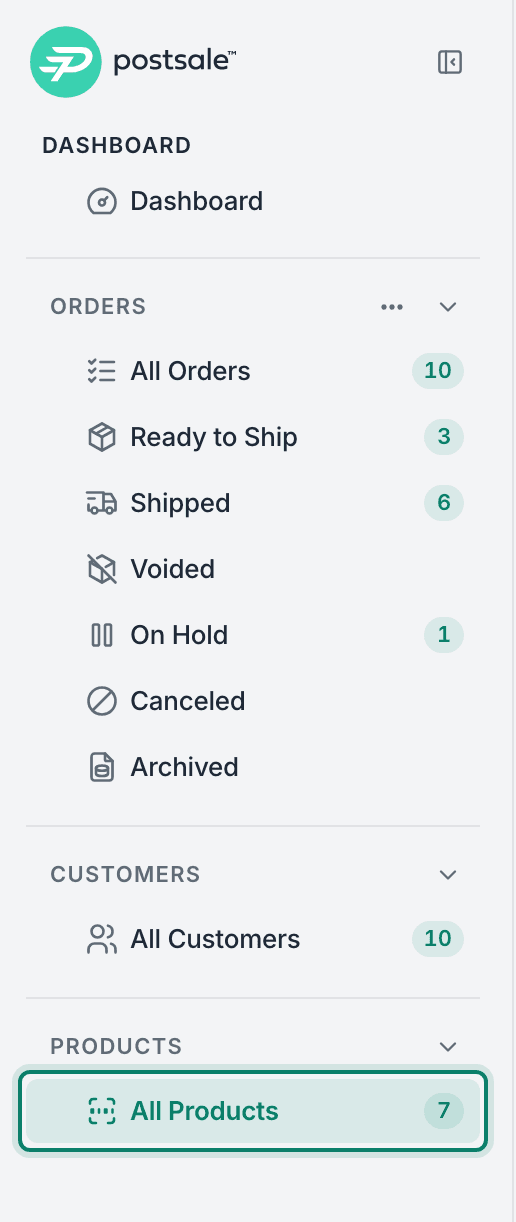
Select All Products in the main menu.
Select Add Product.

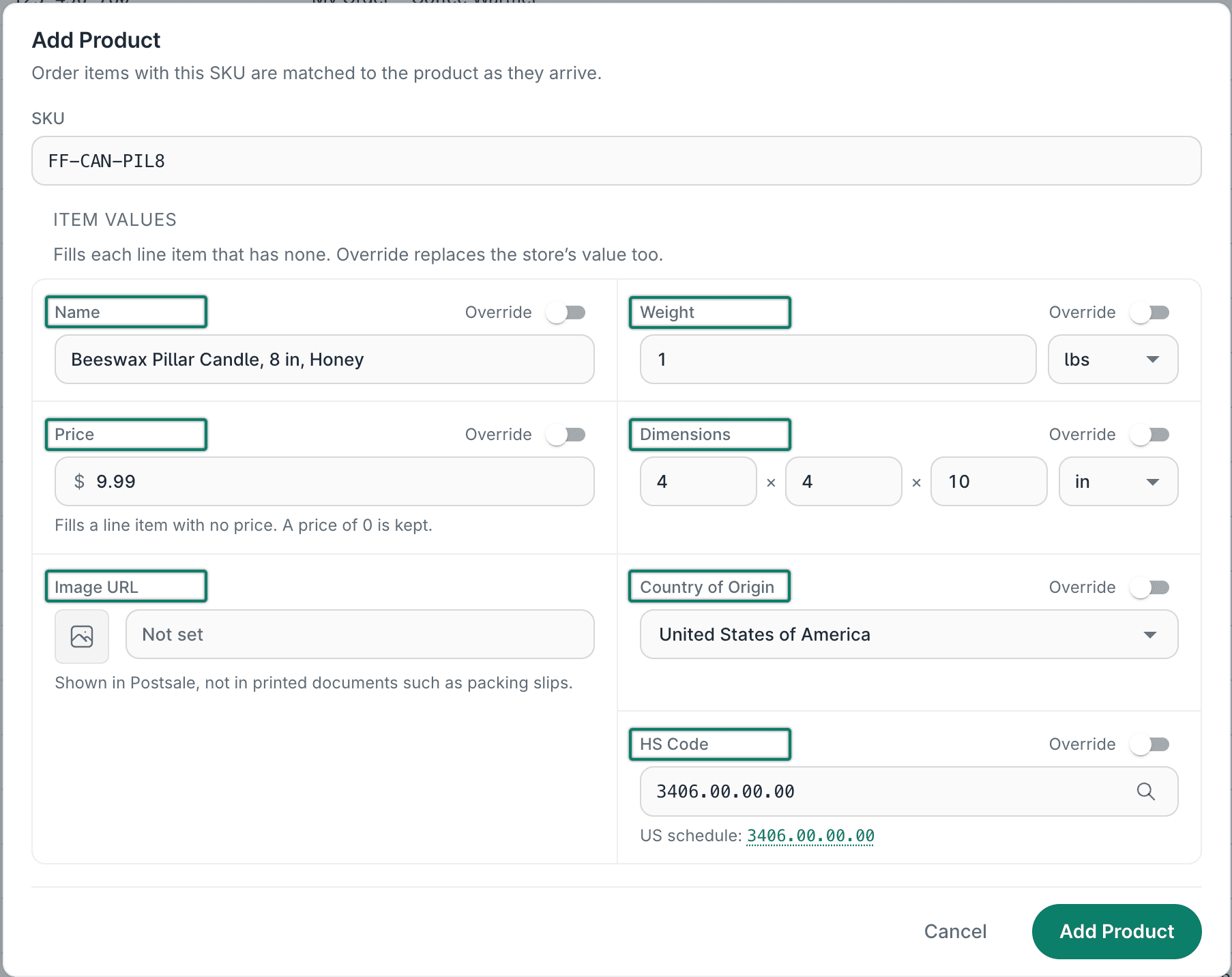
The Add Product screen will open.
(Required) Enter a SKU for the product.

Enter the Item Values for the product.
The following values can be entered:
- Name: The name of the product
- Weight: The weight and unit of measure (lbs, oz, kg, g) of the product
- The value entered is used to calculate the weight for new shipments containing this product.
- Price: The price of the product
- Dimensions: The Length, Width, and Height of the product
- The values entered are used when new shipments are created containing this product
- Country of Origin: The product's country of origin
- The selected country is used for required customs information when shipping internationally.
- Image URL: Used to point to an image of the product
- When a URL is entered, the image shows next to the product in the Products Grid. The image does not display on templates, such as a packing slip or invoice.
- HS Code: The HS Code associated with the product
- Used for required customs information when shipping internationally.
Select Add Product.

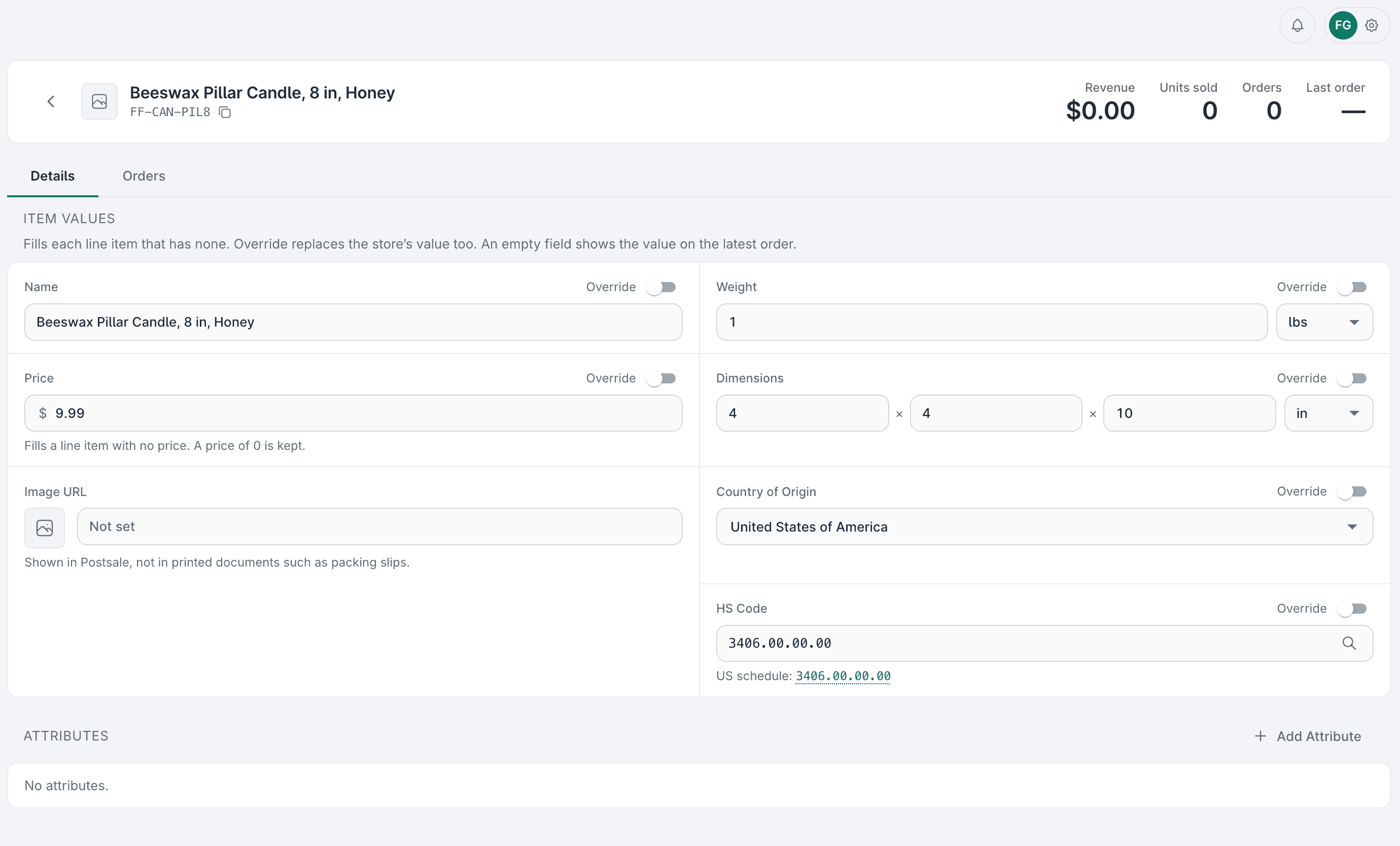
The new product is added, and its Details screen is shown. If needed, you can update or change the product here. Learn more about editing a product.
When Adding or Editing an Order
You can add new products when you manually add items to a new order or when you edit an existing order in Postsale.
The steps are the same either way:
Select + Add Item in the Items section of the order editor.
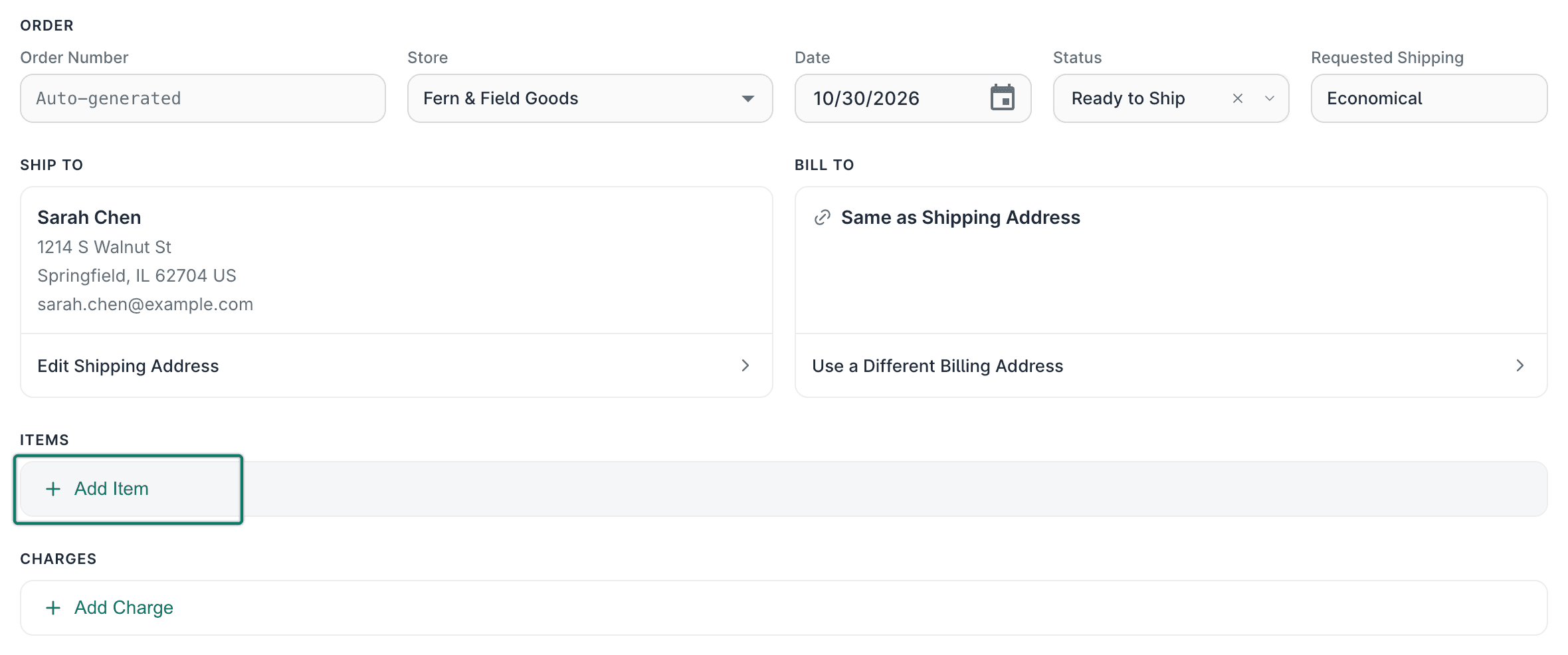
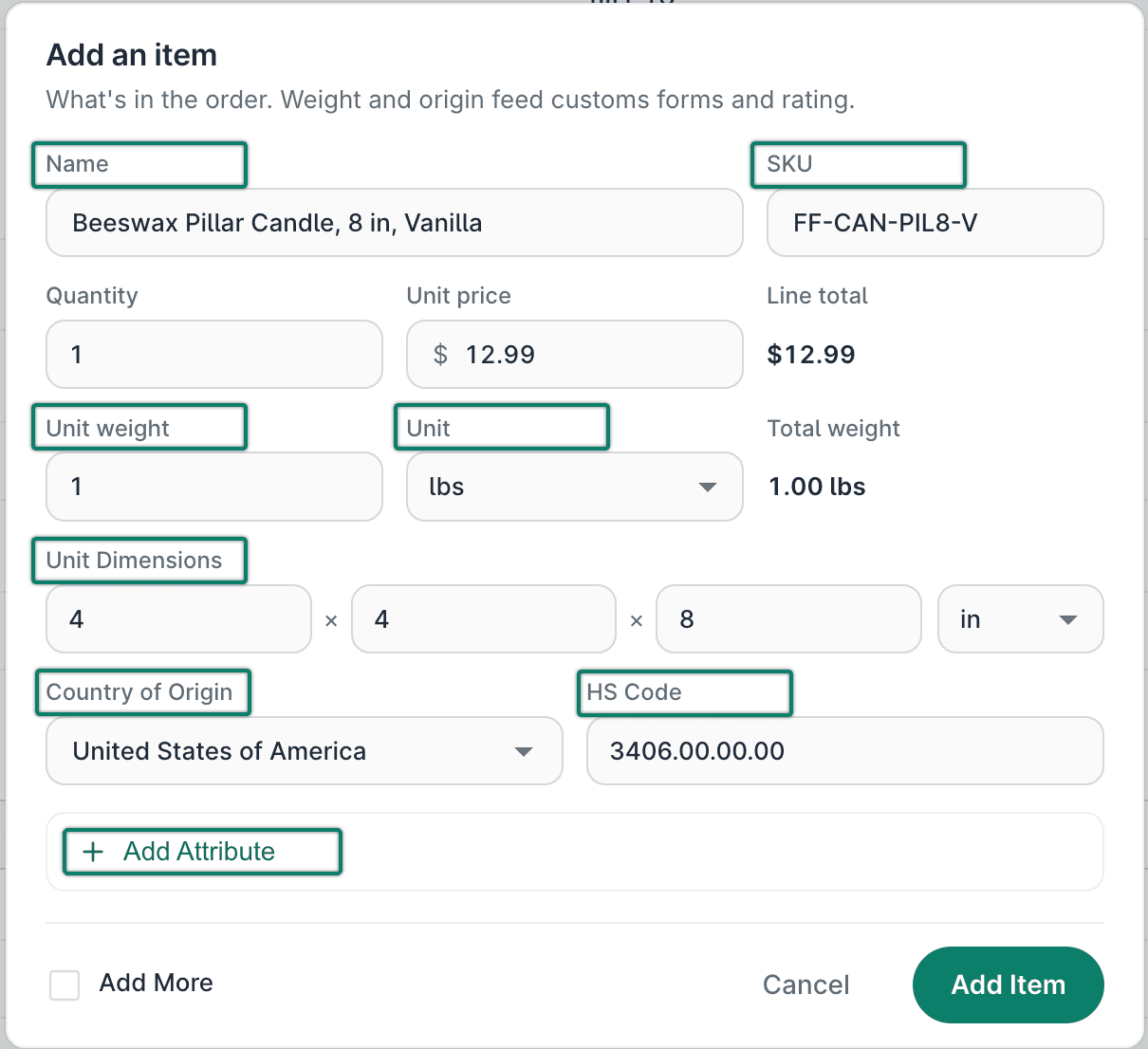
The Add an item screen opens.
Enter the item values into the appropriate fields.
The following values can be entered:
- Name: The name of the product
- SKU: (Required for new products) Postsale uses the product's SKU to identify and match products in Postsale. Once you save a new product, you can no longer change the SKU. See the Good To Know section at the end of this article for more information.
- Weight: The weight and unit of measure (lbs, oz, kg, g) of the product
- The value entered is used to calculate the weight for new shipments containing this product.
- Price: The price of the product
- Dimensions: The Length, Width, and Height of the product
- The values entered are used when new shipments are created containing this product
- Country of Origin: The product's country of origin
- The selected country is used for required customs information when shipping internationally.
- Image URL: Used to point to an image of the product
- When a URL is entered, the image shows next to the product in the Products Grid. The image does not display on templates, such as a packing slip or invoice.
- HS Code: The HS Code associated with the product
- Used for required customs information when shipping internationally.
- Attributes: Item attributes added here are not saved in the new product record. Learn about adding item attributes
Select Add Item.
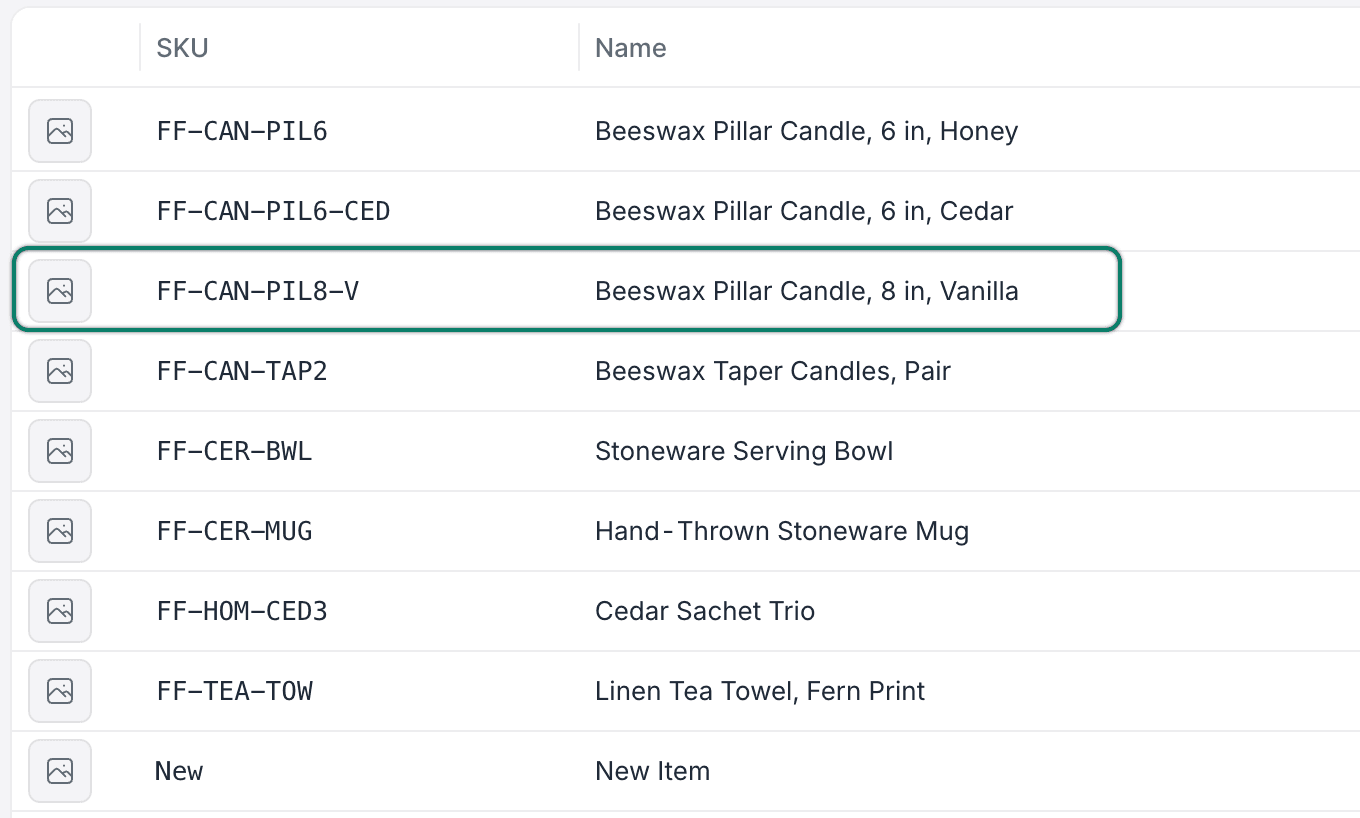
The item is added to the order, and a new Product record is created. View product records by selecting All Products in the main menu.
Good To Know
About Product SKUs
- The SKU is how Postsale identifies a product. It ties the product record to order items. Every time an order comes into Postsale, or when an order changes, Postsale matches each item to the product with the same SKU from any store. For example, the same SKU on a Shopify order and an Amazon order is considered the same product in Postsale.
- When a SKU matches, the Postsale Product's item values fill in that item's details (Name, Price, Image URL, Weight, Dimensions, Country of Origin, and HS Code) only if the store left them blank.
- New shipments use the Postsale Product values (Weight and Dimensions). Existing shipments keep what they were created with.
- Adding a product to Postsale before new orders are imported from your store is OK.
- Be sure to enter SKUs exactly as they are in your store's product catalog so that they can be matched in Postsale.
- Capitalization and spaces at either end don't matter: "MUG-12OZ", "mug-12oz," and " MUG-12OZ " are the same product.
About the Override Toggle
The Override toggle is useful when you need to update a value for a product that appears on multiple orders. For example, the store's weight or HS code for an item may be wrong or out of date. Fix it once on the product, turn on Override, and every order with that SKU will use the correct value.
Here are a few things to keep in mind:
- Any product value with the Override toggle enabled applies to every order with that product, past orders included, not just new ones.
- Values that have been overridden are indicated with a From Product label when viewing the item in the Order Editor.
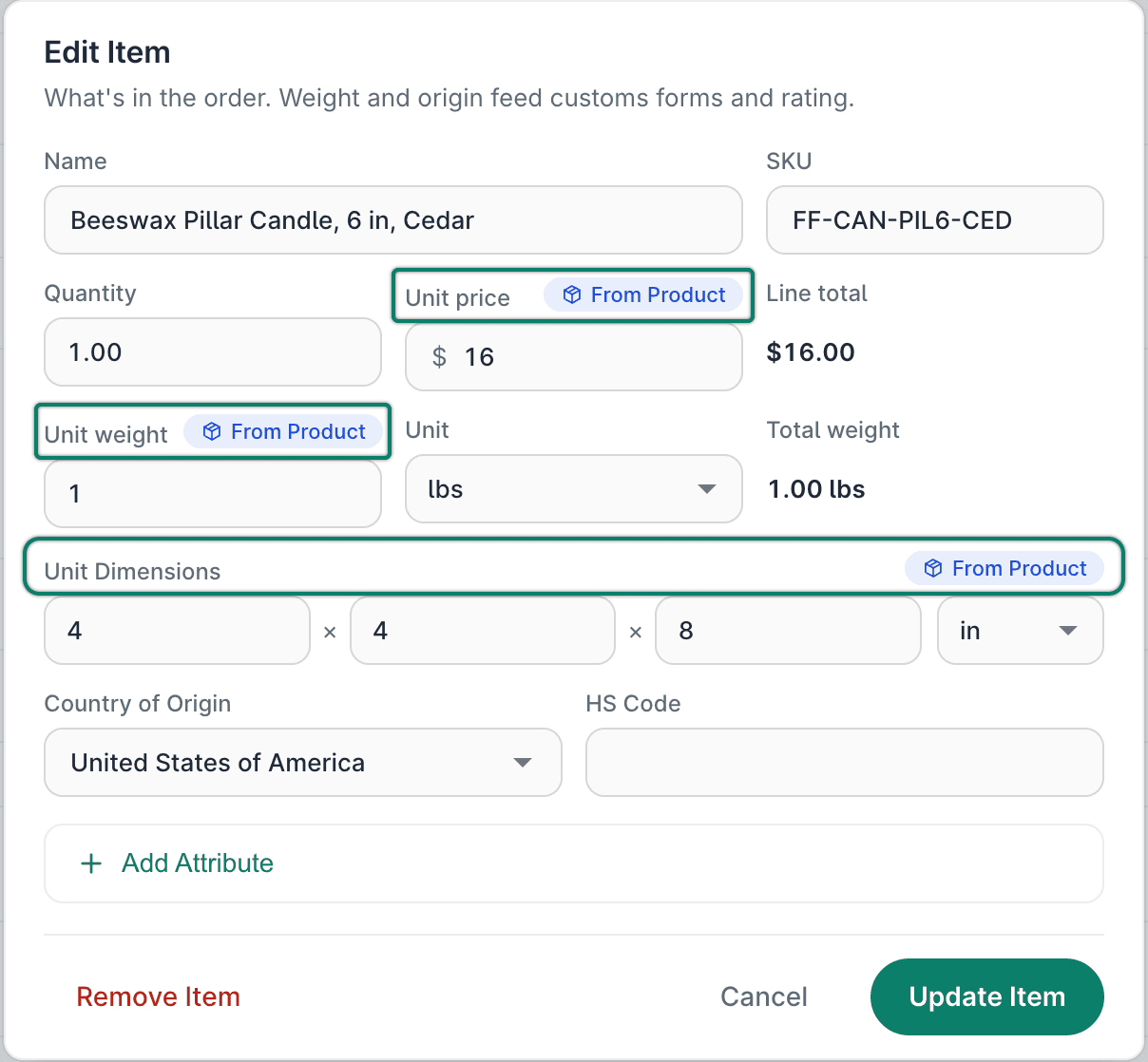
- When you enable the weight and dimension override toggles, the values apply only to new shipments. Shipments created before you enabled the toggle are not affected.
- No original order data is lost when the override toggle is enabled. Postsale keeps the original values, so when you disable the toggle, it restores the original value.
- Use caution when overriding the Price field. It shows a warning when you turn on its Override: "This replaces the price buyers paid on every order with this product, past orders included. Those orders' totals and your revenue change with it."
Still have a question? Ask a person.
Write to support@postsale.com or send us a message. We reply the same business day, Monday to Friday, 8 AM to 5 PM Central.