Introduction to Product Records
Learn what product records are in Postsale, how to find and search your products and how to view and edit a product's details.
Product records give you one place in Postsale to see each product you sell, how much it's earned, how many units have sold and which orders it appears in.
Postsale builds product records for you. As orders come in, Postsale creates new product records based on the products on the orders. You can also manually add new products and edit existing ones.
This article will:
- Introduce you to product records
- Show you how to access your product records
- Show you how to search for products
- Show you how to view a product's details and related orders
- Provide you with links to additional help articles related to Products in Postsale
Before We Begin
To view and manage product records and see the orders that belong to a product, you must be logged in to Postsale as:
- The Postsale account owner or
- A user with the Manager role assigned or
- A user with these permissions assigned:
- Read Products allows the user to view product records
- Read Orders allows the user to view the orders that belong to a product
- Manage Products allows the user to save product Filters and to edit and save products
Access Your Product Records
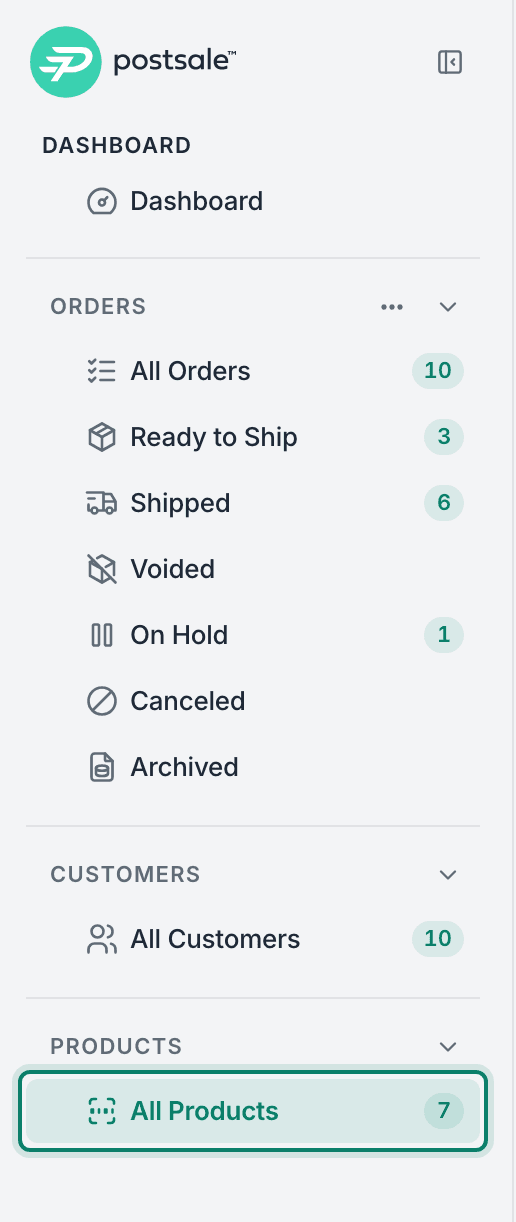
Select All Products in the main menu to see all of your products in one place.
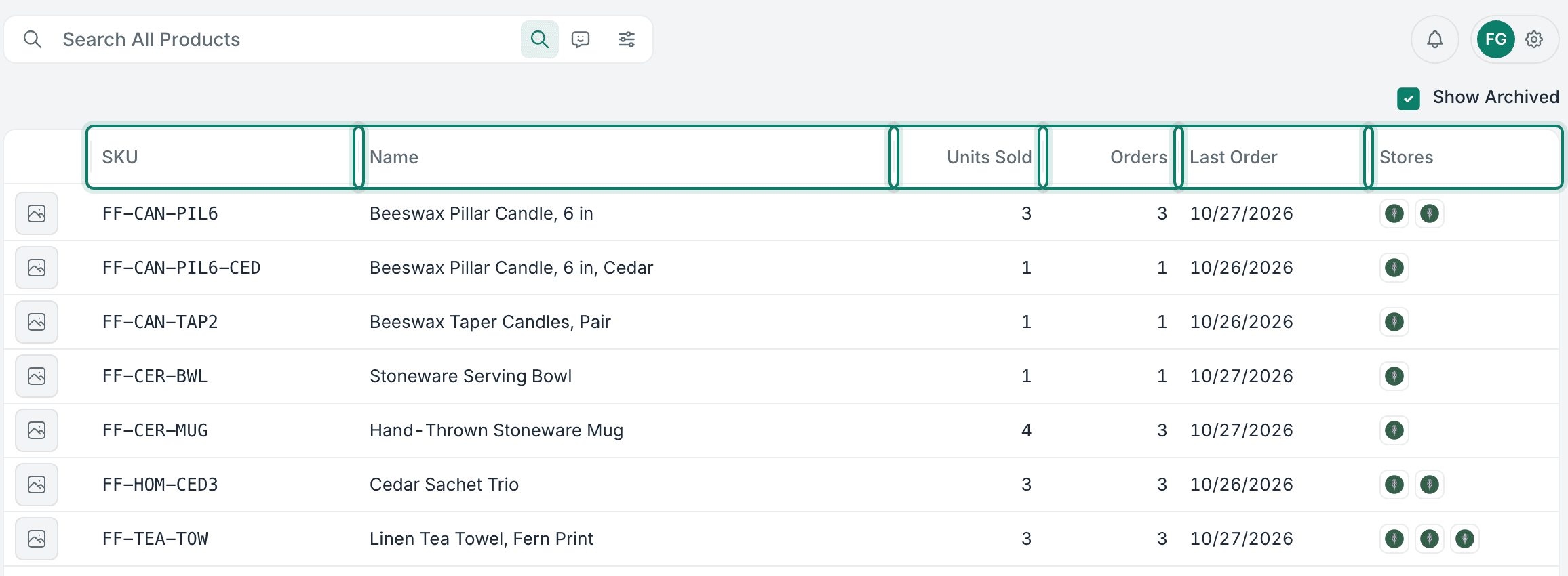
The Products Grid opens and lists all of your products.
The following information is shown for each product:
- SKU: The product's SKU.
- Name: The product's name.
- Units Sold: How many units of the product have sold.
- Orders: The number of orders the product appears in.
- Last Order: The date of the most recent order that includes the product.
- Stores: The stores the product has been ordered from.
Helpful Tips
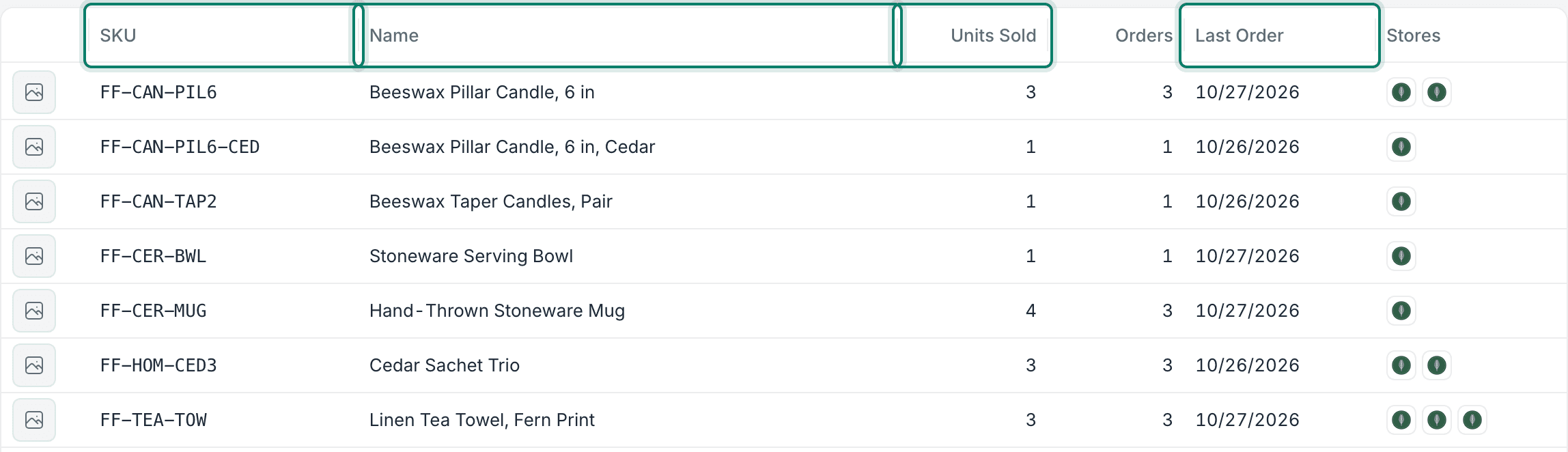
- Click the SKU, Name, Units Sold or Last Order column heading to sort the list by that column. Clicking multiple times alternates between ascending order, descending order and unsorted.
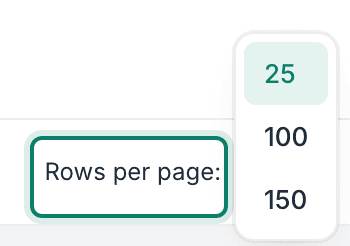
- At the bottom of the grid, choose to show 25, 100 or 150 products per page.
Search for Products
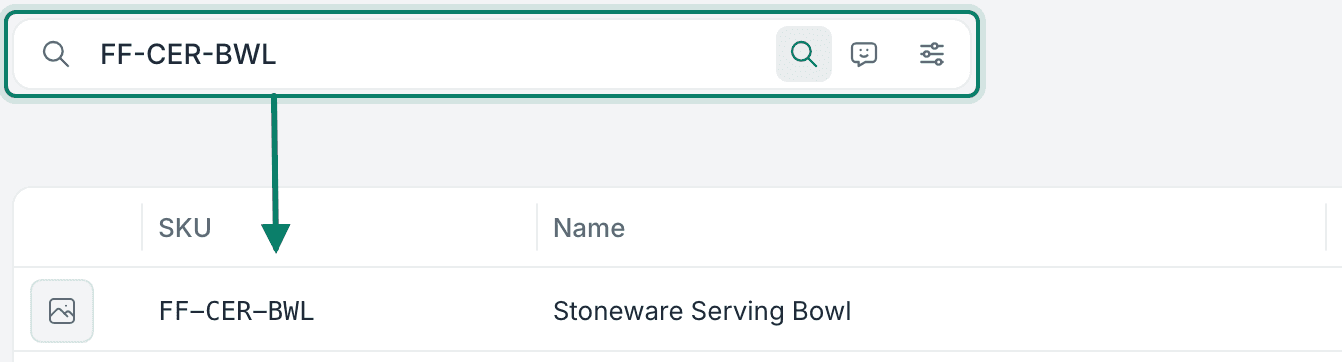
Postsale’s search bar at the top of the Products Grid works just like the one you use to search for orders. However, instead of returning orders, it returns products as the search results.
Learn more about Standard, Natural Language and Filters product searches.
With Standard search selected, type in the search bar to find matching products. Search using:
- A product's name
- A product's SKU
View a Product's Information
Here's how to open a product record:
Select All Products in the main menu.
Search for and select the product you wish to view.

The product record opens. Let's look at each section of the product record.
The Product Header

The top of the product record shows you:
- Name: The name of the product
- SKU: The product's SKU
- Stores: The stores the product has been ordered from
- Revenue: How much the product has earned across all orders
- Units Sold: How many units of the product have sold
- Orders: The total number of orders the product is on
- First Order: The date of the first order that includes the product
- Last Order: The date of the most recent order that includes the product
The Details and Orders Tabs
Below the header, two tabs show the product's Details and the Orders that include the product.
Details
The Details tab shows you the item values associated with the product.
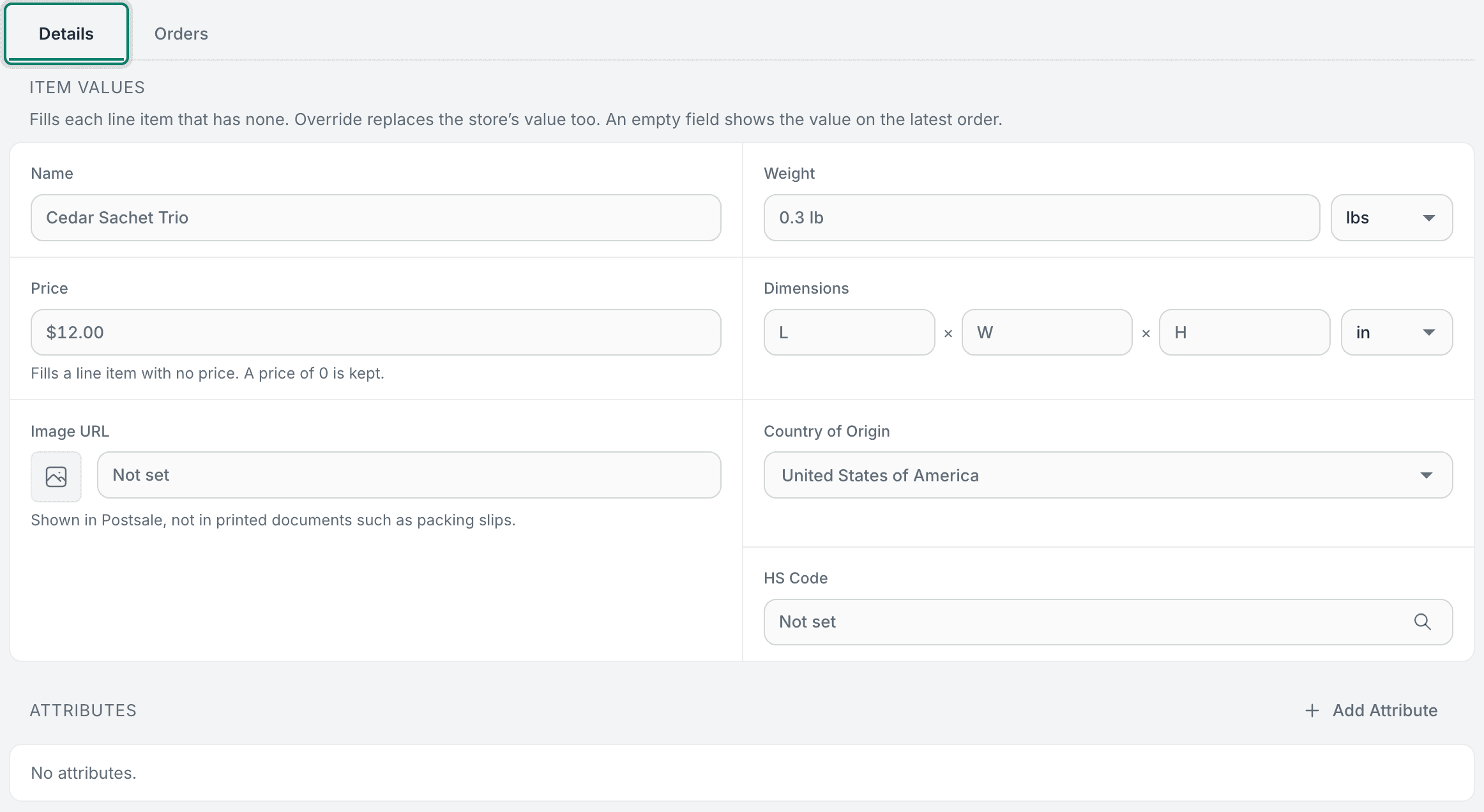
The following product details are available and can be modified:
- Name: The name of the product
- Weight: The weight and unit of measure (lbs, oz, kg, g) of the product
- Used for new shipments containing this product when Override is on or the store sent no weight.
- Price: The price of the product
- Dimensions: The Length, Width and Height of the product
- Used for new shipments containing this product when Override is on or the store sent no dimensions.
- Country of Origin: The product's country of origin
- The selected country is used for required customs information when shipping internationally.
- Image URL: The link to an image of the product
- When a URL is entered, the image shows next to the product in the Products Grid. The image does not display on templates, such as a packing slip or invoice.
- HS Code: The HS Code associated with the product
- Used for required customs information when shipping internationally.
- Attributes: The item attributes associated with the product, such as size or brand.
Orders
The Orders tab lists the orders that contain the product, with the most recent order at the top. Open any order to view and edit the order record.

Helpful Tips
The Orders tab works like the Orders Grid:
- Sort the orders by clicking the column heading you wish to sort by. Clicking multiple times alternates between ascending, descending and unsorted.

- Add, remove or rearrange the columns.

- At the bottom of the grid, choose to show 25, 100 or 150 orders per page.
Related Articles
Still have a question? Ask a person.
Write to support@postsale.com or send us a message. We reply the same business day, Monday to Friday, 8 AM to 5 PM Central.