USPS: Your Built-in USPS Account
Ship with USPS immediately using the built-in account included with your Postsale subscription.
When you sign up for Postsale, Postsale automatically creates a built-in USPS account. Because Postsale is a USPS eCommerce partner, the built-in account gives you immediate access to discounted USPS rates and label creation, so you can compare rates and ship packages right away. Best of all, you don't need to create and configure your own USPS business account before getting started. Postsale handles the setup for you.
This article answers common questions about the built-in USPS account included with your Postsale subscription.
Frequently Asked Questions
How do I get started with the built-in USPS account?
The first time you create a label using the built-in USPS account, you'll be prompted to complete a couple of quick steps.
Learn more about configuring and creating shipping labels in our Ship Your Orders help article.
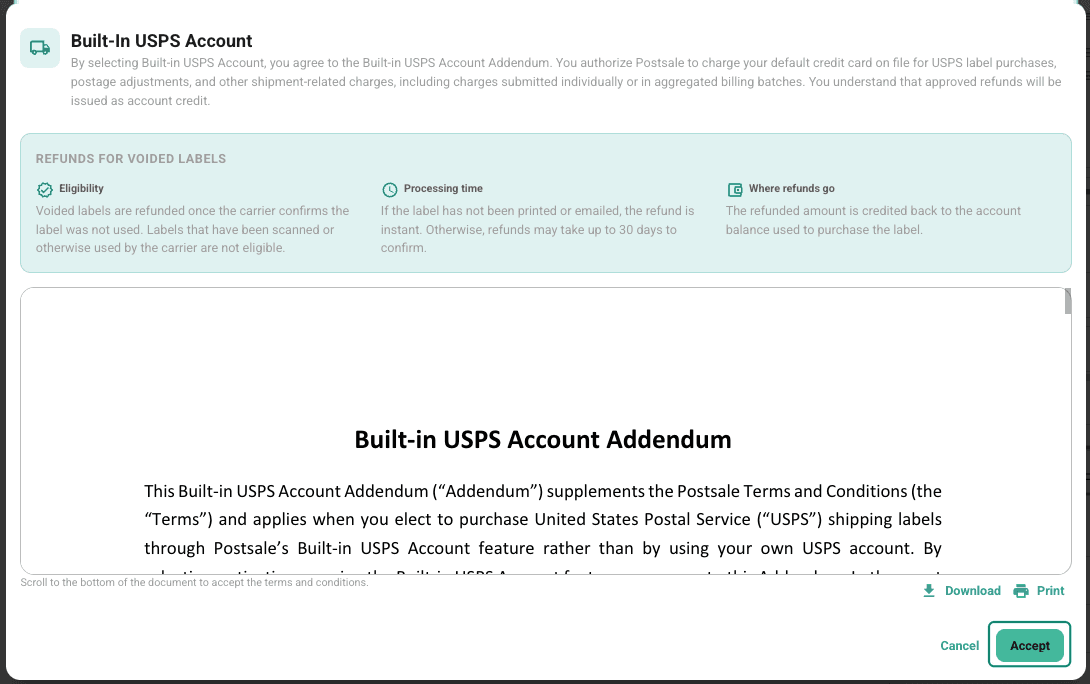
First, when you click the Create Label button, the Built-in USPS Account Addendum opens in a pop-up.
Review all of the information, scrolling to the bottom of the addendum. The Accept button becomes available once you reach the end. To keep a copy, click Download or Print.
Click the Accept button.
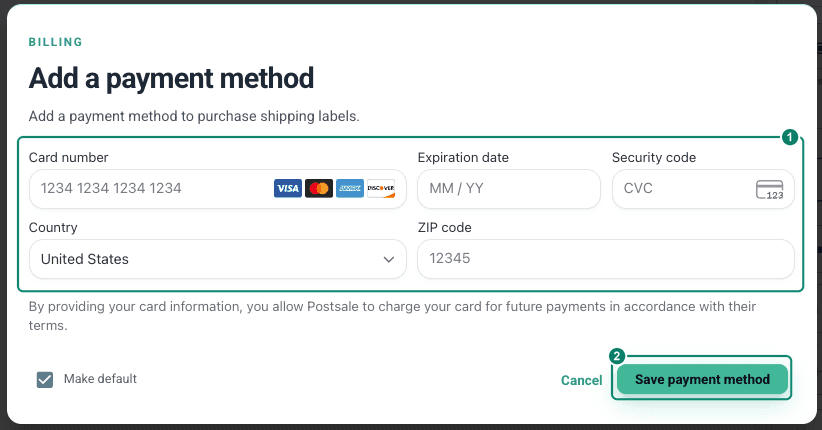
If you haven't already, you will be prompted to add a credit card to your Postsale account. When you ship a package using the built-in USPS account, postage and any additional USPS fees or adjustments are billed to this credit card.
Enter your credit card information.
Click Save payment method.
That's it. Your first label will be created, and you're ready to start shipping with USPS.
How is the postage paid for when I ship a package with the built-in USPS account?
When you ship a package using the built-in USPS account, postage and any additional USPS fees or adjustments are billed to the credit card on file in your Postsale account.
View Your Built-in USPS Account Invoices
Select the gear icon to open Settings.

Choose Account Settings.
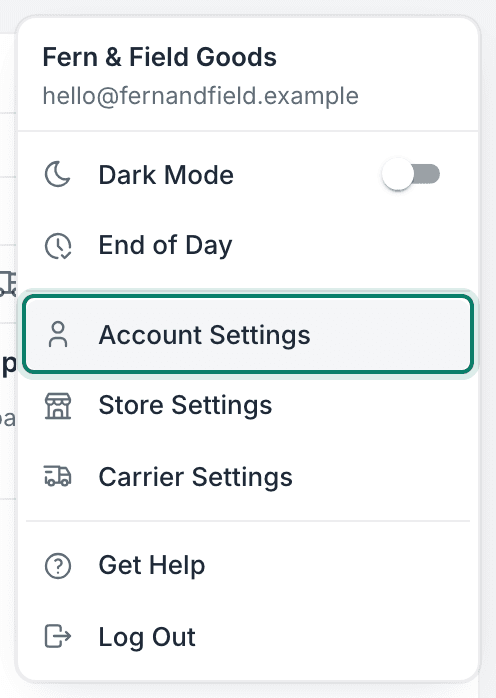
Select Billing.
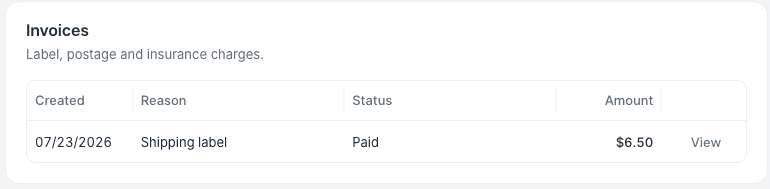
Your built-in USPS account invoices are listed in the Invoices section.
Can you tell me about Automated Package Verification (APV) adjustments and how they are handled?
USPS APV account adjustments occur when USPS applies additional charges or credits to a shipment after the shipping label has been created. These adjustments typically result from postage verification processes, such as weight, dimension, packaging, or service-level discrepancies that USPS identifies during transit.
To view the postage adjustments USPS made on labels created with the built-in USPS account:
Select the gear icon to open Settings.
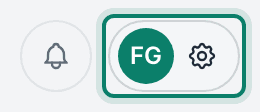
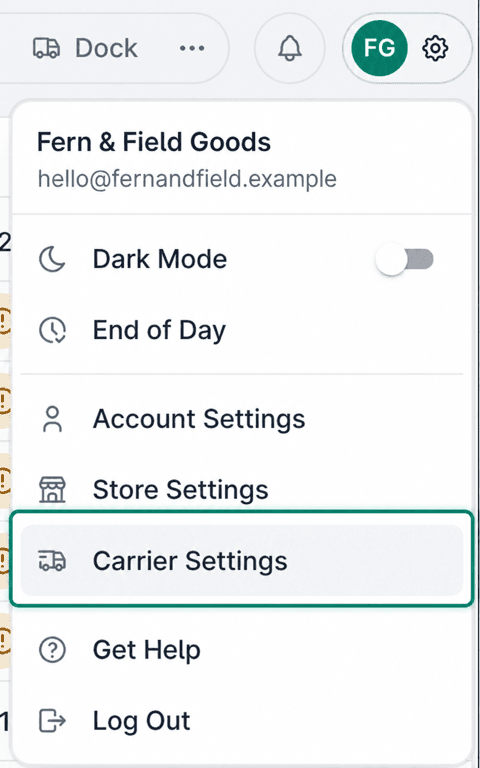
Choose Carrier Settings.
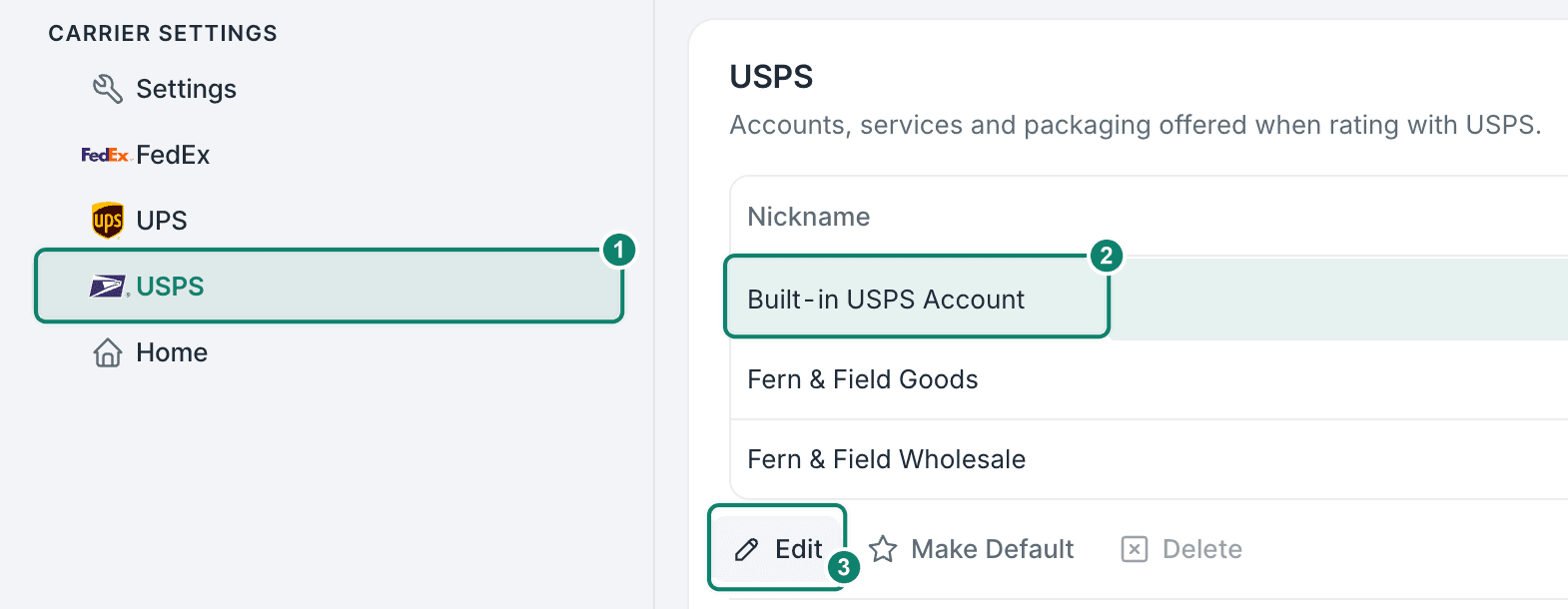
Select USPS.
Select the Built-in USPS Account and click Edit.
USPS postage corrections on your built-in account labels are listed in the Postage Adjustments section. Extra postage is added to your next invoice, and reductions are credited to your Credit Balance on the Billing screen.
How do I update the origin address associated with the built-in USPS account?
The built-in USPS account uses the address you entered when setting up your Postsale account. However, you can edit the origin address when needed.
Learn more about configuring origin addresses in Postsale.
Select the gear icon to open Settings.
Choose Carrier Settings.
Select USPS.
Select the Built-in USPS Account and click Edit.
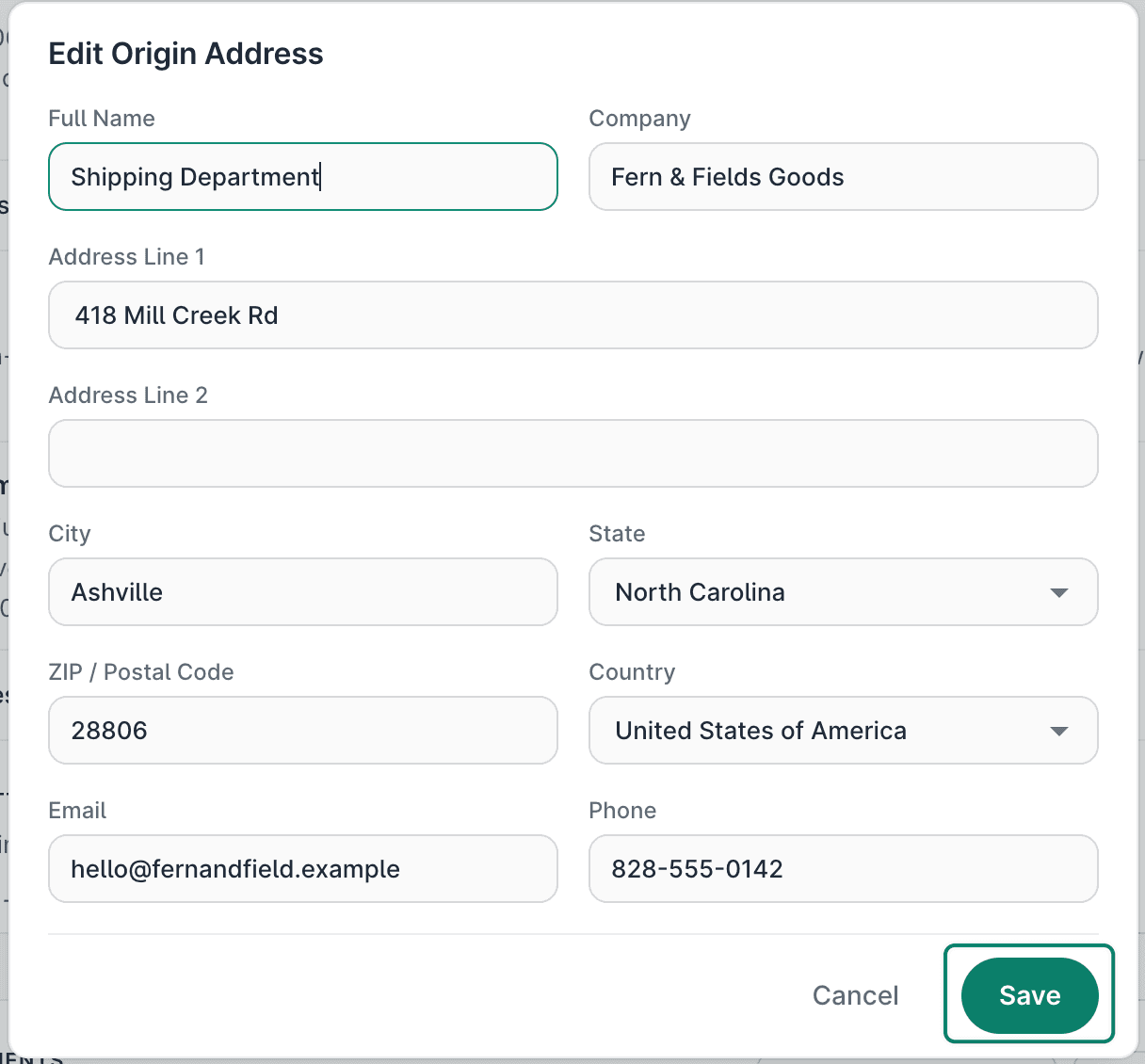
Click Edit Origin Address in the Origin Address section.
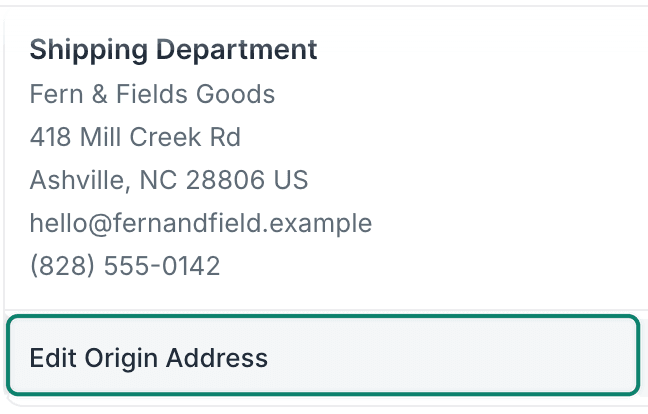
Update the origin address as needed, then click Save.
I noticed I can enter a Return and Sender Address. What are those used for?
Both are optional, and both fall back to the origin address explained above:
- Return Address: Printed in the return-address block of the label. Leave it blank to use the origin address.
- Sender Address: Shown on the label as the sending business. Leave it blank to use the origin address.
A good example of when to use them is when shipments are sent from and returned to an address other than the one listed on the USPS account, such as a second warehouse location or a fulfillment house.
Learn more about configuring the Return and Sender Addresses here.
Can I create international shipping labels with the built-in USPS account?
Yes. You can send shipments to international destinations with the following USPS services:
- First Class International® (USPS's full name is First-Class Package International Service®)
- Priority Mail International®
- Priority Mail Express International®
Configure Default International Settings
Select the gear icon to open Settings.
Choose Carrier Settings.
Select USPS.
Select the Built-in USPS Account and click Edit.
Use the International Settings section to set the default international settings for the built-in USPS account.
The following settings can be specified:
- Bill Duties and Taxes To: USPS bills customs duties and taxes to the recipient, so Recipient is the only option.
- Non Delivery: Choose what USPS does with a package it can't deliver:
- Return
- Redirect (you then enter a Redirect Address)
- Abandon

Your choice is saved as soon as you make it.
The options you select will be set as the default for international shipments, but you can change them shipment by shipment if needed.
Can I add my own USPS account(s) to Postsale?
Yes. While every Postsale account includes a built-in USPS account, you can also connect and use your own USPS account(s). This is a great option if you want to use a USPS account with a Negotiated Service Agreement (NSA).
Specify Your Default USPS Account
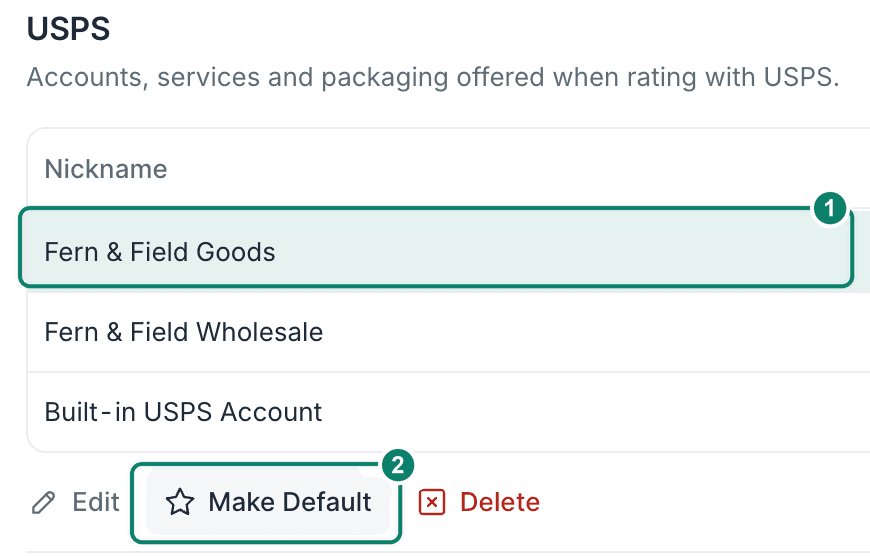
If you have multiple USPS accounts connected to Postsale, you can set a default account that will be automatically selected when creating USPS labels. For example, you may wish to set your USPS account with your NSA rates as the default.
Select the gear icon to open Settings.
Choose Carrier Settings.
Select USPS.
Select the account you wish to set as the default and click Make Default.
Good to Know
- Pay-on-use return labels: Pay-on-use return labels are not supported with the built-in USPS account. To create pay-on-use labels, please add your own USPS account to Postsale.
- Voided label credits:
- If a voided label was not printed or emailed, the credit is instant.
- If it was printed or emailed, it's credited once USPS confirms that the label was not used, which may take up to 30 days. A label USPS has scanned or used is not credited.
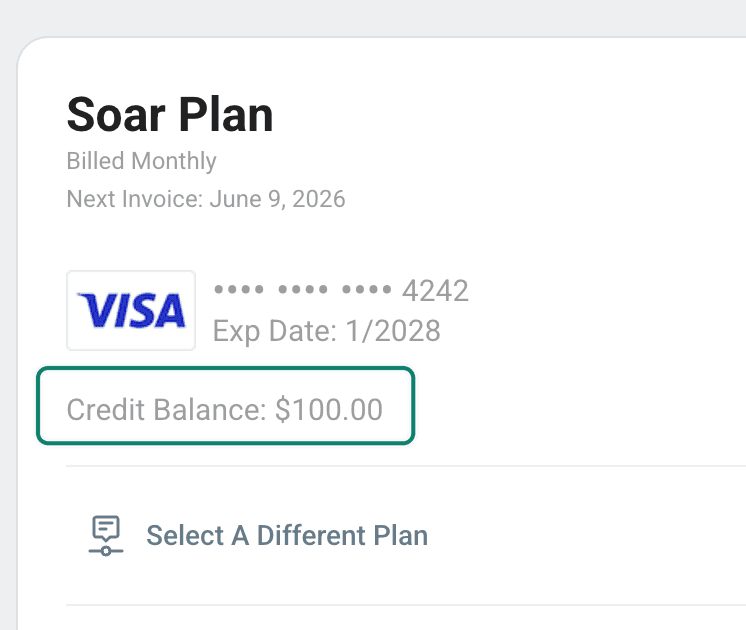
- The postage amount for voided shipping labels is added to your Credit Balance, not returned to the credit card on file. The credit is then applied to the postage amount for new labels created using the built-in USPS account.
- You can view your Credit Balance on the Billing screen. Select the gear icon to open Settings, choose Account Settings, then select Billing.
Still have a question? Ask a person.
Write to support@postsale.com or send us a message. We reply the same business day, Monday to Friday, 8 AM to 5 PM Central.