FedEx: Hold at Location
Request FedEx to hold a package at the location you select with Hold at Location
When your customer requests that you ship their package to an authorized FedEx location instead of their Ship To address, you have the option of adding FedEx Hold at Location to your shipment. This can be useful:
- For packages that need to be signed for
- When your customer needs a bit of added security
- When your customer is traveling and needs to pick up the package at their destination or when they return from their trip
Before We Begin
This article assumes that:
- You have a FedEx account added to Postsale
- You have at least one order ready to be shipped
Add FedEx Hold at Location
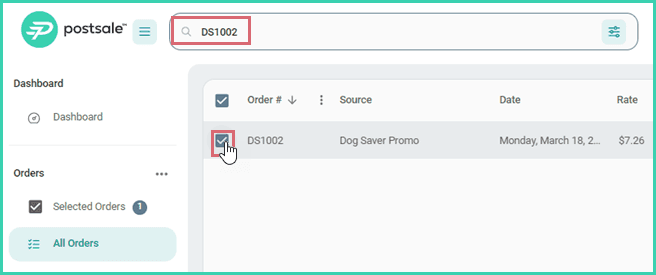
Search for and select the order in the Orders Grid.
Verify that the shipment is selected in the Dock.
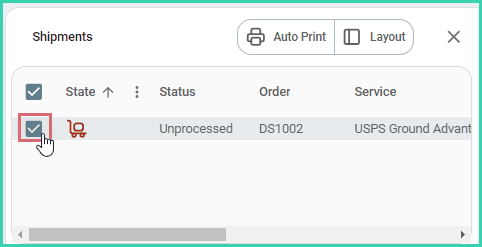
Configure the shipment details for your FedEx shipment.
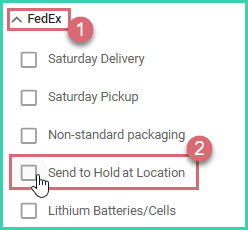
Expand the FedEx section of the Dock. Then, check the Send to Hold at Location option.
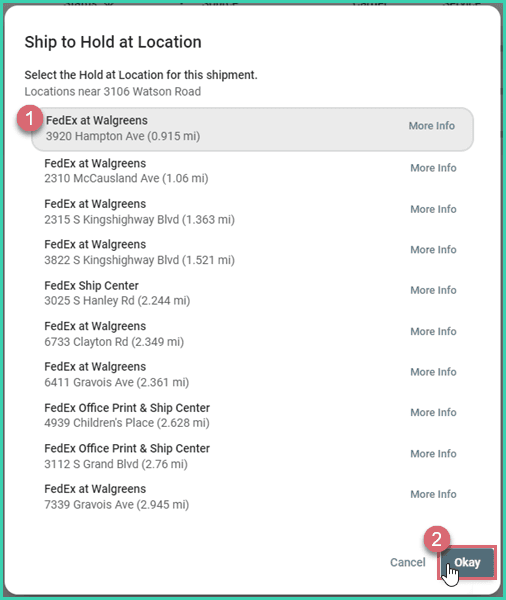
A new window opens with a list of FedEx locations near the Ship To address of the shipment.
Select the Hold at Location from the list of available options. Then, click the Okay button. Click the More Info link to view additional details about a location.
Dock updates to show the selected location.
a. Click Change if you need to select a different location.
b. Click Copy to Clipboard to copy the location's information in the event you need to paste the info into another application.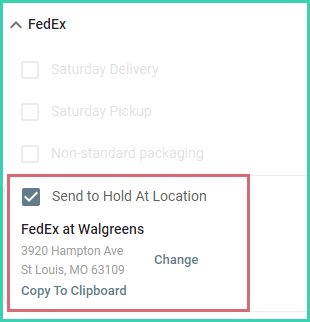
Ensure that all other shipment details are correct. Then, create the label.

On this page
Related