Shipping Rules: Automatic Packaging Selection
Automate your packaging selection and view a diagram of how to pack the box
Set up Postsale to automatically select the correct packaging for your shipments from your predefined custom packaging and show you a diagram for packing the box for maximum efficiency.
In this article, we will:
- List the steps to prepare Postsale for automatic packaging selection
- Create a shipping rule to tell Postsale to choose packaging automatically for orders from a specific store
- Explain the settings available when configuring Automatic Packaging
- Look at how Automatic Packaging works when configuring shipments in the Dock
Before We Begin
Automatic Packaging uses the custom packaging you configure and the dimensions associated with your products to determine the best package and display a diagram showing how to pack the box for shipping.
Prior to enabling Automatic Packaging:
- Make sure the custom packaging you ship in is added to Postsale.
- Review your product records to make sure the correct dimensions are entered.
Only the account owner can add or edit shipping rules, so you must be logged in to Postsale as the account owner. Users with the Read Shipping Rules permission can view and test shipping rules.
Enable Automatic Packaging
REAL-WORLD EXAMPLE
We use a set of custom box sizes to ship all orders from our Fern & Field Goods store. We've added the boxes to our custom packaging in Postsale and confirmed that all products in the store have the correct dimensions.
We want to turn on Automatic Packaging for our Fern & Field Goods store, so Postsale chooses the best box and the most efficient way to pack it for shipping.
Let's walk through creating a shipping rule that tells Postsale:
"Hey Postsale, when I ship orders for the store Fern & Field Goods, automatically choose the best package from my list of custom packaging and show me a diagram of the best way to pack the order."
Enter the Condition
First, we will add a condition to ensure this rule applies only to orders associated with the correct store.
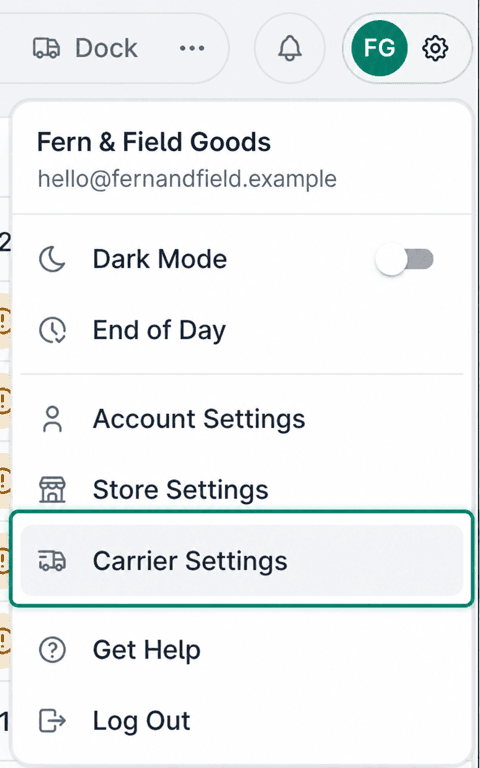
Select the gear icon to open Settings.

Choose Carrier Settings.
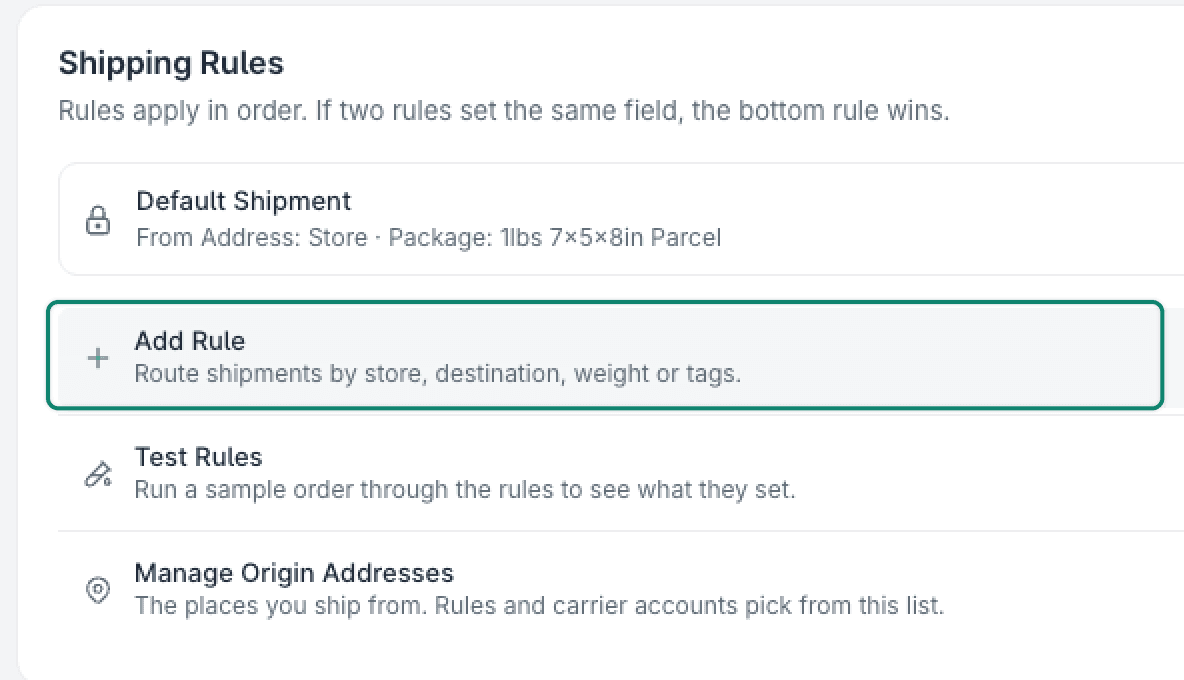
Select + Add Rule.
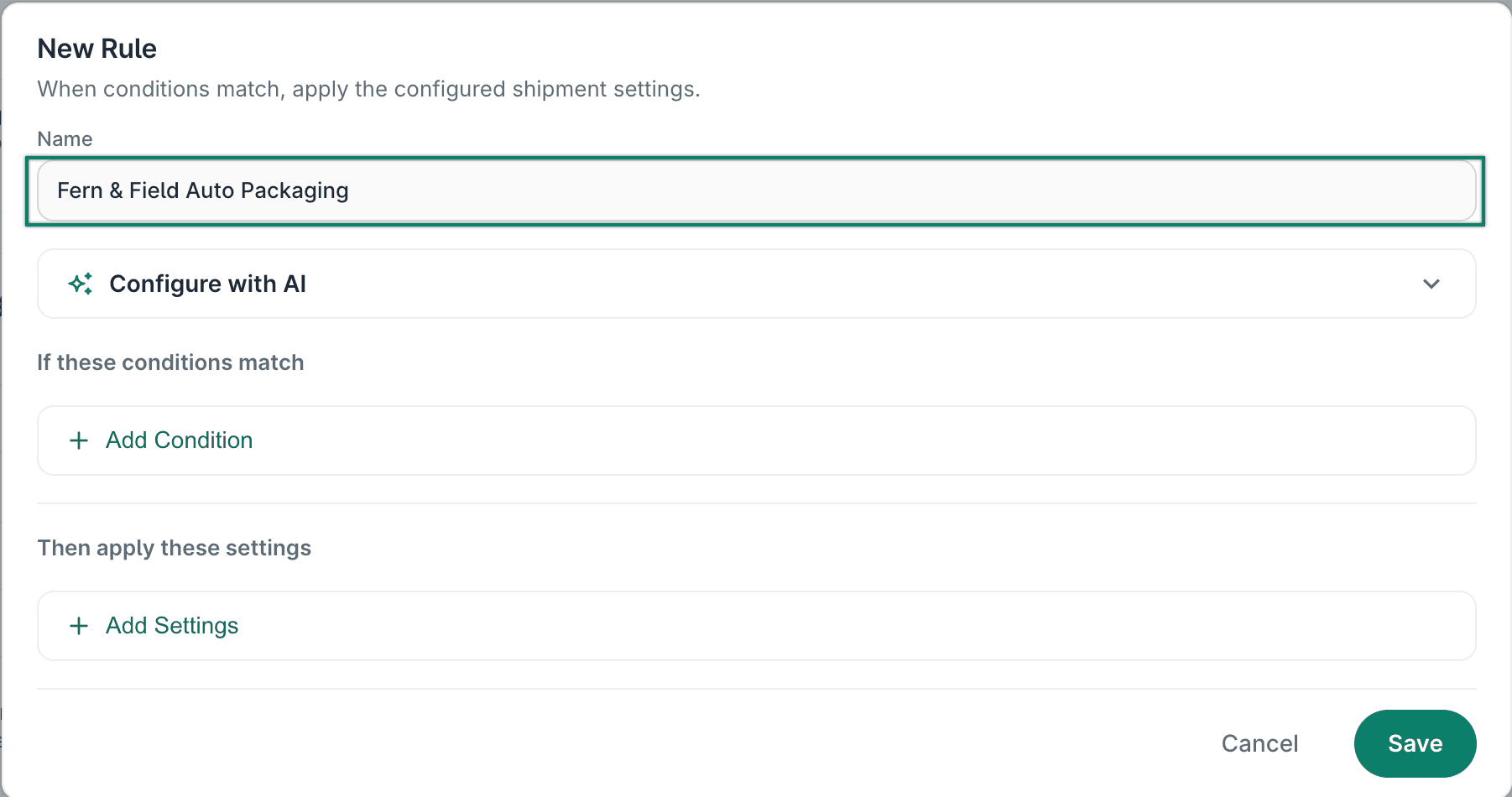
The New Rule pop-up opens.
Enter a Name that clearly identifies what the rule does. For this example, we entered Fern & Field Auto Packaging.
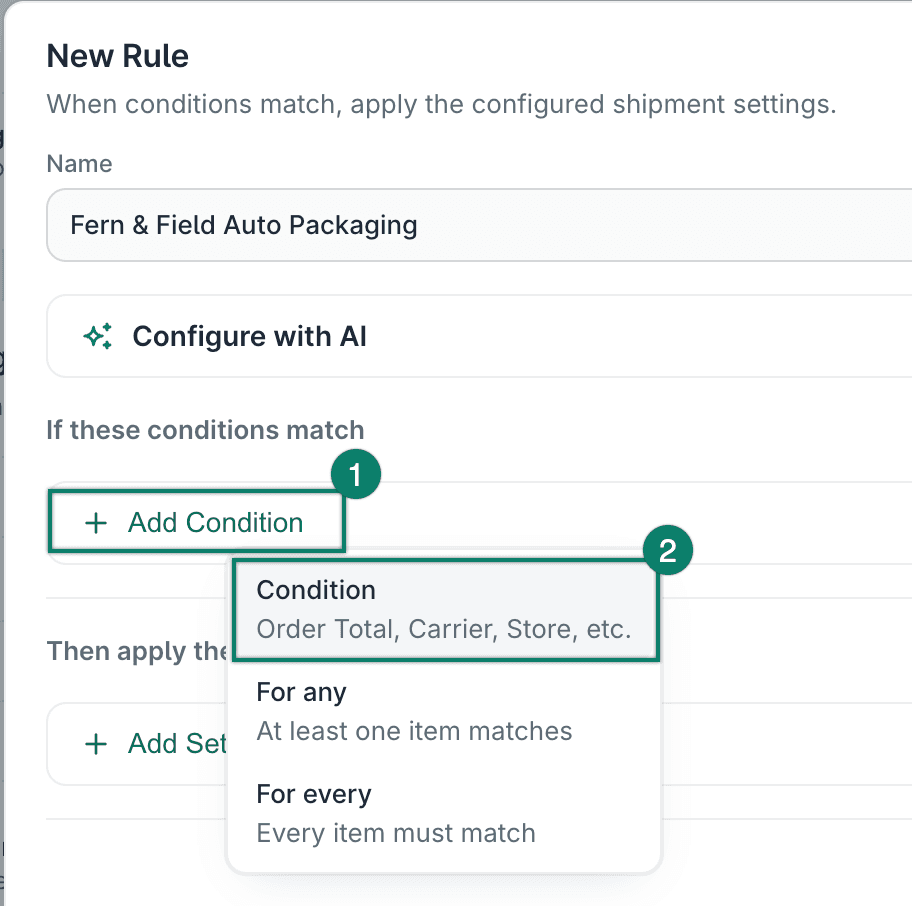
Select + Add Condition. Then choose Condition.
Configure the condition:
- Field: Store
- Operator: Equals
- Value: [Select your store]
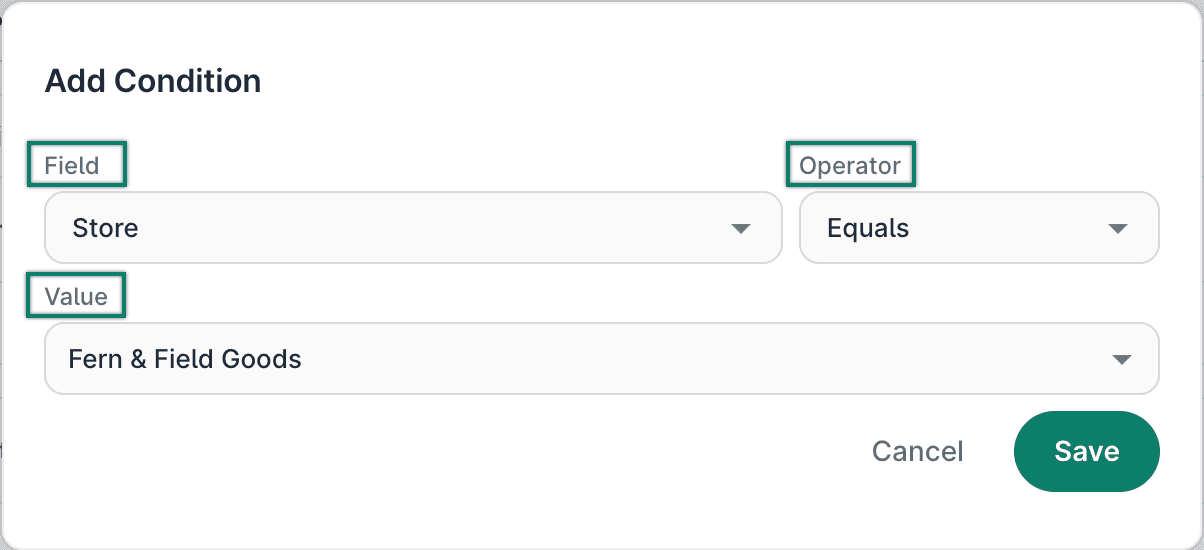
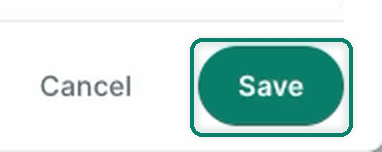
Select Save in the Add Condition pop-up to add the condition to the rule.
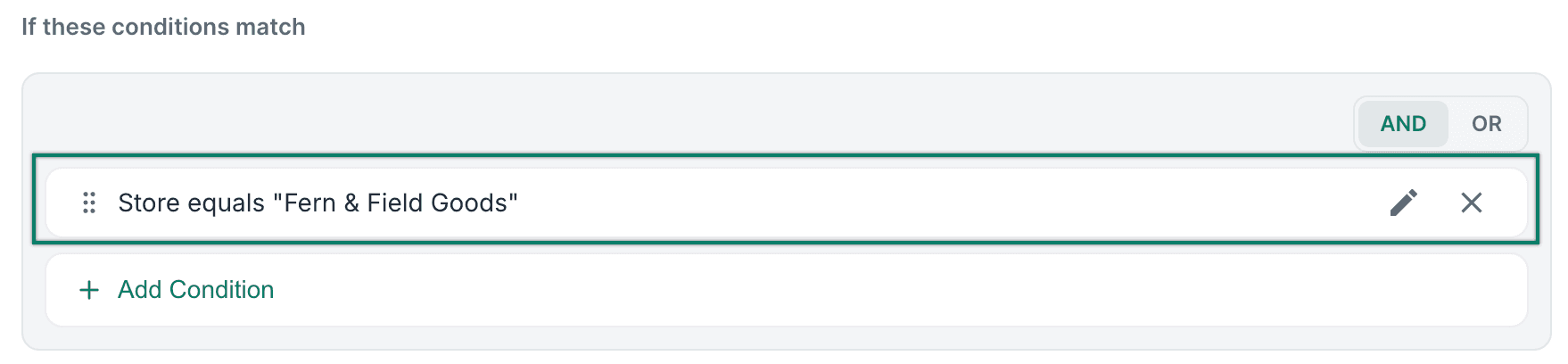
The condition is added to the rule.
Add the Settings
Next, we will specify which settings the rule should apply to the matching orders. In this case, we will tell Postsale to automatically choose the best packaging for the orders.
Select + Add Settings.

Select Choose Automatically from the Packaging drop-down menu.
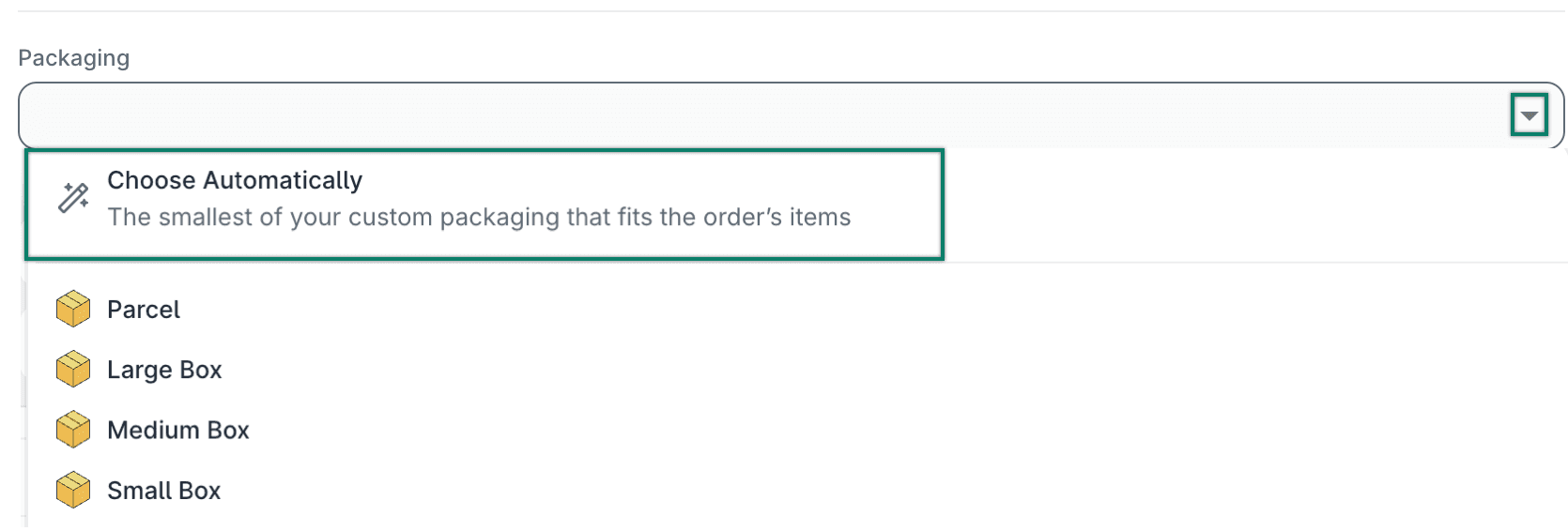
The Automatic Packaging pop-up opens.
Configure the Automatic Packaging settings to best fit your shipping workflow. Then select Done.
See the Good To Know section below for details about the available settings.
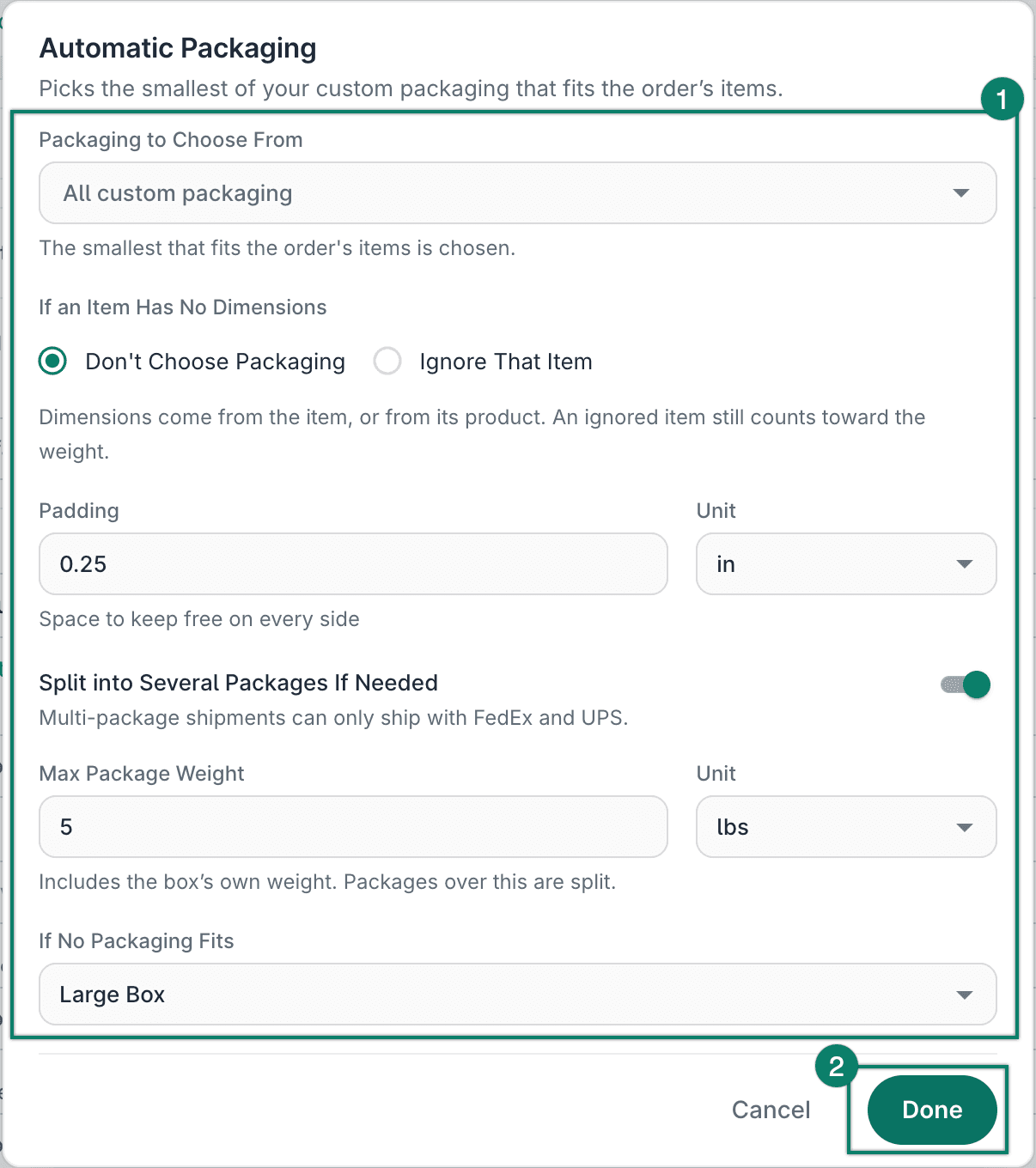
Select Save to save the rule.
The new shipping rule is created and added to the list of rules.
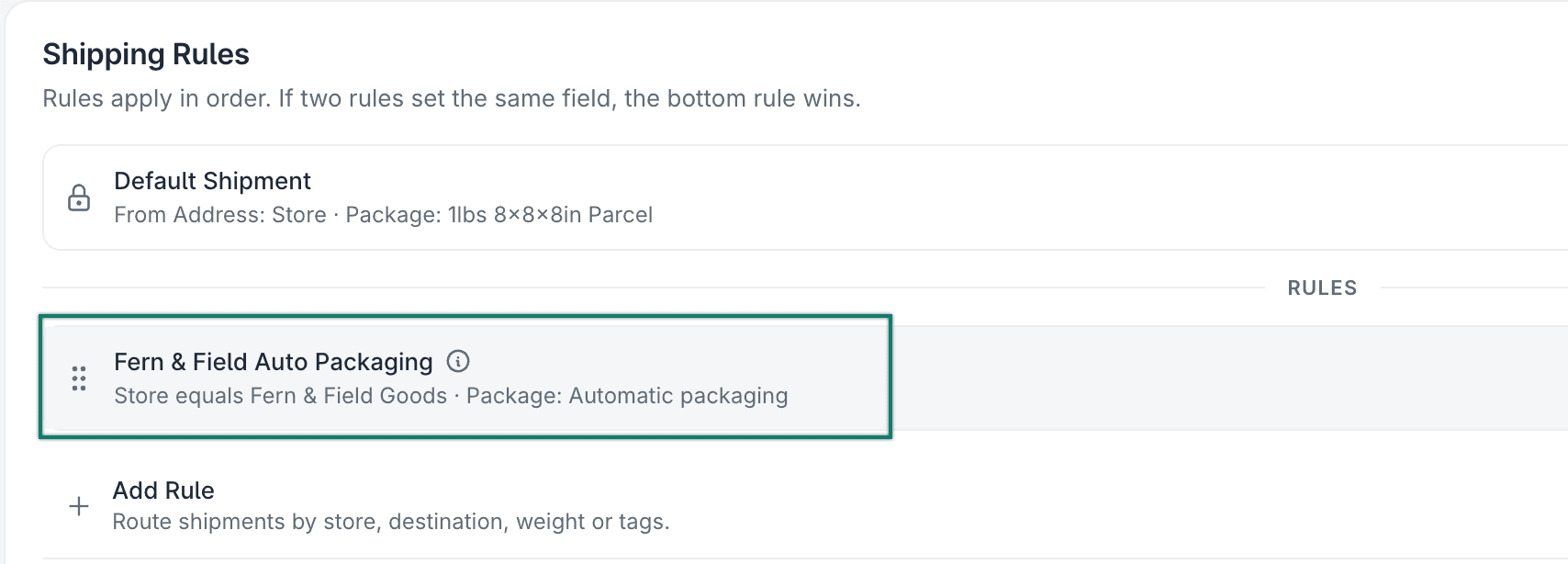
Now that the rule is created, Postsale will automatically select the best package for new shipments that are created for your store. Shipments created prior to adding the rule will not be affected.
Learn how to test your new rule to be sure you have configured it correctly.
Good To Know
This section provides additional information about the Automatic Packaging settings and how Automatic Packaging works when shipping an order.
Automatic Packaging Settings
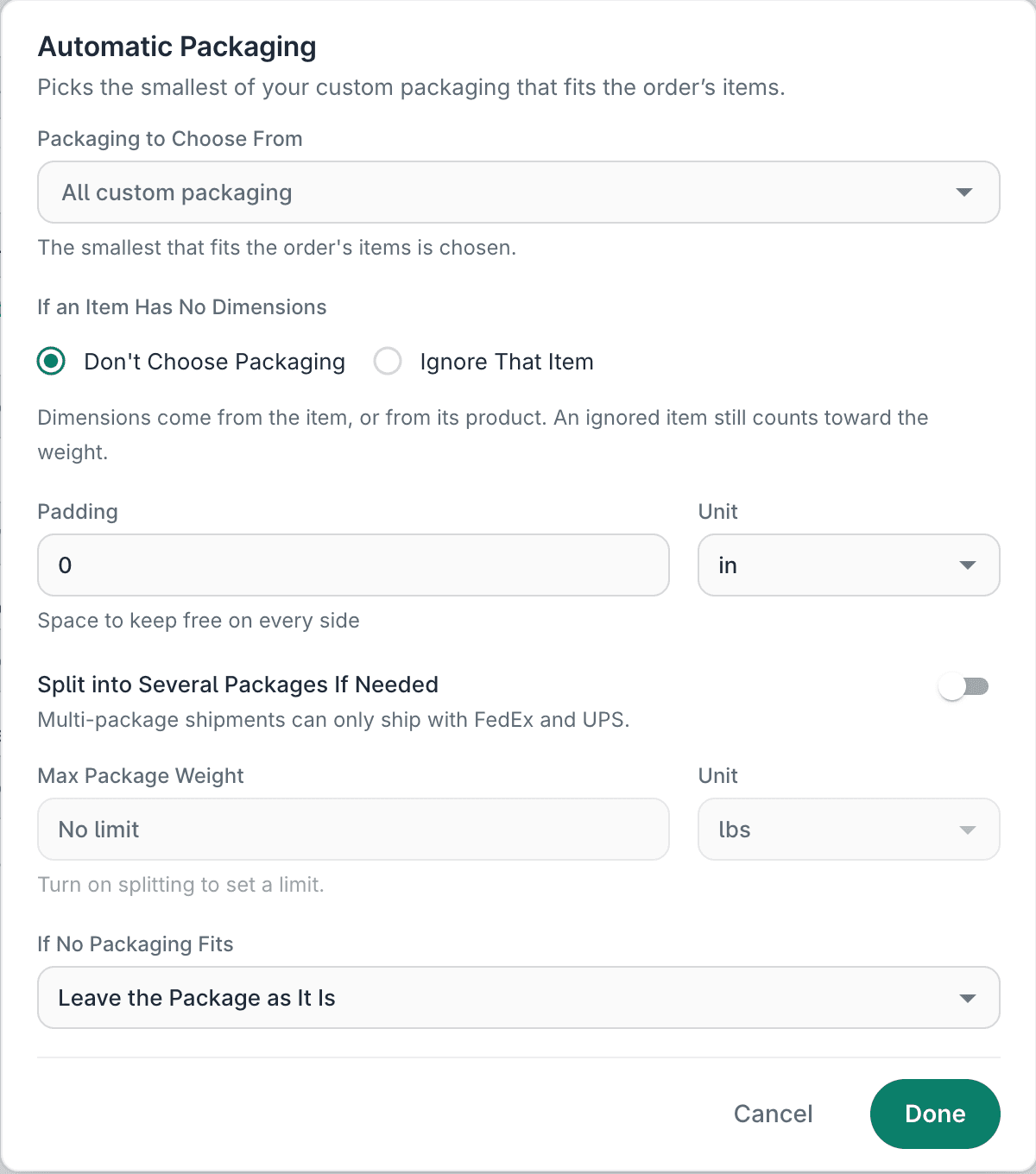
The following settings are available when configuring Automatic Packaging:
Packaging to Choose From
Specifies the custom packaging the rule may pick from. Leave it empty to use all of your custom packaging. The rule chooses the smallest available package that fits the order's items.
If an Item Has No Dimensions
- Don't Choose Packaging: (default setting) The rule does not select a package for that order.
- Ignore That Item: The rule picks a package from the other items on the order. An ignored item still counts toward the shipment's total weight.
Padding
Specifies space to keep free on every side of the items inside the box. The default is no padding.
- Valid values are 0 to 100.
- You can also choose the Unit (in or cm).
Split into Several Packages If Needed
- Split into Several Packages If Needed: (off by default) The rule can split the order across more than one package when it won't fit in one package. Multi-package shipments can only ship with FedEx and UPS.
- Max Package Weight: When splitting is turned on, the rule splits the order into more than one package when the entered weight limit is exceeded. The limit includes the box's own weight. Leave it empty for no limit.
If No Packaging Fits
Specifies what should happen if the items on the order won't fit in any of the packaging the rule can choose from.
- Leave the Package as It Is: (default setting) The rule does not select a package.
- [Your custom packaging]: The drop-down lists your custom packaging by name. The one you choose is applied to the shipment.
Automatic Packaging When Shipping
When you configure your shipments in the Dock with Automatic Packaging enabled, a Chosen Automatically icon next to the Packaging drop-down menu shows that Postsale chose the package for you.

From there, you can:
-
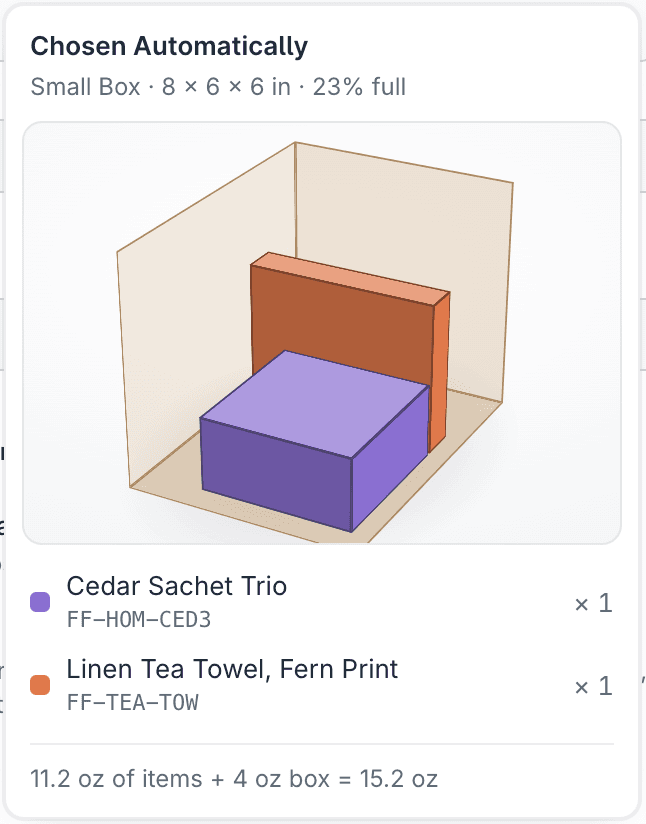
Hover over the Chosen Automatically icon to view a diagram of the recommended way to pack the shipment. The Chosen Automatically pop-up gives you the following information:
- The custom packaging chosen for the shipment and its dimensions
- A 3-D diagram of how to best pack the shipment
- The items on the order and their quantities
- The weight of the items on the order, the packaging and the total shipment weight
-
Edit the custom packaging by selecting the Edit packaging icon. Updating the packaging here updates this shipment and saves those changes to the packaging for future shipments.

Still have a question? Ask a person.
Write to support@postsale.com or send us a message. We reply the same business day, Monday to Friday, 8 AM to 5 PM Central.