eBay
Connect eBay to Postsale and import your eBay orders
Connect your eBay store and bring your eBay orders into a single, connected workflow so you have full visibility and control over your post-purchase tasks.
Real-World Example
We sell products on eBay and would like to connect Postsale so that we can import and manage our shipping and post-purchase tasks. We would like to import orders that have already been placed and have any newly placed orders automatically import into Postsale.
This article walks you through connecting eBay to Postsale.
Before We Begin
To connect your eBay store, you'll need:
- Your eBay login username and password
- To grant permissions for Postsale to connect to eBay
Connect Postsale to eBay
Go to Settings.

Select Store Settings.
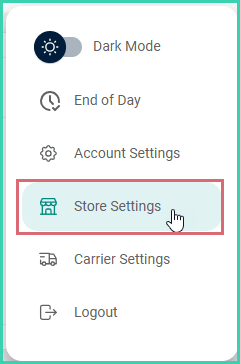
Select eBay.

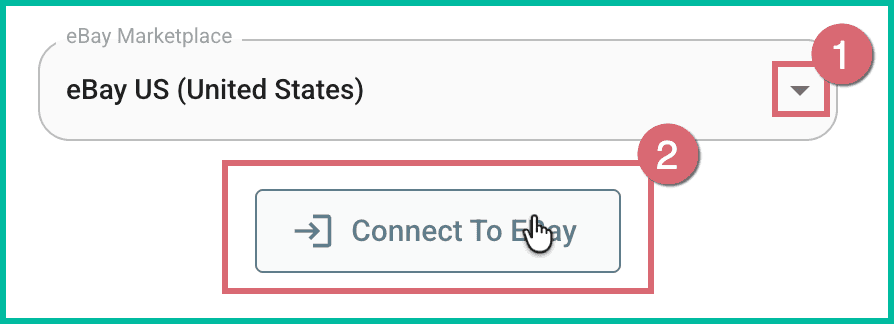
The eBay setup screen opens.
Select the correct eBay Marketplace from the drop-down. Then, click Connect to eBay.
Follow the steps to sign in with your eBay email/username, with Google, with Facebook, or with Apple.
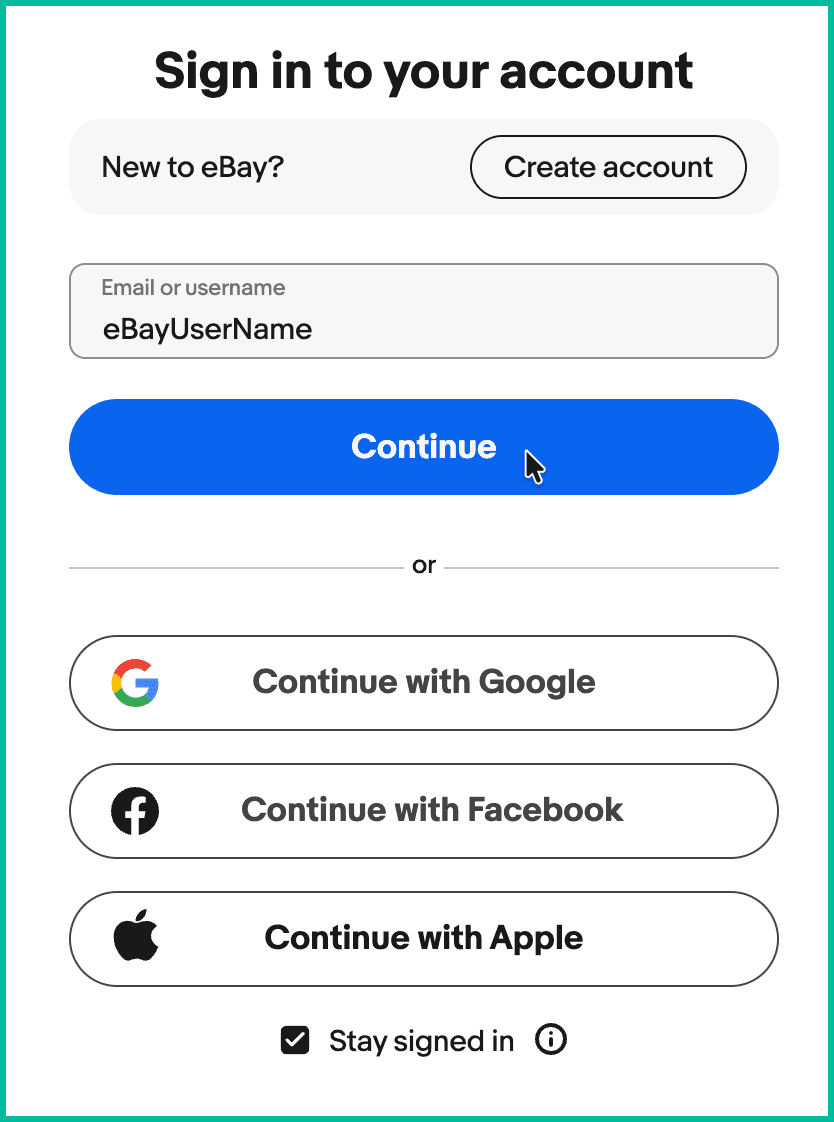
Once you are logged in, you'll be asked to review and grant access to Postsale.
Review the information on the Review and Grant Application Access: Postsale screen. Then, click Agree and Continue.
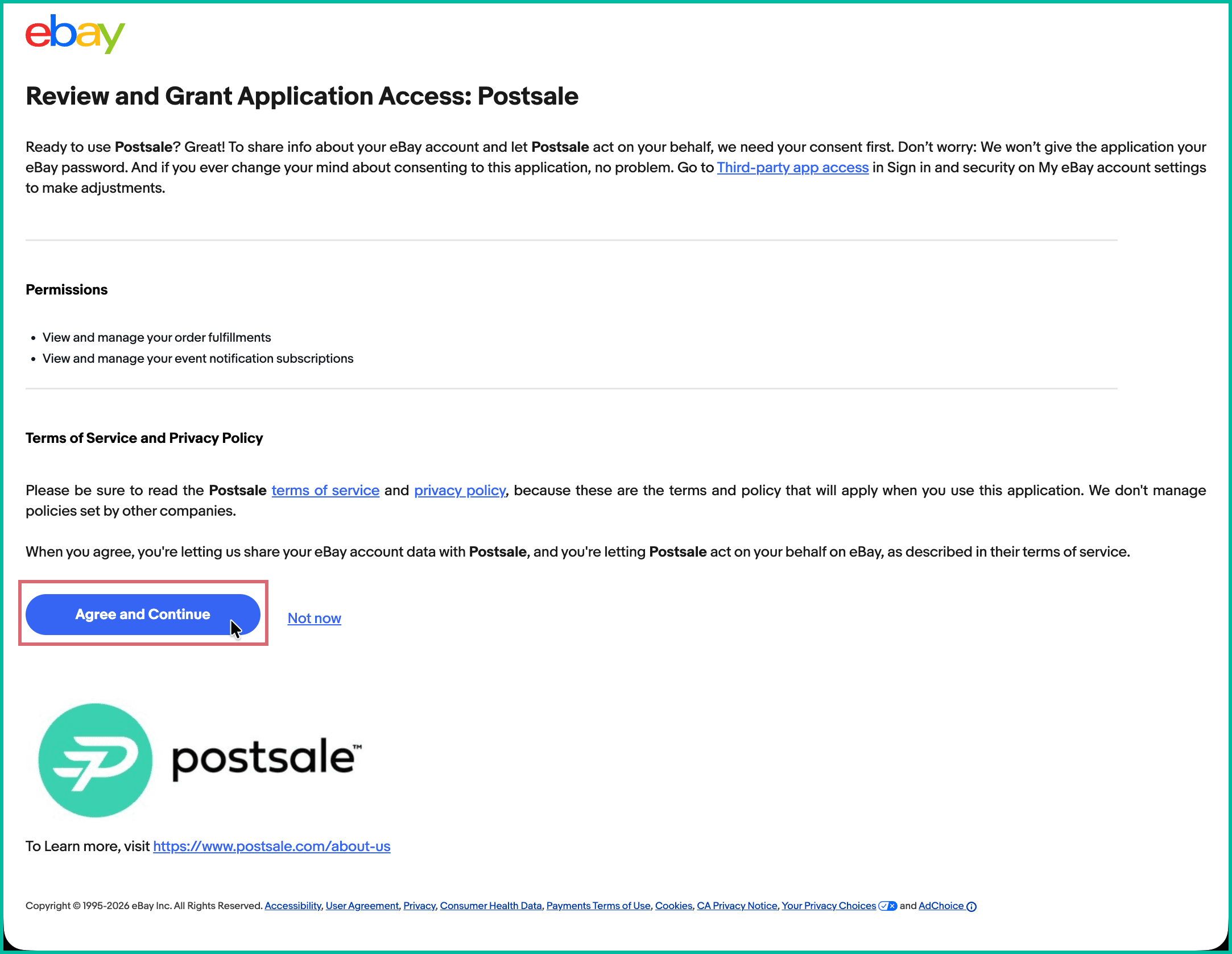
You're routed back to Postsale to complete the setup.
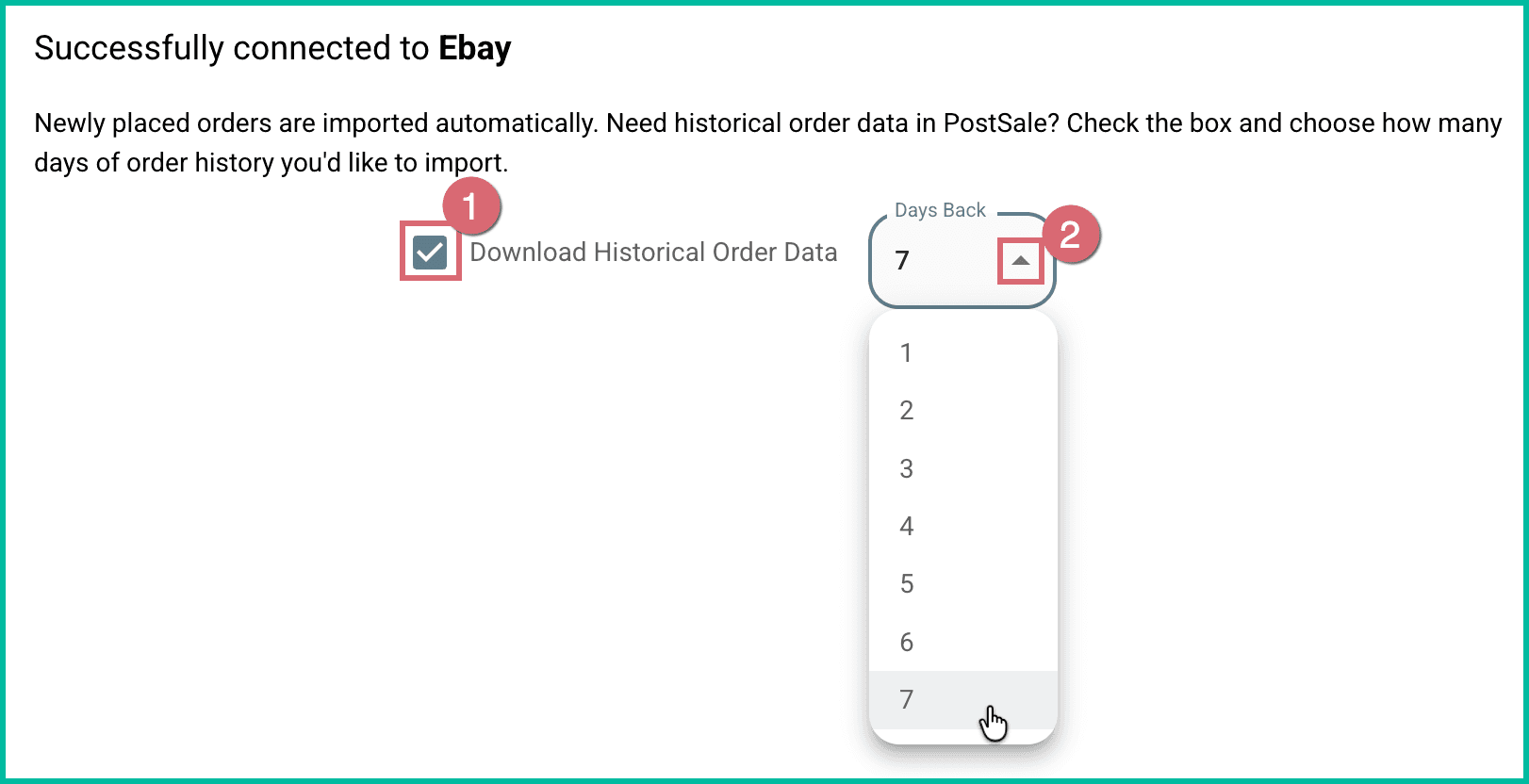
Would you like historical order data to be imported into Postsale? Check Download Historical Order Data and select the number of days of historical data to import. Click Next.
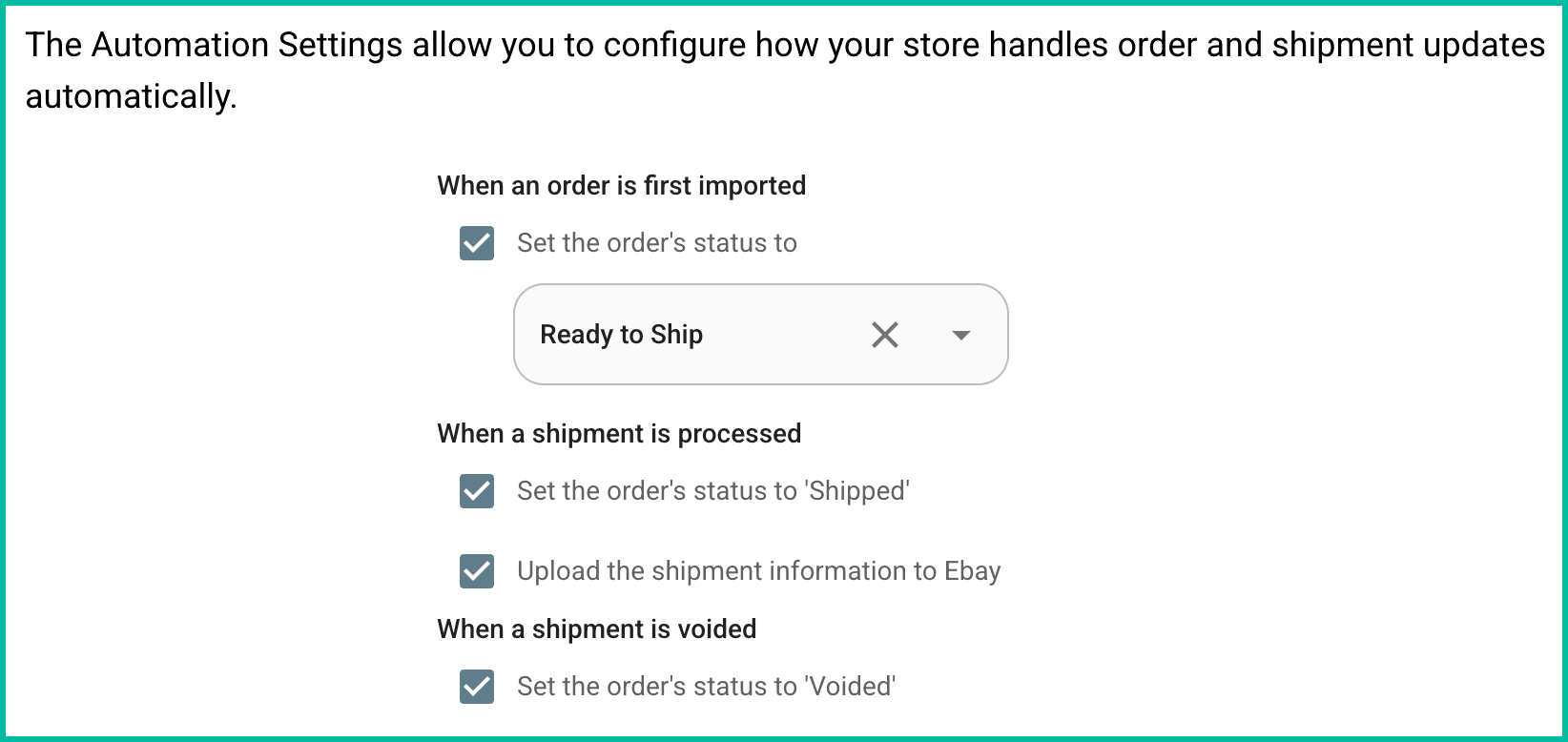
Verify that you wish for Postsale to perform the following actions automatically. Then, click Next. These automations keep your eBay store and Postsale in sync so you always have a clear picture of every order's status.
- When an order is first imported
- Set the order's status to [select the status from the drop-down menu]
- Enable this option to specify what the local status of the order should be set to when orders are imported for the first time. With this option disabled, the order's local status will be blank when imported.
- When a shipment is processed
- Set the order's status to ‘Shipped’
- Upload the shipment information to eBay
- When a shipment is voided
- Set the order's status to ‘Voided’
- When an order is first imported
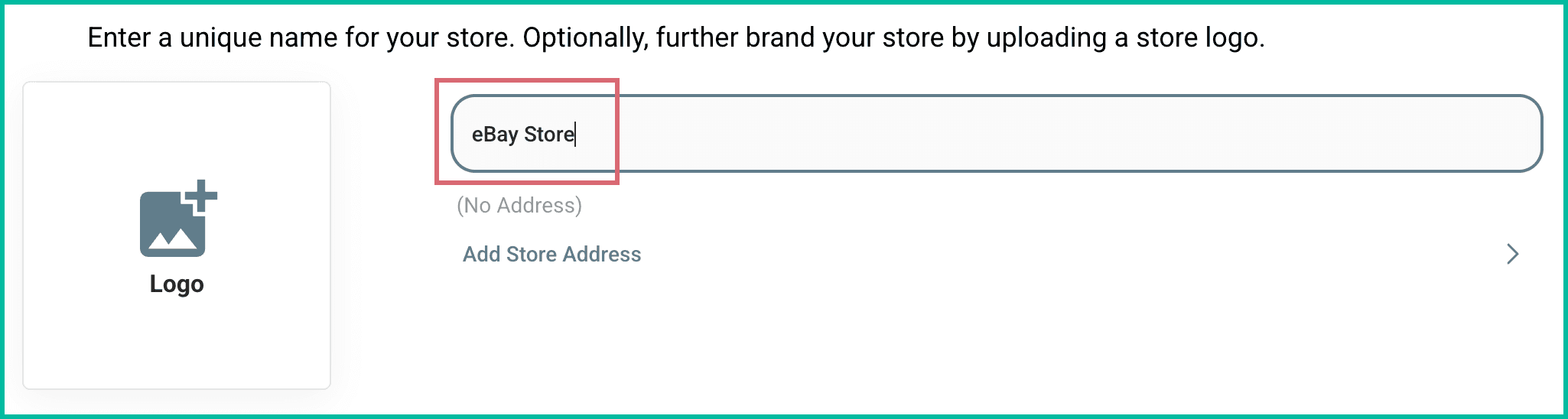
Enter a name for the store into the Store Name field.
- The store name you enter will be considered the Order Source in Postsale
- The store name will be displayed in the Source column on the Orders Grid
- Use the store name as the Order Source when creating Advanced Searches for orders associated with this store
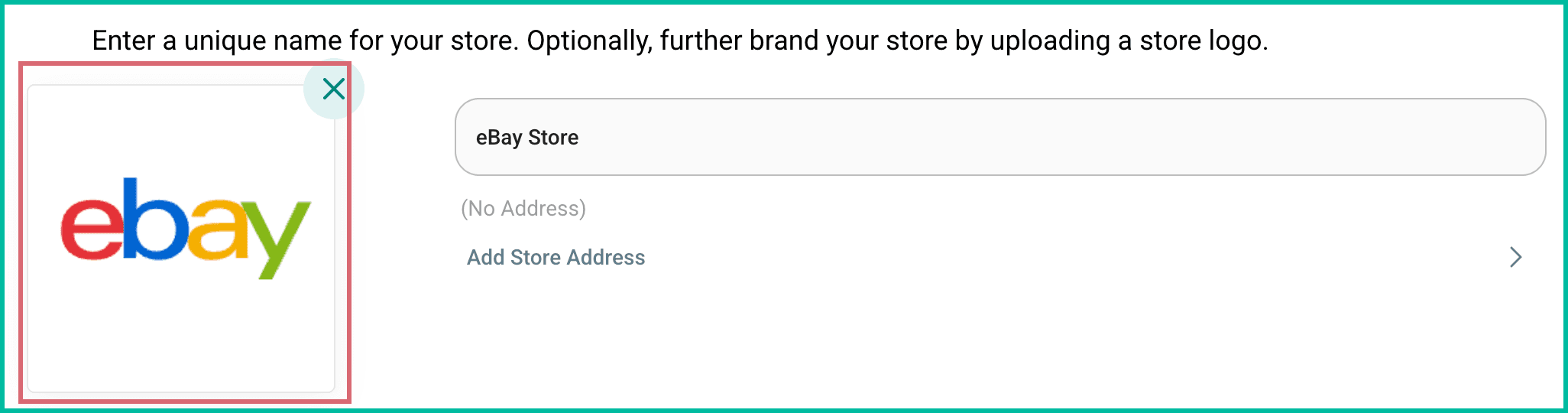
(Optional) Click the Logo tile. Then, select an image file (png or jpg) from your computer.
- Postsale supports JPEG and PNG files with a recommended size of 3 MB or less.
- Larger image files will be reduced to the maximum file size of 3 MB when uploaded.
- The image will be uploaded and become the logo for this store.
- The logo will automatically display in Postsale templates that include a logo, such as the Invoice with Logo template.
- Learn about editing an image in Postsale
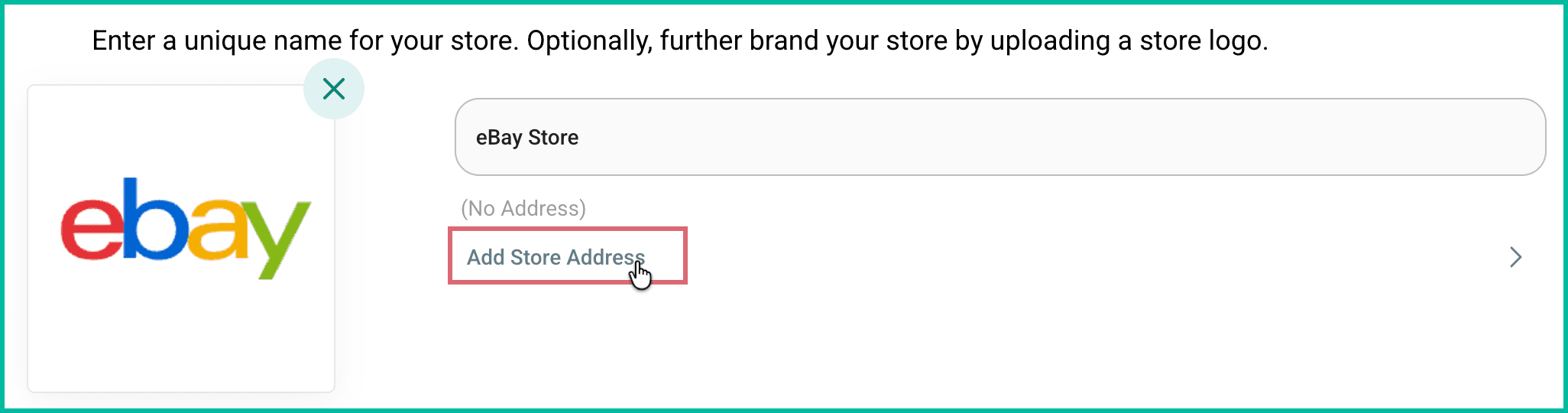
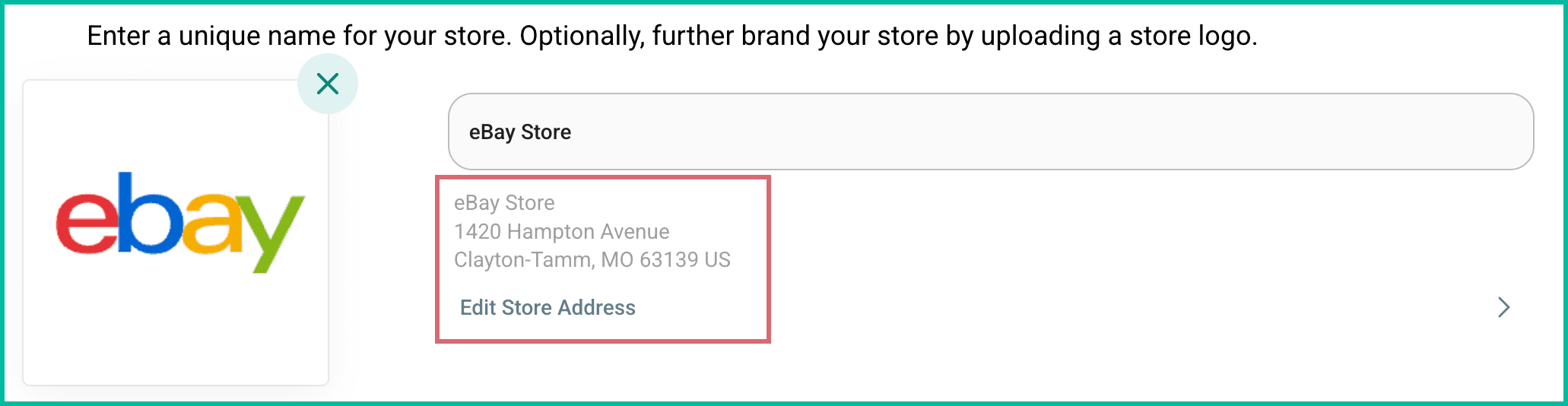
(Optional) Click Add Store Address to add a unique Ship From address from this store. Learn how to configure your Default Shipment settings so that the Store Address is automatically selected as the Ship From address for your shipments.
Once entered, the address is displayed.
Click Finish.
Your store is added and is displayed in the list of stores. Historical orders will be automatically imported into Postsale based on the number of days you selected.
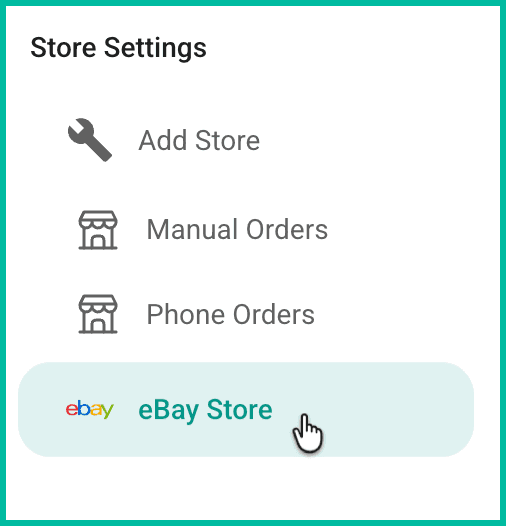
Now that your eBay store is connected, learn how to ship your orders and manage your post-purchase tasks.
Good To Know
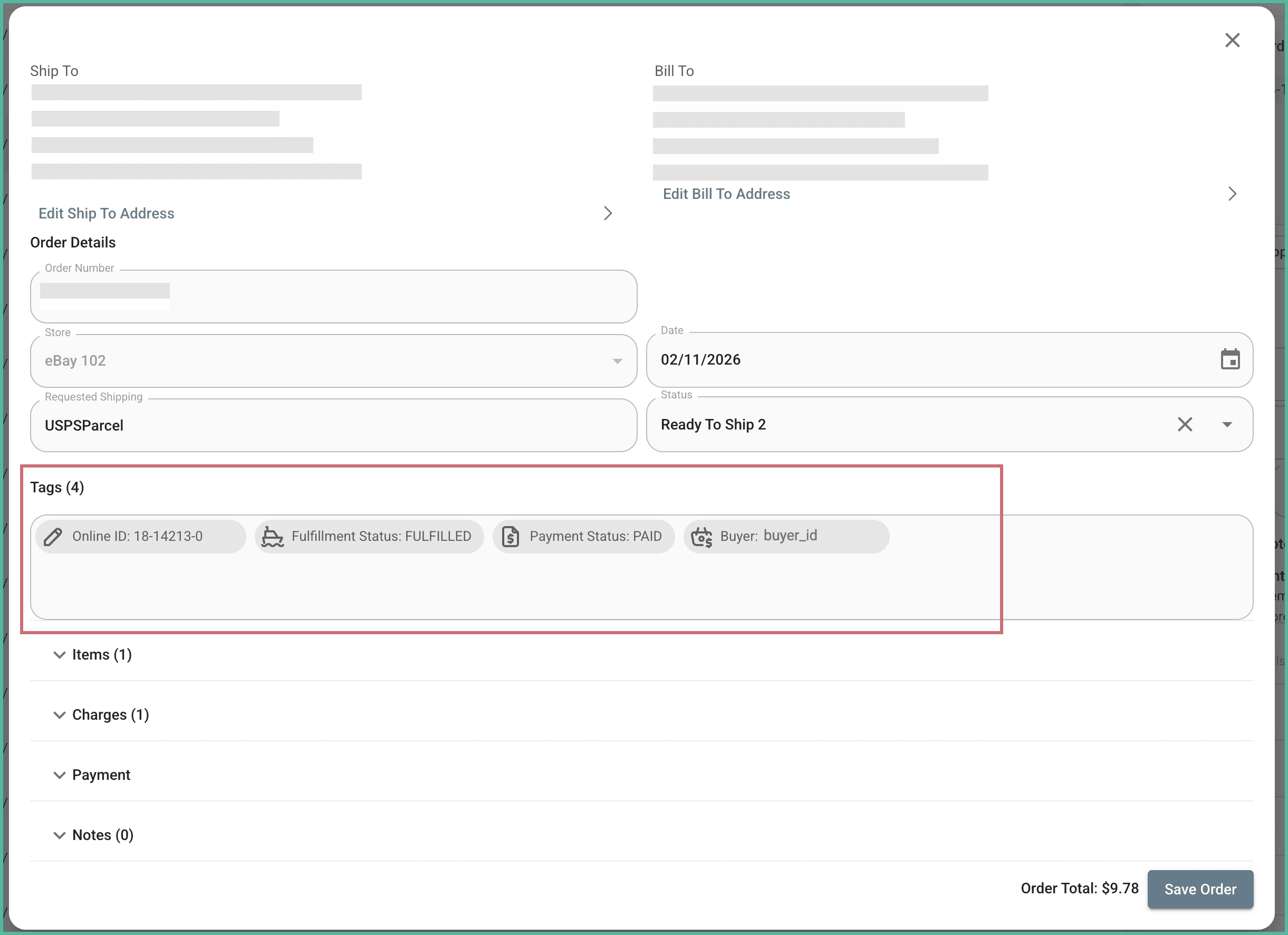
Orders imported from eBay include the following information. This information is added as tags and can be viewed in the Order Editor in Postsale. This gives you full visibility of each eBay order's lifecycle, without having to switch back to eBay.
- The eBay Online Order ID
- The eBay Fulfillment Status
- The eBay Payment Status
- The eBay Buyer
Learn how to add this information as columns in the Orders Grid. This makes it easy to see the information when viewing your eBay orders.
Still have a question? Ask a person.
Write to support@postsale.com or send us a message. We reply the same business day, Monday to Friday, 8 AM to 5 PM Central.