Add or Replace Store Logos
Update the store logos that appear on your templates
Did you know that Postsale's default templates already display your logos? In fact, the templates automatically display the correct logo for the sales channel or store the order is associated with.
This is a great feature when you sell through more than one sales channel or for more than one company and each is individually branded.
This article covers how to add or replace store logos in your store settings. Check out our Personalize Your Templates help article for step-by-step examples of how to brand your templates.
Logos in Store Settings
Since the logos are associated with your store settings, you won't need to modify the templates. Instead, you'll go to your store settings to modify the logos associated with each store.
Go to Settings.

Select Store Settings.
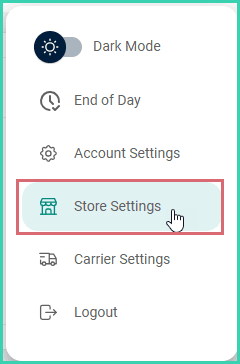
Select the store you wish to edit.
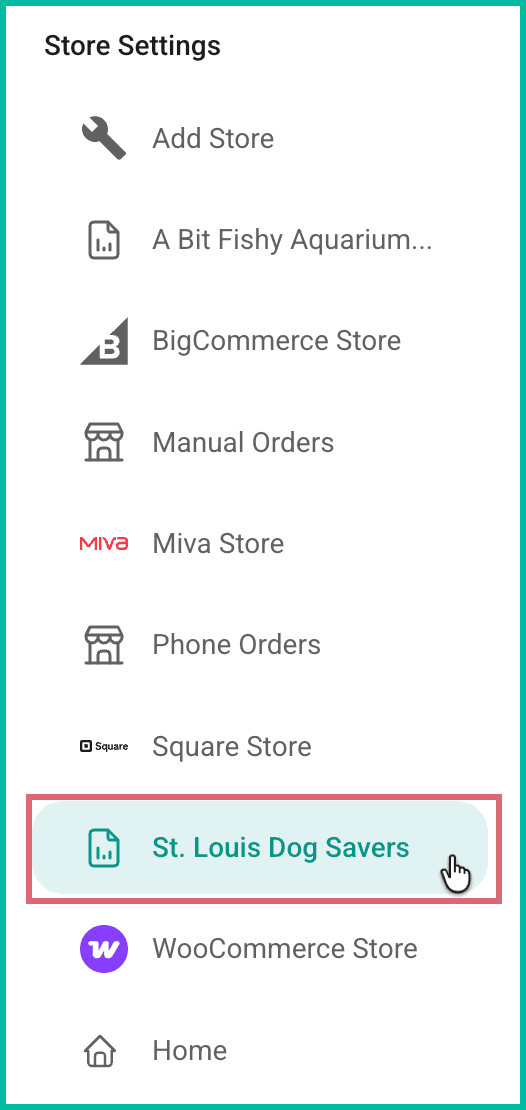
From here, you can remove an existing logo and/or add a new logo associated only with this store or sales channel.
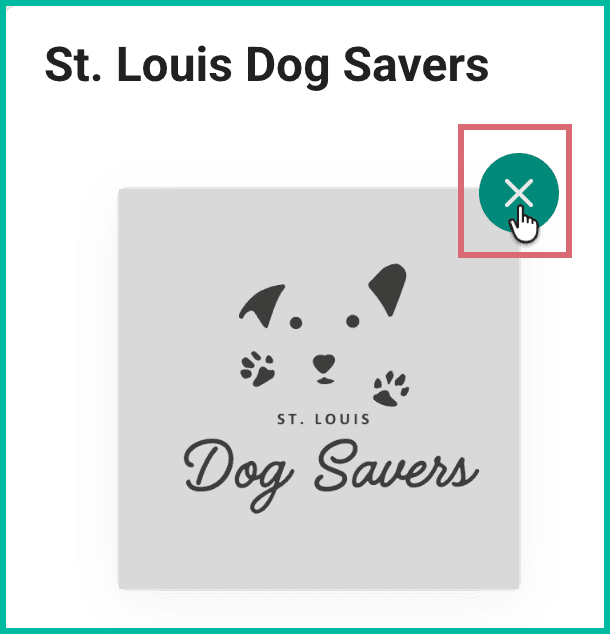
Remove an Existing Logo
Click the X at the top-right of the logo to remove it.
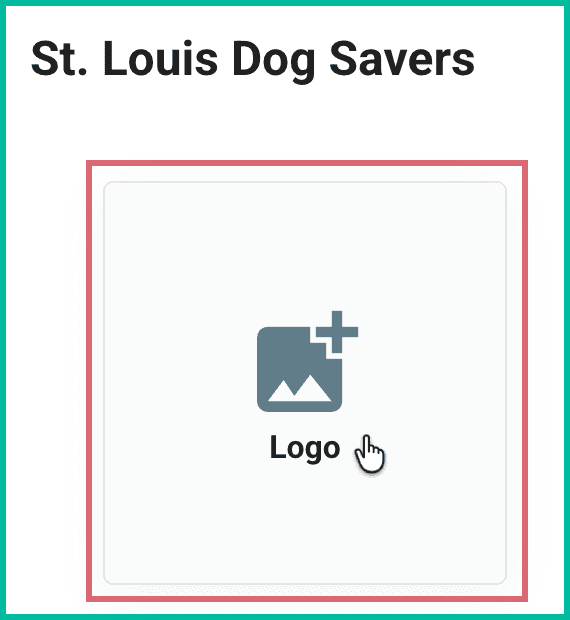
Add a Logo
Click + Logo in the logo field.
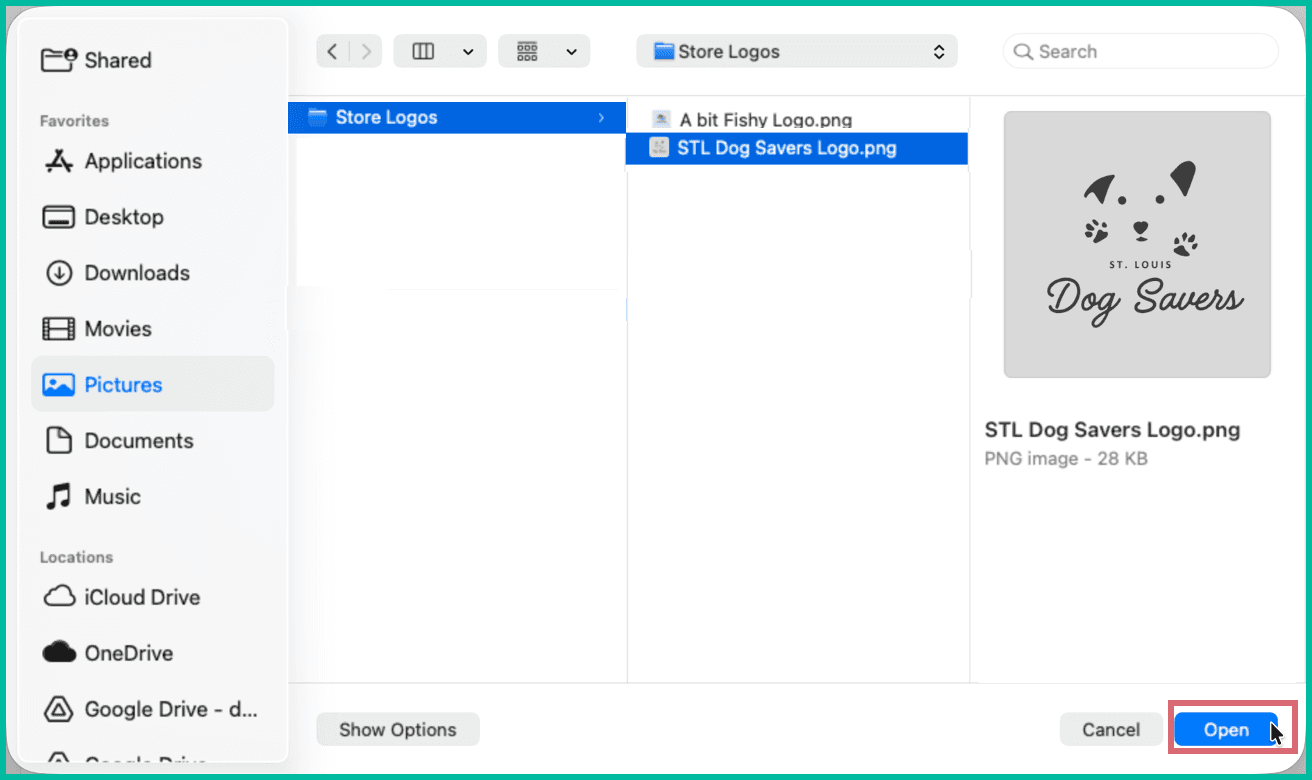
Browse to and select the image. Then, click Open.
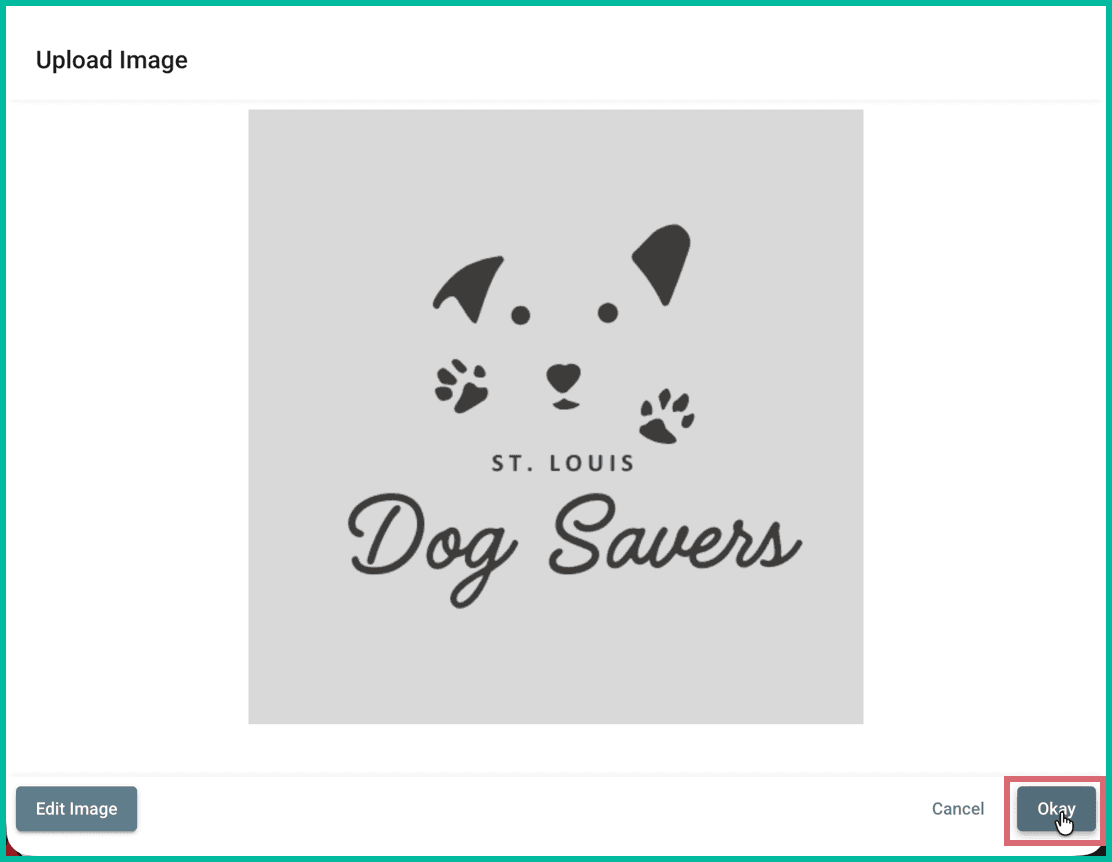
The image is uploaded and displayed in the Upload Image screen.
Click Okay to save the logo.
The logo is now added to the store.
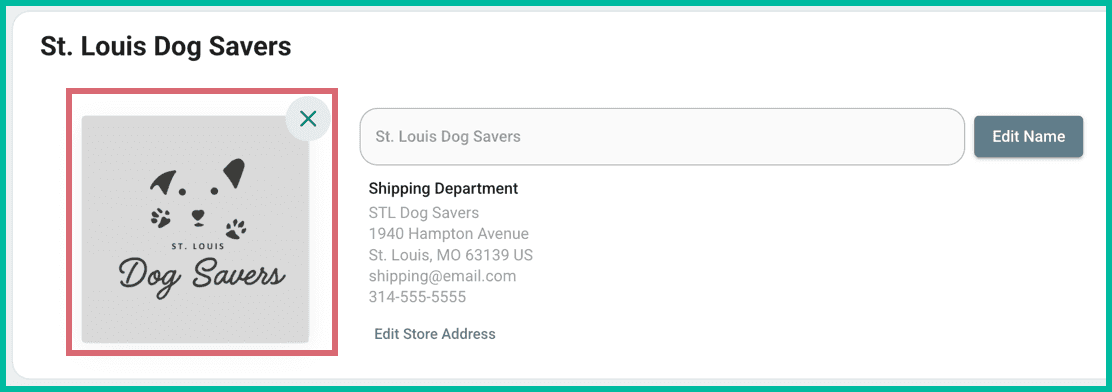
From now on, the default templates, like the Invoice or Packing slip templates, will automatically display this logo for orders associated with this store.
Edit a Logo Image
Need to edit the image? Maybe you need to crop it, resize it, or rotate it? Check out the Edit an Image section of our Upload and Manage Template Images help article.
On this page
Related