Manually Send Emails
Send an email for one or multiple orders using Postsale's built-in email system
Use Postsale to send an email for a single order or several orders at the same time. You can choose an email template, sender, subject, recipient, and PDF attachment before sending the message.
This article guides you through configuring and manually sending an email from the Orders Grid.
Manually Send an Email
REAL-WORLD EXAMPLE
We want to let our customer know that their order has shipped. We'd like to send an email that includes details of the order along with tracking information that can be used to track the shipment.
The steps below use the real-world example above, but you can choose the email settings that fit your needs.
On the Orders Grid, search for and select the order(s) you want to email.
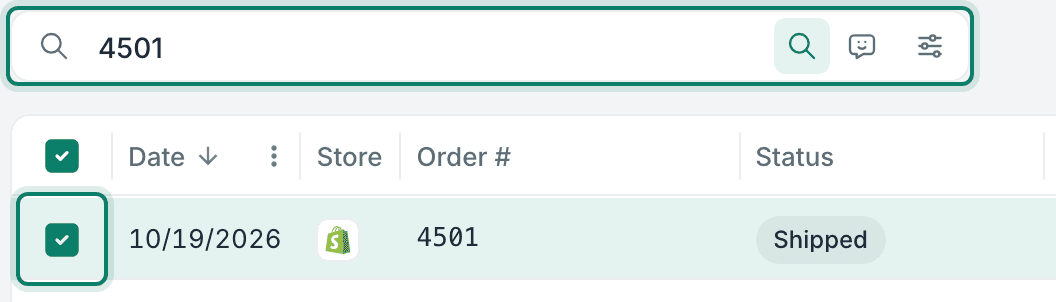
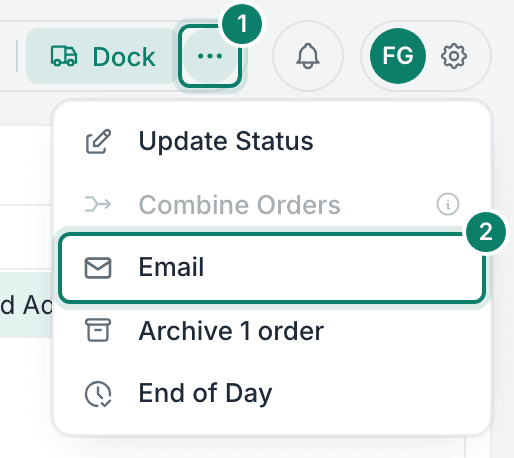
Open the More actions menu (the three dots), and select Email.
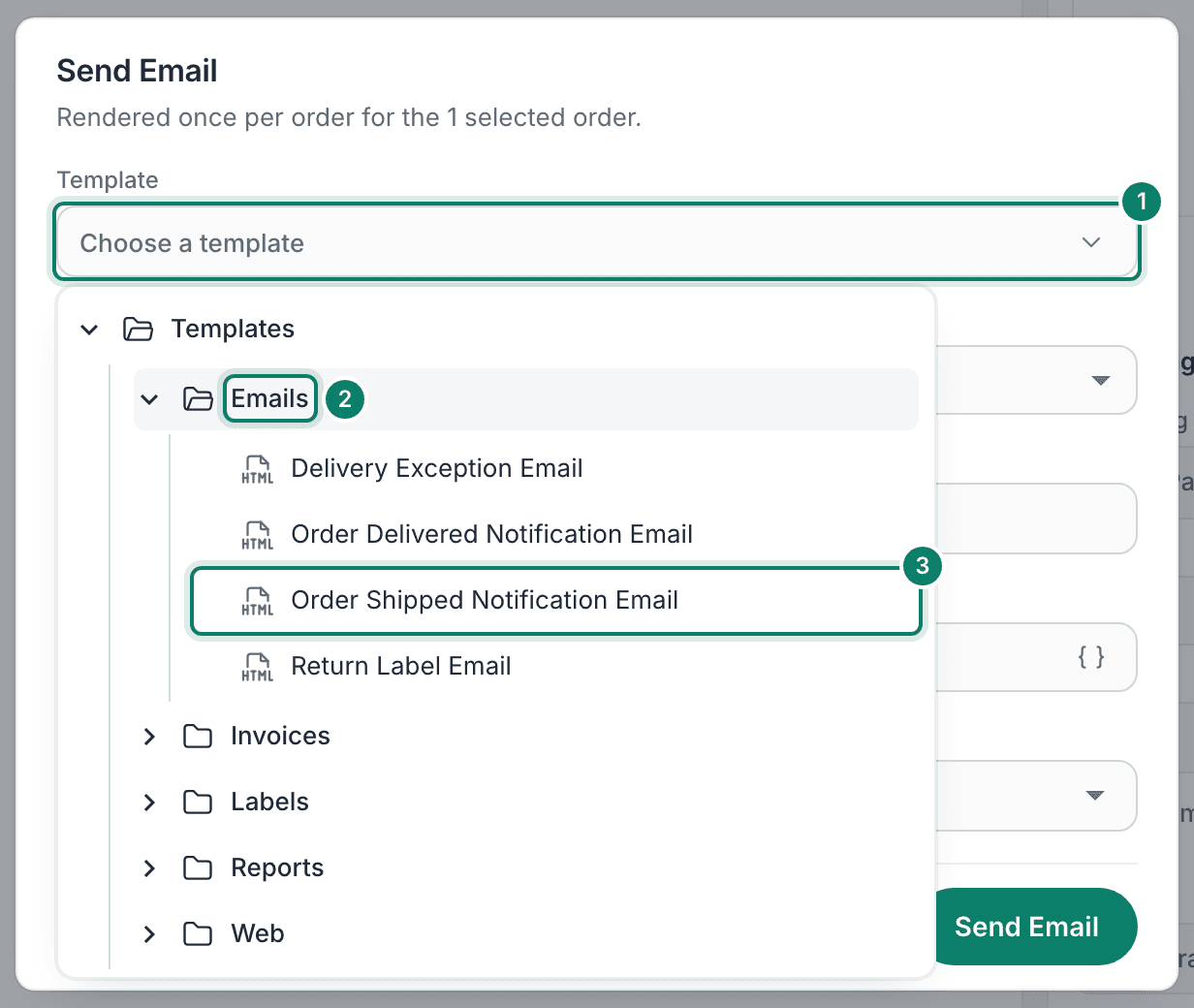
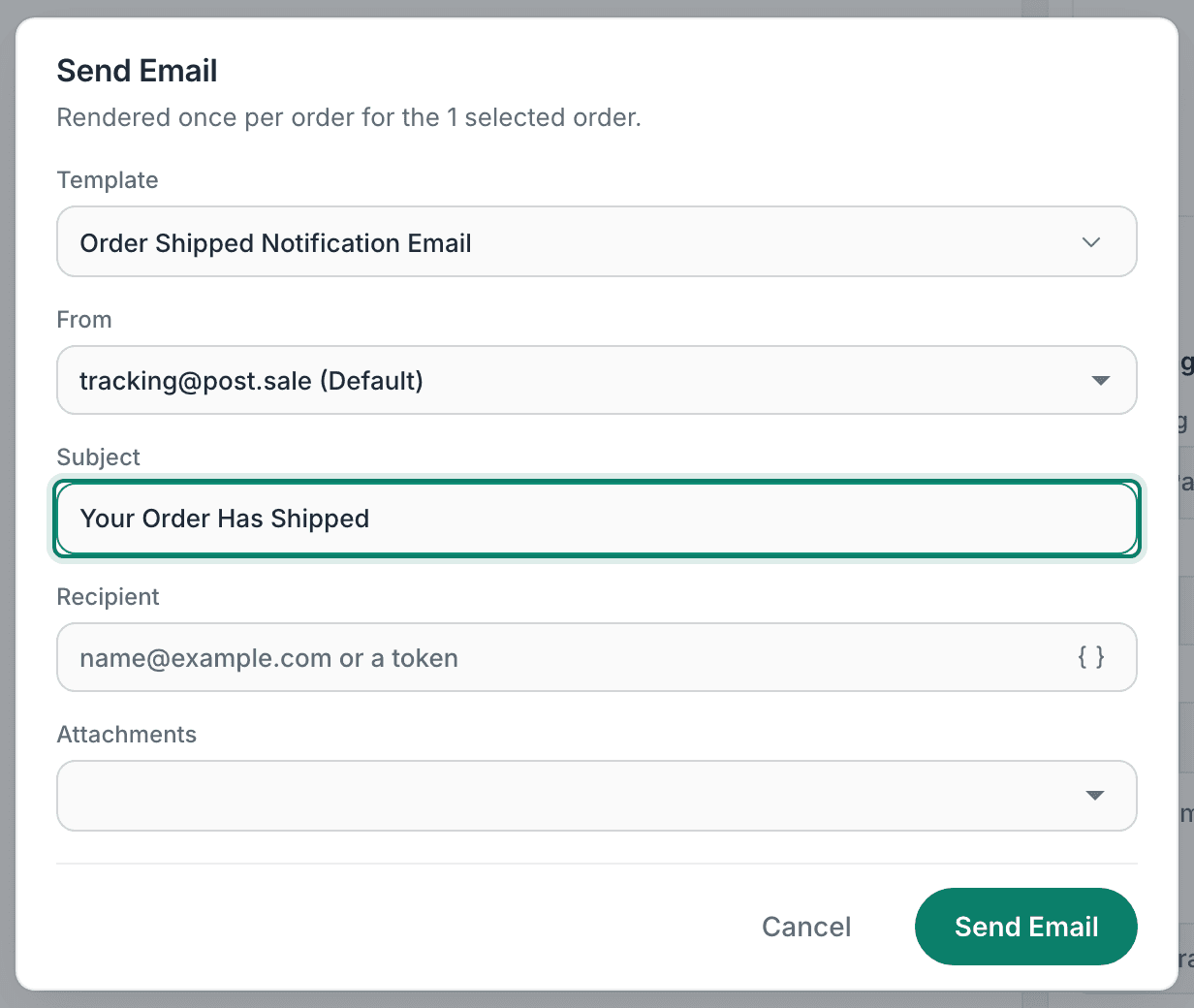
In the Send Email pop-up, open the Template field, expand Emails, and select Order Shipped Notification Email.
For this example, we selected the included Postsale template Order Shipped Notification Email because we want to include a shipment notification with order and tracking information. However, you can select any template that fits your needs.
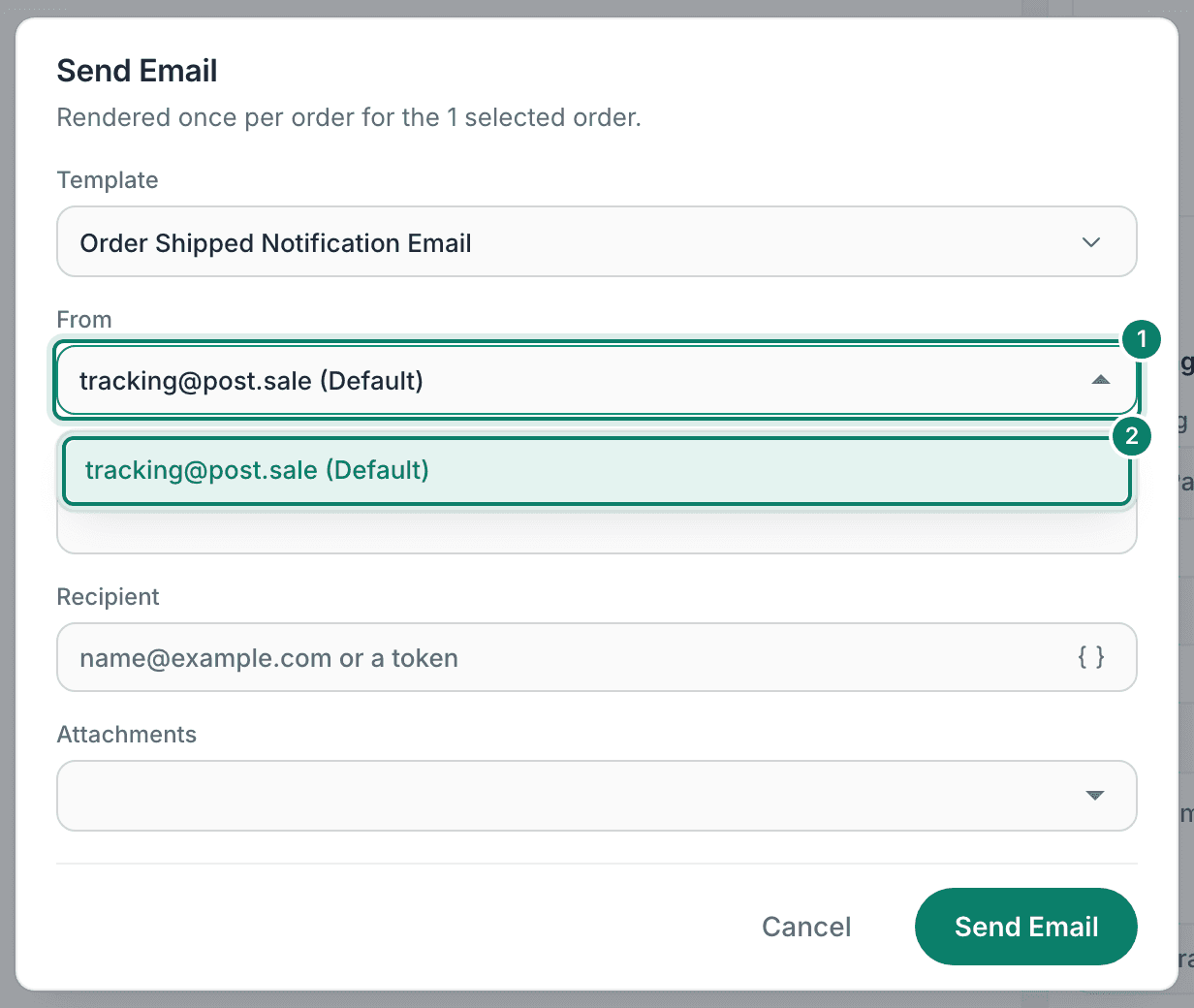
Open the From field, and select the email account that will send the message.
Review the Subject field, and edit the subject line if needed.
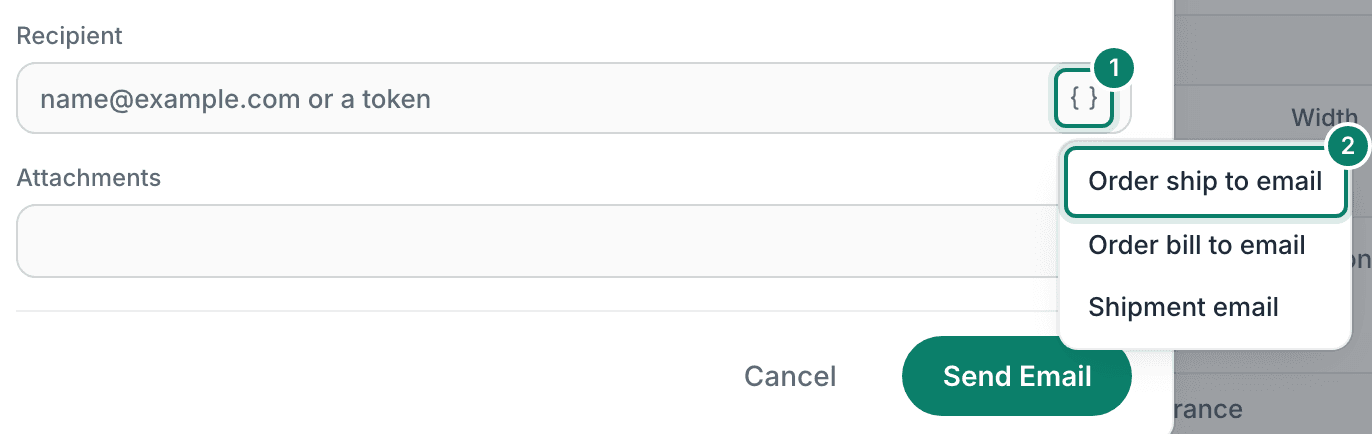
In the Recipient field, enter an email address, or click the Insert a recipient token button ({ }) and select a recipient token:
- Order ship to email
- Order bill to email
- Shipment email
For this example, we selected Order ship to email. The field then shows the token {{ order.ship_address.email }}, and Postsale fills in the order's ship-to email address when it sends the email.
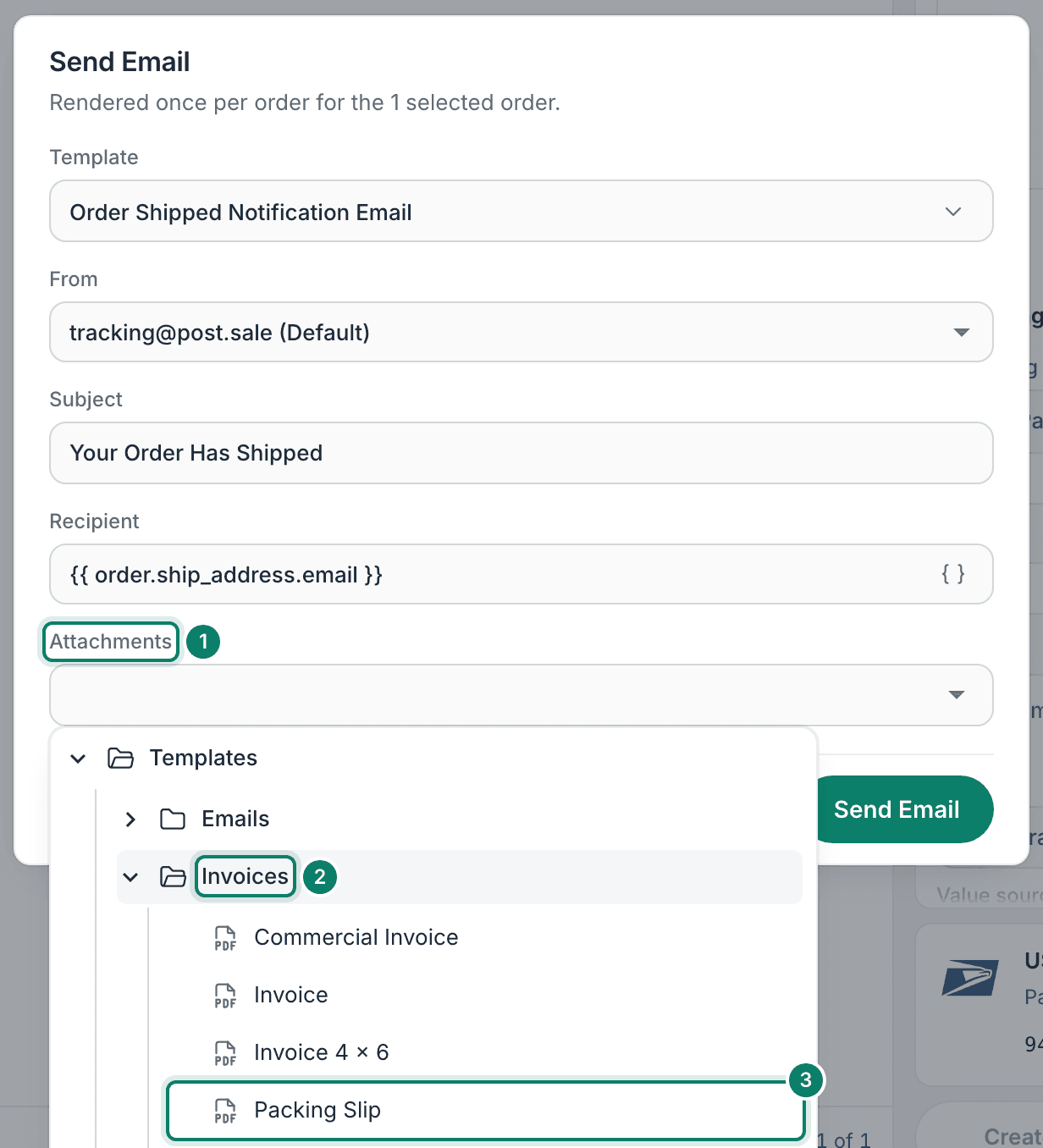
Open the Attachments field, expand the Invoices folder, and select Packing Slip.
The Attachments field adds the selected template to the email as a PDF. In this example, we attached the Packing Slip template to provide additional information about the order. You might also use Attachments to include a PDF of a shipping label.
Review the email settings. Then, click Send Email.
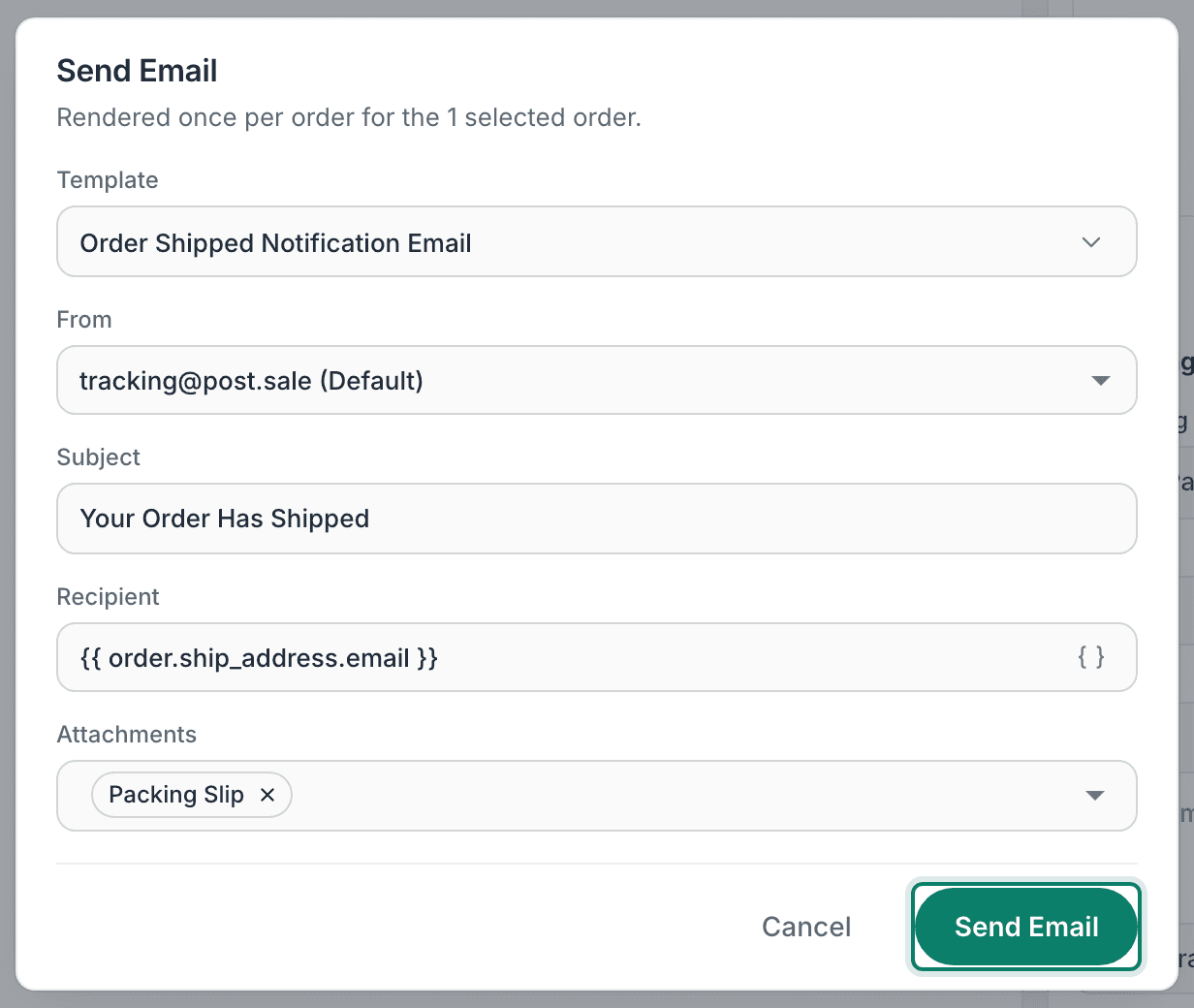
Postsale sends the configured email for the selected order(s) to the selected recipient(s).
Still have a question? Ask a person.
Write to support@postsale.com or send us a message. We reply the same business day, Monday to Friday, 8 AM to 5 PM Central.